














How to Open an Exness Demo Account
How to Open an Account
How to Open an Exness Demo Account
You can easily open an Exness demo account through the “Personal Area” on the Exness member page. No ID verification or deposits are required to use the demo account.Anyone can open a demo account simply by registering for an Exness account, allowing you to experience the same trading environment as a live account—completely risk-free. We encourage you to register for an Exness account and open a demo account today.
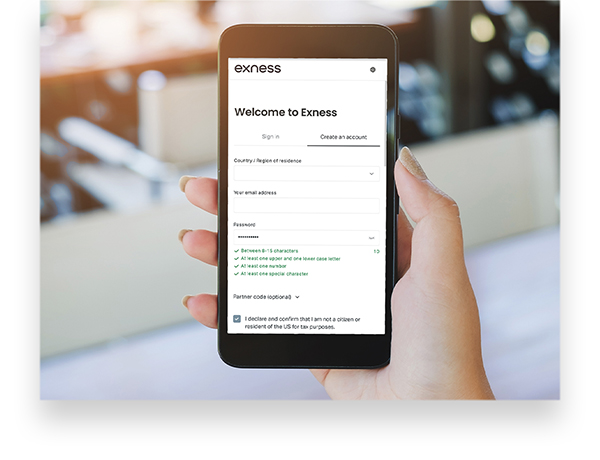
Access the Exness Personal Area registration form from your computer, smartphone, tablet, or other device, and enter your country/region, email address, and password.


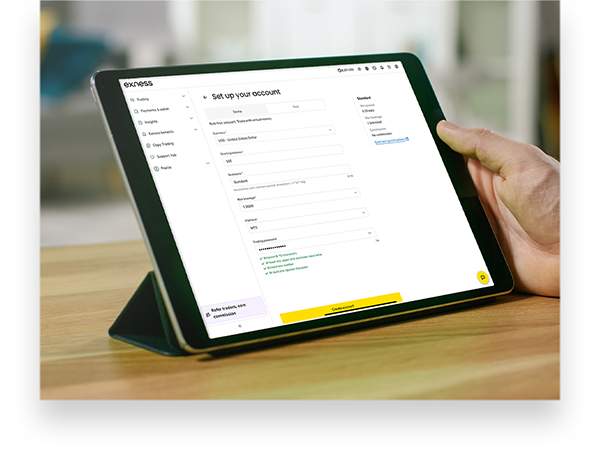
Log in to your Exness Personal Area and enter the information required to open a demo account, such as your initial balance, account type, leverage, and trading platform.
Install Exness MT4/MT5. Exness MT4/MT5 is available for PC (Windows/Mac) and mobile devices (iOS/Android).
Once your demo account has been opened, you can start demo trading on MT4/MT5 right away. No deposit or profile verification (ID verification) is required.
Features of the Exness Demo Account
Anyone who has registered an account with Exness can use an Exness demo account for free. There are no tedious procedures such as making a deposit or verifying your profile (identity verification). Open an Exness demo account and experience the same trading environment as a live account—with no risk.
Experience a real trading environment without having to make a deposit or verify your identity
With an Exness demo account, you can trade under the same conditions as a live account. Since the demo account balance consists of virtual money, no deposit is required. You can experience the same spreads, execution speed, and leverage of up to 2,000x as an Exness live account without spending a single yen of your own money.(*) There are no restrictions on tradable instruments; you can trade everything from FX currency pairs to CFD products such as gold and silver, as well as cryptocurrencies like Bitcoin, using your demo account.Furthermore, no profile verification (identity verification) is required to use an Exness demo account. Once you’ve installed MT4 or MT5, you can start demo trading immediately after opening your demo account.
(*) Leveraged trading involves high risk, and you may lose all of your invested capital. Please ensure you fully understand the risks before trading.
You can open up to 200 accounts per account.
At Exness, you can open up to 200 demo accounts per account—100 MT4 demo accounts and 100 MT5 demo accounts. Some FX brokers limit the number of demo accounts to around 10.However, at Exness, not only can you open up to 200 accounts, but you can also archive (hide) demo accounts you no longer use, effectively allowing you to open an unlimited number of demo accounts. This means you can open demo accounts with various combinations of account types, leverage, trading platforms (MT4/MT5), base currencies, and more.Try trading on multiple demo accounts, then open an Exness live account with the specifications that best suit your trading style.

At Exness, you cannot manually delete a demo account once it has been opened, but you can archive (hide) it from the “My Account” section of your Personal Area.Once a demo account is archived, you will no longer be able to make deposits or withdrawals or execute trades. Even if you archive a demo account, you can reactivate it at any time.
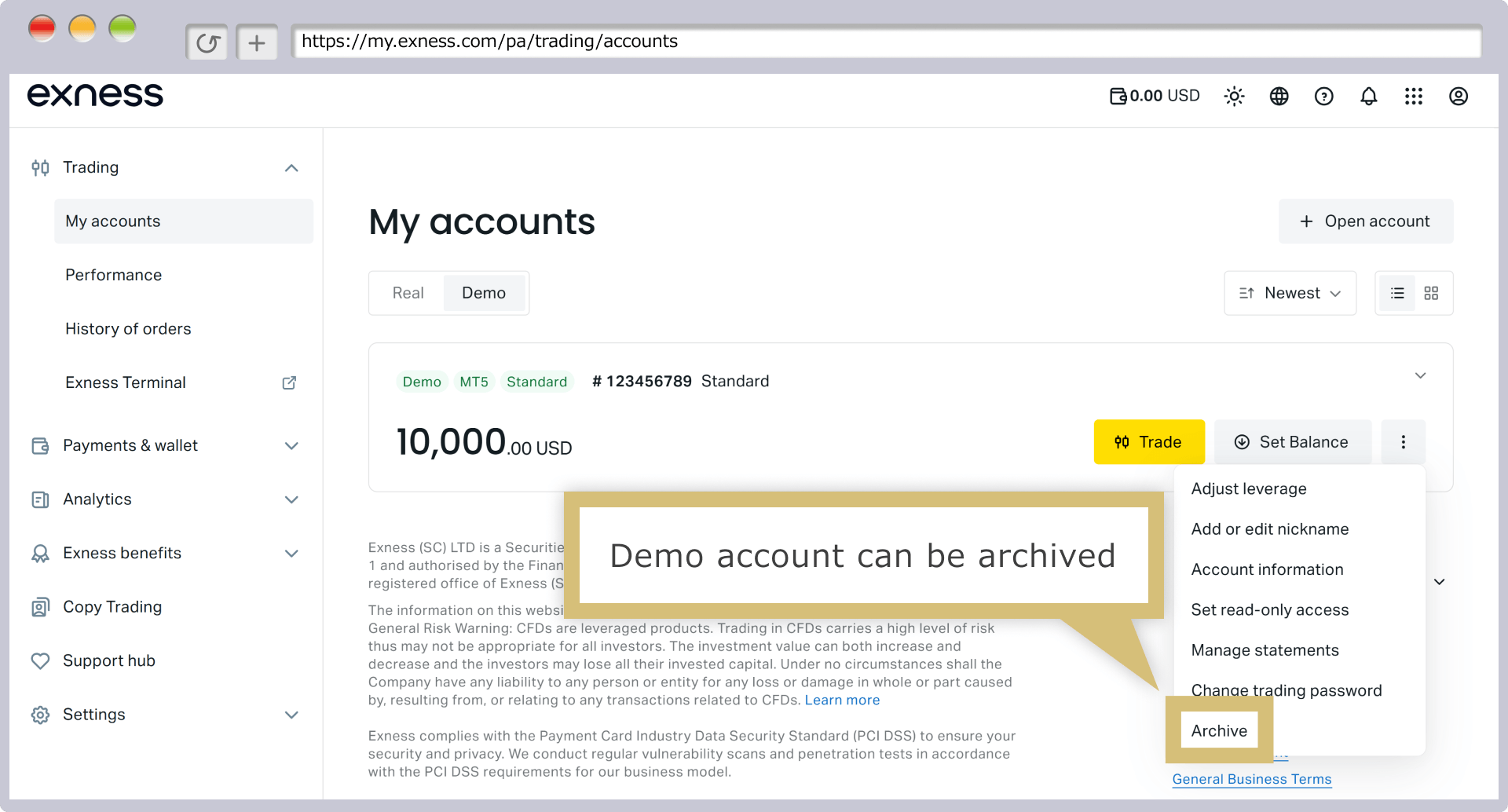
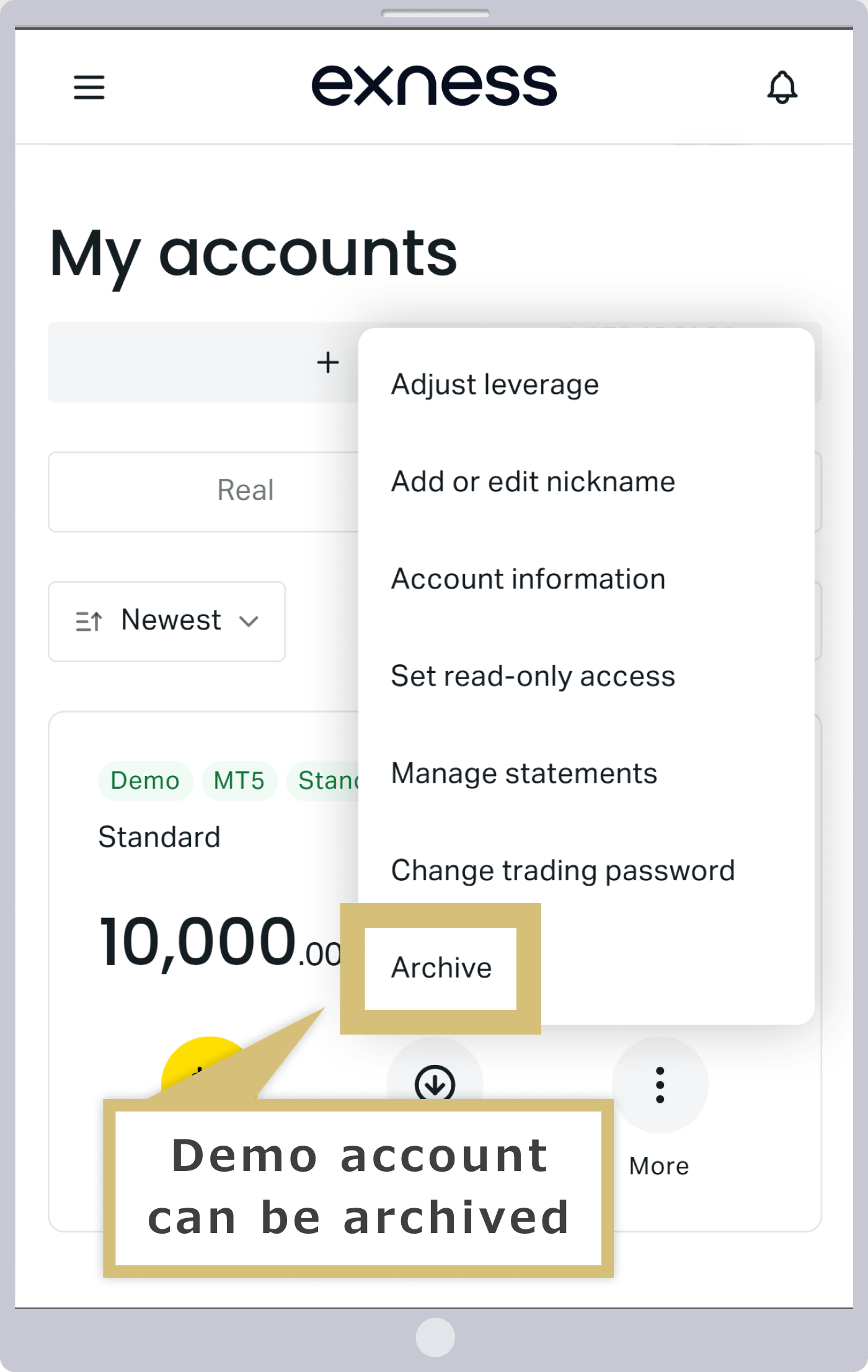
You can change your balance and leverage at any time
With Exness demo accounts, you can freely adjust your account balance (virtual money) and leverage at any time. With some FX brokers, the demo account balance is limited to the initial amount set up, and you may not be able to replenish the balance or change the leverage settings afterward.However, Exness’s demo accounts offer flexible options for adjusting your balance and leverage. Therefore, even if you happen to deplete your demo account balance through demo trading, you can continue using the same account by replenishing it. Additionally, you do not need to open a new demo account if you wish to change your leverage settings.Enjoy a comfortable demo trading experience with Exness’s demo accounts, designed with your convenience in mind.
No expiration date for demo accounts
Exness demo accounts have no expiration date.Some FX brokers set an expiration period of about one month for demo accounts. In such cases, once the period expires, you must open a new demo account, and each time you do so, you’ll start from scratch. However, at Exness, as long as you continue to log in—even if you have no trading history on the demo account—you can use it indefinitely.This means that with Exness, you can evaluate your performance over the long term without having to repeatedly open new demo accounts. Please note, however, that if you do not log in to your demo account for a certain period of time, the account will be deleted.
Benefits of Opening an Exness Demo Account
At Exness, we offer user-friendly demo accounts so that our clients can enjoy a comfortable demo trading experience. By using a demo account, you can not only experience the actual trading environment before opening a live account, but also compare trading tools and test EAs (automated trading systems). The main benefits of opening a demo account with Exness are as follows.
Experience leverage of up to 2,000x with no risk
Exness offers industry-leading leverage of up to 2,000:1. (*) While high leverage allows you to trade with significantly lower margin requirements, trading with high leverage in a live account also carries high risks.However, with an Exness demo account, you can trade with up to 2,000x leverage without using your own funds. This allows anyone to see how margin requirements change with high-leverage trading—all at no risk.
If you start trading with up to 2,000x leverage on a live account right away, you could end up incurring unexpected losses. Therefore, to protect your valuable funds, we recommend that you try trading with Exness’s maximum leverage of 2,000x on a demo account first.
(*) Leveraged trading involves high risk, and you may lose all of your invested capital. Please ensure you fully understand the risks before trading.
At Exness, to enable our clients to trade under more favorable conditions, we offer leverage of up to 2,000x as well as a “0% stop-out level.”However, since these features are rarely offered by other brokers, it can be difficult to understand exactly how they work—and what their advantages and disadvantages are—in a real trading environment. By using an Exness demo account, you can get a feel for how much of a balance decline you can withstand before a stop-out occurs when trading with a 0% stop-out level.We encourage you to use the demo account to experience Exness’s unique features in a trading environment identical to that of a live account.
Allows you to backtest EAs (automated trading systems)
You can also run EAs (automated trading software) on an Exness demo account. This allows you to test the performance of EAs using a demo account. By using a demo account, you can see how the trading strategies configured in an EA actually perform in a live trading environment—all with no risk.
Exness demo accounts do not have an expiration date; however, if there is no login activity for more than 180 days on an MT4 demo account or more than 21 days on an MT5 demo account, the account will be automatically deleted.Therefore, if you plan to use an Exness demo account to conduct long-term trading tests with an EA, be sure to stay logged in to prevent your account from being deleted.
Compare MT4 and MT5
Exness demo accounts are compatible with both MetaTrader 4 (MT4) and MetaTrader 5 (MT5).Therefore, if you’re unsure whether to use MT4 or MT5 as your trading platform, you can open demo accounts with the same specifications on both MT4 and MT5 to compare their features and see which one works best for you.
Additionally, if you are considering switching from MT4 to MT5, you can first experience MT5’s new features and smooth operation through a demo account. Since Exness does not allow you to change your trading platform after opening a live account, please make sure you are satisfied with the actual trading environment through demo trading before selecting your trading platform.
You can find the account type that's right for you
Exness offers five different account types, each with its own features, and you can open a demo account for any of the four account types except the Standard Cent account.Since trading conditions—such as spreads, trading fees, swap points, and order execution methods—vary by account type, we recommend using a demo account to try trading with the account types that interest you and get a feel for their features.Exness demo accounts replicate the same trading environment as live accounts, allowing you to experience the live trading conditions of each account type risk-free. After trying out an Exness demo account and feeling confident, please open a live account of the type that best suits your trading style.
Steps to Open an Exness Demo Account
To open a demo account with Exness, you must first register for an Exness account and access the “Personal Area,” Exness’s member portal. From the Personal Area, select your desired initial balance, account type, and other options, and then open a demo account.Please note that anyone can open an Exness demo account for free, provided they meet the eligibility requirements for a live account—namely, being at least 18 years old and residing in a region where the service is available.
To apply for an Exness demo account, please click here.
Filling Out the Personal Information Form
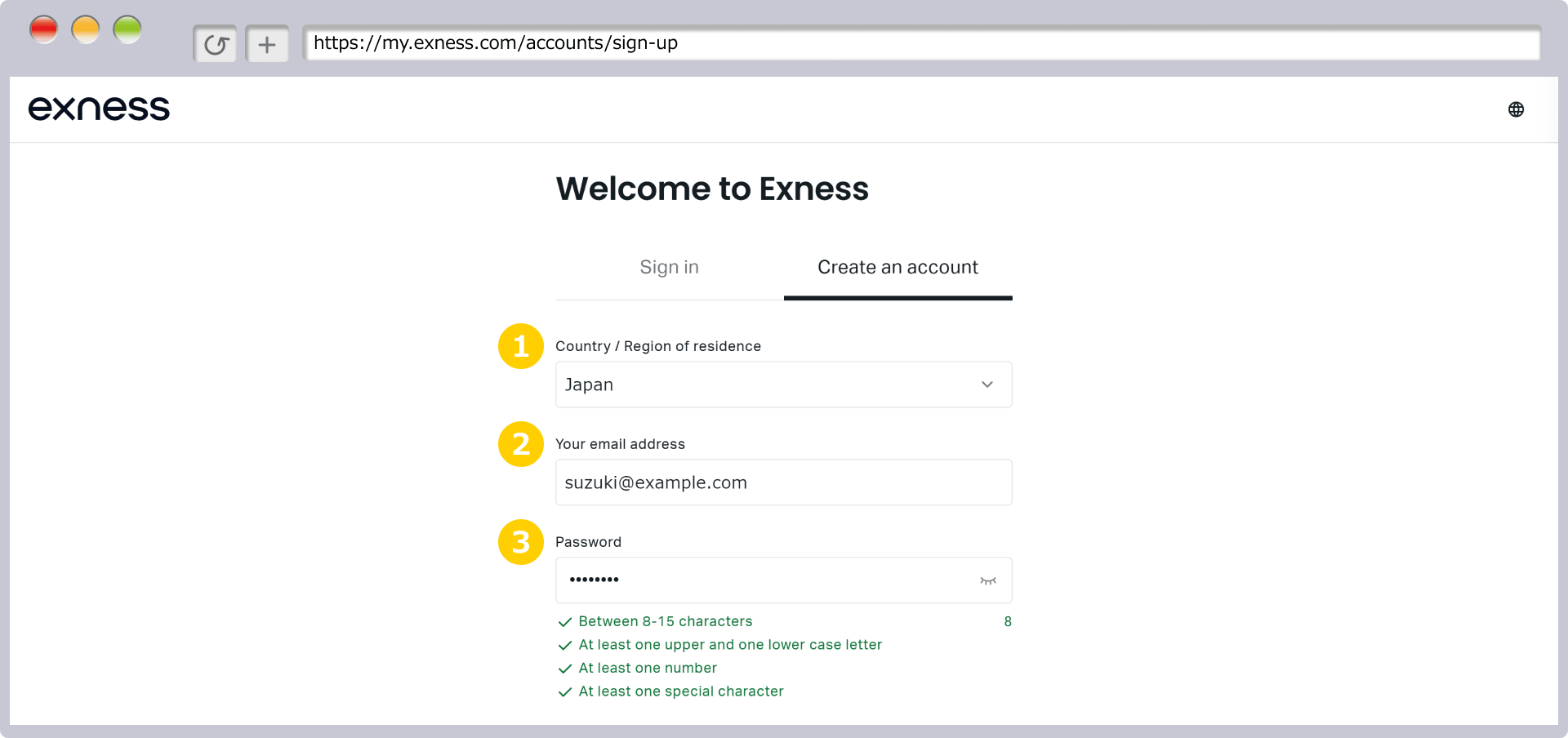
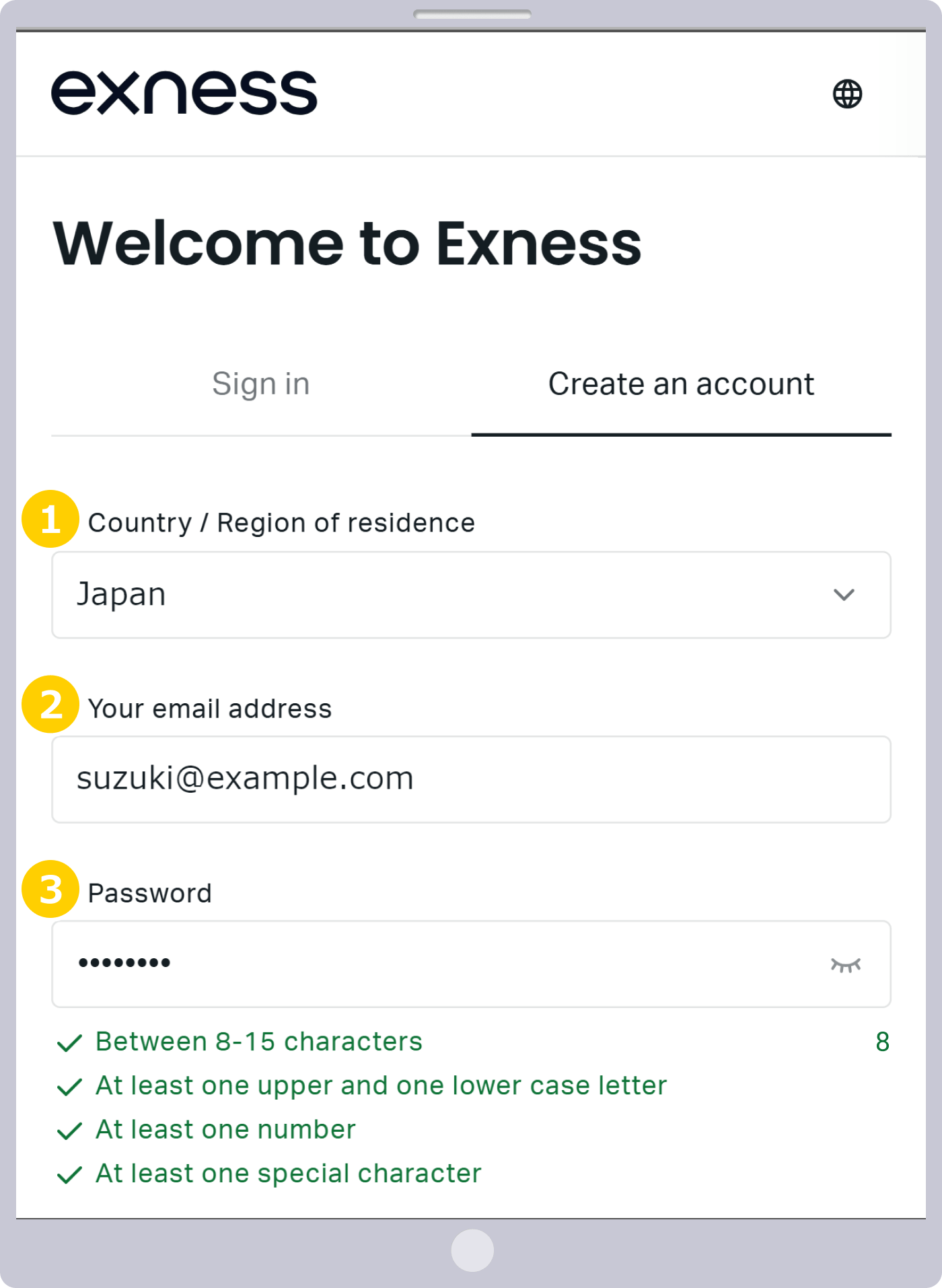
On the Exness Personal Area form, select your country or region of residence, then enter the email address and password you use for Exness.
|
Country/Region of Residence |
Example: Japan |
|
Email Address |
Example: [email protected] |
|
Set a password of your choice |
Example: Password1234 |
|
Country/Region of Residence |
|
Example: Japan |
|
Email Address |
|
Example: [email protected] |
|
Set a password of your choice |
|
Example: Password1234 |
① Country/Region: Please select the country where you currently live from the drop-down menu.
② Enter your email address using half-width alphanumeric characters. Please note that you cannot change your email address after registration, so be sure to enter a valid email address.
③ The password is the one used to log in to your Personal Area (Member Page). Please create a password that is 8 to 15 characters long and includes both uppercase and lowercase letters as well as numbers.Items that meet the requirements displayed below the password field will be marked with a green ✔. Once all requirements are met, you can proceed to the next step.
Submitting Personal Area Registration Information
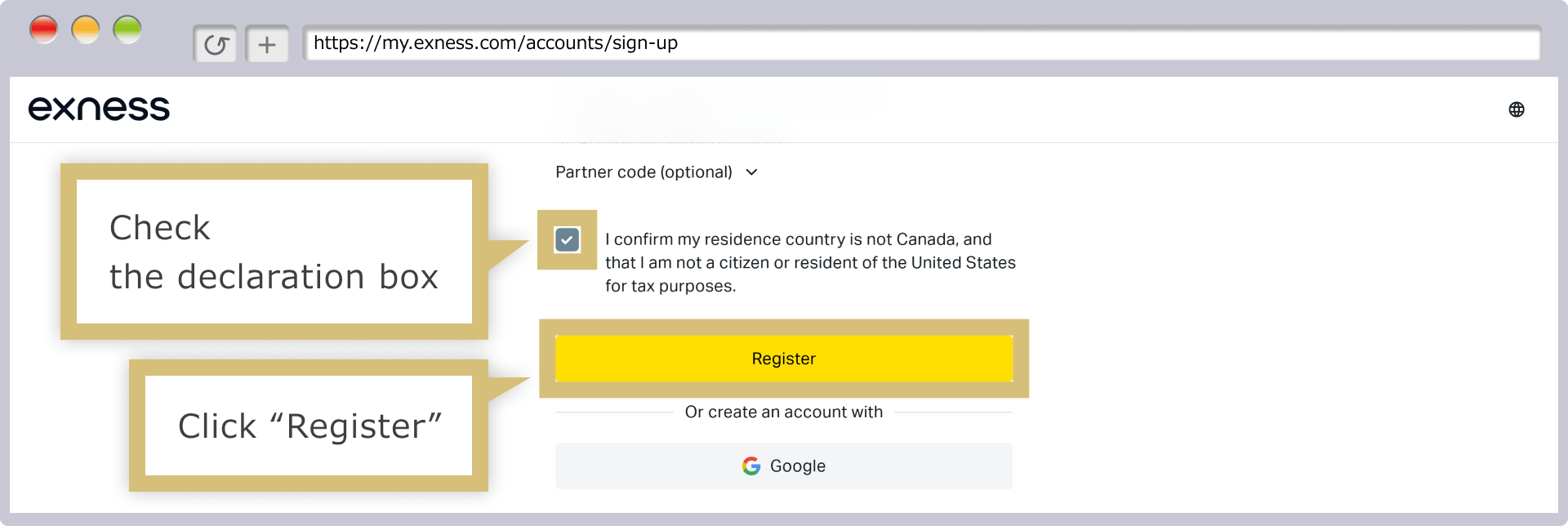
After meeting all the password requirements, check the box next to “I certify and affirm that I am not a U.S. citizen or resident subject to U.S. tax obligations.” If the information you entered is correct, click “Continue.”
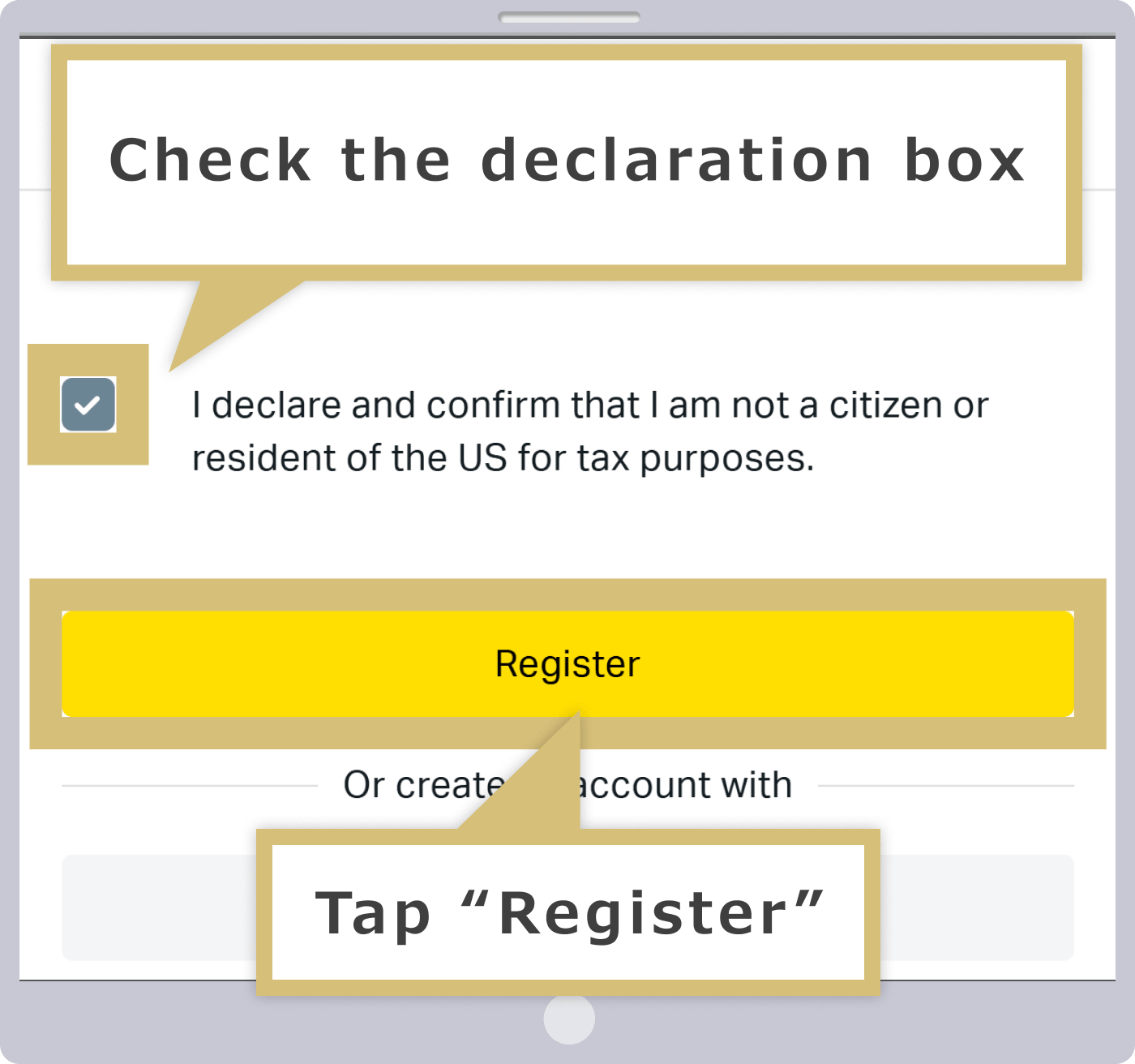
After meeting all the password requirements, check the box next to “I confirm and affirm that I am not a U.S. citizen or U.S. resident subject to tax obligations.” If the information you entered is correct, tap “Continue.”

Exness's various terms of service are as follows.
Personal Area Registration Complete
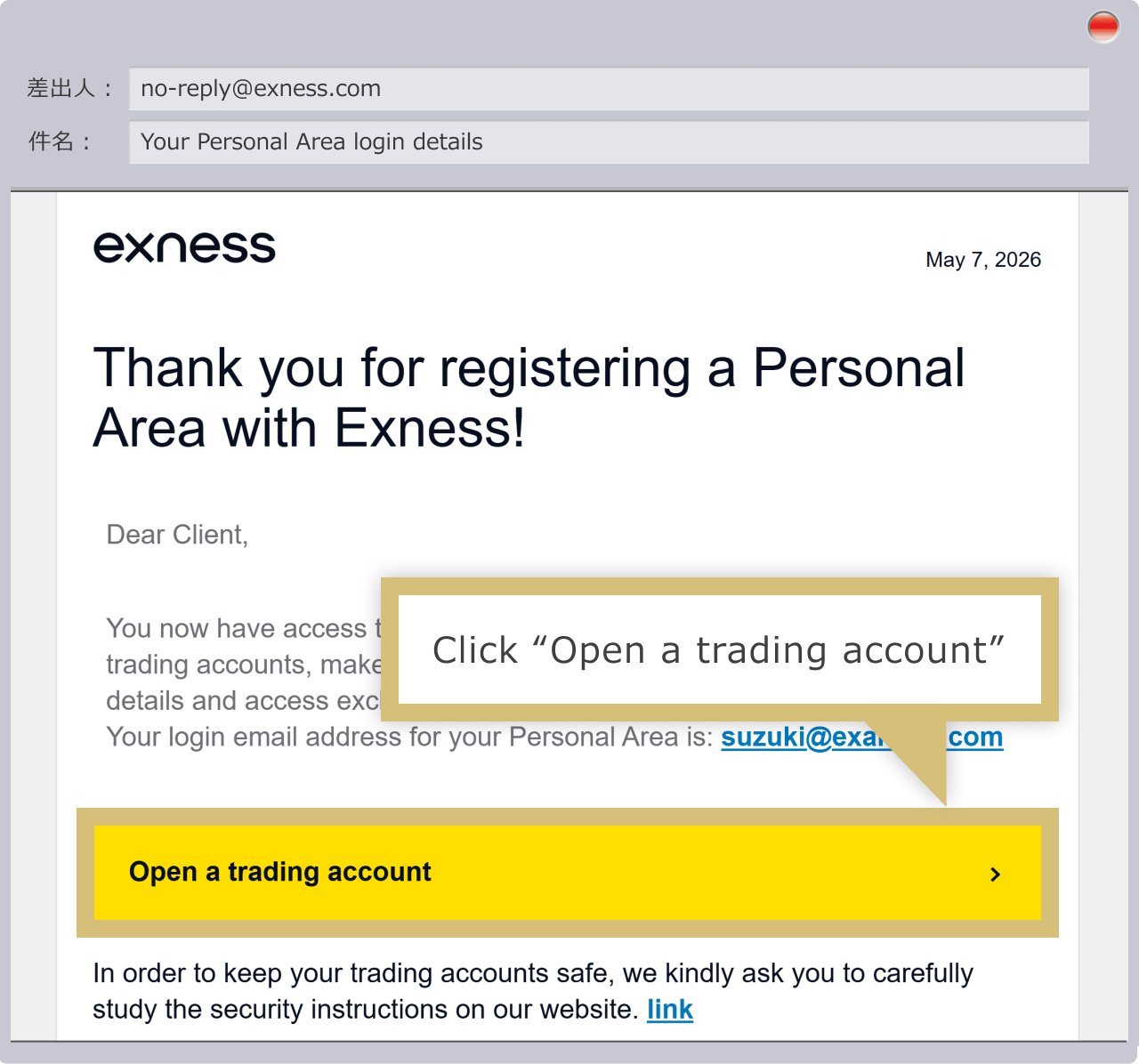
Once you have completed setting up your Exness Personal Area, an email with the subject line “Login Information for the Personal Area” will be sent to your registered email address. Click “Open a Trading Account” in the body of the email to be redirected to the Exness Personal Area.
Once you have completed setting up your Exness Personal Area, an email with the subject line “Login Information for the Personal Area” will be sent to your registered email address. Tap “Open a Trading Account” in the body of the email to be redirected to the Exness Personal Area.
Log In to Your Personal Area
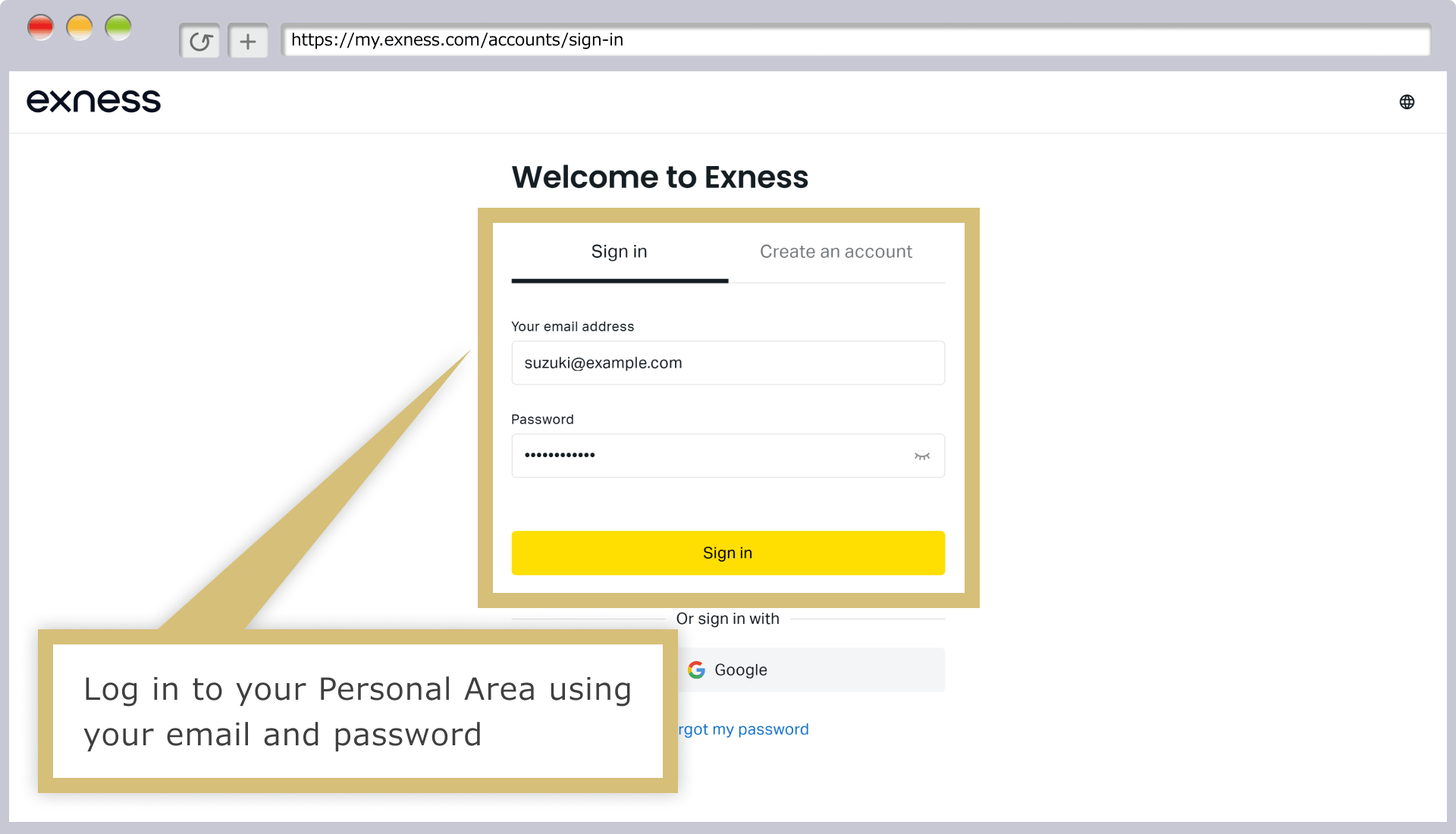
When the login form for the Exness Personal Area appears, enter the "email address you used to register" when you created your Personal Area and the "login password" you set, then click "Continue."
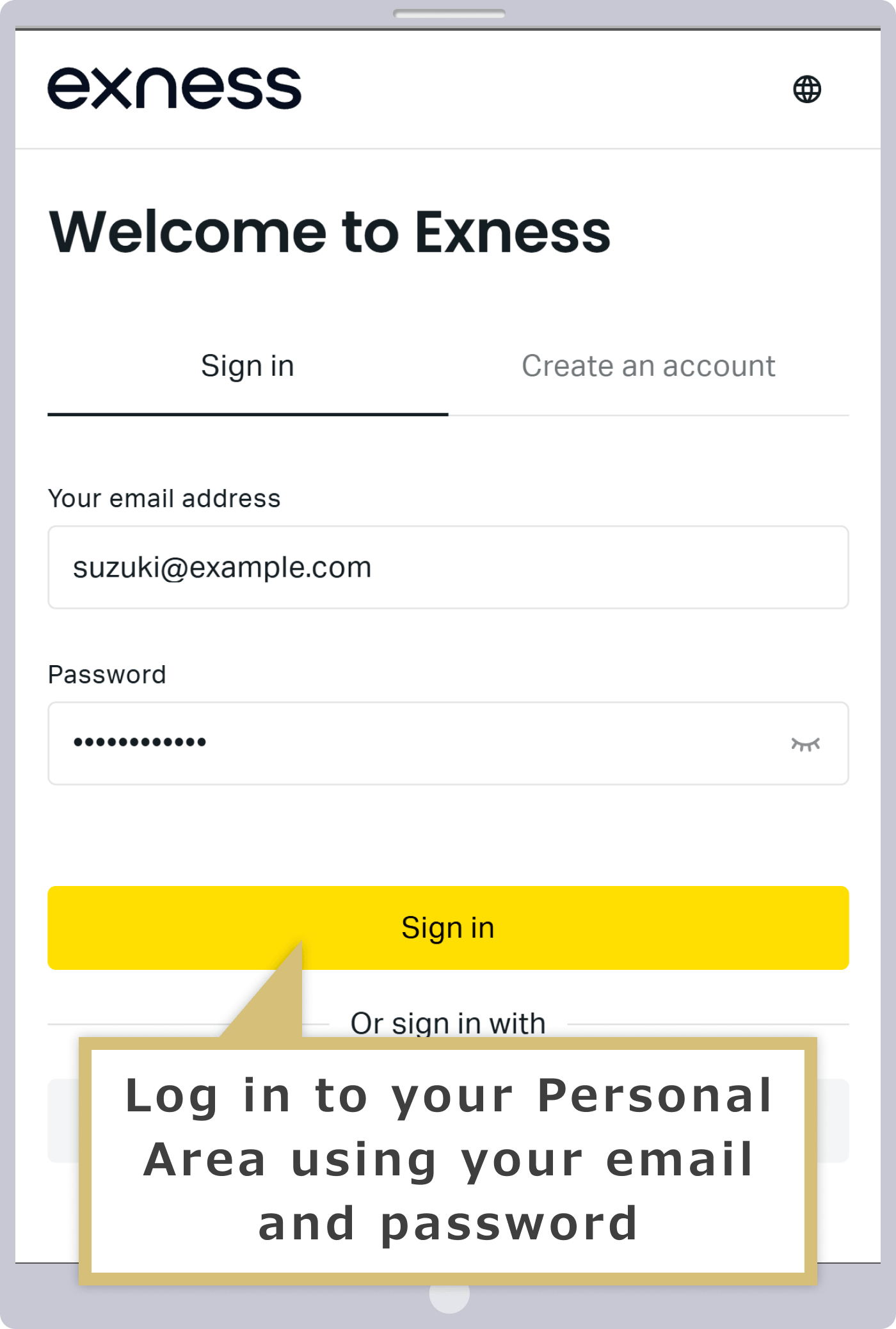
When the login form for the Exness Personal Area appears, enter the "email address you used to register" when you created your Personal Area and the "login password" you set, then tap "Continue."
Select "Open a Demo Account"
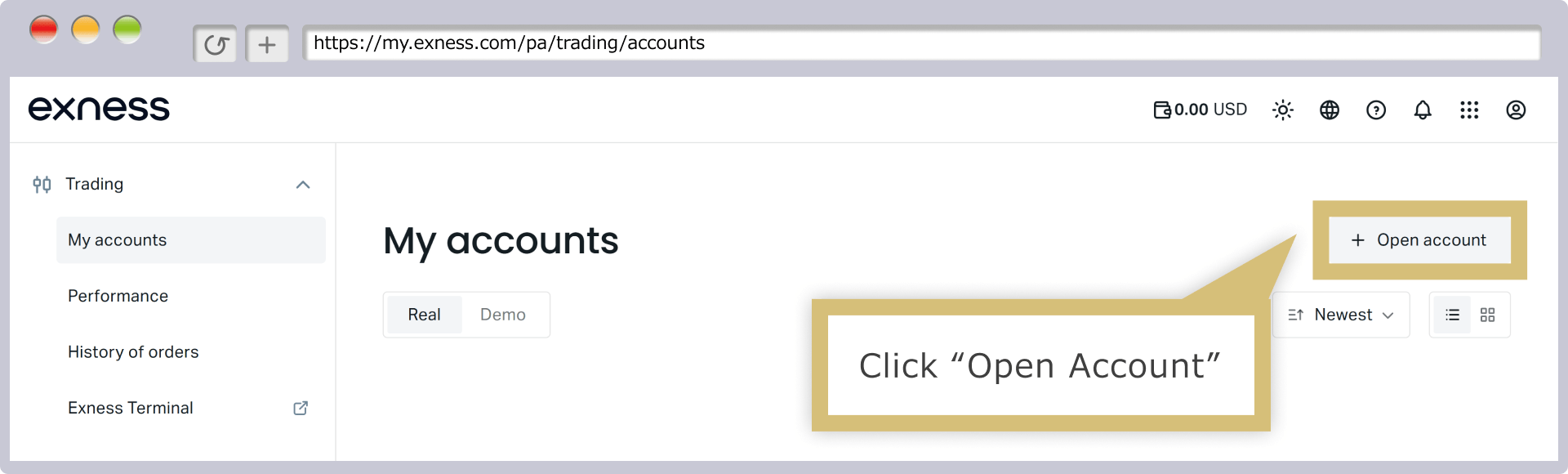
Once you have logged in to your personal account, click "Open a New Account" on the right side of "My Account."
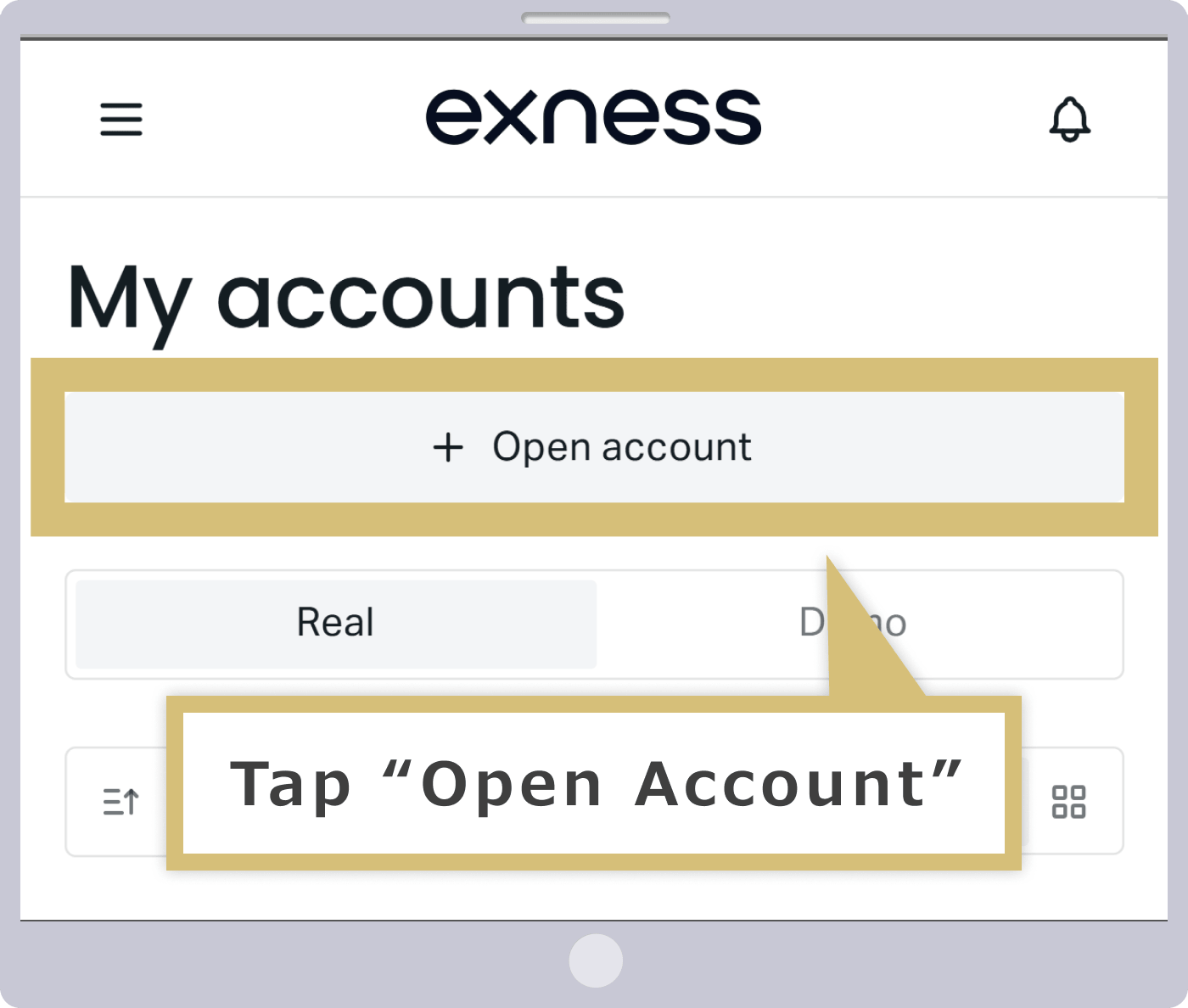
Once you've logged in to your personal account, tap "Open a New Account" at the top of the "My Account" page.
Select an Account Type
When the new account opening screen appears, select your preferred account type and click "Continue."
When the new account opening screen appears, select your preferred account type and tap "Continue."
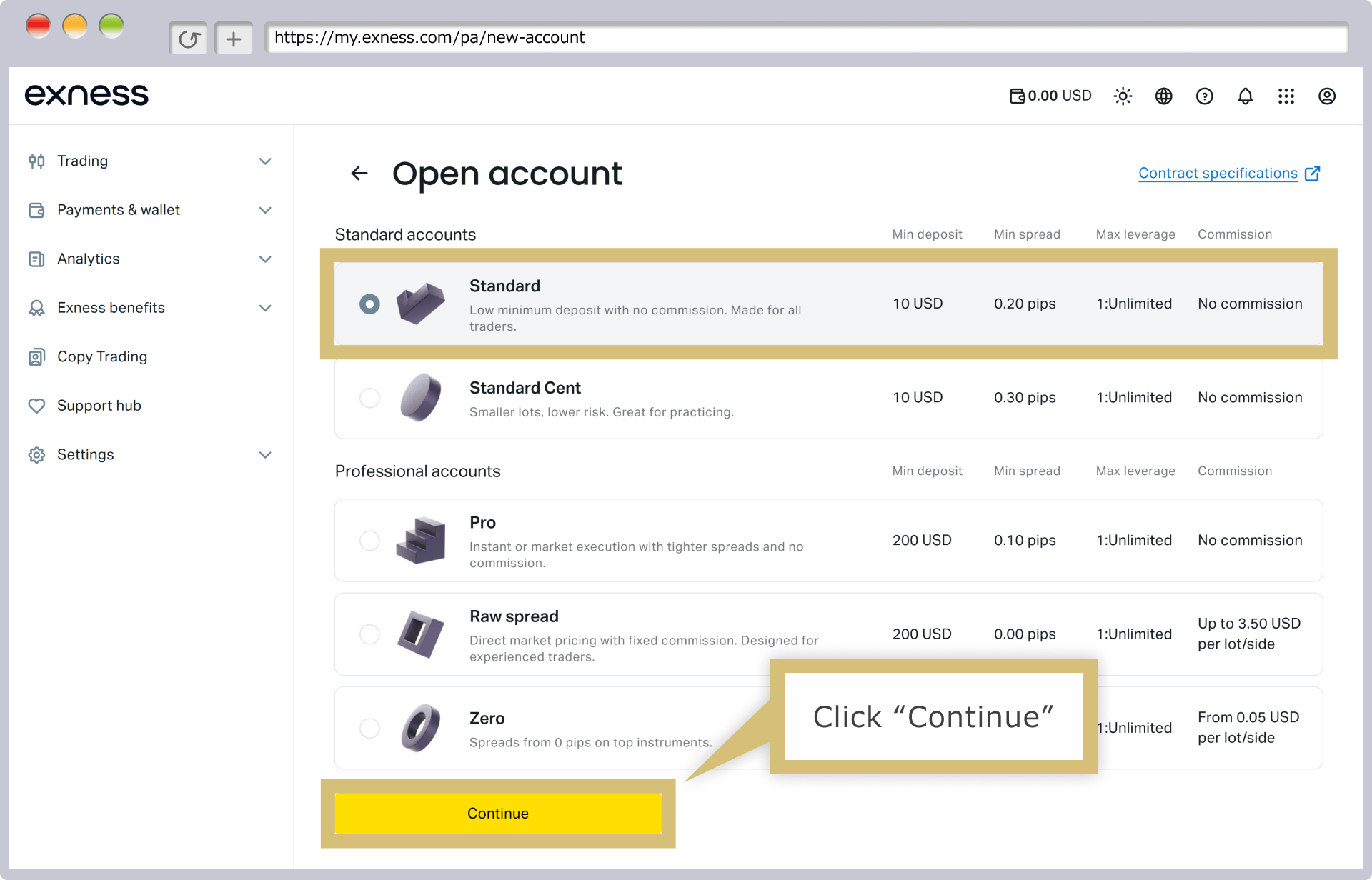
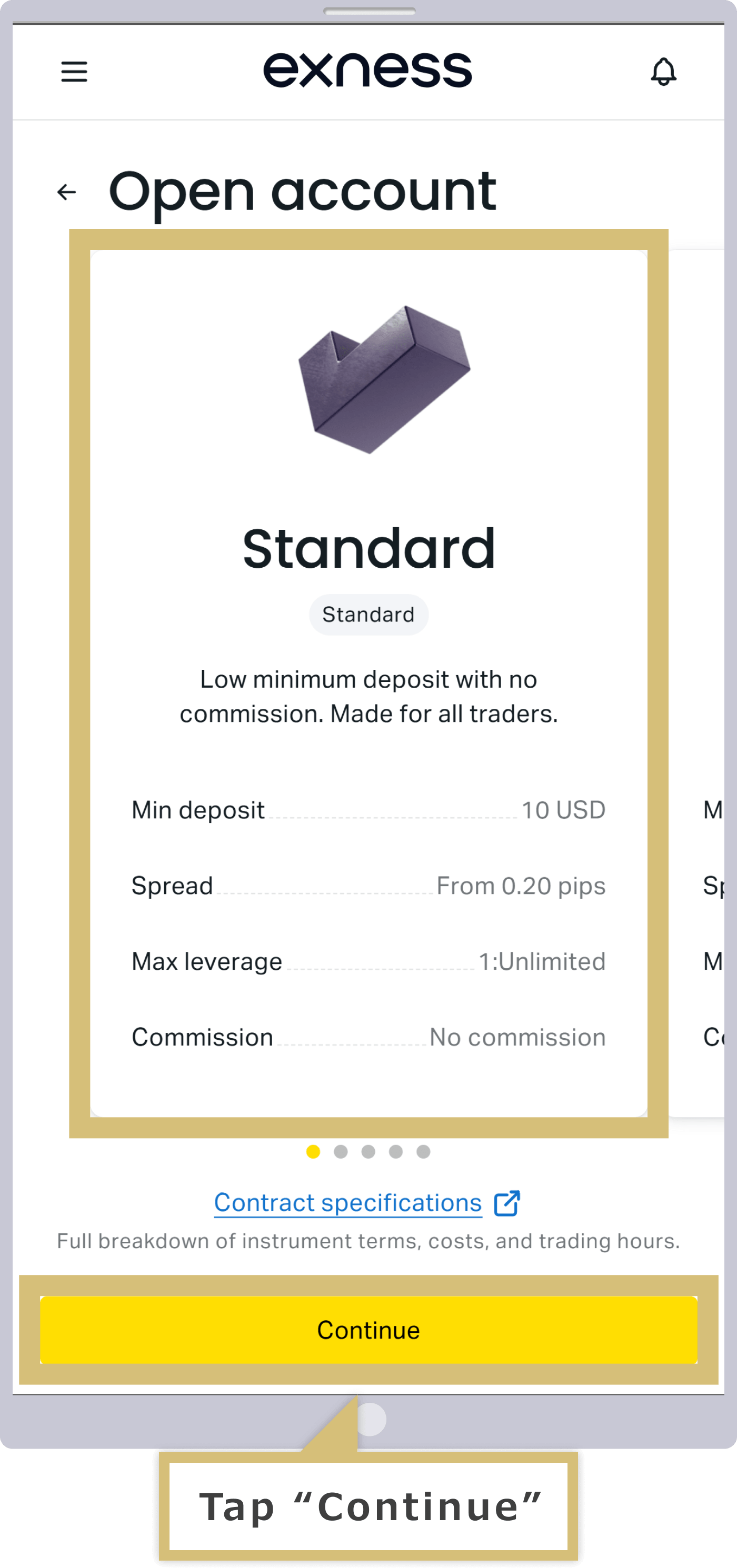
Please note that Standard Cent accounts are not eligible for demo accounts.
Filling Out the New Account Application Form
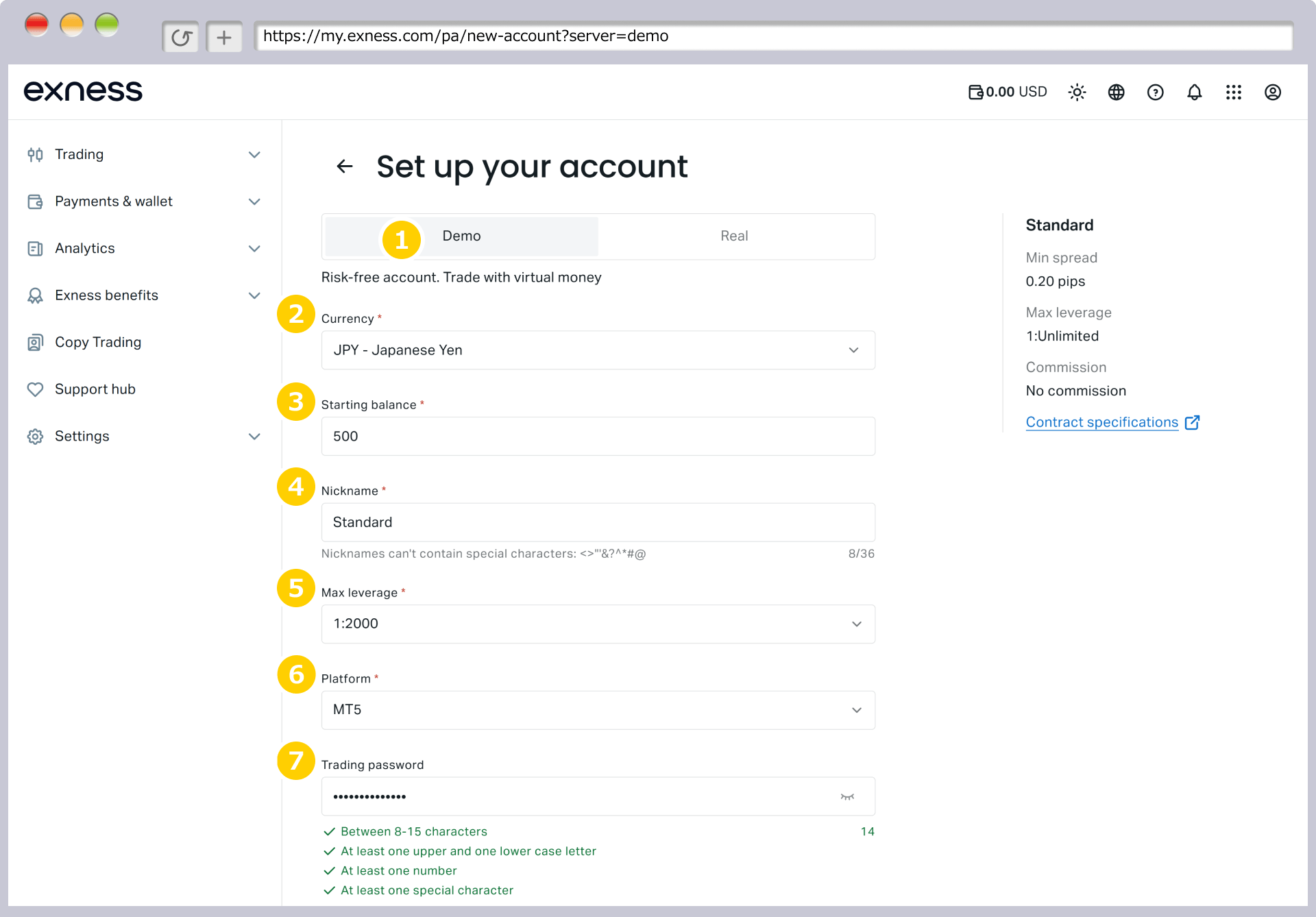
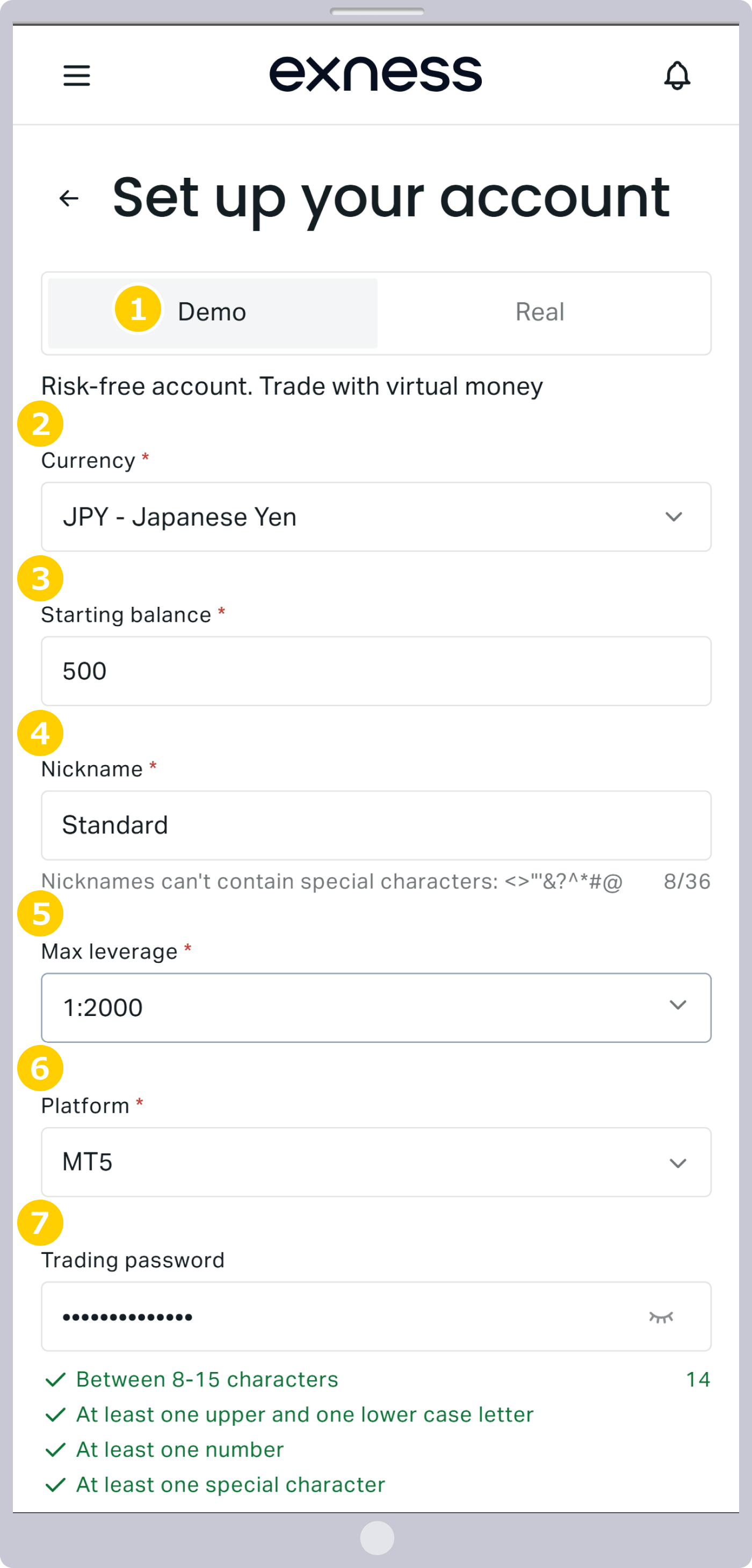
On the new account opening form, select "Demo Account" as the account type, and select or enter the other requirements.
|
Account Type |
Example: Demo Account |
|
Currency |
Example) JPY - Japanese yen |
|
Opening Balance |
Example) 500 |
|
Account Nickname |
Example: Standard |
|
Maximum Leverage |
Example: 2000:1 |
|
Trading Platform |
Example: MT5 |
|
Setting Your Account Password |
Example: Pass1111 |
|
Account Type |
|
Example: Demo Account |
|
Currency |
|
Example) JPY - Japanese yen |
|
Opening Balance |
|
Example: 500 |
|
Account Nickname |
|
Example: Standard |
|
Maximum Leverage |
|
Example: 2000:1 |
|
Trading Platform |
|
Example: MT5 |
|
Setting Your Account Password |
|
Example: Pass1111 |
① For the account type, please select “Demo Account.” Exness’s “Demo Account” allows you to experience the same trading environment as a live account without using your own funds.
② The currency will be the base currency of your trading account. The available account currencies vary by account type, so please select your preferred currency from the drop-down menu. For example, if you select “JPY,” the base currency will be the “Japanese yen.”
③ The initial balance serves as funds you can use to practice trading. With Exness, you can reset your demo account balance or set it to any amount at any time in the “My Account” section of your Personal Area.
④ You may choose to specify an account nickname if you wish.
⑤ For the maximum leverage, please specify the desired multiple.
⑥ Please specify “MT4,” “MT5,” or “Exness” as your trading platform.
⑦ The account password you set will be used to log in to the trading platform (MT4/MT5) and must be set for each trading account. Please set a password that is 8 to 15 characters long and includes both letters (case-sensitive) and numbers.
Submit New Account Opening Information
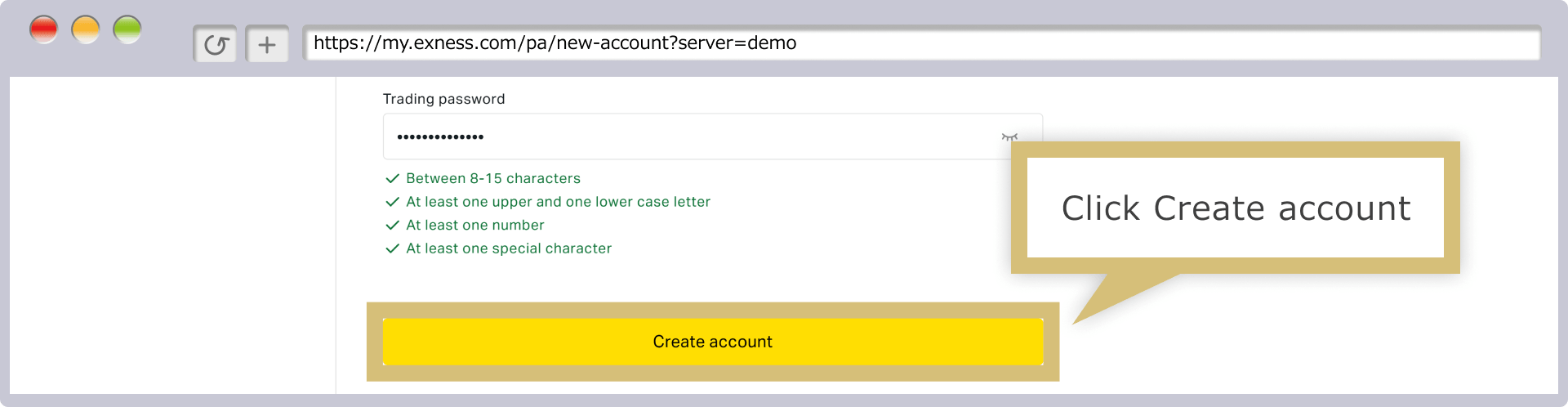
Once you have entered (or selected) all the information on the new account opening form, click “Open Account.”
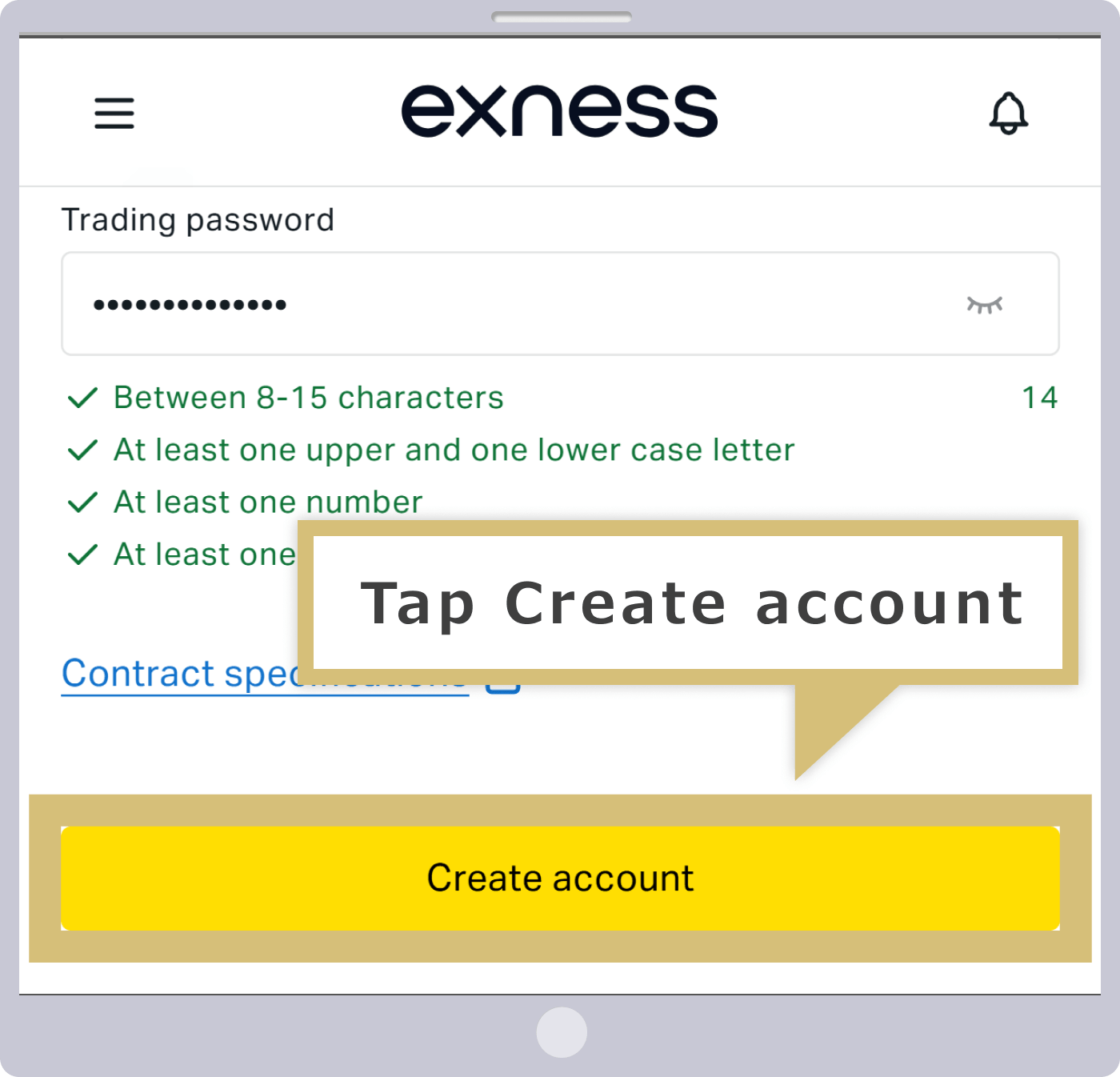
Once you have entered (or selected) all the information on the new account opening form, tap “Open Account.”
Demo Account Setup Complete
Once your demo account application is successfully completed, you will be automatically redirected to the "My Account" section of the Exness Personal Area, where your newly opened demo account will be displayed.
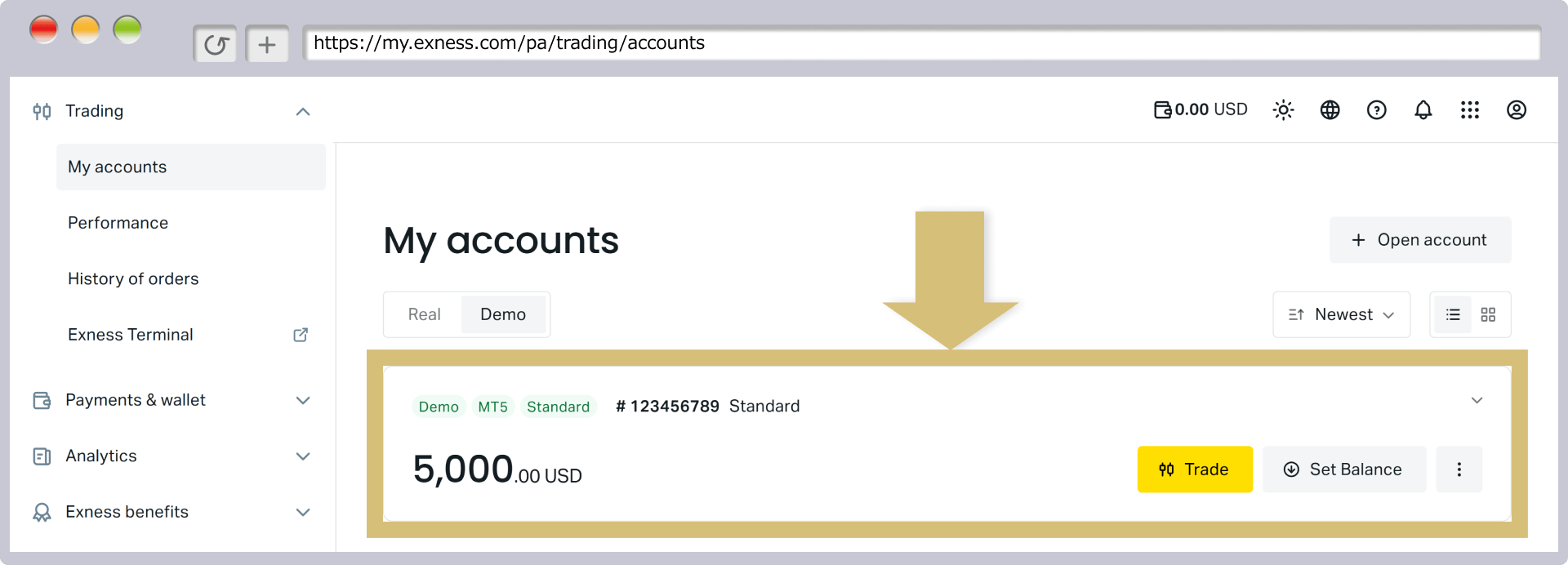
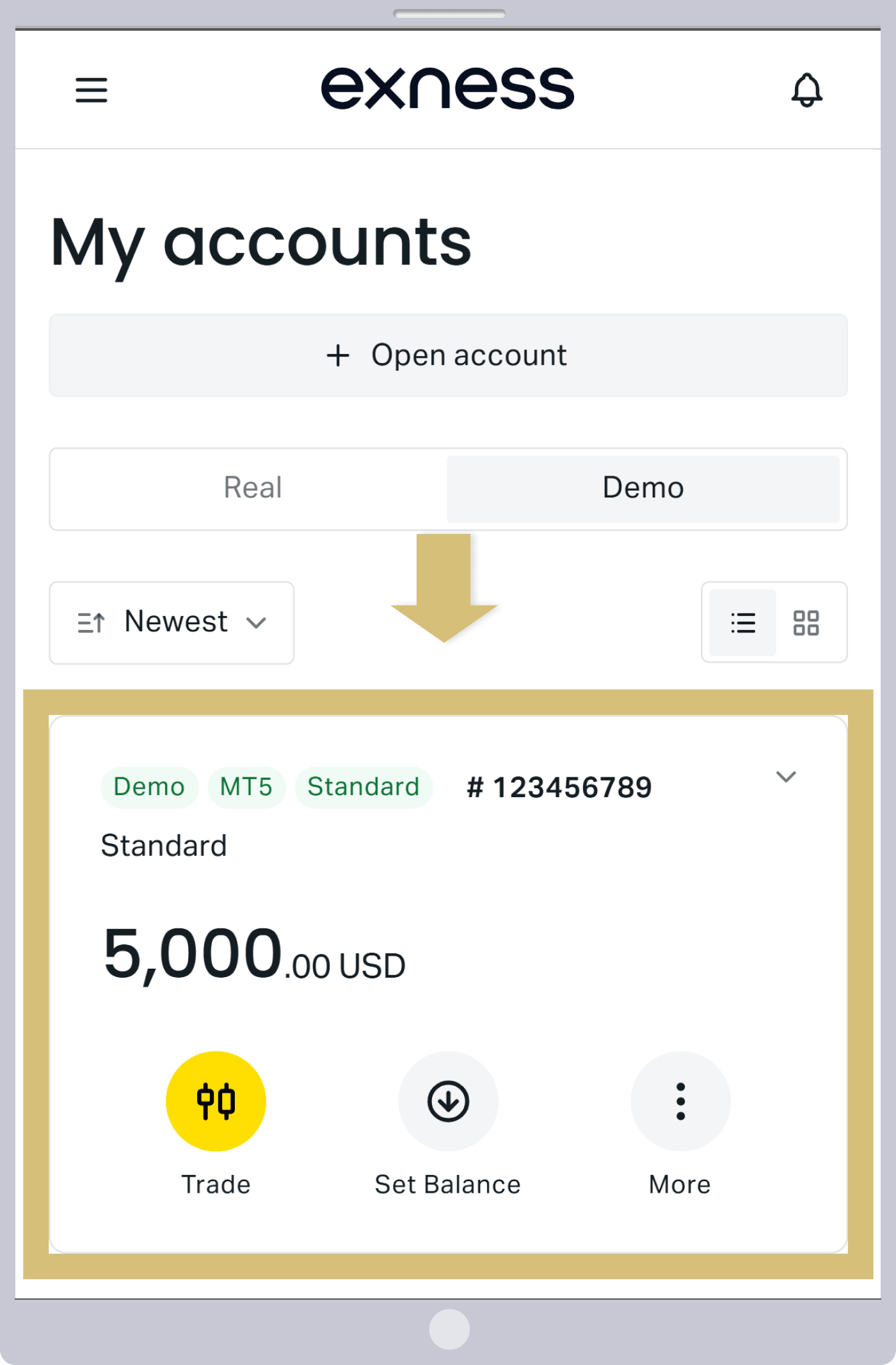
Profile verification (identity verification) is not required for trading with a demo account. Therefore, once you have completed the demo account setup, please log in to the “MT4/MT5” trading platform to experience the Exness trading environment.
How to Change the Balance and Leverage on an Exness Demo Account
At Exness, you can easily top up your demo account balance or change your leverage through the Personal Area. Please adjust your account balance and leverage as needed based on your demo account usage. The steps for adjusting your demo account balance and leverage are as follows:
Steps to Change the Balance on an Exness Demo Account
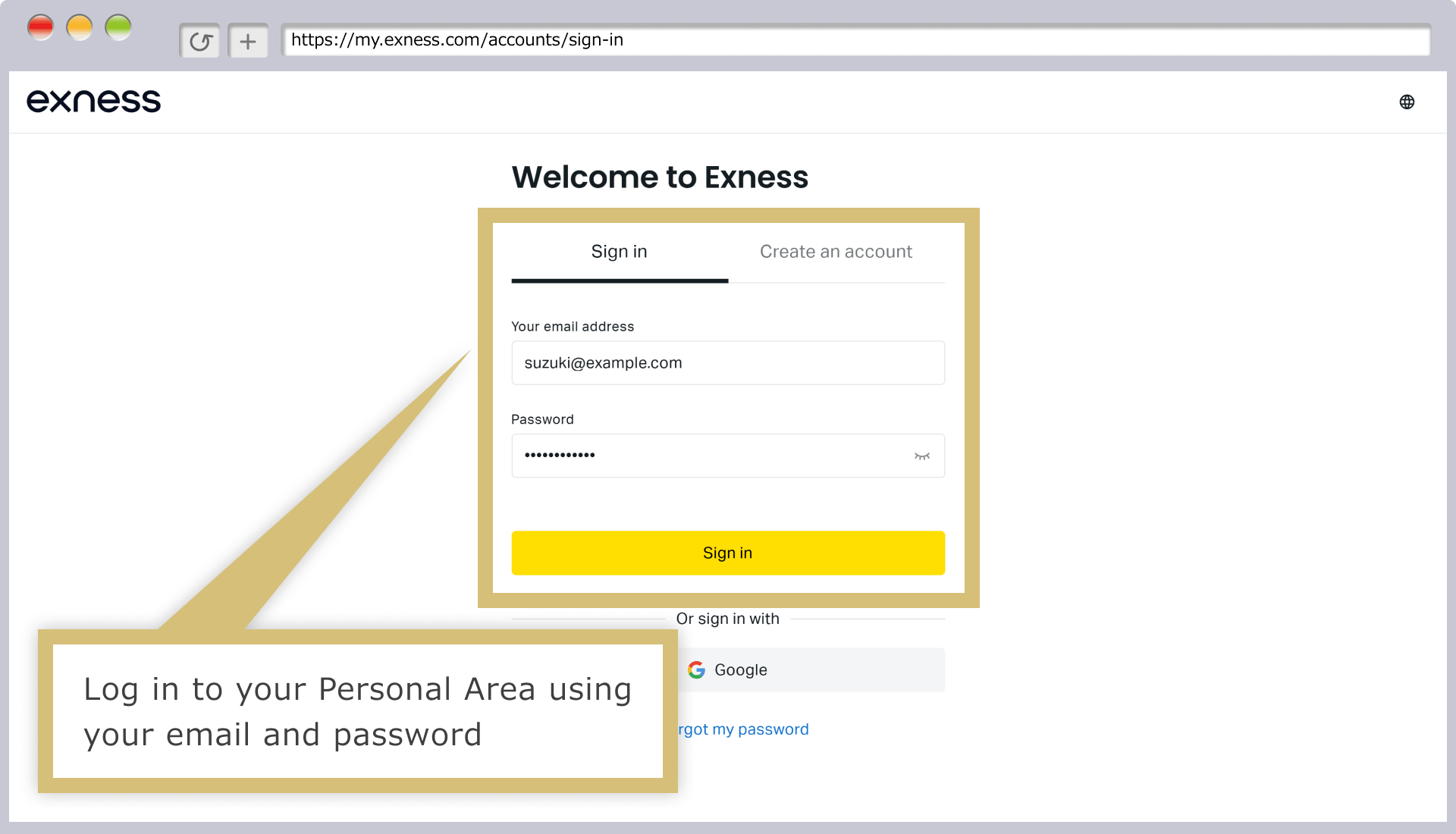
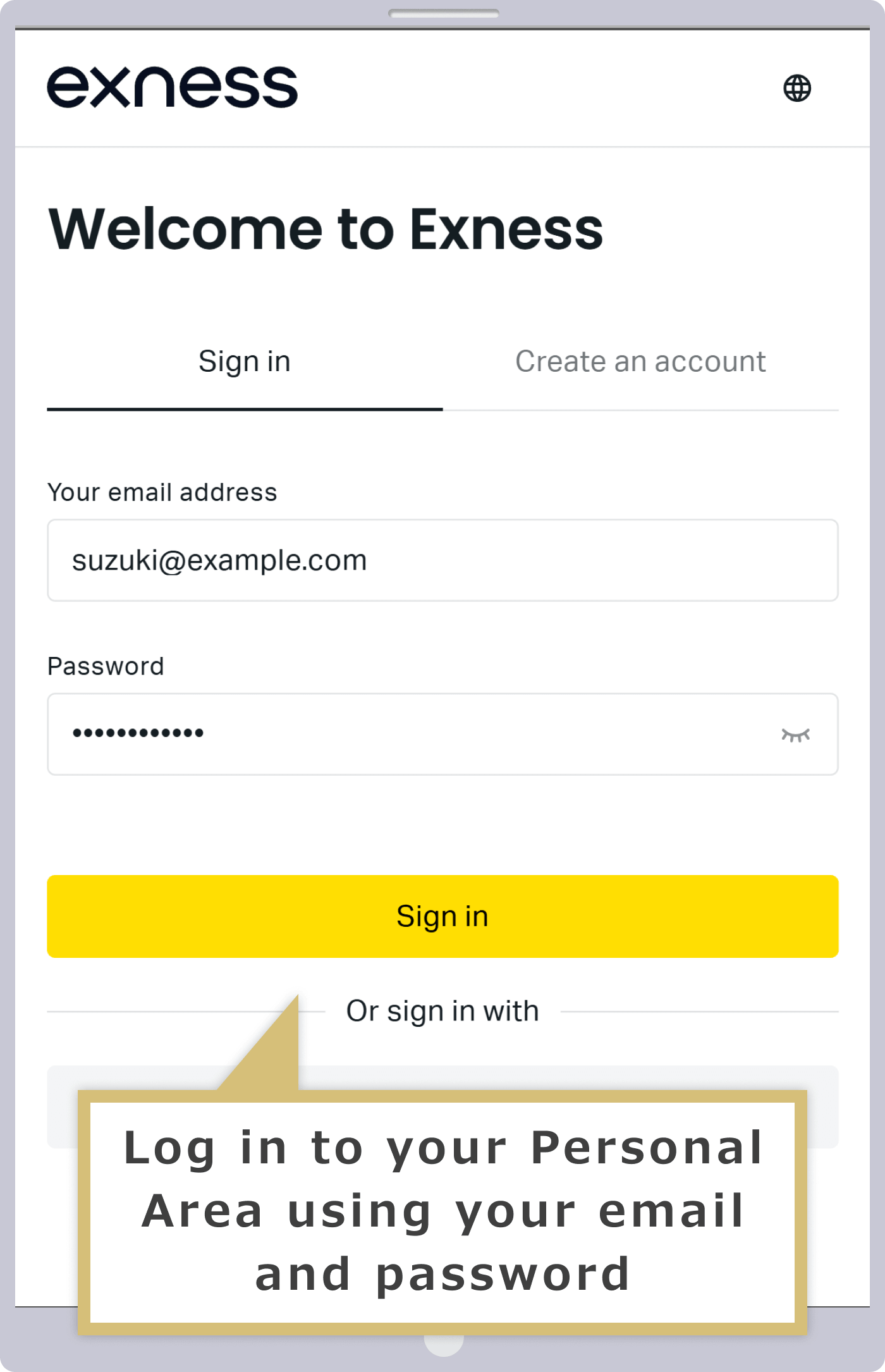
Log in to your Personal Area
Enter the "registered email address" you used when you created your personal account and the "login password" you set, then click "Continue."
Enter the "registered email address" you provided when you created your Personal Area and the "login password" you set, then tap "Continue."
Selecting a Demo Account
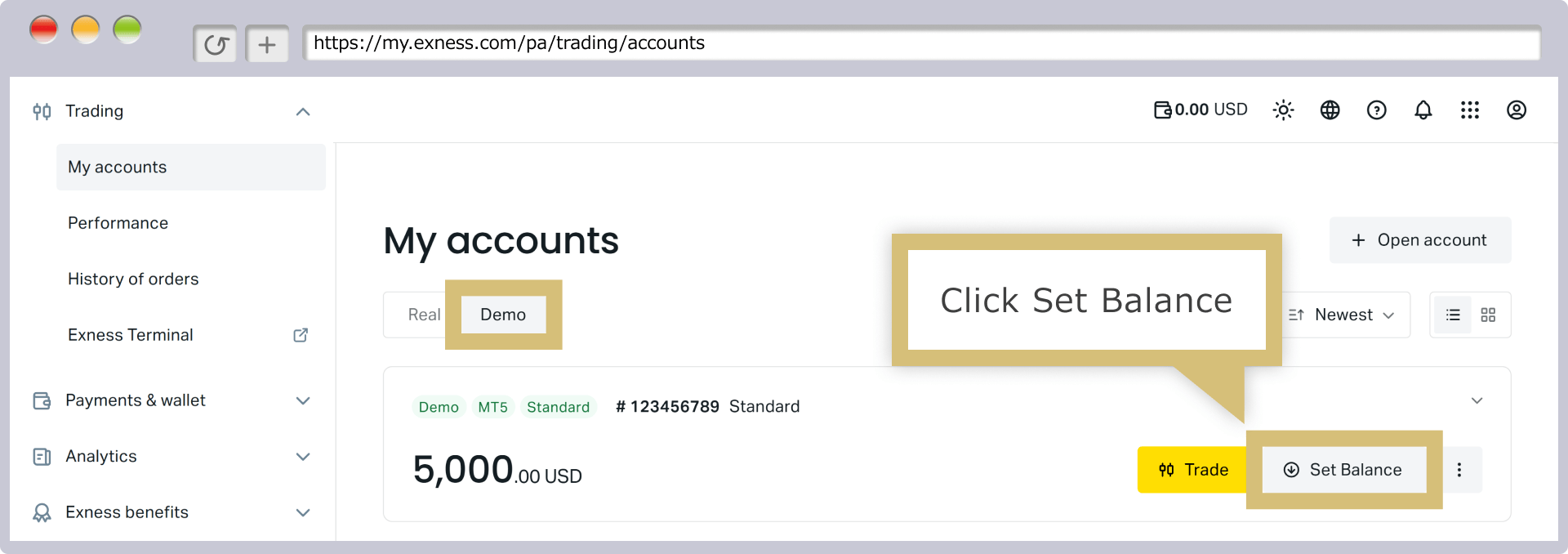
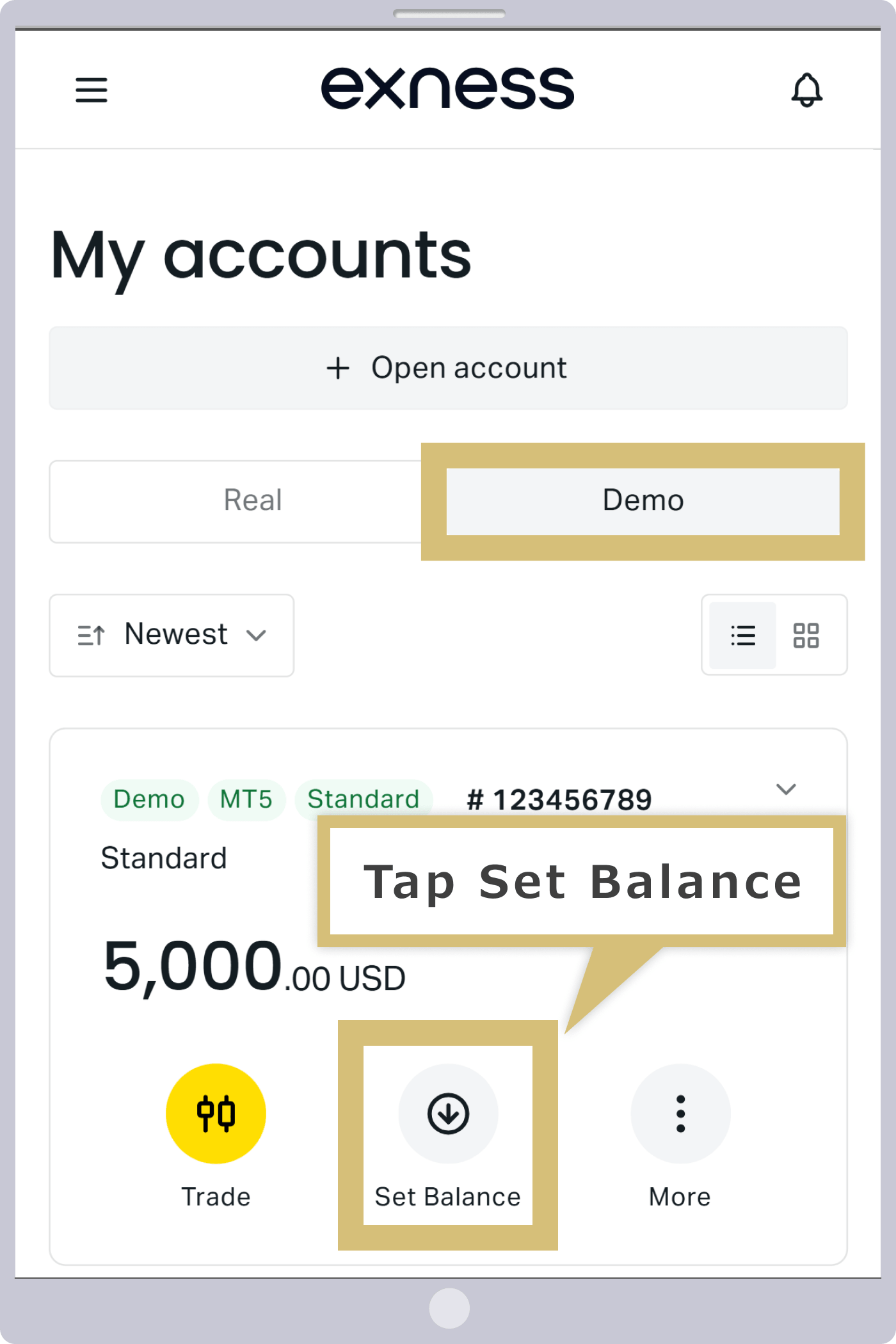
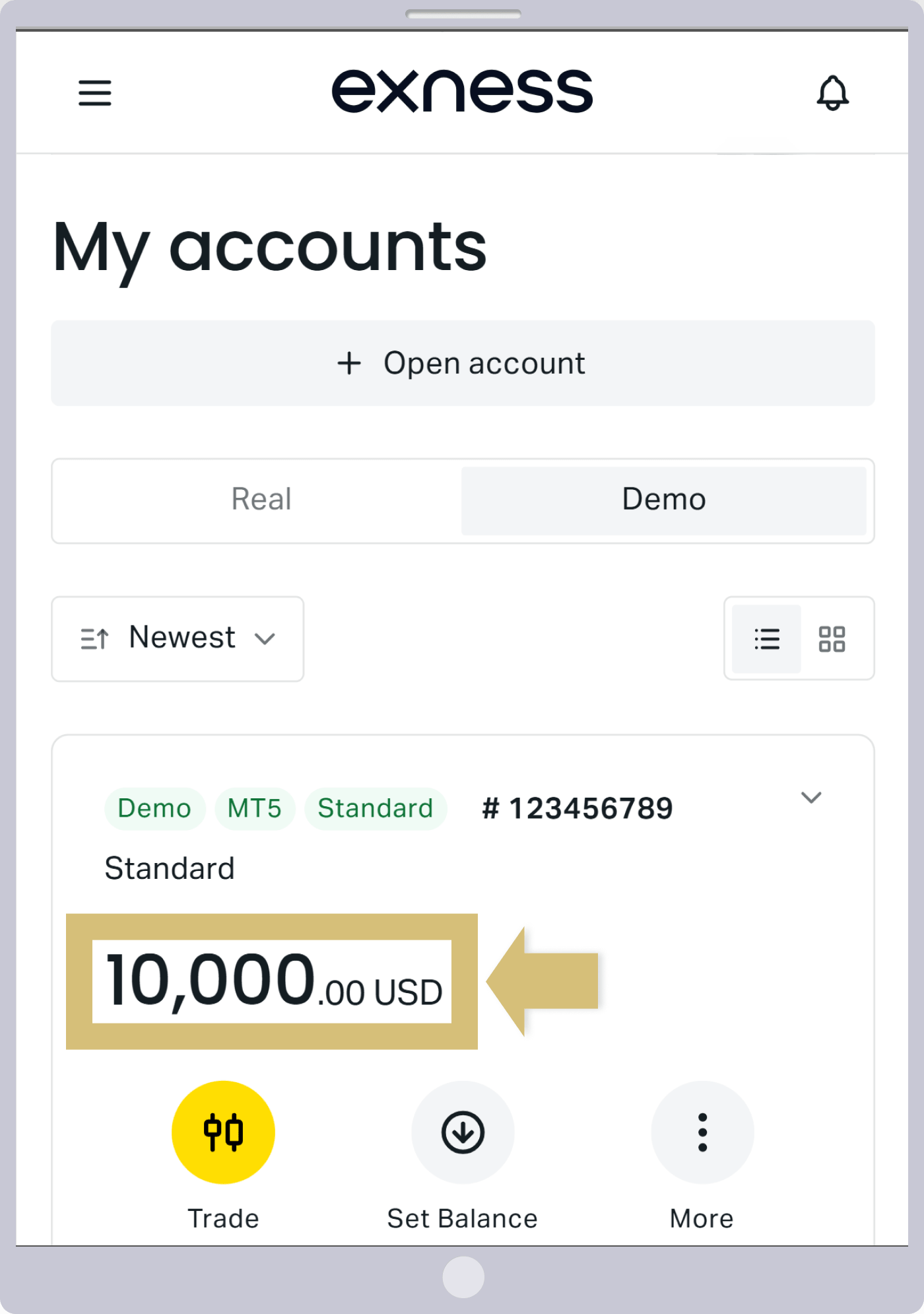
Once you have logged in to your personal account, select the "Demo Account" tab under "My Account," and click "Set Balance" displayed to the right of the demo account for which you want to change the balance.
Once you've logged in to your personal account, select the "Demo Account" tab under "My Account," then tap "Set Balance" next to the demo account for which you want to change the balance.
Setting the Account Balance
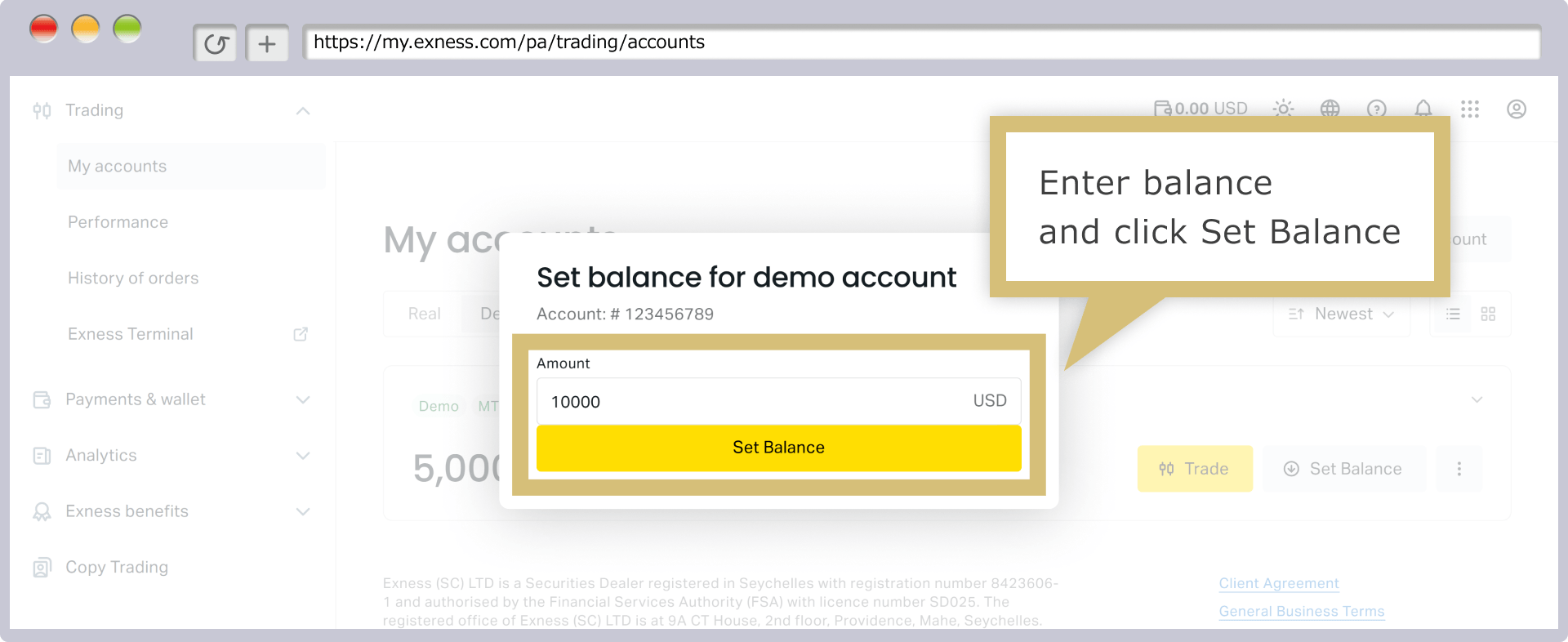
Enter the amount you want to apply to your demo account in the input field, then click “Set Balance.”
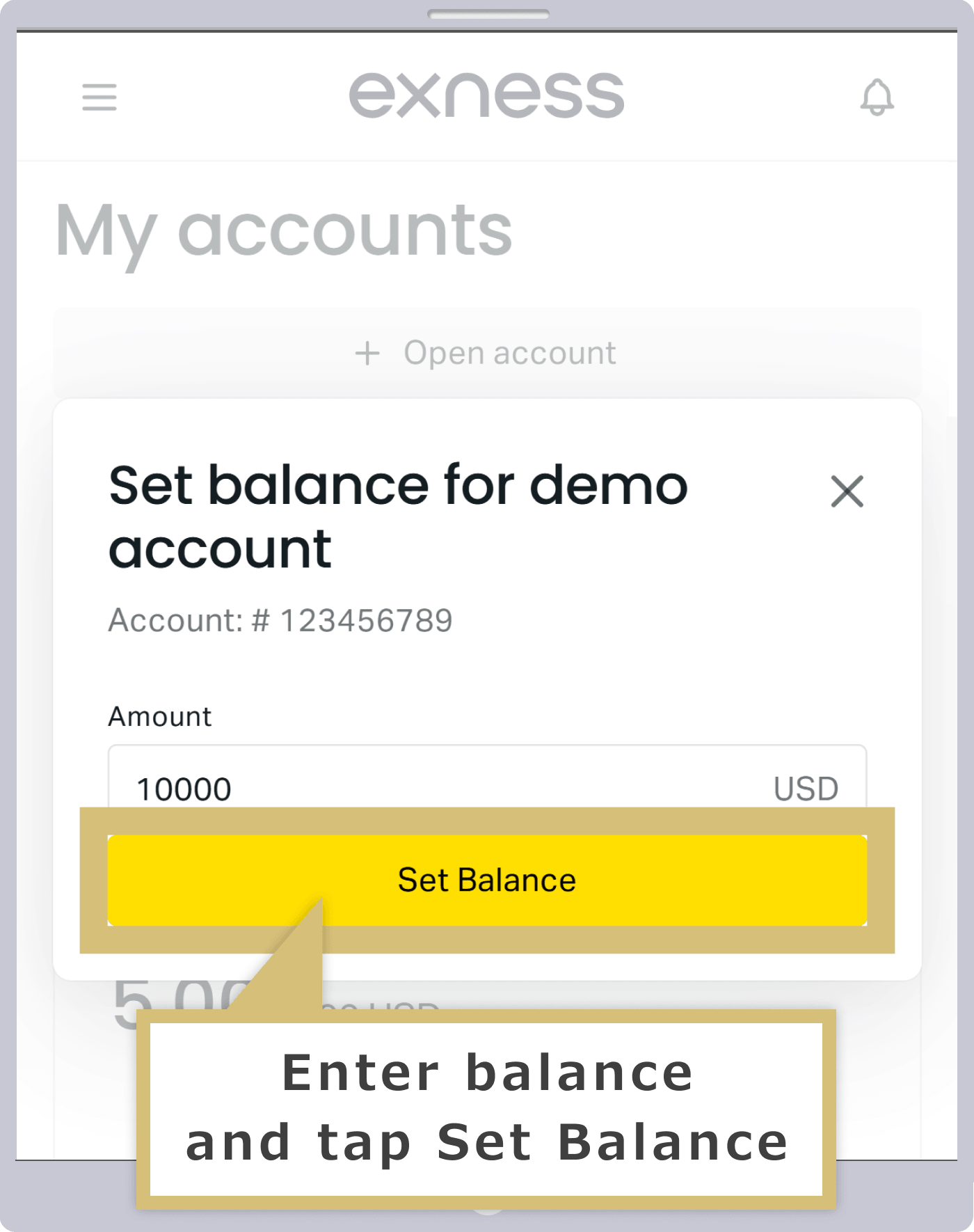
Enter the amount you want to apply to your demo account in the input field, then tap “Set Balance.”
Demo Account Balance Update Complete
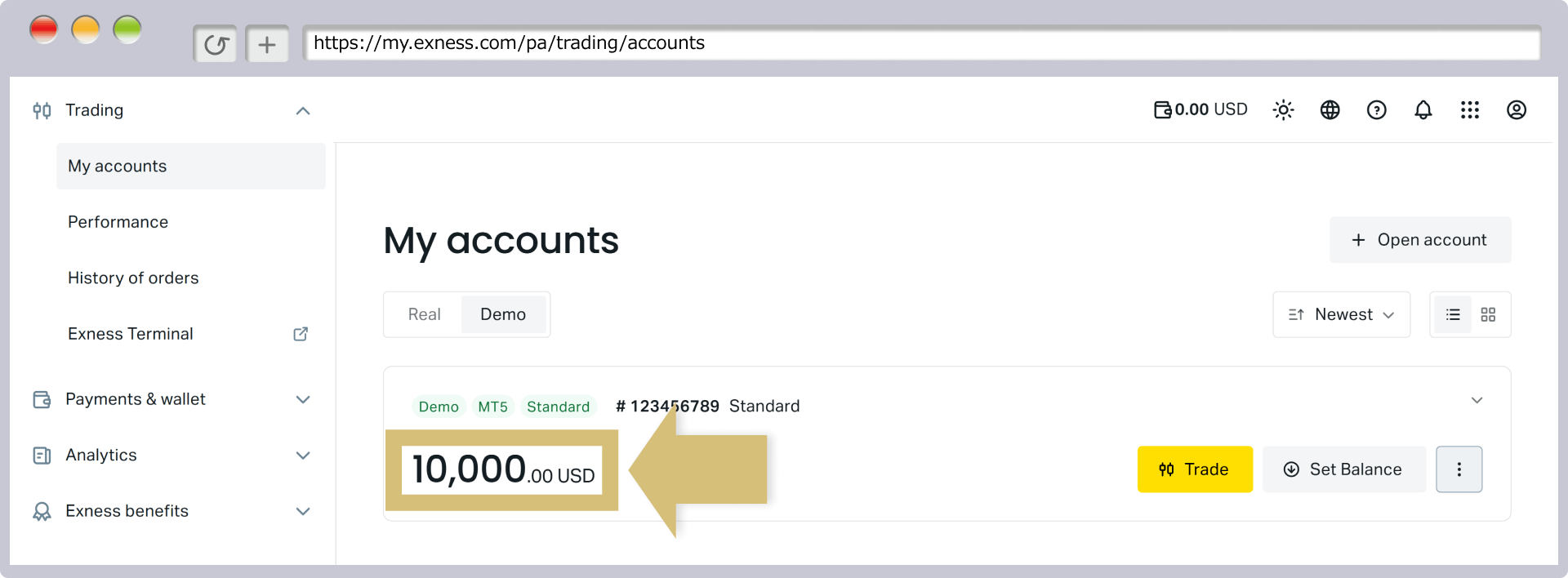
Once the demo account balance update is successfully completed, you will be automatically redirected to the "My Account" section of the Exness Personal Area, and the updated account balance will be reflected in your demo account.
Steps to Change Leverage on an Exness Demo Account
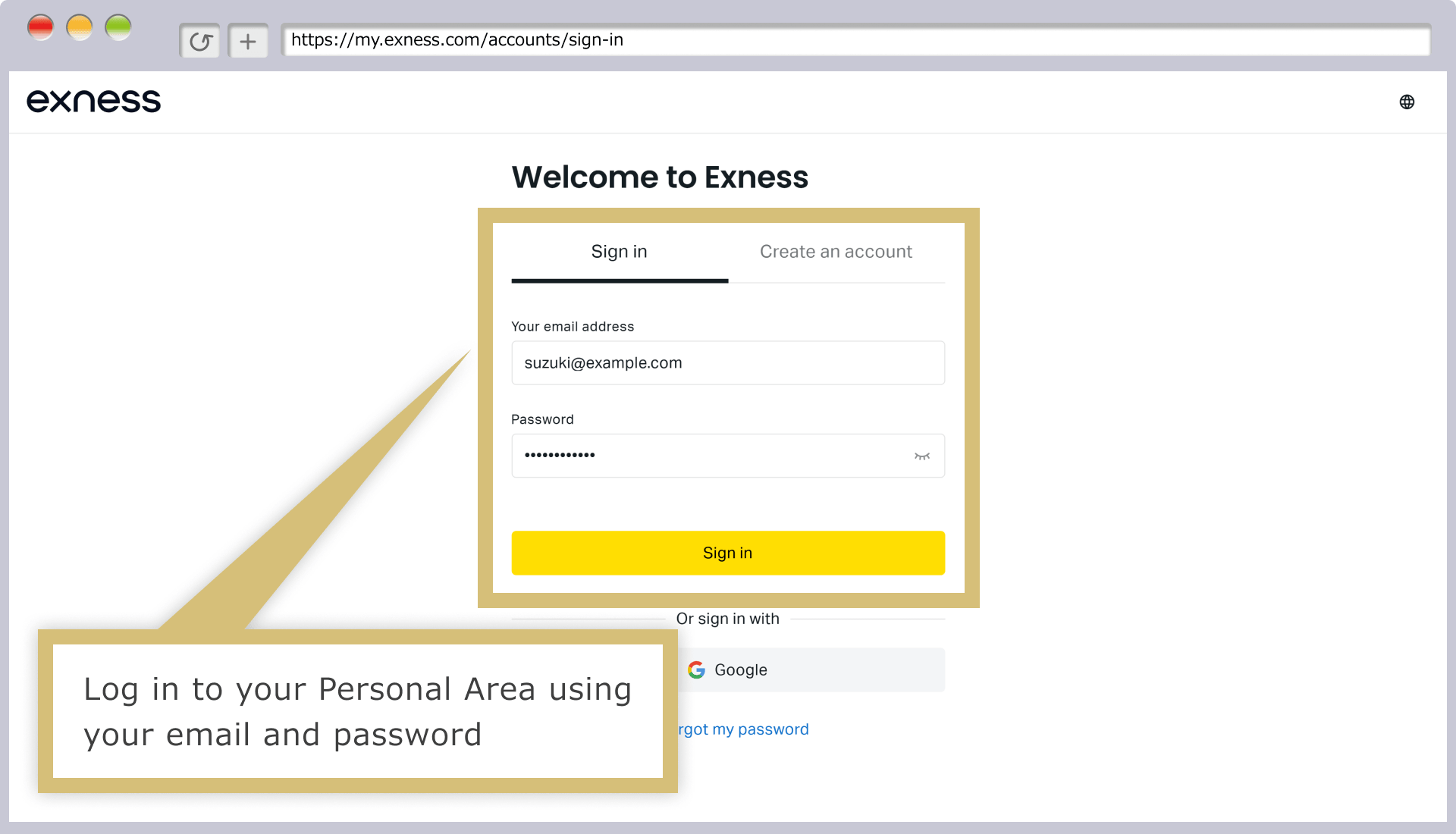
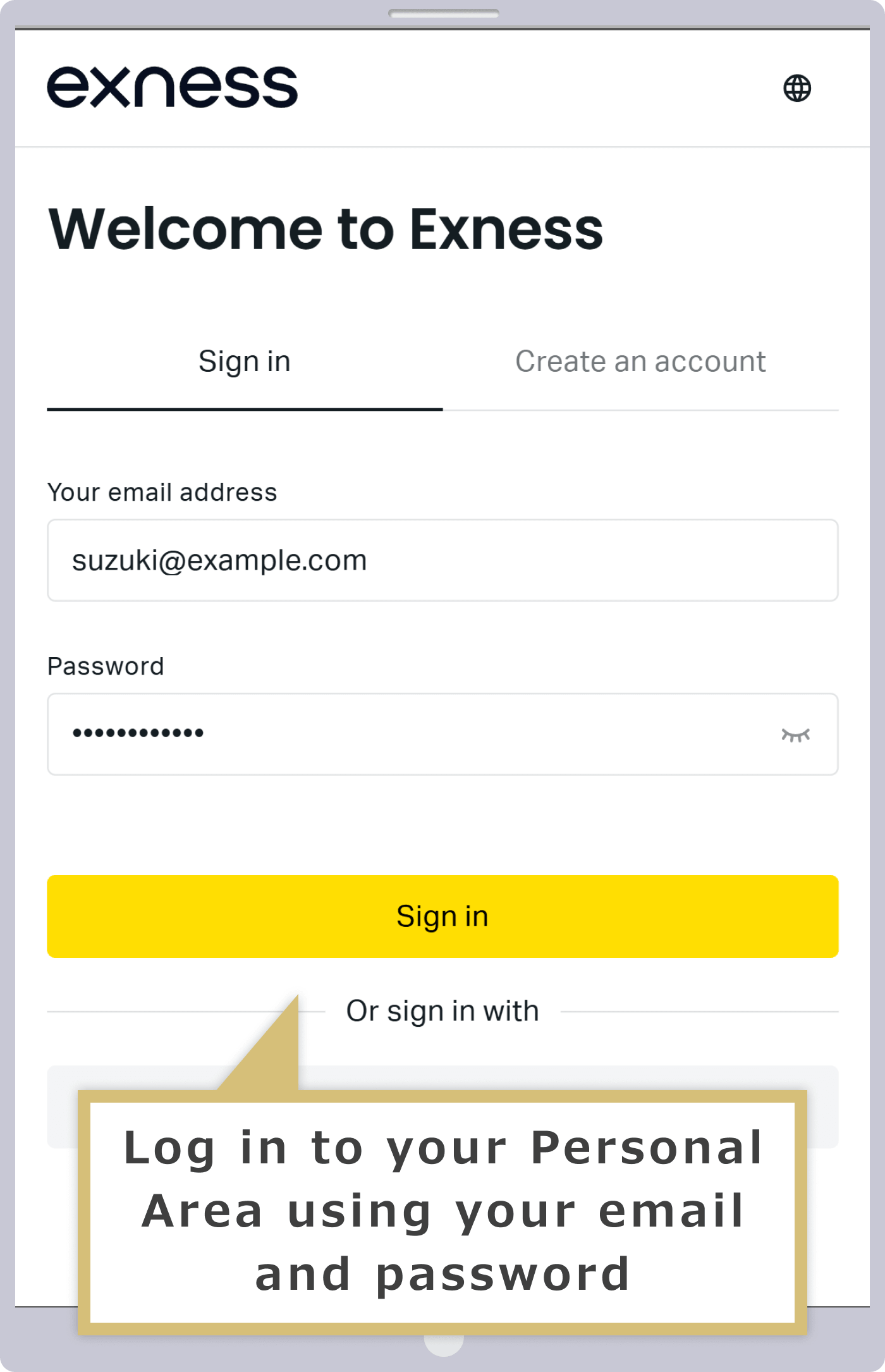
Log in to your Personal Area
Enter the "registered email address" you used when you created your personal account and the "login password" you set, then click "Continue."
Enter the "registered email address" you provided when you created your Personal Area and the "login password" you set, then tap "Continue."
Selecting a Demo Account
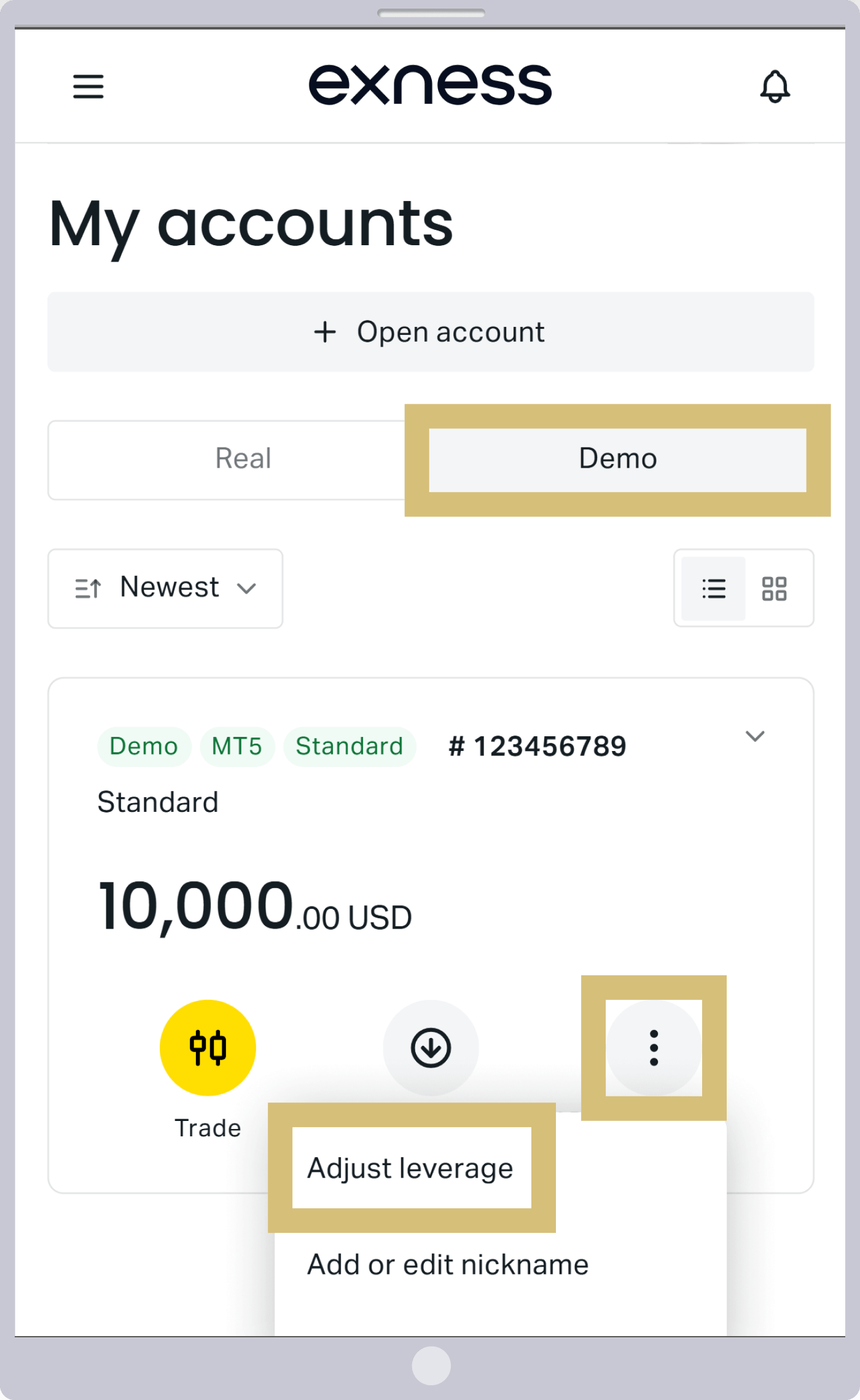
Once you have logged in to your personal account, select the "Demo Account" tab under "My Account," click the "︙" icon displayed to the right of the demo account for which you want to change the leverage, and then select "Change Leverage."
Once you have logged in to your personal account, select the "Demo Account" tab under "My Account," tap the "︙" icon displayed to the right of the demo account for which you want to change the leverage, and then select "Change Leverage."

Setting the Leverage Ratio
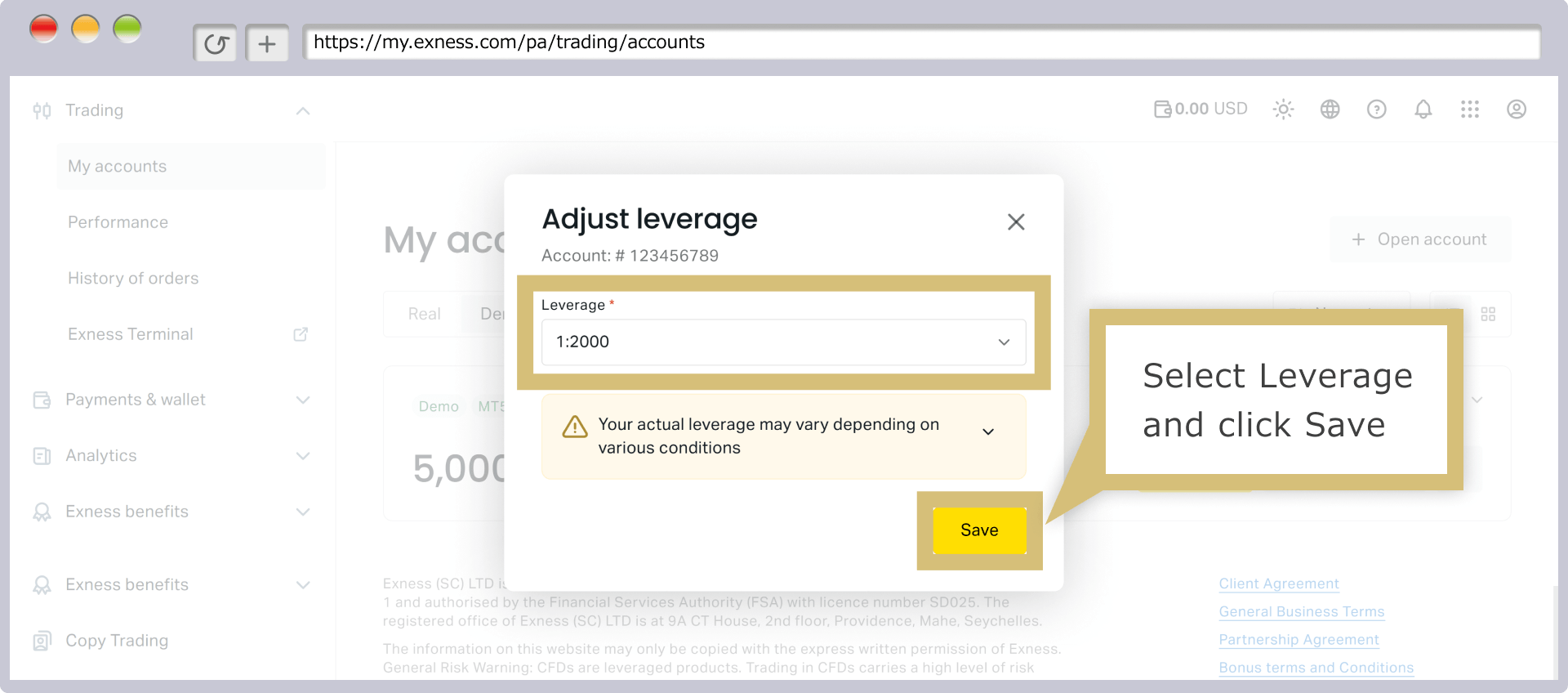
Select your desired leverage ratio from the drop-down menu in the input field, then click "Save."
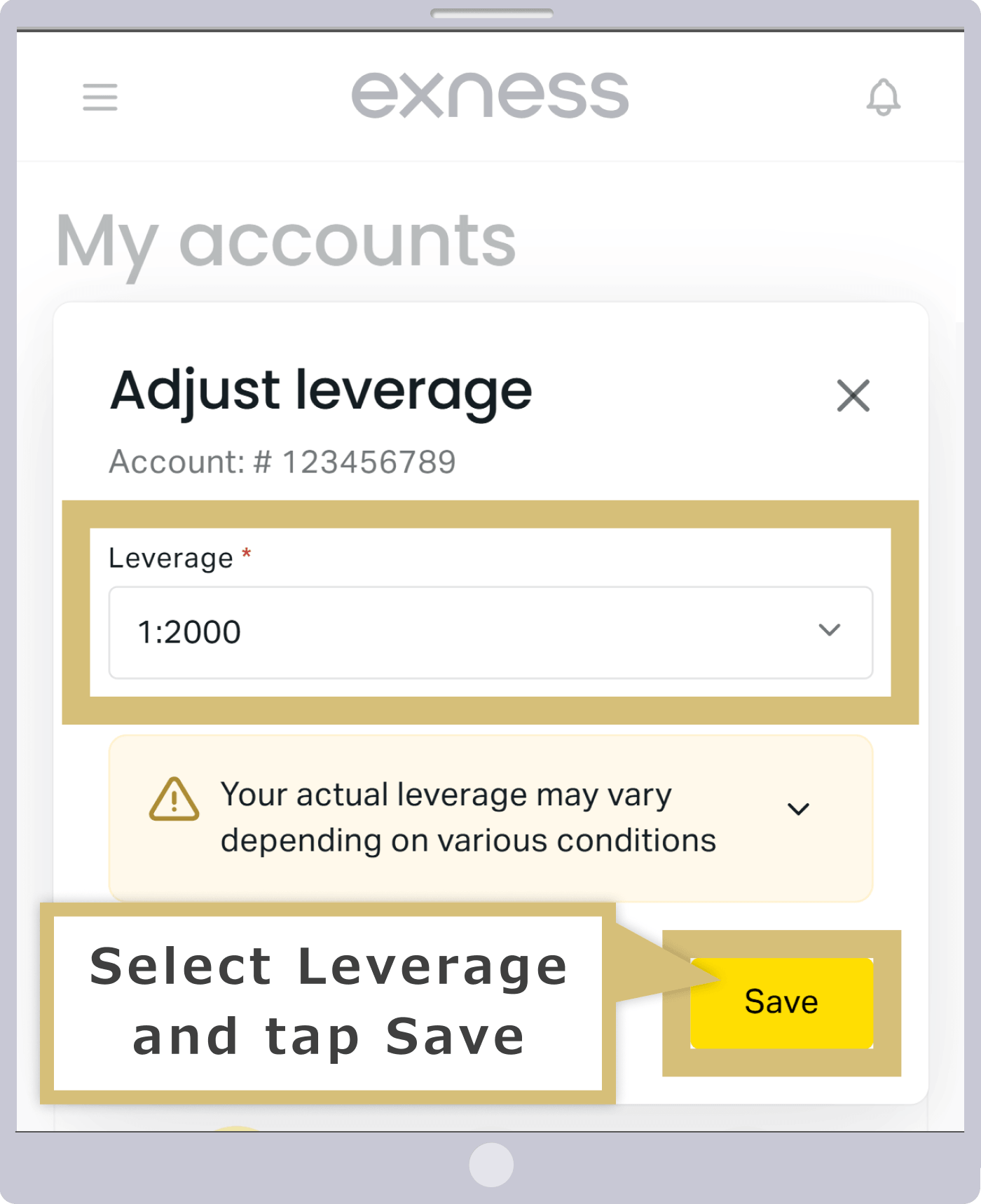
Select your desired leverage ratio from the drop-down menu in the input field, then tap “Save.”
Leverage Change for Demo Account Complete
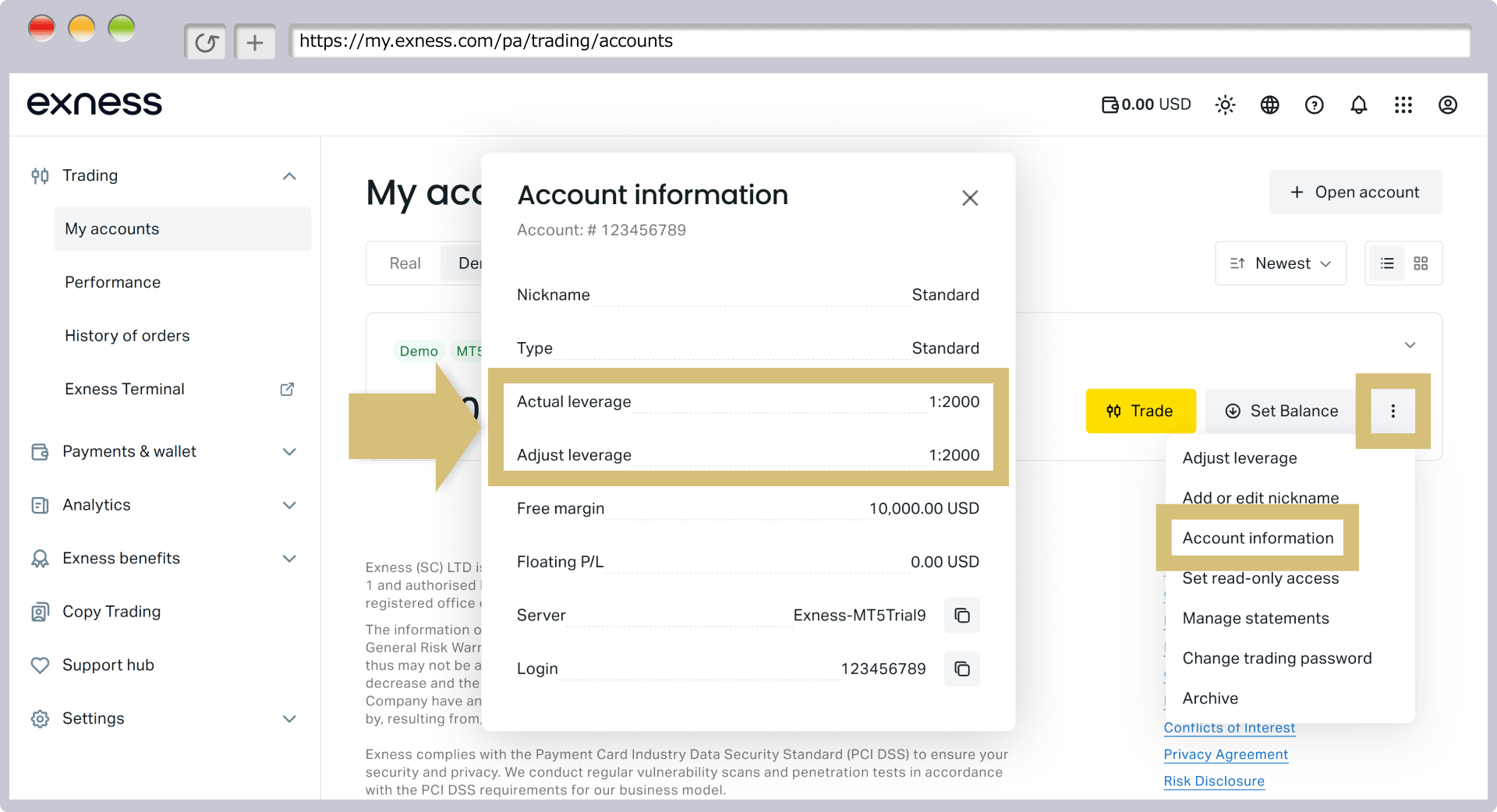
Once the leverage change for your demo account is successfully completed, you will be automatically redirected to "My Account" in the Exness Personal Area. You can verify the new leverage by clicking the "︙" icon to the right of the account in question and selecting "Account Information."
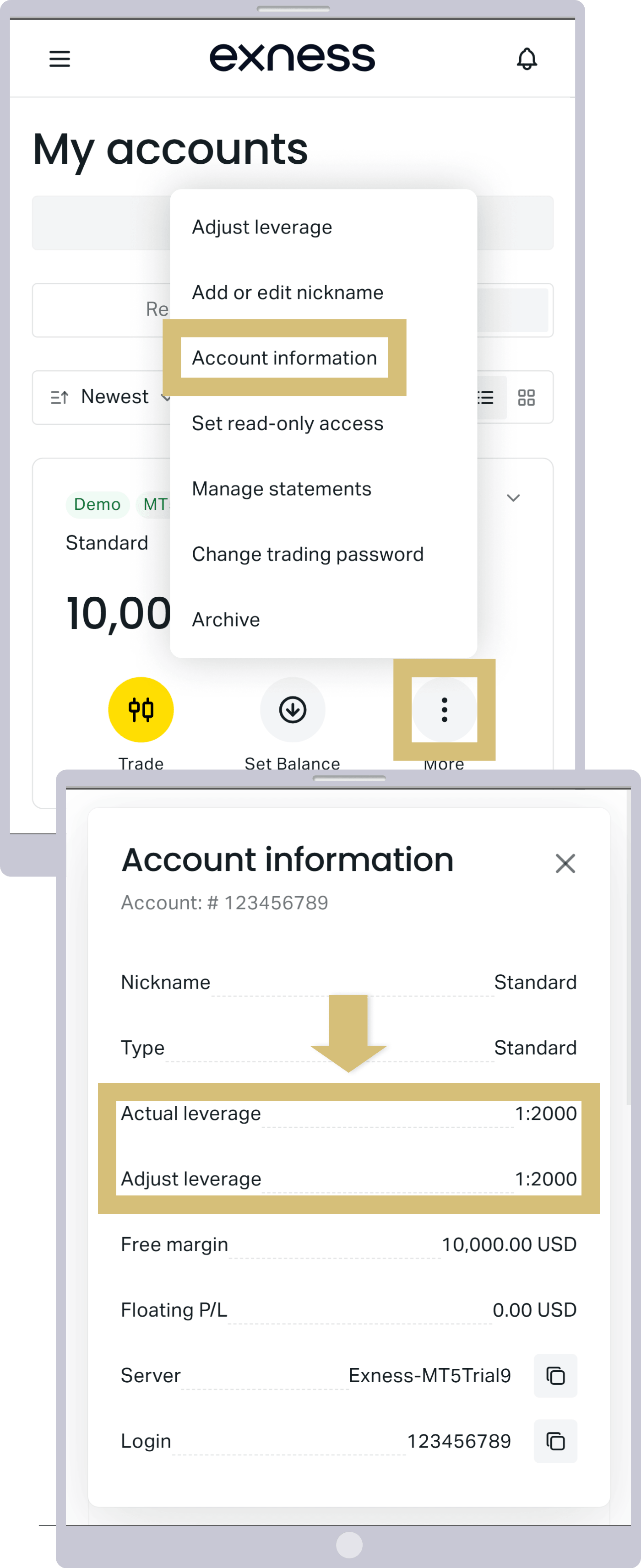
Once the leverage change for your demo account is successfully completed, you will be automatically redirected to "My Account" in the Exness Personal Area. You can verify the new leverage by tapping the "︙" icon to the right of the applicable account and selecting "Account Information."
Important Notes Regarding Exness Demo Accounts
Before using an Exness demo account, please review the following important points.
If you do not use your demo account for a certain period of time, it will be deleted.
Exness demo accounts do not have an expiration date. However, please note that if you do not use your demo account for a certain period of time, it will be automatically deleted. Even if you do not trade on your demo account, it will not be automatically deleted as long as you log in to it.Please note that the number of days before an Exness demo account is automatically deleted differs between MT4 and MT5 accounts, as shown below.
Conditions for the Closure of an Exness Demo Account
| MT4 Demo Account | If you have not used the service for 180 days since your last login |
| MT5 Demo Account | If you have not used the service for 21 days since your last login |
| MT4 Demo Account |
If you have not used the service for 180 days since your last login |
| MT5 Demo Account |
If you have not used the service for 21 days since your last login |
Once a demo account has been deleted, it cannot be restored; however, you can open a new demo account from the “My Account” section of your Personal Area. Please rest assured that Exness allows you to open up to 200 demo accounts per account.
Standard Cent accounts are not compatible with demo accounts.
Please note that you cannot open a demo account for the Exness Standard Cent account. Exness demo accounts are available only for Standard, Low Spread, Zero, and Pro accounts.However, the Exness Standard Cent account allows you to trade with small amounts starting from a lower lot size than other account types. Therefore, even without a demo account, you can familiarize yourself with the trading environment while minimizing risk. If you wish to practice trading and familiarize yourself with the trading environment using a demo account without using any of your own funds, please select an account type other than the Standard Cent account.
Frequently Asked Questions (FAQ) About Opening an Exness Demo Account
-
Can I change my balance or leverage on an Exness demo account?
Yes, you can change the balance and leverage on an Exness demo account. In the Personal Area, you can easily adjust the demo account balance (virtual money) and leverage, allowing you to test various trading strategies or evaluate performance over the long term using a single demo account.
Read More
04.10.2023
-
How many demo accounts can I open with Exness?
At Exness, you can open up to 200 demo accounts per account—100 MT4 demo accounts and 100 MT5 demo accounts.In addition to being able to open up to 200 accounts, you can also archive (hide) unused demo accounts, effectively allowing you to use an unlimited number of demo accounts.
Read More
04.10.2023
-
Do Exness demo accounts have an expiration date?
No, Exness demo accounts do not expire. As long as you continue to log in—even if you do not trade—you can use the account indefinitely. However, please note that MT4 demo accounts will be automatically deleted if there is no login activity for more than 180 days, and MT5 demo accounts will be automatically deleted if there is no login activity for more than 21 days.
Read More
04.10.2023
-
Can I open an Exness demo account with any account type?
No, Exness demo accounts are not available for Standard Cent accounts. Demo accounts are available for all account types other than Standard Cent accounts (Standard, Low Spread, Zero, and Pro accounts). Please note that demo accounts are compatible with MT4 and MT5 for all account types.
Read More
04.10.2023
-
Is identity verification or a deposit required to open an Exness demo account?
No, you do not need to verify your identity or make a deposit to open a demo account with Exness. As long as you have registered for an account with Exness, you can use the demo account for free without any of the hassle of making deposits or verifying your profile (identity verification). Additionally, once you open a demo account, you can start demo trading right away.
Read More
04.10.2023