














Exness MT4/MT5 Download and Installation Instructions
Trading Tools (MT4/MT5)
Exness MT4/MT5 Download and Installation Instructions
Here are the steps to download and install Exness’s “MT4 (MetaTrader 4)/MT5 (MetaTrader 5)” on your device.Exness offers MT4/MT5 applications compatible with PCs (Windows and Mac), as well as smartphones and tablets (iOS and Android).
Once you have downloaded and installed the MT4/MT5 application, you can log in and start trading right away. Exness also offers the “MetaTrader Web Terminal,” which you can use as long as you have a web browser. You can easily access and use it without having to download or install any software.
(*)MetaTrader, MetaTrader 4, MetaTrader 5, MT4, and MT5 are trademarks or registered trademarks of MetaQuotes Ltd.
Exness MT4/MT5 Download and Installation Instructions (Windows and Mac)
The steps for downloading and installing Exness’s MT4 (MetaTrader 4) and MT5 (MetaTrader 5) trading platforms for Windows and Mac are as follows.
Download MT4/MT5 Setup Files
Download the setup files for the Windows version of Exness MT4/MT5. Click the link below to automatically download the files.
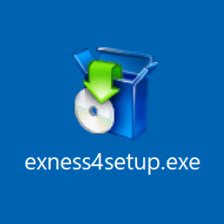
Once the download of the Exness MT4/MT5 setup file for Windows is complete, a file named "exness4setup.exe" will be saved to your computer.
Installing MT4/MT5
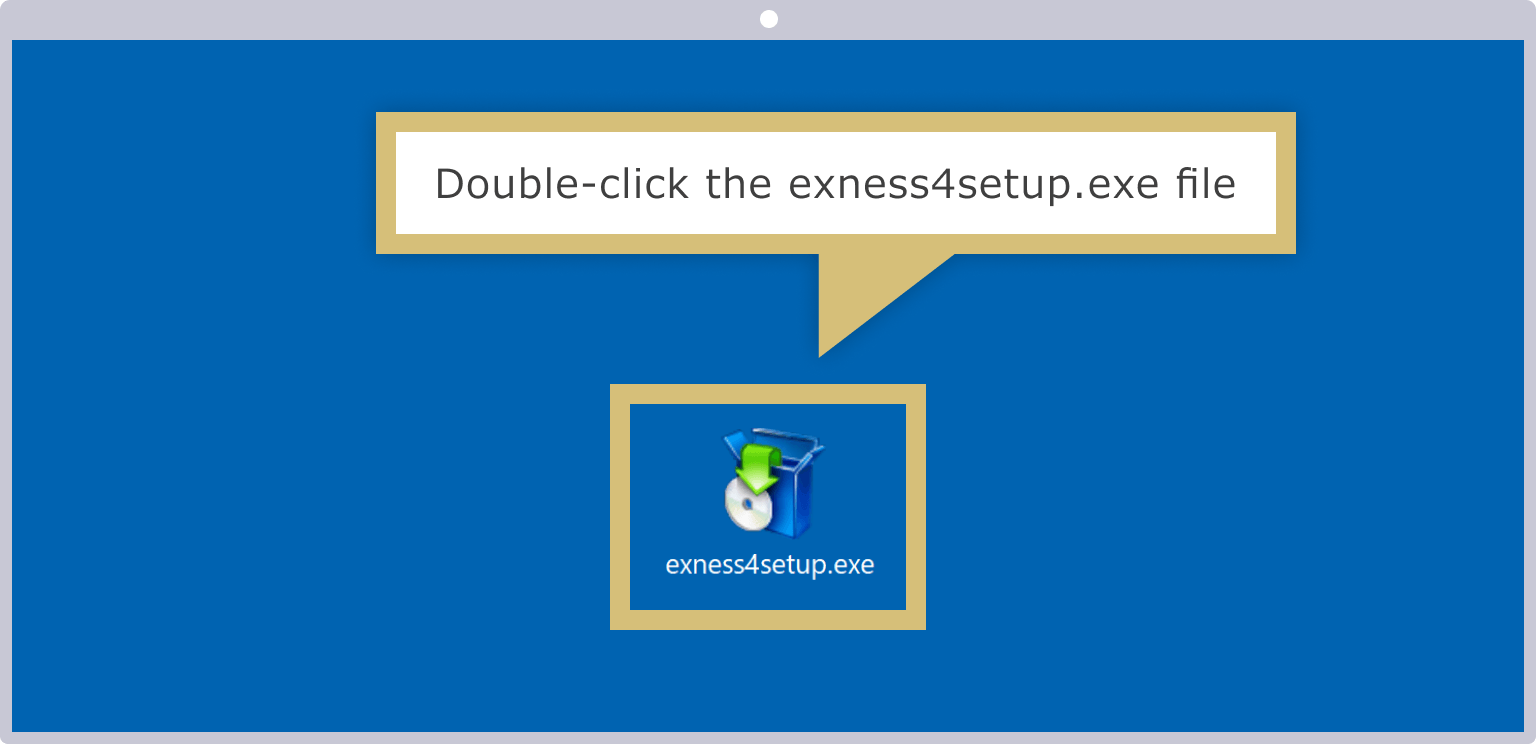
Double-click the downloaded setup file, "exness4setup.exe," to launch the installer.
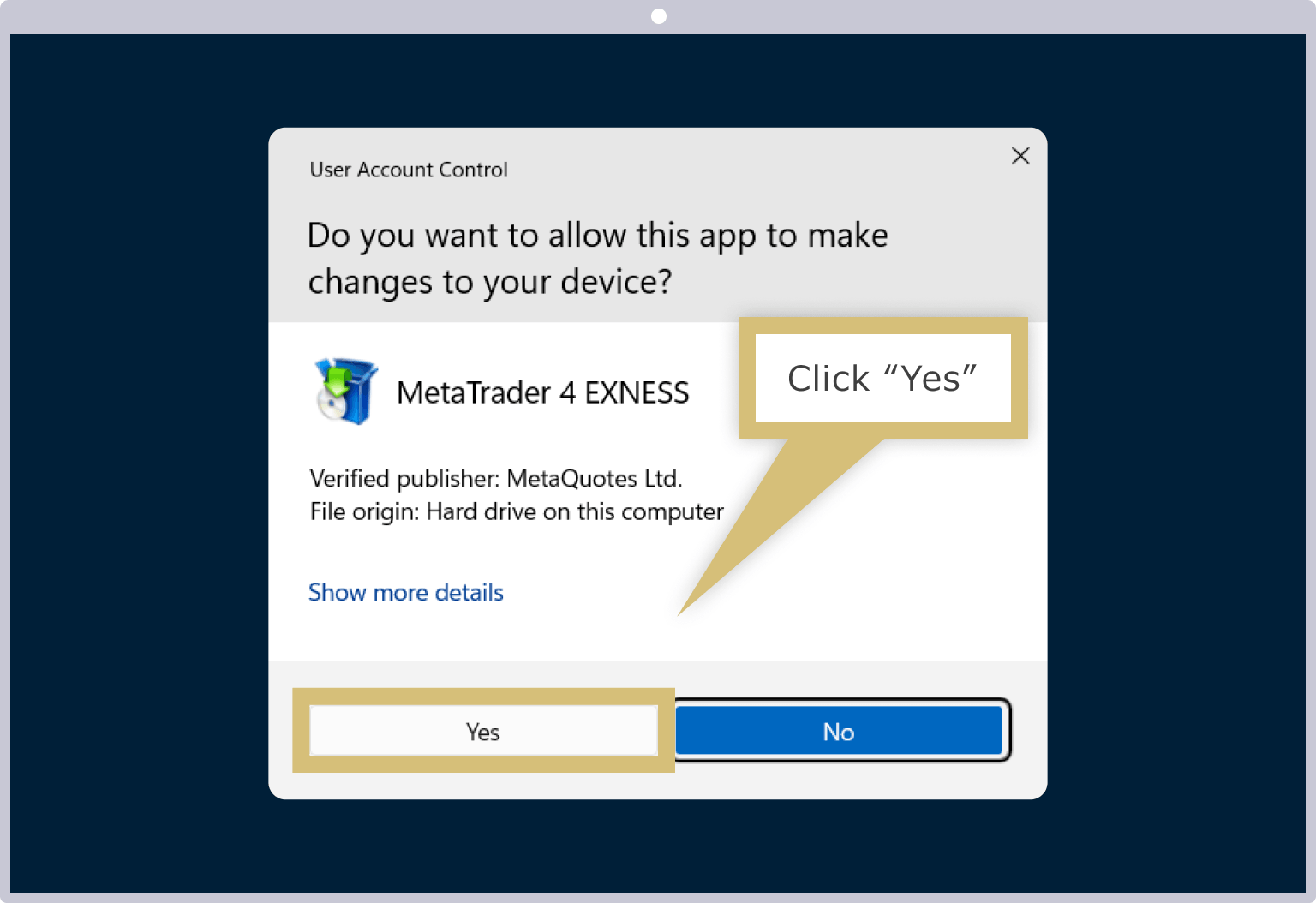
Depending on your PC settings, you may see a User Account Control message. If you see a warning message asking, "Do you want to allow this app to make changes to your device?", click "Yes."
Acceptance of the MT4/MT5 License
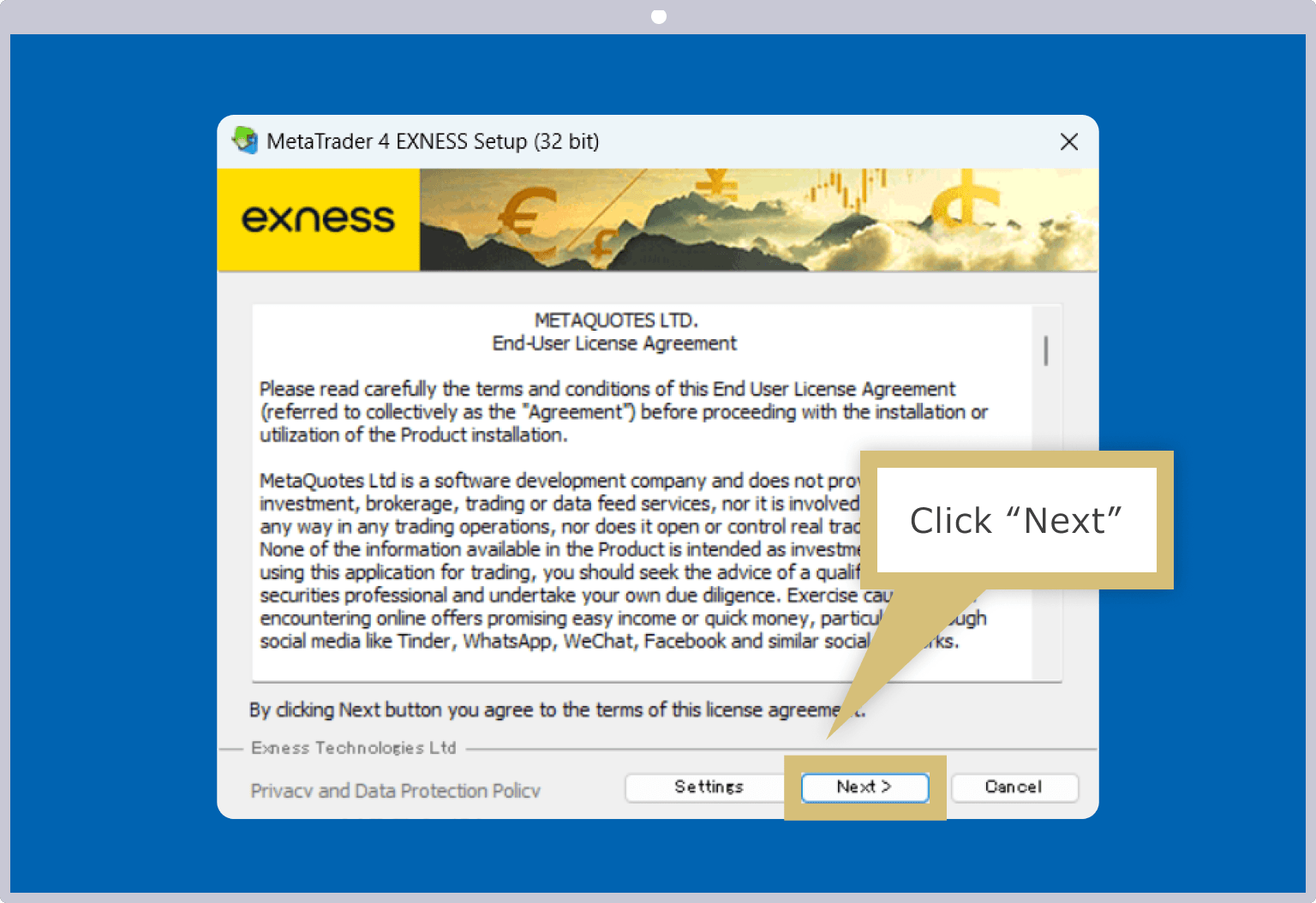
When the Exness MT4/MT5 license agreement screen appears, click "Next."
MT4/MT5 Installation Complete
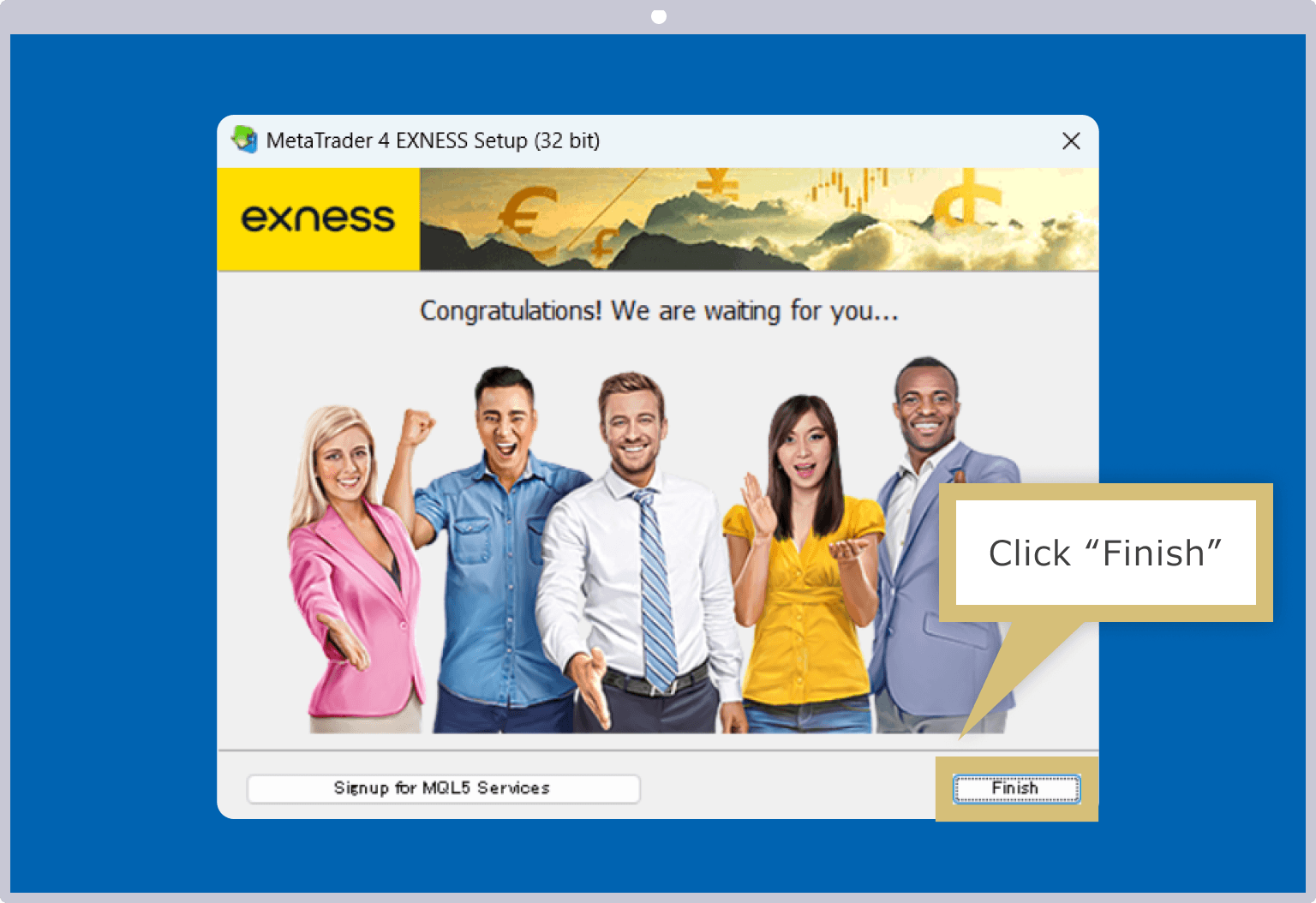
Once the "Finish" button appears on the setup screen, the installation of the Windows version of Exness MT4/MT5 is complete. Please click the "Finish" button.
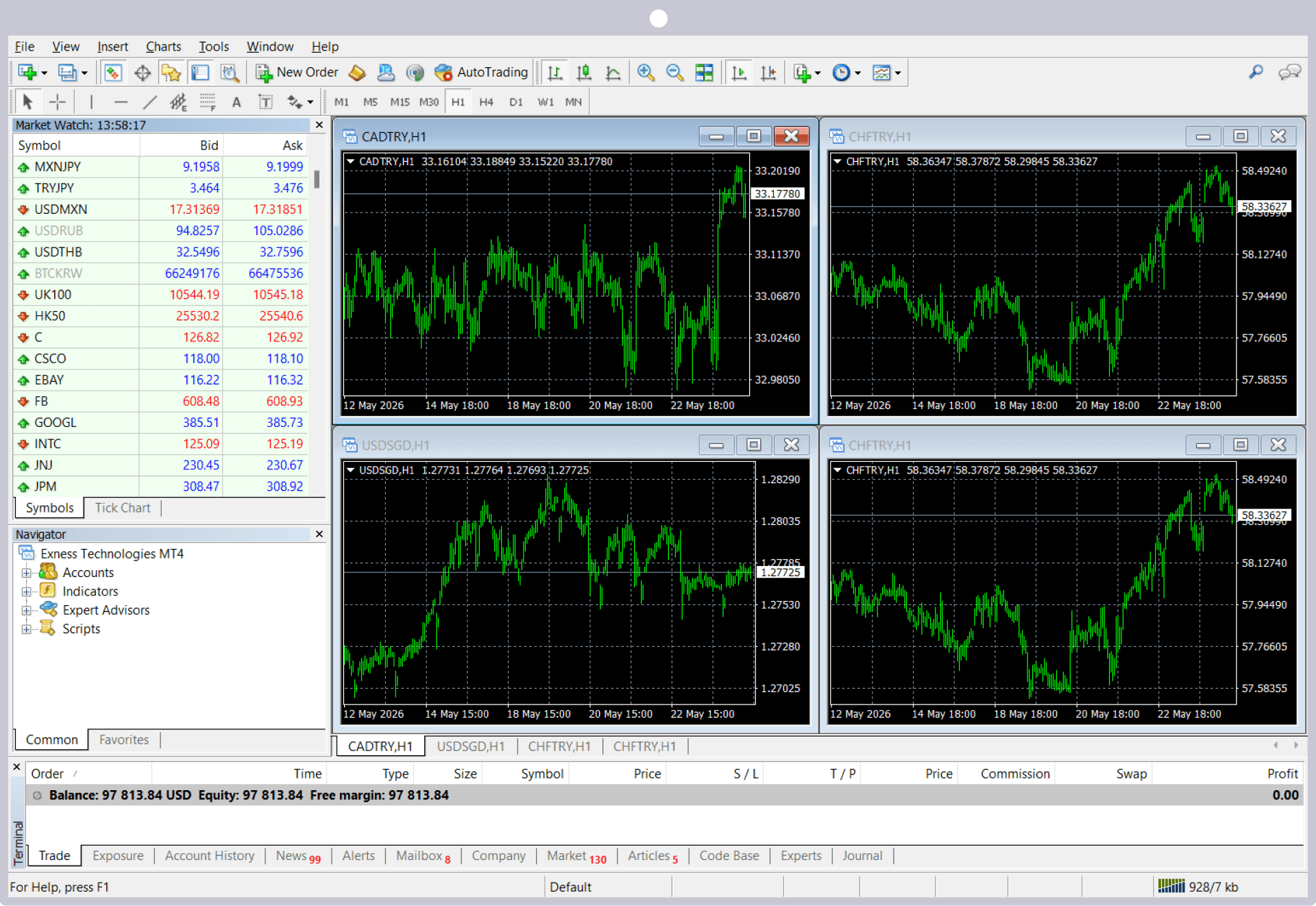
Clicking the "Finish" button will automatically launch MT4/MT5. Once you log in to MT4/MT5, you can start trading in Exness's excellent trading environment.
Displaying MT4/MT5 Shortcut Icons
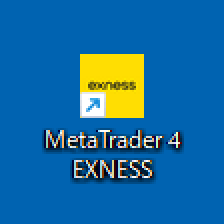
Once the installation of the Windows version of Exness MT4/MT5 is complete, a shortcut icon will automatically appear on your desktop. The next time you use MT4/MT5, please double-click the shortcut icon to log in.
Download MT4/MT5 Setup Files
Download the setup files for Exness MT4/MT5 for Mac. Click the link below to automatically download the files.
Once the download of the Exness MT4/MT5 setup files for Mac is complete, a file named "MetaTrader 4.dmg" (or "MetaTrader 5.dmg") will be saved to your computer.
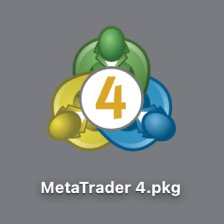
Installing MT4/MT5
Double-click the downloaded setup file, “MetaTrader 4.dmg,” to launch the installer.
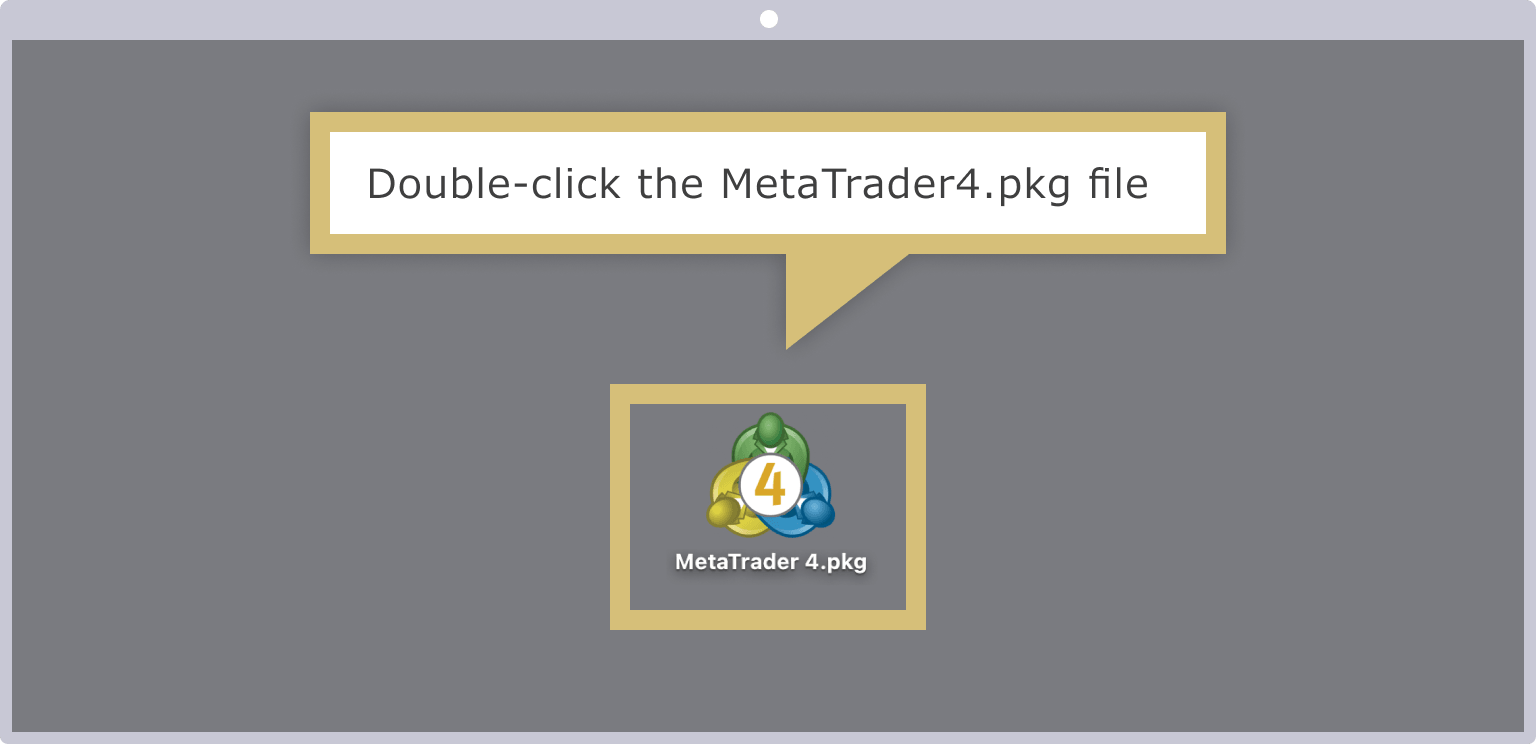
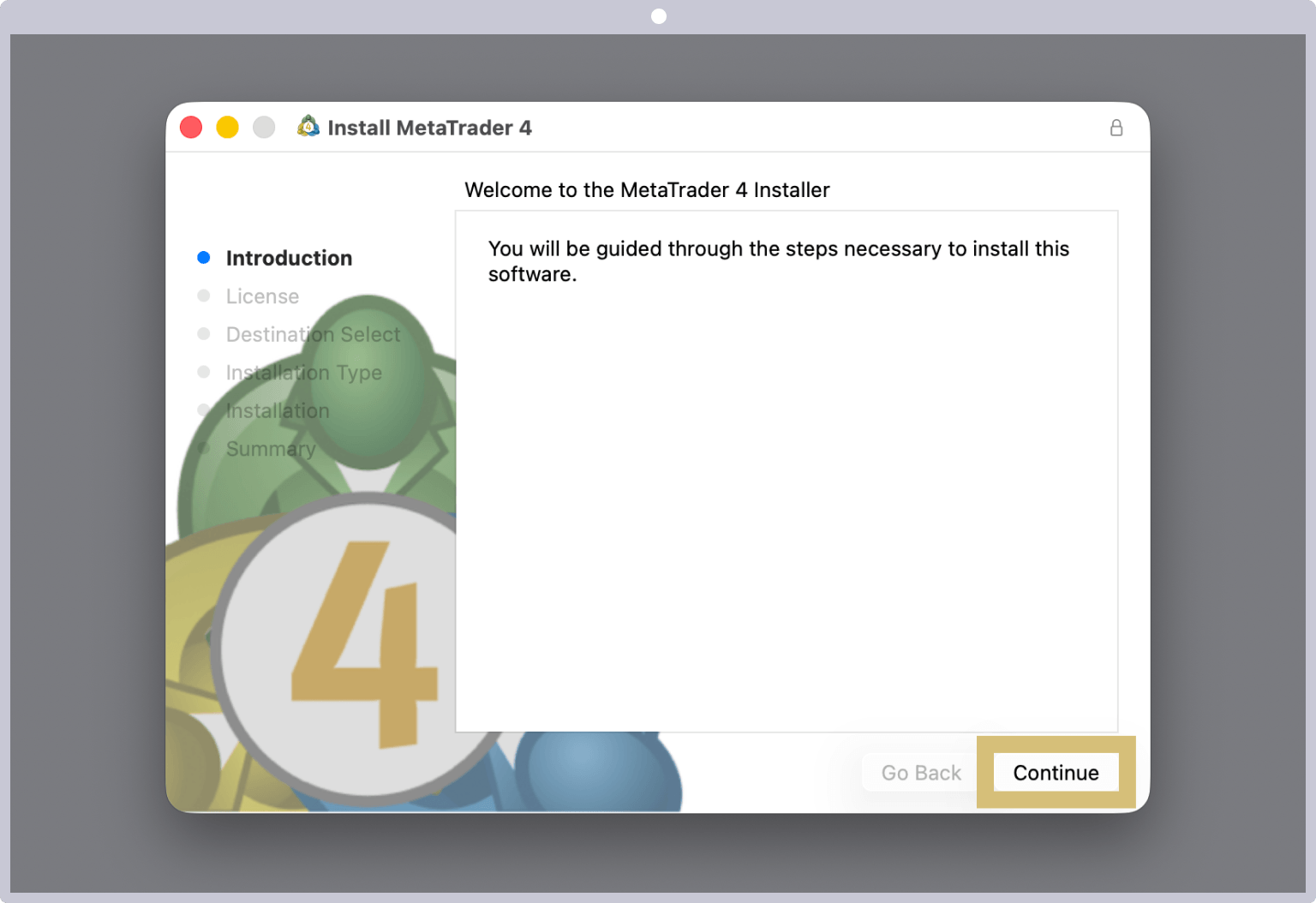
MT4/MT5 Installation Complete
Follow the installer's instructions to proceed with the installation.
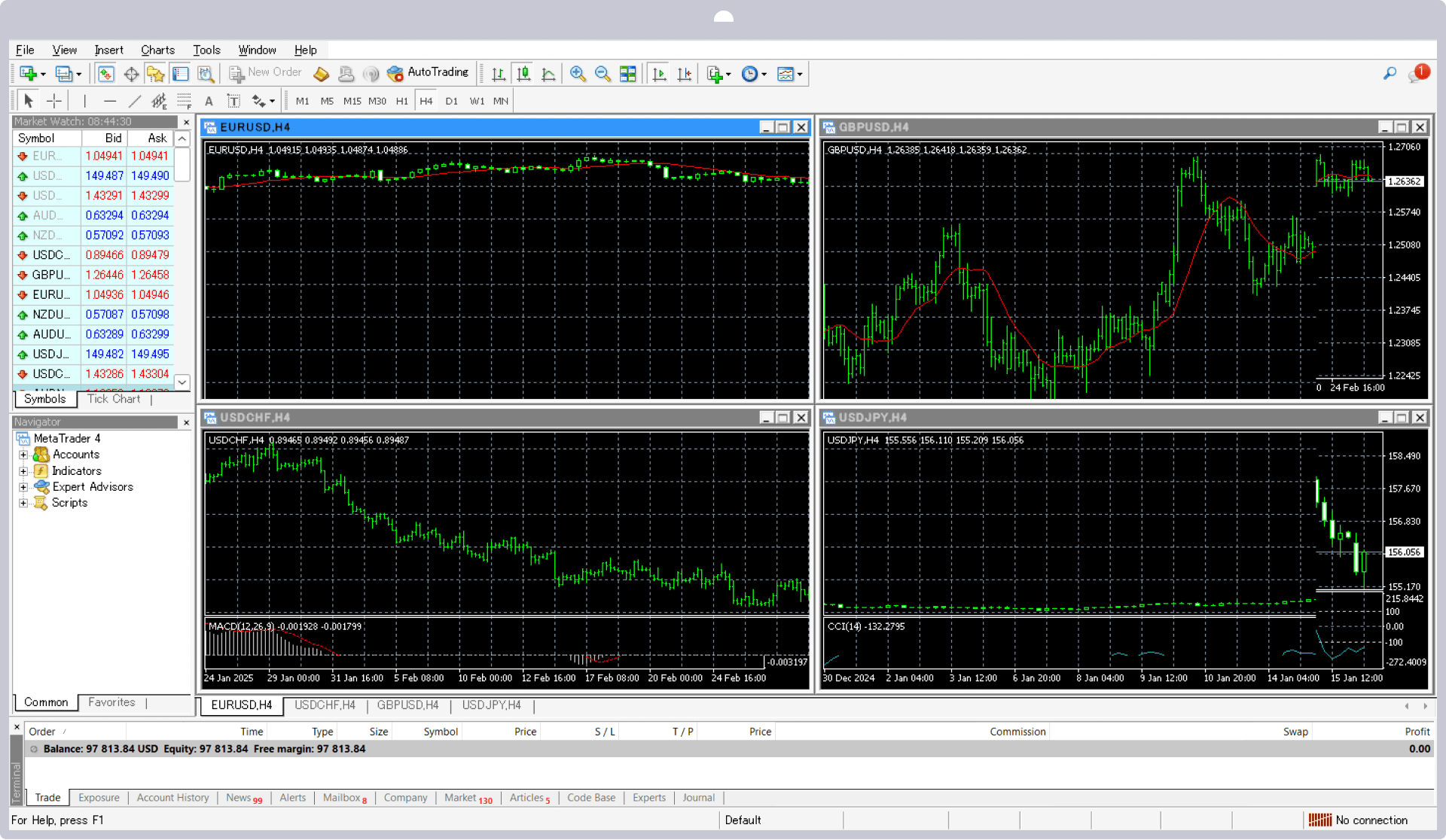
Once MT4/MT5 has launched, the installation of the Exness Mac version of MT4/MT5 is complete. After logging in to MT4/MT5, you can start trading in Exness’s excellent trading environment.
Displaying MT4/MT5 Shortcut Icons
Once the installation of Exness MT4/MT5 for Mac is complete, a shortcut icon will automatically appear on your desktop. The next time you use MT4/MT5, please double-click the shortcut icon to log in.
If You Can't Download or Install MT4/MT5 (Windows or Mac)
If you are unable to download or install the Windows or Mac versions of Exness MT4/MT5, the following may be the cause. Please check these points and try again.
Internet Connection Issues
If you are unable to download or install MT4/MT5, your internet connection may be unstable. If your connection is weak or unstable, the download and installation will not complete successfully. Please wait a while or try downloading and installing again in a location with a better internet connection.
Blocked by Security Software
If you have security software installed on your computer, it may be blocking MT4/MT5. Please temporarily lower the security software’s settings to download and install MT4/MT5. Once the download and installation are complete, please restore the security software’s settings to their original state.
Instructions for Installing the Exness MT4/MT5 App (iOS and Android)
The installation instructions for the iOS and Android versions of Exness’s trading platforms, MT4 (MetaTrader 4) and MT5 (MetaTrader 5), are as follows.
Download the MT4/MT5 App
After launching the "App Store" app on your iOS device (iPhone or iPad), enter "MT4" or "MT5" in the search bar, then open the MT4/MT5 app details page. You can also access the MT4/MT5 app details page via the link below.
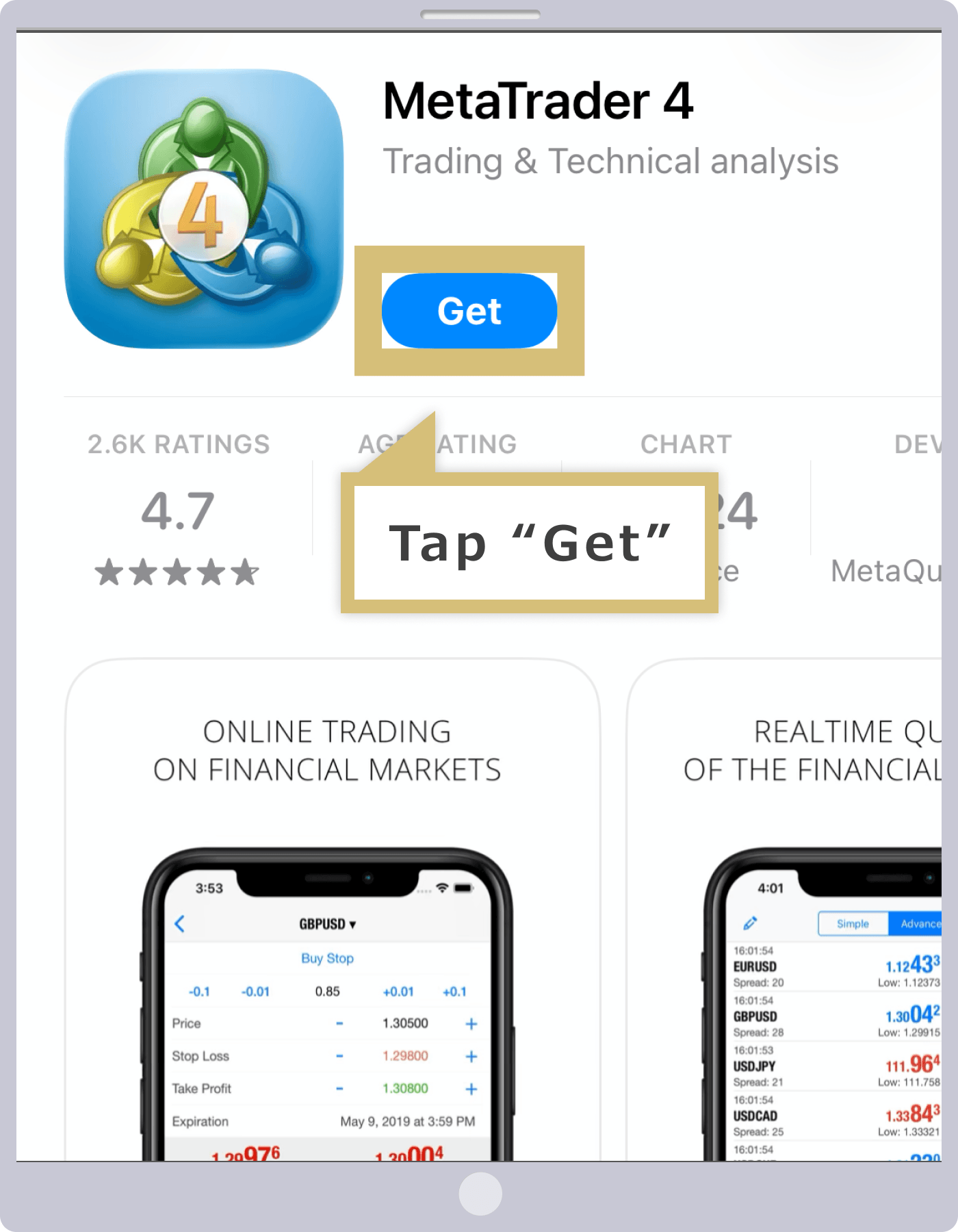
Once the MT4/MT5 app details screen opens, tap "Get."
Installing the MT4/MT5 App
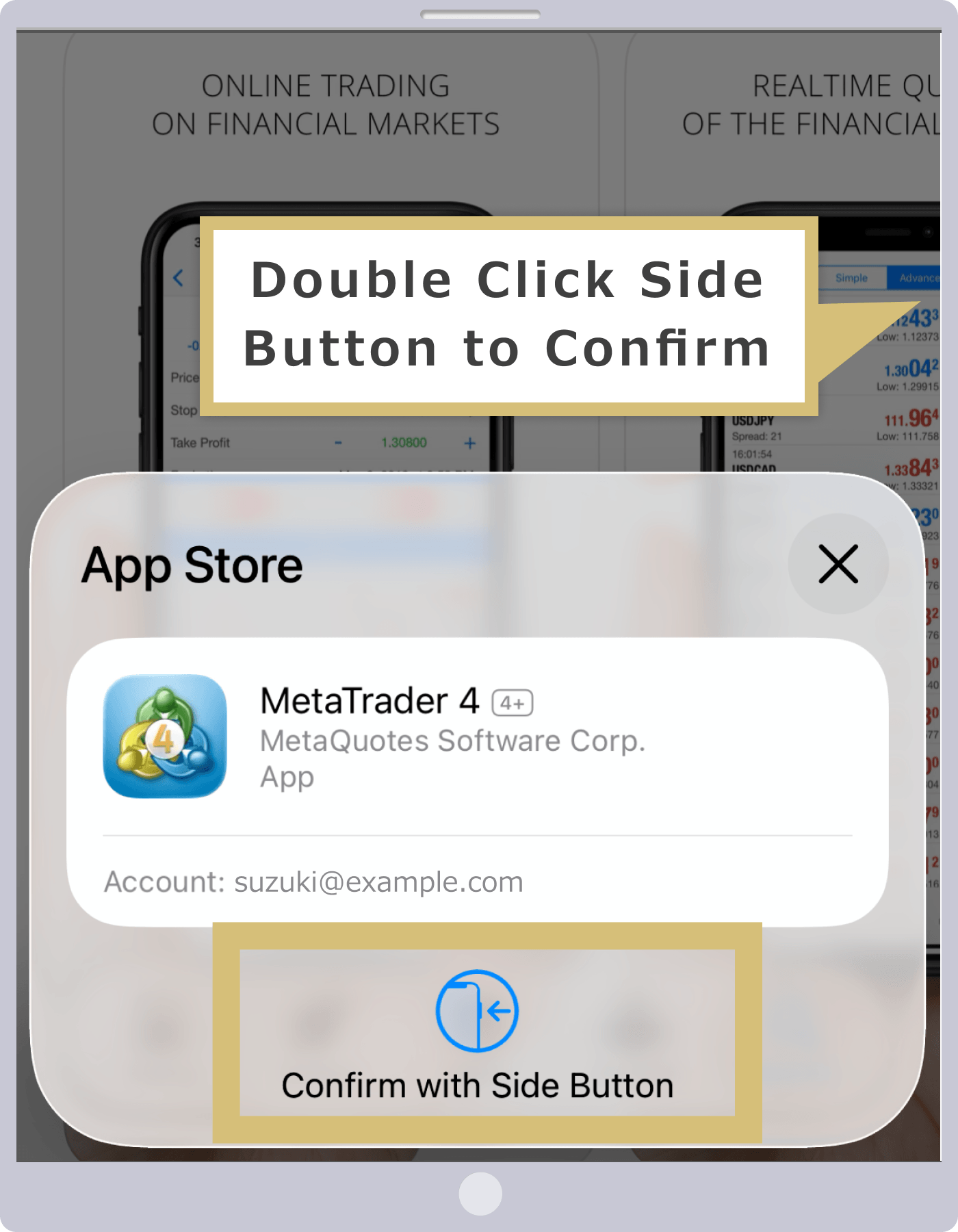
The MT4/MT5 app installation screen will appear; tap "Install."
MT4/MT5 App Installation Complete
Once the MT4/MT5 app has finished installing, the "Open" button will appear. Tap "Open" to launch the iOS version of MT4/MT5.
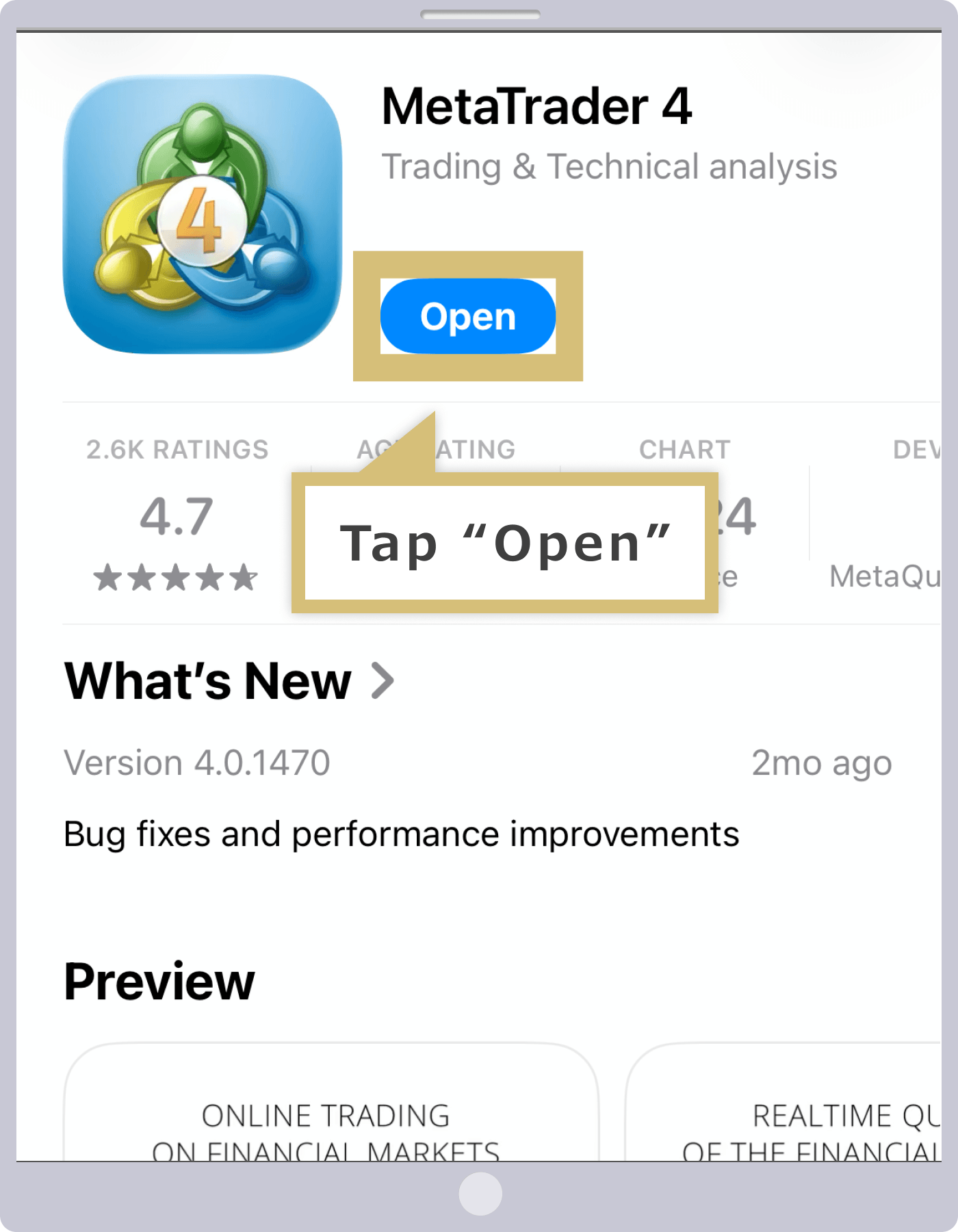
Once the MT4/MT5 app has launched successfully, log in to Exness’s MT4/MT5 and enjoy trading with industry-leading high leverage.
Download the MT4/MT5 App
After launching the "Google Play Store" app on your Android device, enter "MT4" or "MT5" in the search bar to search for the app, then open the MT4/MT5 app details page. You can also access the MT4/MT5 app details page via the link below.
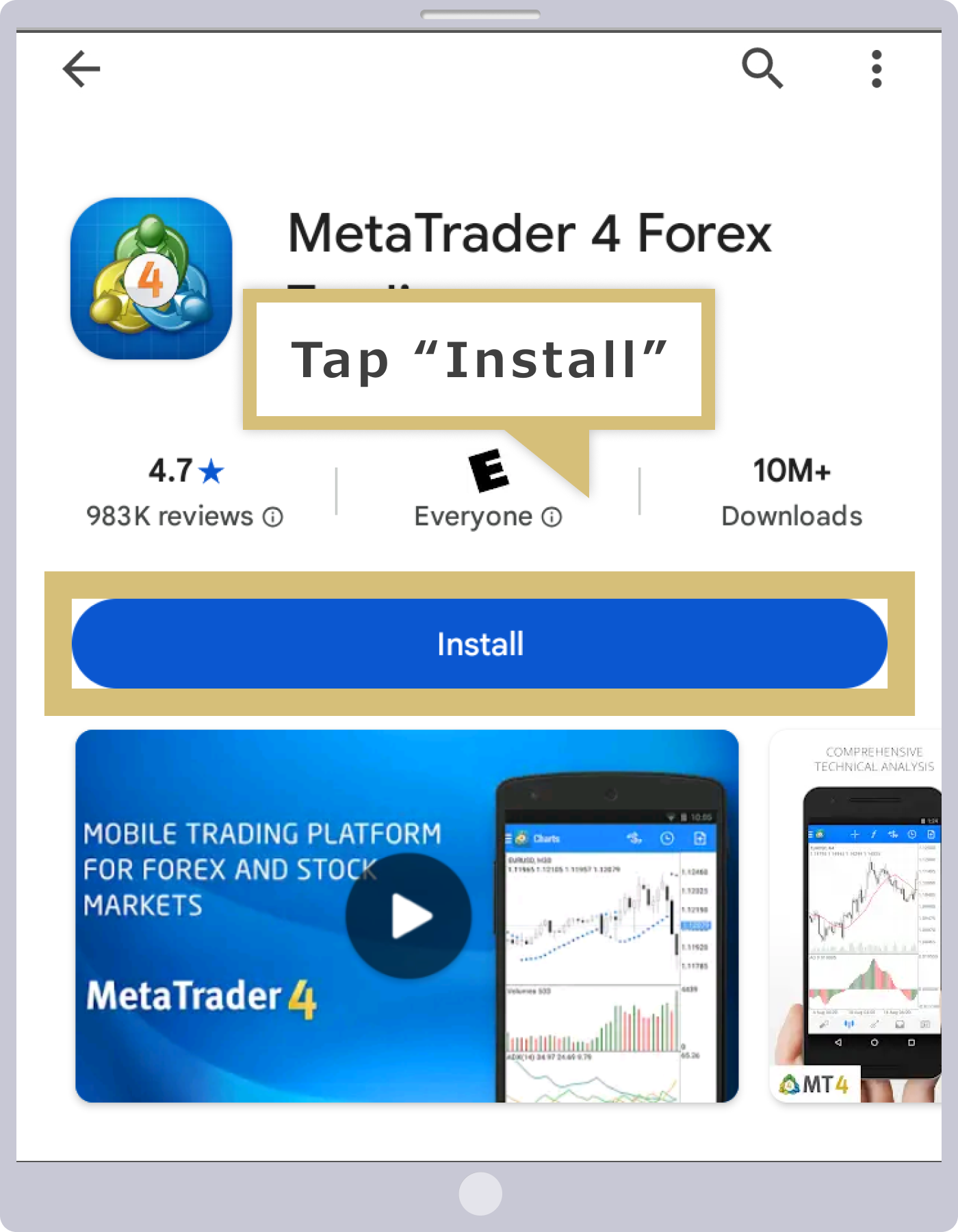
Once the MT4/MT5 app details screen opens, tap "Install."
MT4/MT5 App Installation Complete
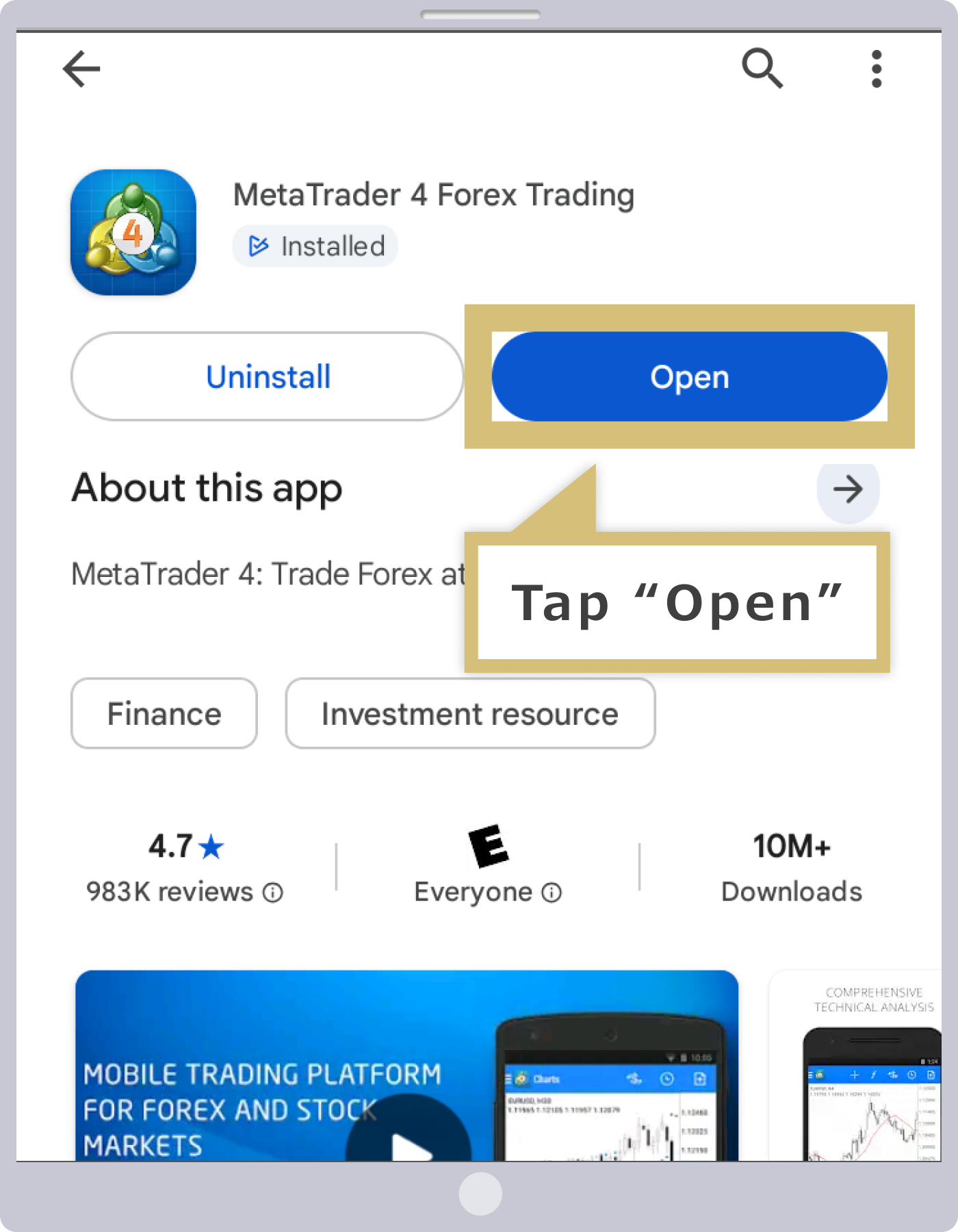
Once the MT4/MT5 app has finished installing, the "Open" button will appear. Tap "Open" to launch the Android version of MT4/MT5.
Once the MT4/MT5 app has launched successfully, log in to Exness’s MT4/MT5 and enjoy trading with industry-leading high leverage.
If You Can't Install MT4/MT5 (iOS or Android)
If you are unable to install the MT4/MT5 app on your mobile device, the following may be the cause. Please check these points and try again.
Internet Connection Issues
If you are unable to install the MT4/MT5 app, your internet connection may be unstable. The app cannot be installed properly if your connection is weak or unstable. Please wait a while or try installing it again in a location with a better internet connection.
You have selected an MT4/MT5 version that is different from the one on your device
When downloading the MT4/MT5 app from a link on the website, you must select the app compatible with your device. Please make sure you are accessing the "App Store" for iOS or the "Google Play Store" for Android.
You can also access the download pages for the MT4/MT5 apps compatible with each device via the links below.
MT4/MT5 (iOS and Android versions)
| iOS Version | Android version |
| MT4 (MetaTrader 4) | MT4 (MetaTrader 4) |
| MT5 (MetaTrader 5) | MT5 (MetaTrader 5) |
Insufficient device storage
If there is insufficient free storage space on your device, you will not be able to install the MT4/MT5 app. If you do not have enough free storage space, please delete unnecessary apps and data to free up space, and then try installing the app again.
The device is running an outdated version and is not compatible with MT4/MT5.
Your device may be running an outdated version that is not compatible with the MT4/MT5 app. Please check the MT4/MT5 details screen to confirm whether your device’s version is compatible with MT4/MT5.For iOS devices, check the “Compatibility” section under “Info” on the MT4/MT5 app details page in the App Store; for Android devices, check the “Android Requirements” section on the MT4/MT5 app details page in the Google Play Store. Please note that the supported versions for the MT4/MT5 apps are updated periodically as new updates are released.
If your device's version is not compatible with the MT4/MT5 app, please use the Exness MT4/MT5 Web Terminal. You don't need to install the app, and as long as you have an internet connection, you can trade on MT4/MT5 anytime, anywhere.
Frequently Asked Questions (FAQ) Regarding Exness MT4/MT5 Download and Installation Procedures
-
I'm currently using Exness's MT4. Do I need to install MT5 as well?
Yes, at Exness, you cannot log in to a MetaTrader 5 (MT5) account from MetaTrader 4 (MT4). Even if you already have MT4 installed, you will need to install MT5 separately if you are using an MT5 account.
Read More
08.09.2022
-
Can I download and install multiple copies of Exness's MT4/MT5?
Yes, at Exness, you can download and install multiple instances of MetaTrader 4 (MT4) and MetaTrader 5 (MT5). When downloading and installing your second or subsequent MT4/MT5 instances, please specify a different installation location from that of your existing MT4/MT5.
Read More
08.09.2022
-
Please tell me the steps to install Exness MT4/MT5 on my PC.
After downloading Exness's MetaTrader 4 (MT4) or MetaTrader 5 (MT5), double-click the setup file to launch the installer. Click "Next" on the license agreement screen, then click "Finish" on the setup screen to complete the installation.
Read More
08.09.2022