












search

An incredible cashback rate!
40% of the spread!

Steps to Turn On Exness Push Notifications (Mobile Version)

Push Notifications

How to Turn On Push Notifications on Exness

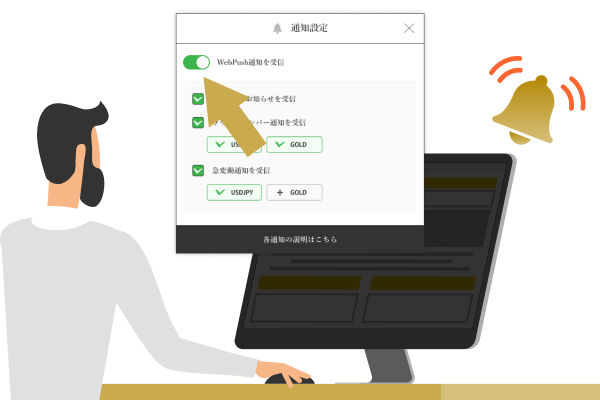
With Exness, you can receive push notifications containing important announcements from Exness, as well as the latest information—such as economic indicator release schedules and sudden market fluctuations—that can help you make informed trading decisions.On the push notification settings screen, you can select only the information you need from options such as “Important Economic Indicators and Announcements,” “Round Number Alerts,” and “Sudden Market Fluctuation Alerts.” By using the push notification feature, you can stay informed about valuable trading information and campaign updates in real time, helping you build a more efficient trading environment with Exness.

To receive push notifications from Exness, you need to add Exness to your smartphone's home screen and turn on push notifications. Please follow the steps below for detailed instructions on how to set this up.

Steps to Turn On Push Notifications in Exness (iOS Version)
Step 1

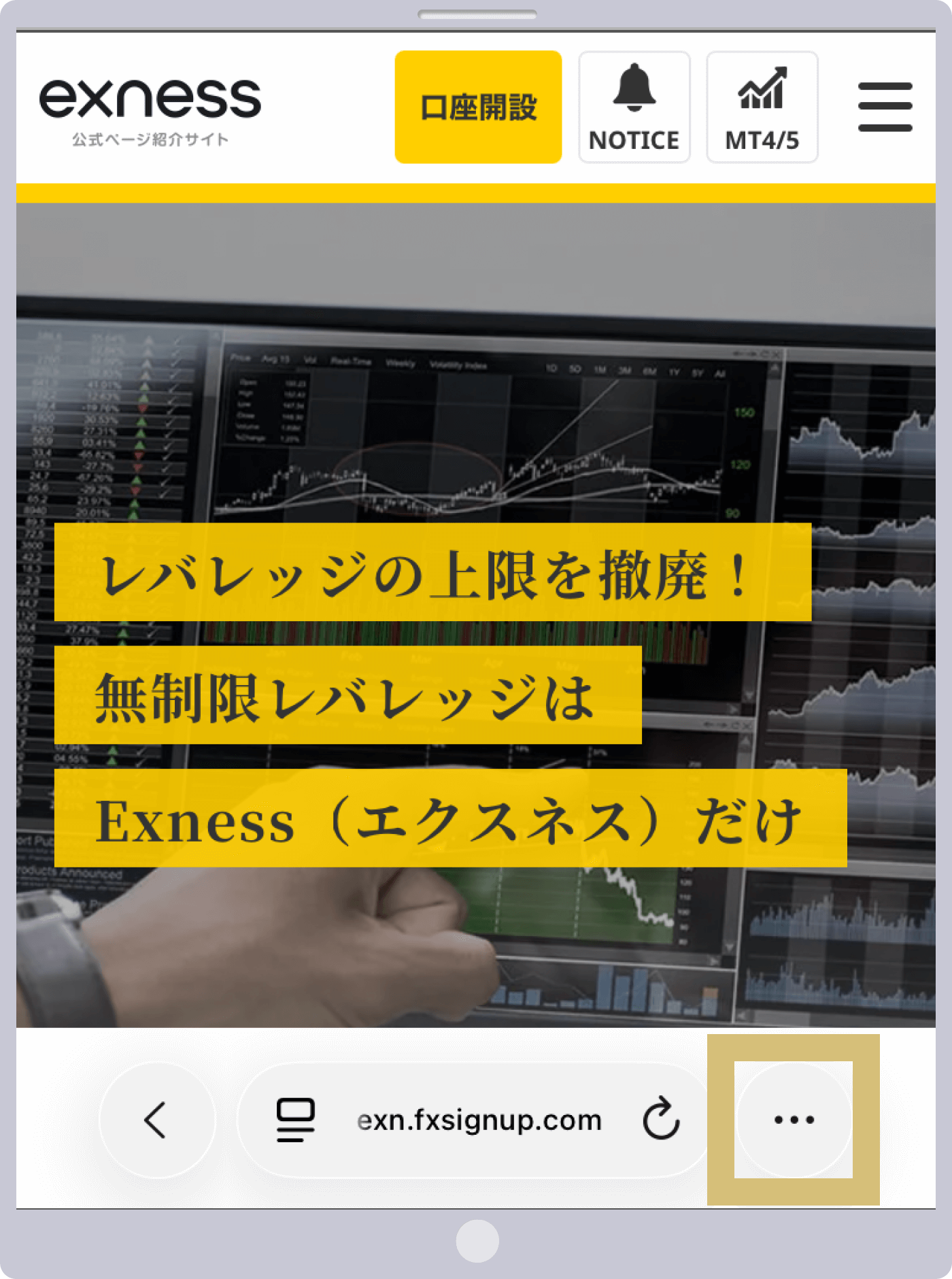
Access Exness from Safari and open the browser menu.

Exnessトップページ
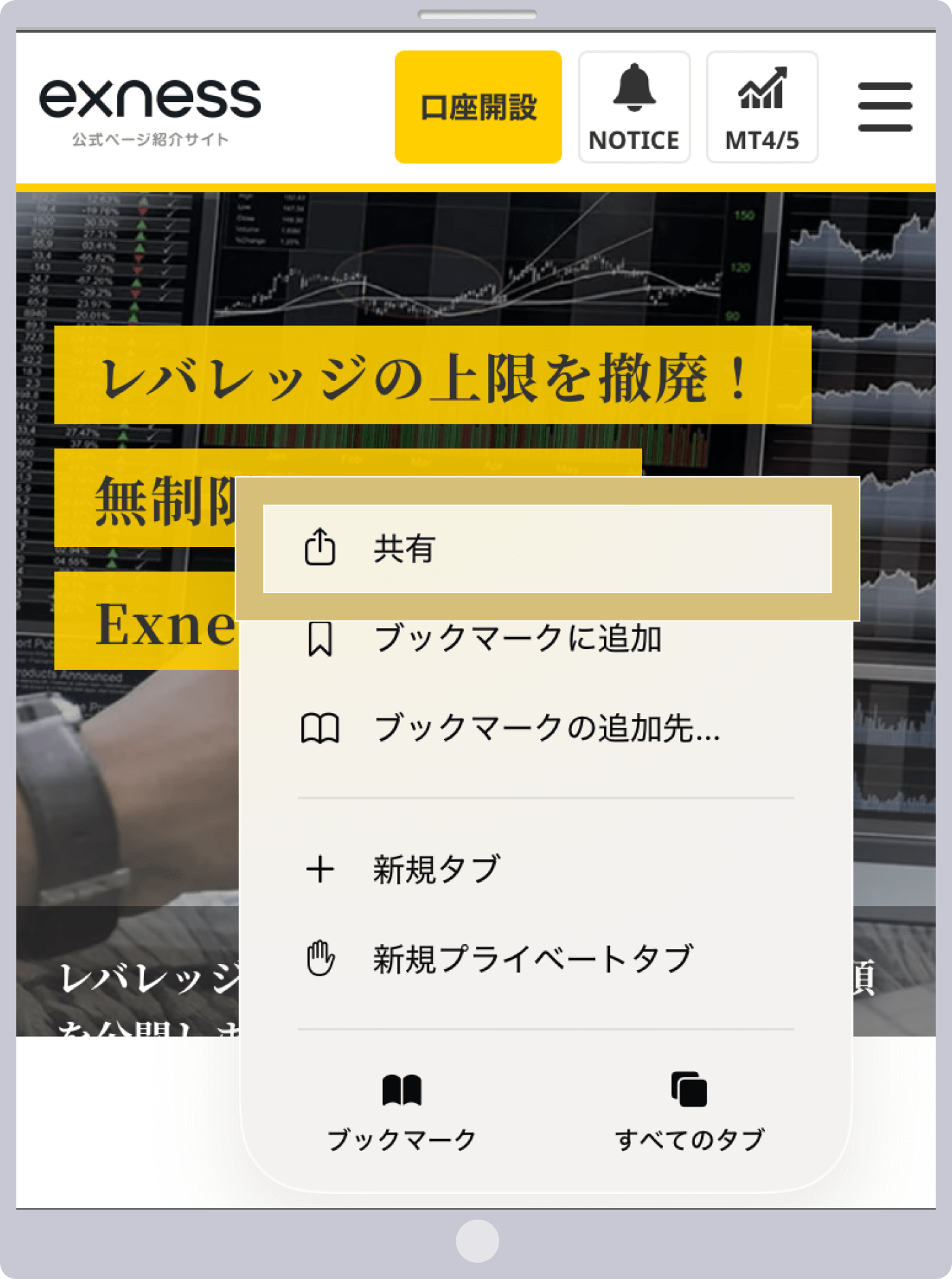
Step 2

Tap "Share" from the menu.

共有をタップ
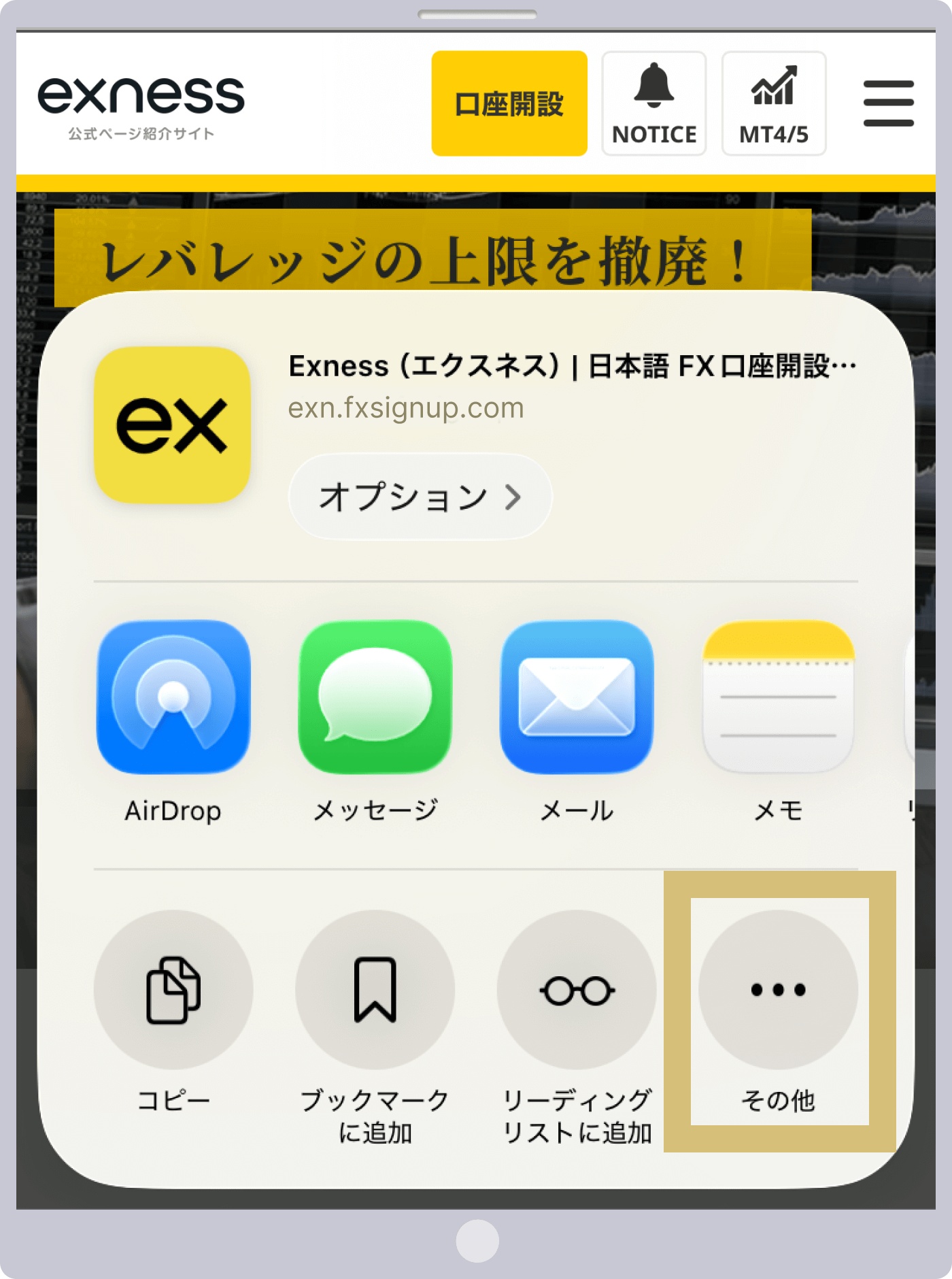
Step 3

Next, tap “Other.”

その他をタップ
Step 4

Tap "Add to Home Screen" in the menu.
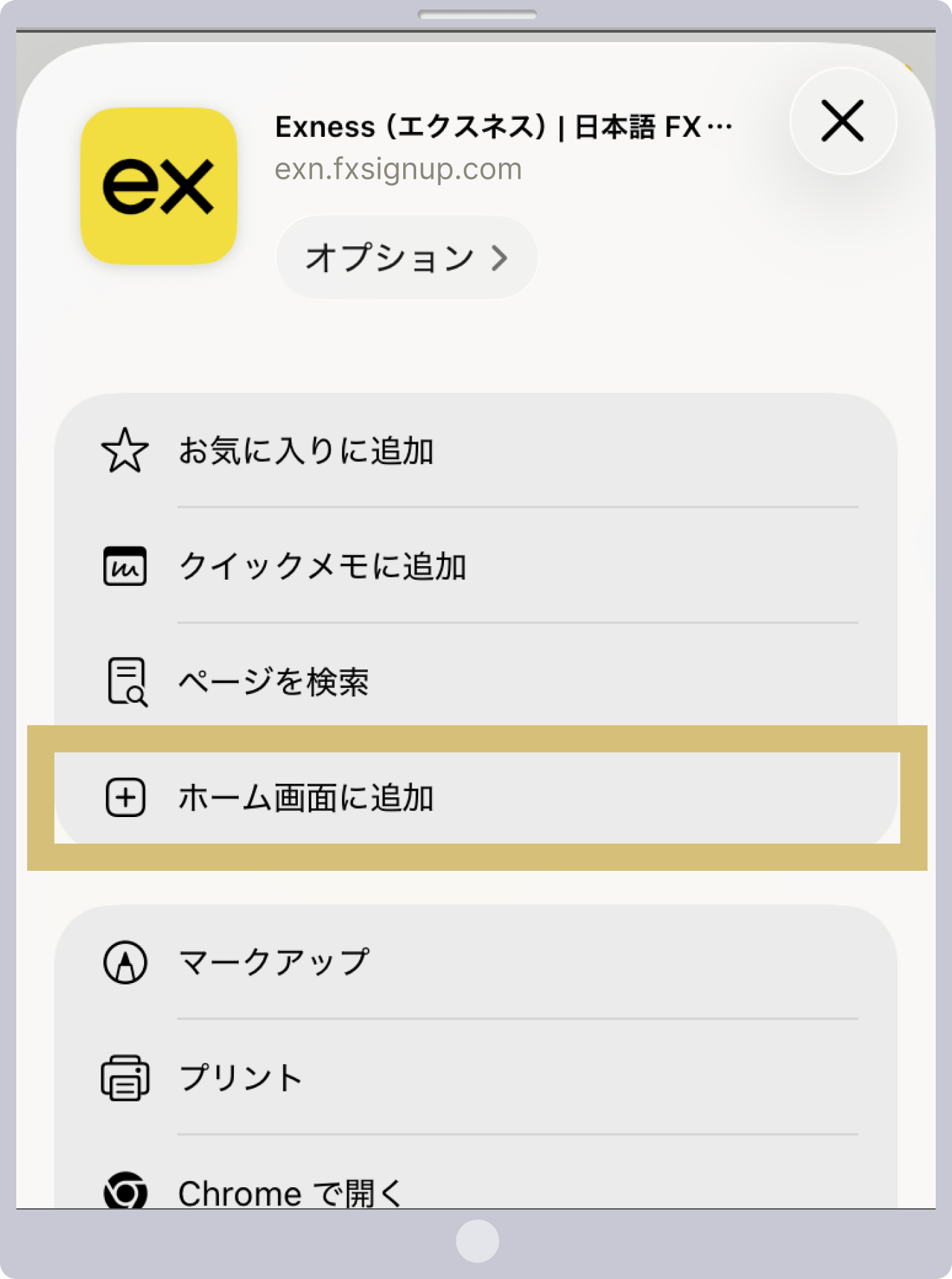
「ホーム画面に追加」をタップ
Step 5

Tap “Add” in the upper-right corner of the screen to add Exness to your home screen.
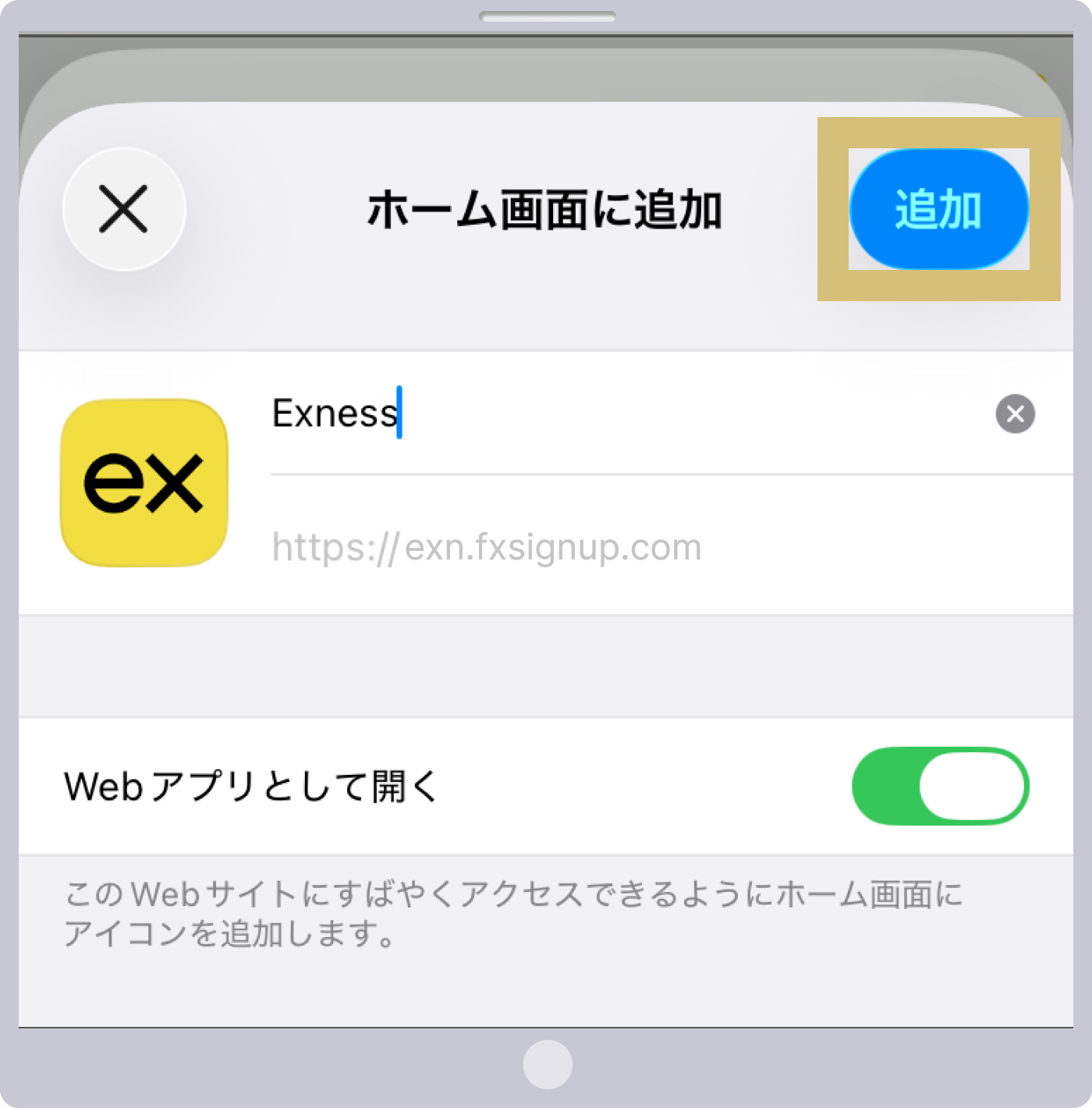
Exnessホーム画面に追加
Step 6

Tap the Exness icon on the home screen to open Exness again.

Exnessホーム画面アイコン
Step 7

Tap "NOTICE" in the upper-right corner of the screen.
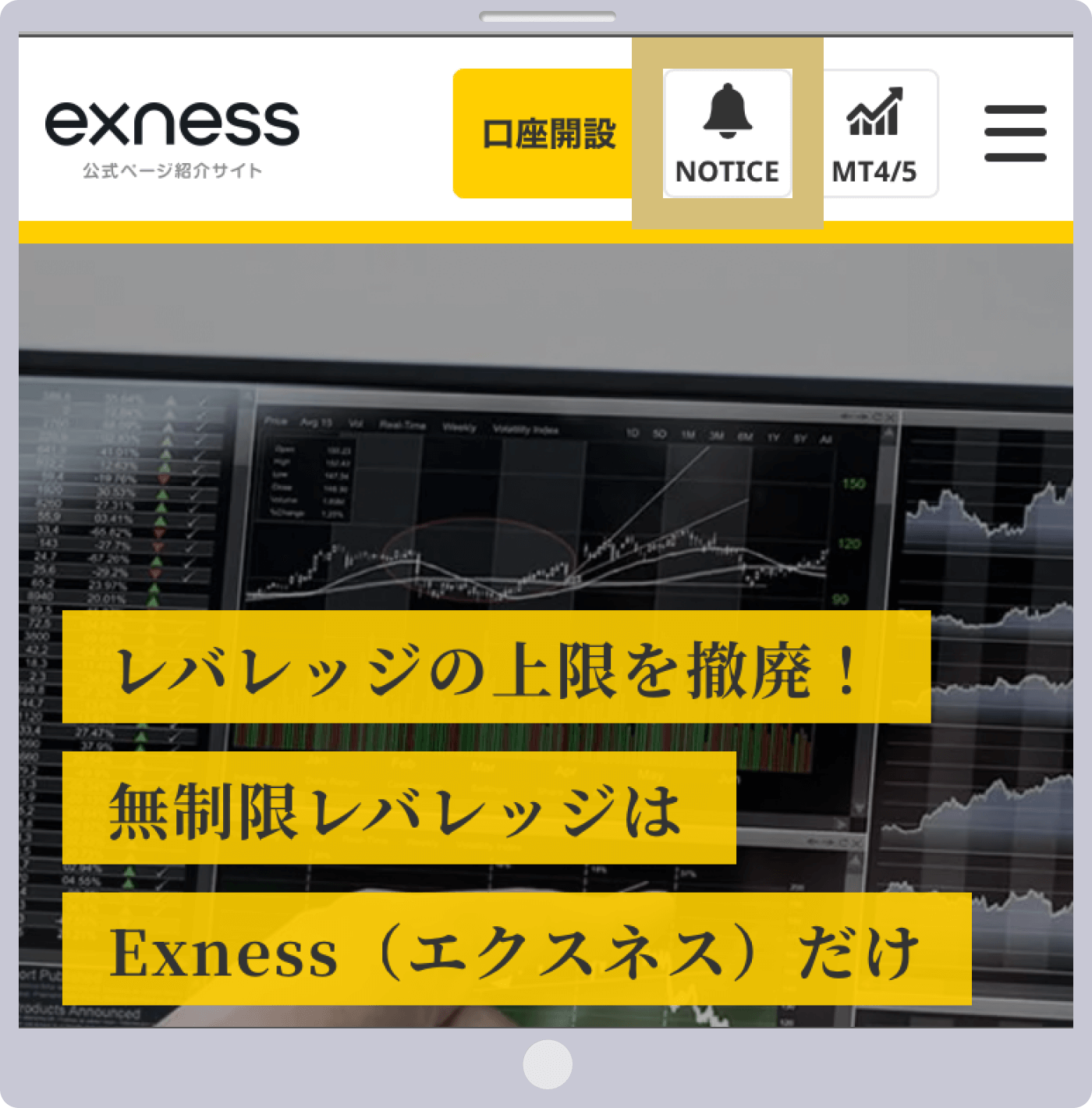
Exnessトップページ(NOTICE)
Step 8

Tap the button displayed to the left of "Receive WebPush Notifications."

Exness通知設定(OFF)
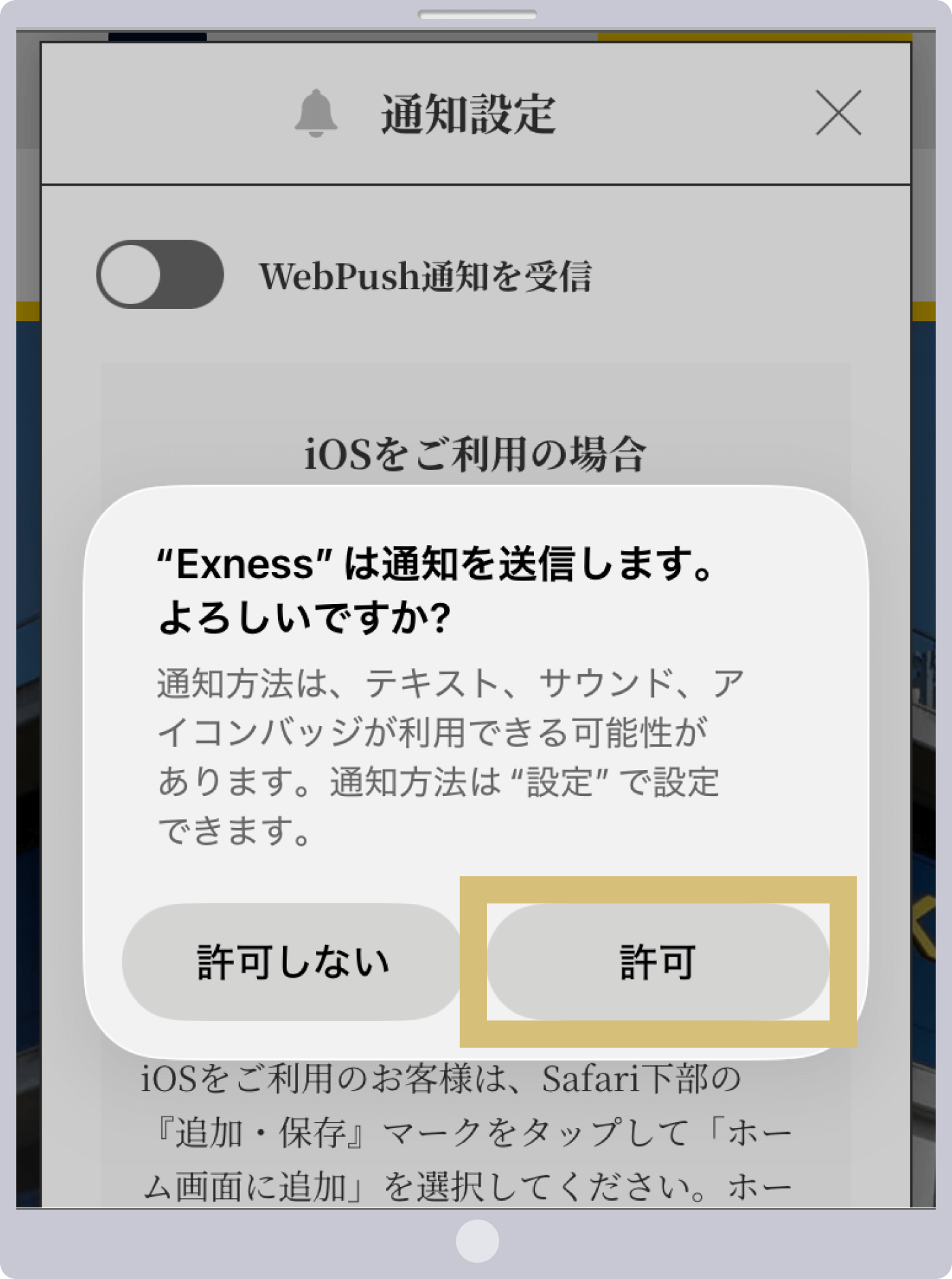
Step 9

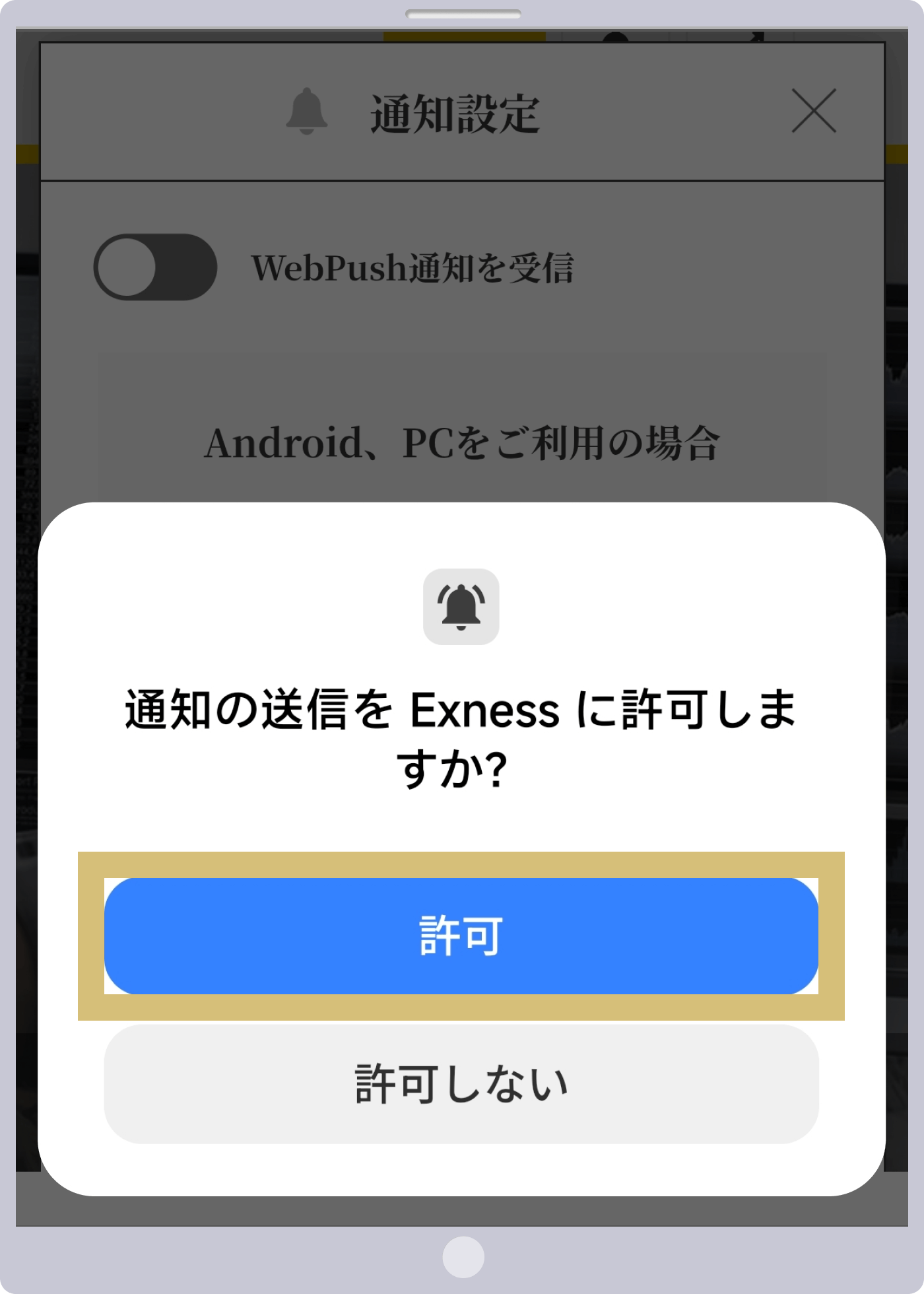
When a pop-up from Exness regarding notification settings appears, tap “Allow.”

Exness通知設定(ポップアップ)
Step 10

Once you see that the “Receive WebPush Notifications” button is green and the checkbox next to the items you want to receive is checked, your push notification settings are complete.
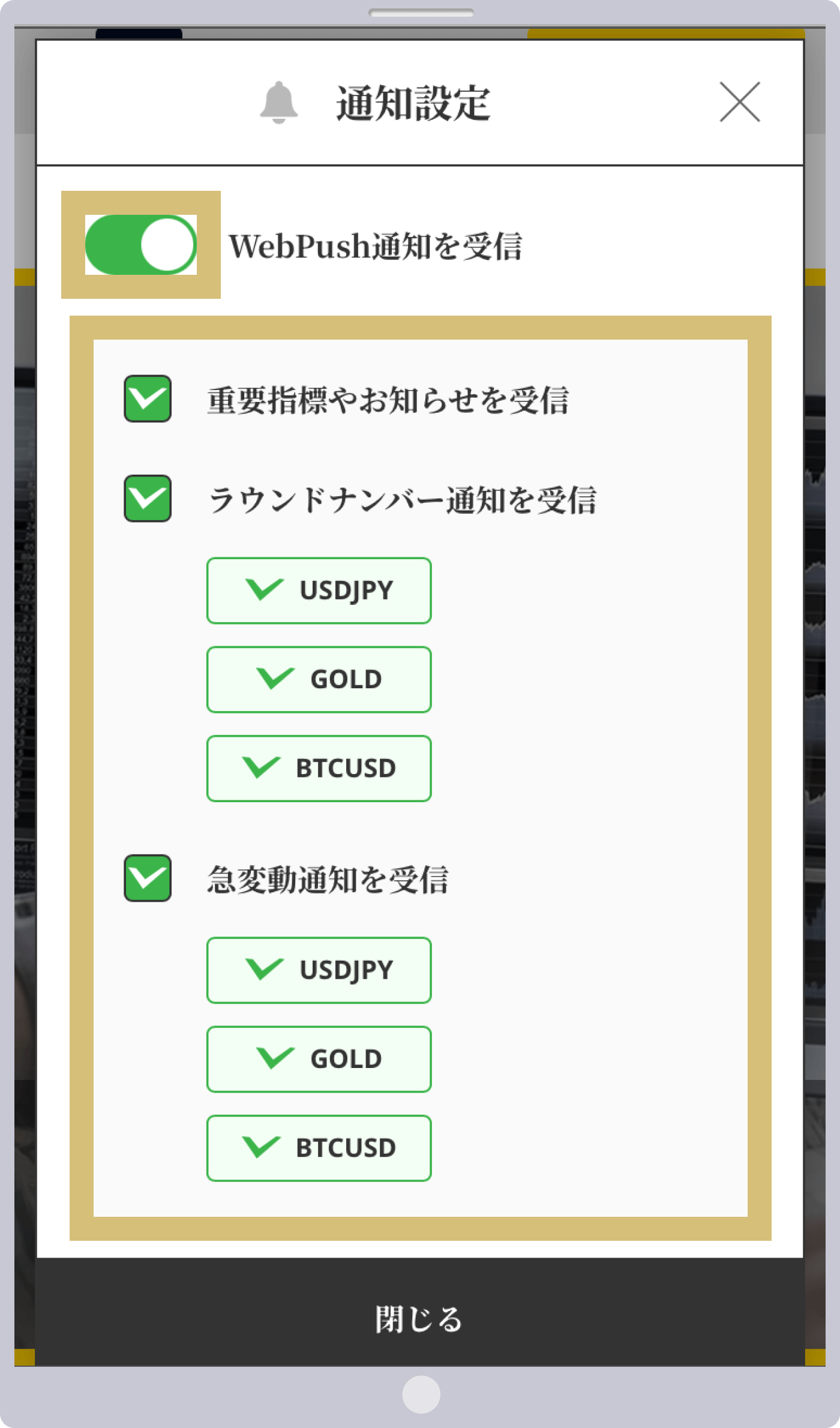
Exness通知設定(ON)

Steps to Enable Push Notifications on Exness (Android OS Version)
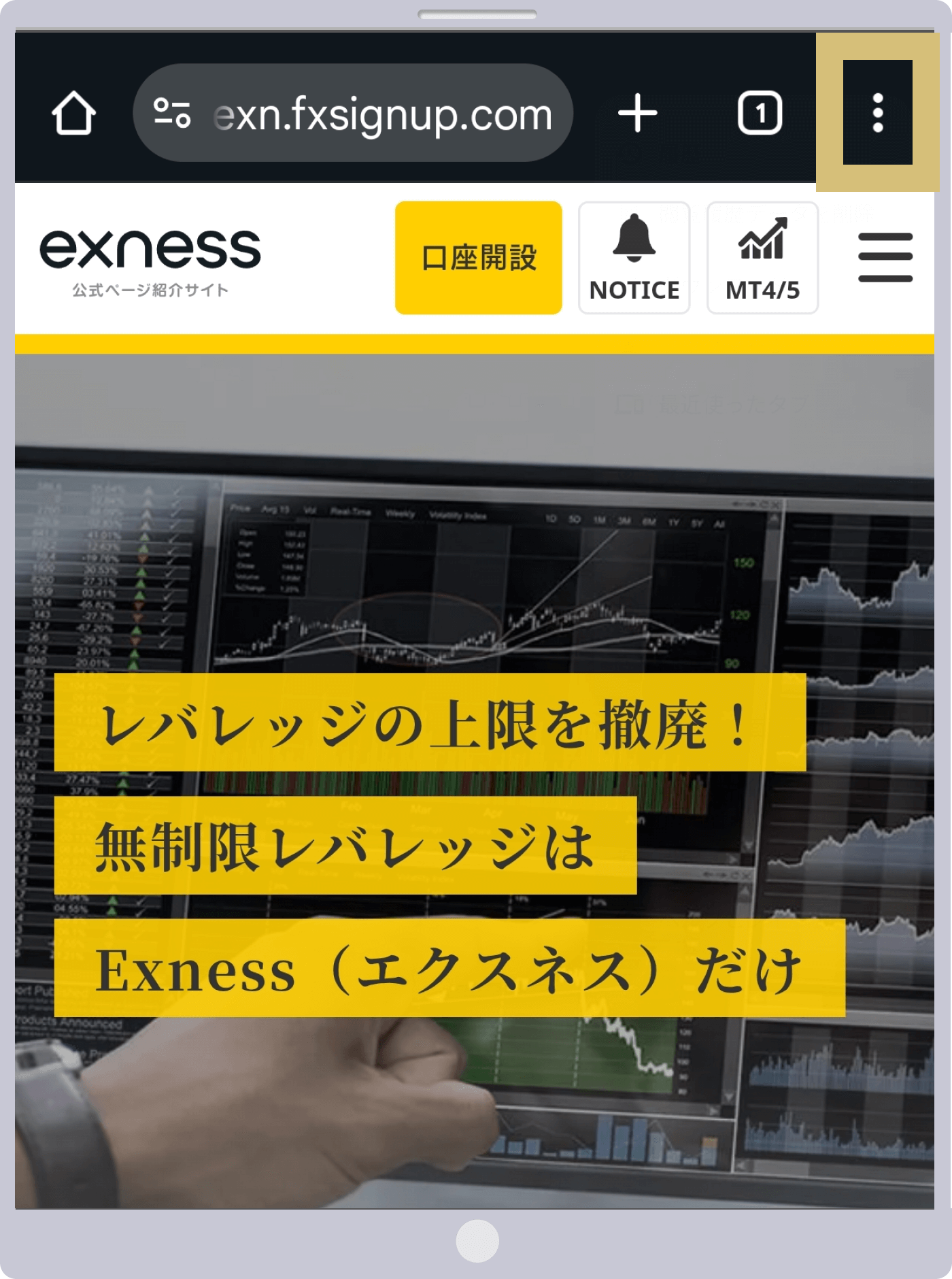
Step 1

Open Exness in Chrome and display the browser menu.

Exnessトップページ
Step 2

Tap "Add to Home Screen" in the menu.
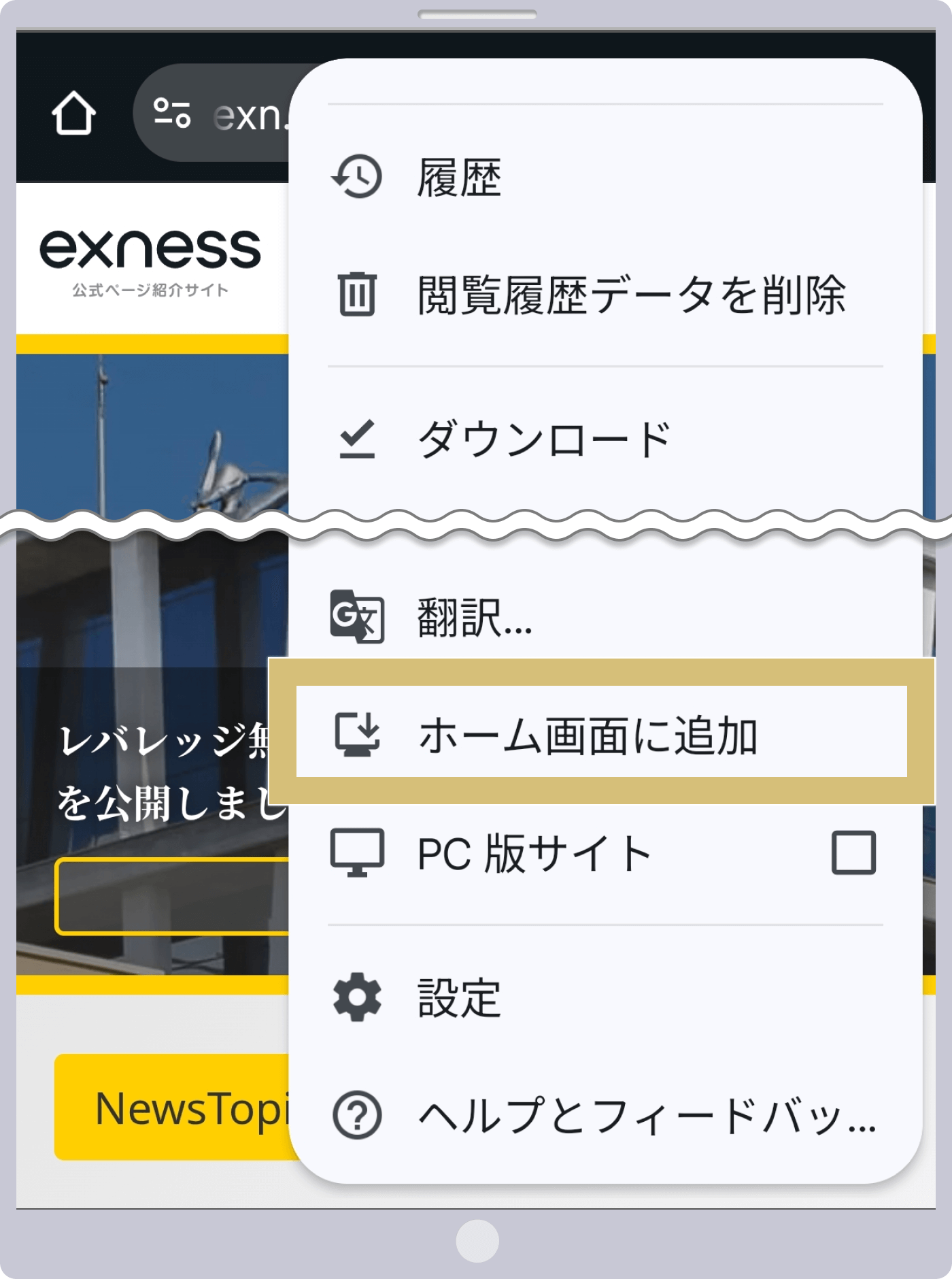
Exnessブラウザメニュー
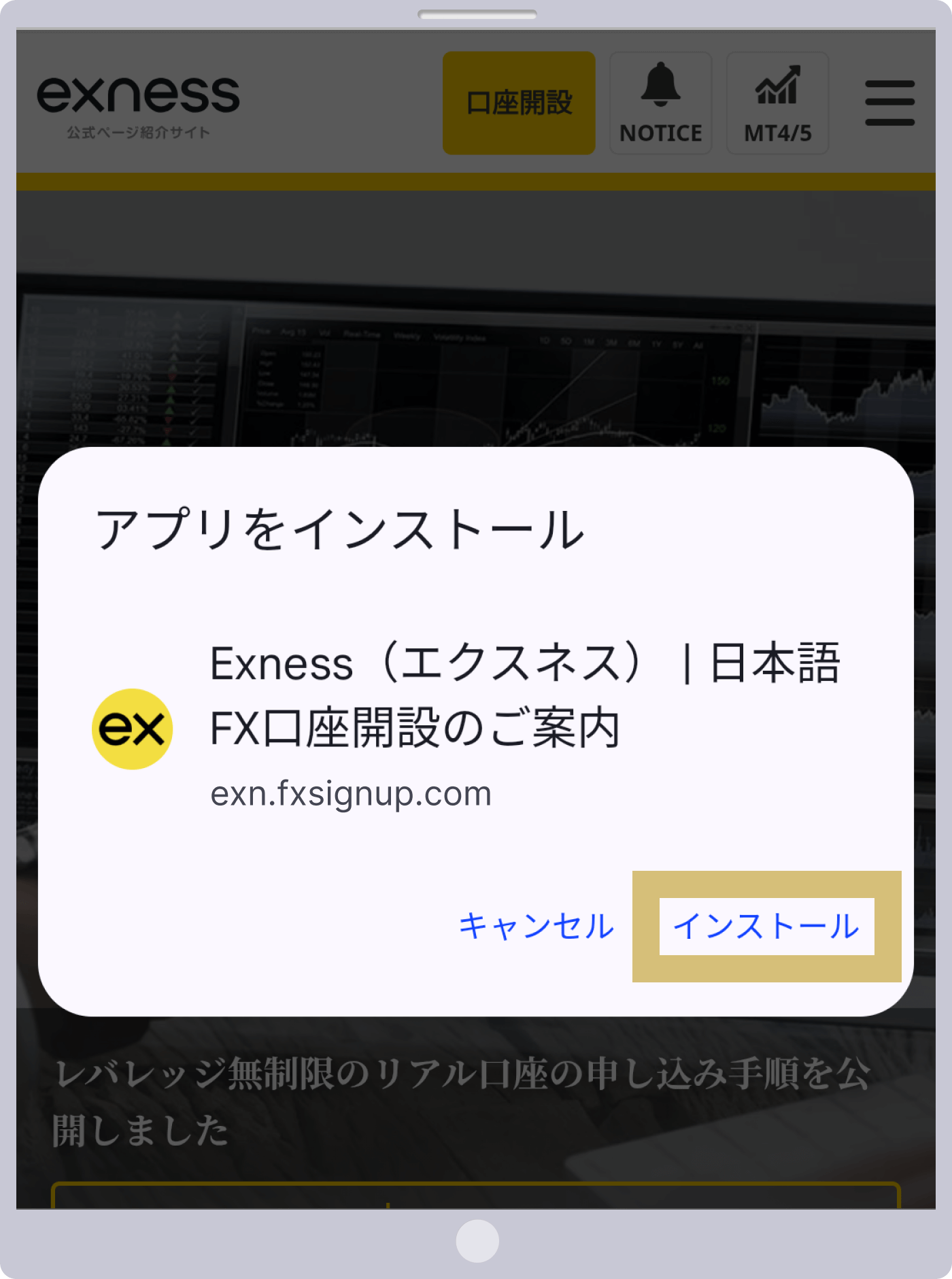
Step 3

Tap “Install” to add Exness to your home screen.

Exnessホーム画面に追加
Step 4

Tap the Exness icon on the home screen to open Exness again.
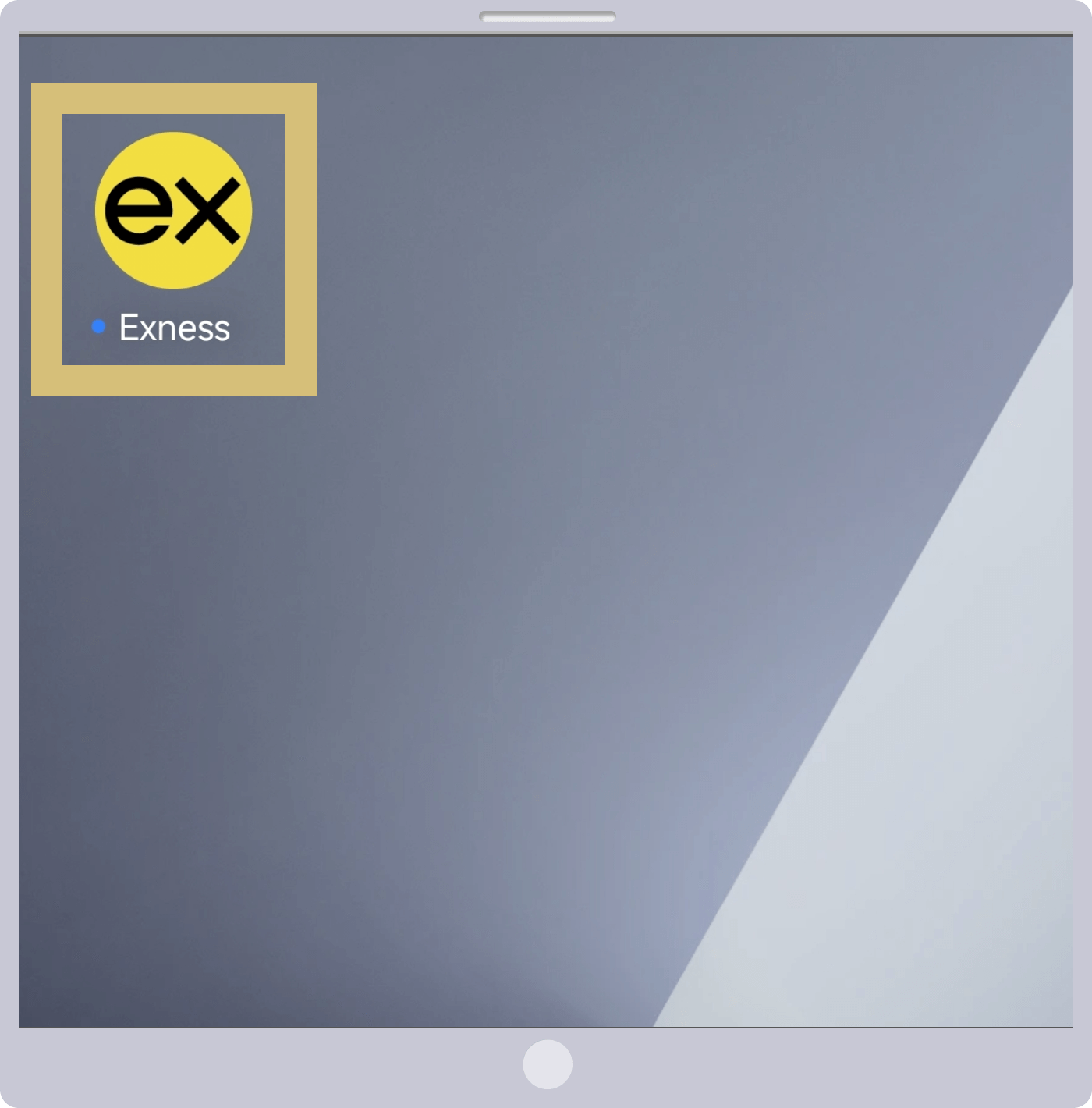
Exnessホーム画面アイコン
Step 5

Tap "NOTICE" in the upper-right corner of the screen.
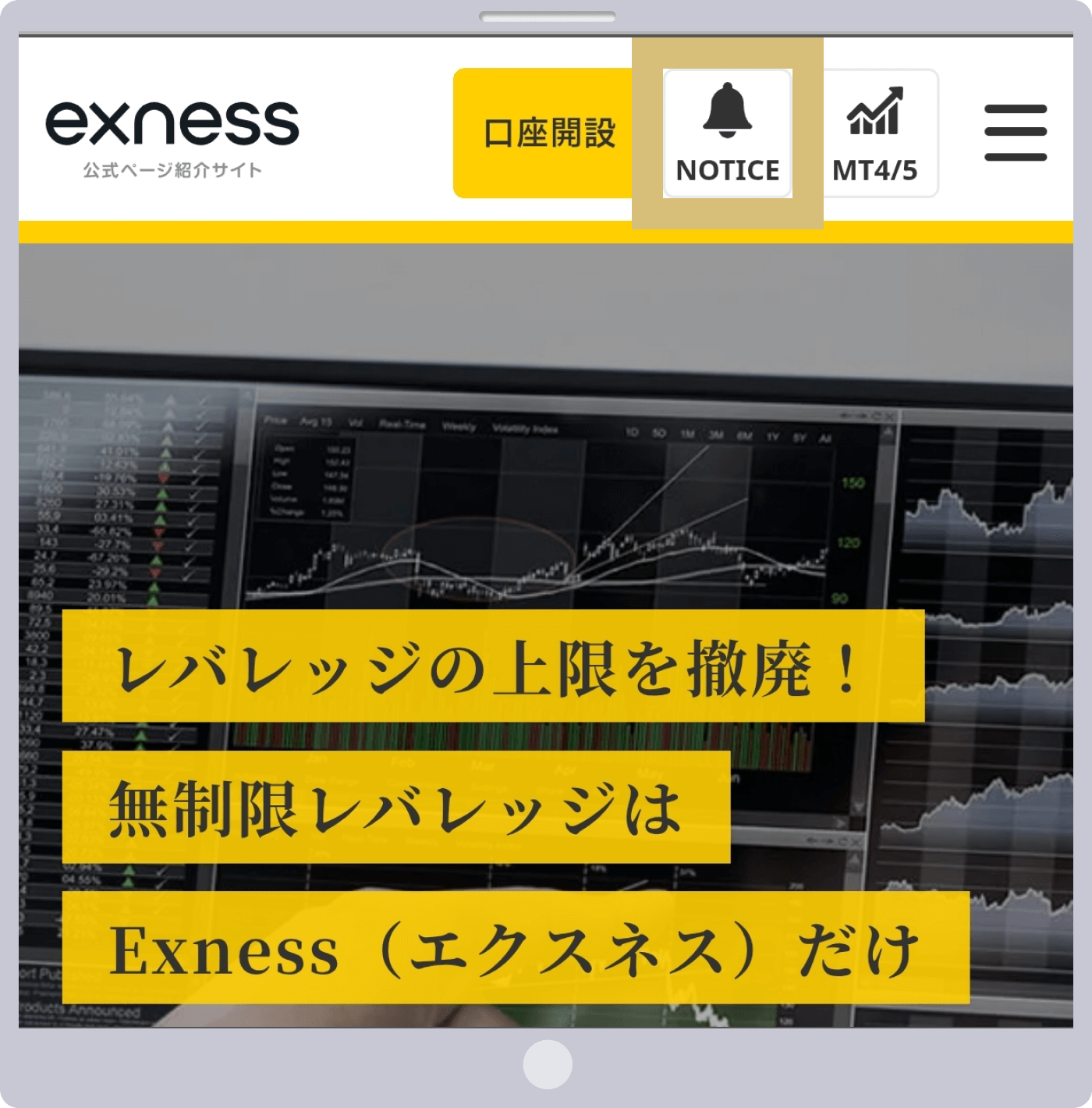
Exnessトップページ(NOTICE)
Step 6

Tap the button displayed to the left of "Receive WebPush Notifications."
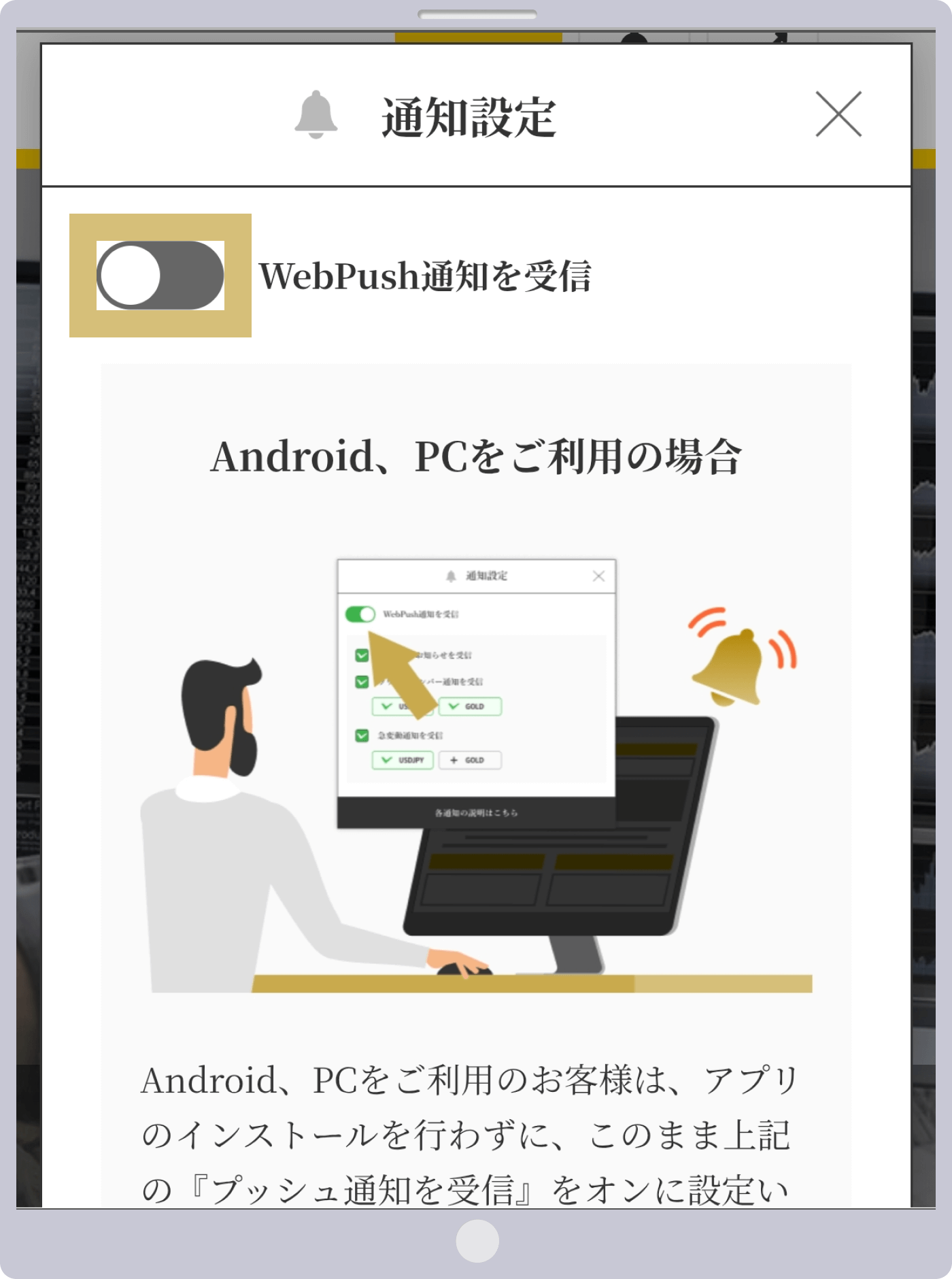
Exness通知設定(OFF)
Step 7

When a pop-up from Exness regarding notification settings appears, tap “Allow.”

Exness通知設定(ポップアップ)
Step 8

Once you see that the “Receive WebPush Notifications” button is green and the checkbox next to the items you want to receive is checked, your push notification settings are complete.
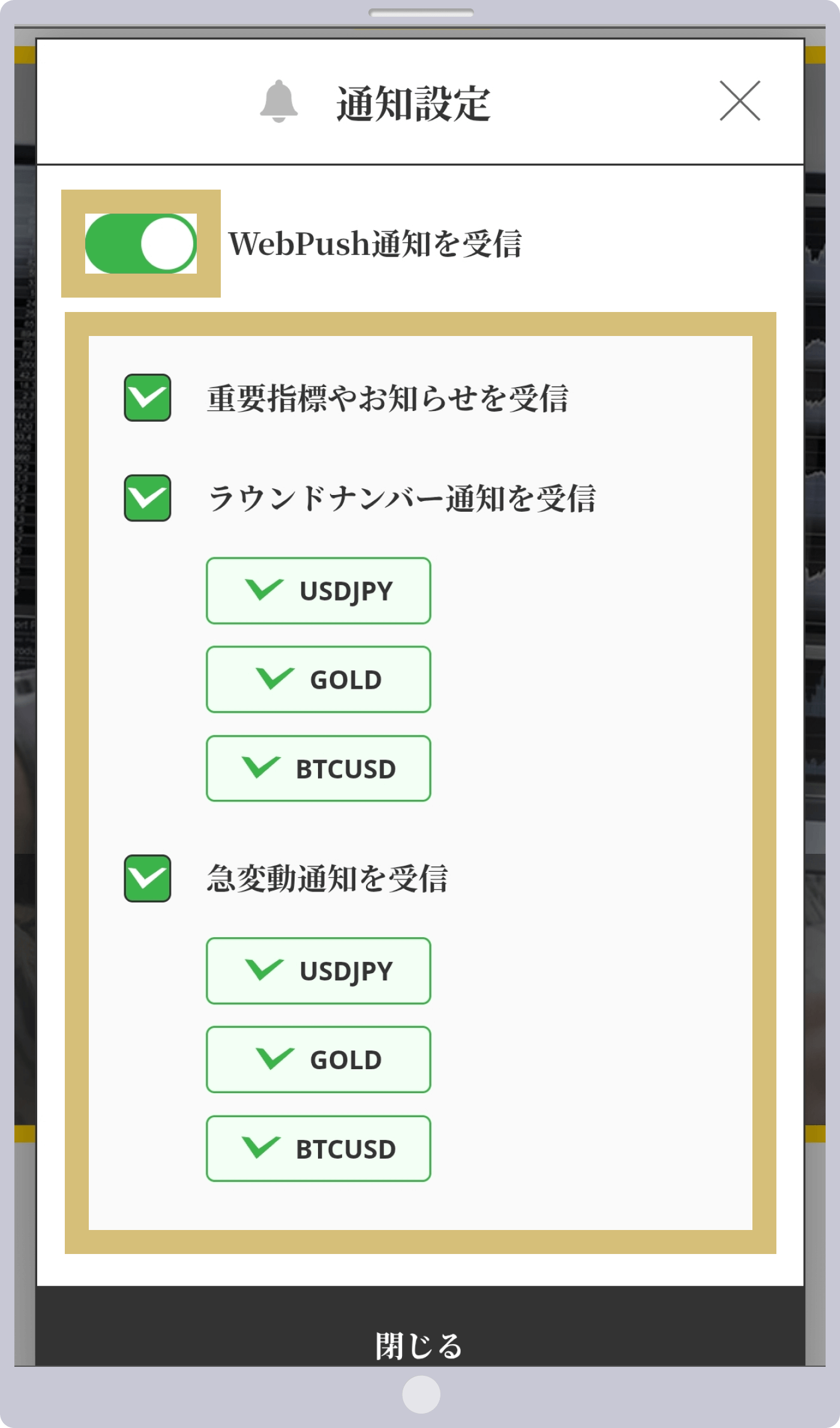
Exness通知設定(ON)
alert
Notification Settings
close

If you're using iOS

iOSをご利用の場合

If you're using iOS, tap the "Add/Save" icon at the bottom of Safari and select "Add to Home Screen." Once you've added it to your Home Screen, you can turn on "Receive Push Notifications" as shown above.

If you're using an Android device or a PC

Android、PCをご利用の場合

If you're using an Android device or a PC, you can simply turn on "Receive push notifications" as shown above without installing the app. (If your browser asks for permission, please select "Allow.")

You can find instructions on how to add this to your smartphone's home screen below.

USDJPY
XAUUSD
BTCUSD
USDJPY
XAUUSD
BTCUSD
Close
Click here for explanations of each notification
close
Details of Each Notification
line Receive key metrics and announcements

You will receive notifications about key metrics and limited-time promotions. If you turn this feature off, you may not be able to participate in limited-time promotions.

line Received a round number notification

A feature that sends notifications when a price reaches a round number. Receiving these notifications helps traders capitalize on trading opportunities and manage risk, which is why many traders are taking notice.

polygon USDJPY

Notifications are sent for every 100 pips (1 JPY) (e.g., 1 USD = 147 JPY, 1 USD = 148 JPY, etc.). Notifications for the same exchange rate are reset after 3 days (72 hours) have passed.

polygon XAUUSD

Notifications are sent every 500 pips (50 USD) (e.g., $3,000, $3,050, etc.). Notifications for the same rate are reset after 3 days (72 hours) have passed.

polygon BTCUSD

Notifications are sent for every 5,000 USD (e.g., 110,000 USD, 115,000 USD, etc.). Notifications for the same exchange rate are reset after 3 days (72 hours) have passed.

line Received notification of a sudden price fluctuation (sharp rise or fall in the exchange rate)

Receive real-time notifications of price fluctuations for USD/JPY, gold, and Bitcoin. Never miss a trading opportunity, even when you're on the go, and place orders that instantly respond to market conditions.

polygon USDJPY

You will receive a notification when there is a fluctuation of 30 pips (0.3 JPY) or more within 10 minutes (sharp rise or sharp drop). After that, notifications for sudden fluctuations under the same conditions will be suspended for 1 hour.

polygon XAUUSD

You will receive a notification when the price fluctuates by more than 20 USD within one hour (sharp rise or sharp drop). After that, notifications for sudden price fluctuations under the same conditions will be paused for four hours.

polygon BTCUSD

You will receive a notification when the price fluctuates by more than 2,000 USD within one hour (sharp rise or sharp drop). After that, notifications for sudden price fluctuations under the same conditions will be suspended for four hours.

Return to Notification Settings