














How to Open an Exness Account
How to Open an Account
How to Open an Exness Account
Opening a live trading account with Exness is easy: simply create an account on Exness’s “Personal Area” member portal and select your preferred account terms on the account opening form. The Exness account opening process is completed entirely online via a computer or smartphone and takes only about 5 minutes.
After opening this trading account, please submit the documents required for registering your personal information and verifying your identity, and proceed with the profile verification process. Exness will process your application within 24 hours. Once verification is complete, your trading account will be activated, and you will have access to all Exness services.
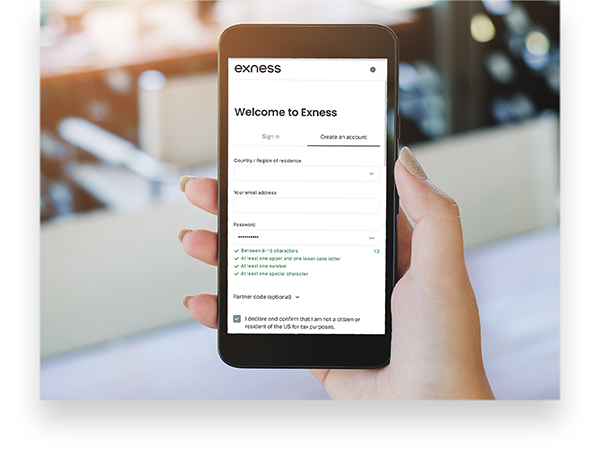
Access the Exness Personal Area registration form from your computer, smartphone, tablet, or other device, and enter your country/region of residence, email address, and password.


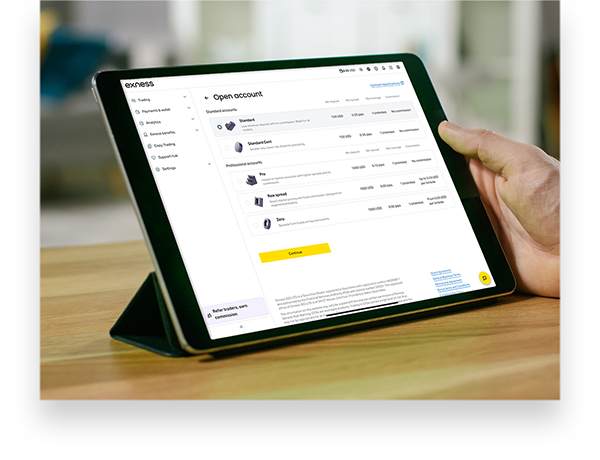
Log in to the Exness Personal Area and enter the information required to apply for a live trading account, such as account type, leverage, and trading platform.
Verification for This Trading Account
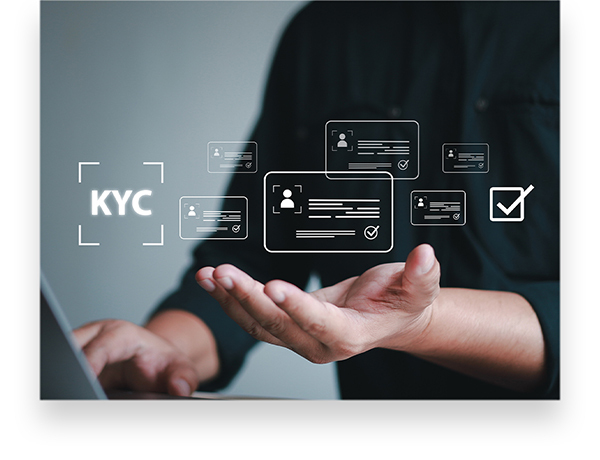
After verifying your email address and phone number in the Exness Personal Area, enter your personal information and financial details. Finally, submit your identification and proof-of-address documents to complete your profile verification.
Once your profile verification is complete, you will have full access to Exness's services. Please select your preferred deposit method and fund your account.
Exness: Eligibility and Requirements for Opening a Live Trading Account
You can open a live trading account with Exness only if you meet the following requirements.
Individuals 18 years of age or older
To open an account with Exness, you must be at least 18 years old at the time of application. Since trading in the foreign exchange market is prohibited for those under 18, Exness does not allow individuals under 18 to open either a demo or a live account.
People who can complete profile verification
At Exness, you must complete three processes after opening an account to access all services, from trading to withdrawals. During the personal information registration process, you are required to enter your personal details—such as your name, date of birth, and address—as well as information regarding your financial situation, including your assets and investment experience.For identity and address verification, you must submit a valid photo ID (such as a driver’s license, passport, or My Number Card) and proof of your current address issued within the last six months (such as a certificate of residence, seal registration certificate, utility bill, receipt,recent bank statements, or local tax payment notices, etc.) issued within the past six months.
Exness Account Opening Procedure
To open a live trading account with Exness, you must first create an account in the “Personal Area,” which is the member portal where you can manage all your Exness activities. After that, simply select your preferred account type on the new account opening screen to complete the process of opening your live trading account.
To apply for a live trading account with Exness, please click here.
Filling Out the Personal Information Form (New Member Registration)
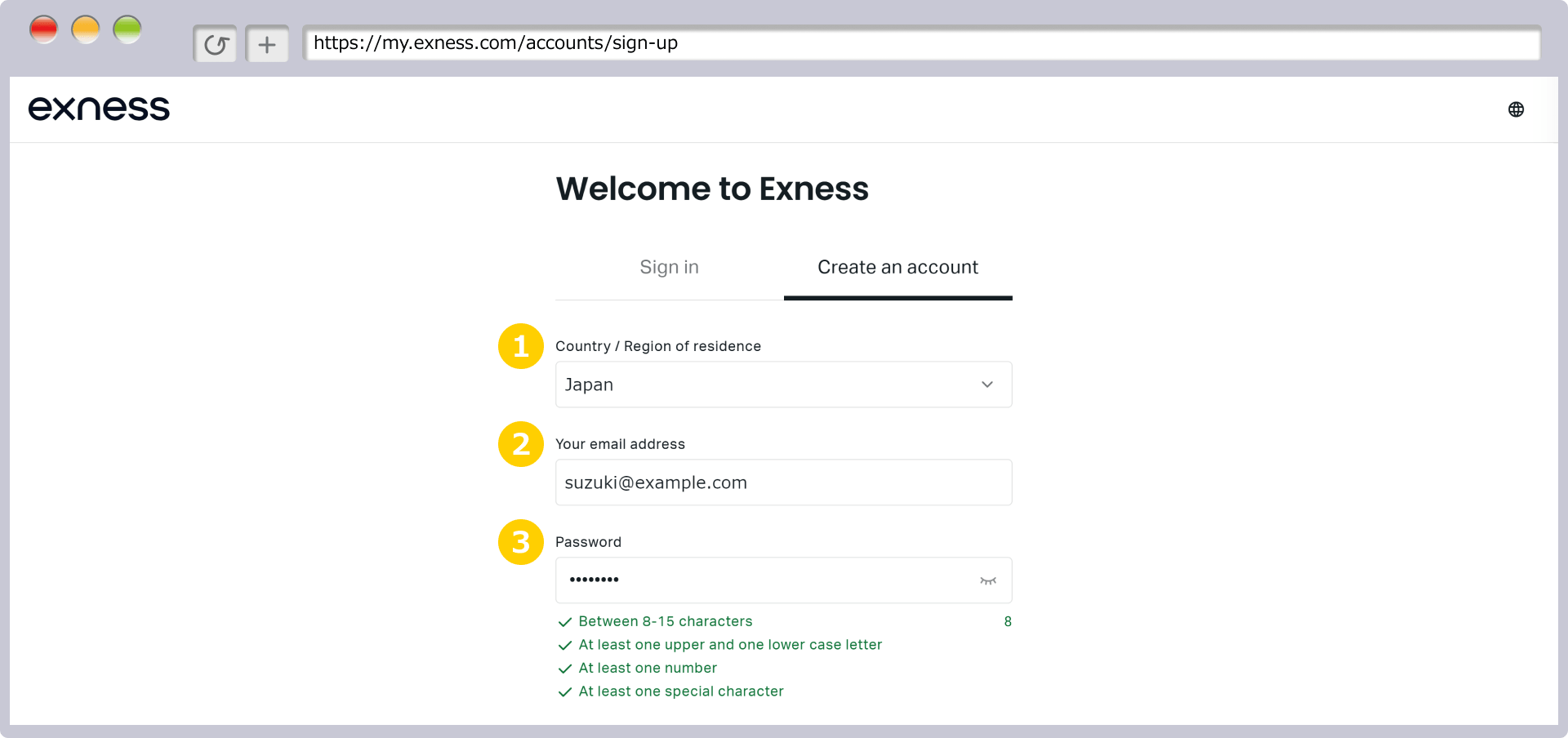
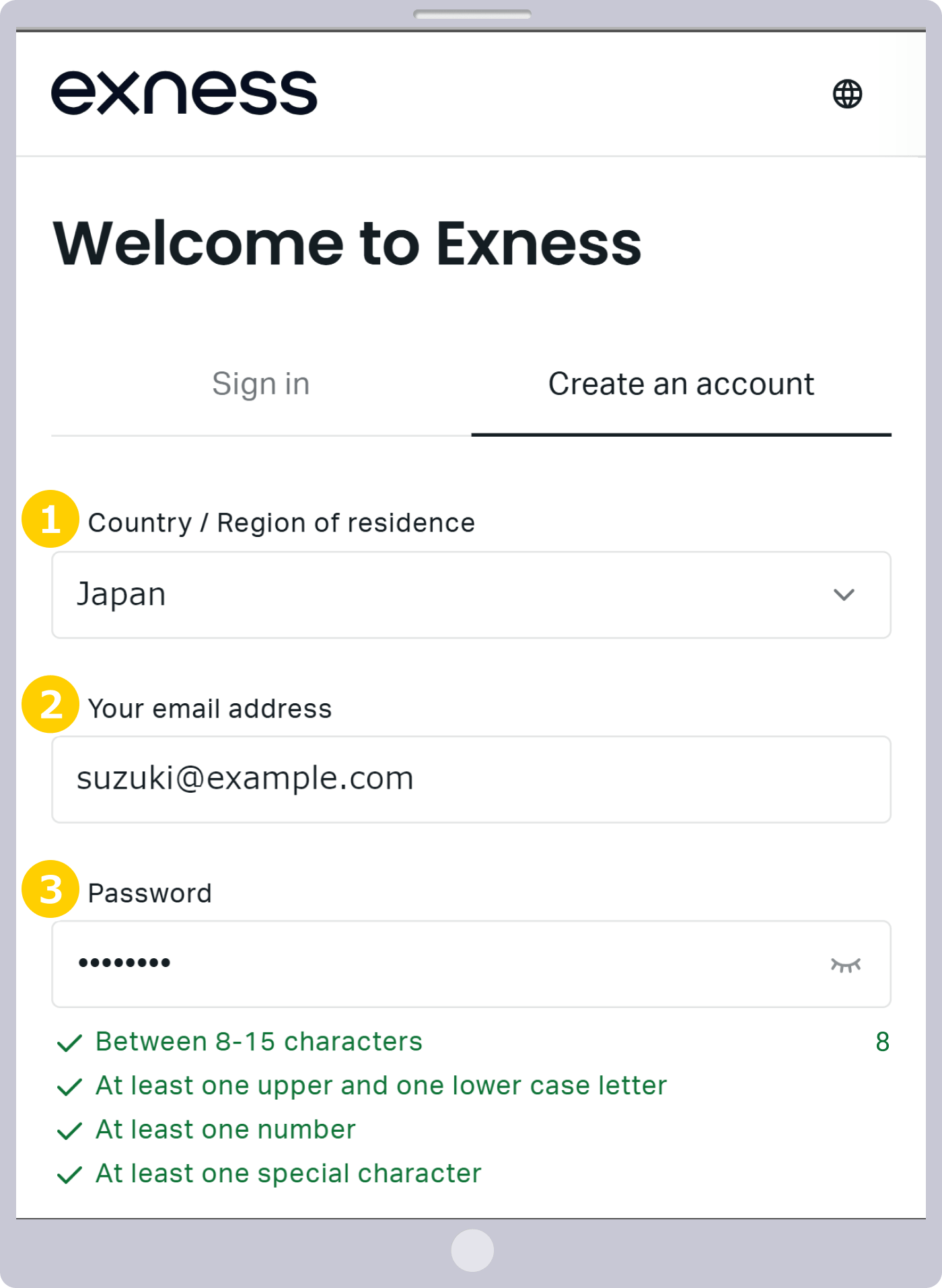
To set up an Exness Personal Area (new user registration), select your country or region of residence, then enter the email address and password you’ll use for Exness.
|
Country/Region of Residence |
Example: Japan |
|
Email Address |
Example: [email protected] |
|
Set a password of your choice |
Example: Pass#12345 |
|
Country/Region of Residence |
|
Example: Japan |
|
Email Address |
|
Example: [email protected] |
|
Set a password of your choice |
|
Example: Pass#12345 |
① For "Country/Region of Residence," please select the country where you currently live from the drop-down menu. If "Japan" does not appear in the "Country/Region of Residence" menu, please proceed to the account opening screen here. You will then be able to select "Japan."
② Enter your email address using single-byte alphanumeric characters. The email address you provide will be used to receive trading-related information from Exness and to log in to your Personal Area. Please note that you cannot change your email address after registration, so please enter a valid email address.
③ The password is the one used to log in to your Personal Area (Member Page). Please create a password that is 8 to 15 characters long and includes at least one uppercase letter, one lowercase letter, one digit, and one special character (such as #, +, %).A green circle (●) will appear next to each field that meets the requirements displayed below the password entry field. Once all requirements are met, you will be able to proceed to the next step.
Submitting Personal Area Registration Information
Please review the statement, “I certify and affirm that I am not a U.S. citizen or U.S. resident subject to tax liability,” and ensure that the checkbox is selected if you agree with this statement. If your entries are correct, click “Continue.”
Please review the statement, “I certify and affirm that I am not a U.S. citizen or U.S. resident subject to tax liability,” and make sure the checkbox is selected if you agree with this statement. If the information you entered is correct, tap “Continue.”
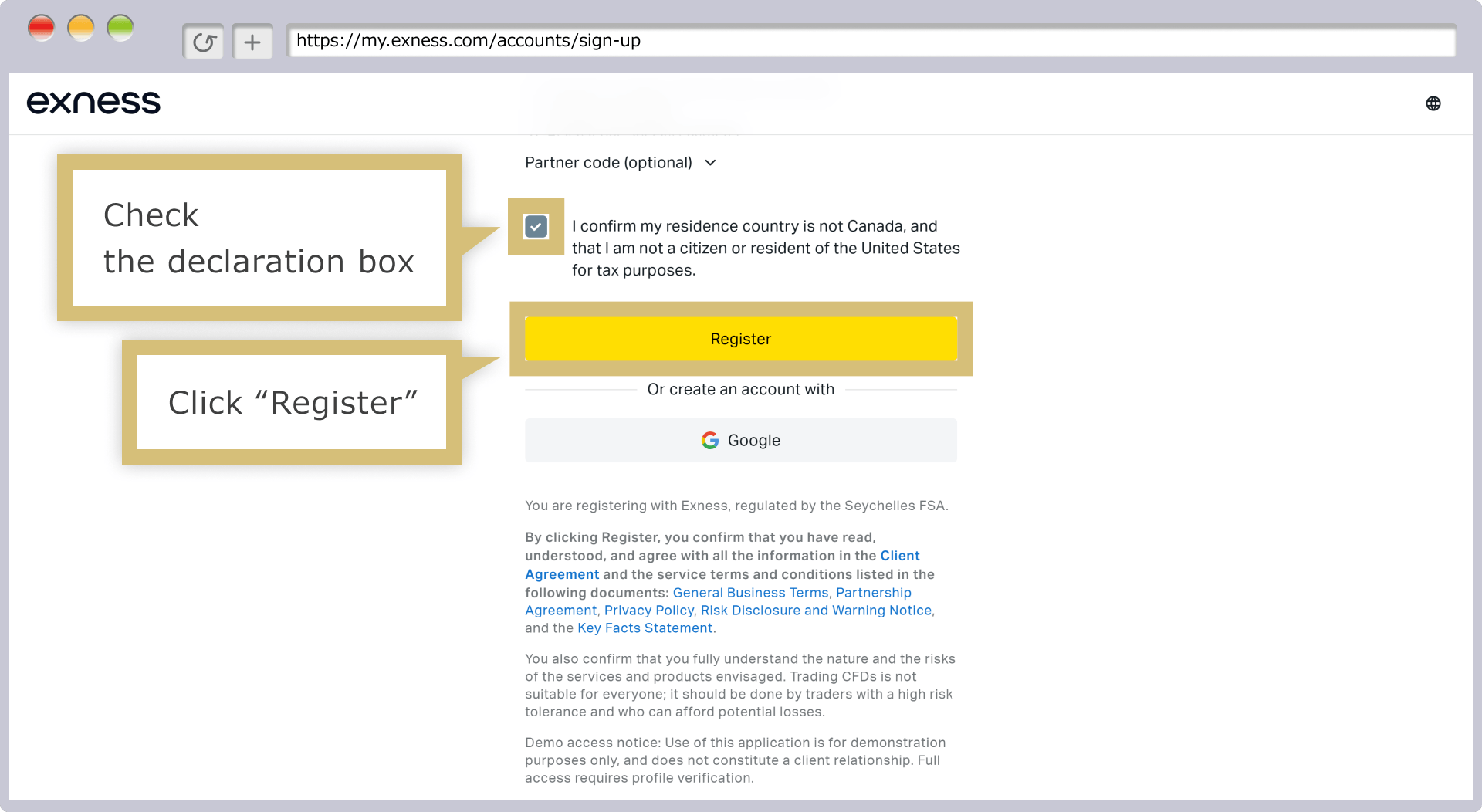
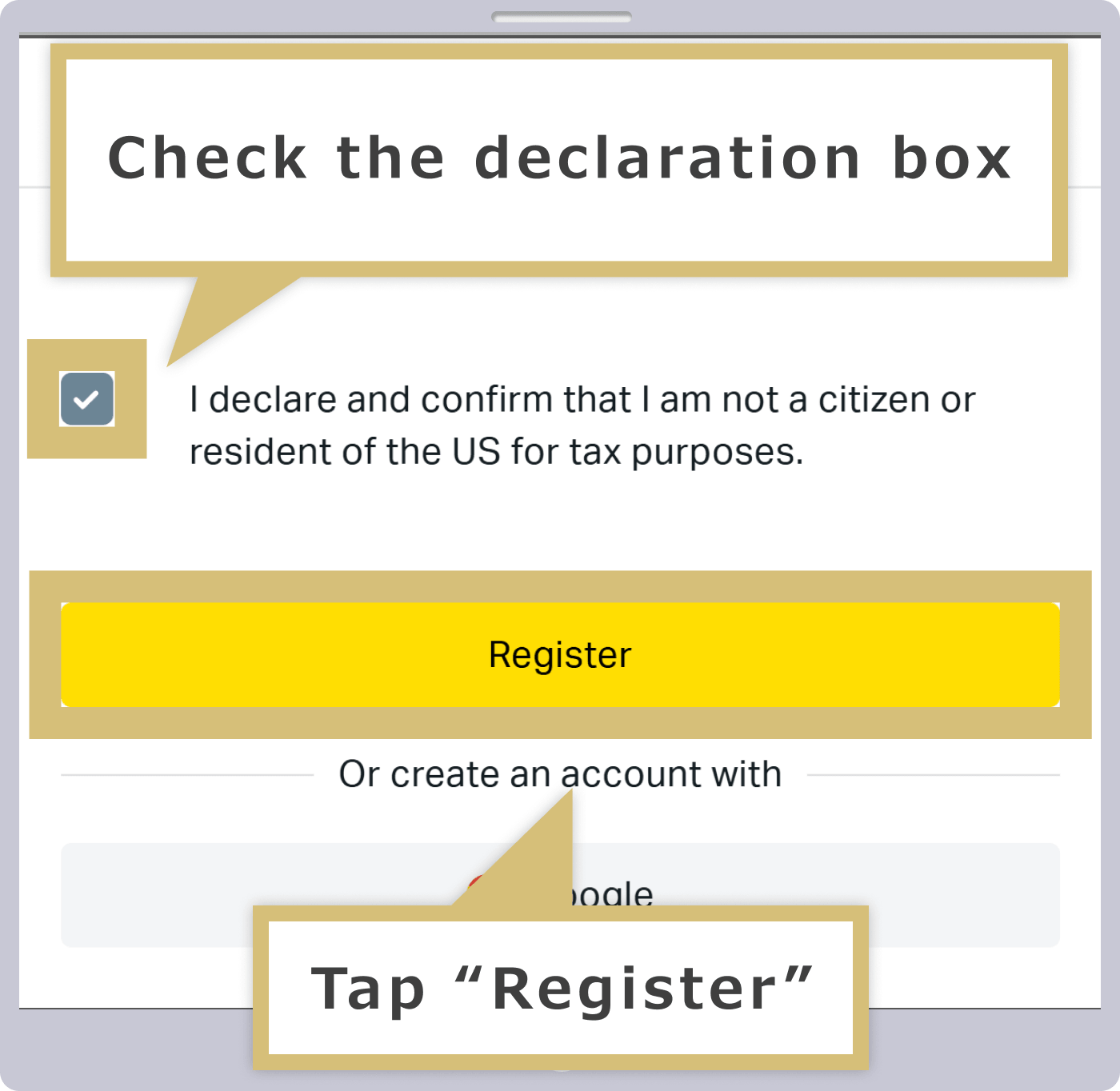

Exness's various terms of service are as follows.
Personal Area Registration Complete
Once you have completed setting up your Exness Personal Area, an email with the subject line “Login Information for the Personal Area” will be sent to your registered email address. Click “Open a Trading Account” in the body of the email to log in to your Exness Personal Area.
Once you have completed setting up your Exness Personal Area, an email with the subject line “Login Information for the Personal Area” will be sent to your registered email address. Tap “Open a Trading Account” in the body of the email to log in to your Exness Personal Area.
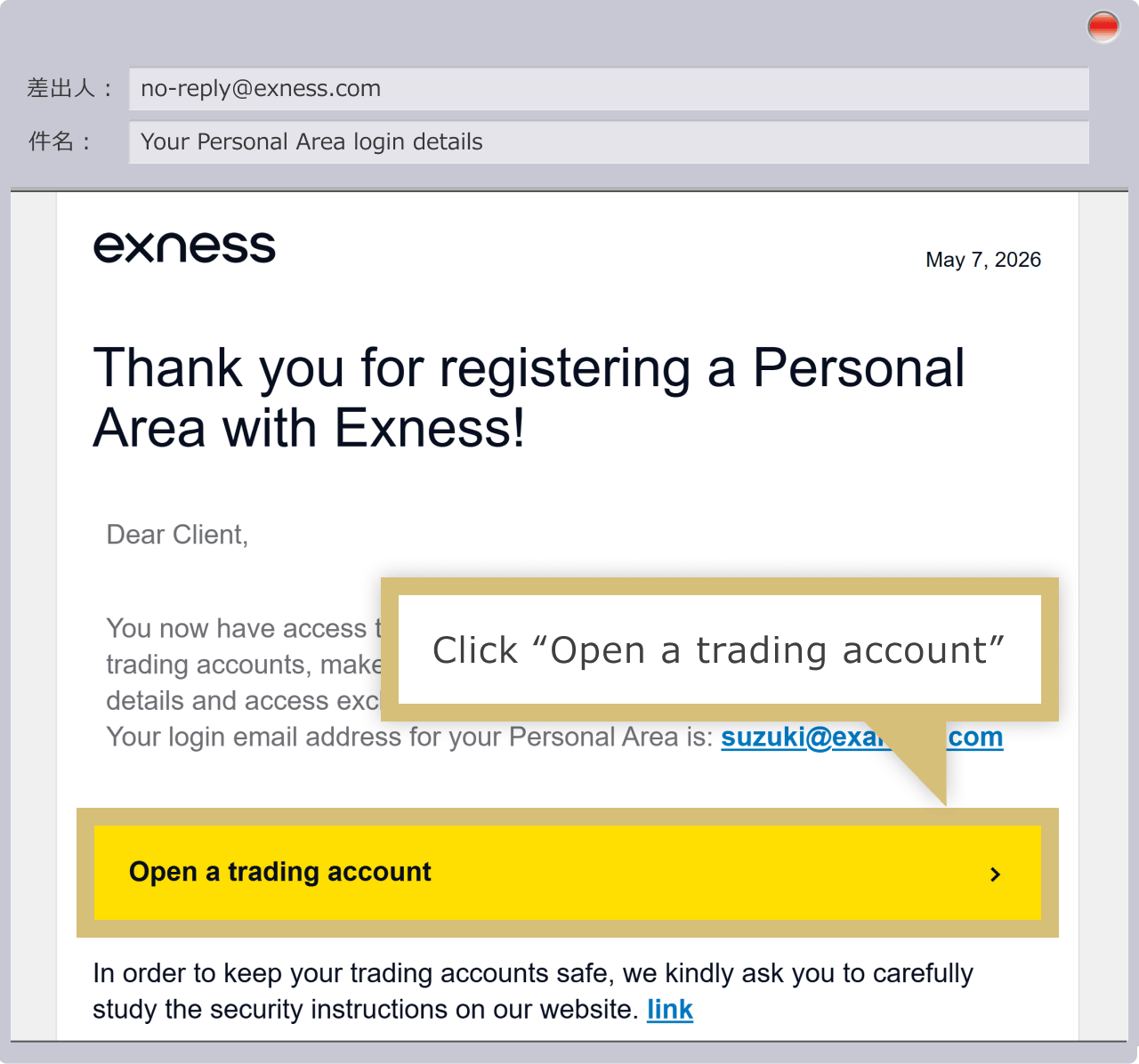
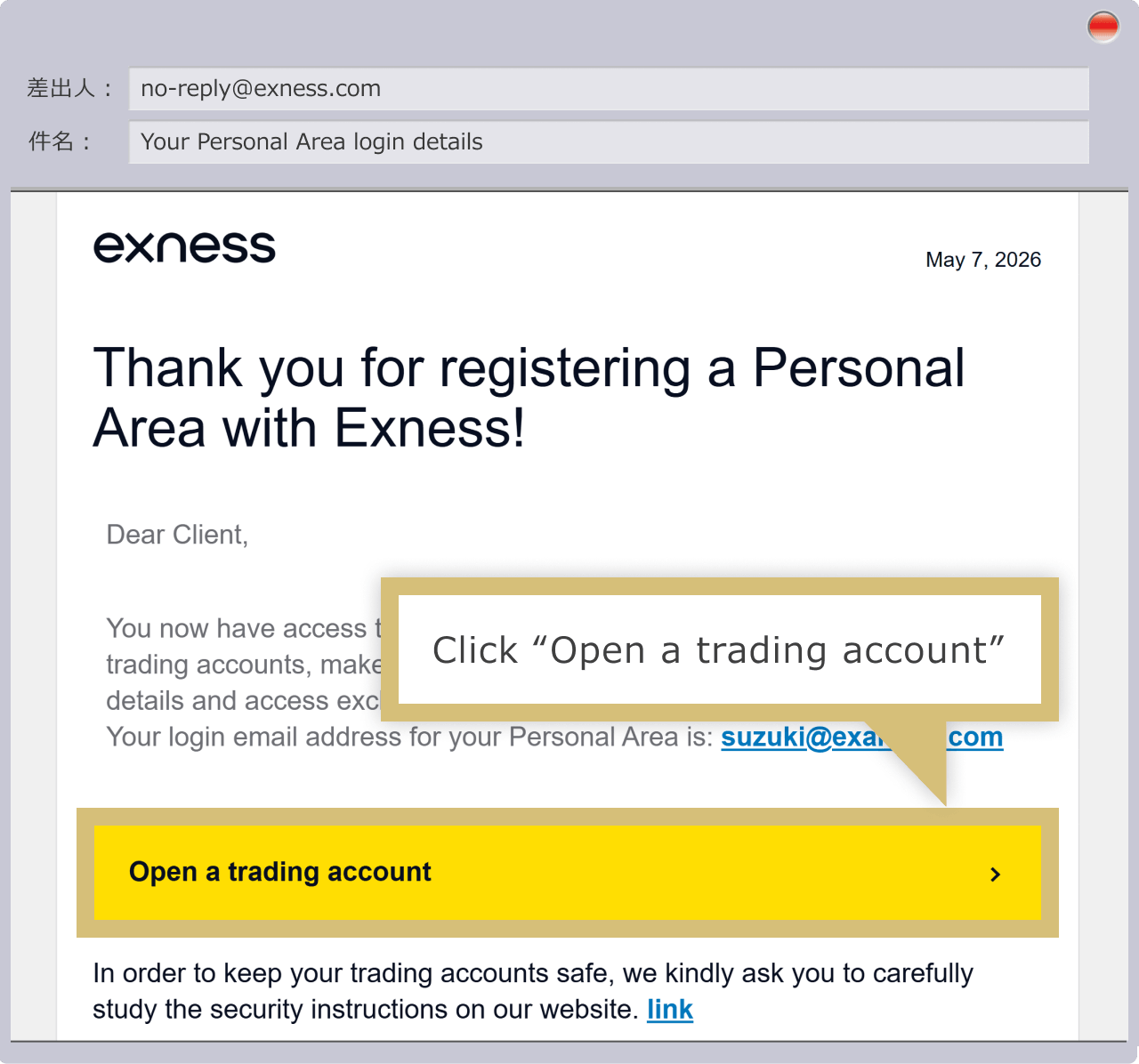

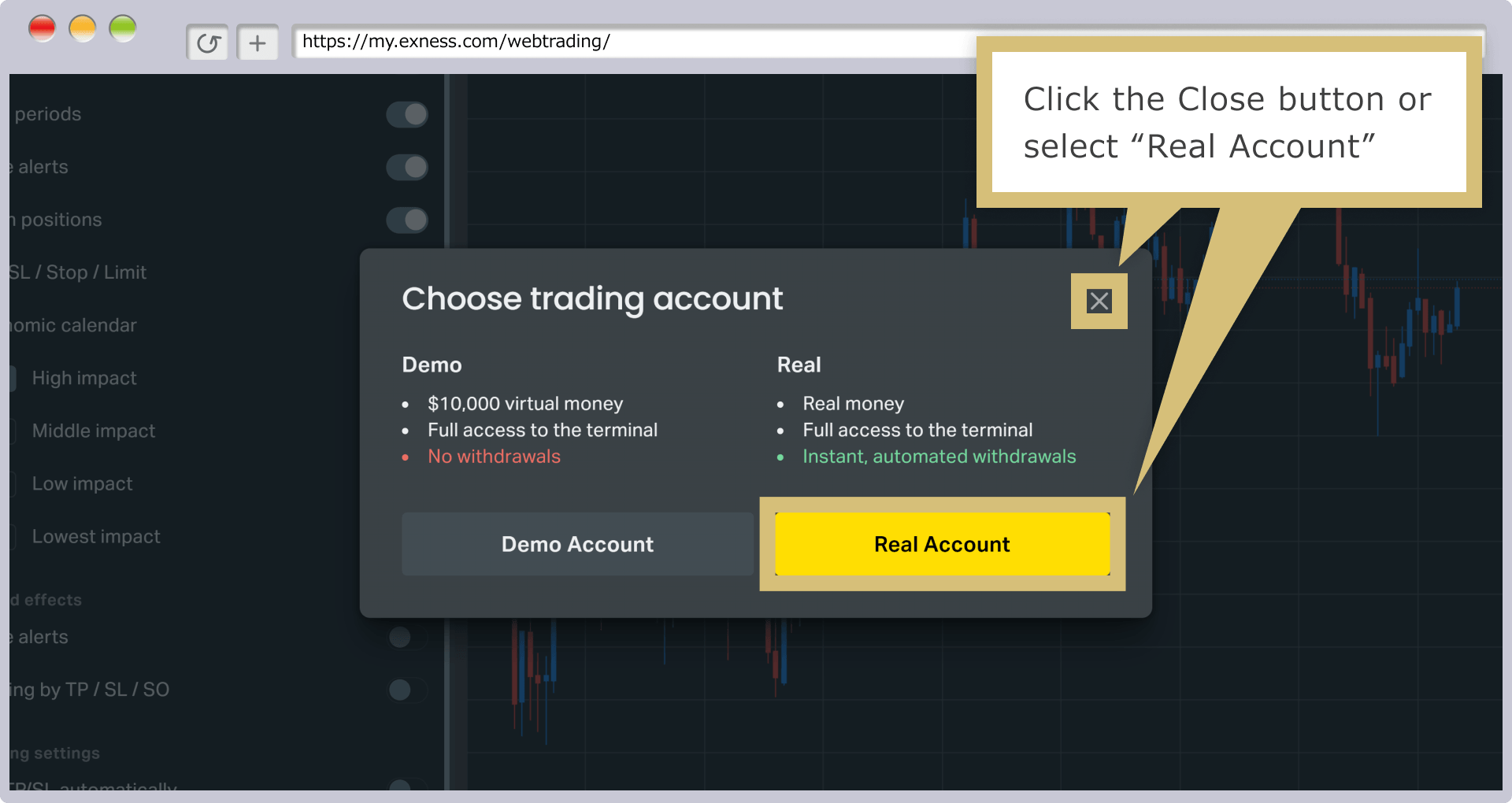
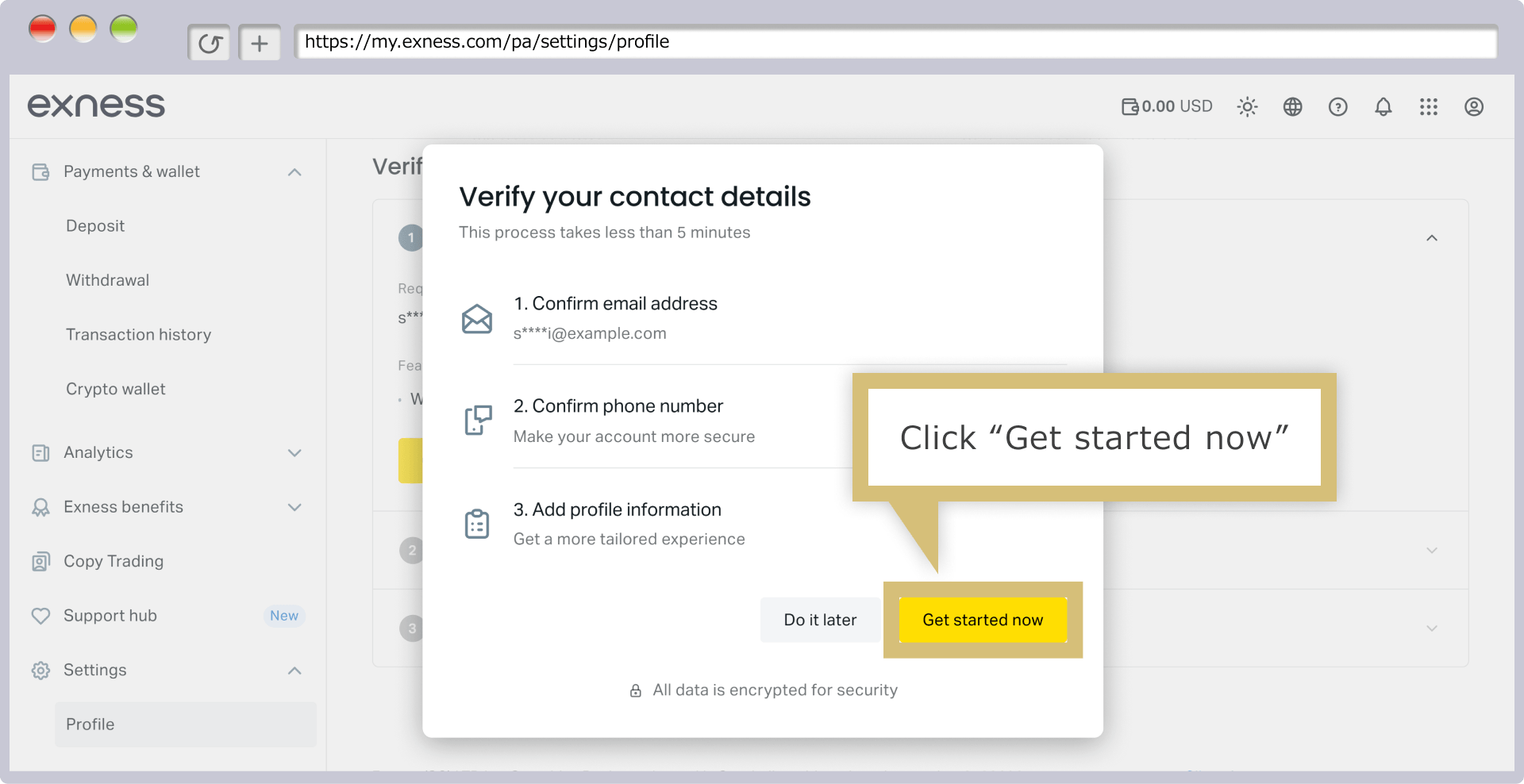
Once you have completed setting up your Exness Personal Area, a live MT5 trading account denominated in USD will be automatically opened, and the “Select Trading Account” screen will appear. When you select “Live Trading Account,” three procedure screens—“Phone Number Verification,” and “Personal Information Registration.” Once you complete all of these steps, you will be able to immediately deposit funds into and trade on the automatically opened MT5 USD account. If you wish to open an account other than an MT5 USD account, or if you’d like to complete these verification steps later, click “×” to close the screen.(*) Please note that if you close the screen by clicking “×,” the Exness Web Terminal (the web version of the MT4/MT5 trading platform) will automatically open, allowing you to trade with a demo account.
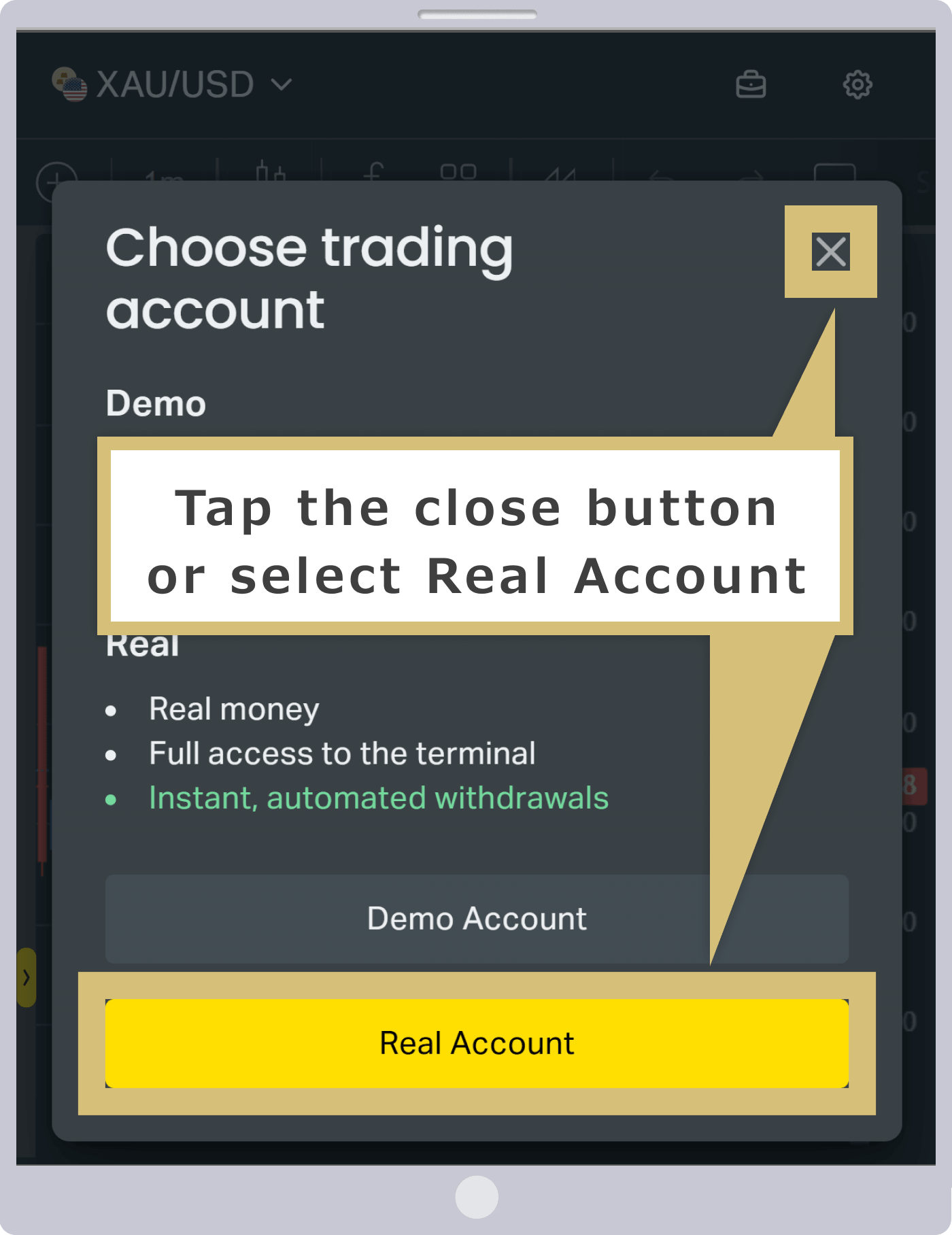
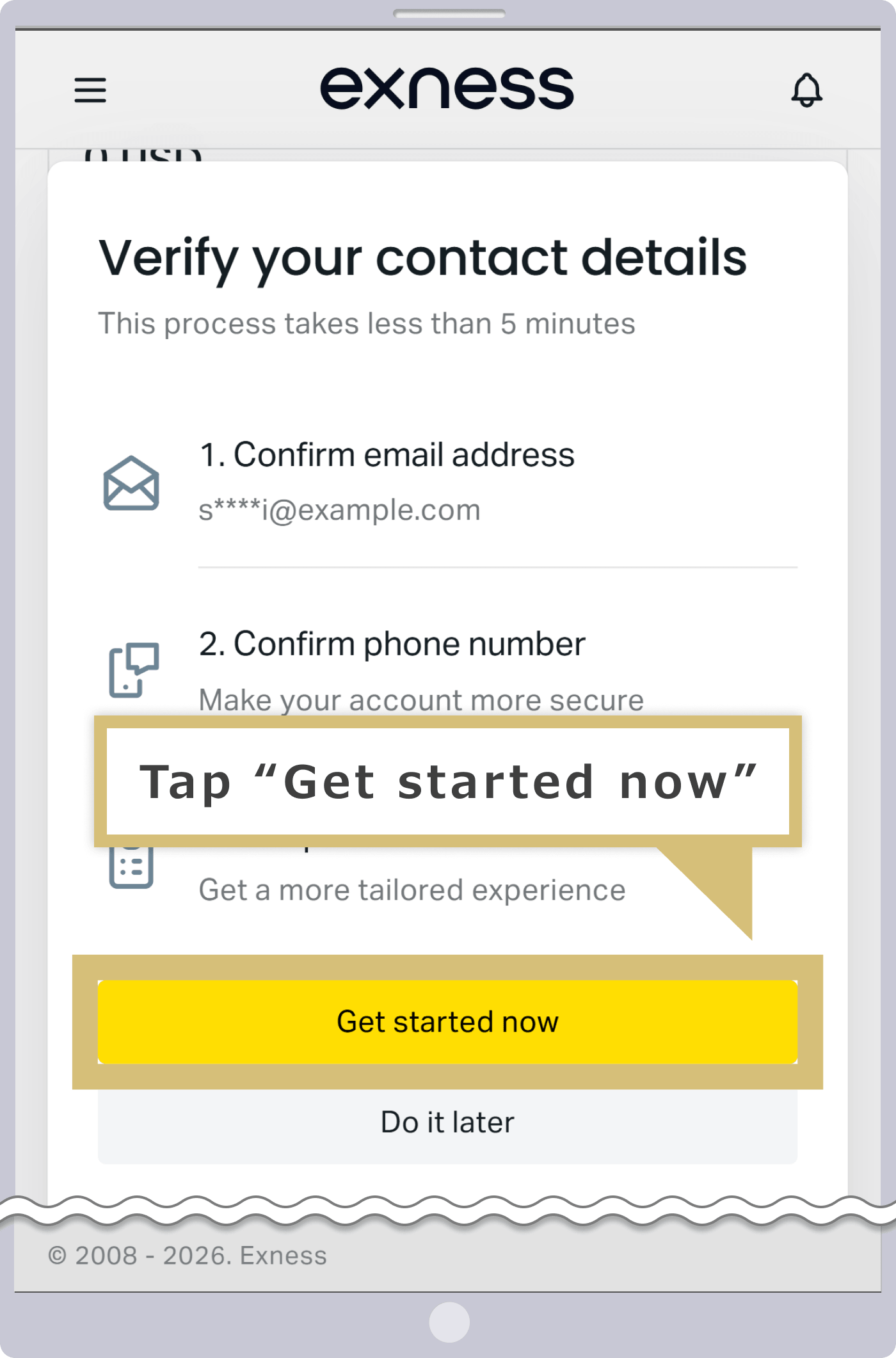
Once you have completed setting up your Exness Personal Area, a live MT5 trading account denominated in USD will be automatically opened, and the “Select Trading Account” screen will appear. When you select “Live Trading Account,” three procedure screens—“Phone Number Verification,” and “Personal Information Registration.” Once you complete all of these steps, you will be able to immediately deposit funds into and trade on the automatically opened MT5 USD account. If you wish to open an account other than an MT5 USD account, or if you would like to complete these verification steps later, please tap “×” to close the screen.(*) Please note that if you close the screen by tapping “×,” the Exness Web Terminal (the web version of the MT4/MT5 trading platform) will automatically open, allowing you to trade with a demo account.

(*) This site describes the procedure for opening a live trading account other than an automatically opened account (MT5 USD account).
Log In to Your Personal Area
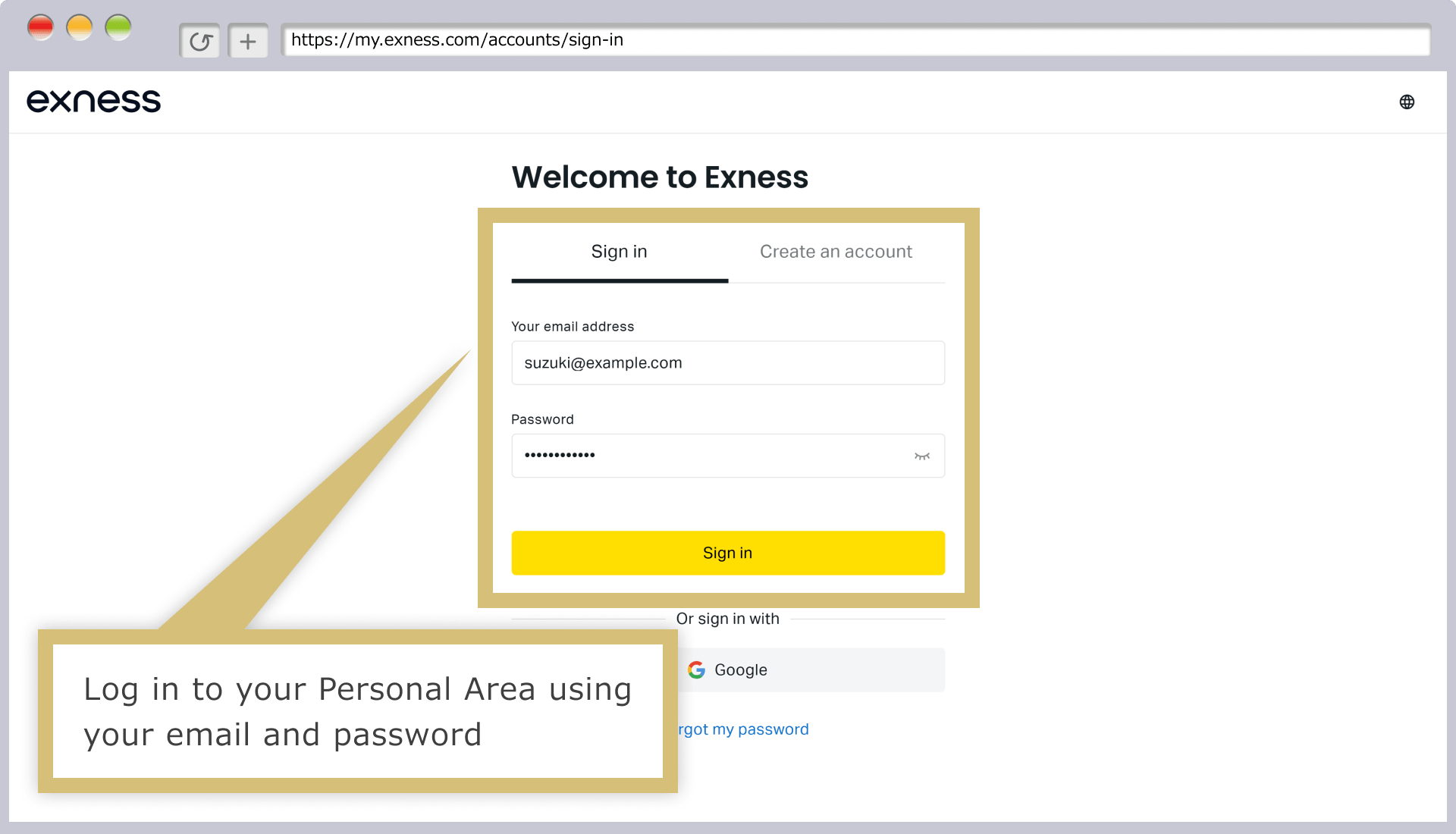
When the Exness Personal Area login form appears, enter your "registered email address" and the "password" you set when you created your Personal Area, then click "Continue."
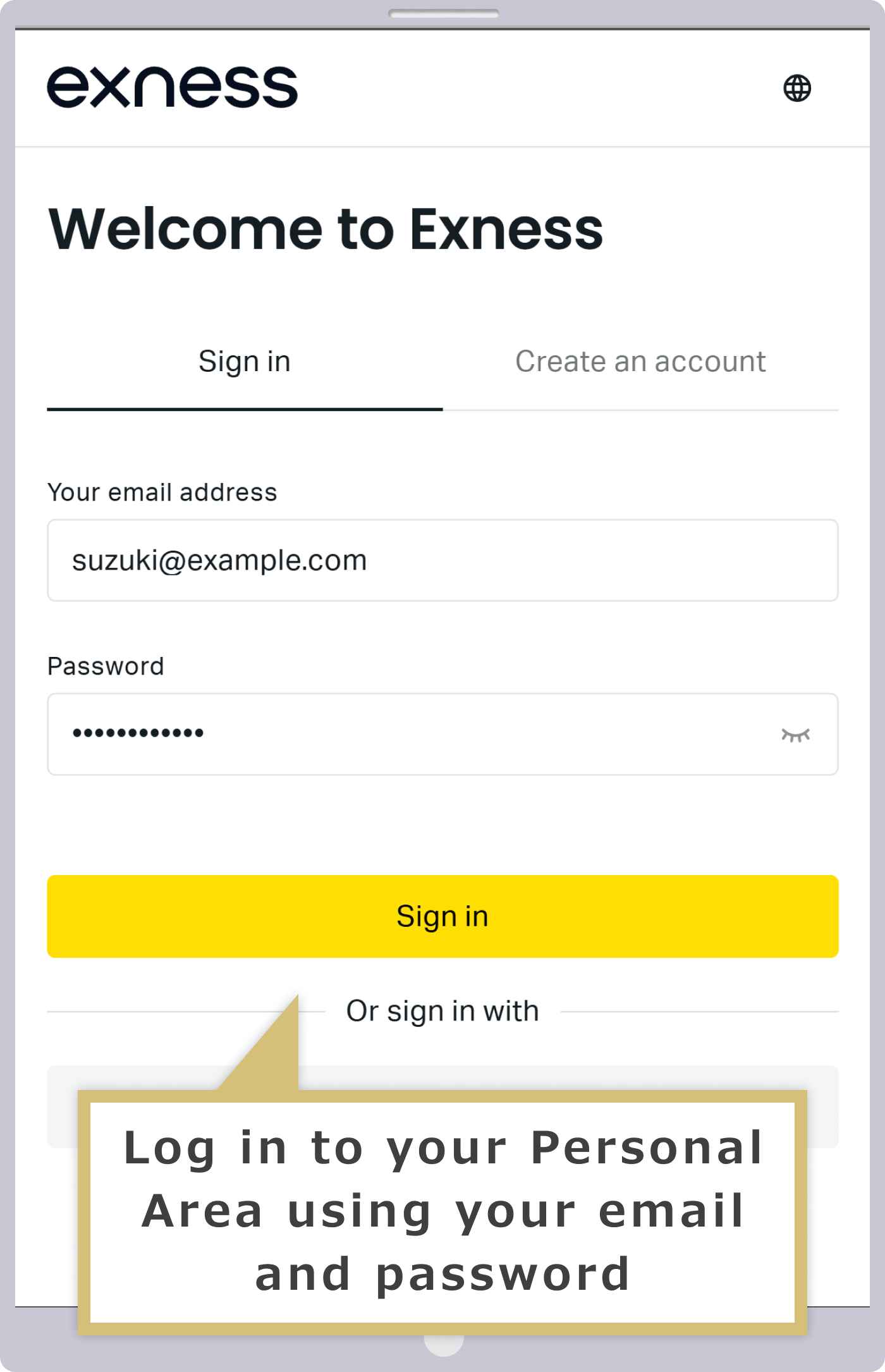
When the Exness Personal Area login form appears, enter your "registered email address" and the "password" you set when you created your Personal Area, then tap "Continue."
Option to Open a New Account
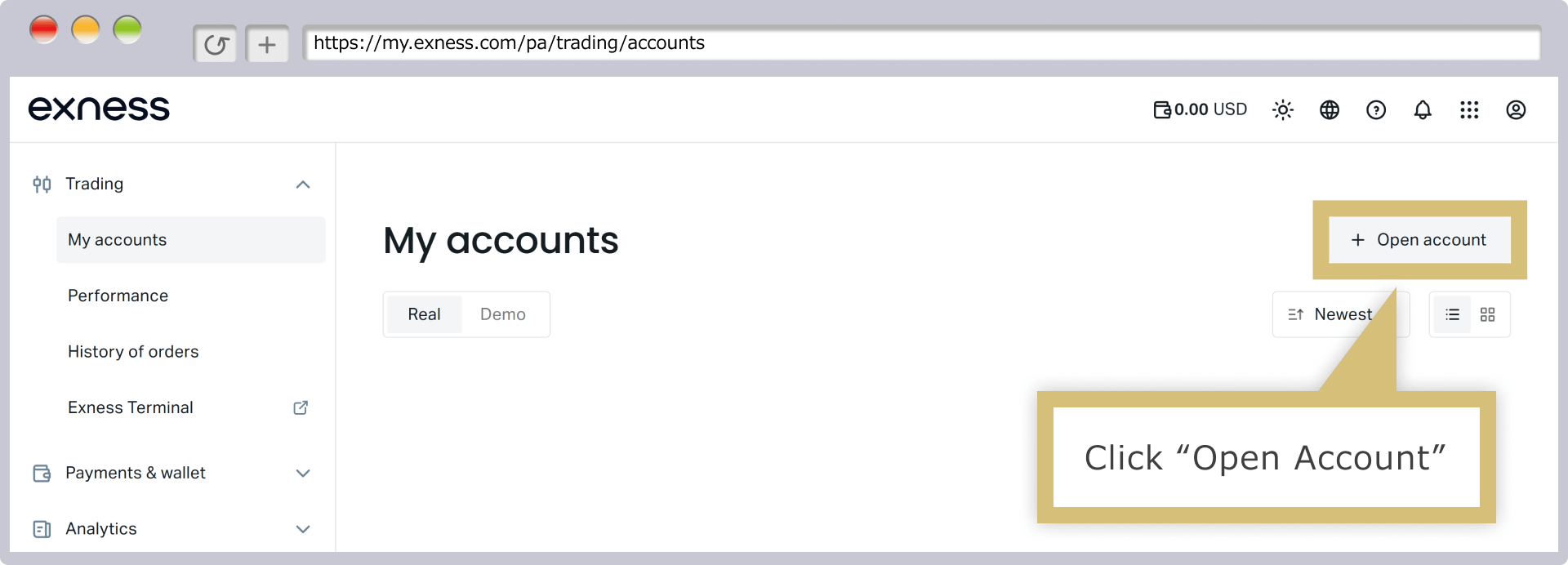
Click "Open a New Account" on the right side of the My Account screen.
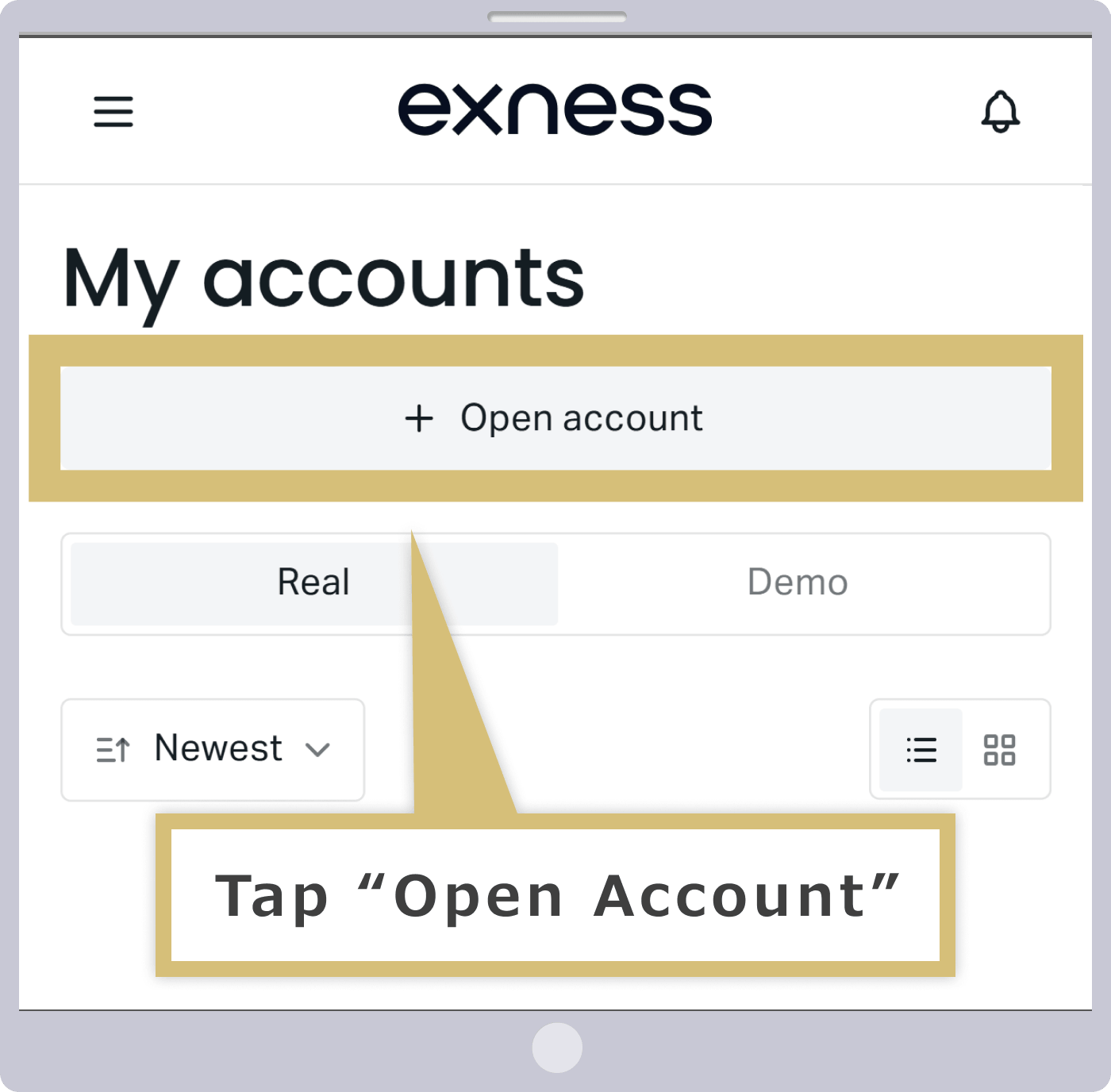
Tap "Open a New Account" on the My Account screen.
Selecting an Account Type
Select (click) the account type you want, then click "Continue."
When the new account opening screen appears, select (tap) your preferred account type and then tap "Continue."
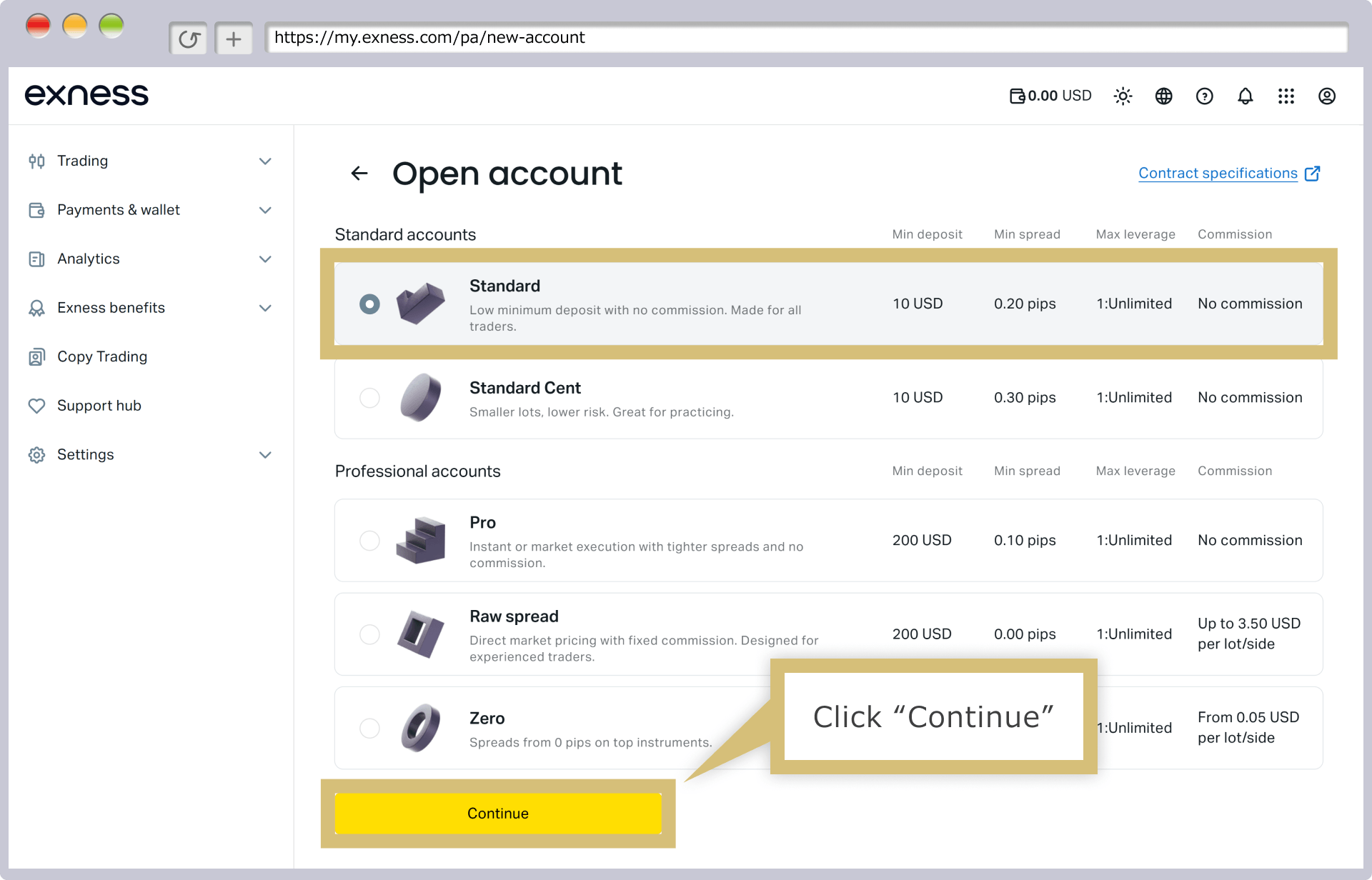
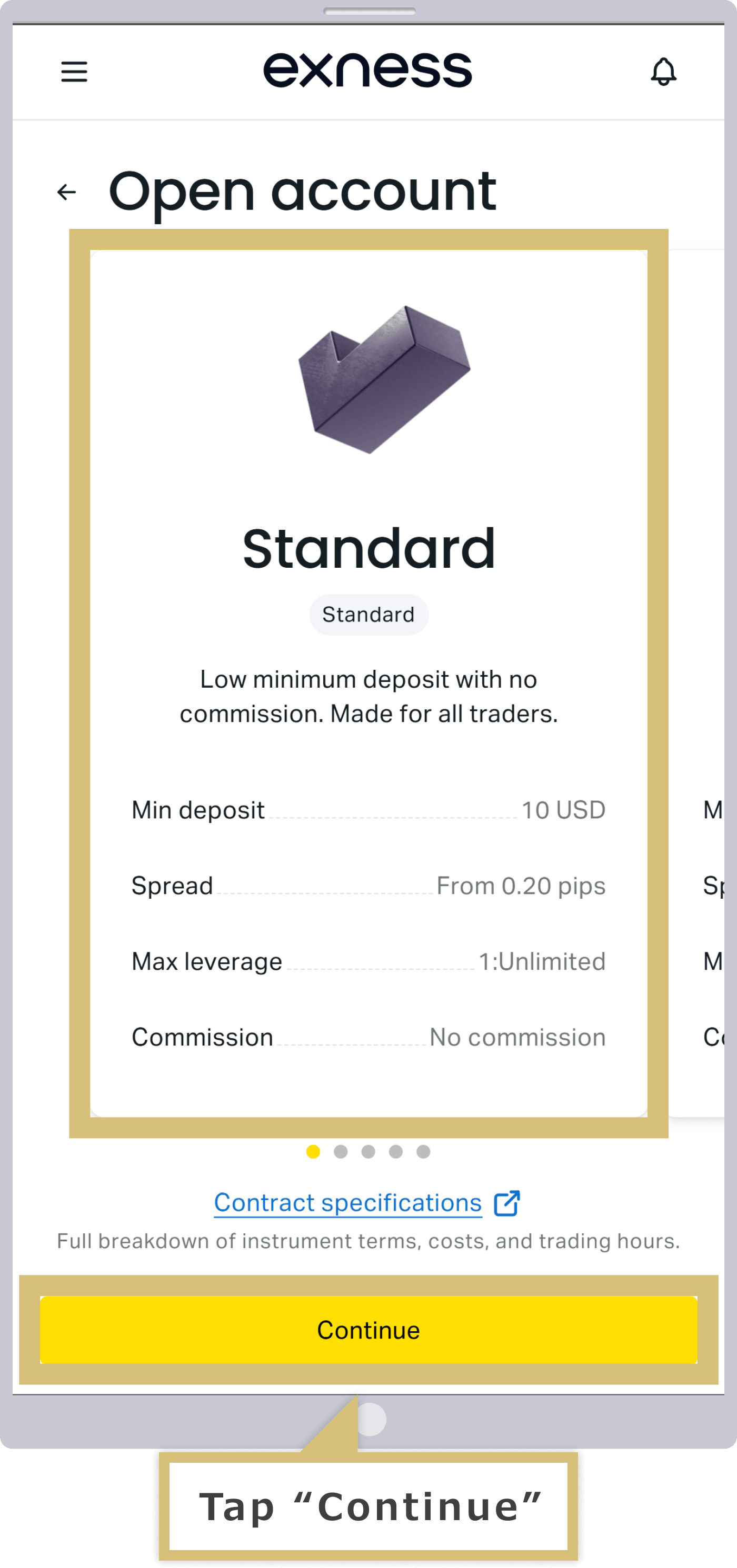
Filling Out the New Account Application Form
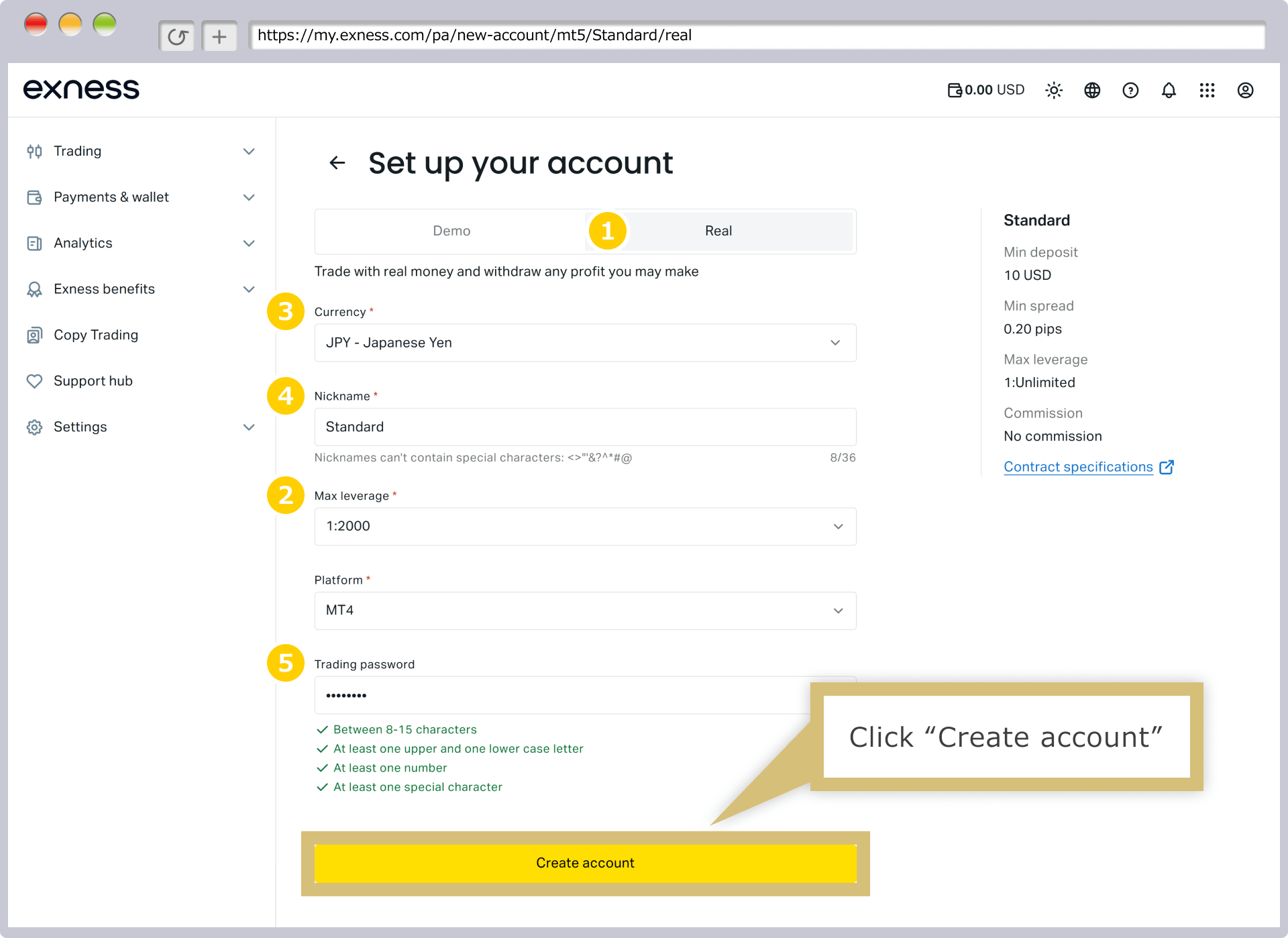
On the New Account Opening Form, select or enter the terms for the trading account you wish to open, then click “Open Account.”
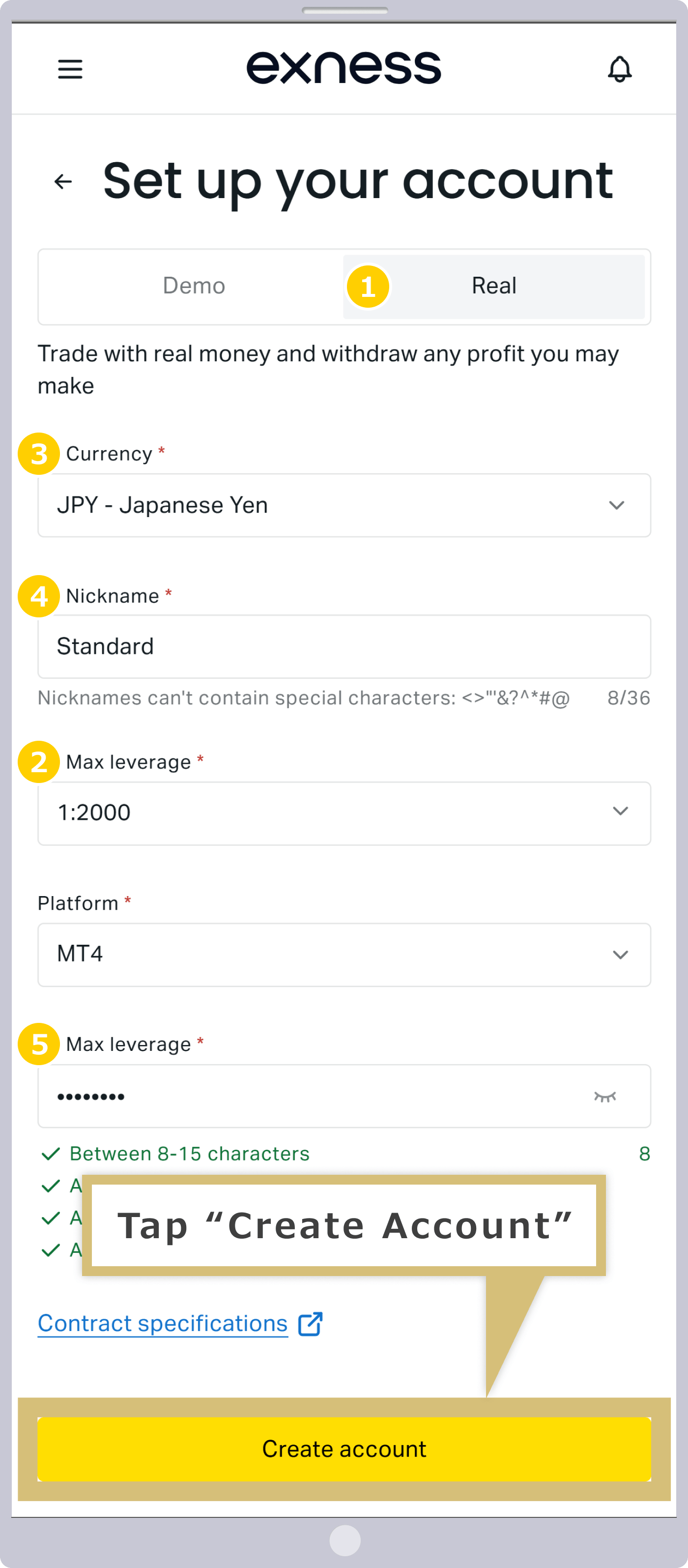
On the New Account Opening Form, select or enter the terms for the trading account you wish to open, then tap “Open Account.”
|
Account Type |
Example: This Trading Account |
|
Currency |
Example) JPY - Japanese yen |
|
Account Nickname |
Example: Standard |
|
Maximum Leverage |
Example: 1:2000 |
|
Platform |
Example: MT4 |
|
Trading Password |
Example: Pass #111 |
|
Account Type |
|
Example: This Trading Account |
|
Currency |
|
Example) JPY - Japanese yen |
|
Account Nickname |
|
Example: Standard |
|
Maximum Leverage |
|
Example: 1:2000 |
|
Platform |
|
Example: MT4 |
|
Trading Password |
|
Example: Pass #111 |
① For the account type, select “Live Trading Account.” If you wish to open a demo account, select “Demo Account.”
② "Currency" refers to the base currency of your trading account. For example, if you select "JPY," the base currency will be the Japanese yen, and any funds deposited in currencies other than the Japanese yen—such as the U.S. dollar or the euro—will be converted to Japanese yen and credited to your trading account.The types of account currencies available vary by account type, so please select your preferred currency from the drop-down menu.
③ You may optionally specify a nickname for your account.
④ The maximum leverage options are “1:2000,” “1:1000,” “1:800,” “1:600,” “1:500,” “1:400,” “1:200,” “1:100,” and “1:50.”"1:20" or "1:2," or select your desired ratio via "Custom." (*)
⑤ Please specify “MT5,” “MT4,” or “Exness” as your platform.
⑥ The trading password is the password used to log in to the trading platform (MT4/MT5) and must be set for each trading account. Please set it to be 8 to 15 characters long, using at least one uppercase letter, one lowercase letter, one digit, and one special character (such as #, +, %).
(*) Leveraged trading involves high risk, and you may lose all of your invested capital. Please ensure you fully understand the risks before trading.
Completion of Trading Account Opening
Once you have successfully completed your application via the New Account Opening Form, you will be automatically redirected to the Exness Personal Area, where your newly opened live trading account will be displayed.
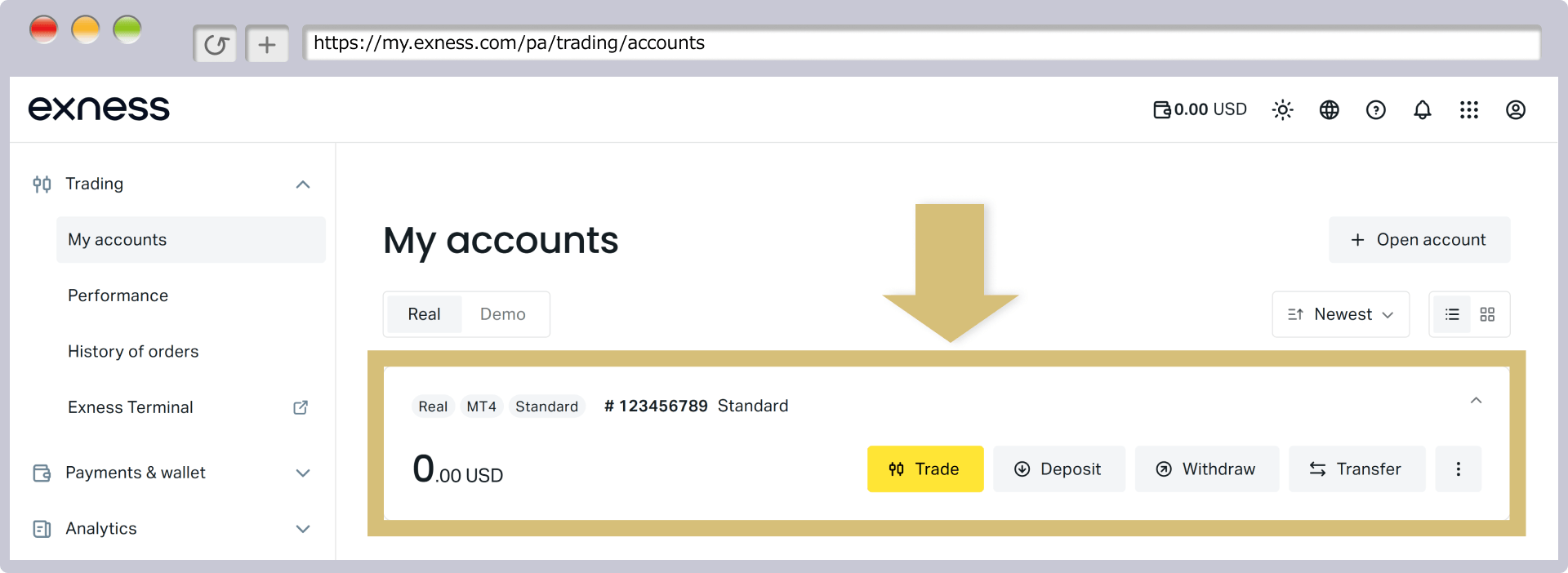
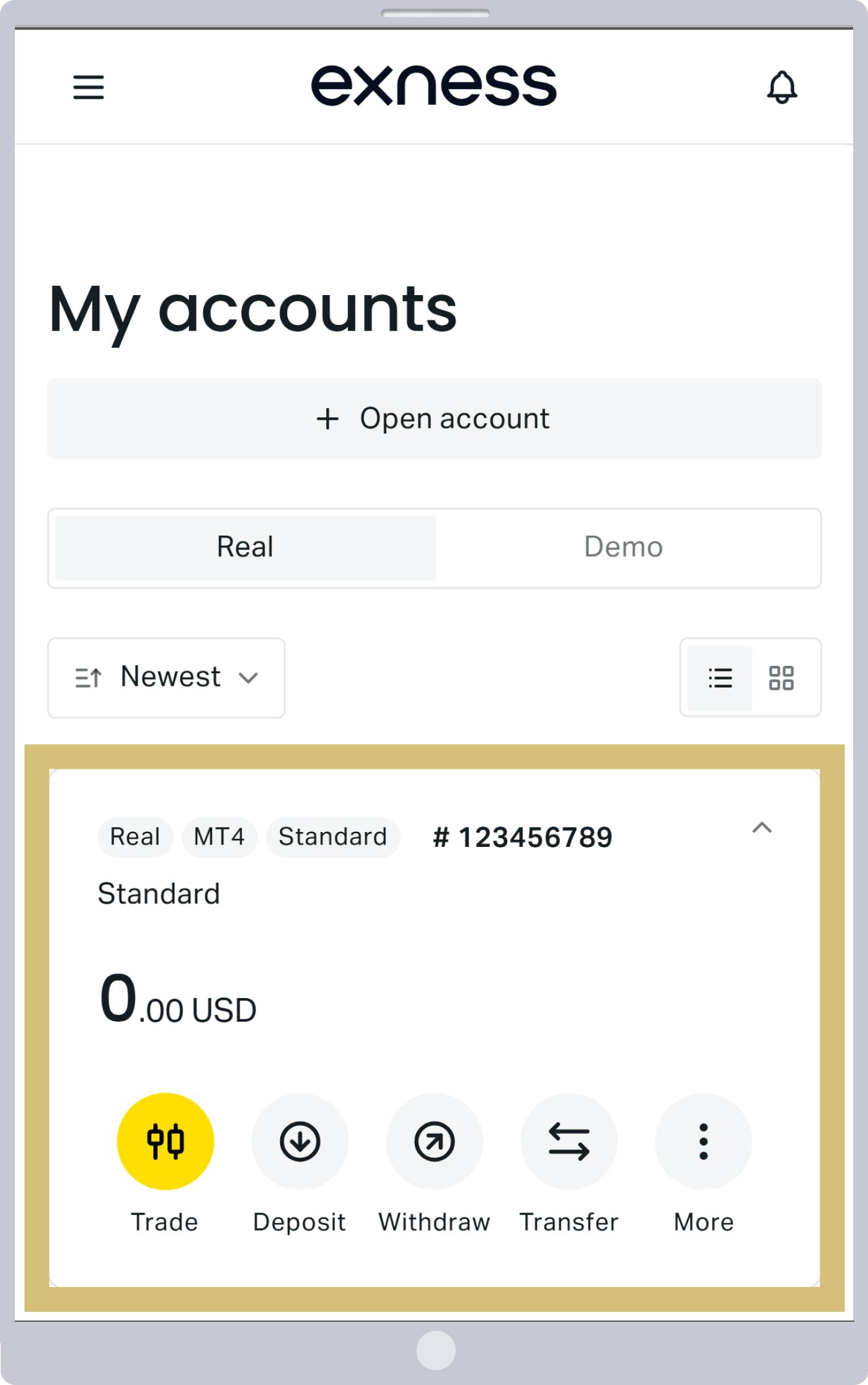
This completes the process of opening a live trading account with Exness; however, you cannot begin trading at this time. To start trading, you must complete the profile verification process for your live trading account. Once you have completed the profile verification process, you will be able to use all of Exness’s services.
Frequently Asked Questions (FAQ) About Opening an Exness Account
-
Do I need to submit identification documents to open an account with Exness?
No, Exness does not require you to submit identification documents when opening an account. However, in order to use all services—including deposits, withdrawals, and trading—without restrictions, you must submit a photo ID and proof of current address online to complete your profile verification (identity verification).
Read More
21.10.2021
-
Is there a fee to open an Exness account?
No, there are absolutely no fees or other charges associated with opening an account with Exness. Regardless of the account type or trading conditions, you can open any account free of charge. Additionally, there are no account maintenance fees for any account type, so you can use our services with confidence.
Read More
21.10.2021
-
Please provide contact information for inquiries regarding opening an Exness account.
For inquiries regarding opening an account with Exness, please use live chat or contact the Exness Support Desk via email. Please note that the Japanese Support Desk is open on weekdays from 8:00 a.m. to midnight Japan Standard Time.
Read More
21.10.2021
-
Can I open an account with Exness if I'm under 18?
No, at Exness, individuals under the age of 18 cannot open either a demo account or a live account. If you open an account using a name other than your own, your account may be frozen in accordance with the Exness Terms and Conditions Agreement.
Read More
21.10.2021
-
How long does it take to open an account with Exness?
To open an Exness account, simply enter your desired account information in the live trading account form after completing your registration in the Personal Area; the process takes about 5 minutes. The profile verification (identity verification) process takes approximately 3 minutes to 24 hours to complete after you submit the required documents.
Read More
21.10.2021