














How to Log In to the Exness Personal Area and MT4/MT5
Trading Tools (MT4/MT5)
How to Log In to the Exness Personal Area and MT4/MT5
Logging in to Exness’s member page, “Personal Area,” and to the trading platforms “MT4 (MetaTrader 4)/MT5 (MetaTrader 5)” can be done simply by entering your login credentials and password.In the Personal Area, you can manage deposits and withdrawals, configure your account settings, and check your MT4/MT5 login credentials. You can also access the “MT4/MT5 Web Terminal” from the Personal Area, which allows you to trade anytime, anywhere, as long as you have a web browser—no need to download or install the MT4/MT5 applications.
Once you log in to MT4/MT5, you can immediately start trading in Exness’s excellent trading environment. Please note that, with the exception of the “MT4/MT5 Web Terminal,” you’ll need to download and install the appropriate application for your device before you can use MT4/MT5.
(*)MetaTrader, MetaTrader 4, MetaTrader 5, MT4, and MT5 are trademarks or registered trademarks of MetaQuotes Ltd.
Log in to Exness
To log in to Exness’s member portal, “Personal Area,” you must enter your “registered email address” and the “password” you set when you created your Personal Area account. Once you log in to the Personal Area, you can make deposits and withdrawals, manage your account settings, open additional accounts, and more.
How to Log In to the Exness Personal Area
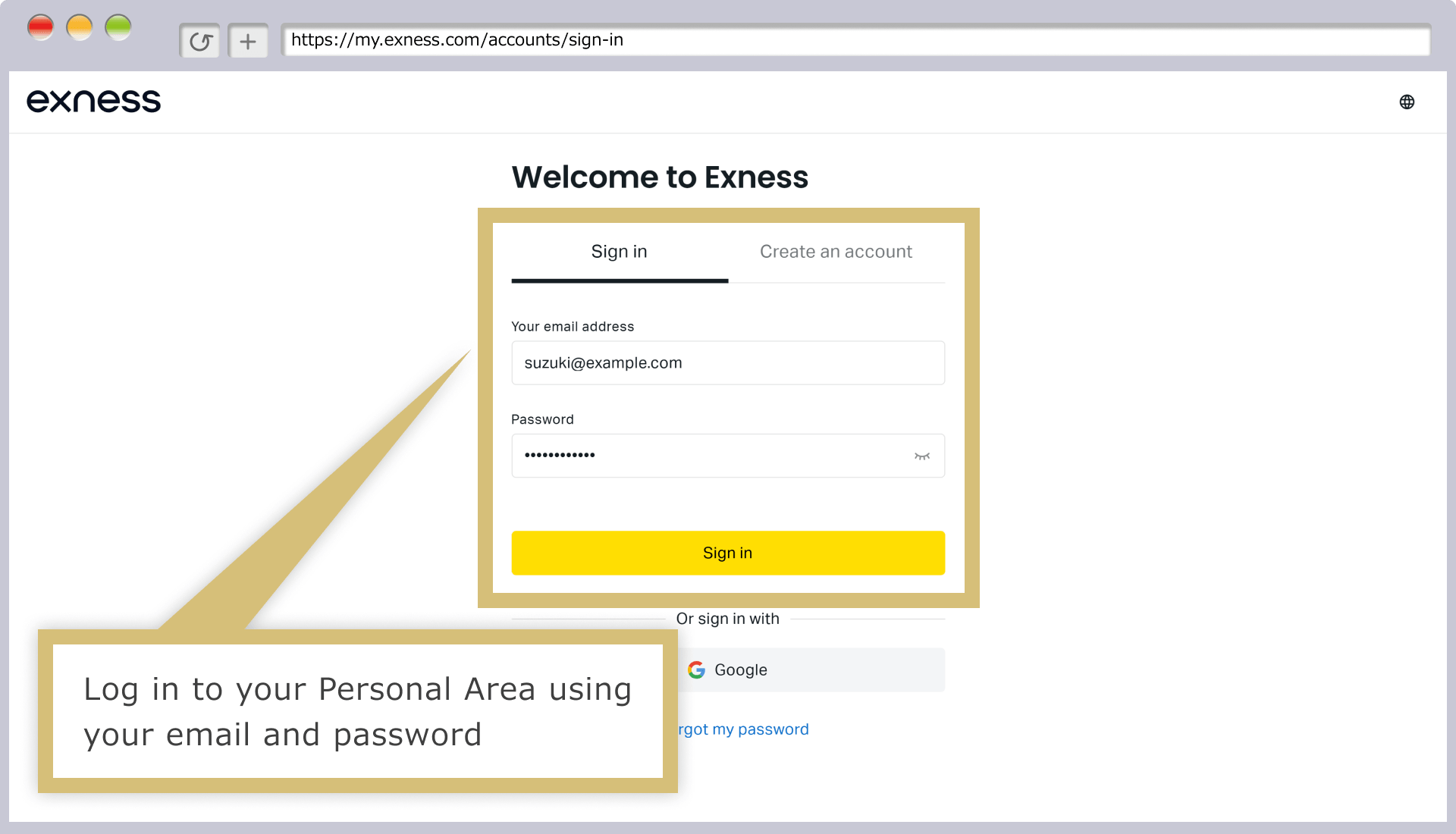
Enter the "email address" you used to register with Exness and the "login password" for your Personal Area, then click "Continue" to log in to your Exness Personal Area.
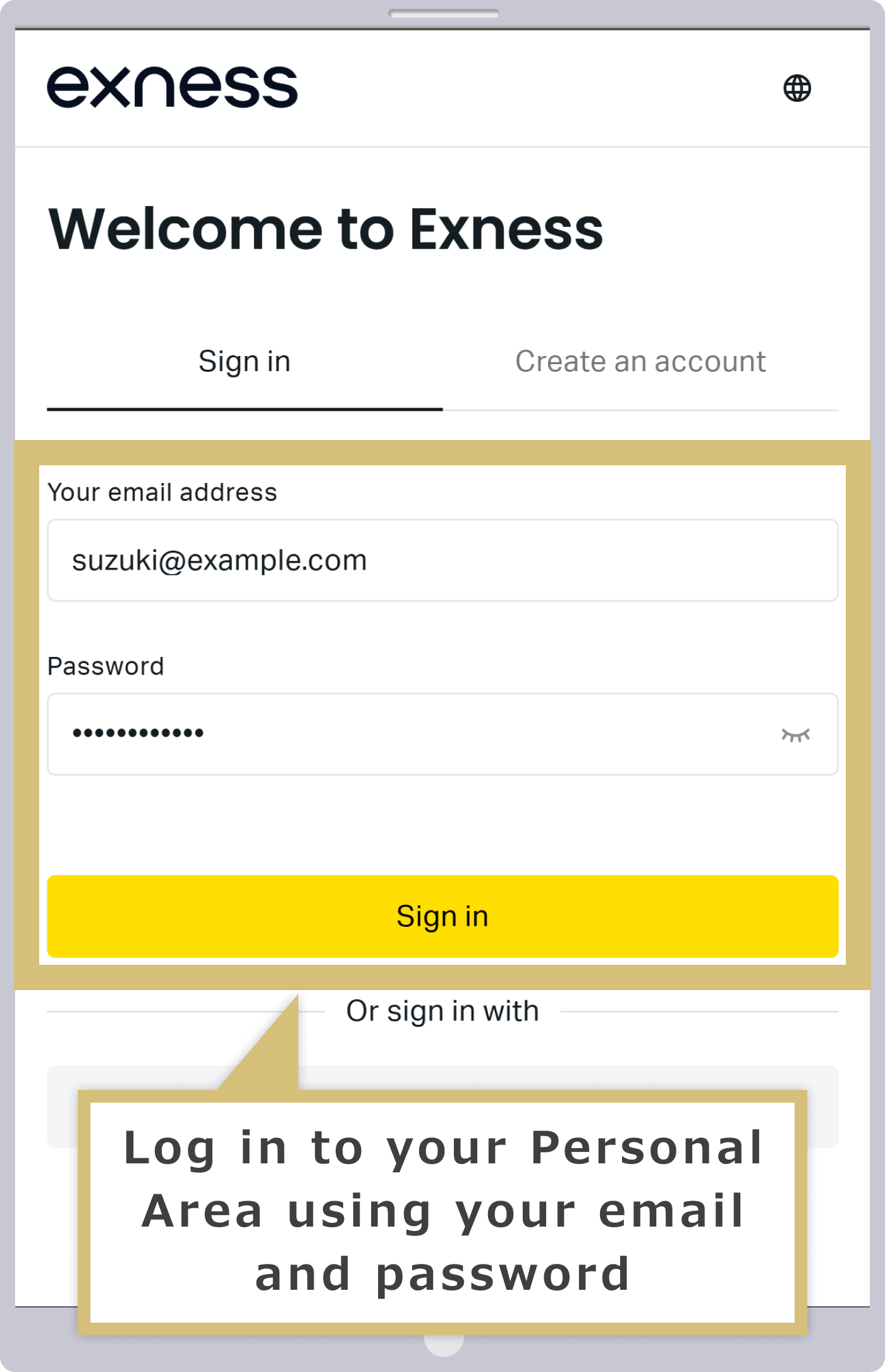
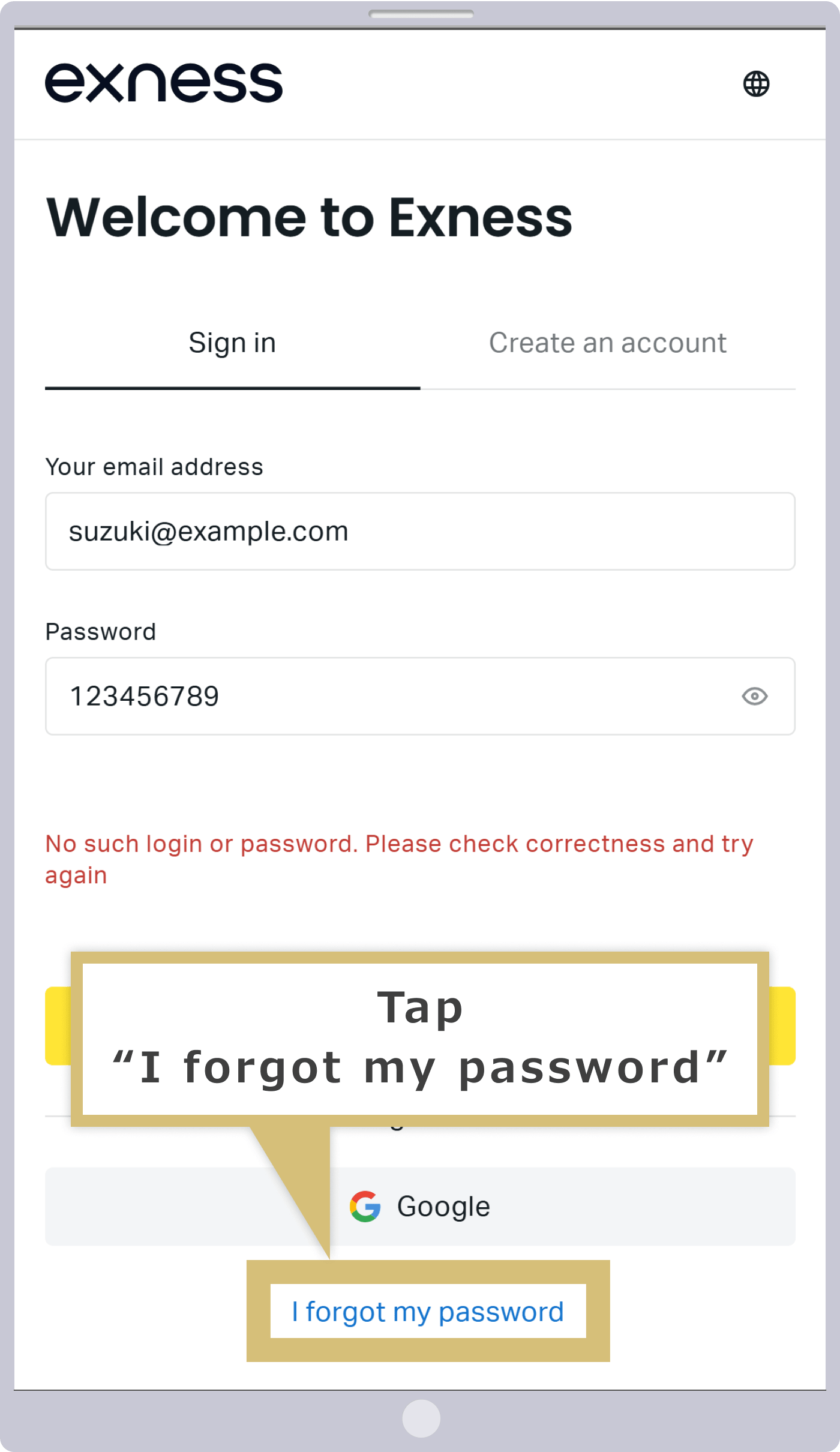
Enter the "email address" you used to register with Exness and the "login password" for your Personal Area, then tap "Continue" to log in to your Exness Personal Area.
If You Can't Log In to the Exness Personal Area
If you are unable to log in to your Exness Personal Area, please check the following points and try logging in again.
Email Address Verification
The email address you enter when logging into your Exness Personal Area is the one you provided when you opened your account. If you’re sure the email address is correct, please check to see if the “.” (period) is a full-width character or if there are any spaces in the address.
Password Confirmation
The password you enter when logging in to your Exness Personal Area is the password you registered when you opened your account—it must be at least 8 characters long and consist of letters (case-sensitive) and numbers. Click the “eye” icon in the password field to view the password you entered, so you can verify it.Passwords are case-sensitive. If Caps Lock is on, letters will be entered in uppercase, so please turn it off and re-enter your password.
The password you enter when logging into the Exness Personal Area is the password you registered when you opened your account—it must be at least 8 characters long and consist of letters (case-sensitive) and numbers. Tap the “eye” icon in the password field to view the password you entered and verify that it is correct.Passwords are case-sensitive. If Caps Lock is turned on, letters will be entered in uppercase, so please turn it off and re-enter your password.
Account Verification
If your Personal Area has been closed in the past—either at your request or at Exness’s discretion—you will not be able to log in to it. If your Personal Area has been closed, Exness will have sent a notification to your registered email address by the date of closure, so please check your email.
You can also check whether Personal Space is enabled using the following method.
If you are unable to log in to your Exness Personal Area, you will see the message: "Your username or password is invalid. Please enter the correct information." Click "Forgot your password?" located below the "Continue" button.
If you are unable to log in to your Exness Personal Area, you will see the message: "Your username or password is invalid. Please enter the correct information." Tap "Forgot your password?" below the "Continue" button.
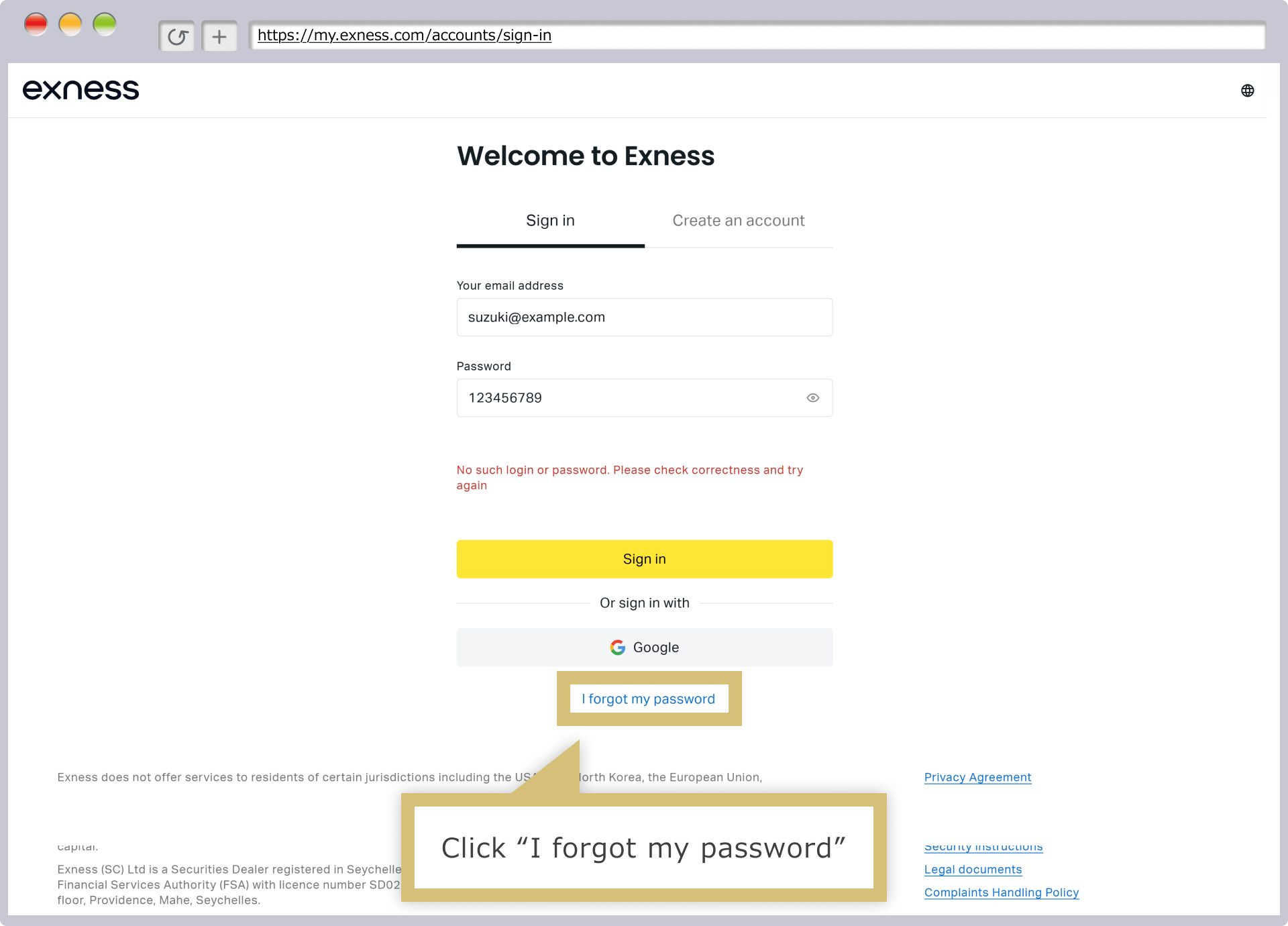
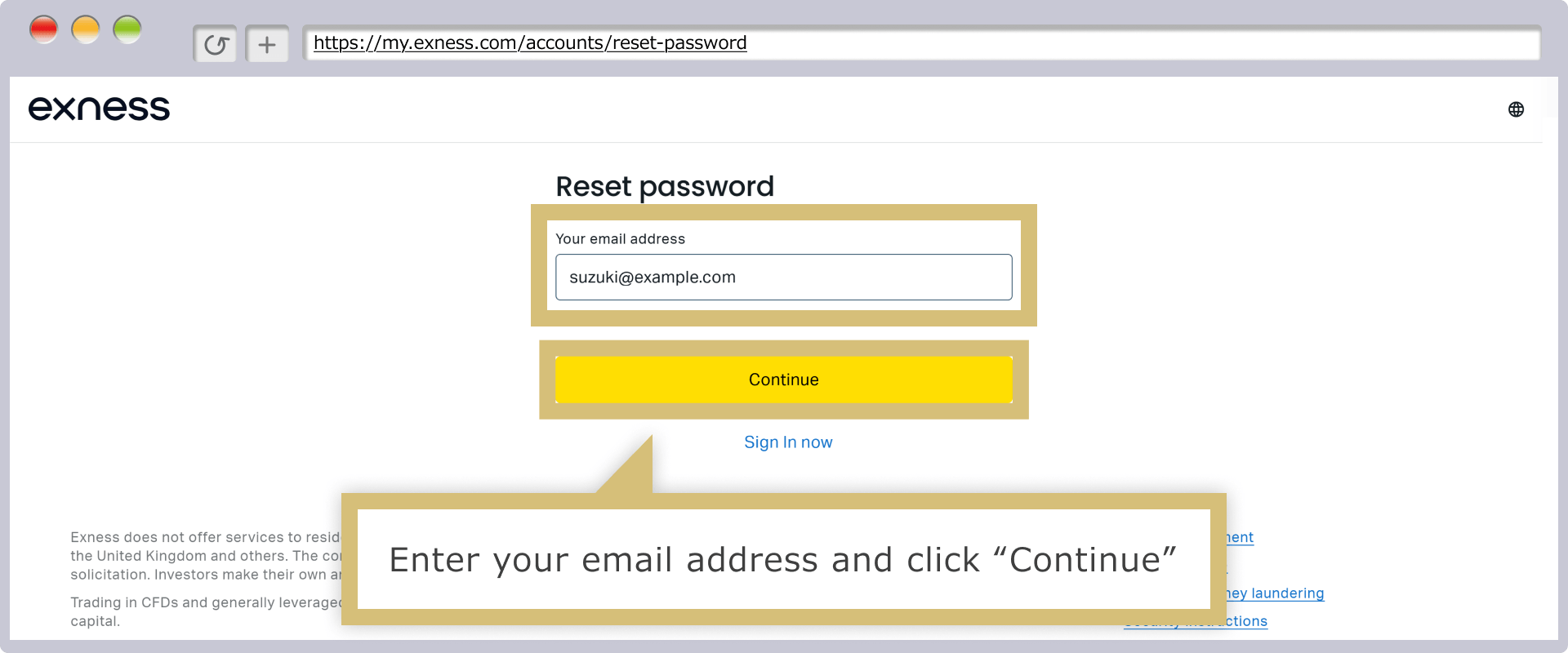
You will be redirected to the password reset screen. Enter your email address and click "Continue."
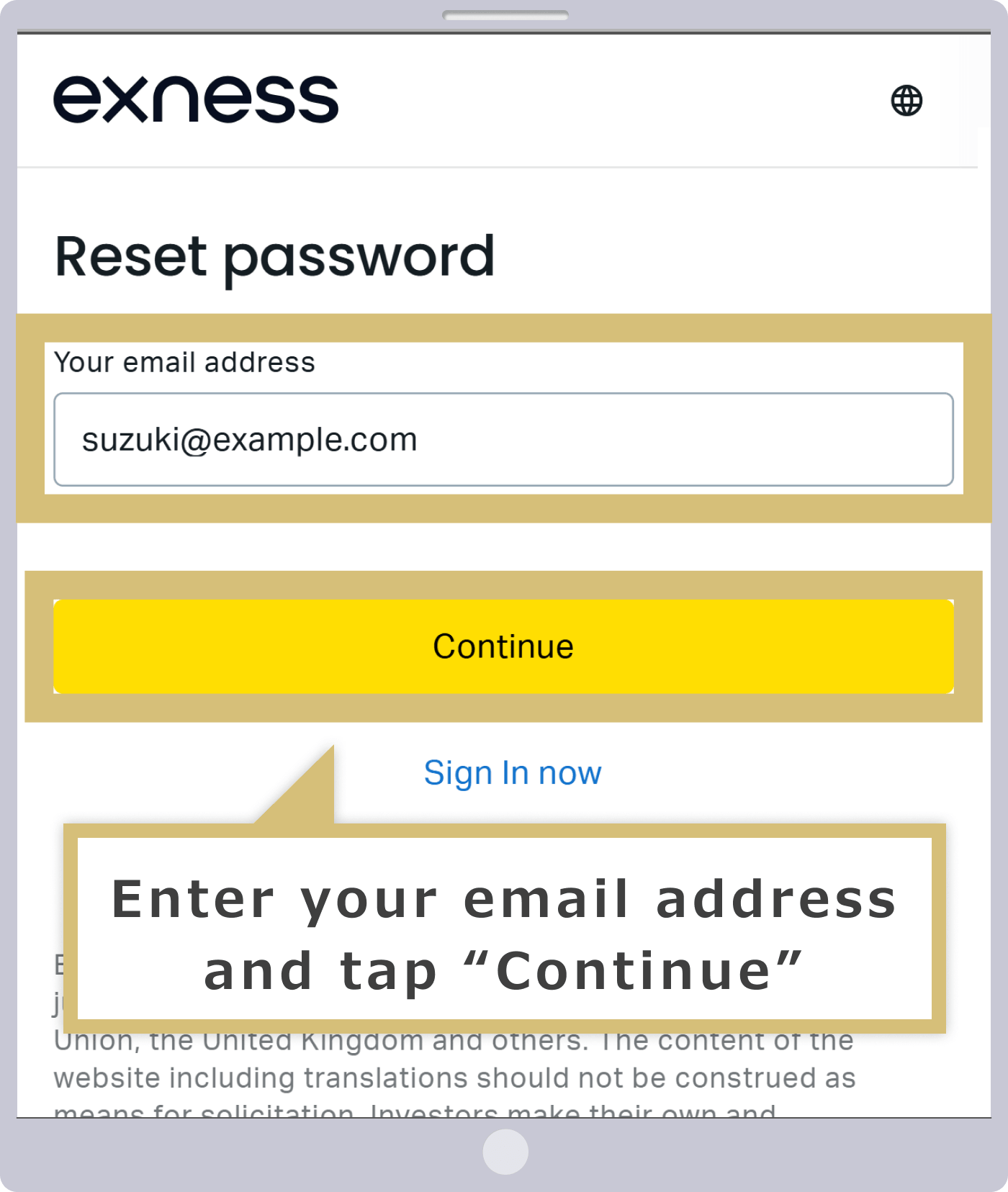
You will be taken to the password reset screen, so enter your email address and tap "Continue."
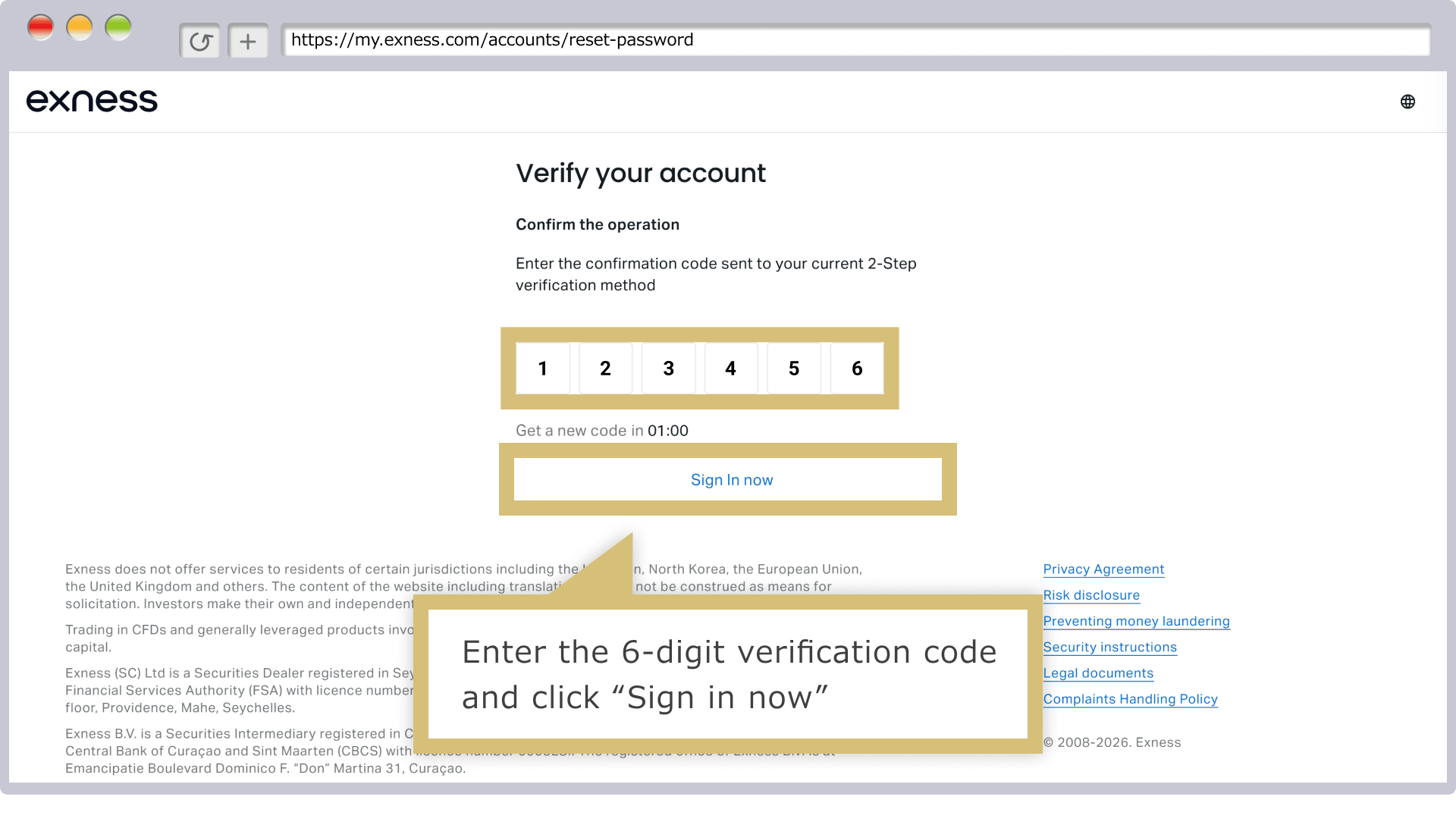
A 6-digit verification code will be sent to the email address you provided, or via SMS (text message) if you have set up your phone number as a two-step verification method. Enter the verification code in the "6-digit verification code" field and click "Confirm" to complete the password reset.
A 6-digit verification code will be sent to the email address you provided, or via SMS (text message) if you have set up your phone number as a two-factor authentication method. Enter the verification code in the “6-digit verification code” field and tap “Confirm” to complete the password reset.
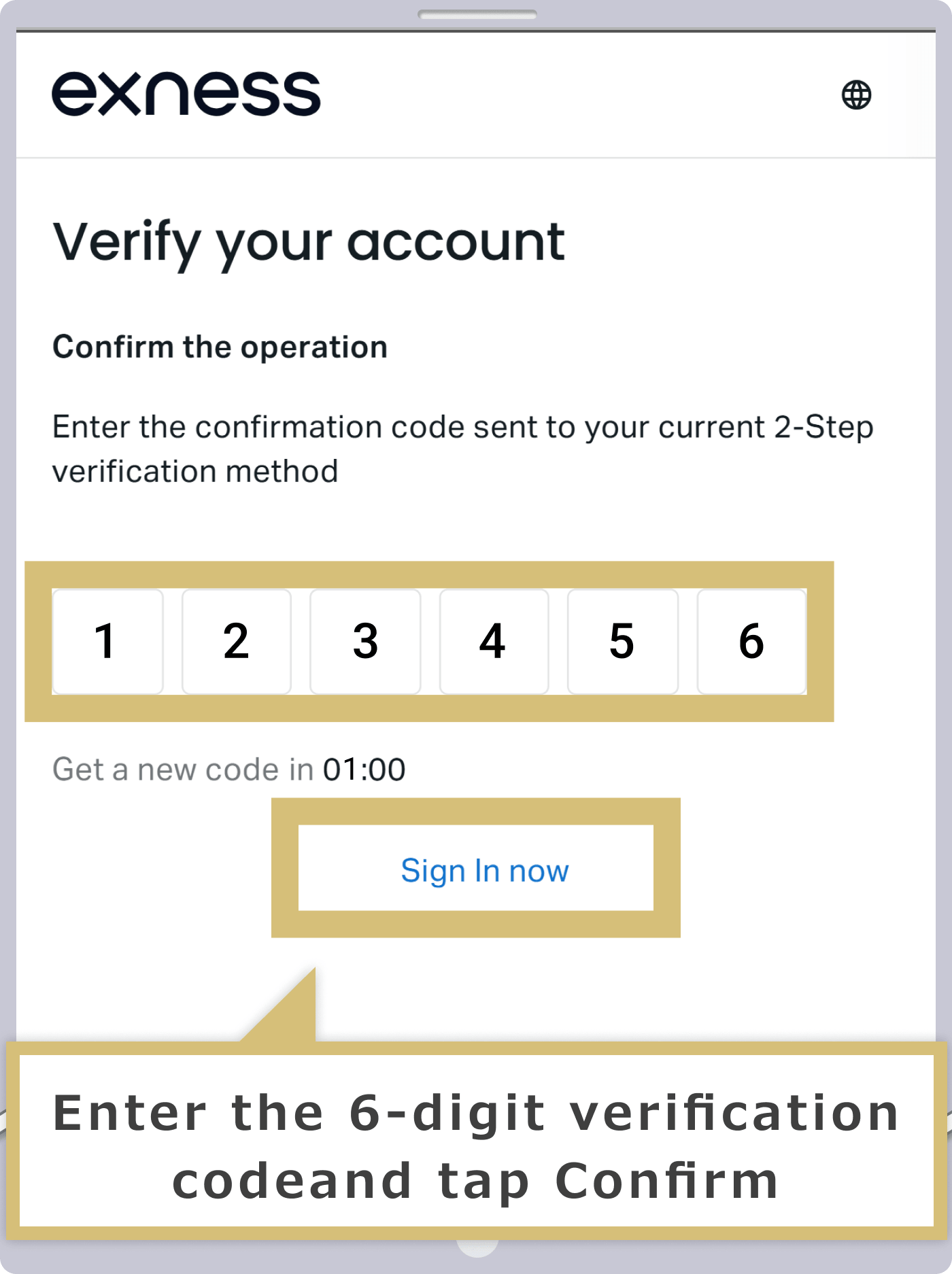
If you do not receive the verification code, your Personal Area may have been deactivated. Please create a new Personal Area using a different email address, and you will be able to start trading with Exness.
If the methods described above do not resolve your issues with logging into your Personal Area or account validity, please contact the Exness support team. We will get back to you within 24 hours.
| Exness Support Team | [email protected] |
How to Log In to Exness MT4/MT5 (PC)
To log in to Exness’s trading platforms, MT4 (MetaTrader 4) and MT5 (MetaTrader 5), you’ll need to enter your “MT4/MT5 trading account number,” “account password,” and “server name.”You can find your “MT4/MT5 trading account number” and “server name” in your Exness Personal Area.
Please note that to use Exness's MT4/MT5 on a PC, you must download and install MT4/MT5 in advance.
Launching MT4/MT5
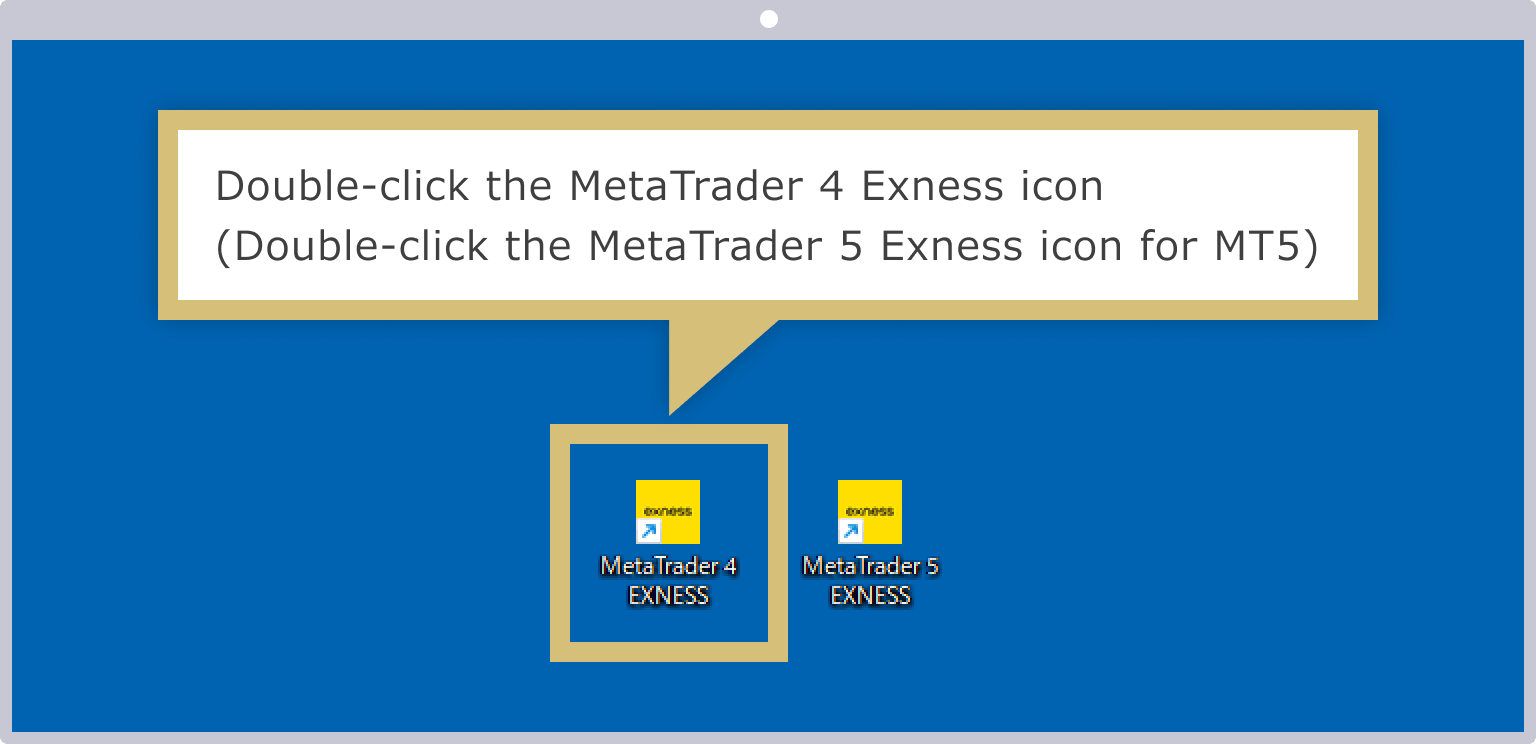
Double-click the "MetaTrader 4 Exness" or "MetaTrader 5 Exness" shortcut icon on your desktop to launch MT4 or MT5.
Displaying the Login Screen
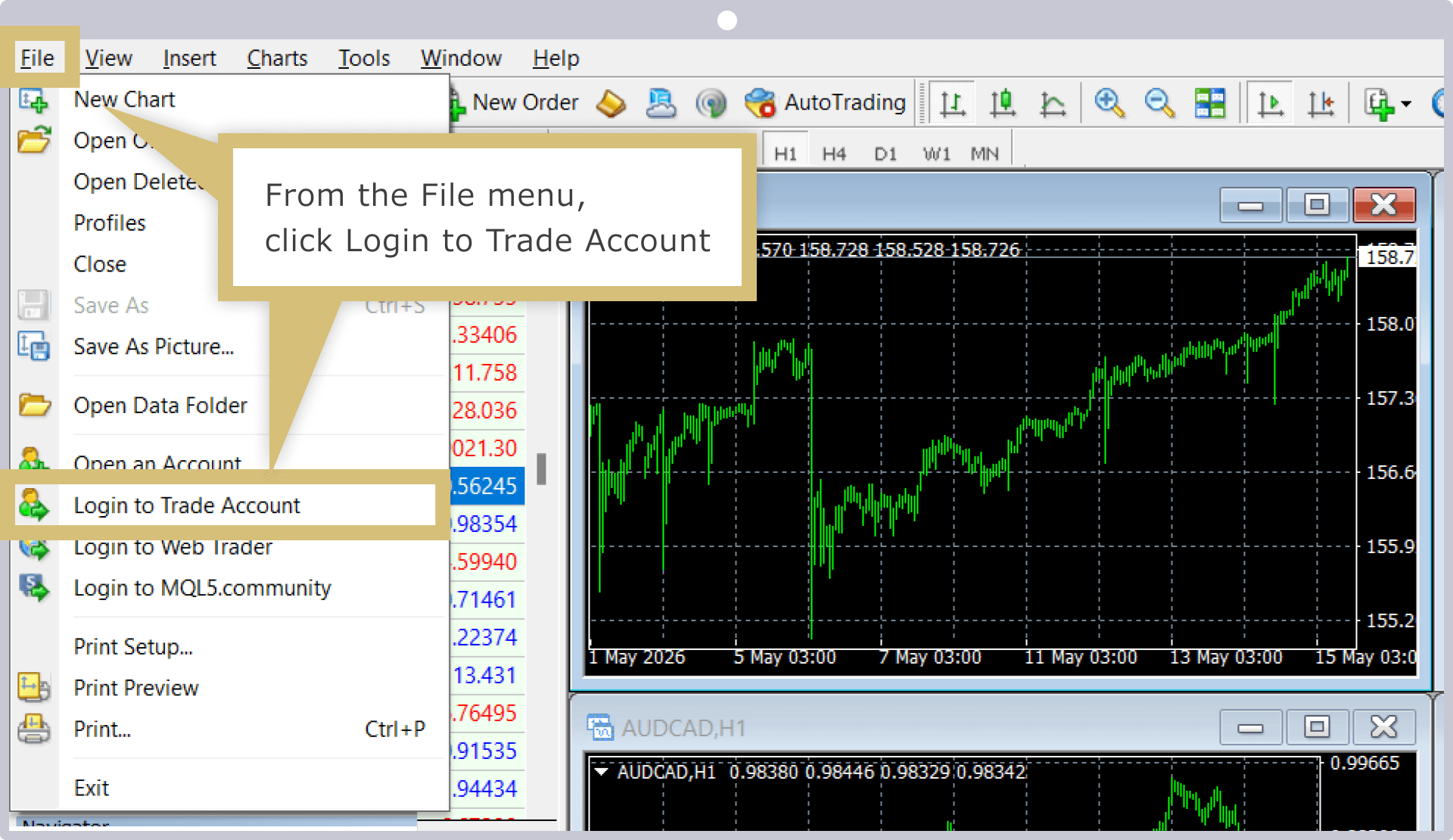
Once MT4/MT5 has launched, click "Log In to Trading Account" from the "File" menu on the toolbar.
Enter your login information
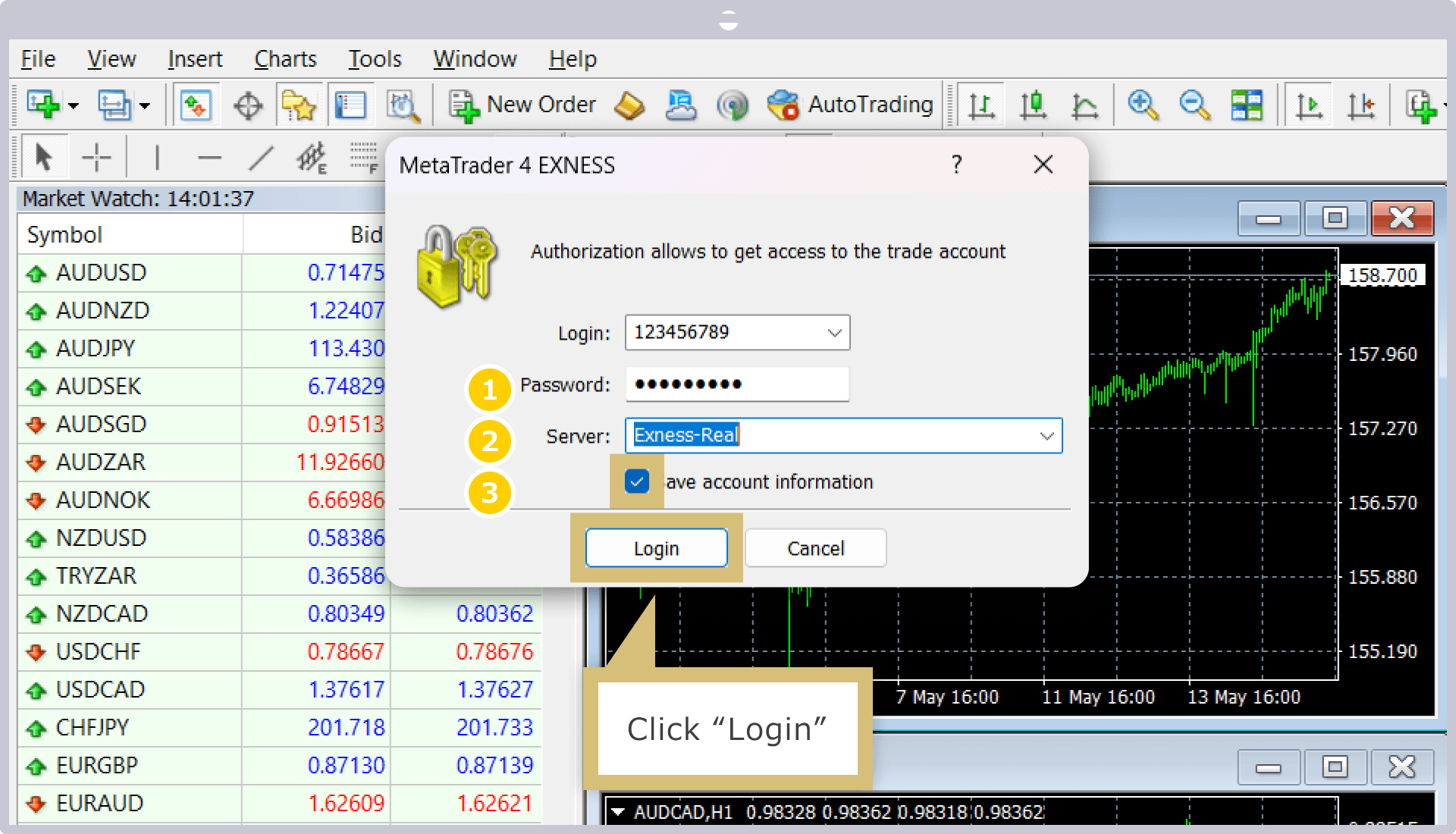
When the "Trading Account Login Information" entry screen appears, enter your "Login ID" and "Password," then select "Server" from the drop-down menu. Check the "Save Login Information" checkbox and click the "Login" button.
|
Login ID |
Example: 1234567 |
|
Password |
Example: password |
|
Server |
Example: Exness-Real7 |
|
Login ID |
|
Example: 1234567 |
|
Password |
|
Example: password |
|
Server |
|
Example: Exness-Real7 |
① For the login ID, enter your Exness MT4/MT5 trading account number.
② Enter the password you set for your MT4/MT5 account.
③ For the server, select the server name that is automatically assigned when you open an MT4/MT5 account.
If you check the "Save Login Information" box, you'll be able to automatically log in to your MT4/MT5 trading account without having to enter your login information the next time and thereafter.
Login Complete
Once you have successfully logged in to Exness’s MT4/MT5, the terminal window will appear on the MT4/MT5 screen, allowing you to view charts, market quotes, your account balance, and trading activity.Feel free to customize the platform to suit your trading style—such as displaying multiple charts or adding indicators—and enjoy a comfortable trading experience with Exness’s MT4/MT5.
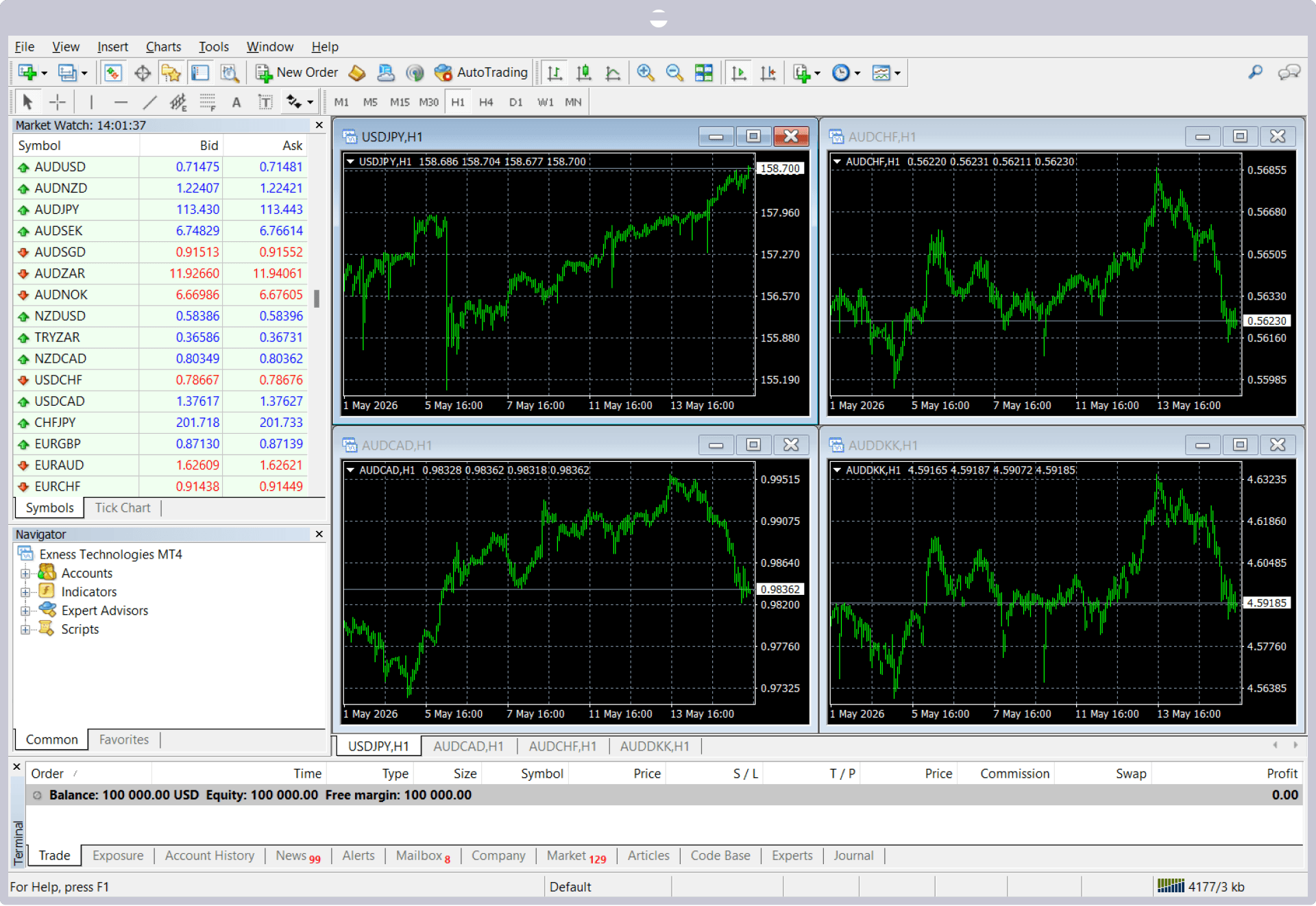
Once you have logged in to Exness's MT4/MT5 and successfully connected to the server, "XX.XX ms" or "XXX/kb" will appear in the lower-right corner of the screen.


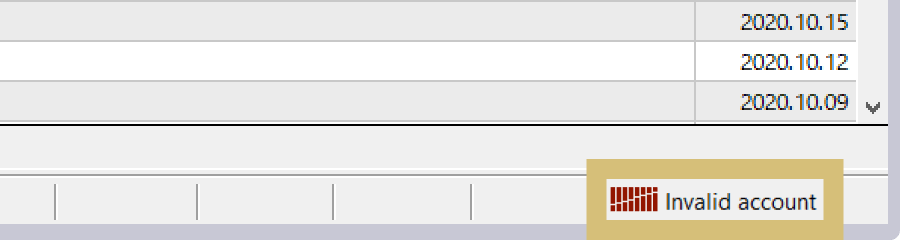
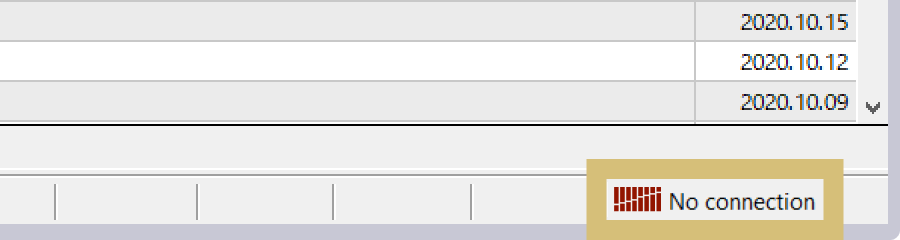
If, after logging into Exness MT4/MT5, the rates displayed in the quote window or the charts do not update, you may not be connected to the Exness server properly. Please check the server connection status, which is displayed in the lower-right corner of the screen.
If the message "Invalid Account" appears, your login information may be incorrect, or your account may have been archived due to a lack of activity for a certain period of time. Please check your login information or your account status.
If the message "No connection!" appears, you may not be able to connect to the Internet due to a problem with your network or computer. Please check your network connection and try connecting again.
How to Log In to Exness MT4/MT5 (iOS/Android)
To log in to Exness’s MT4 (MetaTrader 4) or MT5 (MetaTrader 5) trading platforms from your smartphone, you’ll need to enter your “MT4/MT5 trading account number,” “account password,” and “server name.”You can find your "MT4/MT5 trading account number" and "server name" in your Exness Personal Area.
To use Exness's MT4/MT5 on your smartphone, you'll need to download and install the MT4/MT5 app beforehand.
Launching MT4/MT5
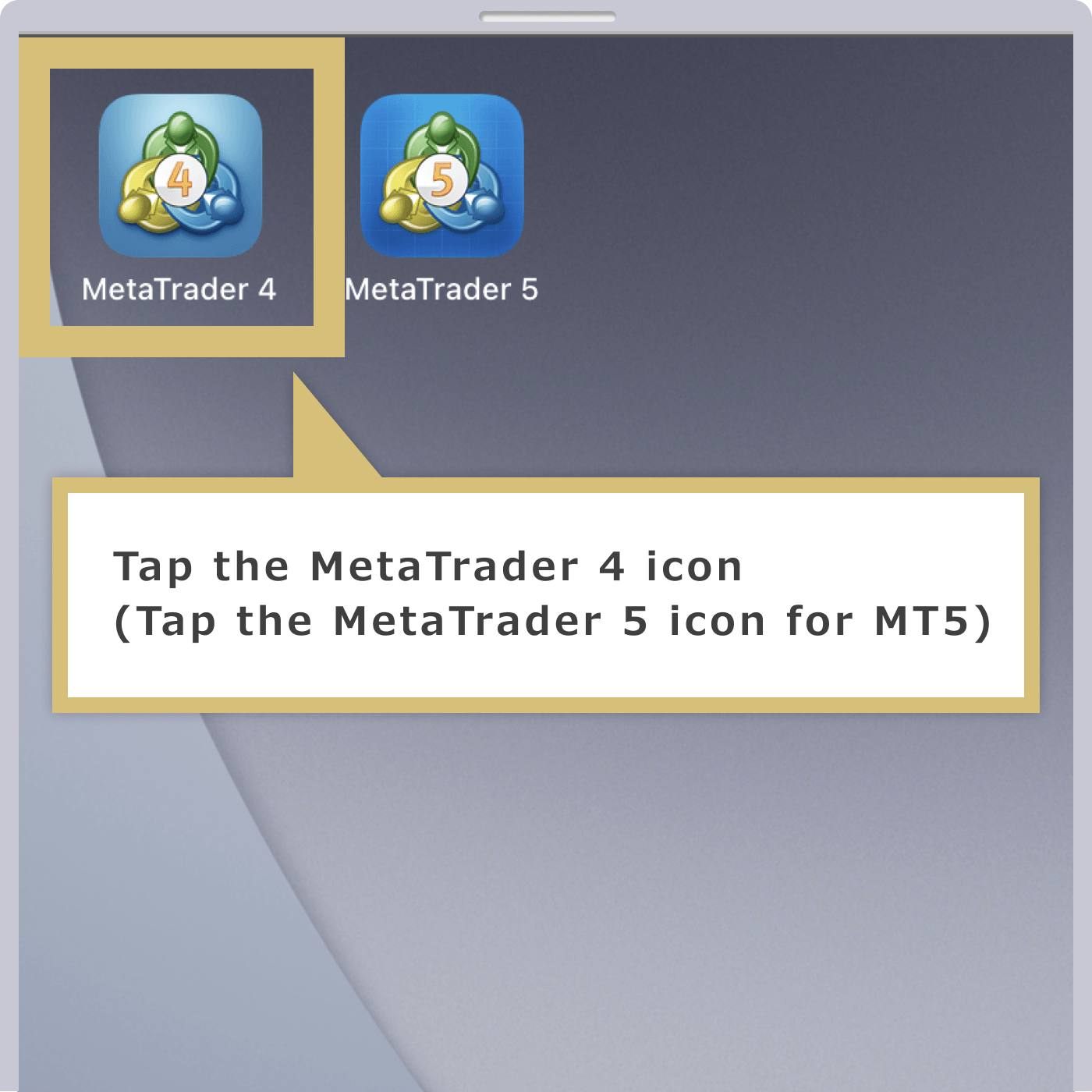
Tap the "MetaTrader 4" or "MetaTrader 5" app displayed on the home screen of your iOS device (iPhone or iPad) to launch MT4 or MT5.
Settings Screen
Once MT4/MT5 has launched on your iOS device, open the "Settings" screen and tap "New Account."
New Account Screen
When the "New Account" screen appears, tap "Log in to an existing account."
Search for Login Servers
The server selection screen will appear. Enter "exness" in the search bar at the top of the screen to view a list of server names, then tap the name of the server you wish to log in to.
Enter your login information
When the "Login" screen appears, enter your "Login (MT4/MT5 Account Number)" and "Password." Enable "Save Password," then tap "Sign In" in the upper-right corner of the screen.
|
Log In |
Example: 1234567 |
|
Password |
Example: password |
|
Log In |
|
Example: 1234567 |
|
Password |
|
Example: password |
① For the login ID, enter your Exness MT4/MT5 trading account number.
② Enter the password you set for your MT4/MT5 account.
If you turn on "Save Password," you'll be able to automatically log in to your MT4/MT5 trading account without having to enter your login information the next time and thereafter.
Login Complete
Once you’ve successfully logged into the Exness MT4/MT5 app for iOS, the “Market Watch” screen will appear and the rates will begin to update.Tap the icons at the bottom of the screen to switch to the “Chart” or “Trade” screens and start trading. Enjoy trading with Exness using the MT4/MT5 app, which you can use anytime, anywhere.
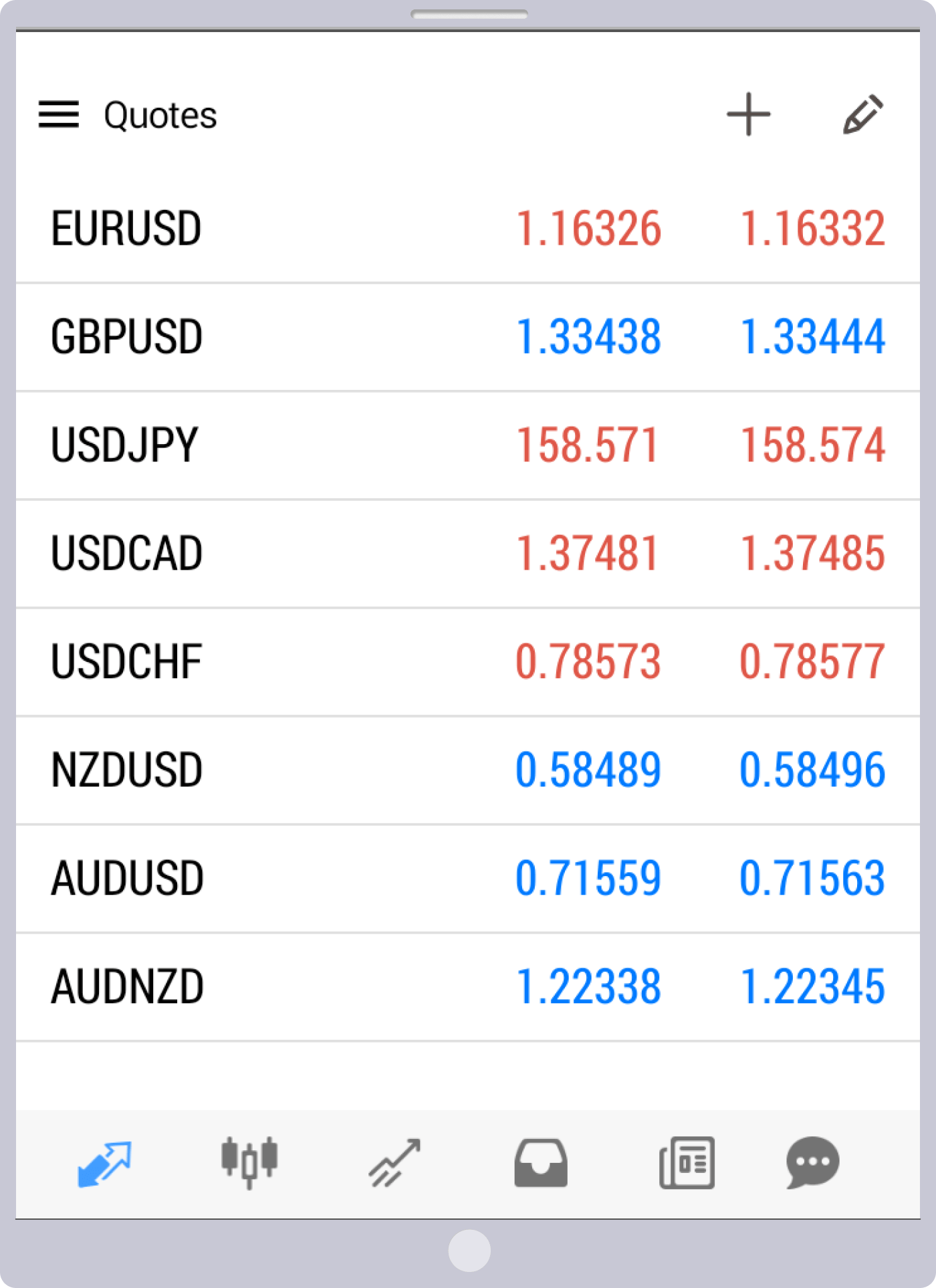
Launching MT4/MT5
Tap the "MetaTrader 4" or "MetaTrader 5" app displayed on the home screen of your Android device to launch MT4/MT5.
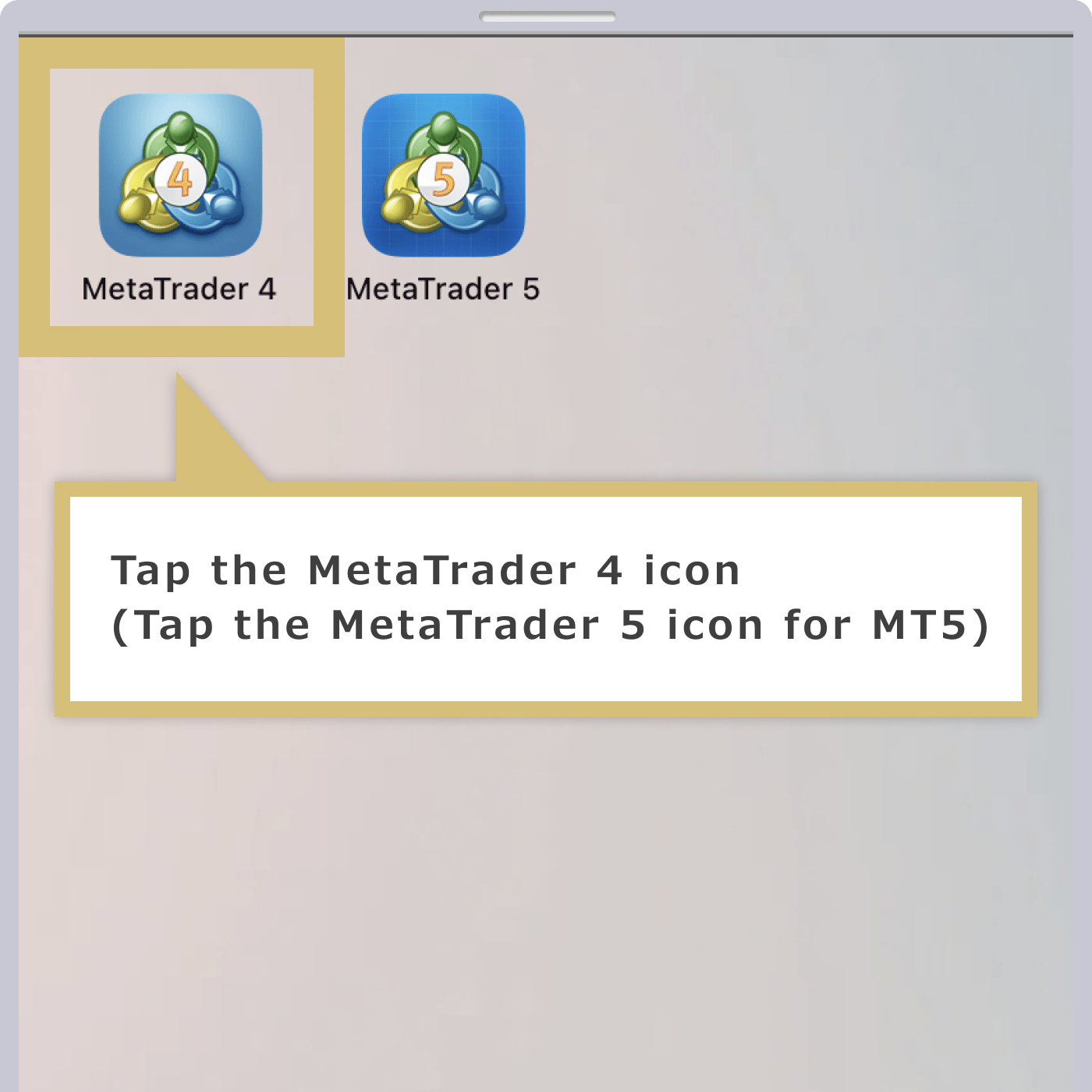
Open a MetaQuotes Demo Account
When you launch MT4 or MT5 on an Android device for the first time, the MetaQuotes demo account sign-up screen will appear. When you see the message “Welcome to MetaTrader 4!”, tap “Accept.”Next, a message saying “Open a Demo Account” will appear; tap “Accept” to open a demo account. If you do not wish to open a demo account, tap the “×” in the upper-right corner of the “Open a Demo Account” message. You will then skip to Step 6, “Search for Login Server.”
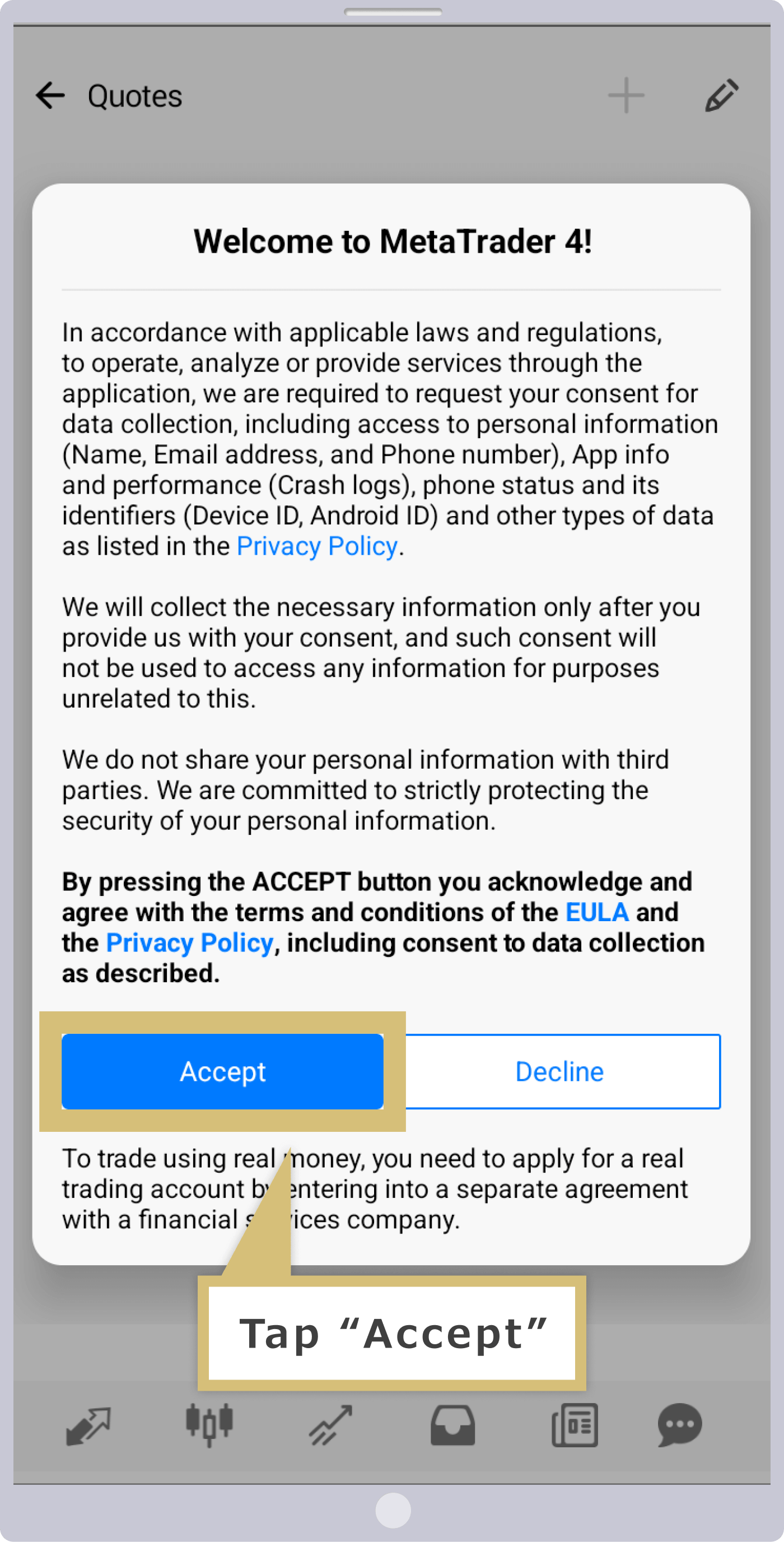
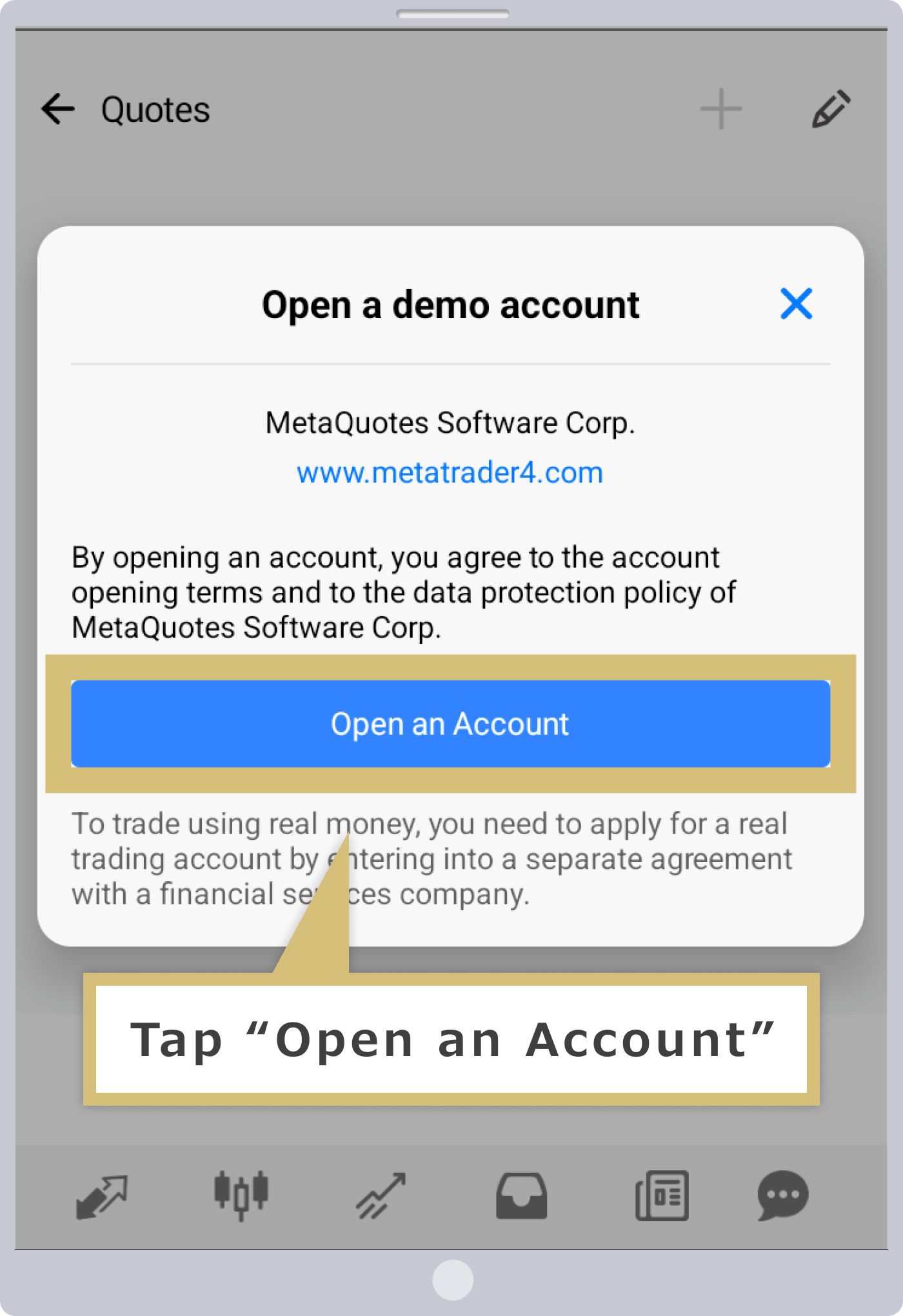
Demo Account Setup Complete
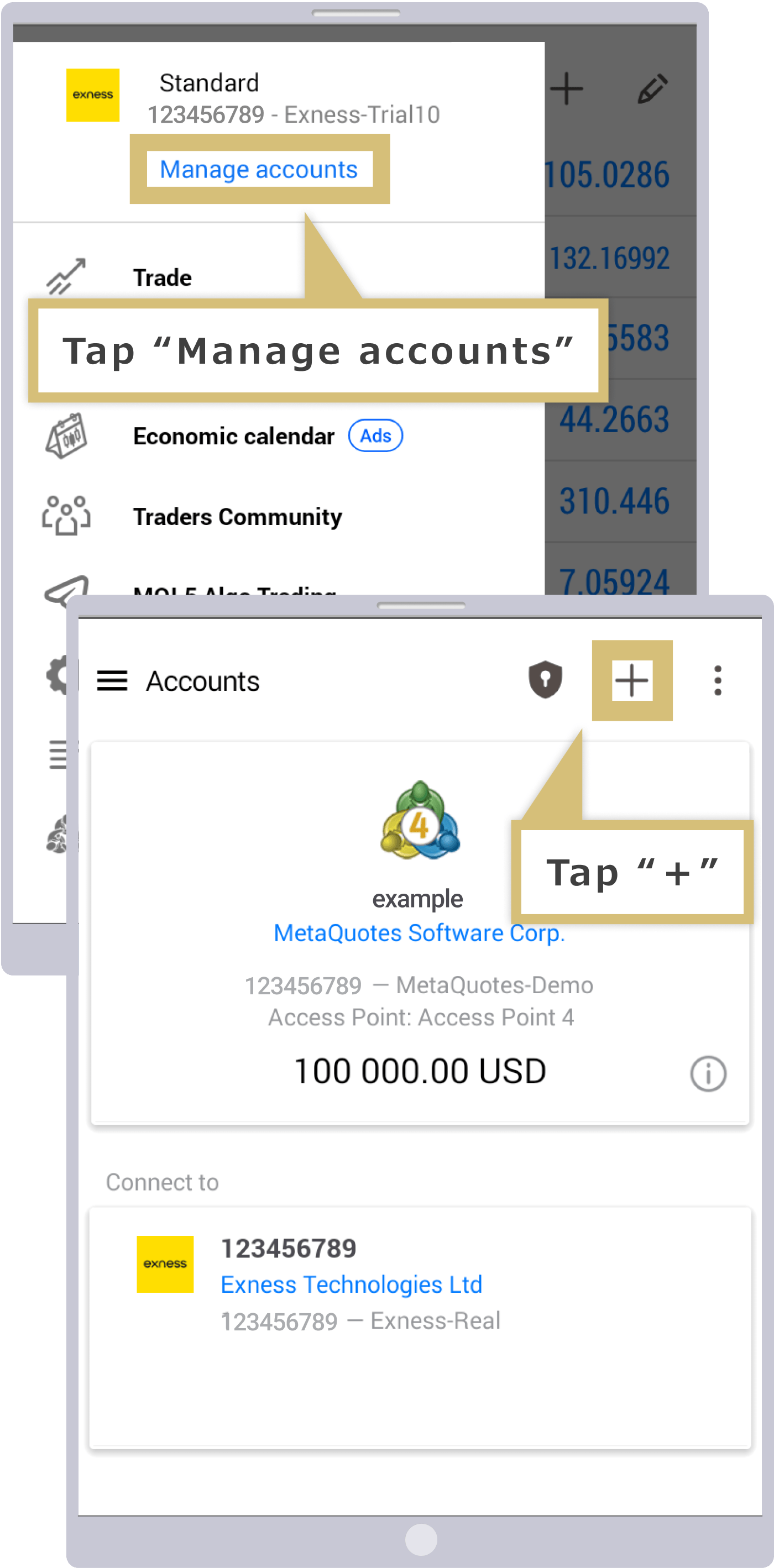
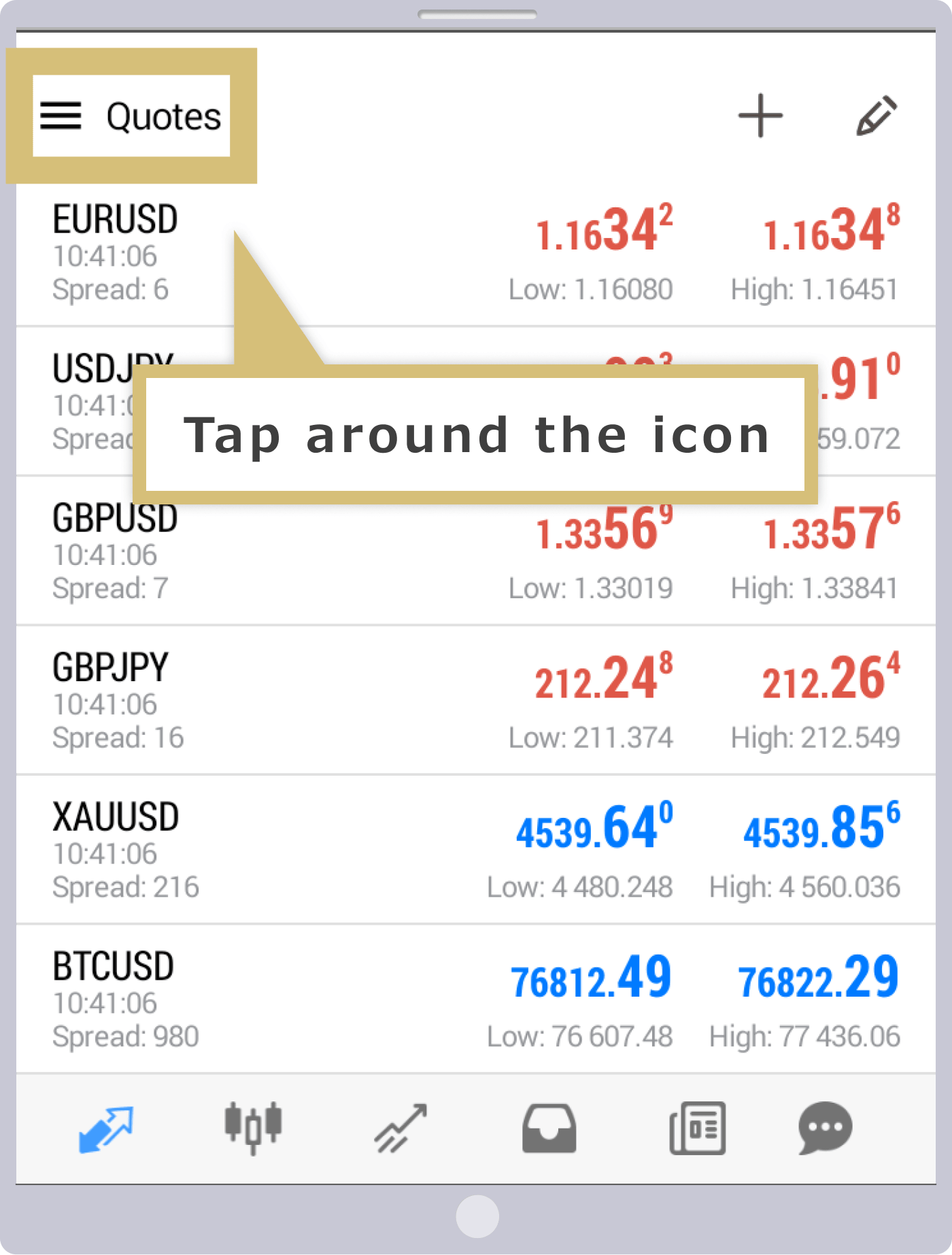
Once you have completed opening a demo account with MetaQuotes, the "Market Quotes" screen will appear. Tap the area around the icon in the upper-left corner of the screen.
Account Management Screen
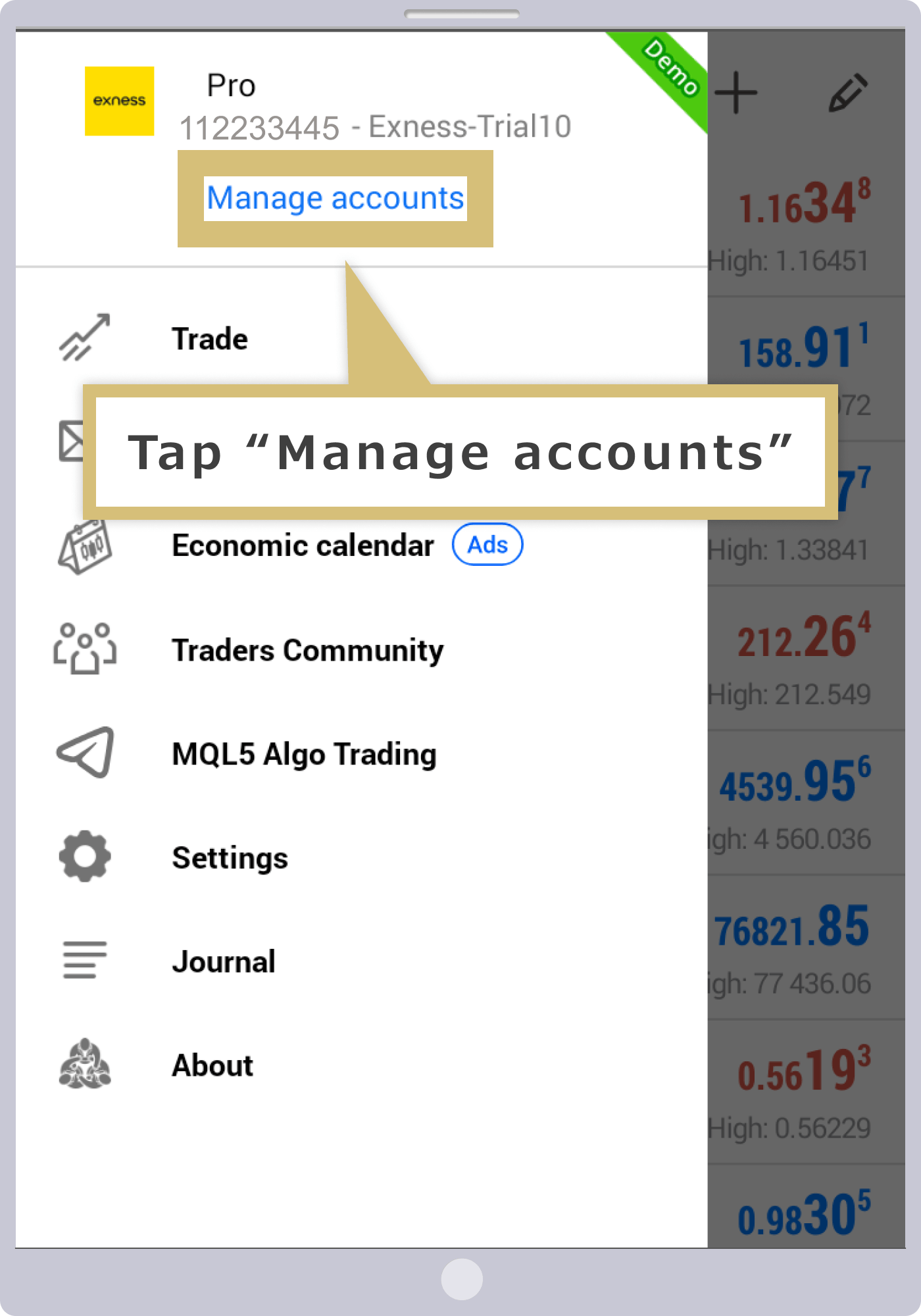
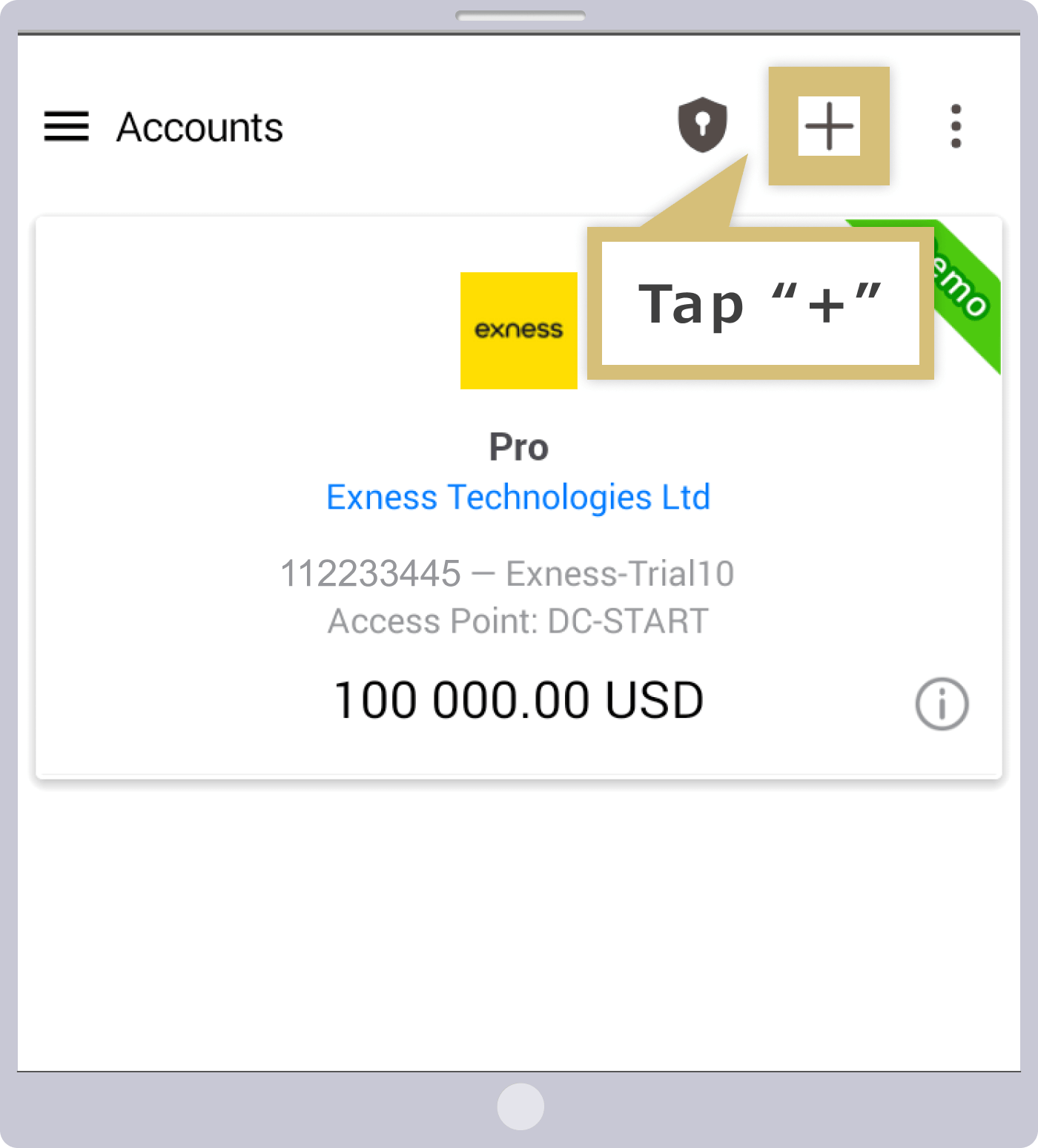
When the menu screen appears, tap "Account Management." When the "Account Management" screen appears, tap the "+" in the upper-right corner of the screen.
Login Screen
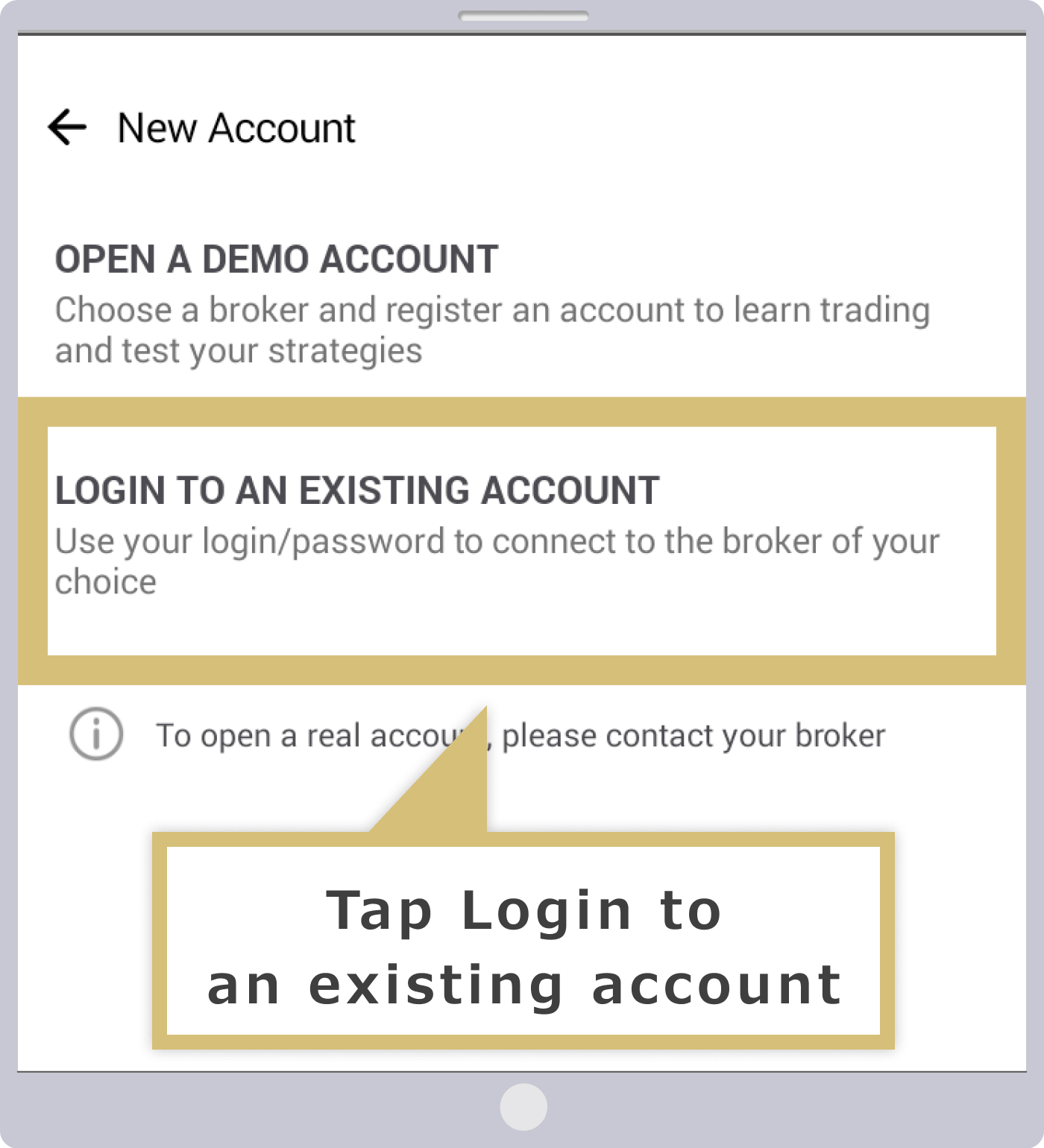
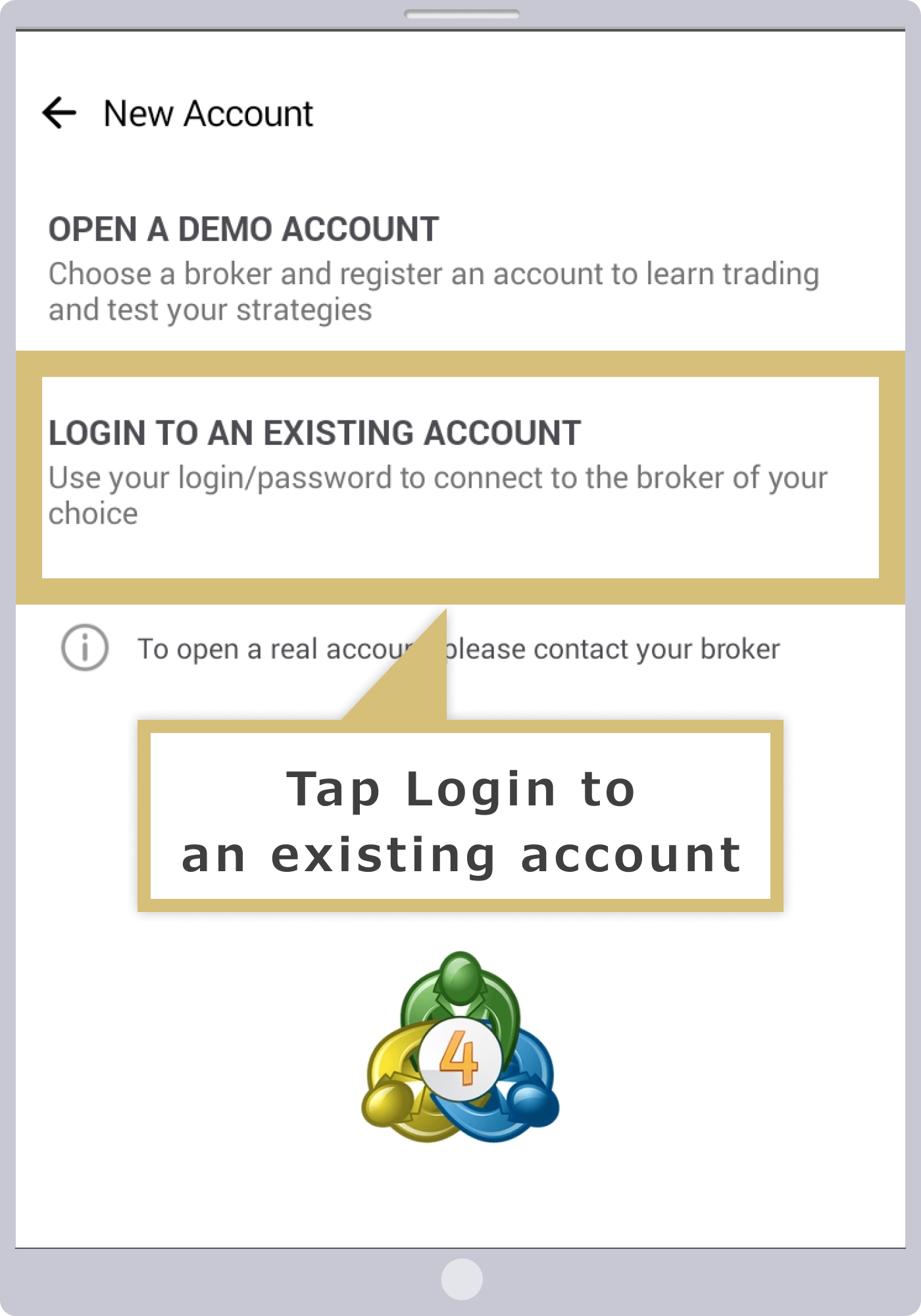
The "New Account" screen will appear; tap "Log in to an existing account."
Search for Login Servers
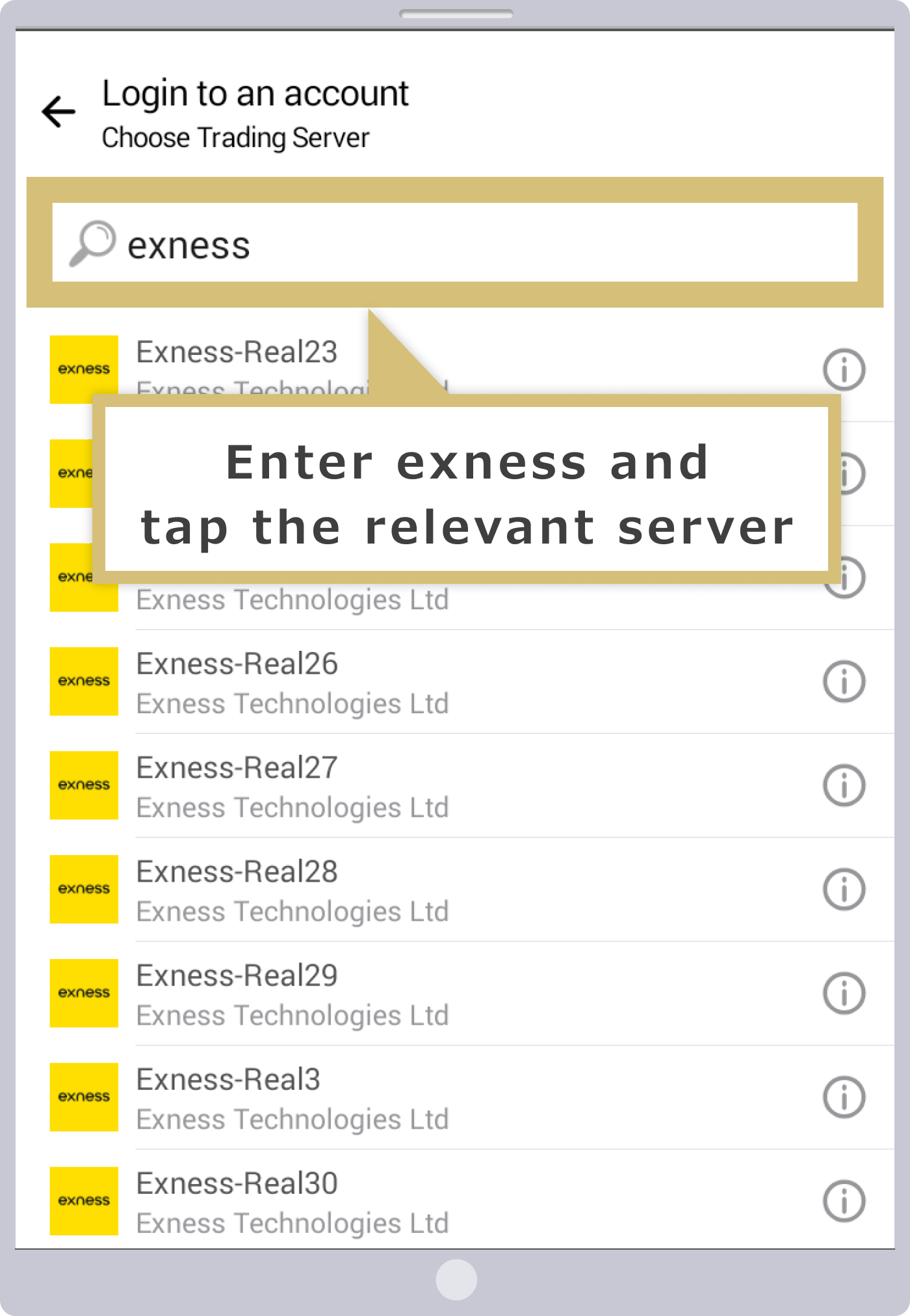
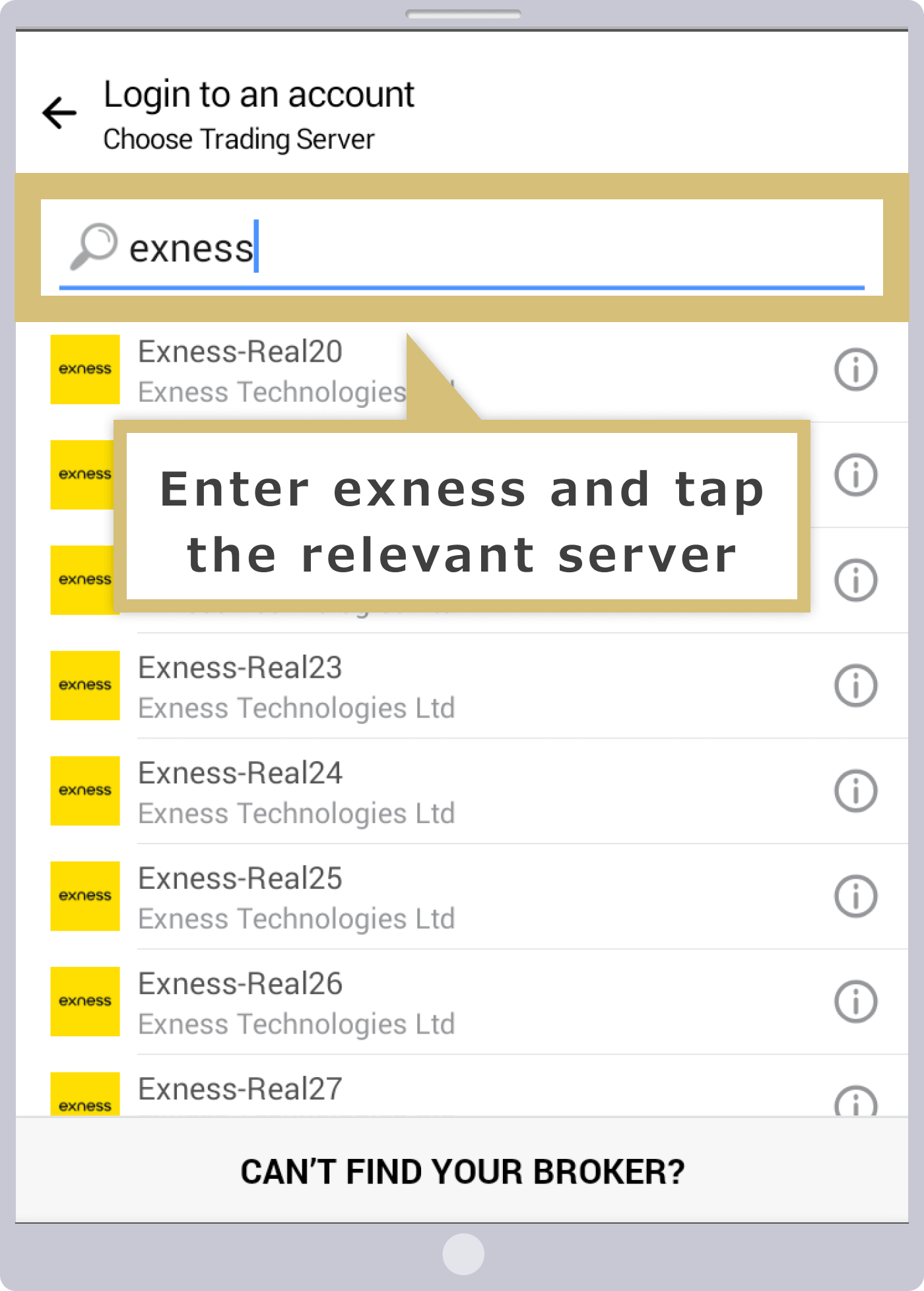
The server selection screen will appear. Enter "exness" in the search bar at the top of the screen to view a list of server names, then tap the name of the server you want to log in to.
Enter your login information
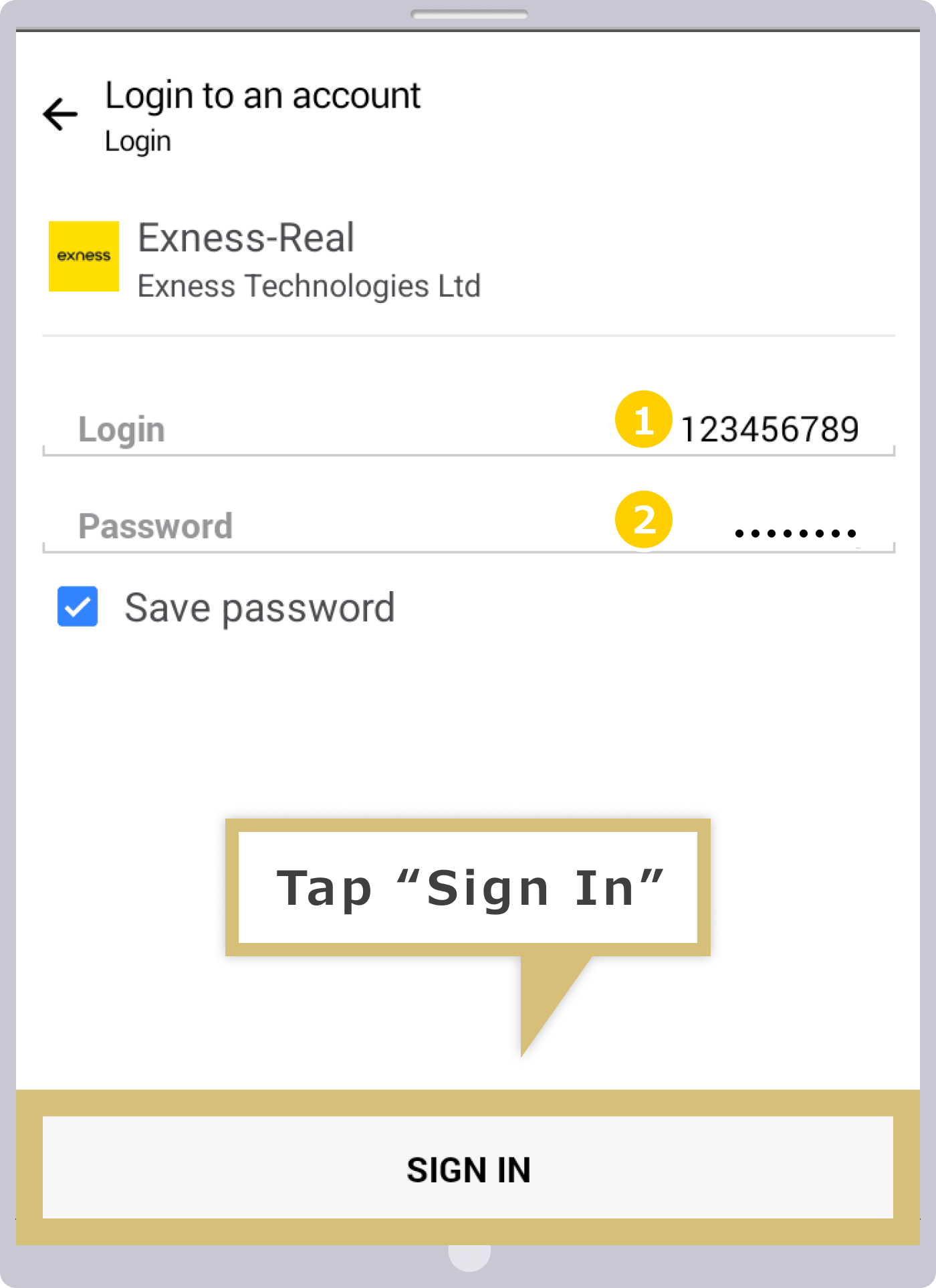
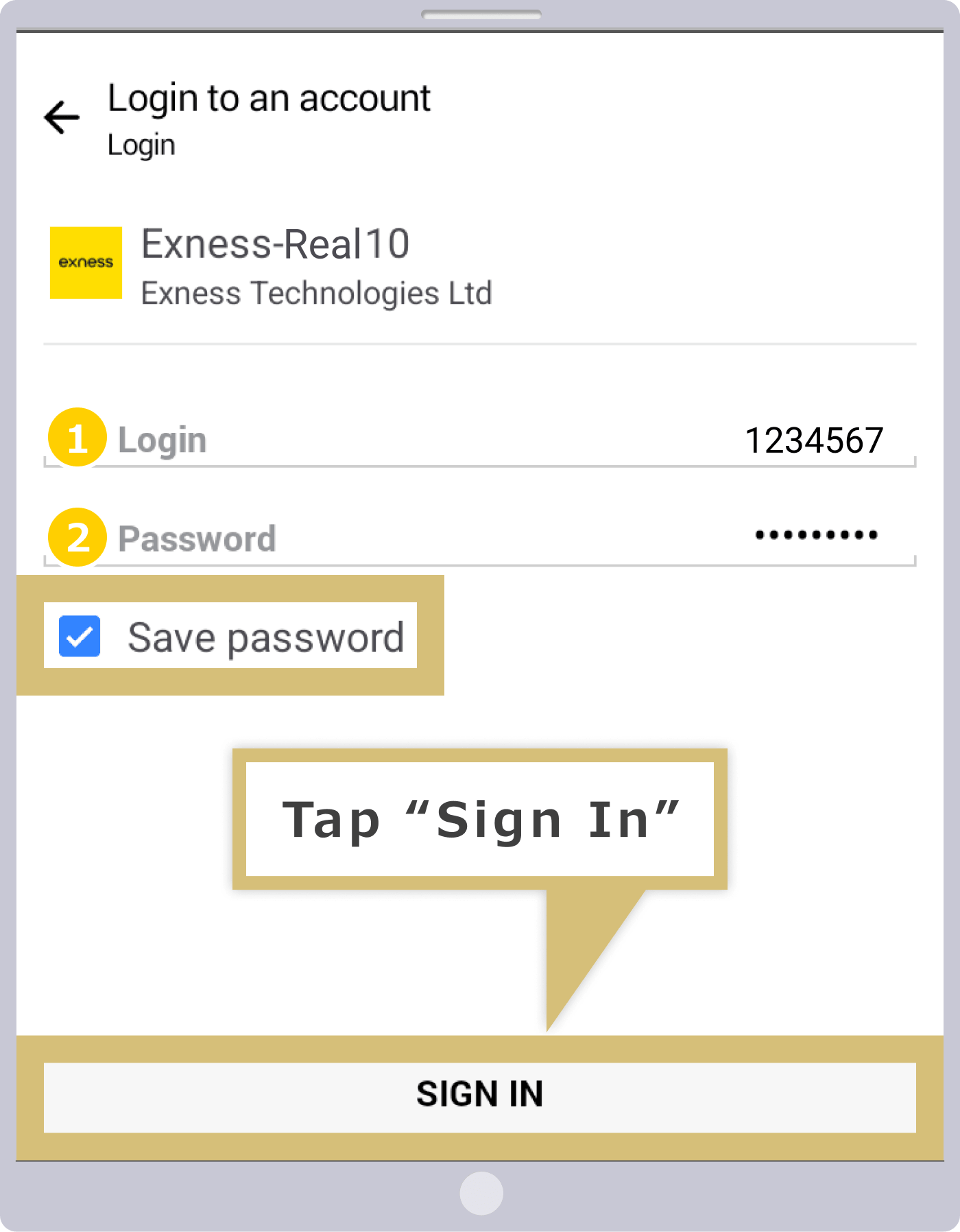
When the "Login" screen appears, enter your "Login (MT4/MT5 Account Number)" and "Password." Check the "Save Password" box, then tap "Login" at the bottom of the screen.
|
Log In |
Example: 1234567 |
|
Password |
Example: password |
|
Log In |
|
Example: 1234567 |
|
Password |
|
Example: password |
① For the login ID, enter your Exness MT4/MT5 trading account number.
② Enter the password you set for your MT4/MT5 account.
If you check the box next to "Save Password," you'll be able to automatically log in to your MT4/MT5 trading account without having to enter your login information the next time and thereafter.
Login Complete
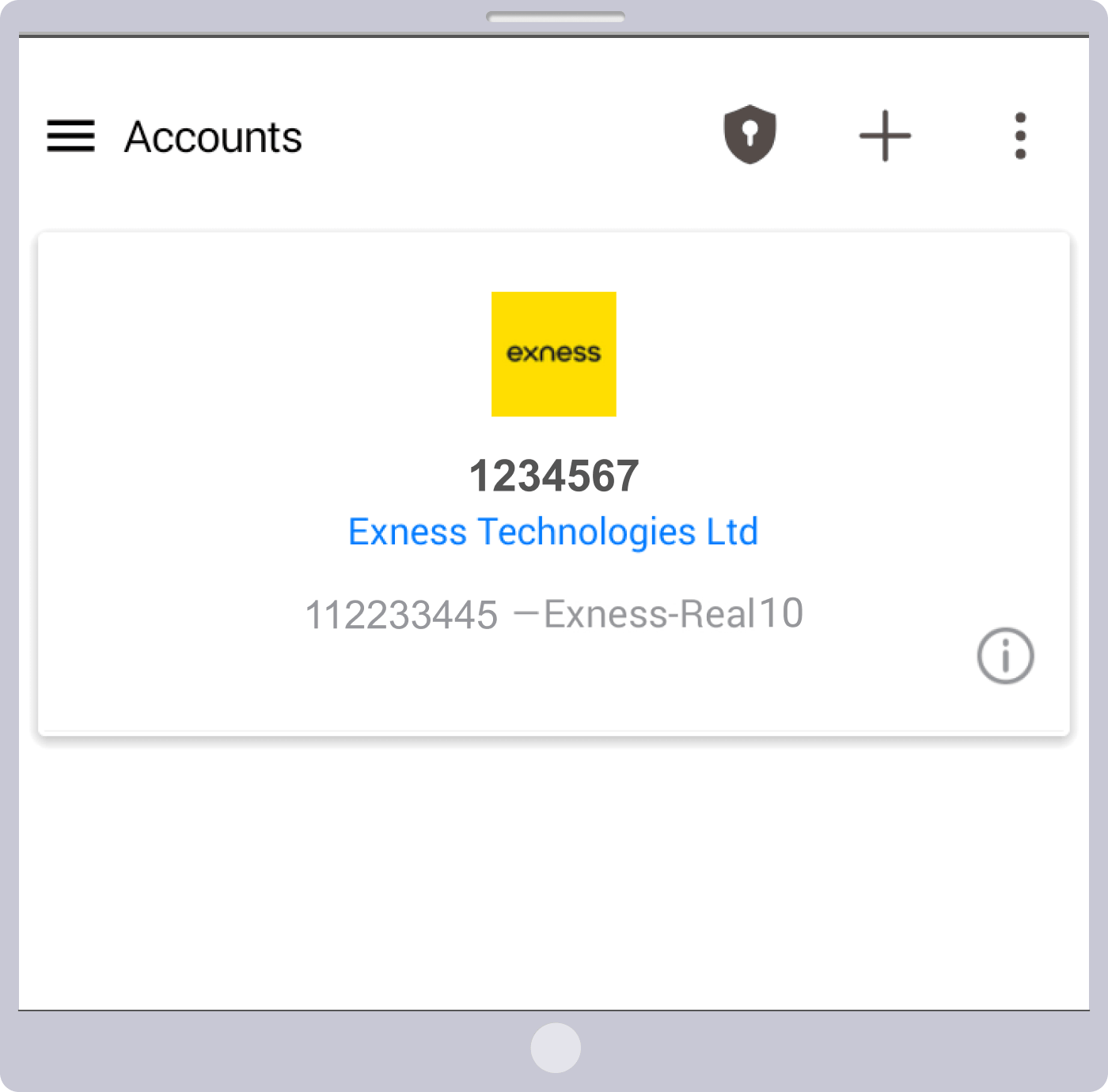
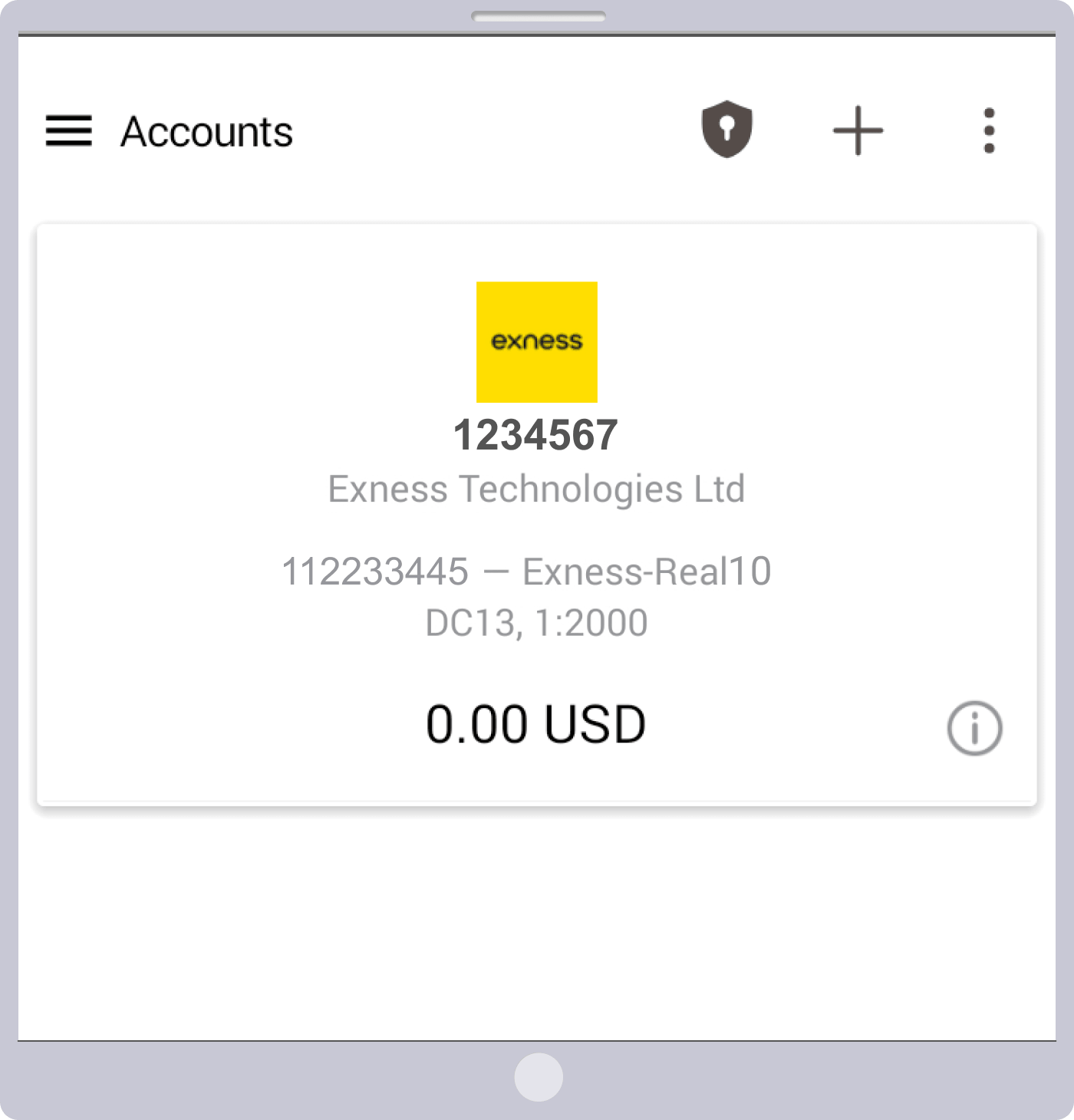
Once you’ve successfully logged in to Exness’s MT4/MT5, the “Account” screen will appear.Once you’ve been redirected to the “Account” screen, which displays your account balance, leverage settings, and other account information, you can begin trading. Enjoy trading with Exness using the MT4/MT5 app, which you can use anytime, anywhere.
If You Are Unable to Log In to MT4/MT5 (iOS and Android Versions)
If you are unable to log in to the iOS or Android versions of Exness’s MT4/MT5, you may see error messages such as “Invalid Account” or “Authentication Failed.” This may be due to incorrect MT4/MT5 login credentials or because your account has been archived due to a lack of activity for a certain period of time. Please verify your login credentials or check your account status.
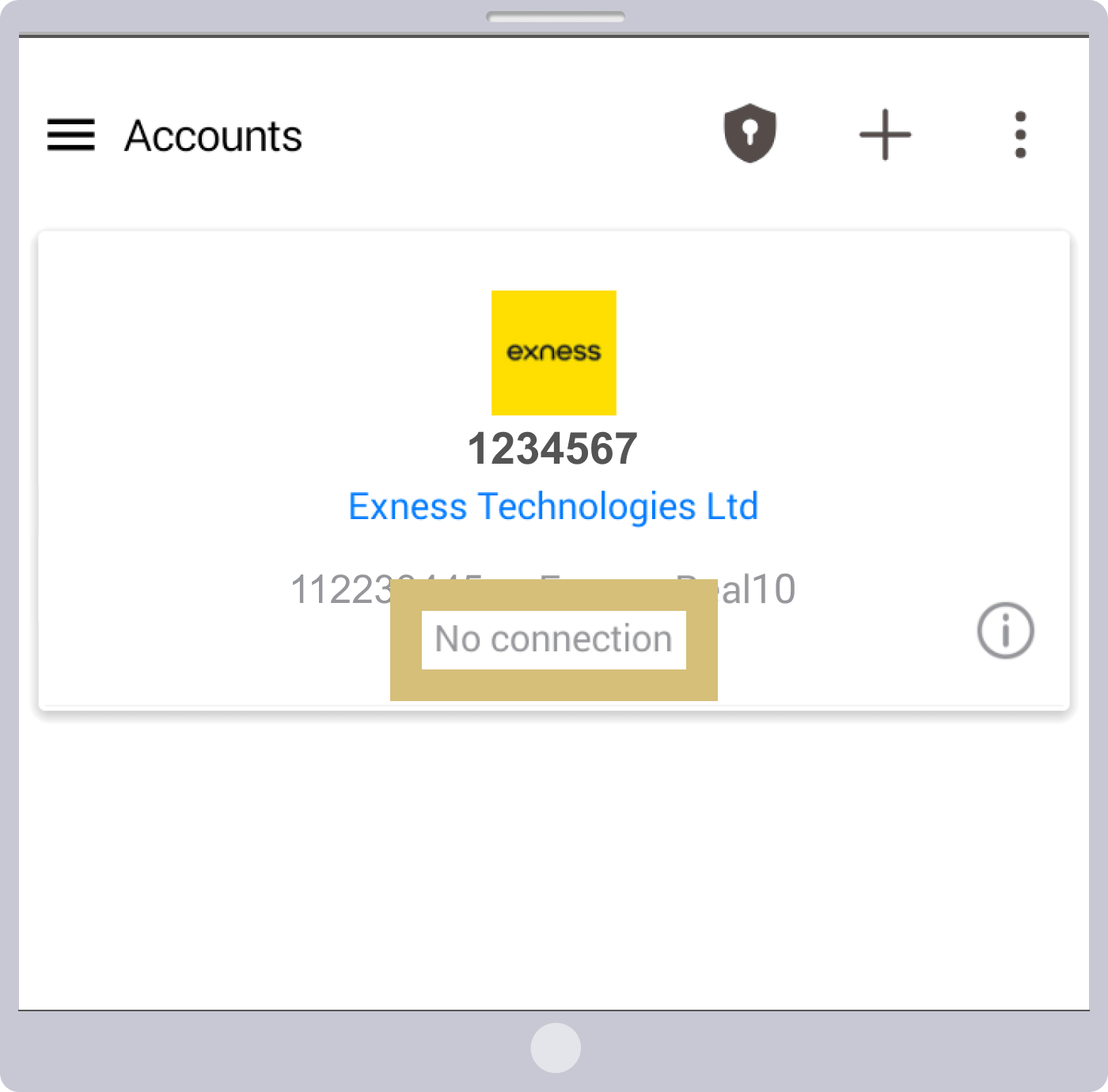
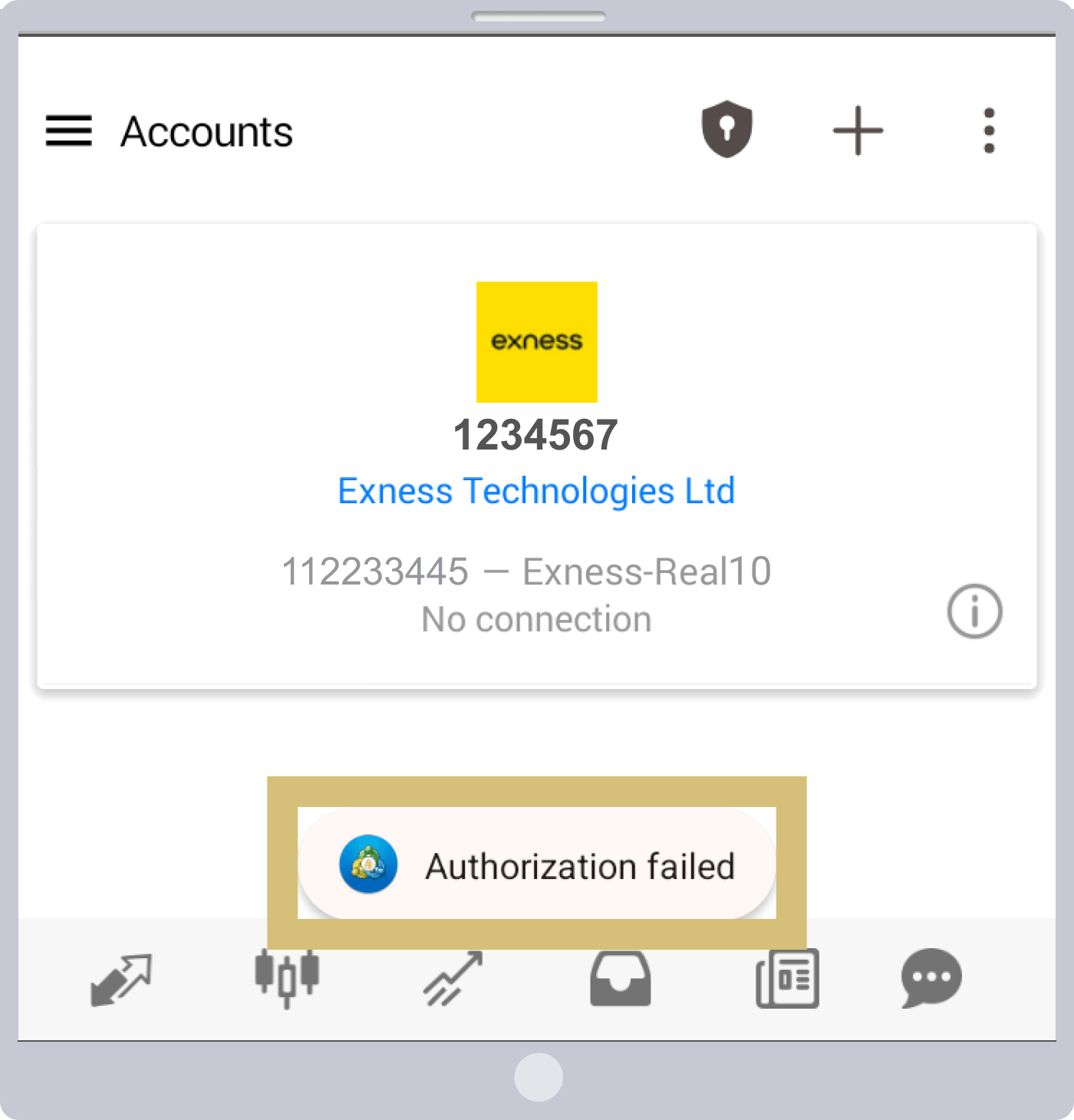
If You Can't Log In to Exness MT4/MT5
If you are unable to log in to Exness's MT4/MT5, your login credentials may be incorrect, or your account may have been deactivated. Please check the following points and try logging in again.
Verifying Login Information (Account Number and Server Name)
Please check that the "Login (MT4/MT5 Account Number)" you entered and the "Server Name" you selected when logging in to Exness's MT4/MT5 are correct.
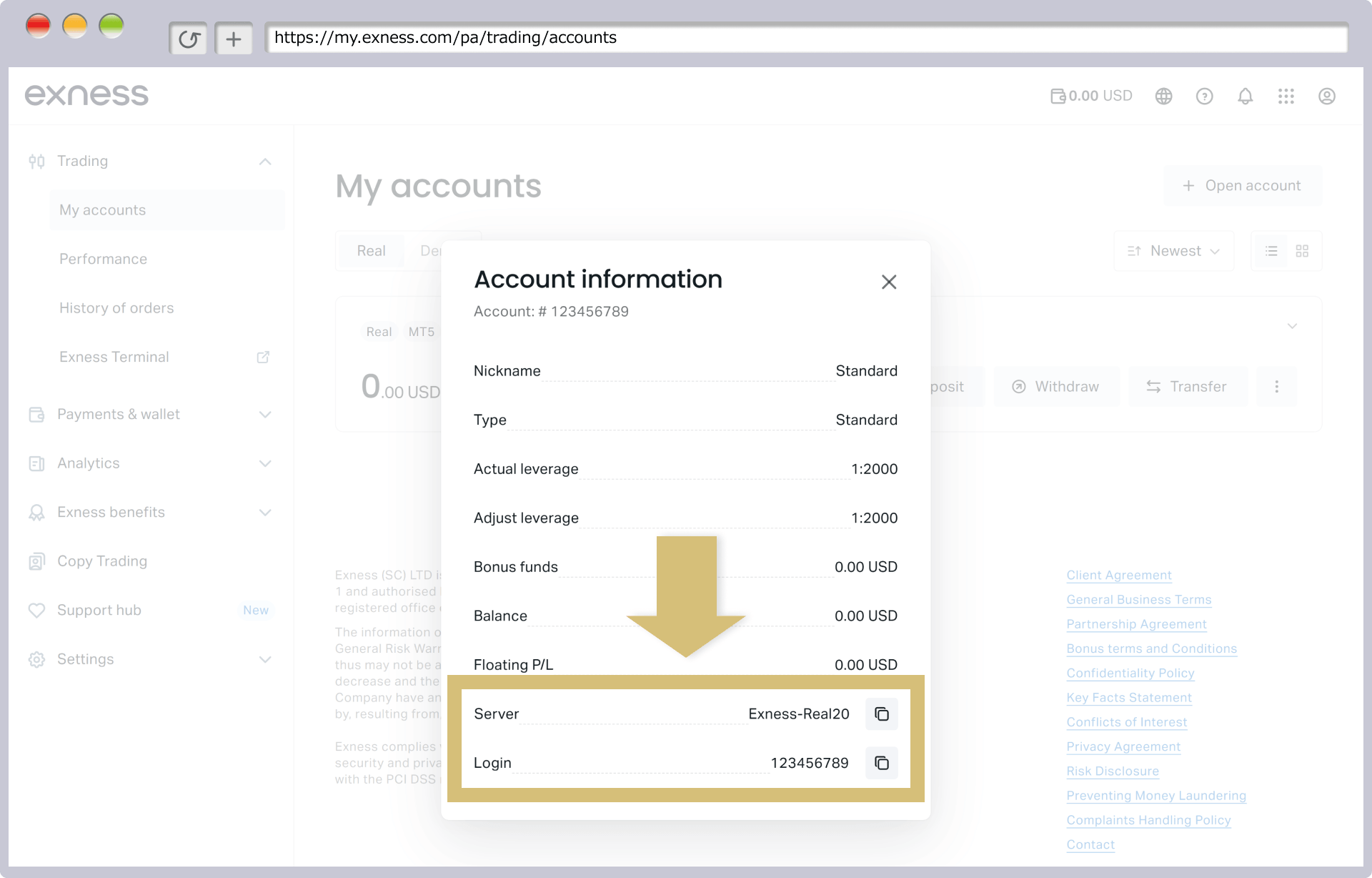
To check your login information, go to "My Account" in the Exness Personal Area, click the "︙" icon next to the relevant account, and select "Account Information."
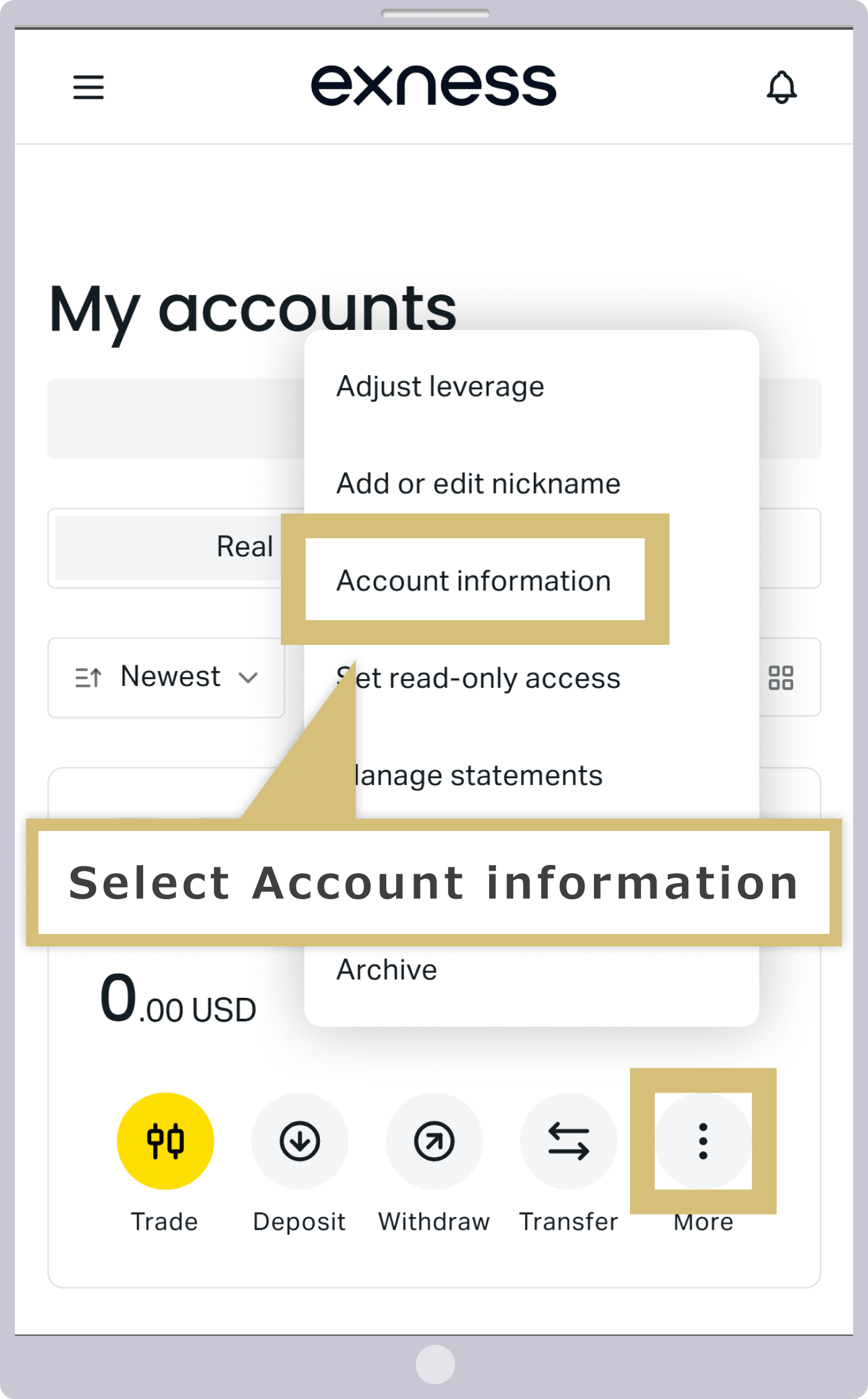
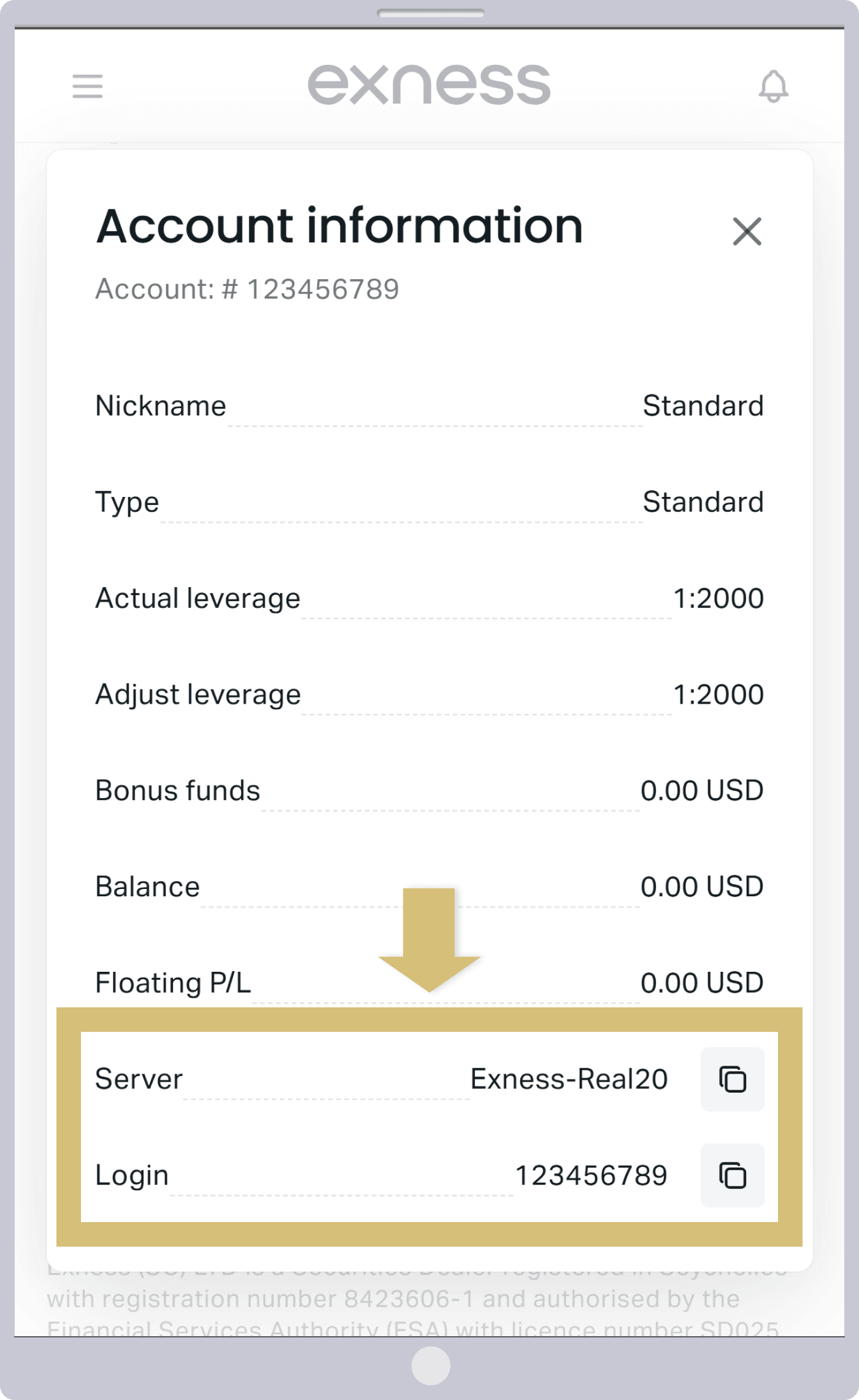
To check your login information, go to "My Account" in the Exness Personal Area, tap the "︙" icon for the relevant account, and select "Account Information."
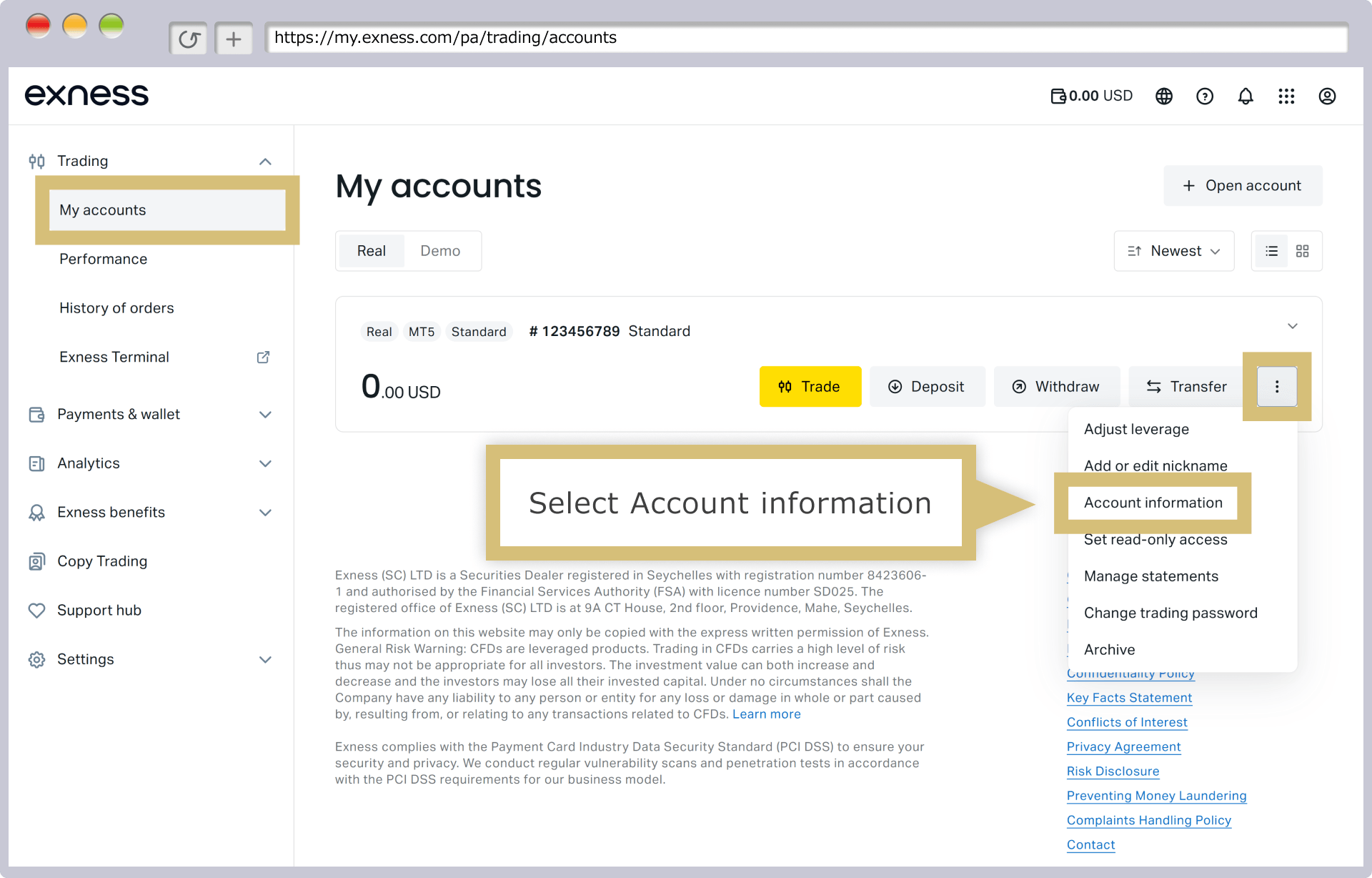
Your "account information," such as your account number and server name, will be displayed. Click the copy icon to copy your login information to the clipboard; you can then paste it when entering your login information.
Your "account information," such as your account number and server name, will be displayed. Tap the copy icon to copy your login information to the clipboard; you can then paste it when entering your login information.
Password Confirmation
The password you enter when logging in to Exness’s MT4/MT5 is the 8- to 15-character password consisting of letters and numbers that you set when you opened your account. The password is case-sensitive.If Caps Lock is ON, letters will be entered in uppercase, so please turn it off and re-enter your password.
If you forget your password, you can change it from your Personal Area. In the "My Account" section of the Exness Personal Area, click the "gear icon" for the relevant account and select "Change Trading Password."
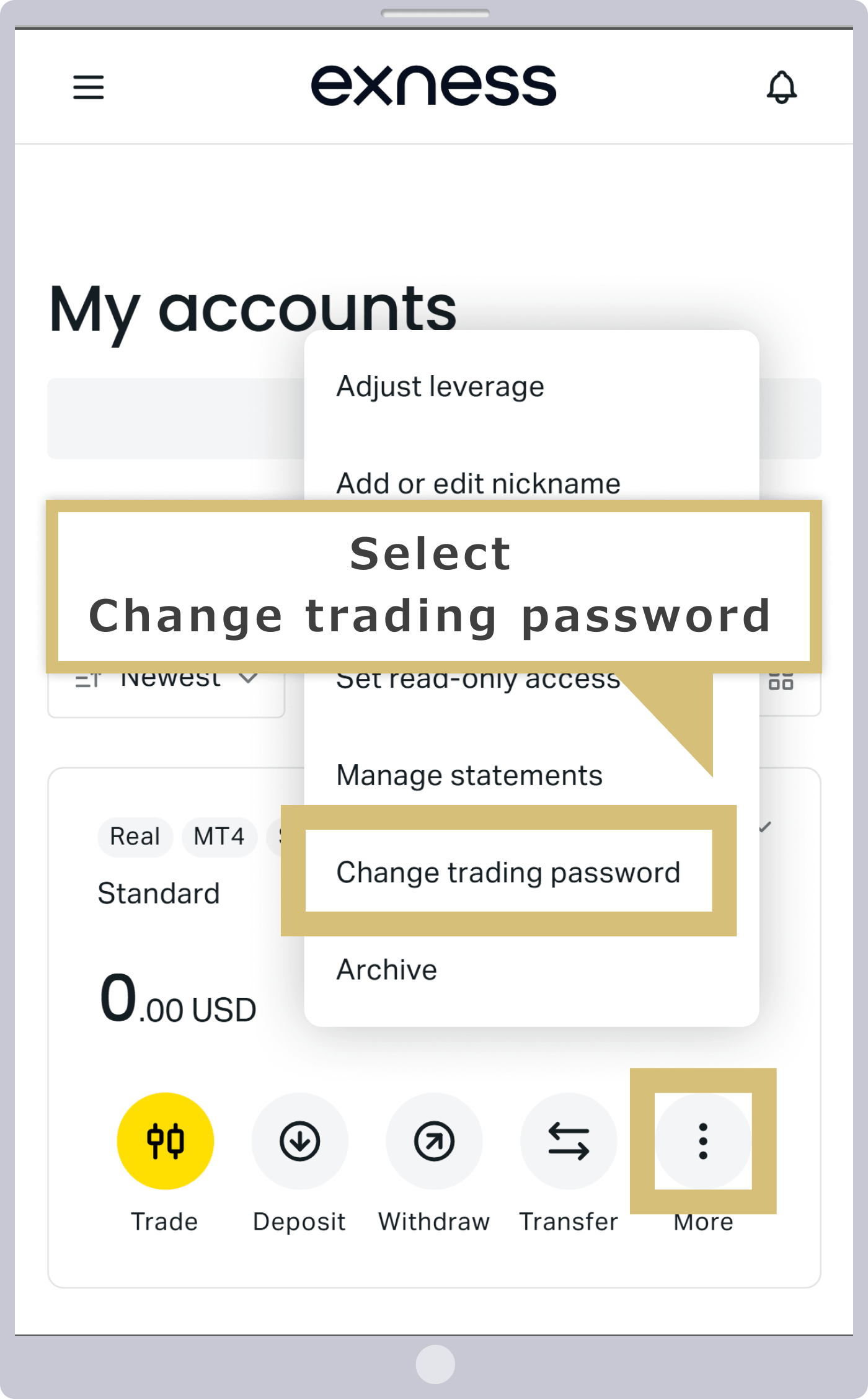
If you forget your password, you can change it from your Personal Area. In the "My Account" section of the Exness Personal Area, tap the "gear icon" for the relevant account and select "Change Trading Password."
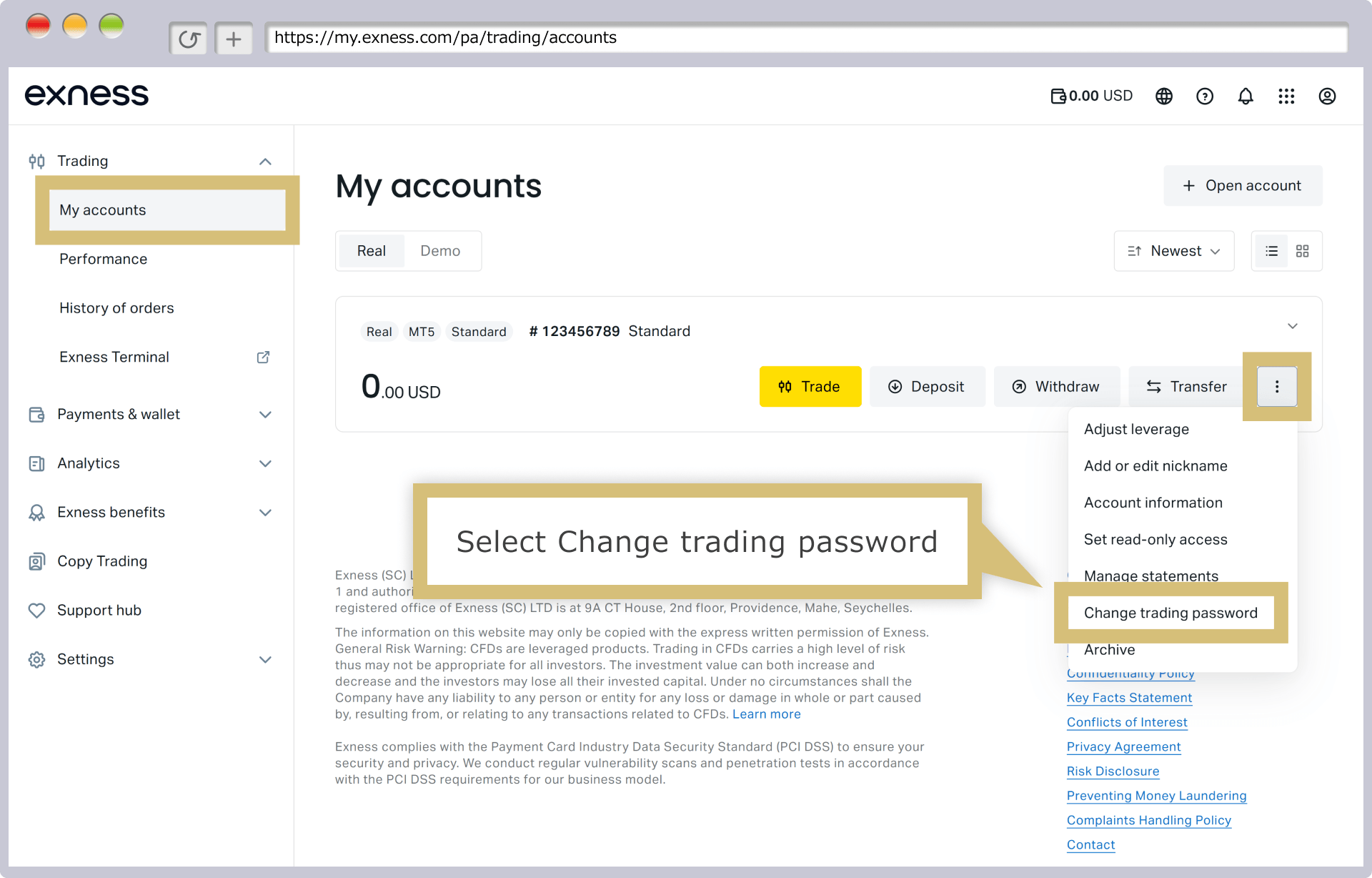
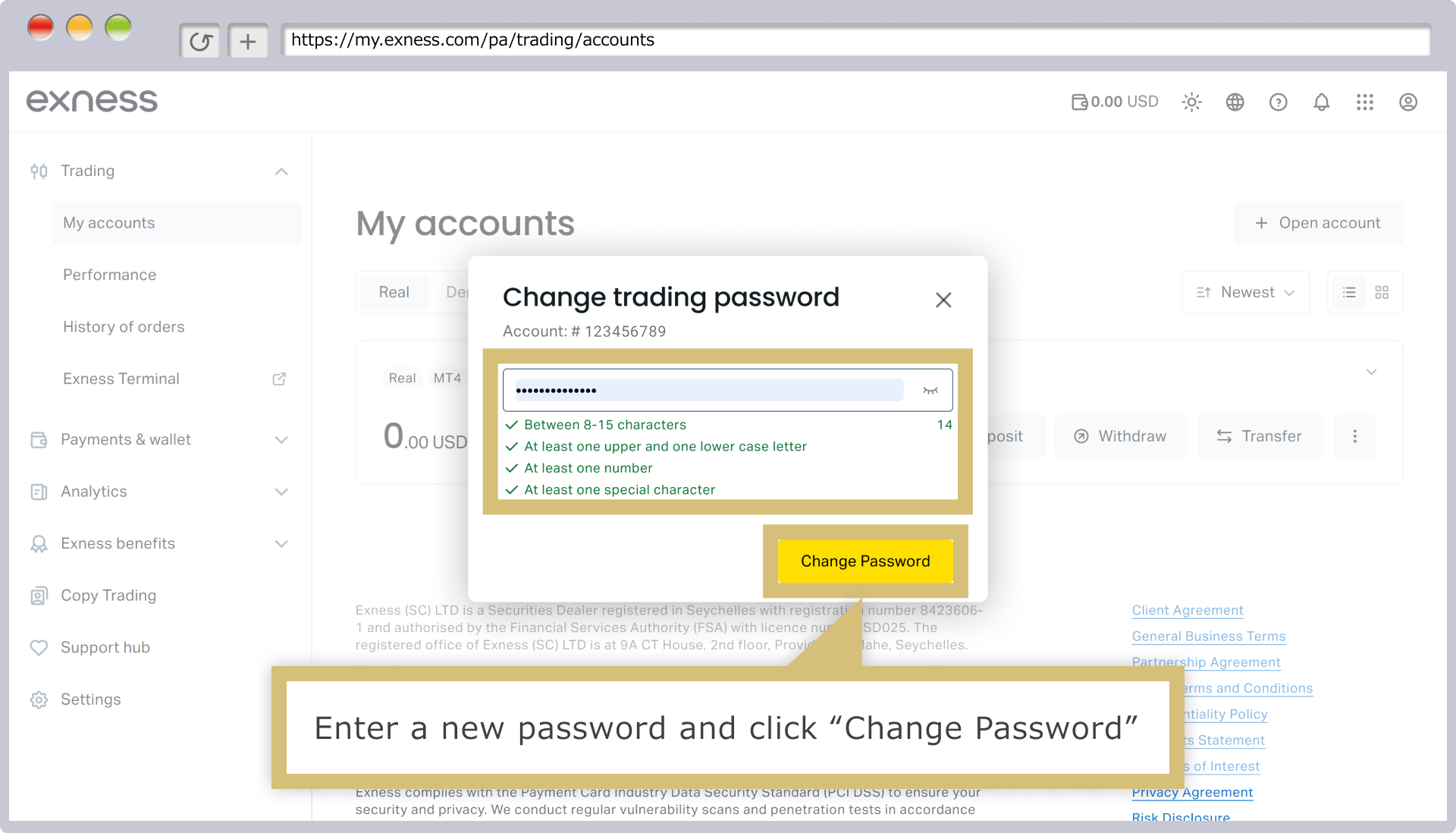
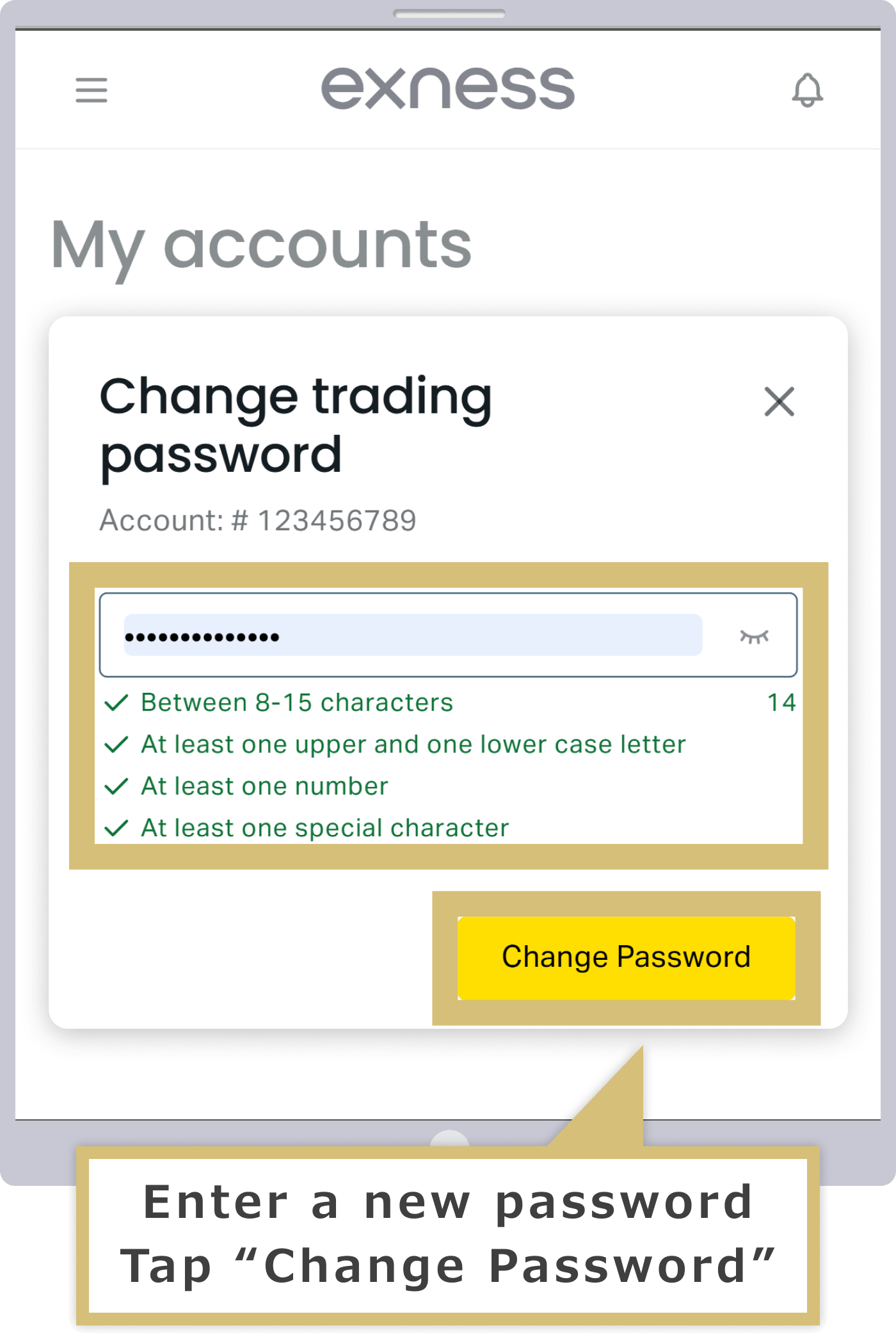
The "Change Trading Password" screen will appear. Please enter your new password and click "Change Password."
The "Change Transaction Password" screen will appear. Enter your new password and tap "Change Password."
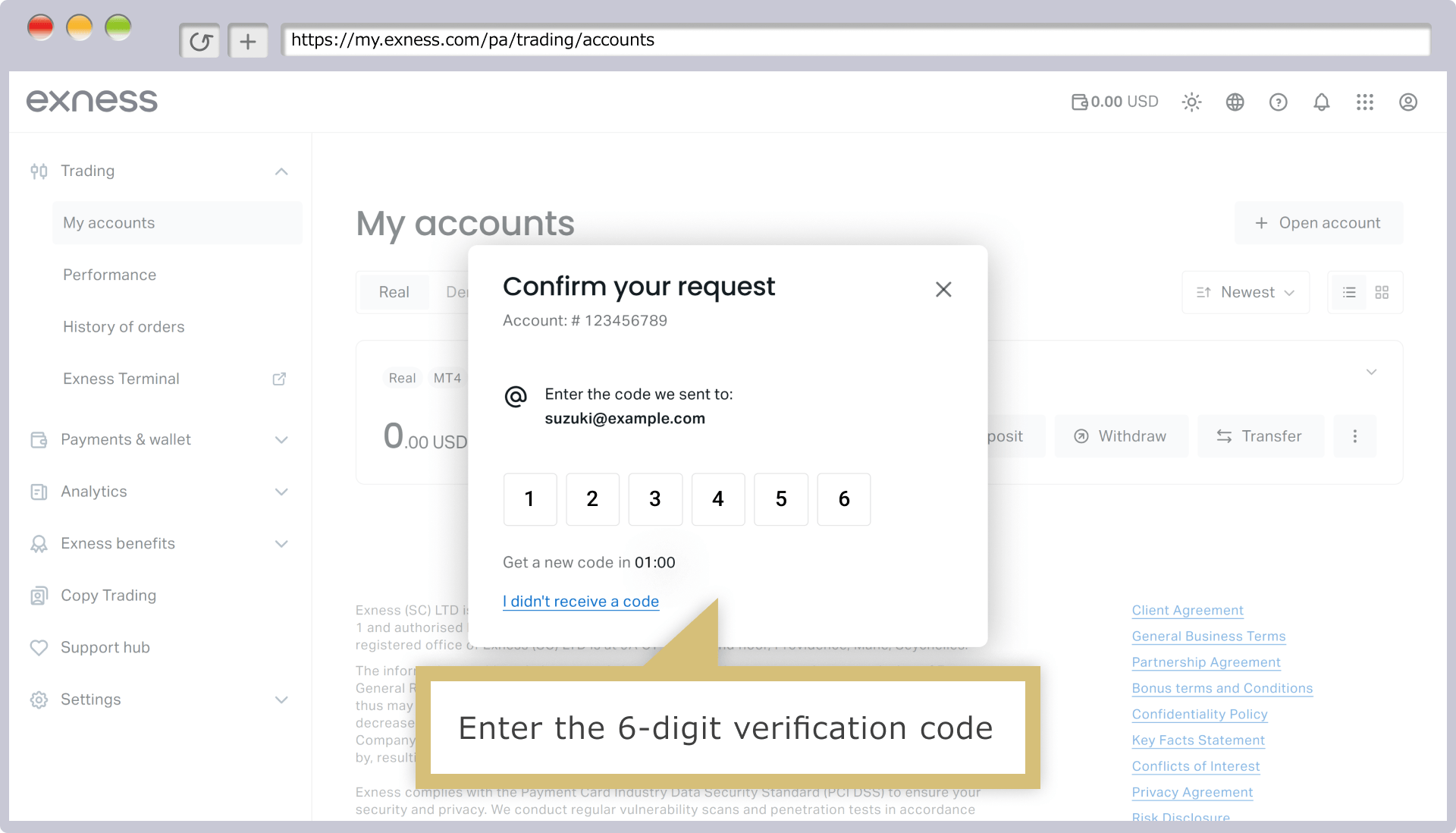
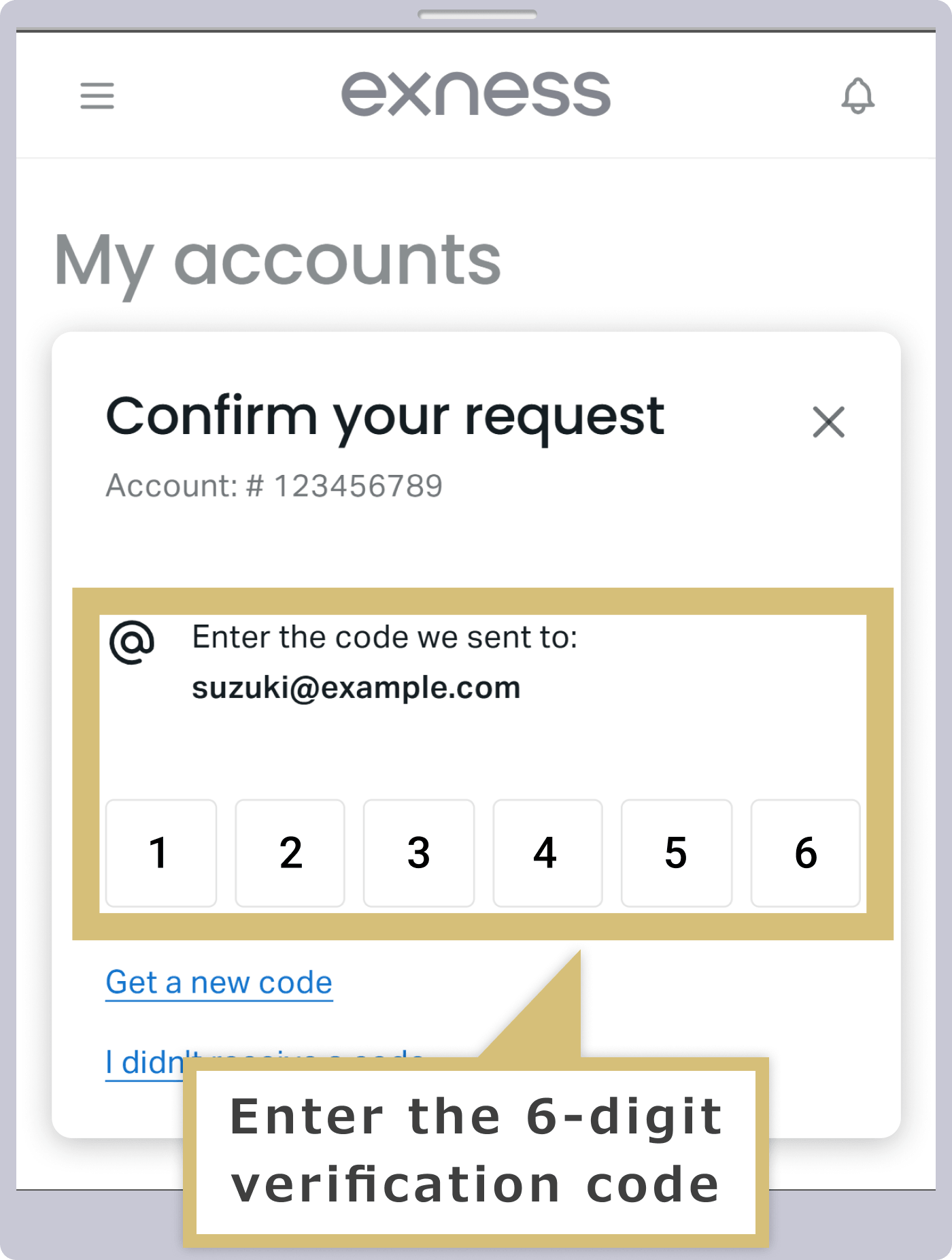
A 6-digit verification code will be sent to the email address or via SMS (text message) to the cell phone number you specified for two-factor authentication. Enter the verification code and click "Confirm" to complete the password change.
A 6-digit verification code will be sent to the email address or via SMS (text message) to the cell phone number you specified for two-factor authentication. Enter the verification code and tap “Confirm” to complete the password change.
Verifying Account Validity
If your MT4/MT5 account has been deactivated, you will not be able to log in to MT4/MT5.At Exness, MT4 accounts are archived as inactive after 90 days of inactivity, and MT5 accounts after 15 days. However, archived inactive accounts can be easily reactivated in the Personal Area.
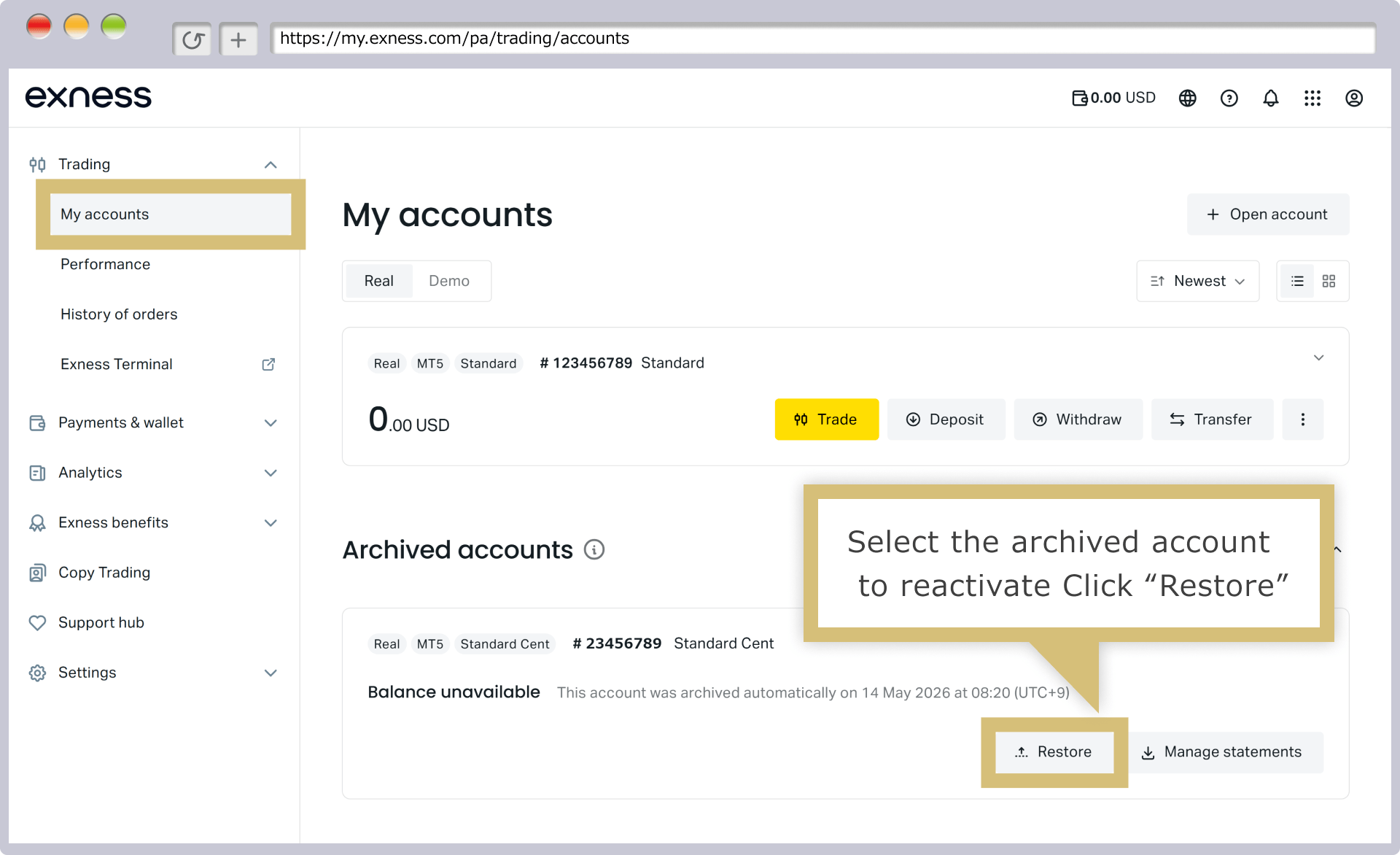
In the Exness Personal Area, under "My Account," select "View Accounts" in the "Archived Accounts" section, and then click "Reactivate" for the account you want to reactivate. The account will be reactivated and will appear in the "Live Trading Accounts" tab.
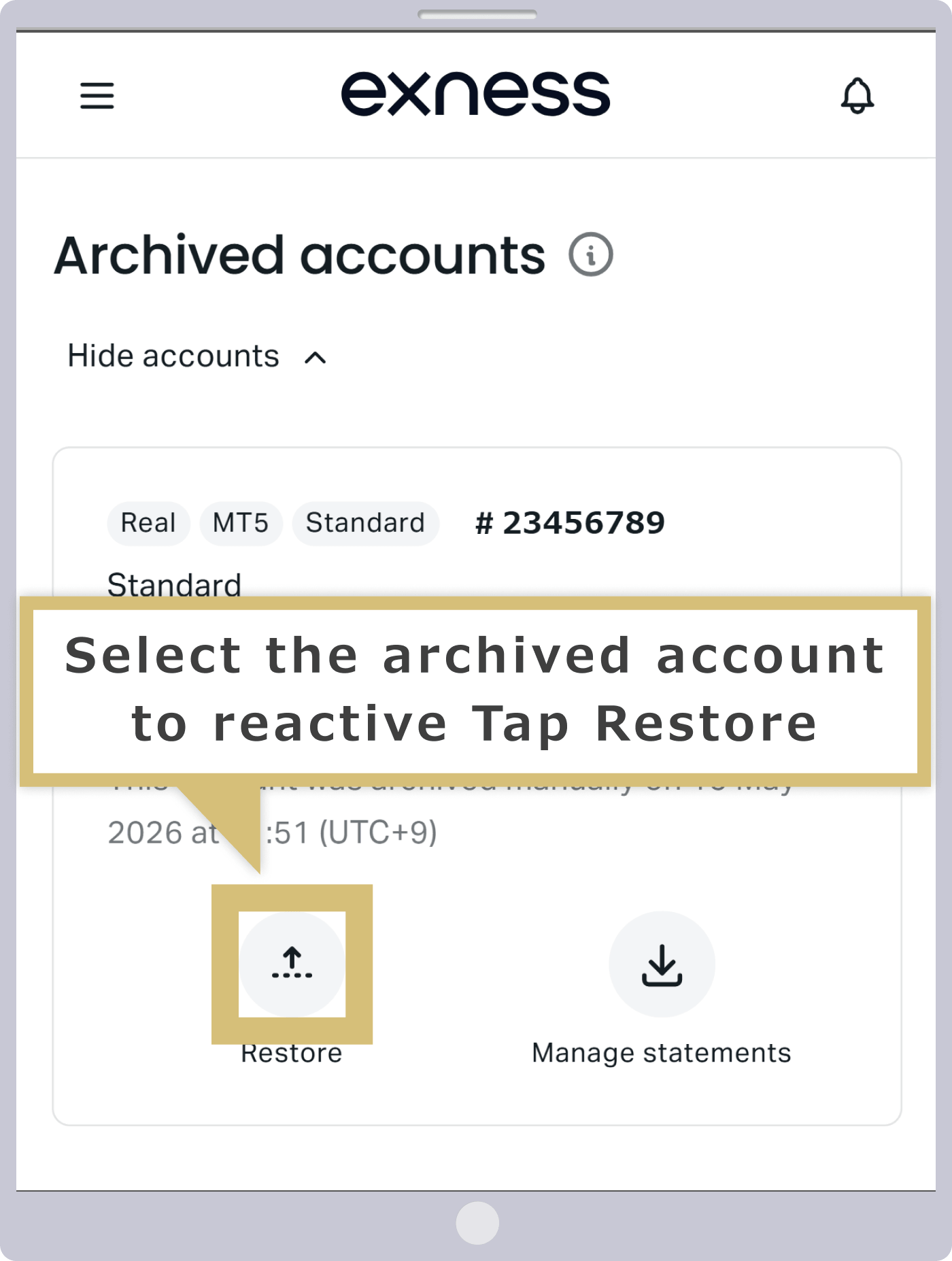
In the Exness Personal Area, under "My Account," select "View Accounts" in the "Archived Accounts" section, then tap "Reactivate" next to the account you want to reactivate. The account will be reactivated and will appear in the "Live Trading Accounts" tab.
How to Log In to Exness MT4/MT5 (Web Terminal Version)
Exness offers a "Web Terminal" version that allows you to trade on MT4 and MT5 directly from your browser. There’s no need for any complicated downloads or installations—as long as you have a web browser, you can trade online anytime.
You can also easily access Exness's MT4/MT5 (Web Terminal version) from the "My Account" section of your Personal Area. Simply log in with your existing Exness account credentials to start trading right away.
Log in to your Personal Area
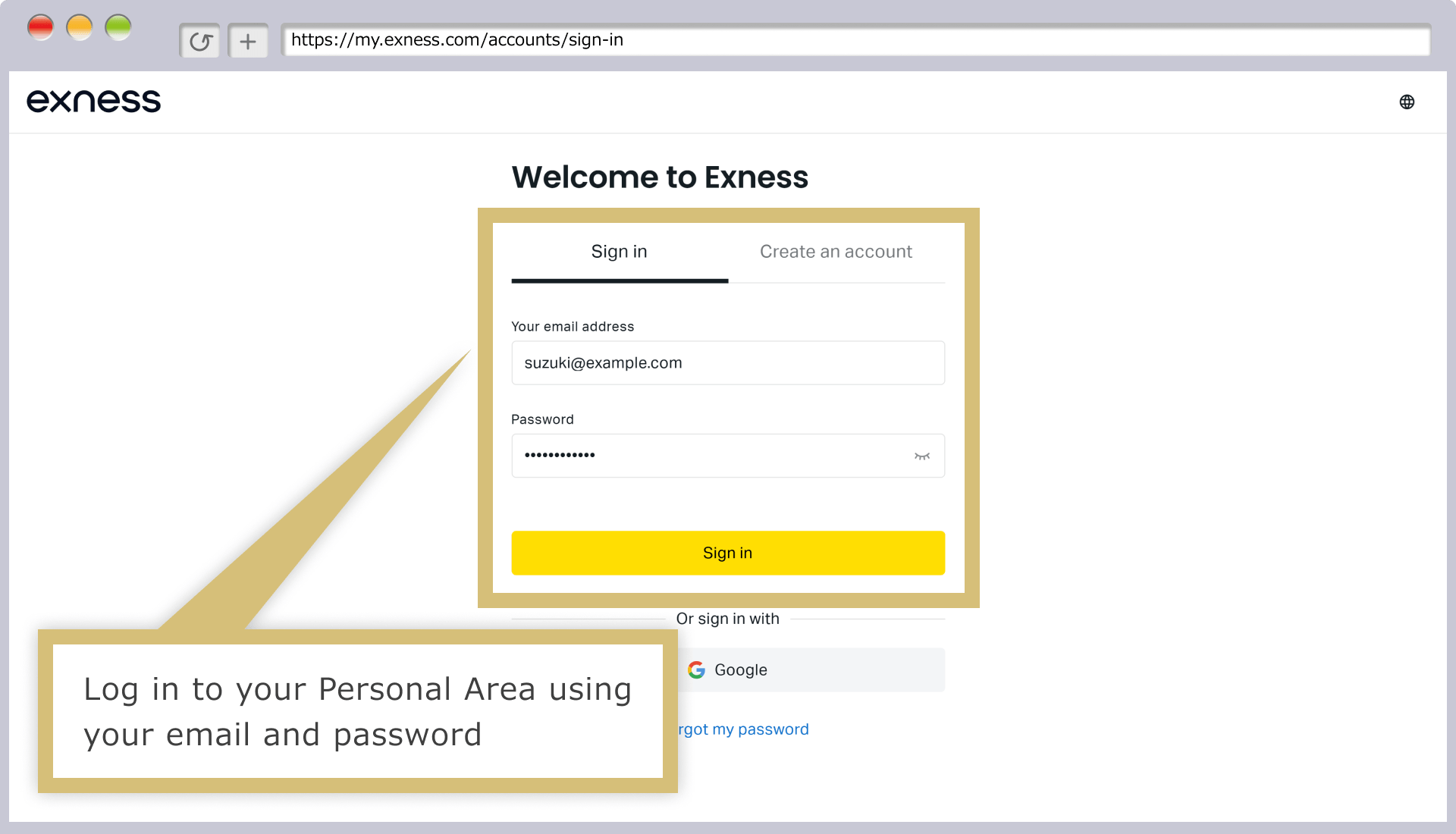
Enter the "email address" you used to register with Exness and the "login password" for your Personal Area, then click "Continue" to log in to your Exness Personal Area.
Selecting a Trading Account
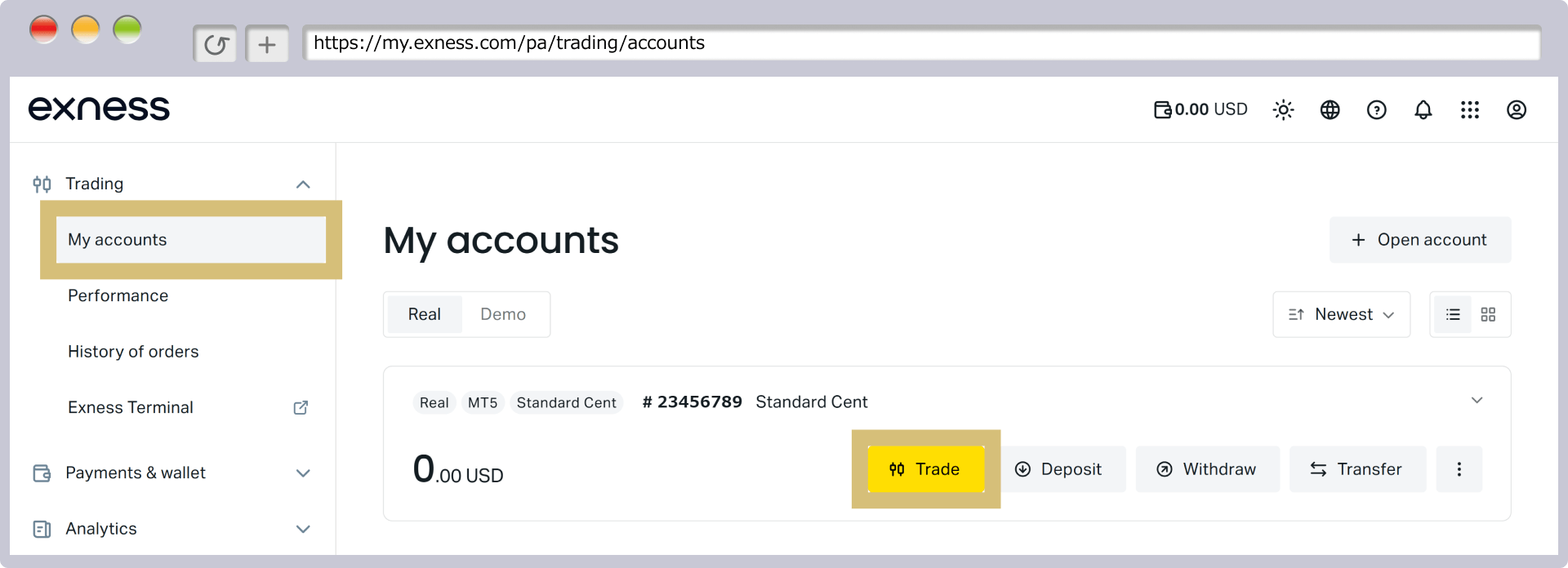
Your MT4/MT5 accounts are displayed under "Live Trading Accounts" in "My Account." Click "Trade" next to the account you want to trade with.
Choosing a Trading Platform
Once the "Trading" screen appears, click "Web Terminal" in MT4 or MT5.
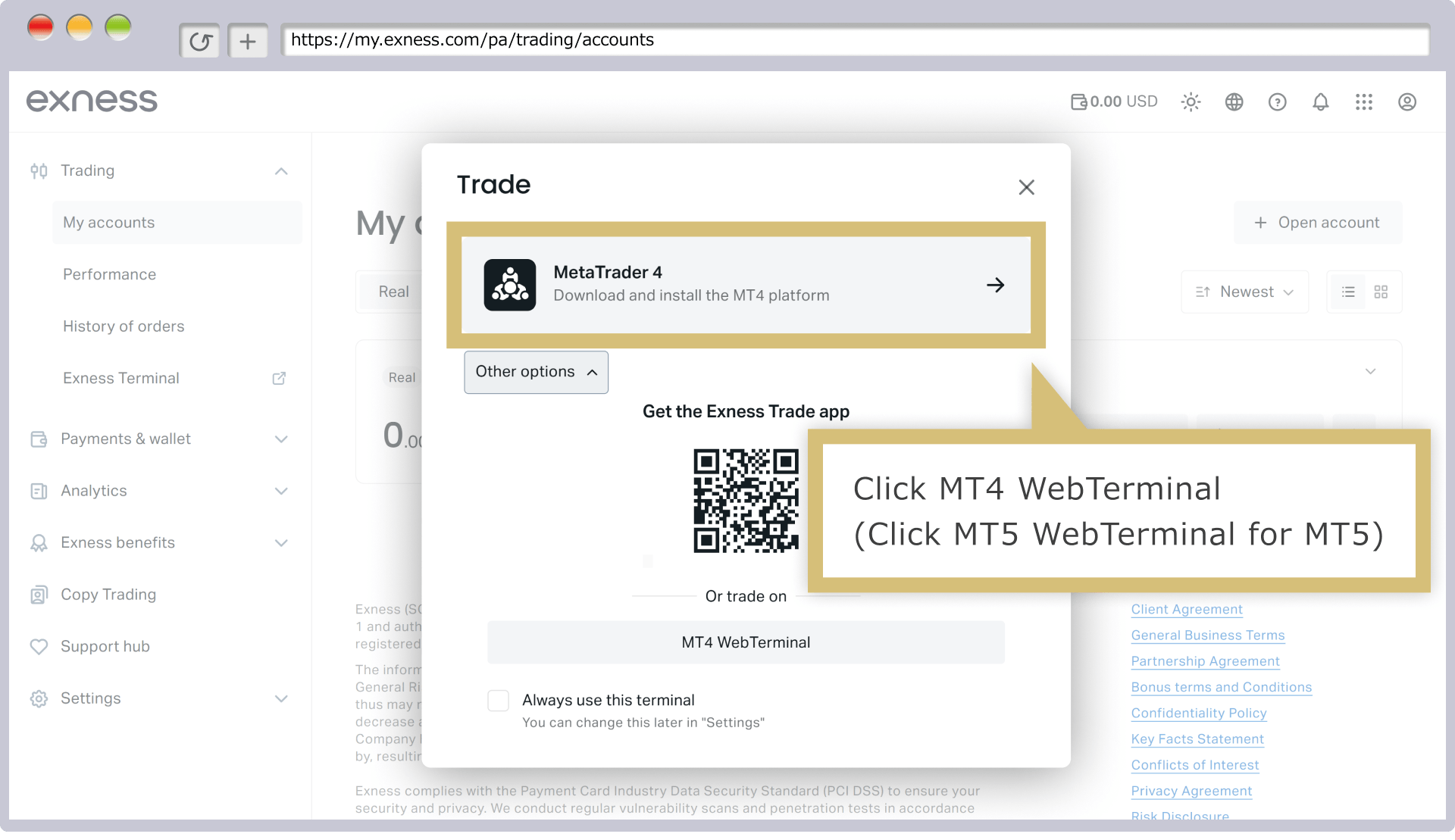
Entering and Verifying Login Information
When the "Login" screen appears, check the "Login (MT4/MT5 Account Number)" and "Server Name" fields. If they are correct, enter your "Password." Check the "Save Password" box and click "YES."
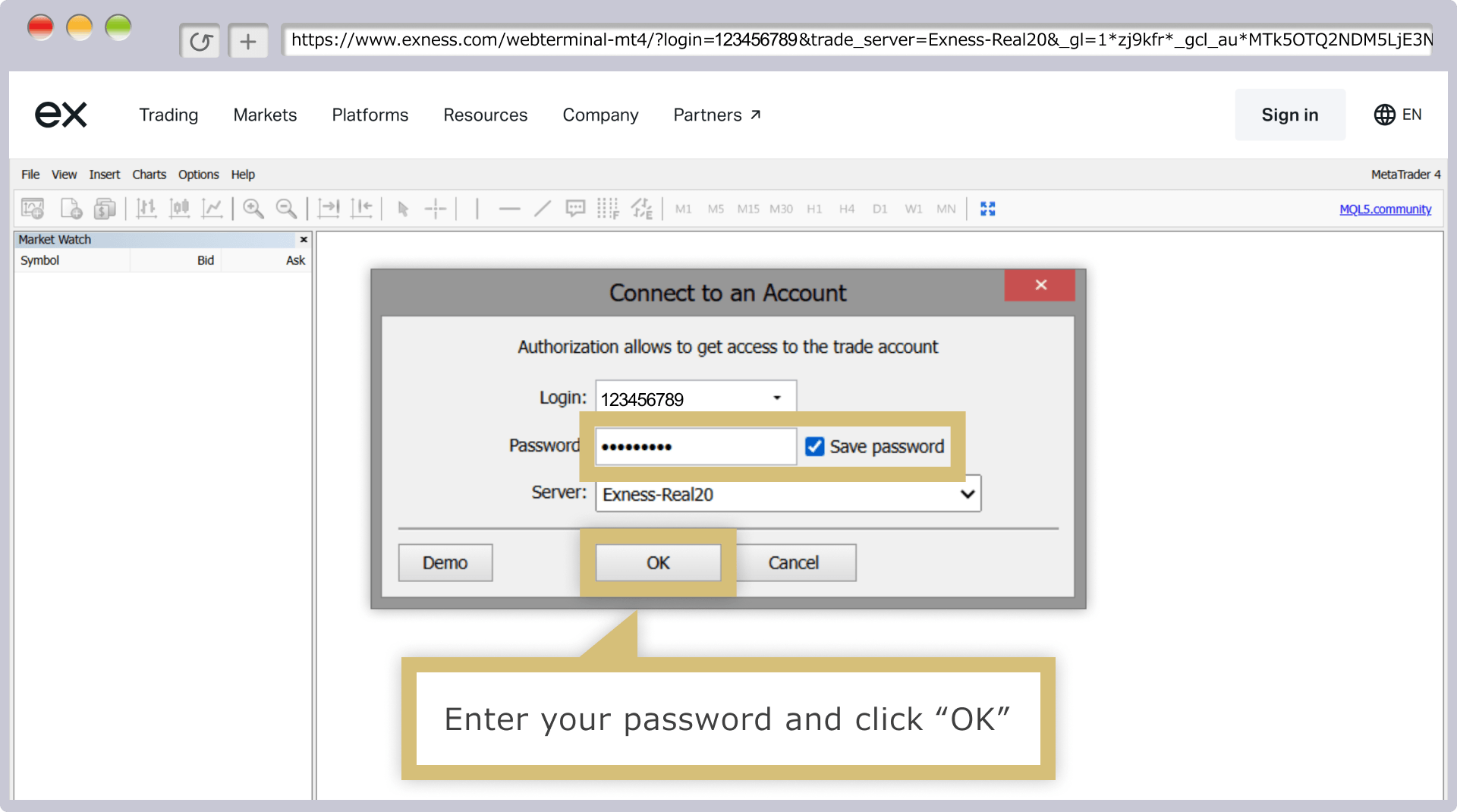
If you check the box next to "Save Password," you'll be able to automatically log in to your MT4/MT5 trading account without having to enter your login information the next time and thereafter.
Frequently Asked Questions (FAQ) About Logging In to Exness
-
Please tell me why I can't log in to the Exness Personal Area.
If you are unable to log in to your Exness Personal Area, your login credentials may be incorrect. Please verify that you have entered your registered email address and password correctly. You can view the password you entered by clicking the "eye icon" next to the password field.
Read More
02.09.2022
-
I forgot my login password for the Exness Personal Area.
If you have forgotten your Exness Personal Area password, please reset it. You can reset your password by clicking “Forgot your password?” on the Personal Area login screen. Once the reset is complete, please log in using your new password.
Read More
02.09.2022
-
You cannot log in to MT4/MT5 because your Exness MT4/MT5 account is inactive.
At Exness, if there is no activity on your MetaTrader 4 (MT4) account for 90 days or on your MetaTrader 5 (MT5) account for 15 days, the account will be deactivated, and you will not be able to log in to MT4 or MT5. If your account is deactivated, you can reactivate it in the Personal Area and log in again.
Read More
02.09.2022
-
Can I change my MT4/MT5 login password on Exness?
Yes, at Exness, you can change your MetaTrader 4 (MT4) or MetaTrader 5 (MT5) login password. After logging in to your Personal Area, go to "My Account," click the "gear icon" for the relevant account, and select "Change Trading Password" to make the change.
Read More
02.09.2022
-
Please tell me how to log in to the PC version of Exness MT4/MT5.
After launching Exness's MetaTrader 4 (MT4) or MetaTrader 5 (MT5), select "Log In to Trading Account" from the "File" menu on the toolbar. On the "Trading Account Login Information" screen, enter your login information and click "Log In" to complete the login process.
Read More
02.09.2022