














I Can't Log In to the Exness Personal Area, MT4/MT5, or the App
Trading Tools (MT4/MT5)
I Can't Log In to the Exness Personal Area, MT4/MT5, or the App
The most common reason for being unable to log in to Exness’s member portal, “Personal Area,” or its trading platforms, “MetaTrader 4 (MT4)/MetaTrader 5 (MT5),” and the “Exness Trading App,” is entering incorrect login credentials (email address and password).
Please check your login credentials for each tool and try logging in again. If you are still unable to log in, there may be other causes, so please try the solution that corresponds to the reason you cannot log in.
(*)MetaTrader, MetaTrader 4, MetaTrader 5, MT4, and MT5 are trademarks or registered trademarks of MetaQuotes Ltd.
Reasons Why You Can't Log In to the Exness Personal Area
The most common reason for being unable to log in to Exness’s “Personal Area” is entering incorrect login information. To log in to the Personal Area, you’ll need your registered email address and the “login password” you set when you created your Personal Area account.Please review the following reasons why you might be unable to log in to the Exness “Personal Area” and their solutions.
The login information for the Exness "Personal Area" member page is incorrect
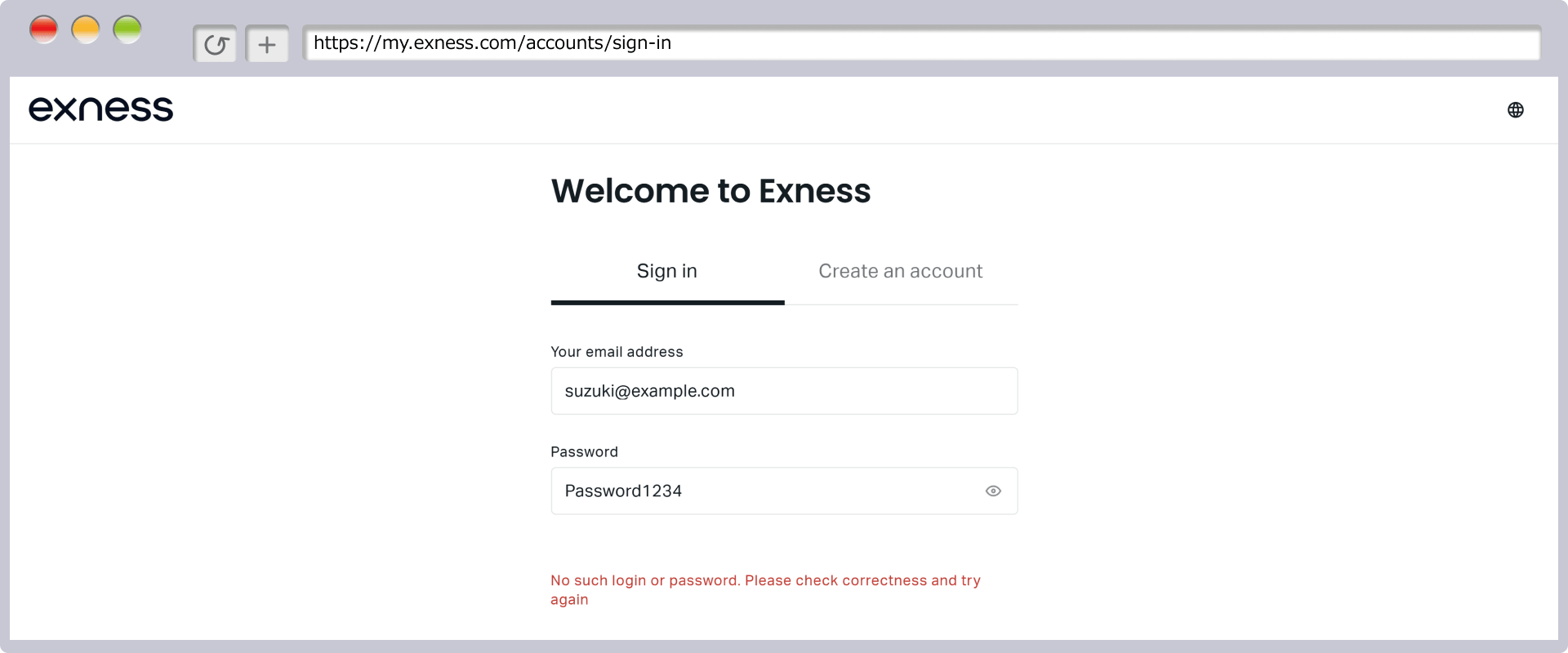
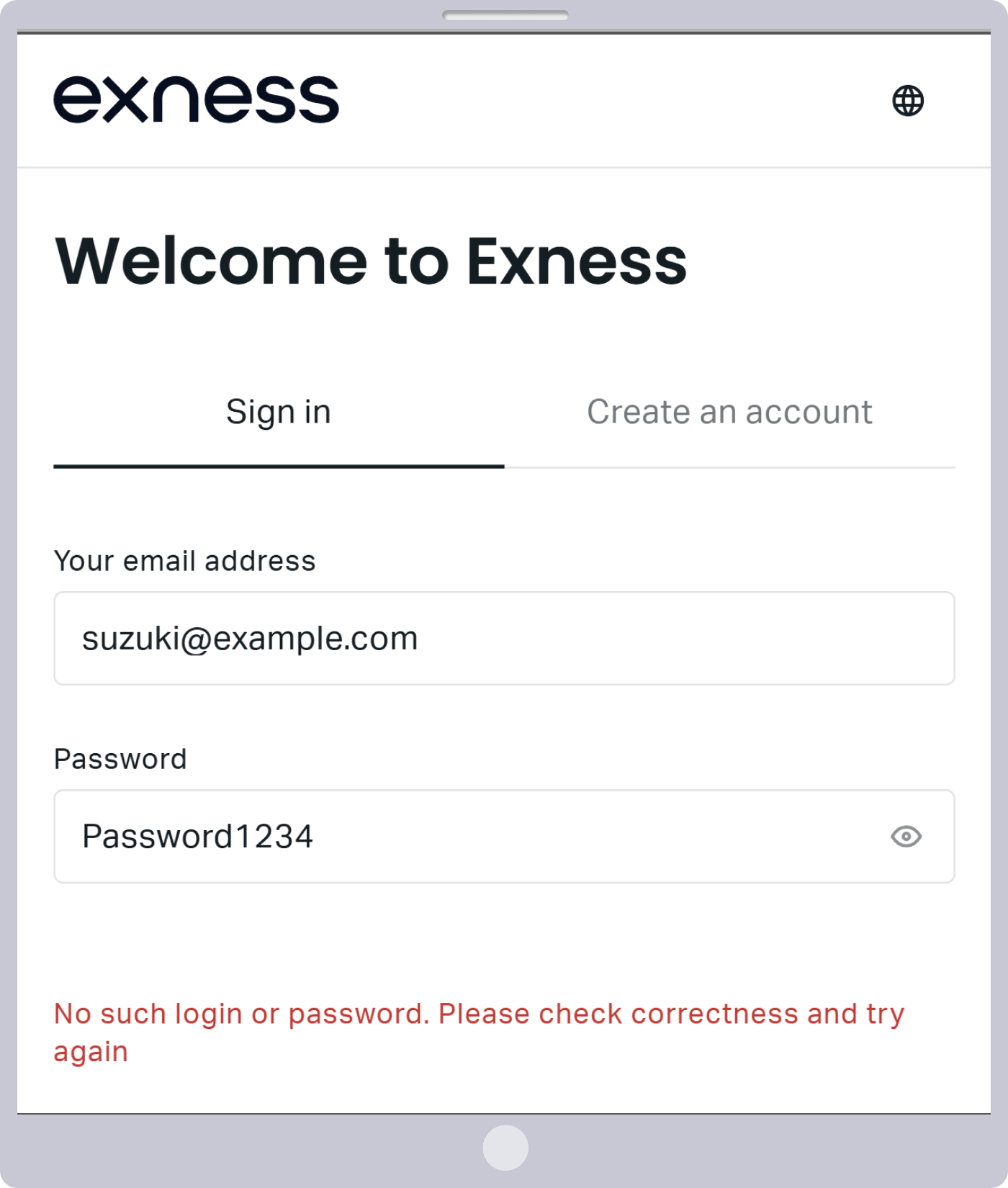
If you have entered your email address and password to log in to Exness’s “Personal Area” member page but are still seeing the following error message, you may have entered your login information incorrectly.
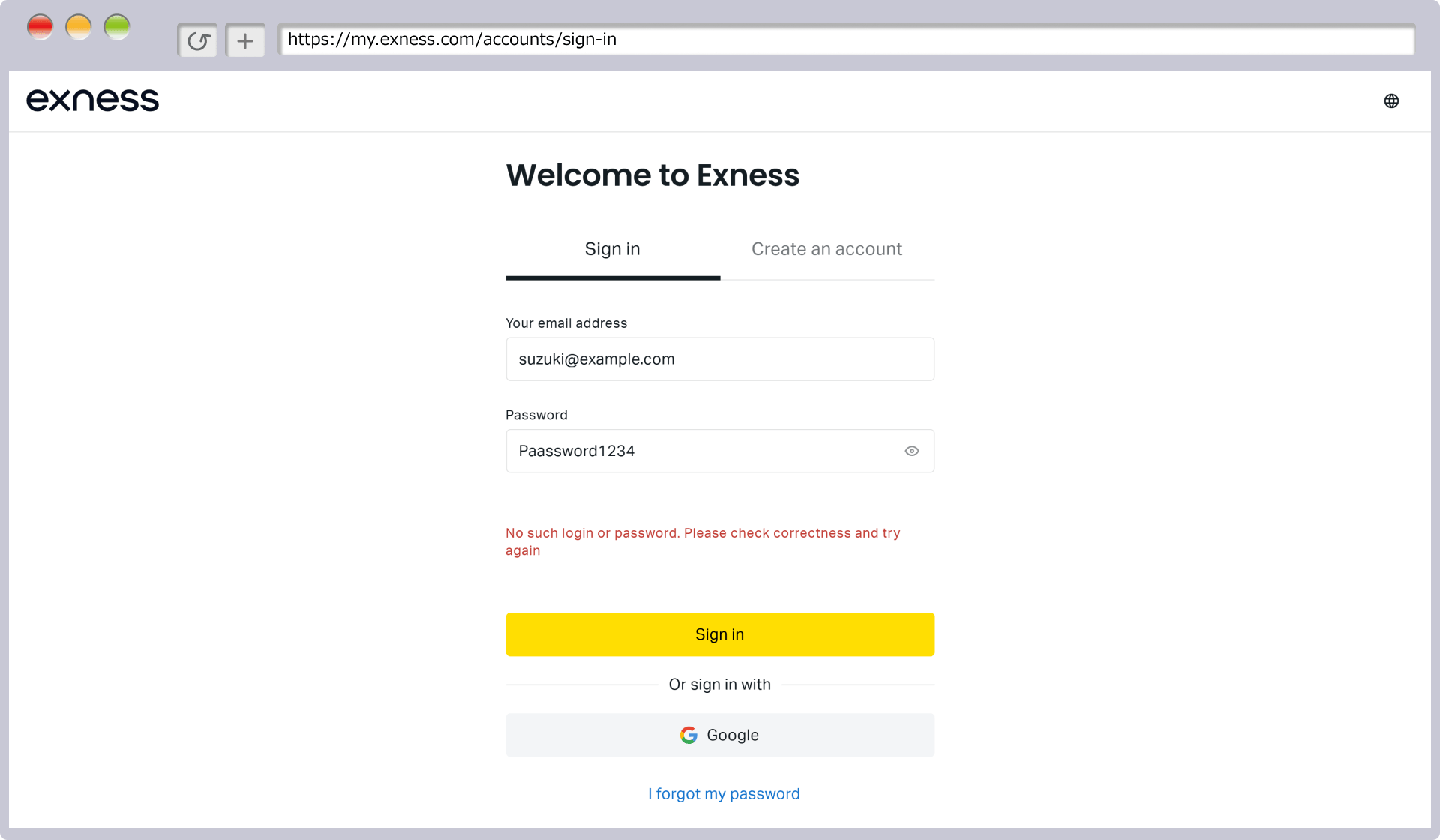
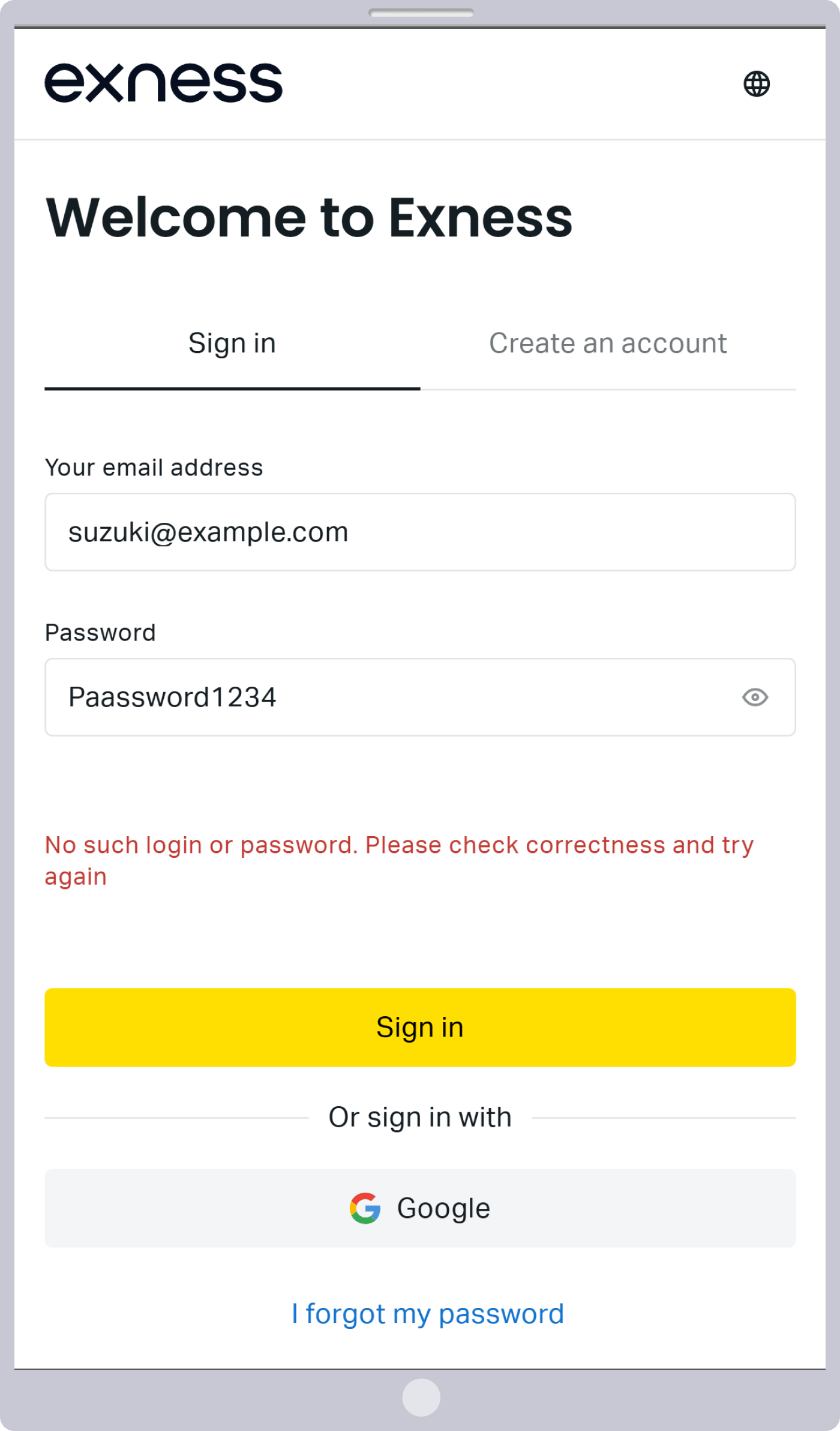
If you see this error message, please double-check that your email address and password are correct. Please note that your password must be at least 8 characters long and consist of uppercase and lowercase letters, numbers, and special characters—just as you registered when you set up your Personal Area.
How to Change Your Password for the Exness "Personal Area" Member Page
If you have forgotten the password required to log in to Exness’s “Personal Area” member page, you can change it. The steps to change your password are as follows.
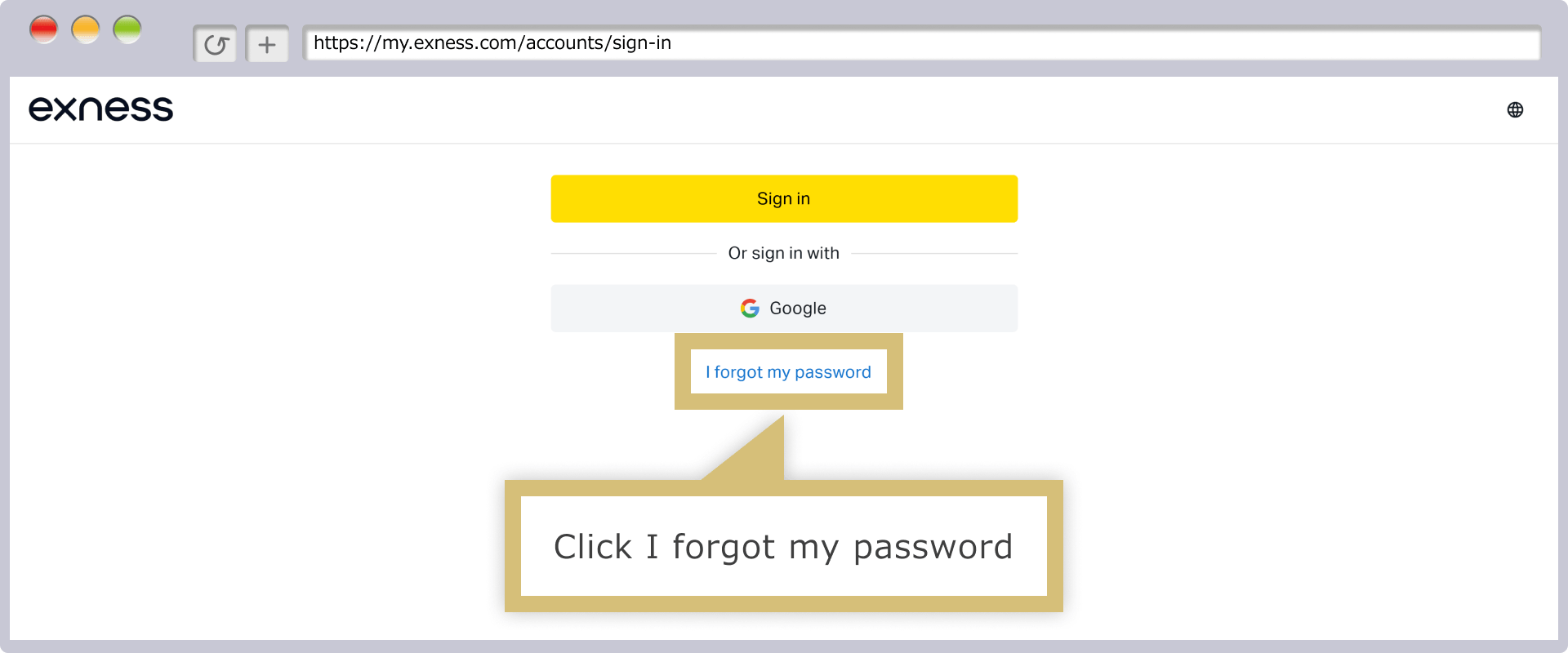
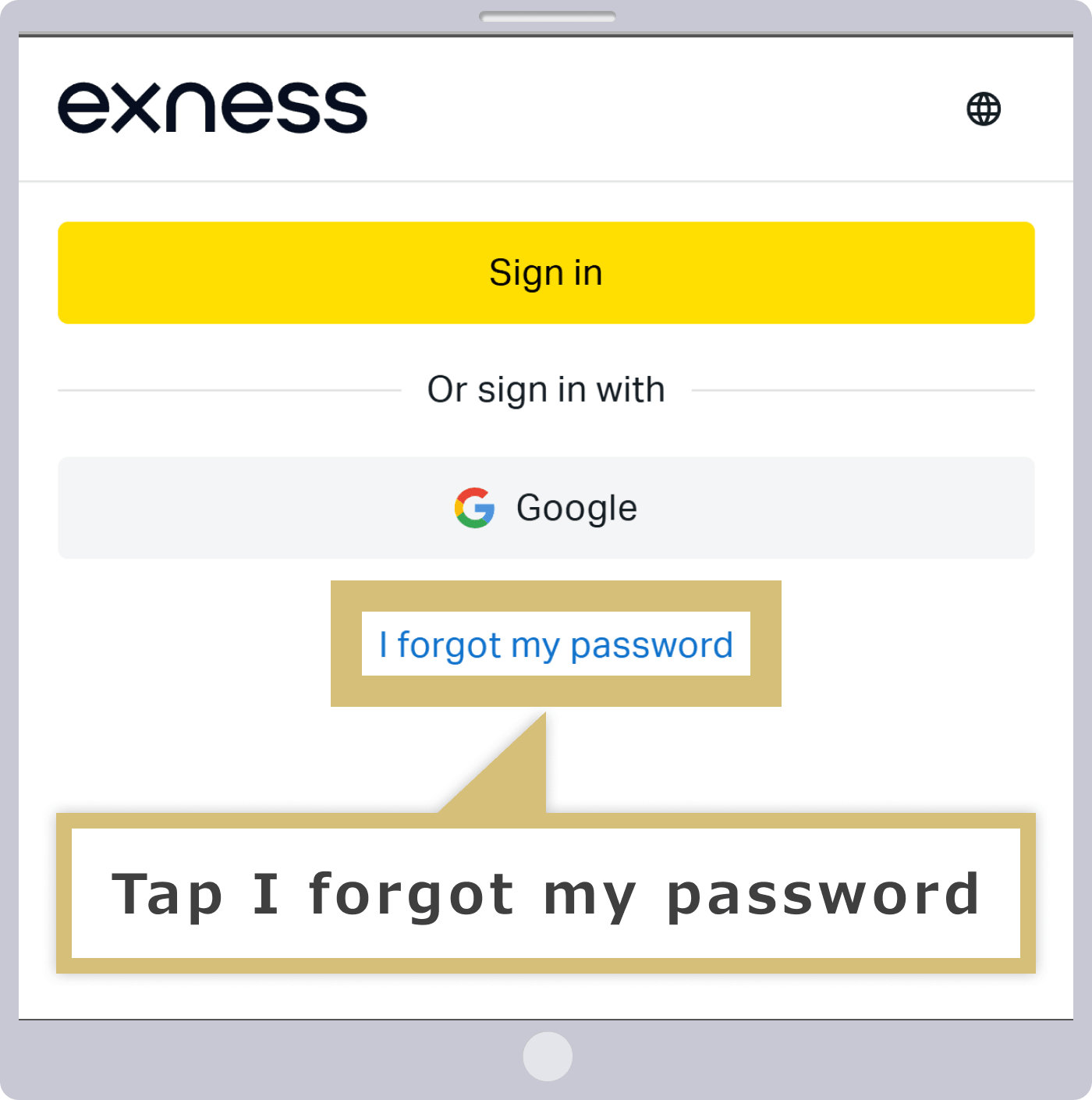
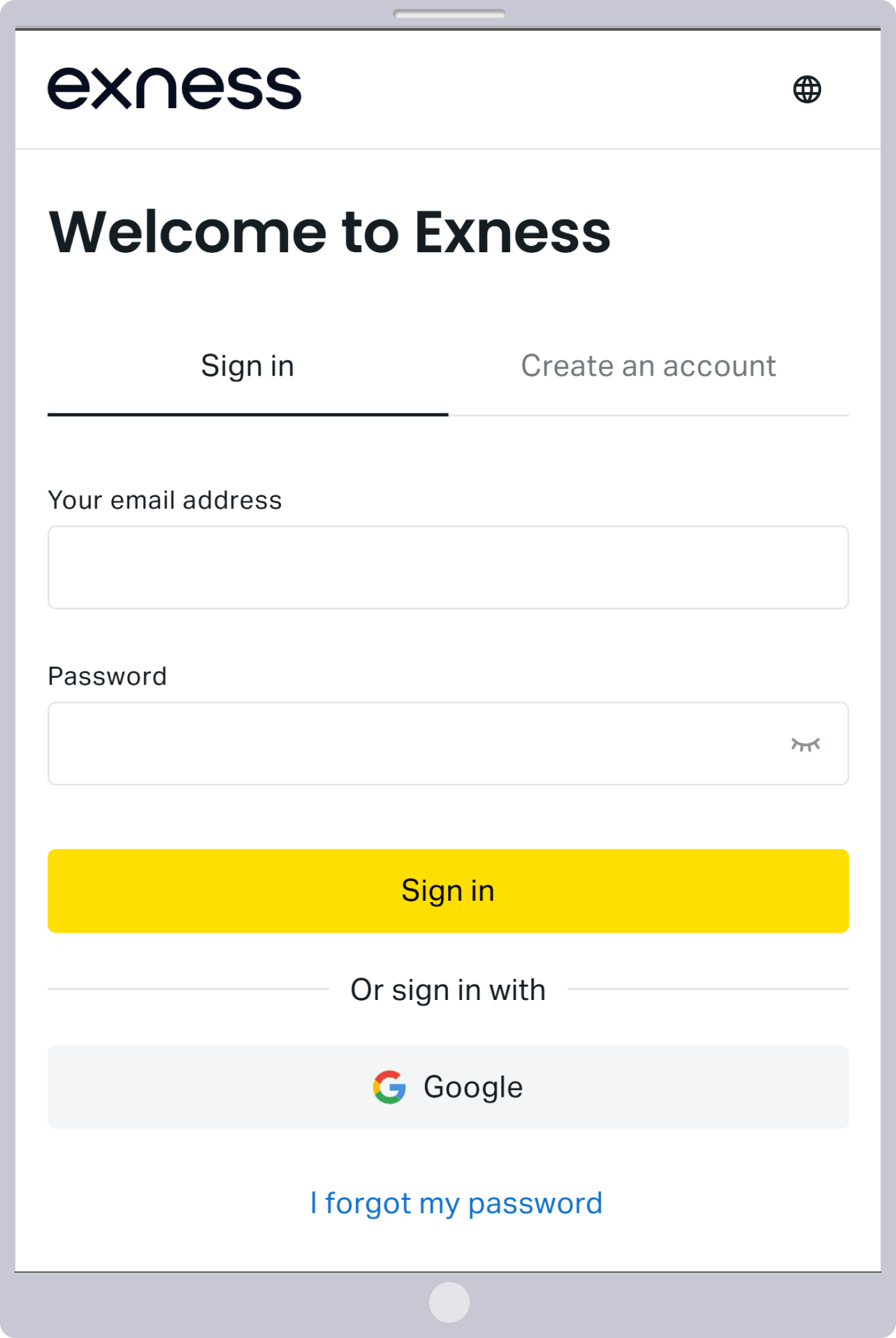
Go to the "Personal Area" on the Exness member page and click "Forgot Password."
Go to the "Personal Area" on the Exness member page and tap "Forgot Password."
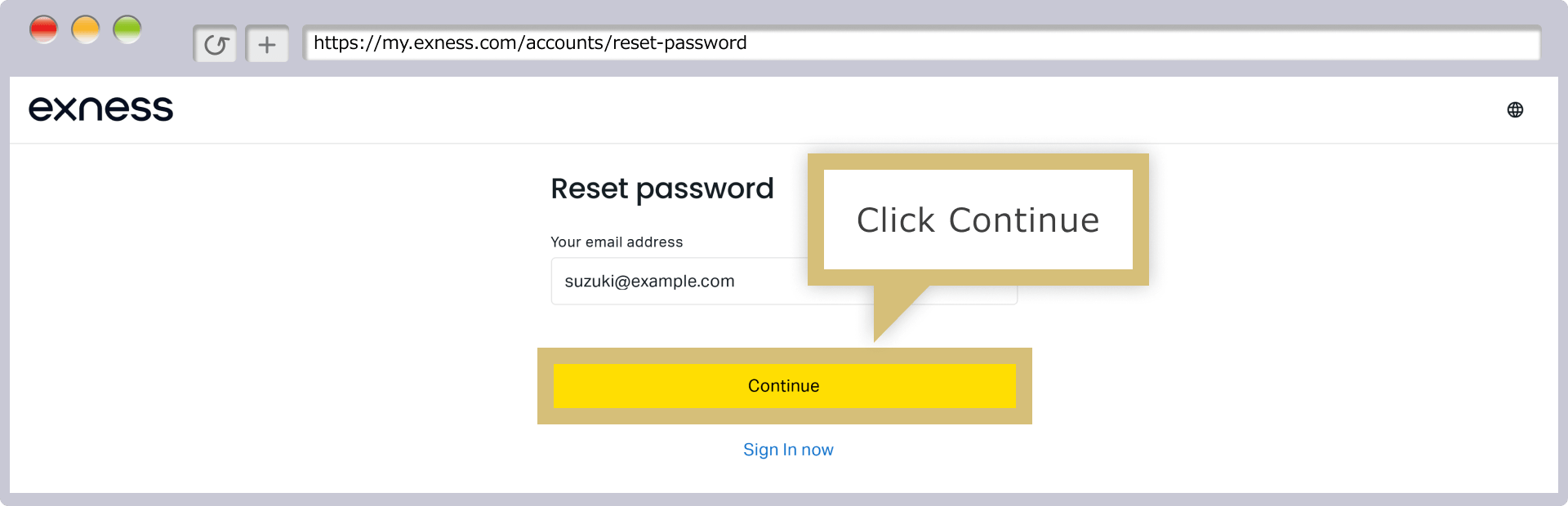
Enter the email address you used when opening your Exness account, then click “Continue.”
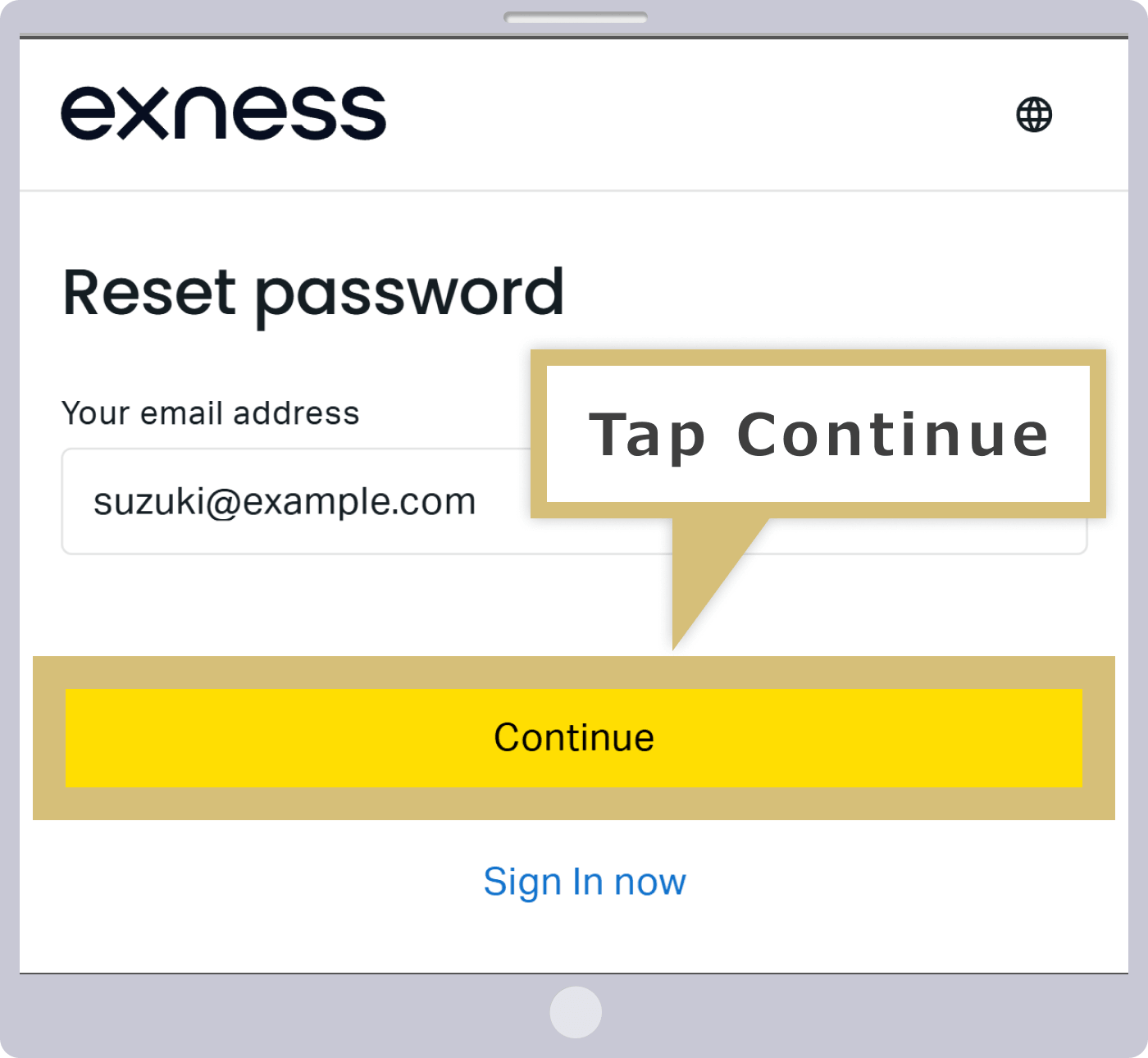
Enter the email address you used when opening your Exness account, then tap "Continue."
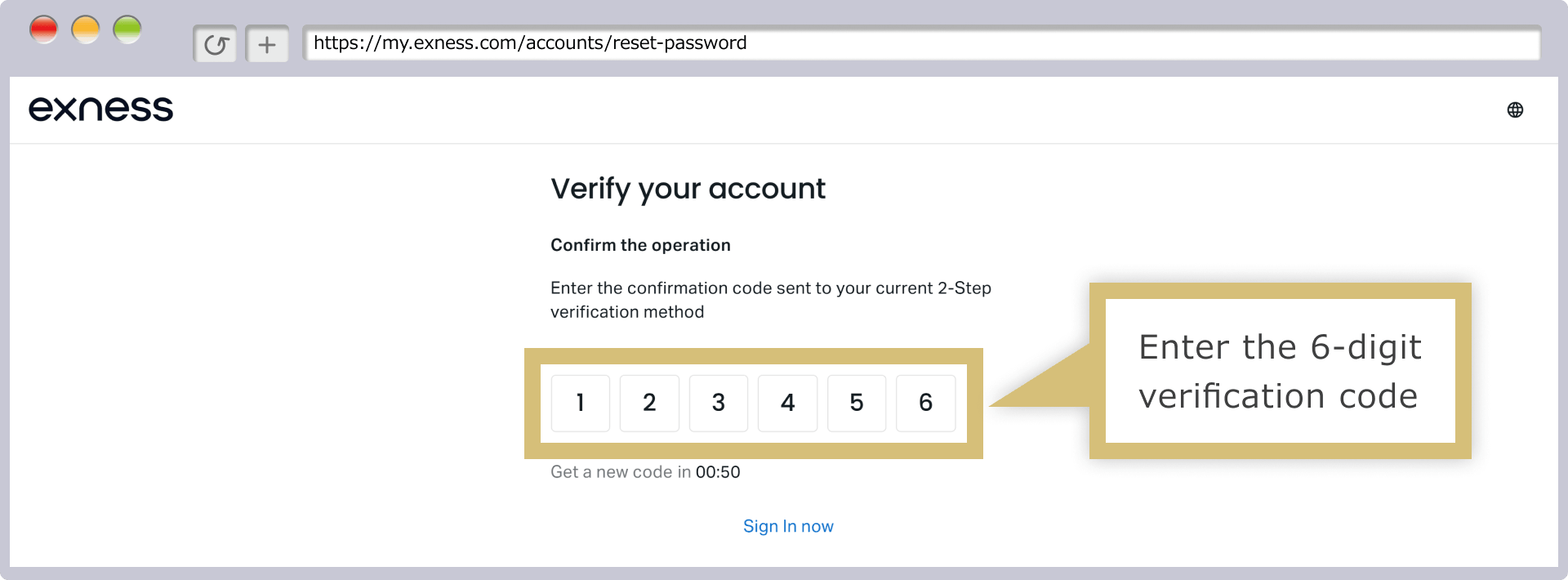
A confirmation code will be sent to the email address you registered. Enter the 6-digit verification code provided in the email and click “Confirm.”
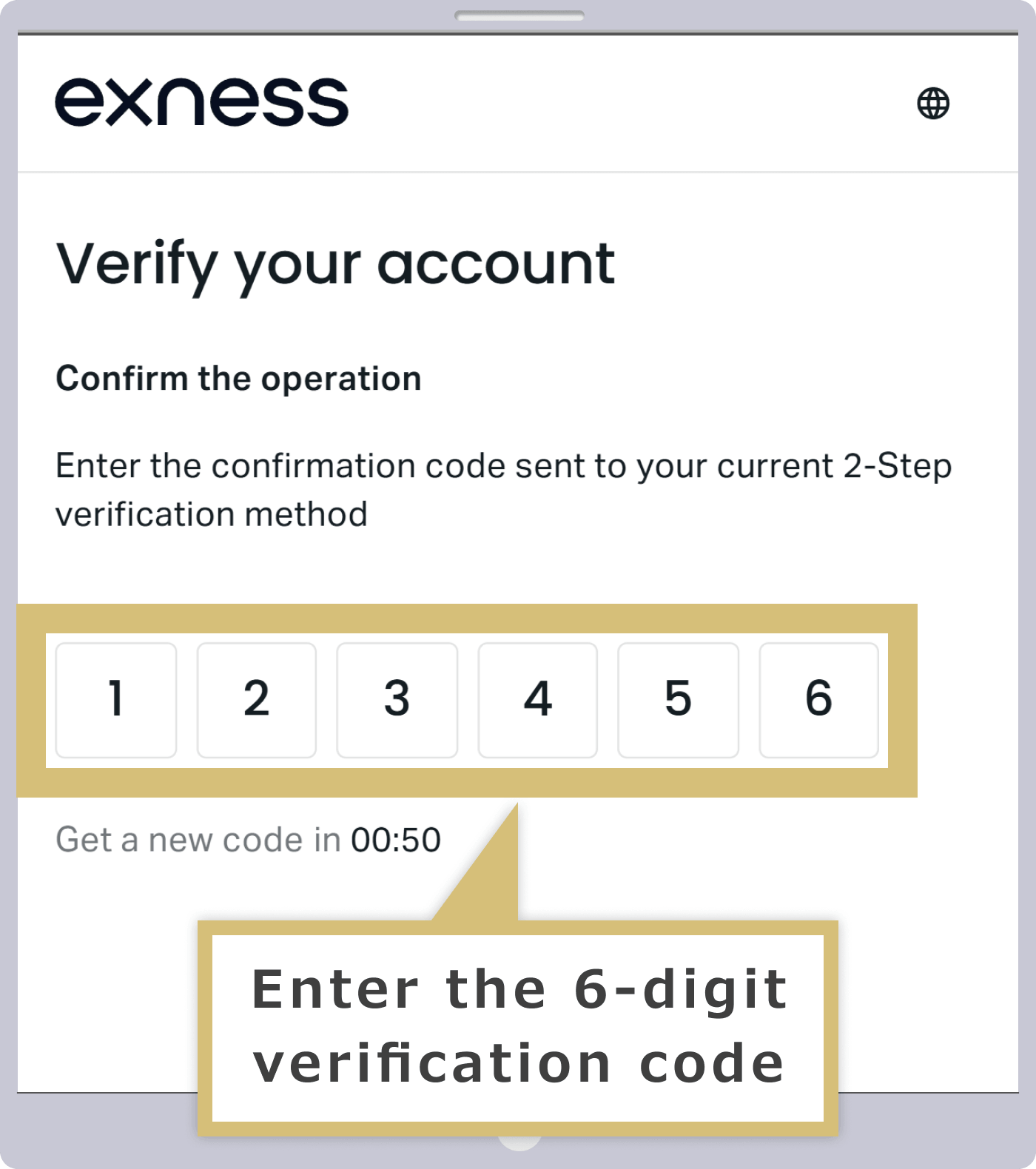
A confirmation code will be sent to the email address you registered. Enter the 6-digit verification code provided in the email, then tap "Confirm."
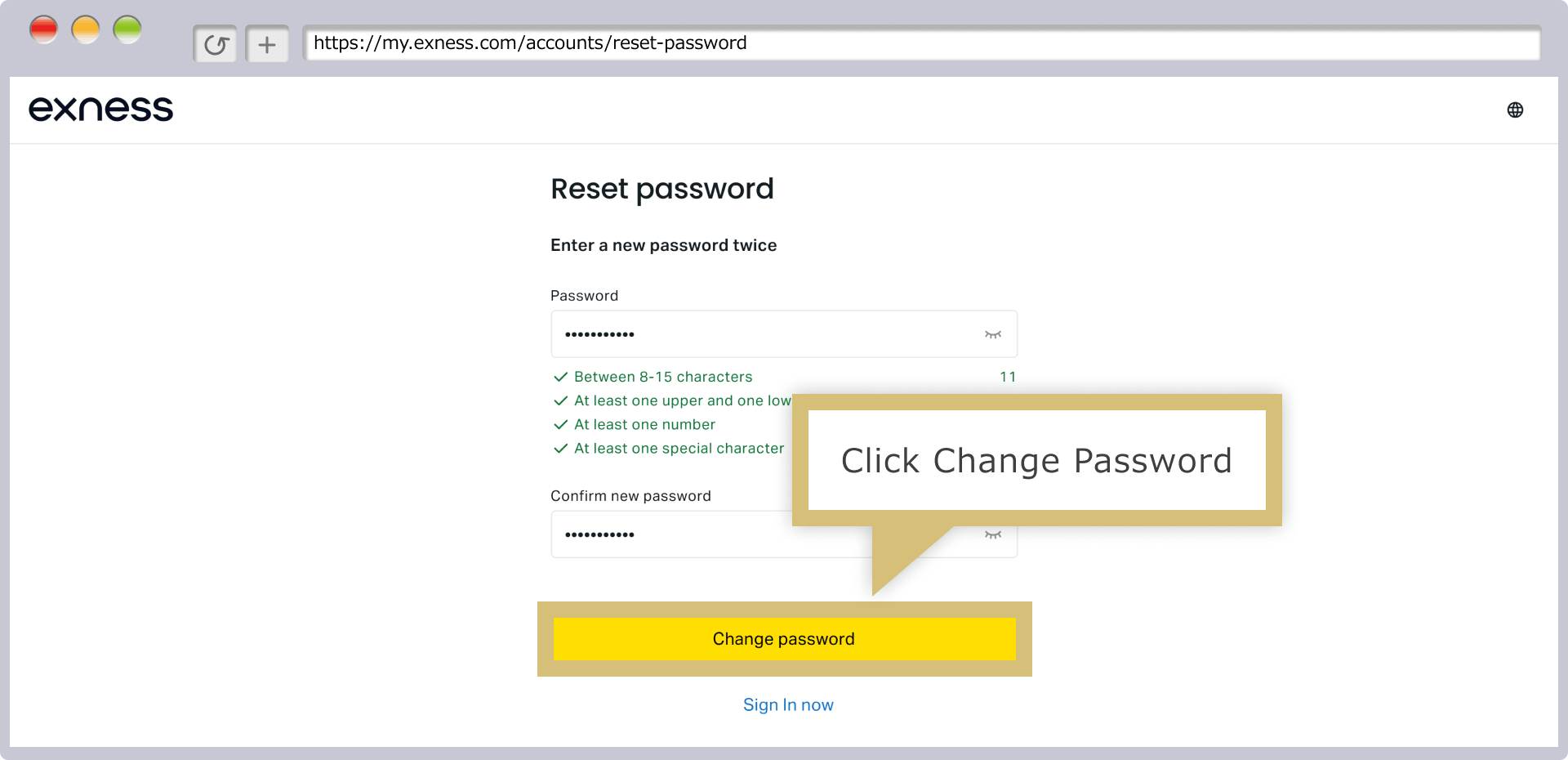
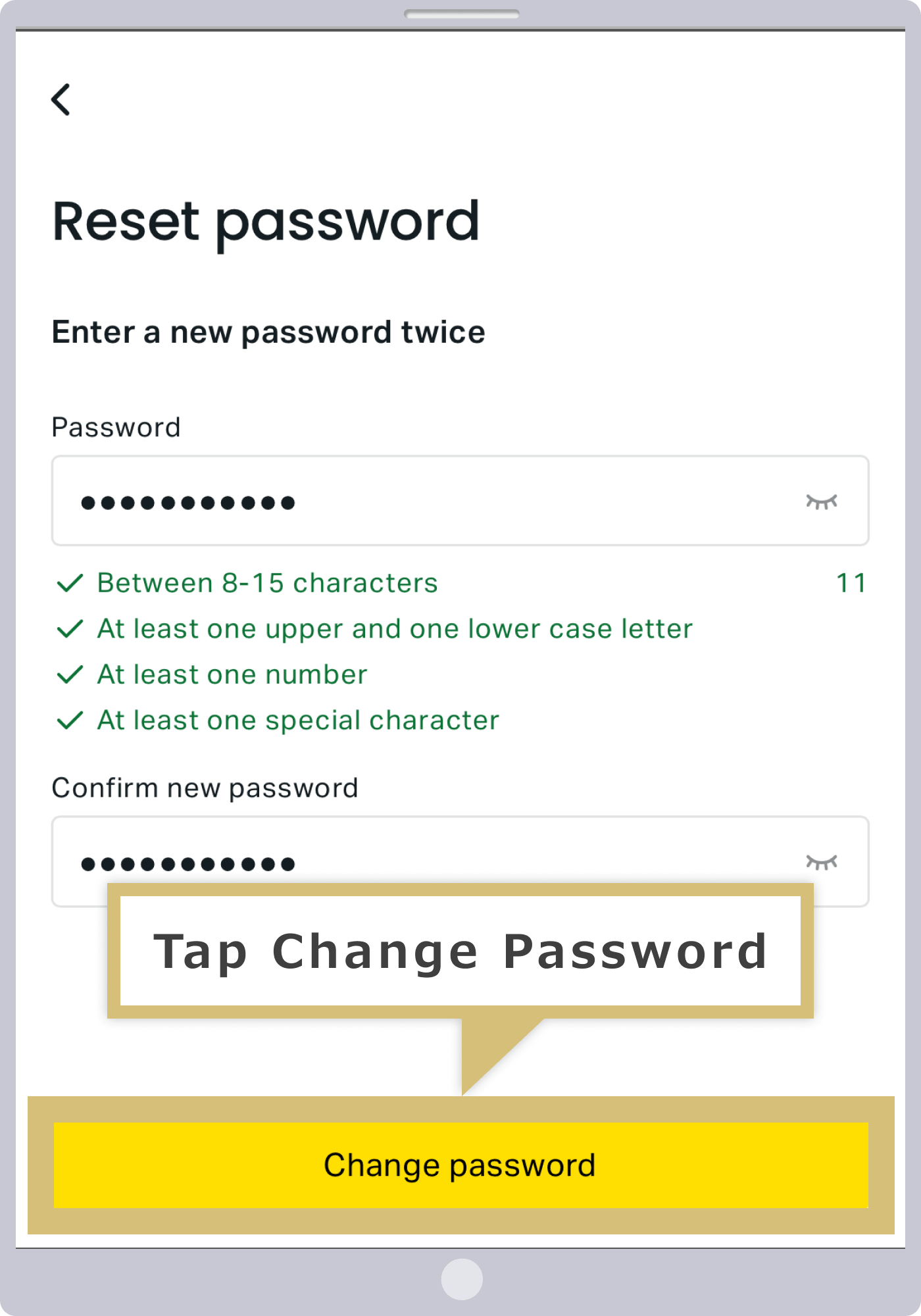
Enter your new password twice, then click "Change Password."
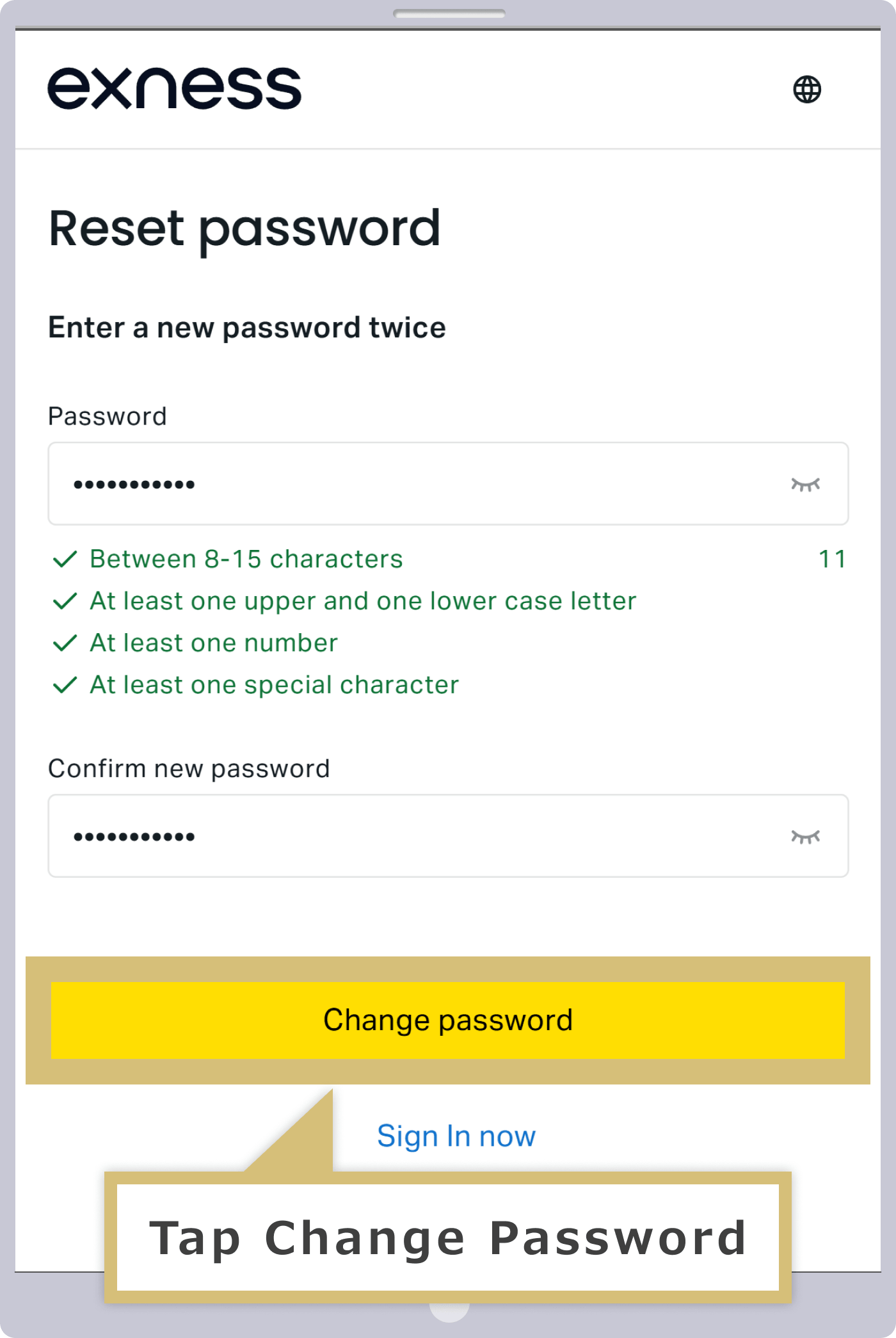
Enter your new password twice, then tap "Change Password."

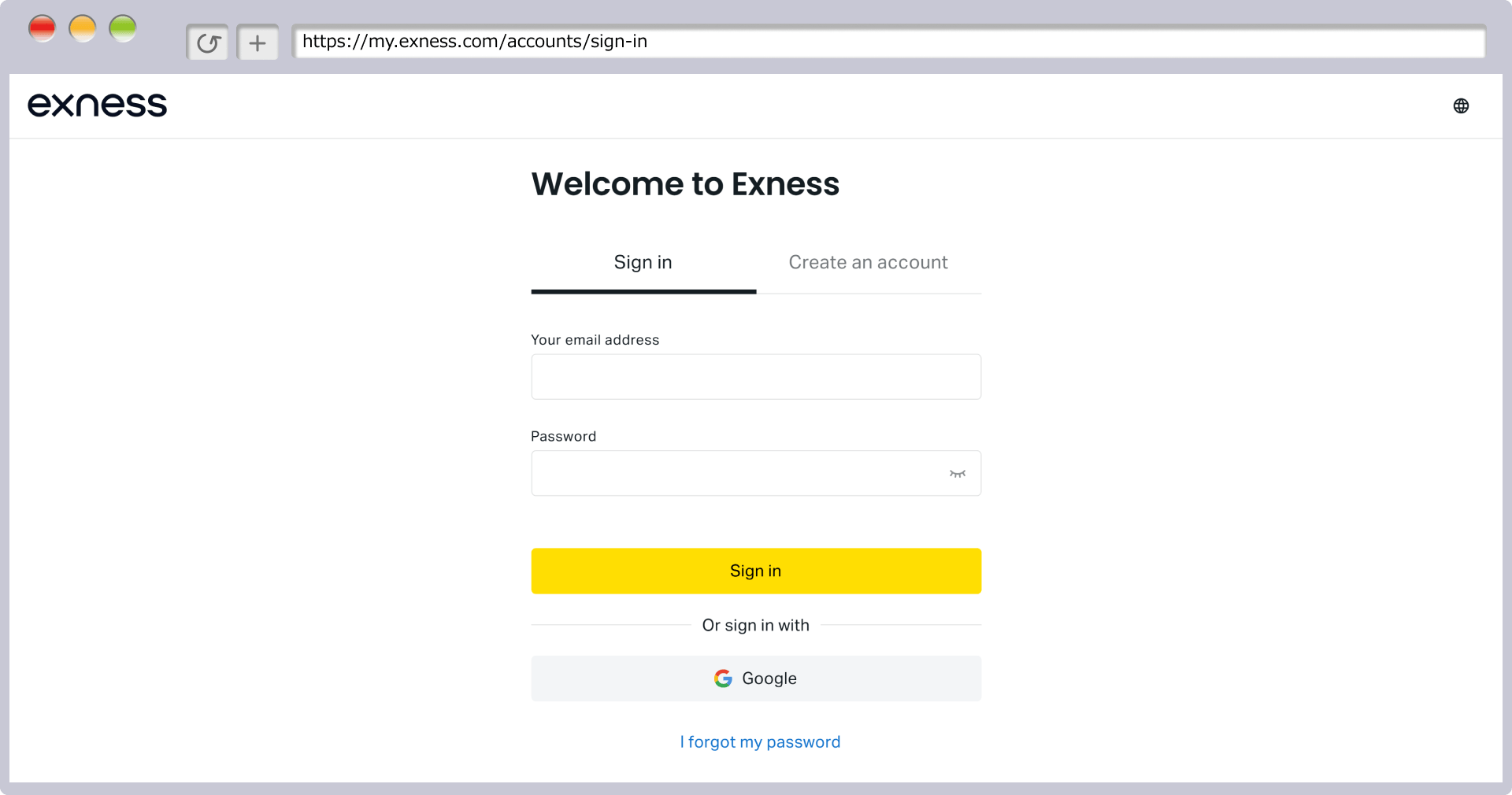
Once the login screen appears, your password change is complete. Please enter your registered email address and your new password to log in.
I'm using my Exness MT4/MT5 password
You cannot log in to Exness’s “Personal Area” using your MT4 or MT5 password. To log in to the Personal Area, please use the password you set when you created your Personal Area account (which must be at least 8 characters long and consist of uppercase and lowercase letters, numbers, and special characters).Please note that your Personal Area password will not be sent to you via email, so please make sure to write it down or save it somewhere secure when you register your account.
The Exness Personal Area is currently unavailable
If your Exness account has been frozen, your Personal Area will be closed, and you will see an error message stating "Your login credentials or password do not exist" or "Your email address is incorrect." If your registered email address is correct, it is possible that you requested the account closure yourself, or that Exness has closed your Personal Area for some reason.If Exness has decided to close your Personal Area, a notification will be sent to your registered email address, so please check your inbox for an email from Exness.
Display when the Personal Area is closed
Please note that at Exness, accounts are automatically marked as dormant if there is no trading or deposits for 90 days; however, rest assured that you can still log in to your Personal Area.

Exness prohibits trading that exploits server errors or rate delays. Please be aware that violating Exness’s prohibited activities or Terms of Service may result in penalties such as account suspension or withdrawal denial.It should be noted that, compared to other brokers, Exness has fewer trading restrictions; for example, you are permitted to engage in hedging and scalping using EAs (automated trading systems).
Exness is currently performing server maintenance.
If you are unable to log in to Exness’s “Personal Area,” server maintenance may be temporarily underway. When maintenance is scheduled for the Personal Area, we will send a notice in advance to your registered email address, so please check your email and the latest updates.
Please note that, except during maintenance periods, you can trade Exness instruments nearly 24 hours a day, from early Monday morning through early Saturday morning.
Reasons Why You Can't Log In to Exness MT4/MT5
The most common reason for being unable to log in to Exness’s MetaTrader 4 (MT4) or MetaTrader 5 (MT5) is entering incorrect login credentials. To log in, you’ll need your “MT4/MT5 trading account number,” “account password,” and “server name.”Please review the following reasons why you might be unable to log in to Exness MT4/MT5 and their solutions.
Incorrect Exness MT4/MT5 login credentials
If you see an error message such as “Invalid Account” or “Connection Failed!” when logging in to Exness’s MT4/MT5, you may have entered your login information incorrectly. You can verify your MT4/MT5 trading account number and server name in the Exness Personal Area.Your password is the one you set when you opened your account. To ensure your login information is correct, please try logging in again by copying and pasting it. Please note that for the USD-denominated live trading account automatically created when you set up your Personal Area, you can log in using the same password as your Personal Area login password.
If, after logging into Exness MT4/MT5, the rates or charts in the quote window do not update, you may not be connected to the Exness server properly. Please check the connection status, which is displayed in the lower-right corner of the screen.
If you've logged in successfully

If you are unable to log in successfully

I am using my Exness Personal Area password
Your Exness MT4/MT5 login password is the one you set yourself when you opened your account. The password you registered when setting up your Personal Area is different from the password used exclusively to log in to the member page. Please double-check to make sure you are logging in with the password you set yourself when you opened your account.
Please note that while you can view your MT4/MT5 account information (account number and server name) in the Personal Area, your password will not be displayed; therefore, please make a note of it or save it elsewhere. If you happen to forget your MT4/MT5 password, please change it and then log in again.
How to Change Your Exness MT4/MT5 Password
If you have forgotten the password required to log in to Exness’s MT4/MT5, you can change it from your Personal Area. The steps for changing your password are as follows.
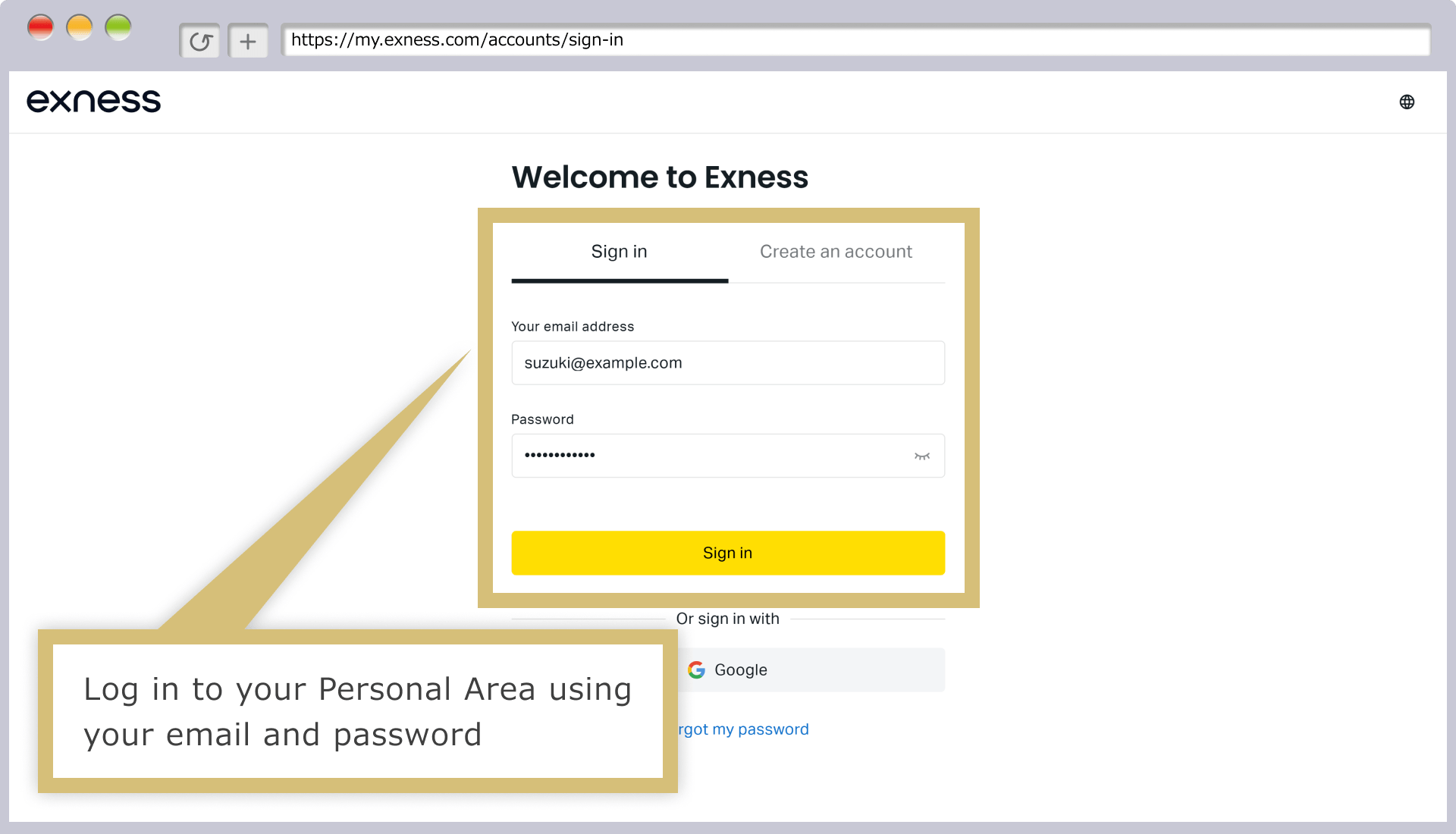
Enter the "email address" you used to register with Exness and the "login password" for your Personal Area, then click "Continue."
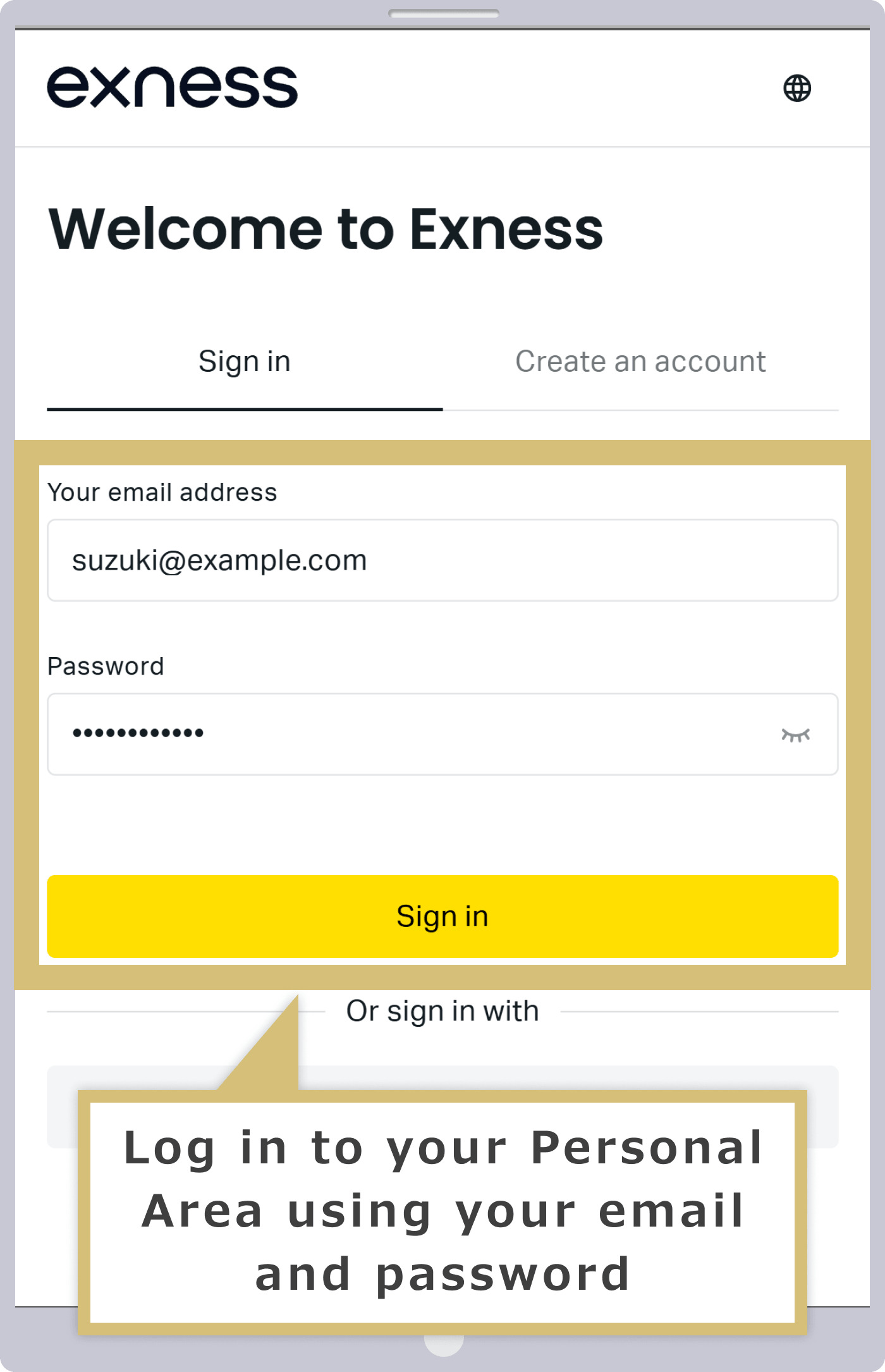
Enter the "email address" you used to register with Exness and your "login password" for the Personal Area, then tap "Continue."
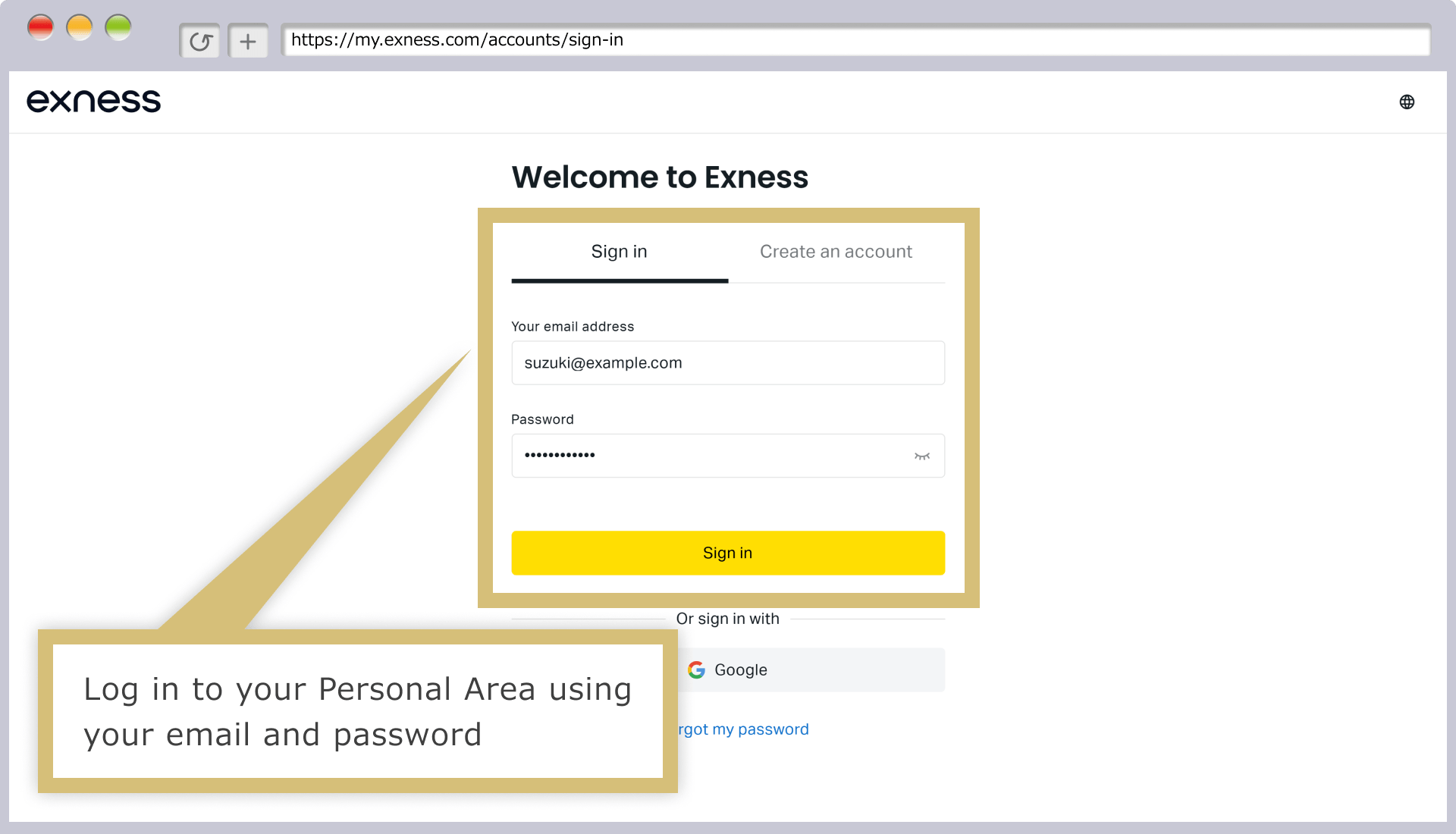
In the "My Account" section of your Personal Area, click the "︙" icon to the right of the account for which you want to change the password.
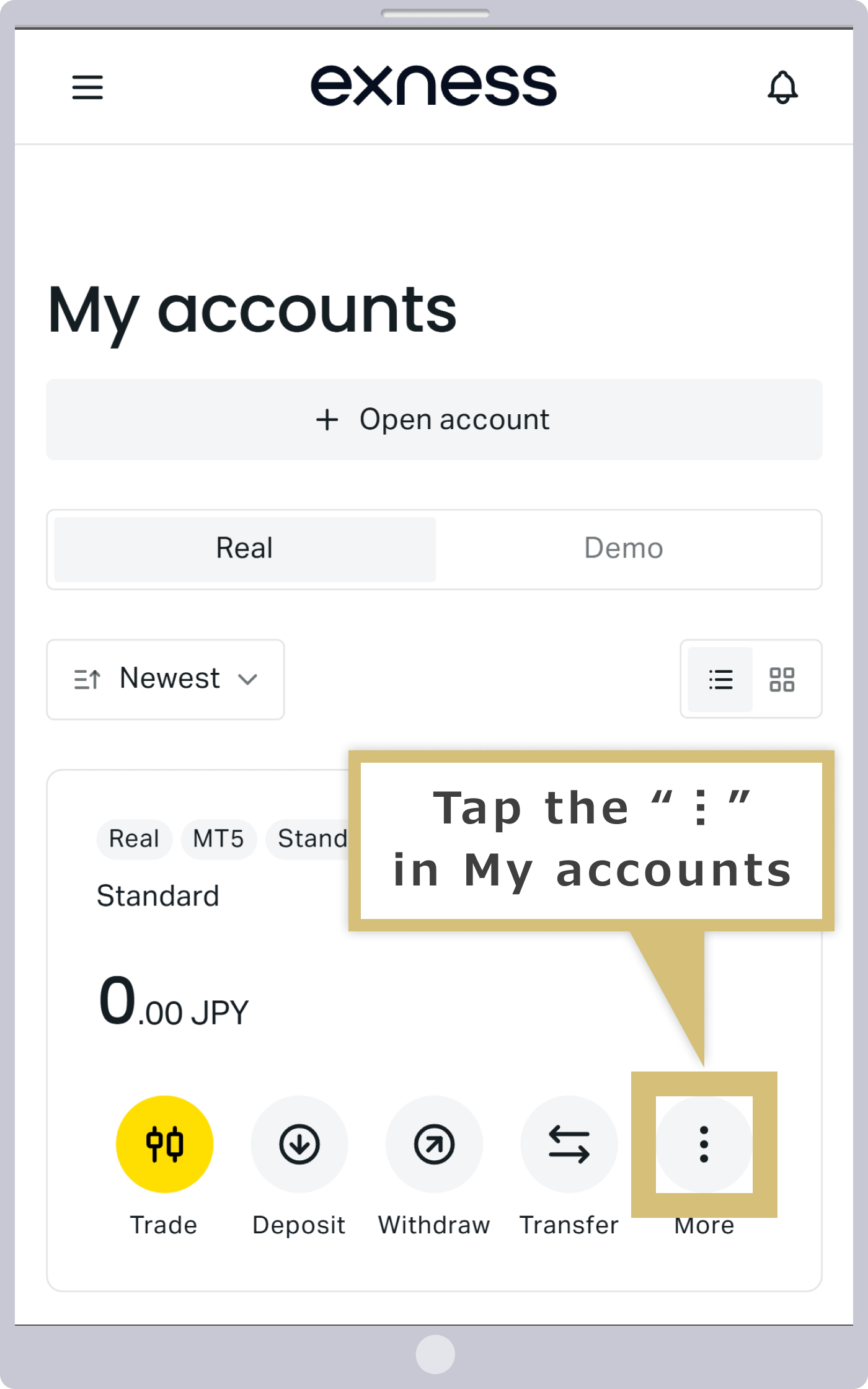
In the "My Account" section of your Personal Area, tap the "︙" icon to the right of the account for which you want to change the password.
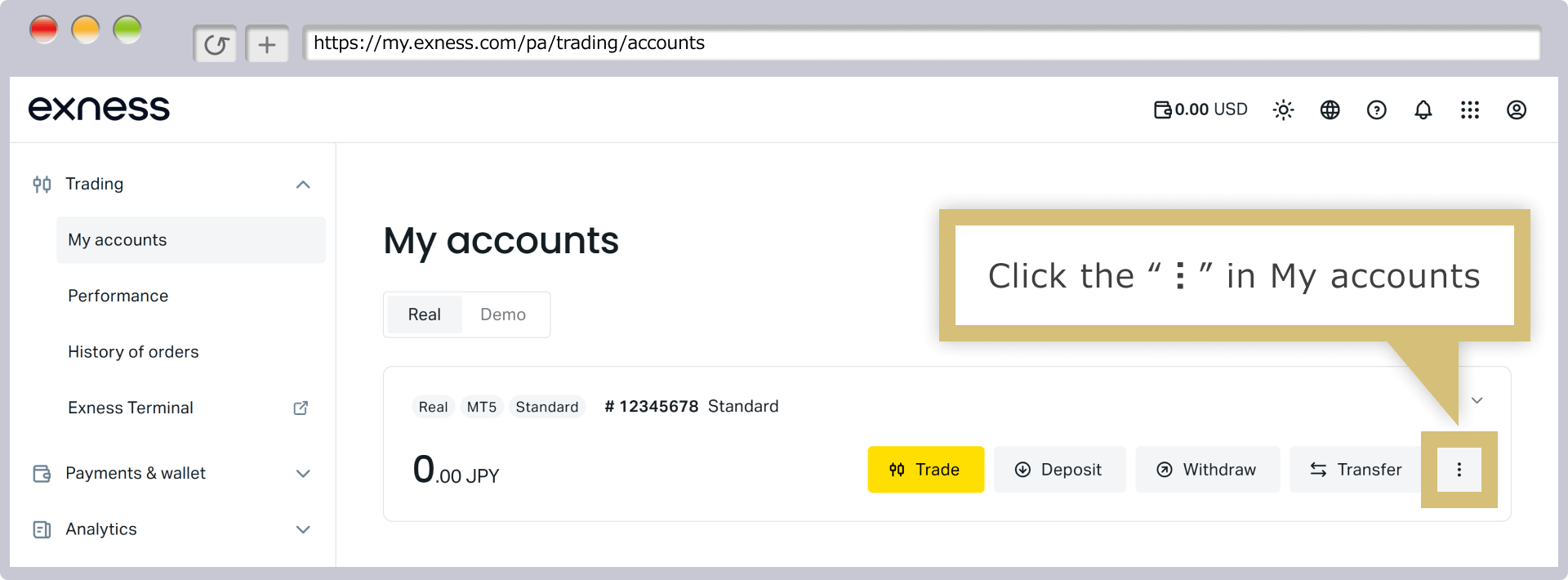
Click “Change Trading Password.” Note that you can view your trading account number and server name by clicking “Account Information.”
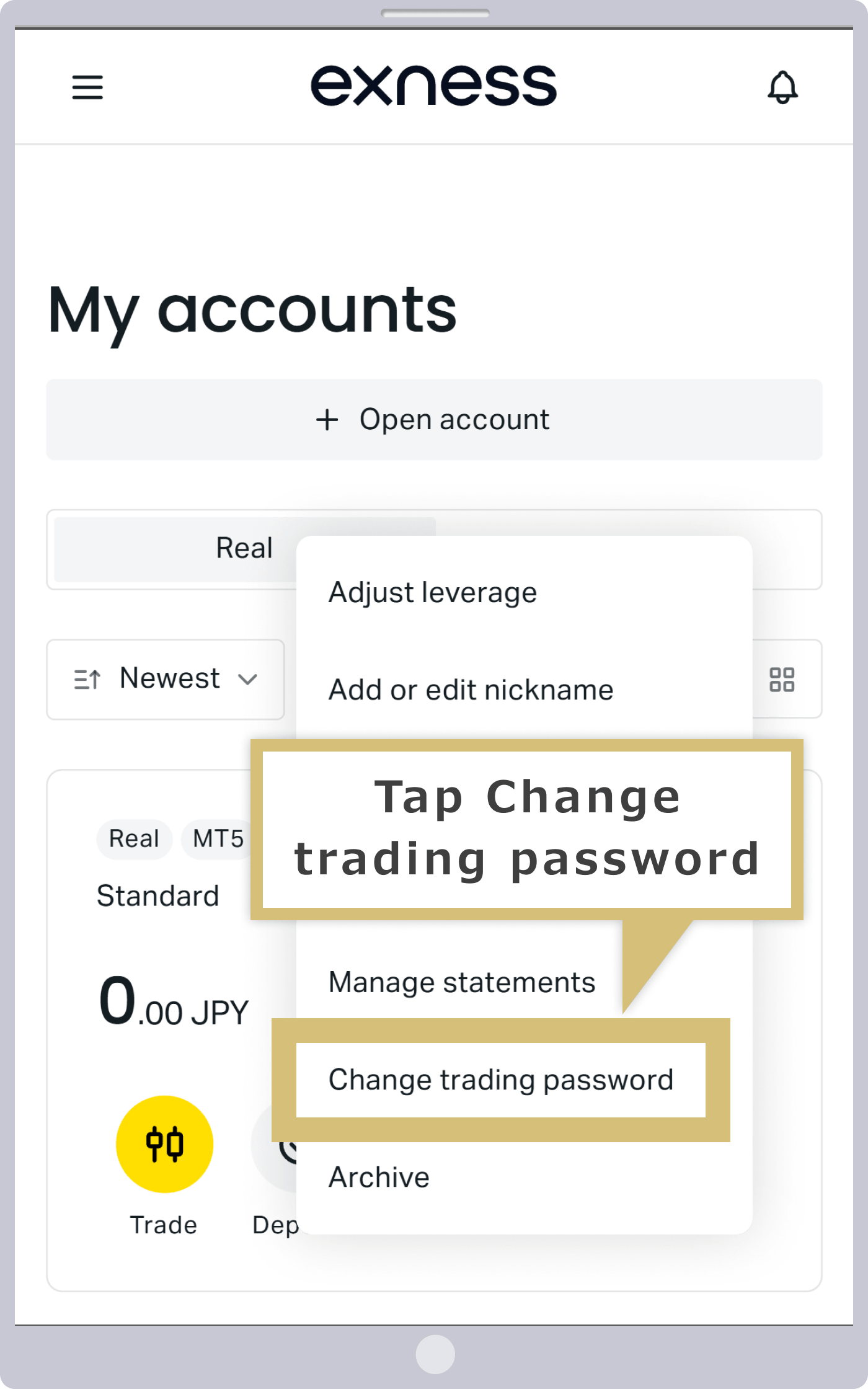
Tap “Change Trading Password.” Note that you can view your trading account number and server name by tapping “Account Information.”
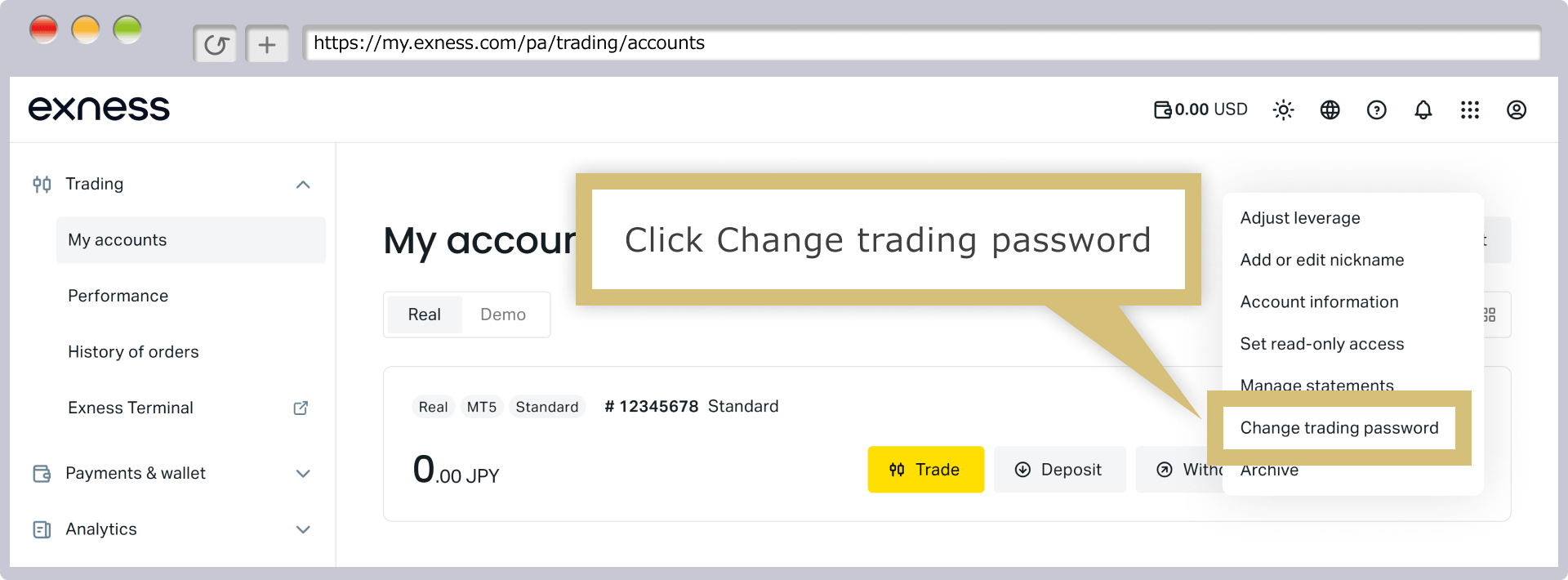
Enter your desired password and click “Change Password.” Please note that your password must be at least 8 characters long and consist of uppercase and lowercase letters, numbers, and special characters.
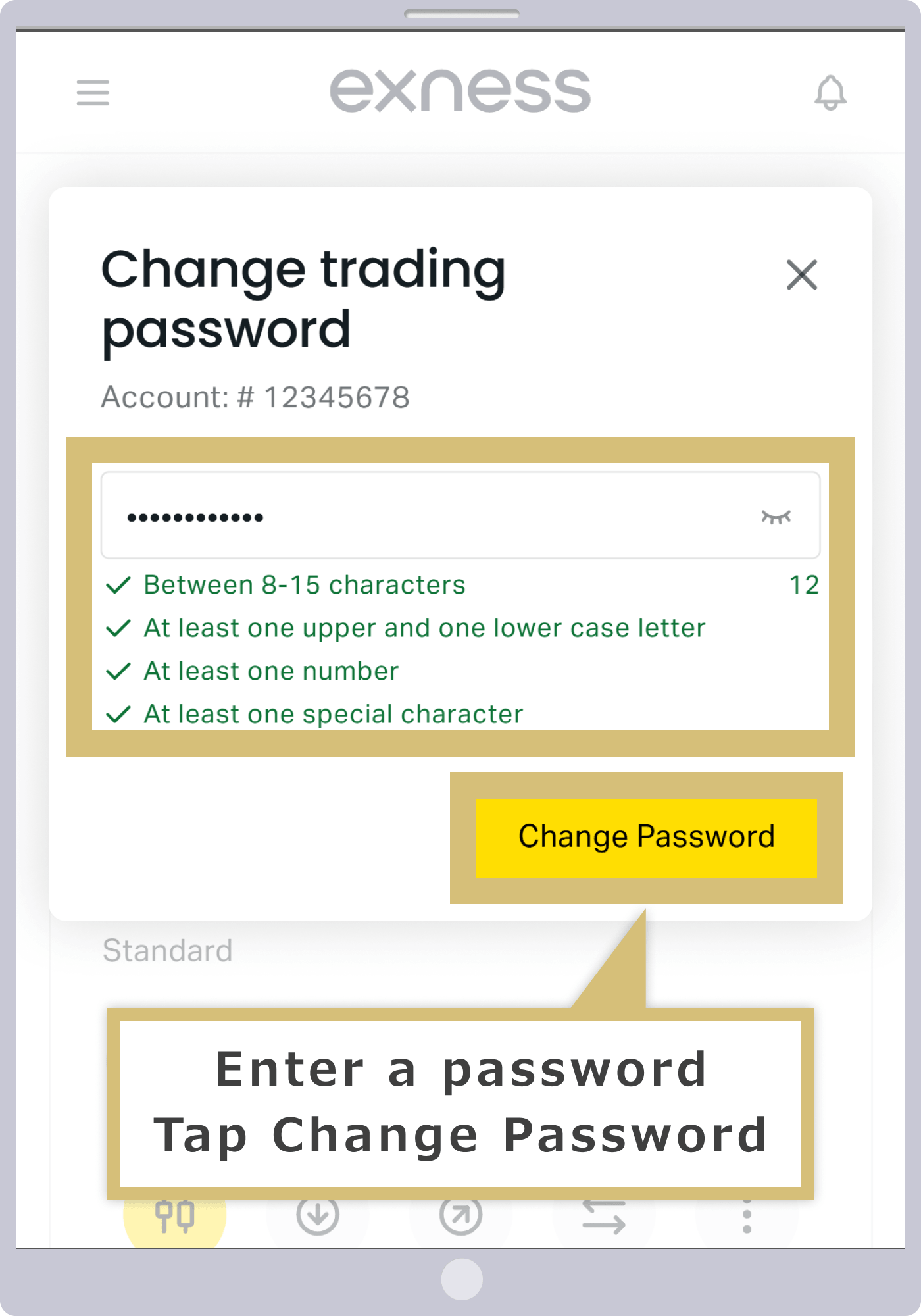
Enter your desired password and tap “Change Password.” Please note that your password must be at least 8 characters long and consist of uppercase and lowercase letters, numbers, and special characters.
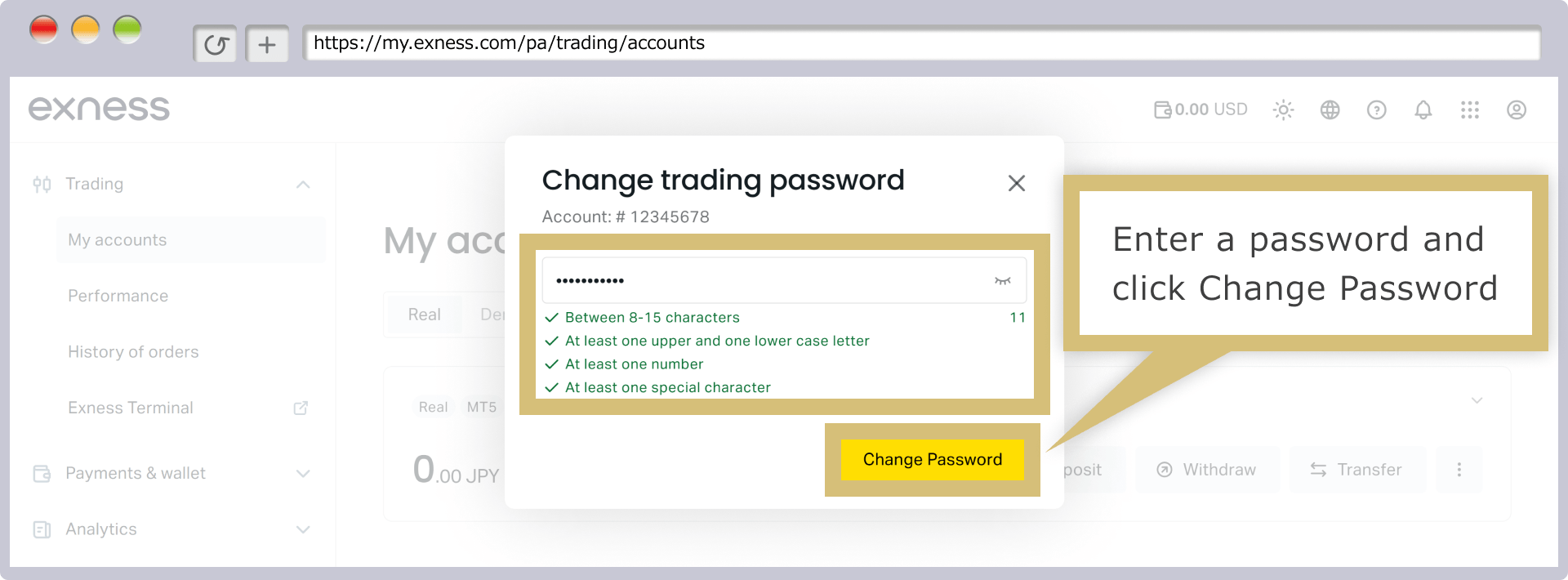
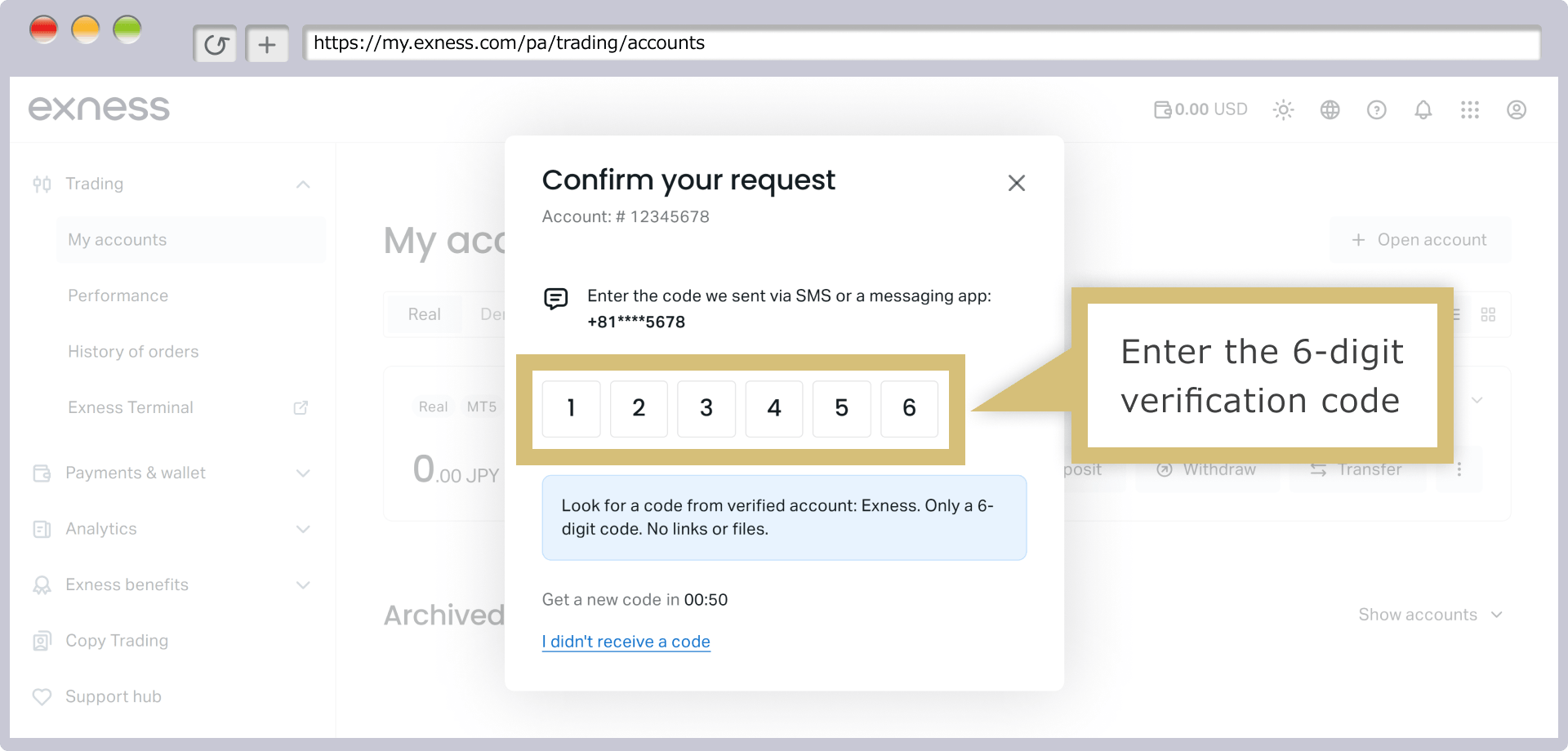
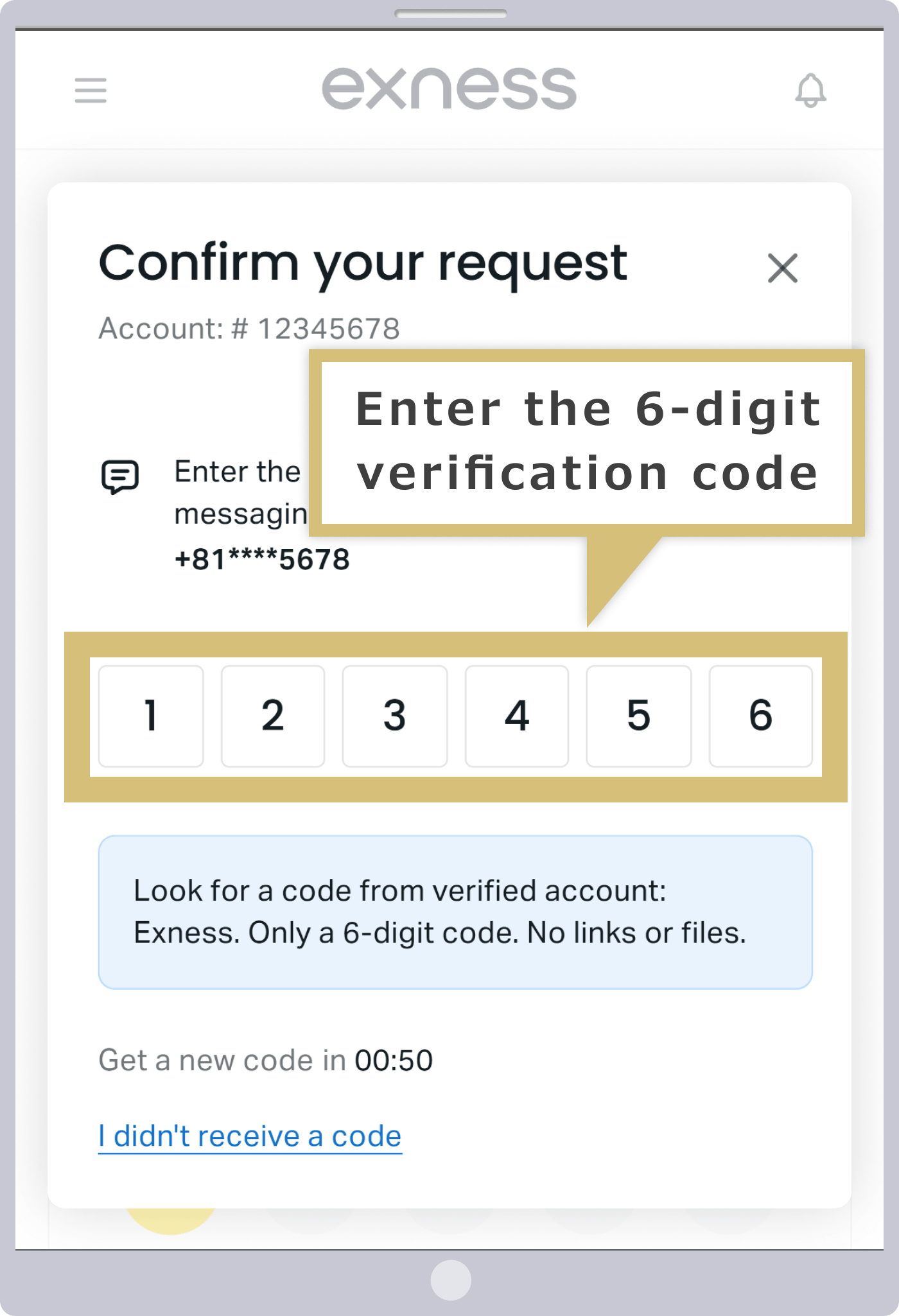
A verification code will be sent to the email address you provided. Please enter the 6-digit verification code and click "Confirm."
A verification code will be sent to the email address you provided. Please enter the 6-digit verification code and tap "Confirm."
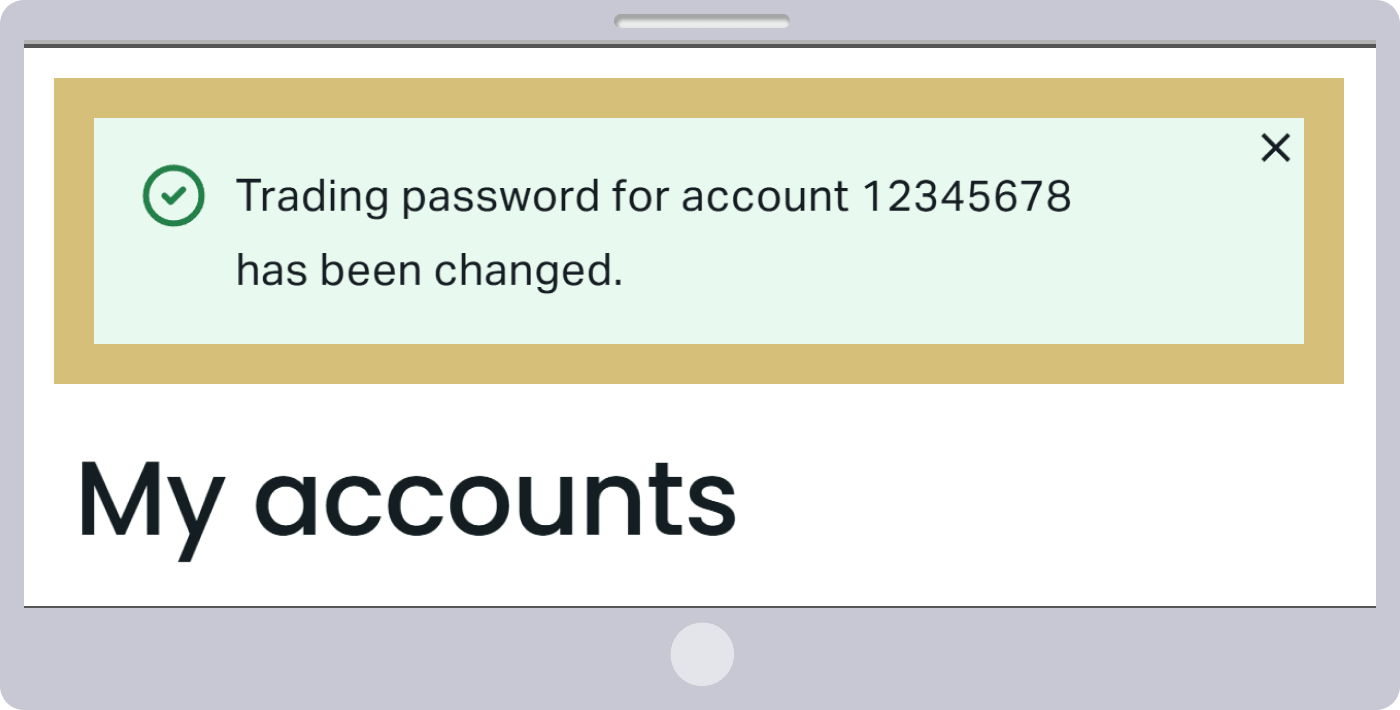
Once your password has been successfully changed, the following message will appear. Please try logging in to MT4/MT5 again using your new password.

You are logged into an MT4/MT5 account other than Exness
Exness provides MetaQuotes’ Exness-exclusive MT4/MT5 as its trading platform; you cannot log in using MT4/MT5 from other providers. Please be sure to download and install the Exness-exclusive MT4/MT5 before attempting to log in.Please note that MT4 and MT5 are not compatible with each other. Please verify whether the account you opened is an MT4 account or an MT5 account, and be sure to use the correct trading platform.
Please note that if you are using a smartphone or tablet, there is no dedicated Exness MT4/MT5 app. Please use the standard iOS or Android MT4/MT5 apps available from all brokers, or try logging in using Exness’s mobile-exclusive “Exness Trading App.”In addition to trading, the Exness Trade App allows you to manage your account—including deposits, withdrawals, and fund transfers—as well as change your account settings.
Your Exness MT4/MT5 trading account has been archived
If you are unable to log in to Exness's MT4/MT5, your trading account may have been archived. If there has been no trading or deposits for more than 90 days, your account will automatically be archived as a dormant account. To restore it, please reactivate it through your Personal Area.
How to Reactivate Exness MT4/MT5
If your Exness MT4/MT5 trading account has been archived, you can restore it from the Personal Area. Here’s how to reactivate your MT4/MT5 account:
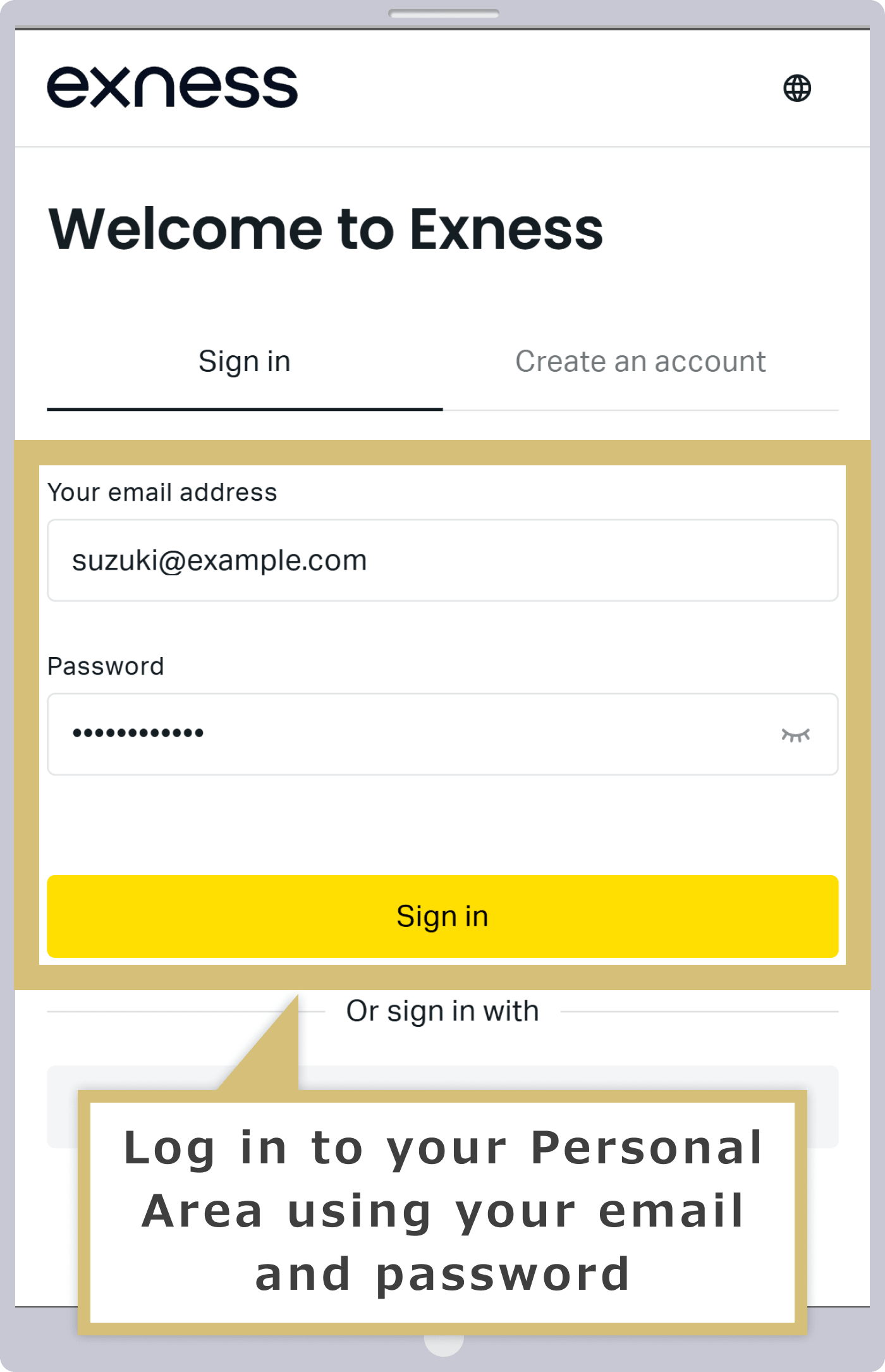
Enter the "email address" you used to register with Exness and the "login password" for your Personal Area, then click "Continue."
Enter the "email address" you used to register with Exness and the "login password" for your Personal Area, then tap "Continue."
In the "My Account" section of your Personal Area, click "View Account" under "Archived Accounts."
In the "My Account" section of your Personal Area, tap "View Account" under "Archived Accounts."
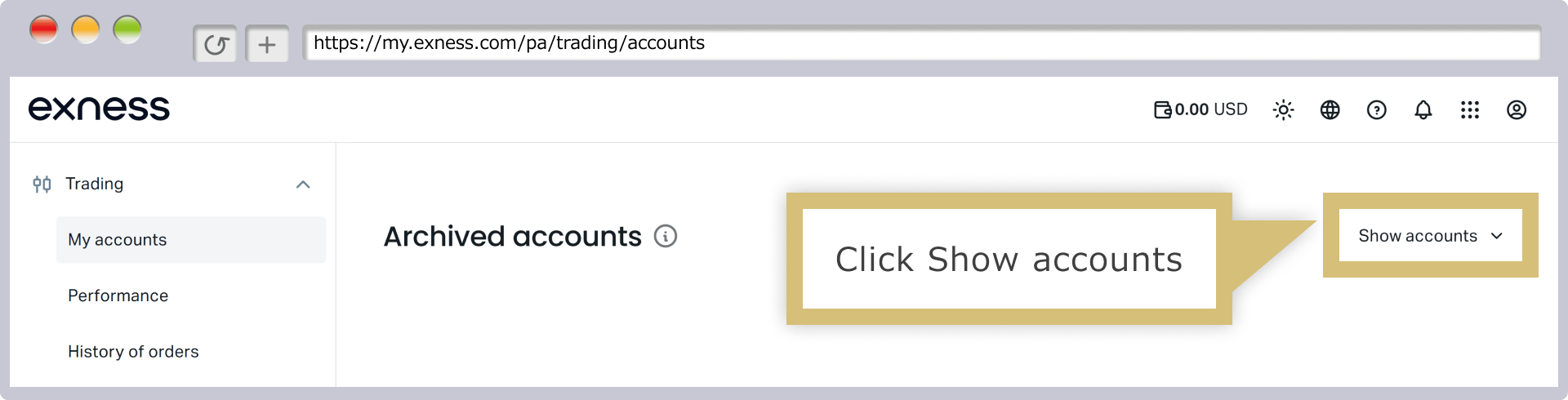
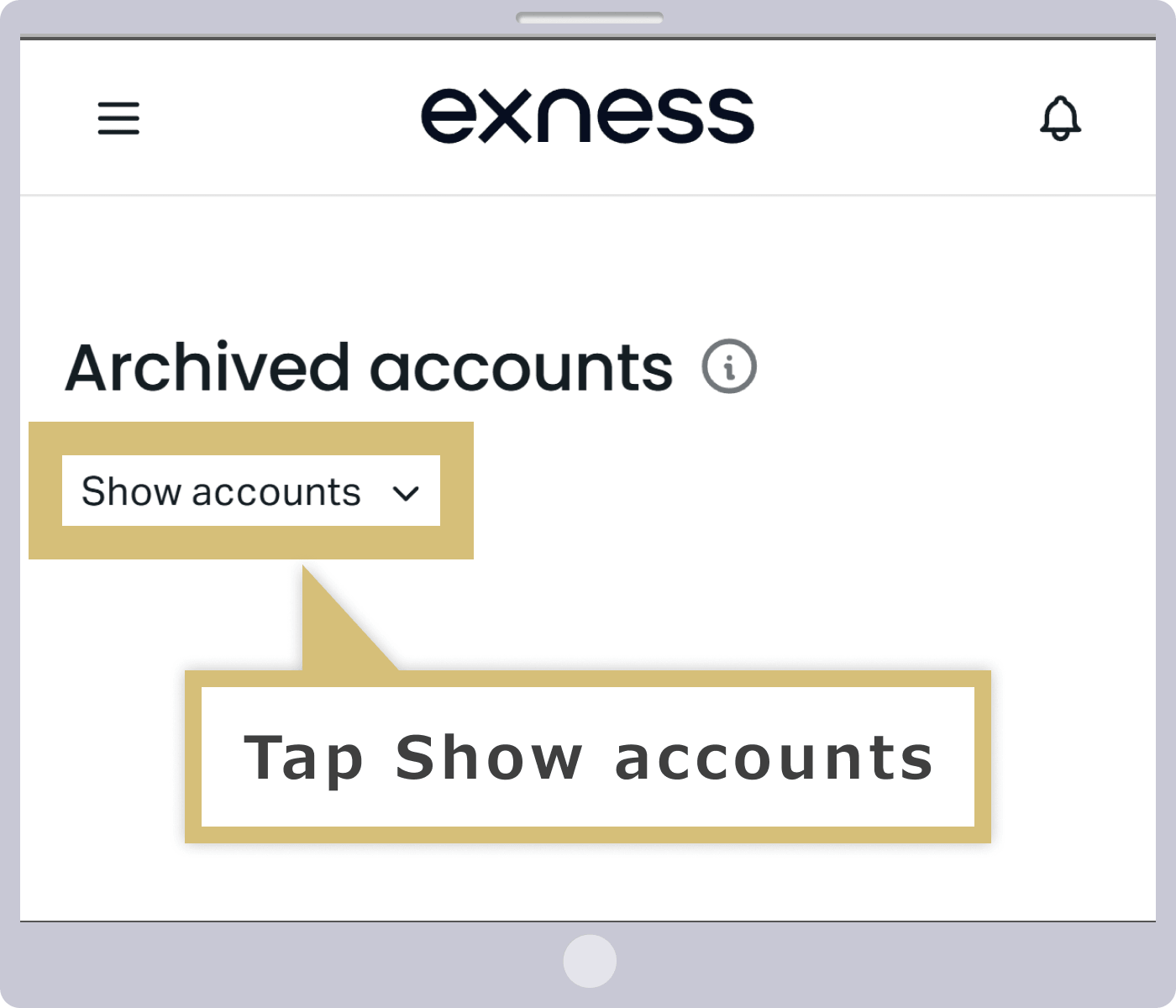
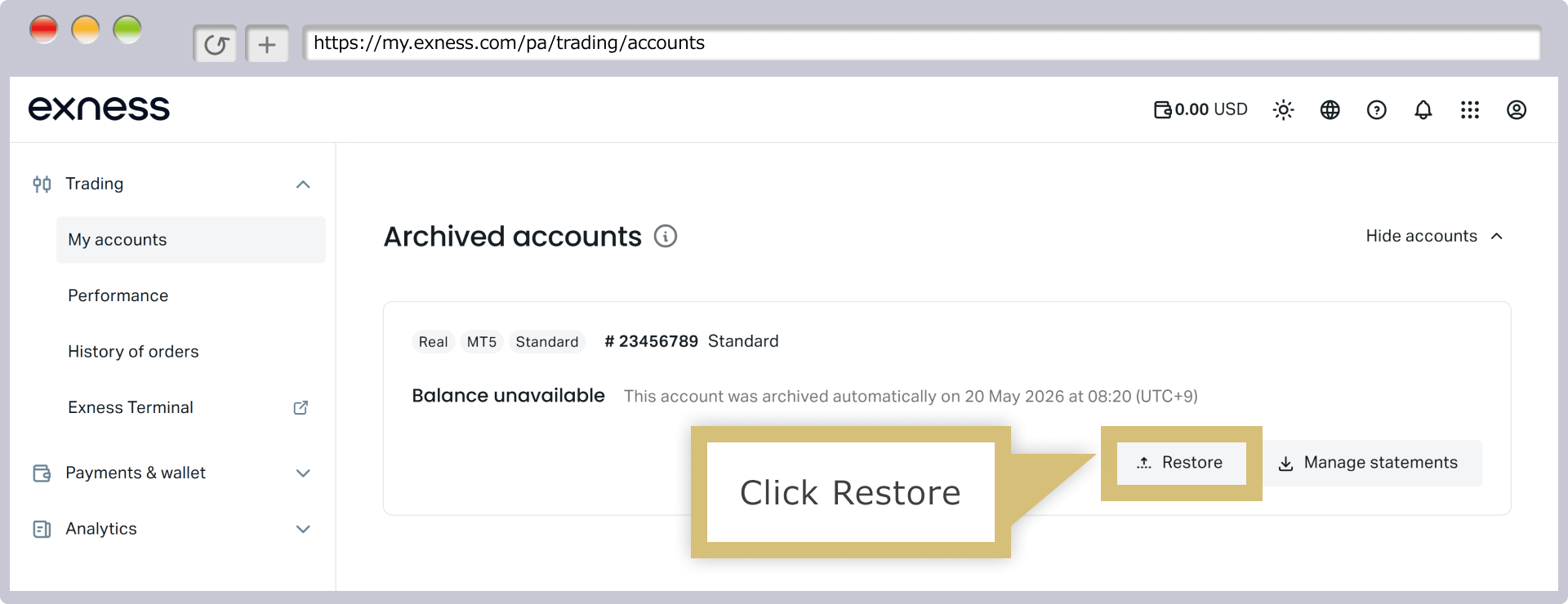
A list of archived accounts will appear; click “Reactivate” next to the account you want to restore.
A list of archived accounts will appear; tap “Reactivate” below the account you want to restore.
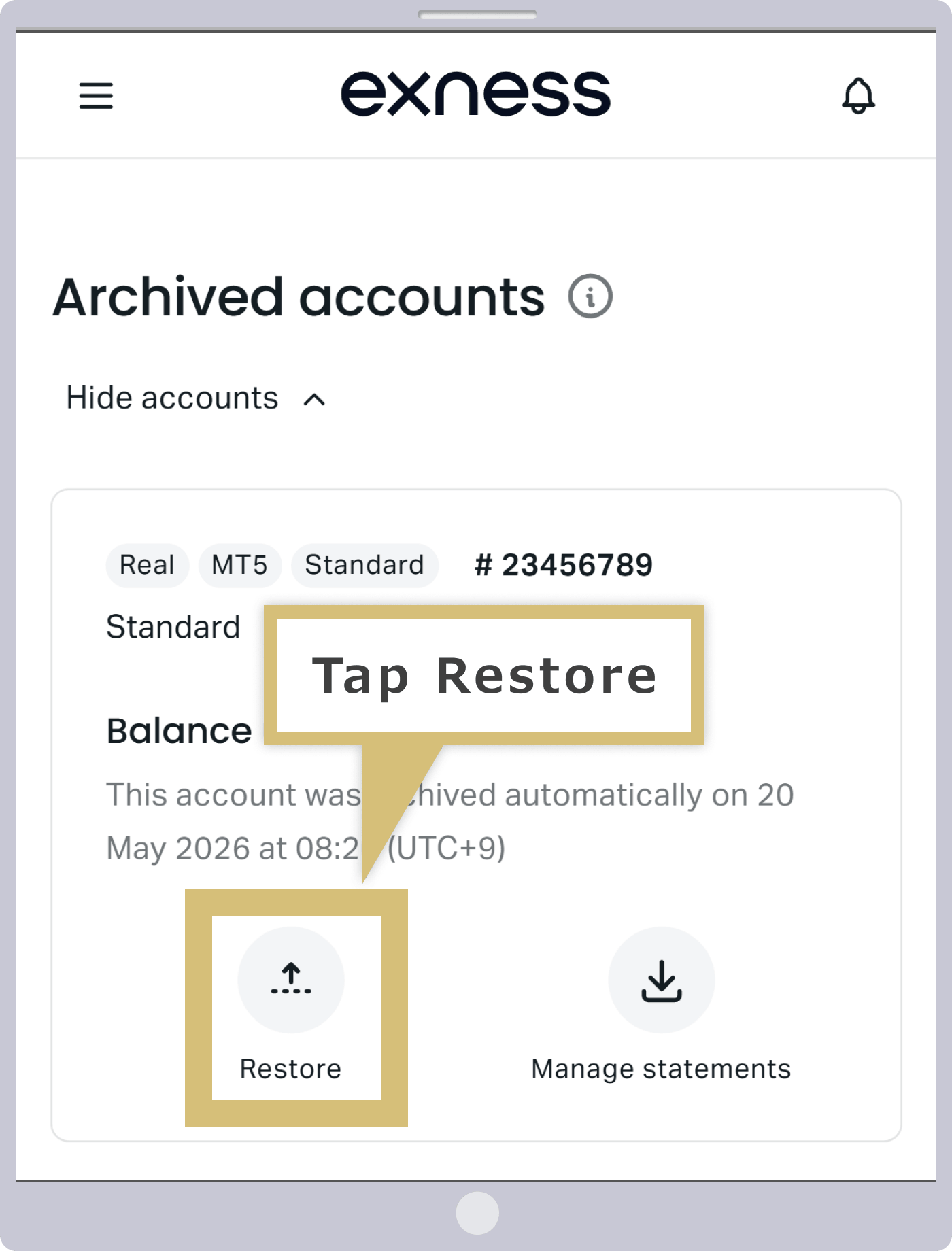
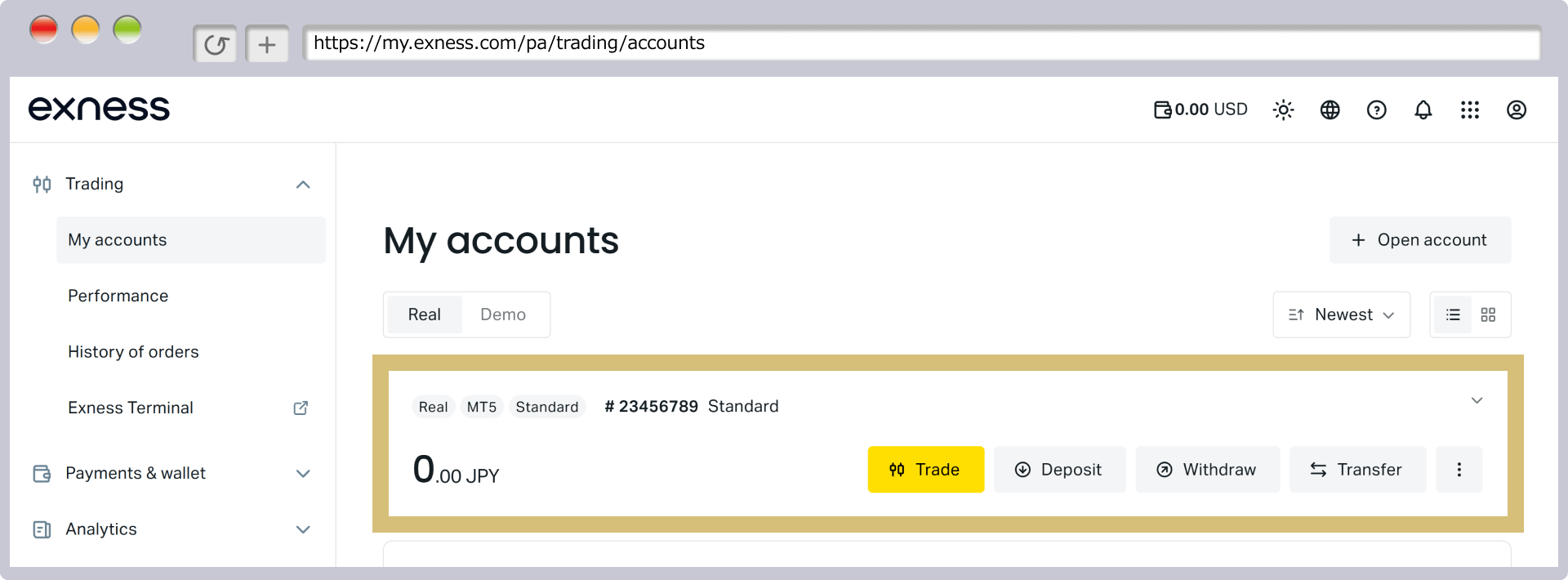
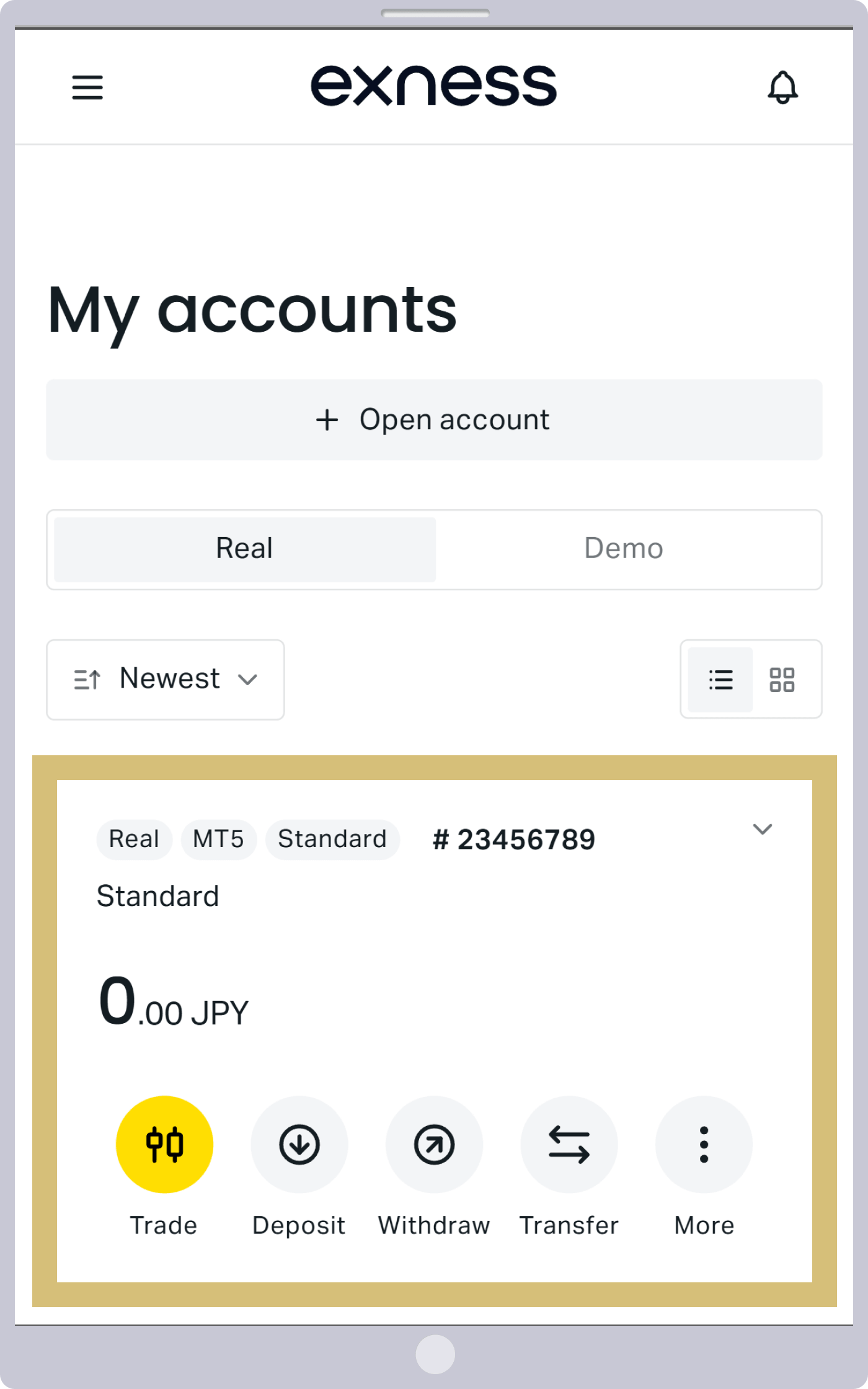
Once the account appears in the "Trading Accounts" screen, the reactivation process is complete.
Not connected to the Internet
If you are unable to log in to Exness's MT4/MT5 even after entering the correct login credentials, an unstable internet connection may be the cause. We recommend that you check your internet connection using a speed test or similar tool to ensure there are no issues.
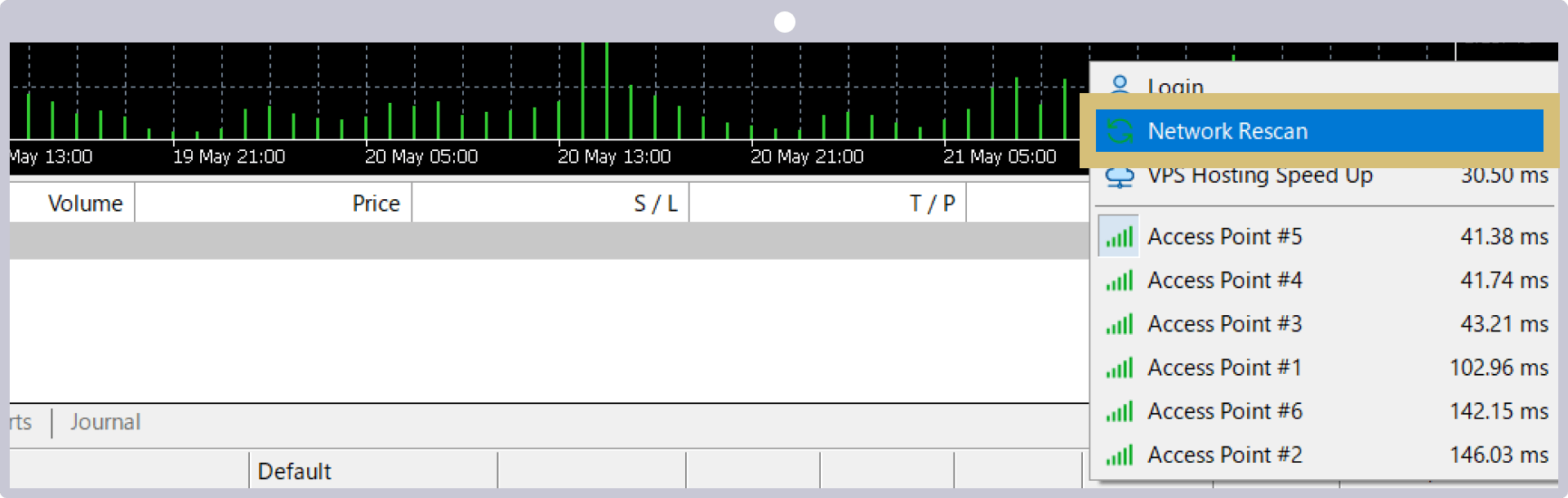
If you are experiencing issues with your internet connection, please restart your Wi-Fi router or check your Ethernet cable connection. If there are no issues with your internet connection, click the connection bar in the lower-right corner of the MT4/MT5 trading terminal and select “Rescan Network” to rescan the servers.If the problem persists, please try restarting your computer or reinstalling MT4/MT5. Please note that if the connection to Exness’s free VPS service is unstable, error messages such as “no connection” and “common error” will appear; in this case, please check your VPS connection again.
MT4/MT5 Network Rescan Notification
Reasons Why You Can't Log In to the Exness Trading App
If you are unable to log in to the “Exness Trading App” provided by Exness, you may have entered your login information incorrectly. To log in, you will need your registered email address and the “password” you set when you created your Personal Area. Please review the following reasons why you might be unable to log in to the Exness Trading App and how to resolve them.
In addition, the Exness Trading App is a convenient, one-stop solution that allows you to manage everything from your account to your trades in one place. We encourage you to take advantage of the Exness Trading App to enjoy a comfortable trading experience.
Incorrect login credentials for the Exness trading app
The login credentials required to log in to the Exness trading app are the same as those used for the Exness “Personal Area” member portal. You do not need to register a separate email address or password specifically for the Exness trading app. Please try logging in again using the email address you provided when you set up your Personal Area and the password you created.If you have not yet set up your Personal Area, please complete the registration process by selecting “Register” on the trading app’s login screen.
If you have forgotten your password for the Exness Trading App (Personal Area), you can change it from the Personal Area or the Exness Trading App.
How to Change Your "Personal Area" Password in the Exness Trading App
If you have forgotten the password for the "Personal Area"—the member page required to log in to the Exness trading app—you can change your password directly from the trading app. The steps to change your password are as follows.
Launch the Exness trading app and tap “Sign In.”
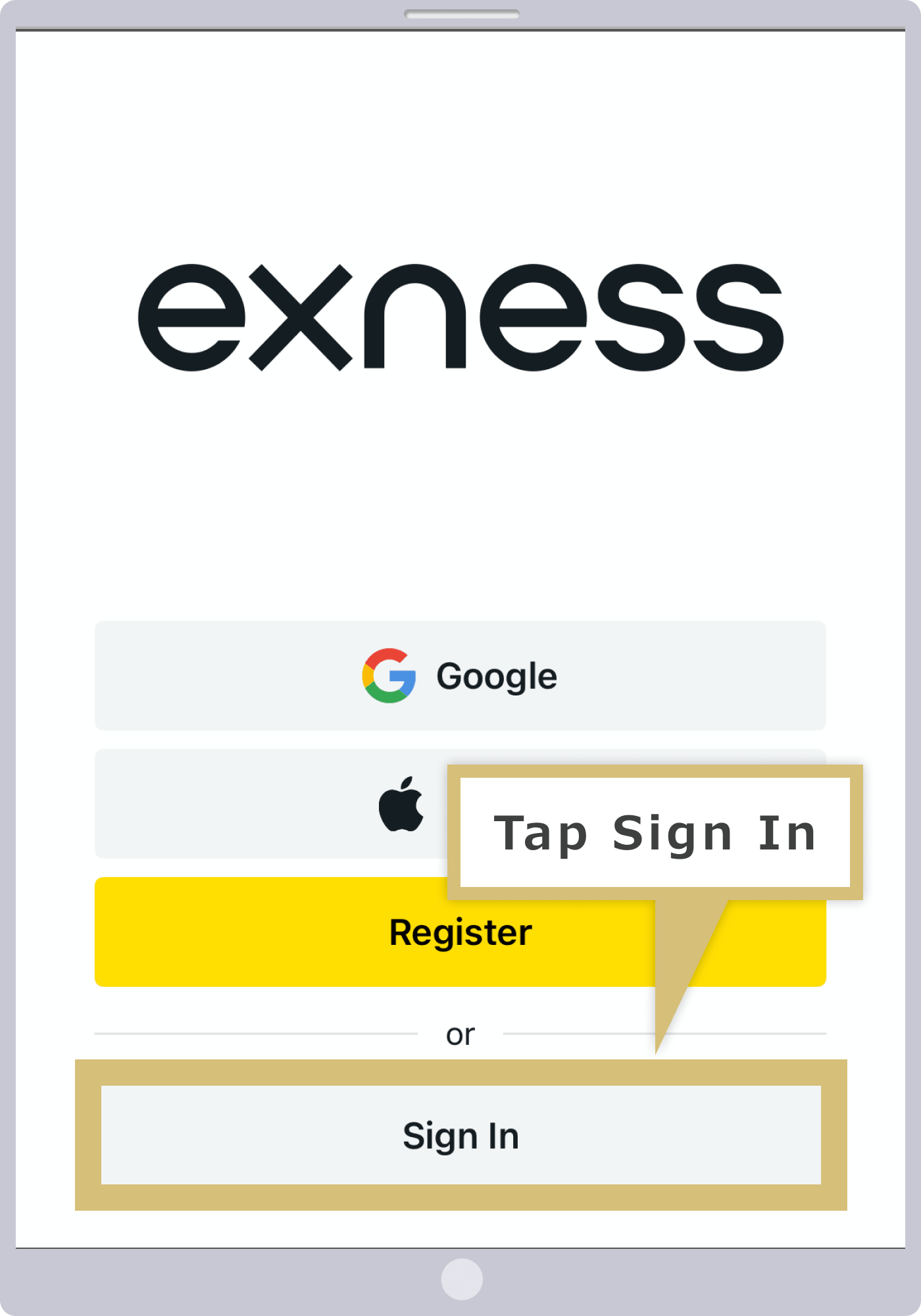
Tap "Forgot your password?" at the bottom of the sign-in screen.
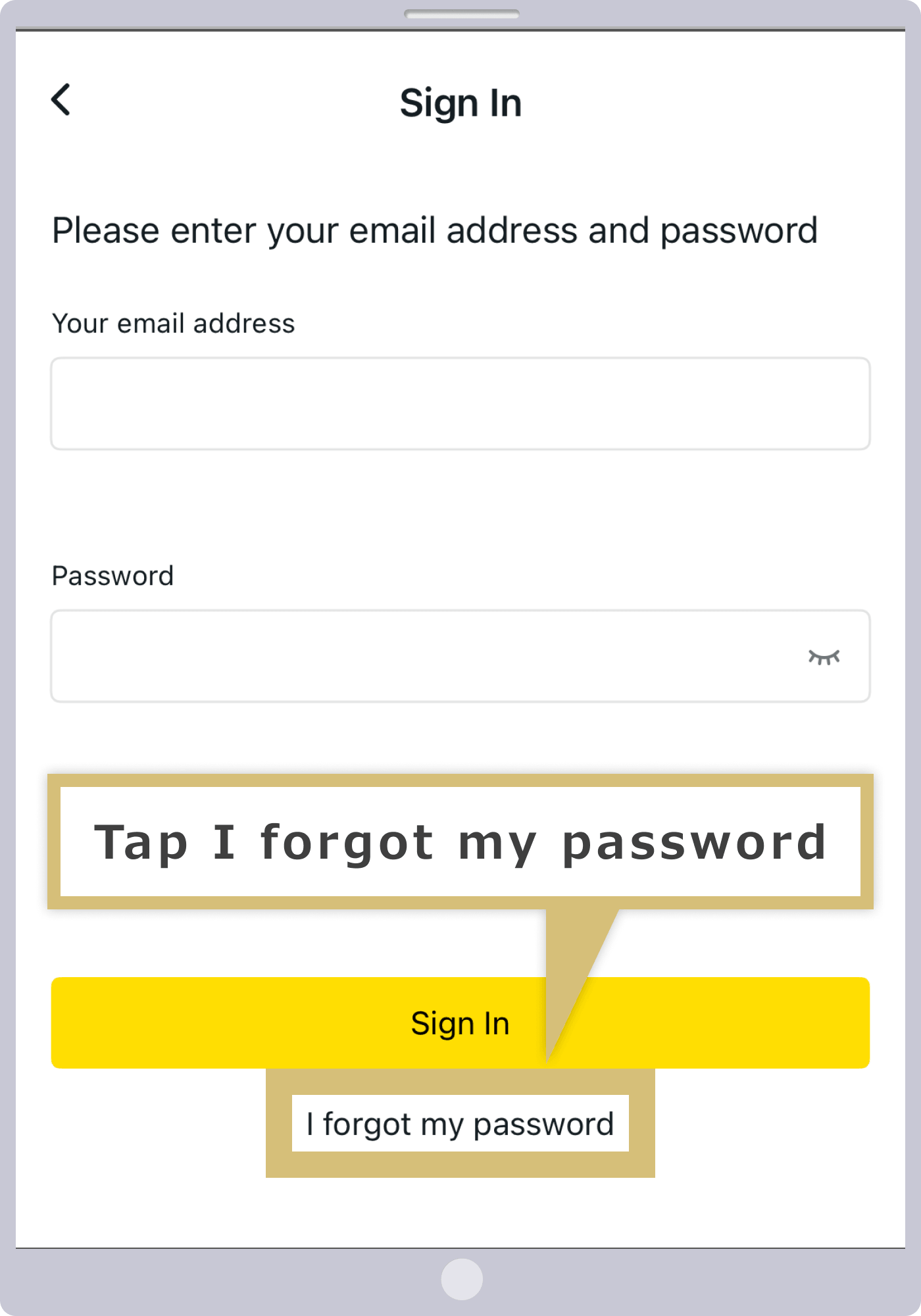
Enter the email address you used when opening your Exness account, then tap “Continue.”
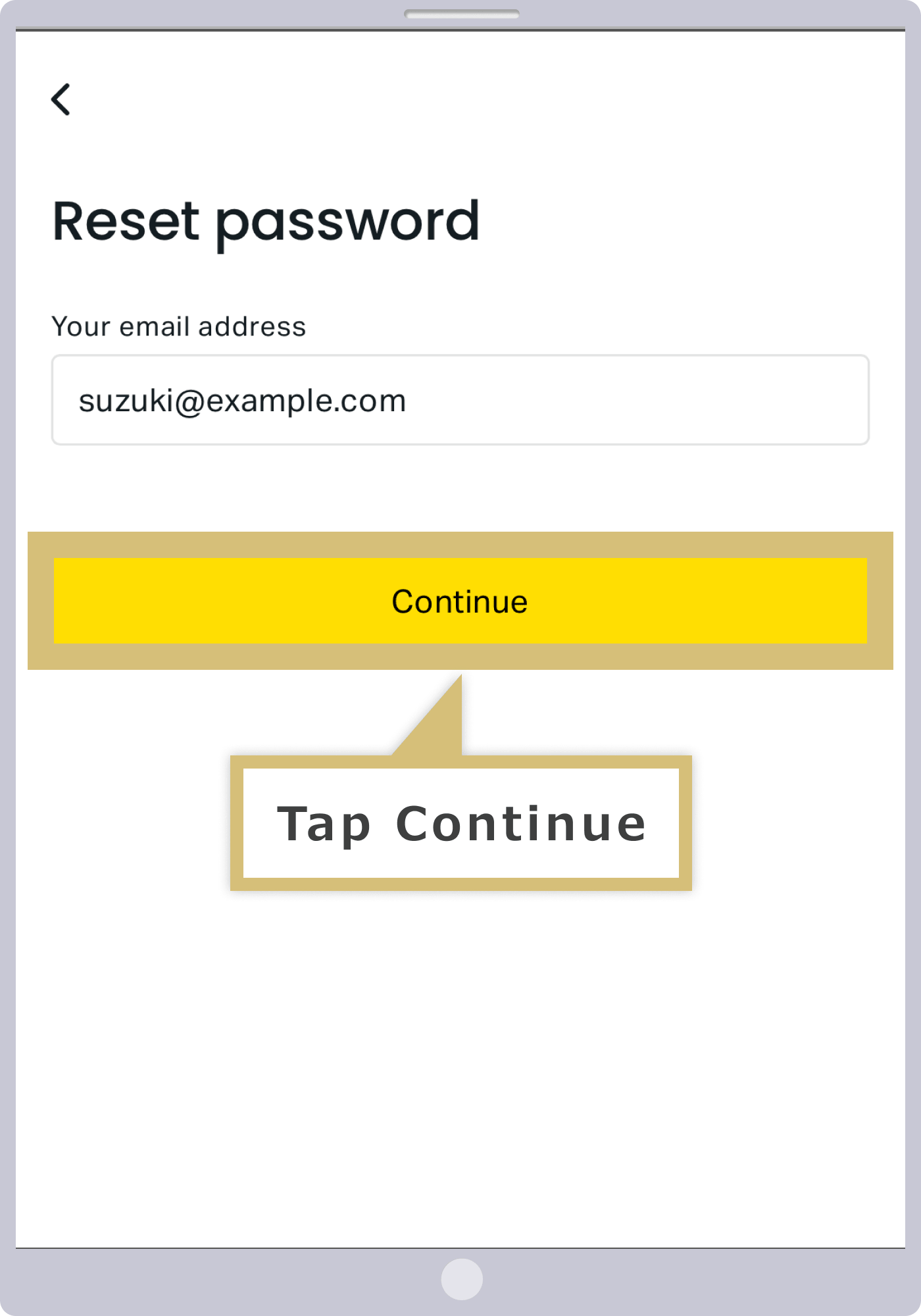
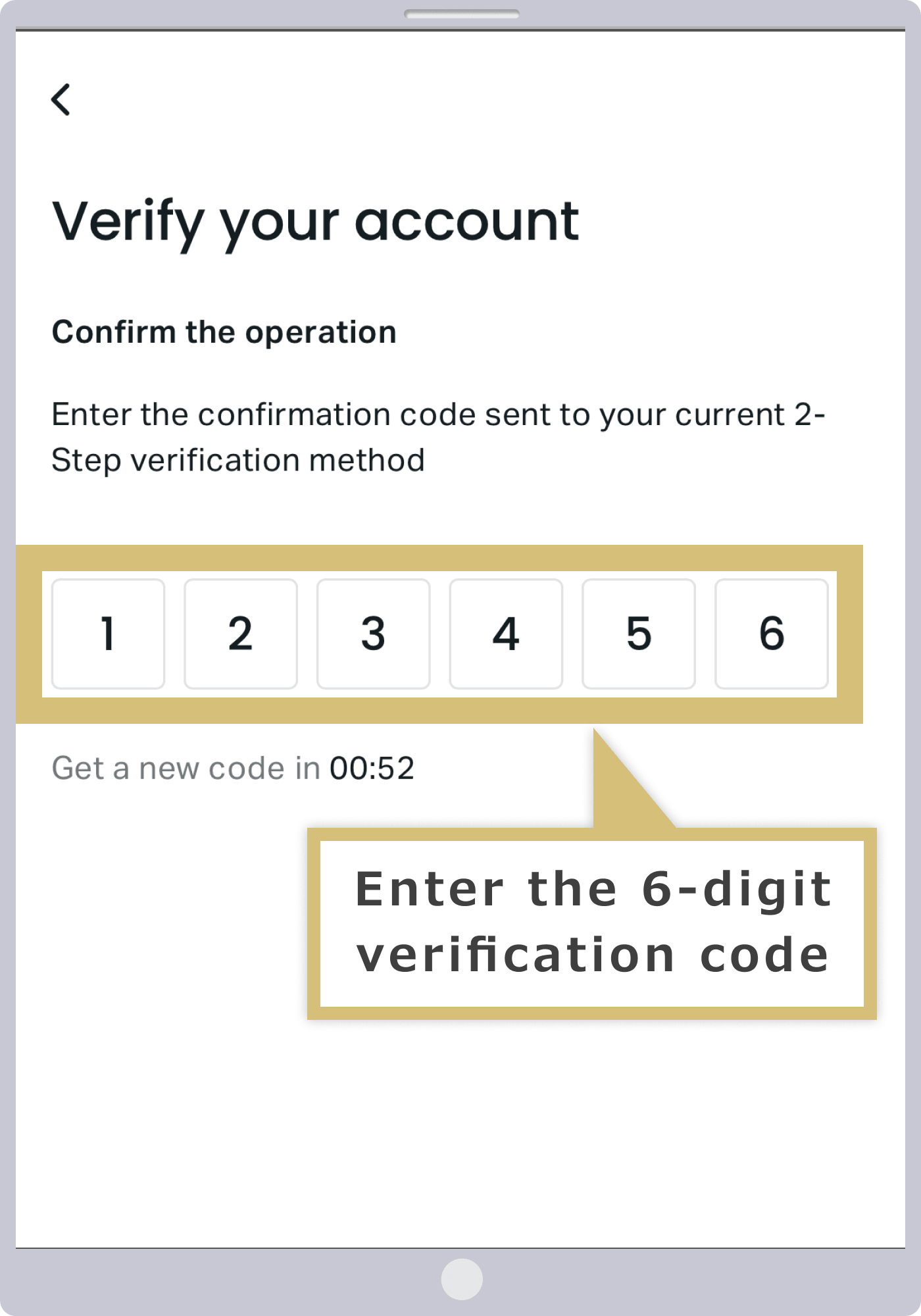
A verification code will be sent to the email address you provided. Enter the 6-digit verification code and tap “Confirm.”
Enter your new password twice, then tap "Change Password."
Your password has now been changed. Please enter your registered email address and the new password to log in.
I'm using my Exness MT4/MT5 password
The password for the Exness trading app is the same as the password you registered when you set up your "Personal Area" account. You cannot log in to the trading app using your MT4/MT5 password. Please verify that your login information is correct and try logging in again.
Please note that your Personal Area password will not be sent to you via email, so please make sure to save it—for example, by writing it down—when you register your account. If you forget your password, you can change it through the trading app.
Using a device other than an Android device
The Exness trading app is available only on Android OS devices for residents of Japan; it is currently not available on iOS devices. Please note that you cannot use the Exness app on iPhones or iPads.However, if you are using an iOS device, you can trade from your smartphone or tablet by downloading the MT4/MT5 apps provided by MetaQuotes, which are compatible with all FX brokers.
You are logging in from a country other than Japan
The Exness trading app is not available in certain countries, and you will not be able to download it regardless of your device’s operating system. If you do not see any results when searching for “Exness” on Google Play or the App Store, you may be residing in a country where the app is not available. Please contact the Exness Support Desk for more details.
| Exness Support Desk | [email protected] |
Frequently Asked Questions (FAQ) Regarding Reasons for Being Unable to Log In to Exness
-
After switching accounts in Exness's MT4/MT5, the charts stopped updating.
If the charts on Exness’s MT4 or MT5 are not updating, your trading account may have been archived. Accounts are automatically archived as dormant accounts if there has been no trading or deposits for more than 90 days on MT4 or more than 15 days on MT5. To restore an archived account, you can reactivate it from the Personal Area.
Read More
11.12.2023
-
I can't log in to Exness MT4/MT5.
The most common reason for being unable to log in to Exness’s MT4/MT5 is entering incorrect login information. You can find the “Trading Account Number” and “Server Name” required for login in the “My Account” section of the Personal Area. Your login password is the one you set yourself when you opened your MT4/MT5 account.
Read More
11.12.2023
-
I can't log in to the Exness trading app.
If you are unable to log in to the Exness trading app, you may have entered your login credentials incorrectly. You can log in to the Exness trading app using the same email address and password you use for the "Personal Area" on the member page. You do not need a separate email address or password for the trading app.
Read More
11.12.2023
-
I can't download the Exness trading app.
The Exness trading app may not be available in certain countries and regions. If you do not see any results when searching for “Exness” on Google Play or the App Store, you may be residing in a country where the app is not available. Please note that residents of Japan can only use the Exness trading app on Android OS devices.
Read More
11.12.2023
-
Please tell me how to verify my Exness password.
Exness does not offer password verification. To reset your login password for the "Personal Area" member page, you must select "Forgot Password" on the Personal Area login screen. You can change your MT4/MT5 login password in the "My Account" section of the Personal Area.
Read More
11.12.2023