














Exness Tax Filing (Japanese Residents)
Transaction
Exness Tax Filing
If you realize a profit from trading with Exness, you may be required to file a tax return. If your annual profit from Exness trading (January 1 through December 31) exceeds 200,000 yen for salaried employees or 950,000 yen for non-salaried individuals, you are required to file a tax return.However, please note that if you use multiple overseas FX brokers or have other “miscellaneous income subject to comprehensive taxation,” you may be required to file a tax return regardless of your annual profit or loss on Exness.
Exness specializes in high-leverage trading of up to 2,000x (*). Since you can aim for significant profits even with small investments of just a few thousand yen, there are many cases where you’ll need to file a tax return.While filing a tax return may seem complicated, the process has become increasingly digitized in recent years, and it is now possible to complete all procedures using a smartphone. However, the filing period—from February 16 to March 15—is a somewhat tight one-month window, so we recommend familiarizing yourself in advance with the tax filing process, required documents, and filing methods.
(*) Leveraged trading involves high risk, and you may lose all of your invested capital. Please ensure you fully understand the risks before trading.
About Filing Tax Returns
Please review the basic information you need to report your profits from trading on Exness, including what a tax return actually is and in what situations you are required to file one.
What Is a Tax Return?
"Tax filing" refers to the series of procedures involved in reporting your income for the calendar year (January 1 through December 31) to the tax office and paying the corresponding income tax. The filing period is one month, from February 16 to March 15, and both offline and online filing are available.Filing a tax return is an important procedure related to tax payment, which is a civic duty. Please be aware that if you are required to file a tax return but fail to do so within the filing period, you may be subject to late payment penalties or a penalty for failure to file.


Please note that while you pay income tax when filing your tax return, the resident tax based on this income is calculated by each local government, and you will be notified of the final resident tax amount around June. You will be required to pay your resident tax using the payment method you selected when filing your tax return.

Cases Where You Need to File a Tax Return with Exness
When trading with Exness, you are required to file a tax return if the total realized gains or losses from your annual trades exceed 200,000 yen for salaried employees or 950,000 yen for non-salaried individuals.
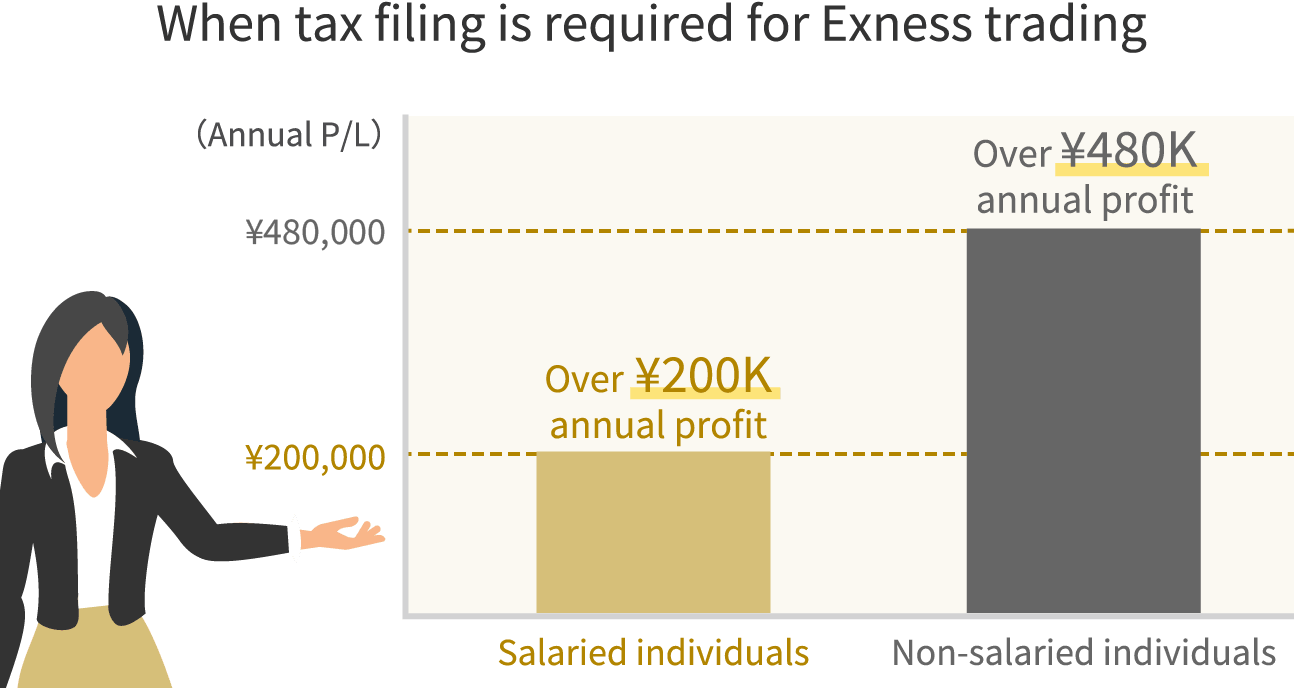
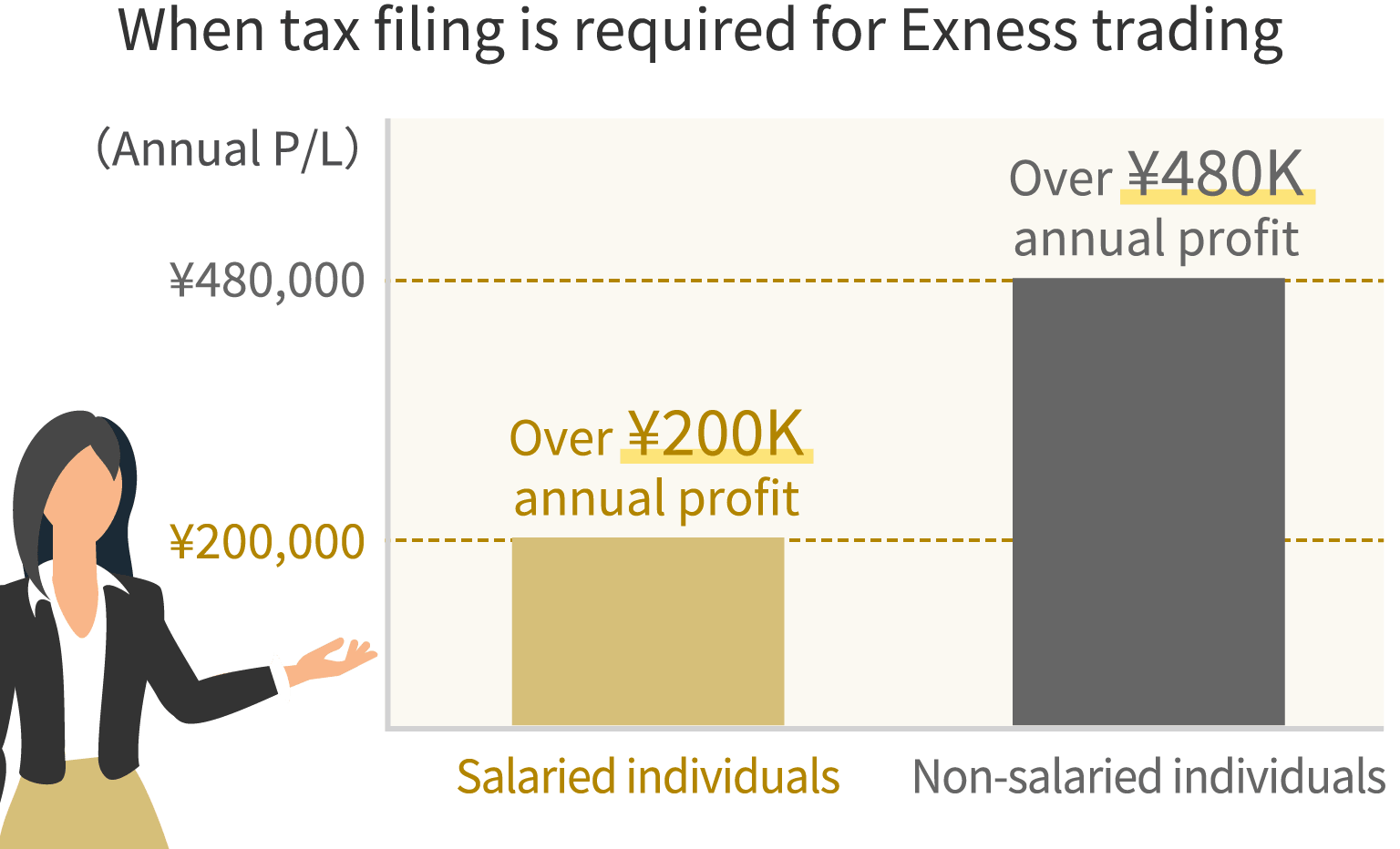
However, if you trade with overseas FX brokers other than Exness, you must combine your gains and losses to determine whether you need to file a tax return. Please also note that if you have any other income classified as miscellaneous income subject to comprehensive taxation, you must combine it with your annual gains and losses from Exness to determine whether you need to file a tax return.
Tax Rate on Annual Profits from Exness
The tax rates applied to annual profits from FX trading differ between overseas FX brokers—such as Exness—and domestic FX brokers. Please also note that the rules regarding offsetting gains and losses and carrying forward losses also differ between overseas and domestic FX brokers.
Exness profits are subject to progressive taxation
Annual profits earned from trading with Exness are combined with annual gains and losses from other overseas FX trading and income classified as miscellaneous income under the comprehensive taxation system. Various deductions and necessary expenses are then subtracted to calculate the taxable income. The income tax amount is determined by applying the prescribed income tax rate to this taxable income.The tax rate applied to profits from overseas FX brokers, including Exness, is a progressive tax system that increases in proportion to taxable income. As shown below, income tax ranging from 5% to 45% is levied depending on the level of taxable income.
Progressive Taxation on Profits
| Taxable Income | Income Tax Rates (*1) | Deduction Amount | Resident Tax |
| Less than 1,950,000 yen | 5% | 0 yen | 10% |
| 1,950,000 yen or more but less than 3,300,000 yen | 10% | 97,500 yen | 10% |
| 3,300,000 yen or more but less than 6,950,000 yen | 20% | 427,500 yen | 10% |
| 6,950,000 yen or more but less than 9,000,000 yen | 23% | 636,000 yen | 10% |
| 9,000,000 yen or more but less than 18,000,000 yen | 33% | 1,536,000 yen | 10% |
| 18,000,000 yen or more but less than 40,000,000 yen | 40% | 2,796,000 yen | 10% |
| 40,000,000 yen and up | 45% | 4,796,000 yen | 10% |
| Less than 1,950,000 yen | |
| Income Tax Rates (*1) | 5% |
| Deduction Amount | 0 yen |
| Resident Tax | 10% |
| 1,950,000 yen or more but less than 3,300,000 yen | |
| Income Tax Rates (*1) | 10% |
| Deduction Amount | 97,500 yen |
| Resident Tax | 10% |
| 3,300,000 yen or more but less than 6,950,000 yen | |
| Income Tax Rates (*1) | 20% |
| Deduction Amount | 427,500 yen |
| Resident Tax | 10% |
| 6,950,000 yen or more but less than 9,000,000 yen | |
| Income Tax Rates (*1) | 23% |
| Deduction Amount | 636,000 yen |
| Resident Tax | 10% |
| 9,000,000 yen or more but less than 18,000,000 yen | |
| Income Tax Rates (*1) | 33% |
| Deduction Amount | 1,536,000 yen |
| Resident Tax | 10% |
| 18,000,000 yen or more but less than 40,000,000 yen | |
| Income Tax Rates (*1) | 40% |
| Deduction Amount | 2,796,000 yen |
| Resident Tax | 10% |
| 40,000,000 yen and up | |
| Income Tax Rates (*1) | 45% |
| Deduction Amount | 4,796,000 yen |
| Resident Tax | 10% |
(*1) Until December 31, 2037, a 2.1% Special Income Tax for Reconstruction will be added to income tax.
For example, if your “taxable income”—calculated by subtracting various deductions and expenses from your annual profit at Exness—is 2 million yen (assuming you have no other income), your income tax would be as follows.
2,000,000 yen × 10% - 97,500 yen
= 102,500 yen
The tax systems for overseas FX and domestic FX differ.
Profits earned from both overseas and domestic FX trading are classified as “miscellaneous income.” However, please note that there are differences in tax classifications, tax rates, and the ability to offset gains against losses or carry forward losses.
Differences in Tax Treatment Between Overseas and Domestic FX Trading
| Overseas FX (Exness) | Domestic FX | |
| Income Category | Miscellaneous Income | |
| Tax Category | Comprehensive Taxation | Separate Taxation on Income Reported on a Tax Return |
| Tax Rate | Progressive Taxation | A flat rate of 20.315% (*1) |
| Offsetting Gains and Losses | Losses and gains can be offset against “miscellaneous income subject to comprehensive taxation” | Losses and gains can be offset against each other within the category of “miscellaneous income from futures trading.” |
| Loss Carryforward | Not allowed | Losses can be carried forward for up to three years |
| Income Category | |
| Overseas FX (Exness) |
Miscellaneous Income |
| Domestic FX | Miscellaneous Income |
| Tax Category | |
| Overseas FX (Exness) |
Comprehensive Taxation |
| Domestic FX | Separate Taxation on Income Reported on Tax Returns |
| Tax Rate | |
| Overseas FX (Exness) |
Progressive Taxation |
| Domestic FX | A flat rate of 20.315% (*1) |
| Offsetting Gains and Losses | |
| Overseas FX (Exness) |
Losses and gains can be offset against “miscellaneous income subject to comprehensive taxation” |
| Domestic FX | Losses and gains can be offset against each other within the category of “miscellaneous income from futures trading.” |
| Loss Carryforward | |
| Overseas FX (Exness) |
Not allowed |
| Domestic FX | Losses can be carried forward for up to three years |
(*1) Until December 31, 2037, a 0.315% reconstruction tax will be added, resulting in a flat rate of 20.315%.
Please note that, as mentioned above, profits and losses from overseas FX brokers—such as Exness—cannot be combined with those from domestic FX brokers.
How to File a Tax Return and Required Documents
We support both online and offline filing of tax returns. In recent years, with the widespread adoption of the internet and My Number cards, you can complete the entire process—including paying your income tax—using just a smartphone. While you’ll need to prepare the necessary documents to determine your income and deductions when preparing your tax return, the online process is very smooth since you generally don’t need to visit the tax office or submit documents by mail.
How to File a Tax Return
The income tax filing process consists of preparing your tax return, submitting it to the tax office, and paying your income tax. You can complete all or part of these procedures using a computer or smartphone, or by mail or in person at a tax office. Please file your return using the method that suits you best.The most convenient method is “e-Tax (National Tax Electronic Filing and Payment System).” Simply follow the on-screen instructions to enter your information, and the system will automatically calculate your tax liability and complete the income tax payment for you. Other options include using accounting software or hiring a tax accountant.
Documents Required for Filing a Tax Return
When filing your tax return, you must accurately report your annual income and deductions to determine and pay the correct amount of tax. If you make a mistake in the amounts and end up overpaying or underpaying your taxes, you will have to file an amended return, which requires additional time and effort. Please also note that if you realize after the filing deadline that you underreported your income, you may be subject to a penalty for underreporting. The documents required for filing your tax return are primarily as follows.
Documents Required for Filing a Tax Return
| Tax Return (Offline) | You can obtain these forms for free at your local tax office, city hall, bank, or other similar locations. You can also download them from the National Tax Agency’s website or use e-Tax to prepare your tax return. |
| Certificate of Deduction | There may be cases where we cannot confirm certain deductions based solely on the information in your resident registration record. If you are eligible for deductions such as National Health Insurance premiums, private insurance premiums, or medical expense deductions, please have the relevant documents ready. |
| Receipts for Expenses | Please have ready any receipts for necessary expenses, such as books related to FX trading, seminar registration fees, and the purchase costs and monthly service fees for devices required for trading. |
| Withholding Tax Statement (for Salaried Employees) | Your withholding tax statement, reflecting the year-end tax adjustment, will be distributed by your employer by around the end of January. |
| Annual Transaction Report | You can easily download your annual trading report from Exness via MT4/MT5. If you trade across multiple accounts—including accounts with other brokers—you must obtain reports for all of them. |
| My Number Card and Proof of Identity | If you file your tax return using e-Tax, you must scan your My Number Card. If you file by mail or in person at a tax office, you will need your My Number Card or other identification documents. |
| Tax Return (Offline) |
You can obtain these forms for free at your local tax office, city hall, bank, or other similar locations. You can also download them from the National Tax Agency’s website or use e-Tax to prepare your tax return. |
| Certificate of Deduction |
There may be cases where we cannot confirm certain deductions based solely on the information in your resident registration record. If you are eligible for deductions such as National Health Insurance premiums, private insurance premiums, or medical expense deductions, please have the relevant documents ready. |
| Receipts for Expenses |
Please have ready any receipts for necessary expenses, such as books related to FX trading, seminar registration fees, and the purchase costs and monthly fees for devices required for trading. |
| Withholding Tax Statement (for Salaried Employees) |
Your withholding tax statement, reflecting the year-end tax adjustment, will be distributed by your employer by around the end of January. |
| Annual Transaction Report |
You can easily download your annual trading report from Exness via MT4/MT5. If you trade across multiple accounts—including accounts with other brokers—you must obtain reports for all of them. |
| My Number Card and Proof of Identity |
If you file your tax return using e-Tax, you must scan your My Number Card. If you file by mail or in person at a tax office, you will need your My Number Card or other identification documents. |
About Necessary Expenses for FX Trading
When filing your tax return to report profits earned from trading with Exness, the following are the main items that can be claimed as deductible expenses for FX trading:
Trading Expenses That Can Be Claimed on Your Tax Return
However, please note that internet connection fees, the purchase prices of various devices, and monthly service fees—which may be used for purposes other than FX trading—may not be recognized as business expenses in some cases. Additionally, the purchase prices of various devices expected to be used over the long term are subject to depreciation. Please depreciate these costs based on their purchase price as described below and record them as business expenses.
Depreciation Methods for Equipment Used in FX Trading
| Cost of Purchasing Equipment | Depreciation |
| Less than 100,000 yen | Deduct the full amount as an expense in the applicable year as a consumable item |
| 100,000 yen or more but less than 200,000 yen | The purchase price is expensed over a useful life of 3 years. |
| 200,000 yen or more | The purchase price is expensed over a useful life of 4 years. |
| Cost of Purchasing Equipment |
Depreciation |
| Less than 100,000 yen | Deduct the full amount as an expense in the applicable year as a consumable item |
| 100,000 yen or more but less than 200,000 yen |
The purchase price is expensed over a useful life of 3 years. |
| 200,000 yen or more | The purchase price is expensed over a useful life of 4 years. |
How to Obtain and Read the Exness Annual Trading Report
You can easily obtain your Exness Annual Trading Report from Exness’s trading platforms, MT4 (MetaTrader 4) and MT5 (MetaTrader 5). However, while you can view your trading history and annual profit and loss on the MT4/MT5 mobile apps, you cannot download the report.Please use the desktop versions of MT4/MT5 to download or print your Annual Trading Report.
How to Obtain Your Exness Annual Trading Report
Here's how to obtain your annual trading report from Exness's MT4/MT5:
To view your annual trading report on Exness’s MT4/MT5, log in using the ID and password for the trading account you wish to check, then click the “Account History” tab in the “Toolbox” at the bottom of the screen.
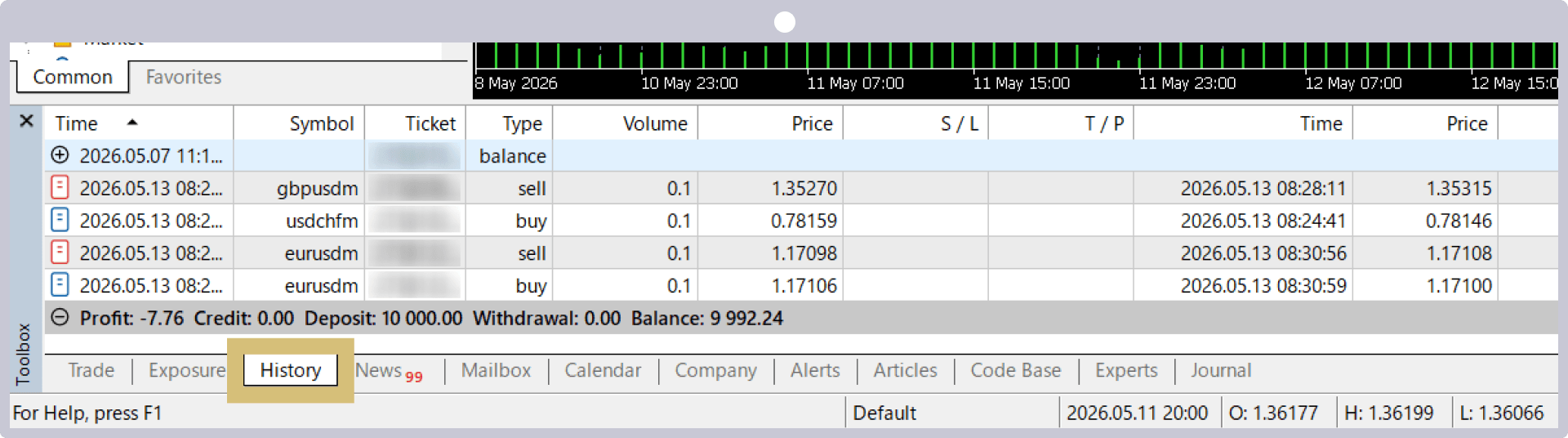
(*)MetaTrader, MetaTrader 4, MetaTrader 5, MT4, and MT5 are trademarks or registered trademarks of MetaQuotes Ltd.
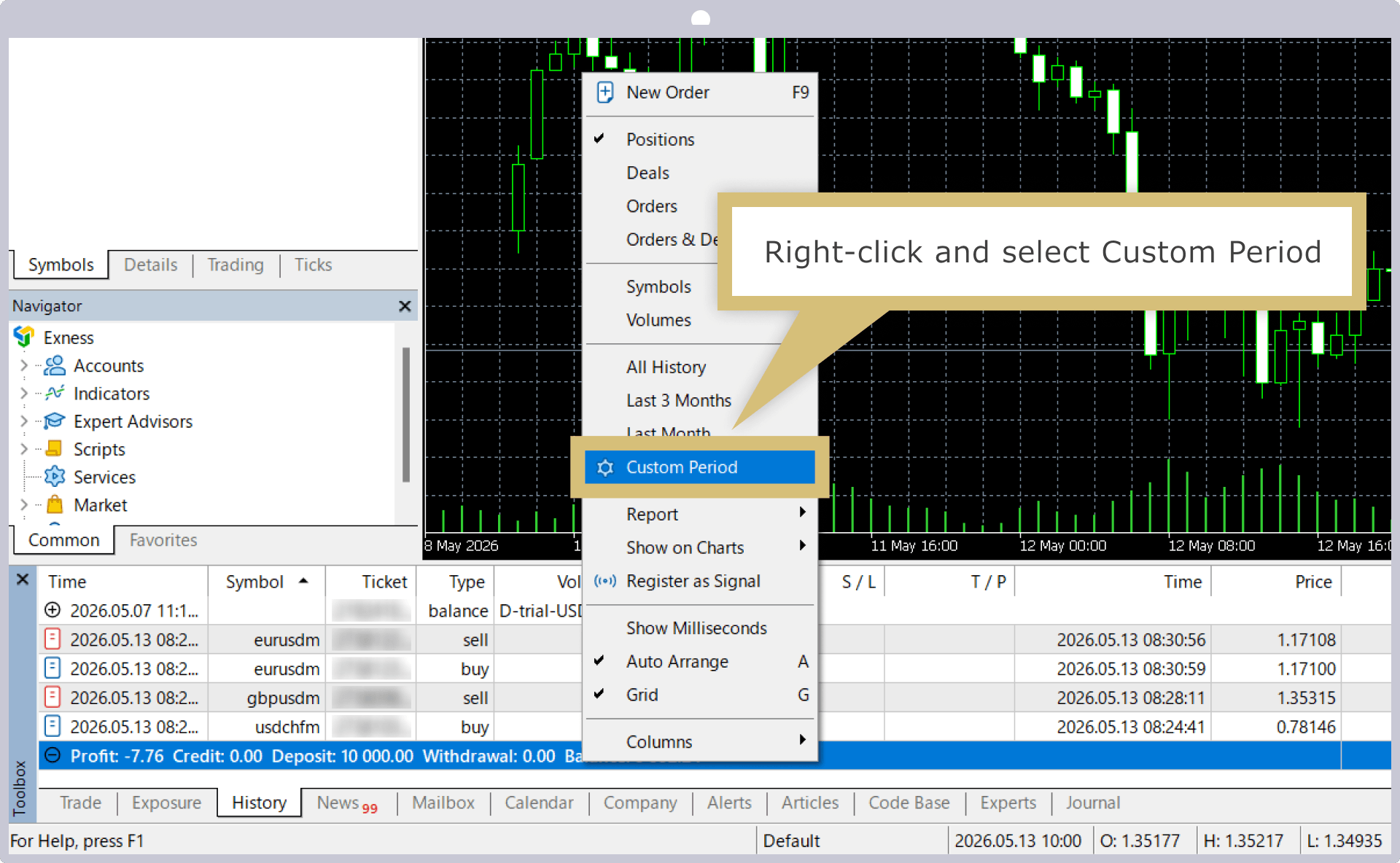
Right-click within the Account History window and select "Specify Period."
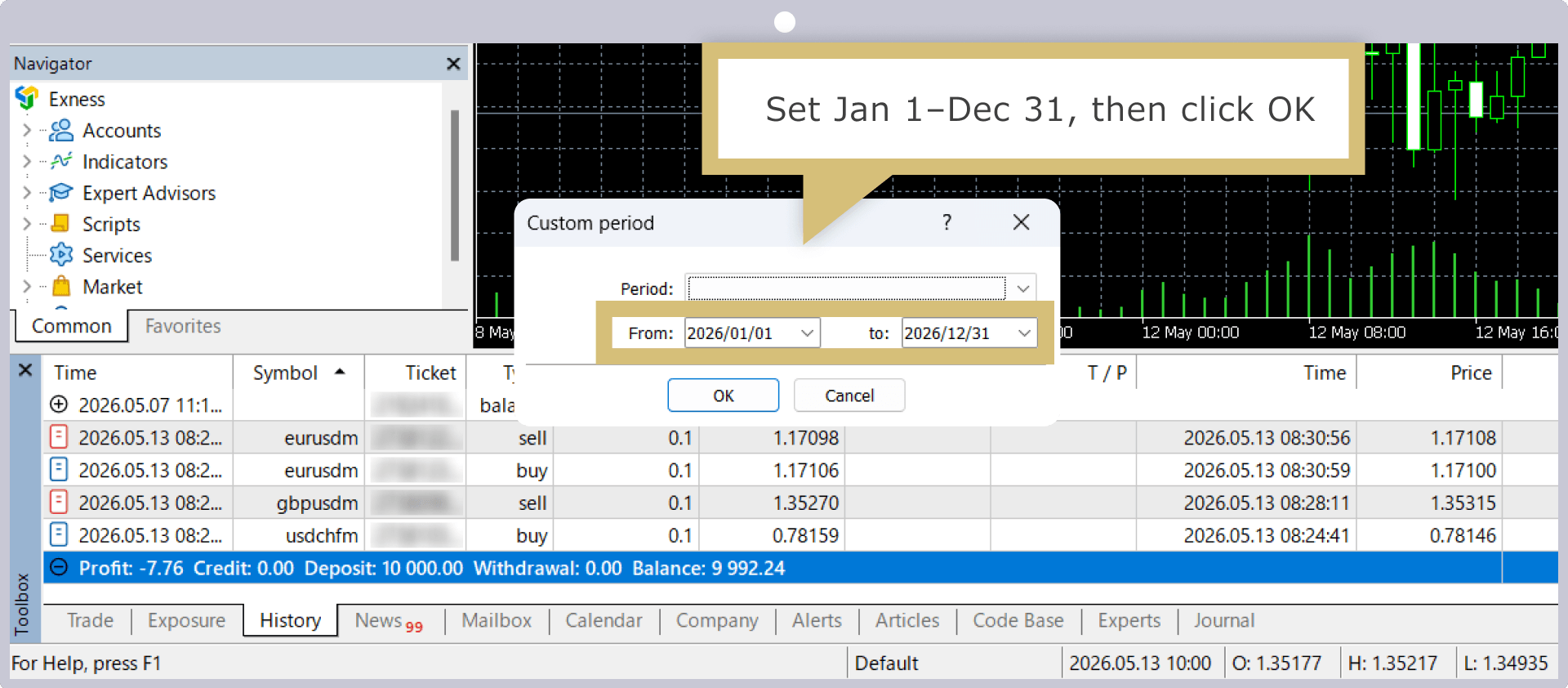
On the "Specify Period" screen, enter "January 1" as the start date and "December 31" as the end date, then click "OK."
The "Account History" window displays the transaction history for the specified period from January 1 to December 31. Right-click within the window, select "Report," specify "Open XML" or "HTML" as the file format, and save it to a location of your choice.
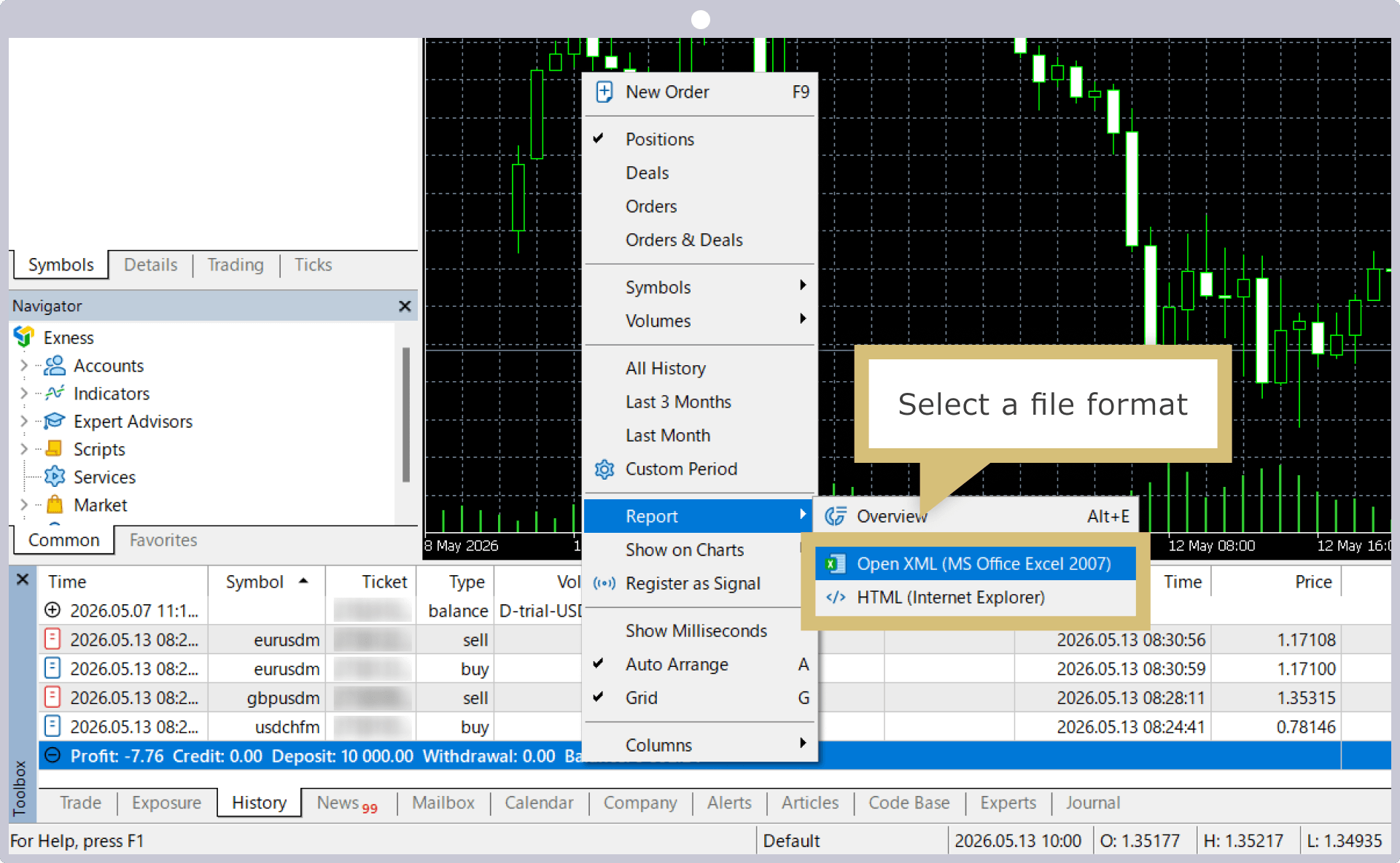
If you select "Open XML" as the file format, you can view the annual transaction report as an Excel file; if you select "HTML," you can view it in your browser.
How to Read the Exness Annual Trading Report
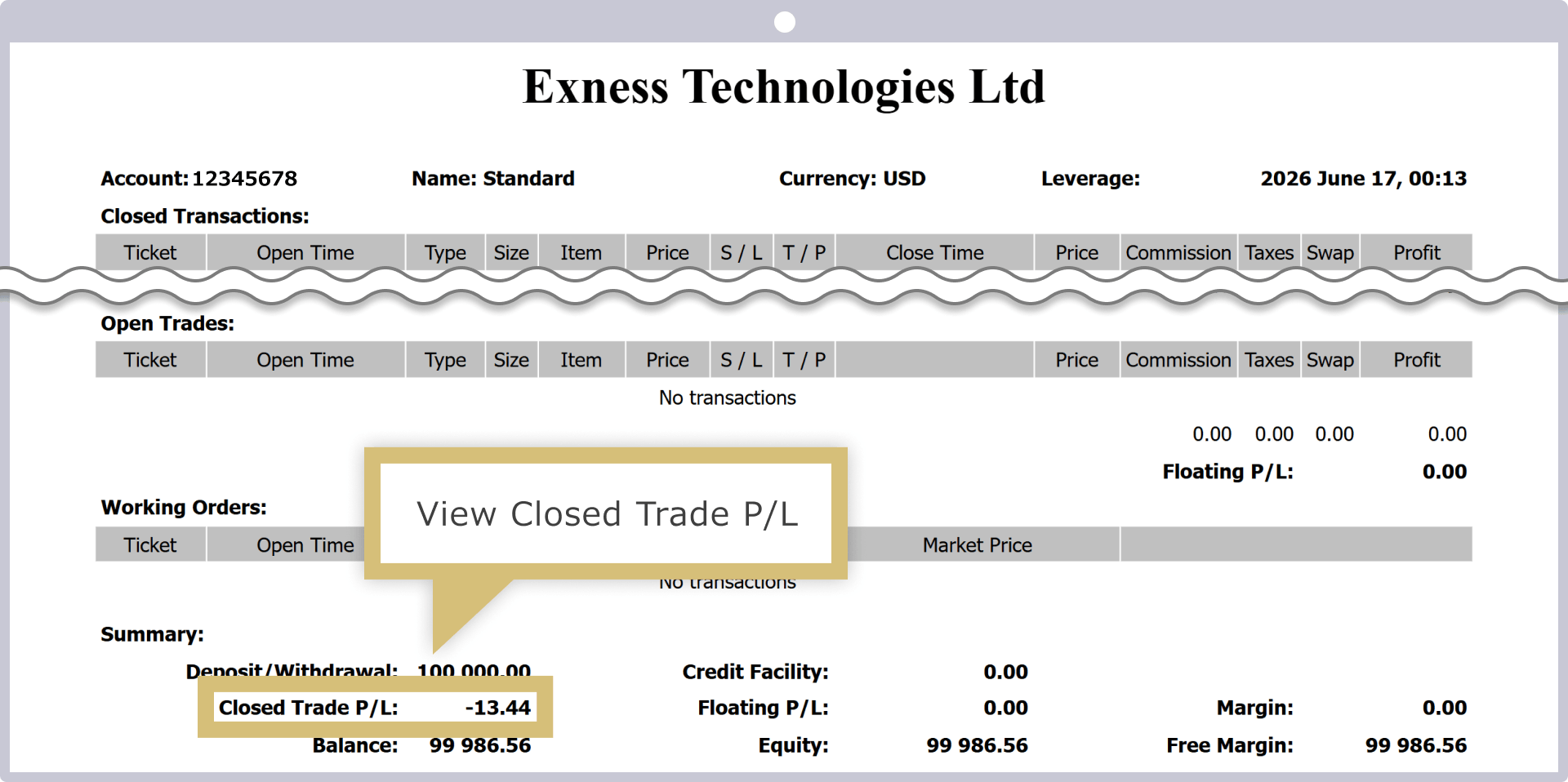
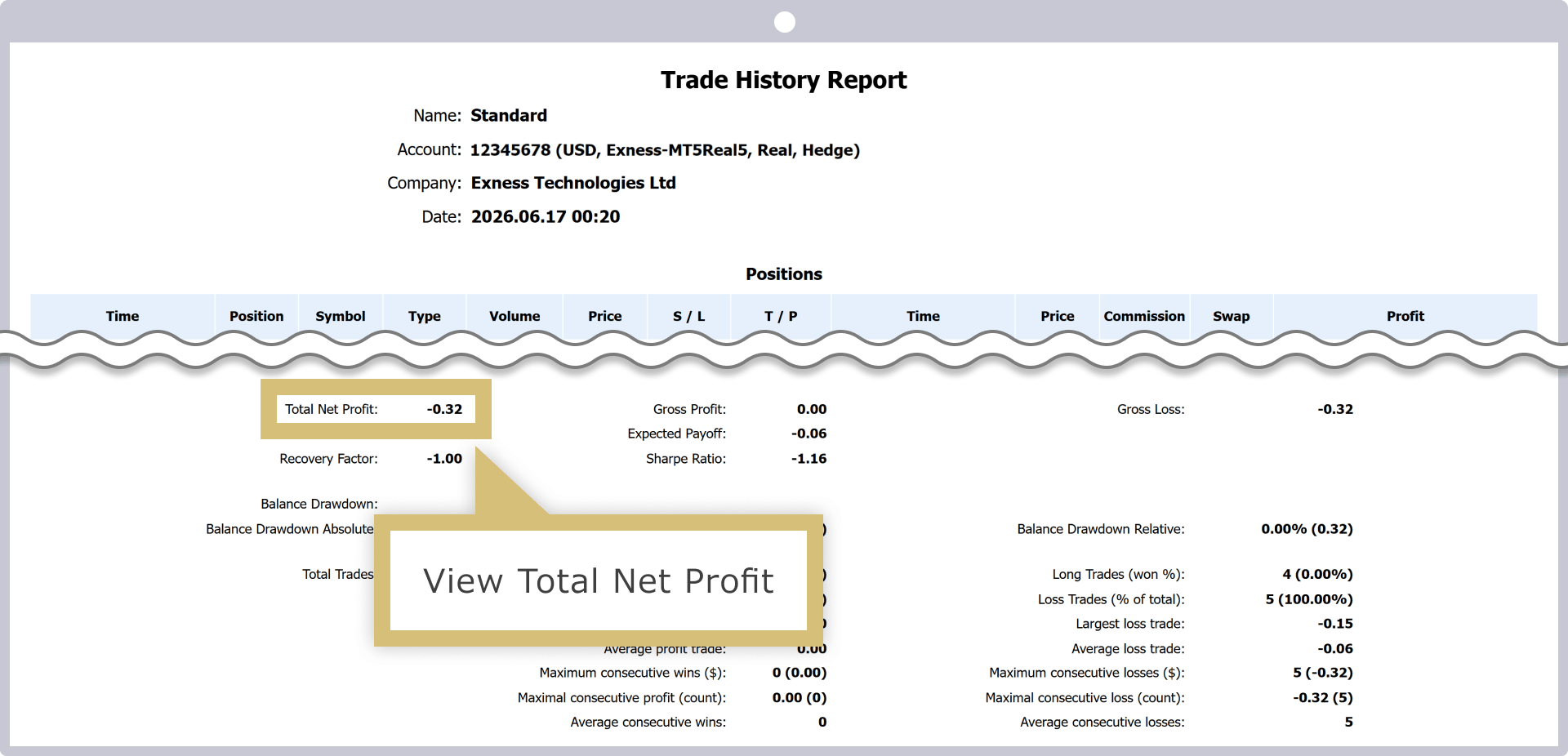
The Annual Trading Report allows you to review your trading performance from various perspectives, including the transaction history, profits and losses, and win-loss ratio for the relevant trading account over the past year. While the report contains a variety of information, the items you should focus on when preparing your tax return are “Closed Trade P/L” for MT4 and “Total P/L” for MT5.Please note that if you trade across multiple accounts, including those with other brokers, you should obtain the Annual Trading Reports for all of your trading accounts.
Exness MT4 Annual Trading Report
Exness MT5 Annual Trading Report

You can easily view your Exness trading history from the Exness Personal Area. Please log in to the Exness Personal Area, go to the "Order History" page, specify the desired time period, and review your trading history.
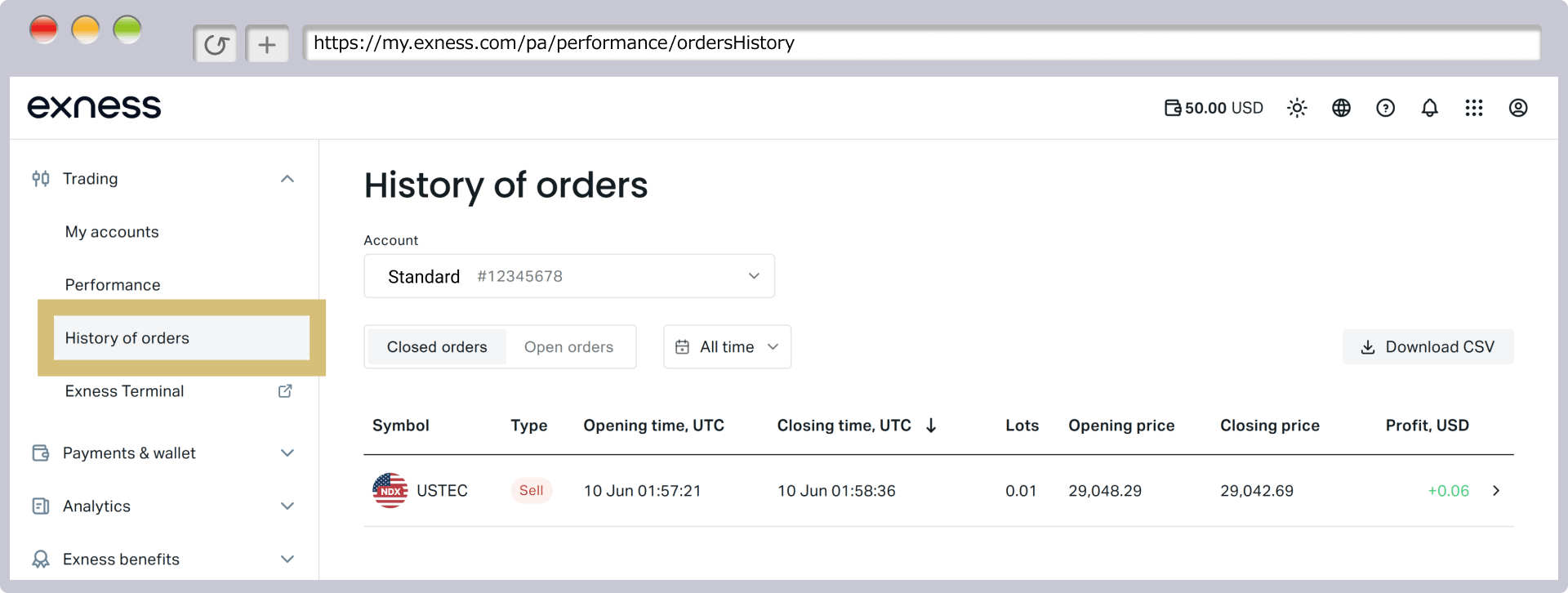
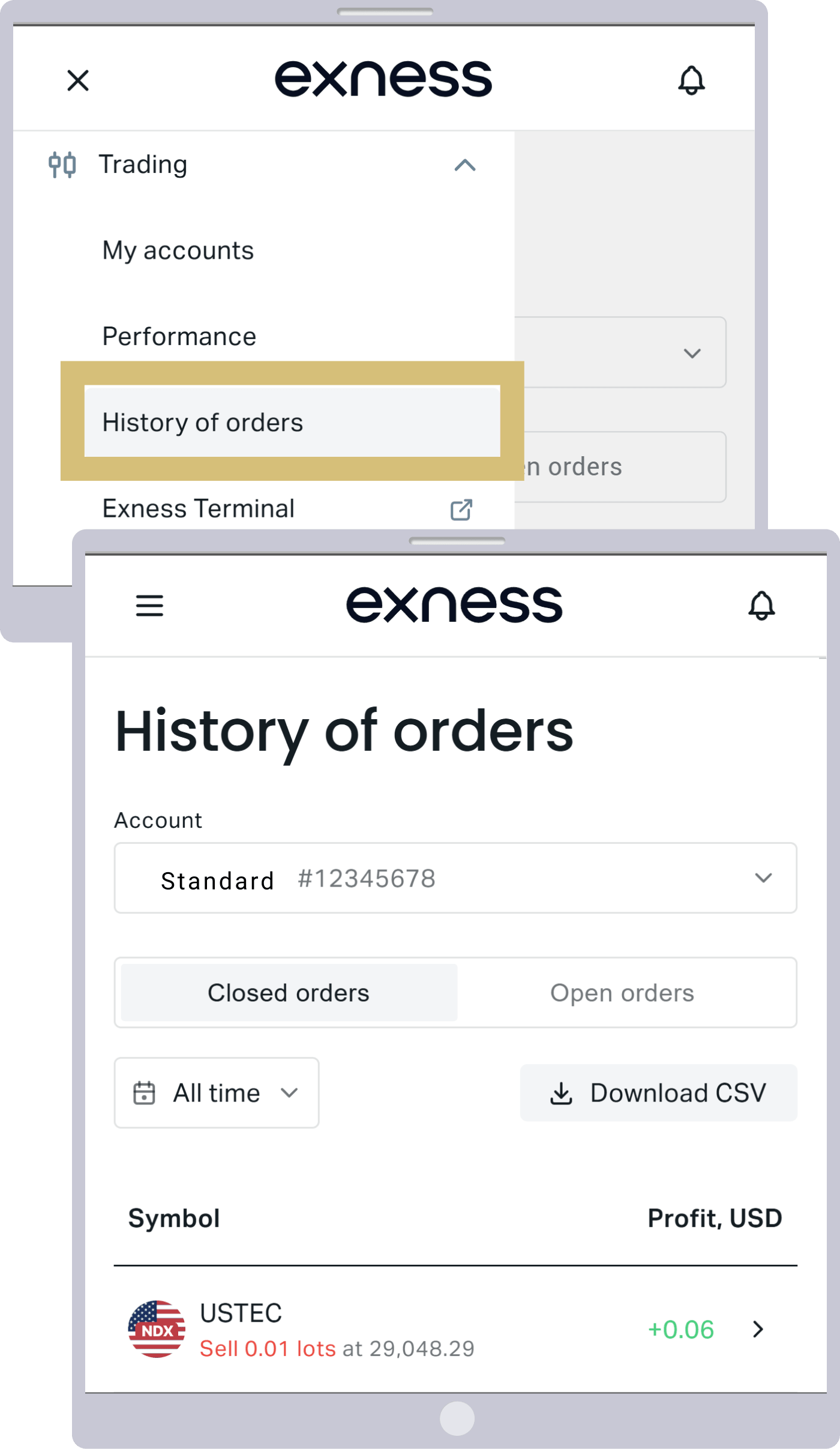
If you perform this operation on a PC, you can save your trading history in CSV format. In addition, although you cannot save the data, you can view your trading history on Exness via the Exness Terminal, the MT4/MT5 mobile apps, and the Exness mobile app.
Exness: Steps and Methods for Filing Tax Returns
Here’s how to prepare, file, and pay taxes using Exness:
How to File Your Tax Return
There are two ways to file your tax return: on paper or online using e-Tax (the National Tax Agency’s electronic filing and payment system).
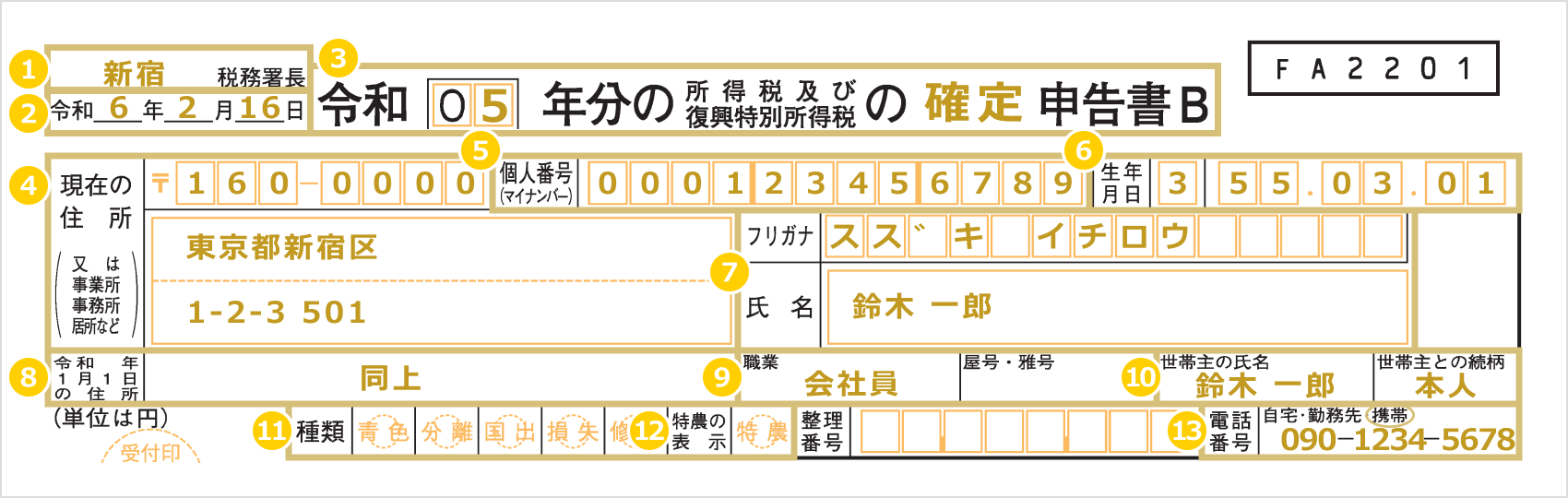
At the top of Form 1 of the income tax return, enter your personal information, such as your address, name, date of birth, and My Number (Individual Number). Also enter the name of the tax office with jurisdiction over you, the date the return is filed, and the tax year.
|
Tax Office Name |
Example: Shinjuku |
|
Date of Filing of the Tax Return |
Example: February 16, Reiwa 8 |
|
Title |
Example) 07 Confirmed |
|
Current Address |
Example: 1-2-3, Shinjuku-ku, Tokyo 160-0000, Room 501 |
|
My Number (Individual Number) |
Example: 000123456789 |
|
Date of Birth |
Example) 3 55.3.1 |
|
Name / Furigana |
Example: Ichiro Suzuki / Suzuki Ichiro |
|
Address as of January 1 of the tax year |
Example) Ibid. |
|
Occupation / Business Name / Pen Name |
Example: Office worker |
|
Name of the Head of Household and Relationship |
Example: Ichiro Suzuki (the person himself) |
|
Types |
No entry |
|
Specialized Agriculture |
No entry |
|
Phone Number |
090-1234-5678 |
|
Tax Office Name |
|
Example: Shinjuku |
|
Date of Filing of the Tax Return |
|
Example: February 16, Reiwa 8 |
|
Title |
|
Example) 07 Confirmed |
|
Current Address |
|
Example: 1-2-3, Shinjuku-ku, Tokyo 160-0000, Room 501 |
|
My Number (Individual Number) |
|
Example: 000123456789 |
|
Date of Birth |
|
Example) 3 55.3.1 |
|
Name / Furigana |
|
Example: Ichiro Suzuki / Suzuki Ichiro |
|
Address as of January 1 of the tax year |
|
Example) Ibid. |
|
Occupation / Business Name / Pen Name |
|
Example: Office worker |
|
Name and Relationship of the Head of Household |
|
Example: Ichiro Suzuki (the person himself) |
|
Types |
|
No entry |
|
Specialized Agriculture |
|
No entry |
|
Phone Number |
|
090-1234-5678 |
① For "Competent Tax Office," please enter the name of your local tax office.
② For the “Date of Filing” field, please enter only the date you are filing your tax return.
③ In the subject line, enter the year of the tax filing period and write “Final” immediately after “Income Tax and Special Income Tax for Reconstruction.”
④ For your current address, please enter your full residential address, including the postal code, street number, and apartment number. If you are self-employed or in a similar situation and pay taxes based on the address of your office or place of business, please enter that address.
⑤ Please enter your Individual Number (My Number).
⑥ Please enter your date of birth using the era name. The numerical equivalents for each era name are as follows.
| Meiji | 1 |
| Taishō | 2 |
| Showa | 3 |
| Heisei | 4 |
| Reiwa | 5 |
⑦ For "Name" and "Furigana," please enter your full name in both Kana and Kanji.
⑧ If your address as of January 1 of the tax year is the same as the address listed in ④, enter “Same as above”; if it is different from the address listed in ④, please enter your address.
⑨ Occupation: If you have a business name or pen name, please enter it here. If you are a sole proprietor, enter your occupation (e.g., “XX Retail Business,” “XX Sales Business”) in the “Occupation” field, and if you have a business name or pen name, please enter it here.
⑩ In the "Head of Household's Name and Relationship" section, please enter the head of household's name and your relationship to the head of household. If you are the head of household yourself, enter "Self."
⑪ For the “Type” field, please mark with a checkmark (○) all categories that apply to you: “Blue Return Filers,” “Those Using Form 3 of the Tax Return,” “Those Subject to the Taxation System for Relocation Abroad,” and “Those Using Form 4 of the Tax Return.” If none apply, leave the field blank.
⑫ For the “Special Farmer” designation, please mark the box with a check only if you qualify as a special farmer.
⑬ For the phone number, please circle one of the options—"Home," "Work," or "Cell"—and enter the number.
On Form 2 of your tax return, please enter the year of the filing period indicated in the title, as well as your “Address,” “Name and Phonetic Spelling,” and “Business Name.”
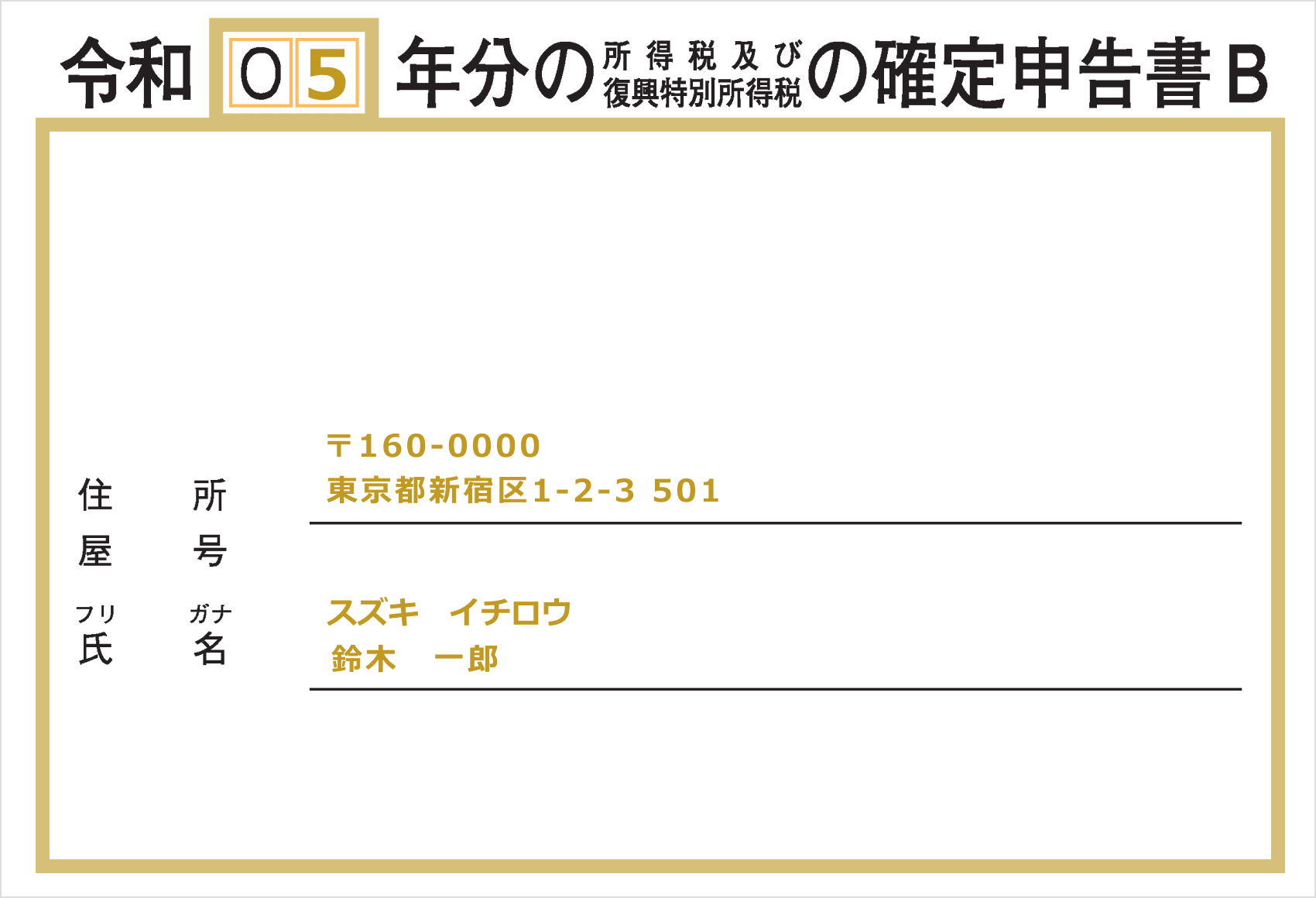
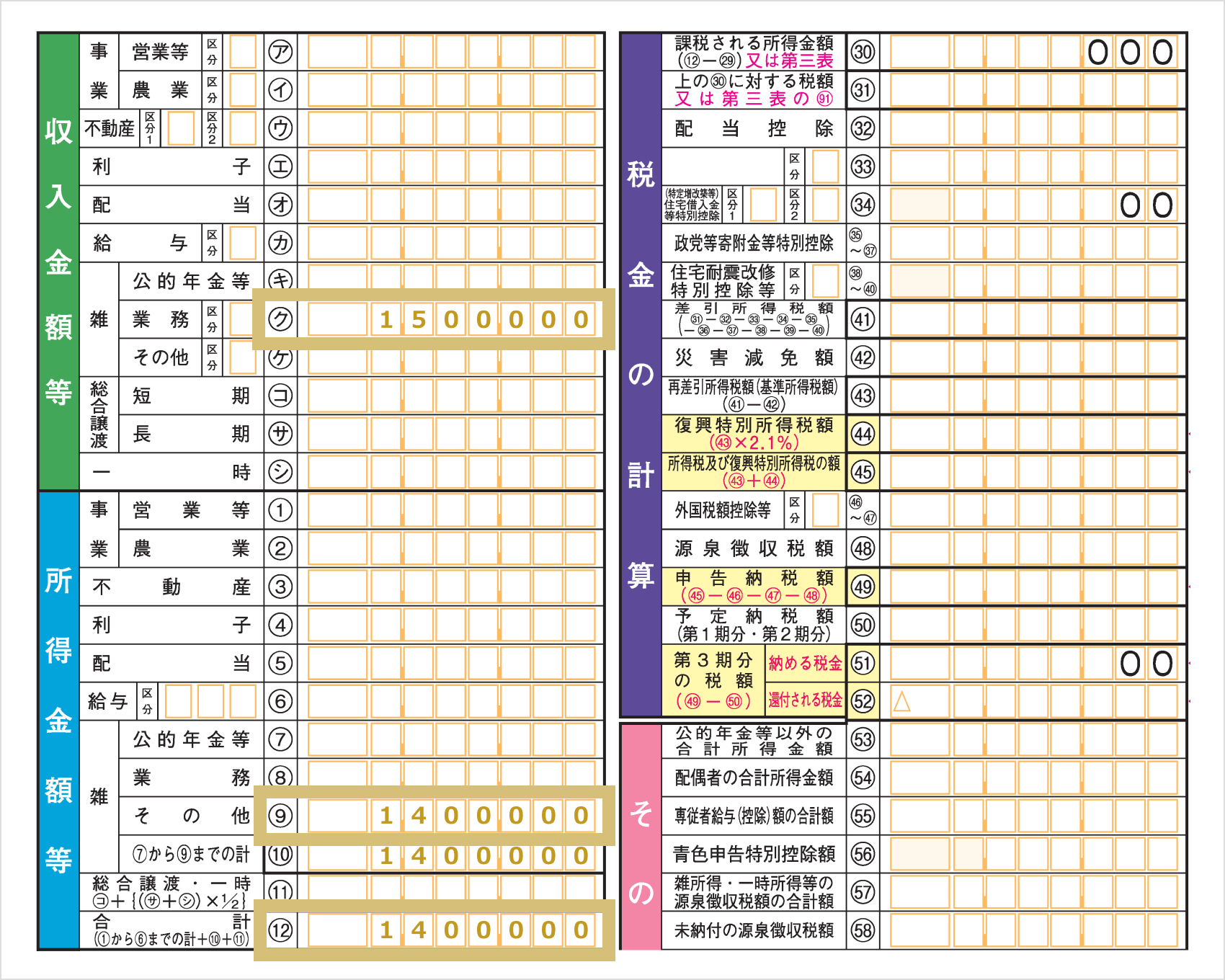
On Form 1 of your tax return, under “Income Amounts, etc.” in section “Ku,” enter the total profit generated from trading with Exness. If you have profits from overseas FX brokers other than Exness, please combine them and enter the total amount.Next, enter the amount obtained by subtracting necessary expenses from the income amount entered in “Ku” in item ⑨ of “Income, etc.” Enter the “Total of items ⑦–⑨” in item ⑩, then calculate the “Total of items ①–⑥ + ⑩ + ⑪” and enter the result in item ⑫.
(Example) If your Exness profit is 1,500,000 yen, your deductible expenses are 100,000 yen, and you have no other income besides Exness
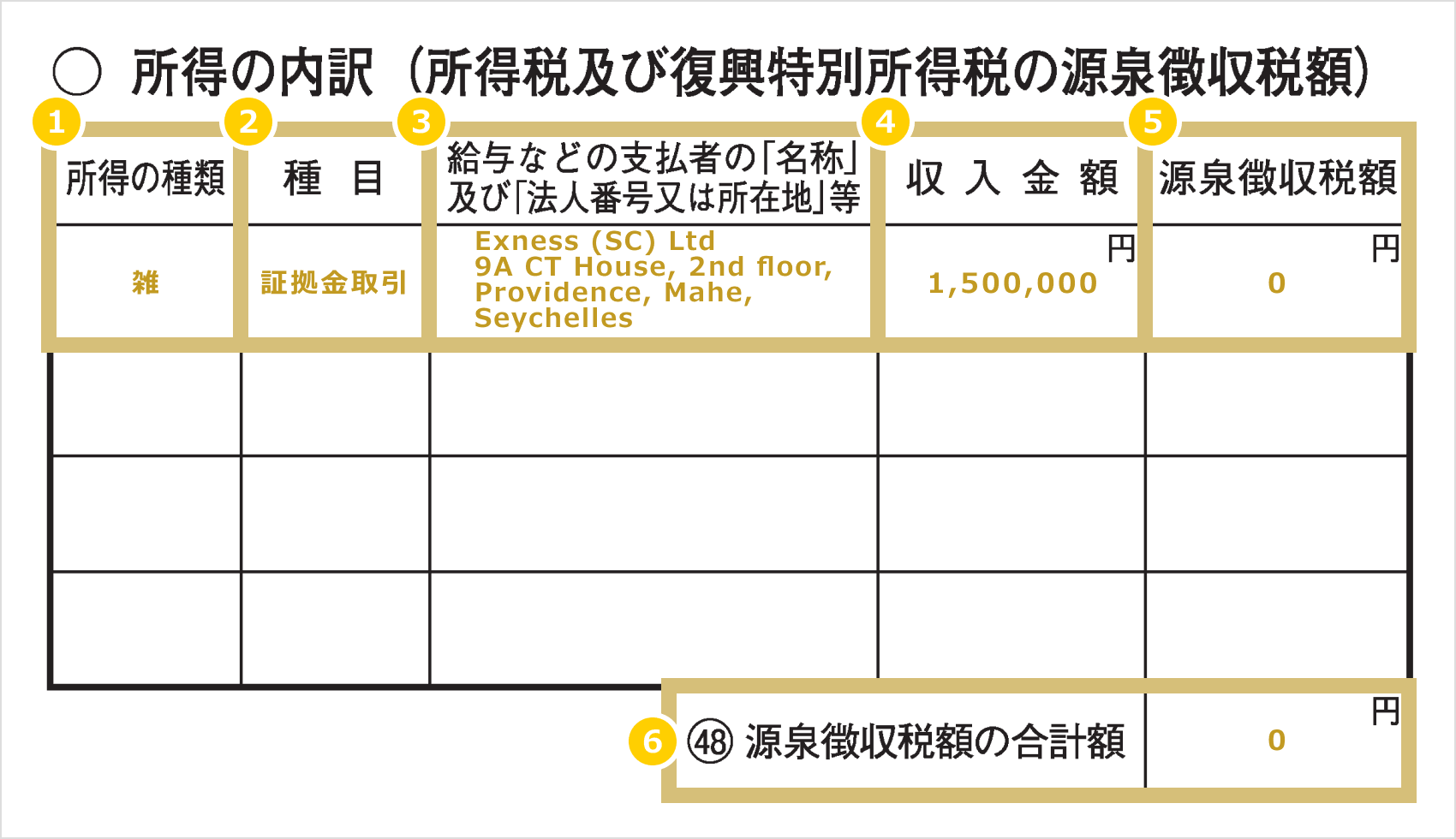
On Form 2 of the income tax return, under “Breakdown of Income (Withholding Tax for Income Tax and Special Reconstruction Income Tax),” enter the breakdown of the “Amount of Income, etc.” and “Amount of Income, etc.” that you filled in during Step 2.
If the income amount you entered in "K" includes profits earned from overseas FX trading or other sources other than Exness, enter all such amounts in the "Breakdown of Income" section.
|
Types of Income |
Example) Miscellaneous |
|
Event |
Example: Margin Trading |
|
The "name" and "corporate number or address," etc., of the payer of wages and other payments |
Example: Exness (SC) Ltd, 9A CT House, 2nd Floor, Providence, Mahe, Seychelles |
|
Amount of Income |
Example: 1,500,000 yen |
|
Withholding Tax Amount |
Example: 0 yen |
|
Total Amount of Withholding Tax |
Example: 0 yen |
|
Types of Income |
|
Example) Miscellaneous |
|
Event |
|
Example: Margin Trading |
|
The "Name" and "Corporate Number or Address," etc., of the payer of wages and other payments |
|
Example: Exness (SC) Ltd, 9A CT House, 2nd Floor, Providence, Mahe, Seychelles |
|
Amount of Income |
|
Example: 1,500,000 yen |
|
Withholding Tax Amount |
|
Example: 0 yen |
|
Total Amount of Withholding Tax |
|
Example: 0 yen |
① For the type of income, enter “Miscellaneous” or “Miscellaneous Income.”
② For the "Type of Transaction" field, enter "margin trading" to clearly indicate that it is an overseas FX transaction.
③ For the “Name” and “Corporate Number or Address” of the payer of wages and other payments, enter the Exness company name “Exness (SC) Ltd” and the address “9A CT House, 2nd floor, Providence, Mahe, Seychelles.”
④ Enter the gross income amount before deducting necessary expenses.
⑤ Enter “0” yen for the withholding tax amount. *This is because overseas FX brokers, including Exness, do not withhold taxes.
Next, enter the applicable deduction amounts in items ⑬ through ㉕, and enter the total amount in item ㉖. If you qualify for items ㉗ through ㉙, enter the applicable deduction amounts, and enter the amount obtained by adding ㉖ to ㉚ in item ㉚.
Example: When the basic deduction of 880,000 yen and the social insurance premium deduction of 200,000 yen apply (since ⑫ is 1,400,000 yen, the total deduction is 880,000 yen)
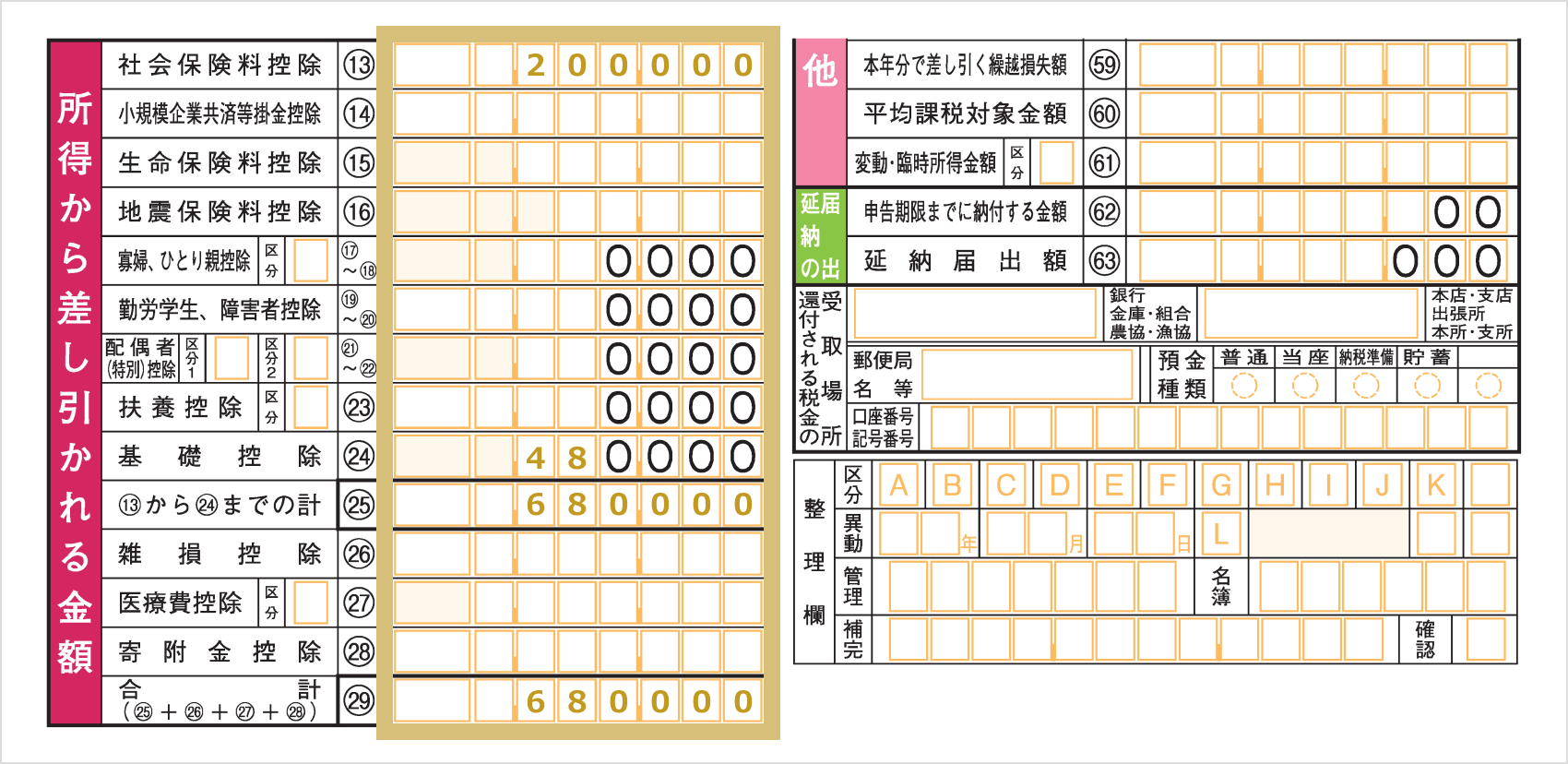
Subtract the amount listed in Item (㉚) of “Amounts Deducted from Income” from the amount listed in Item (⑫) of Form 1 of the Income Tax Return, “Amount of Income, etc.” Round down any amounts less than 1,000 yen and transfer the result to Item (㉛), “Tax Calculation.”
Example: ⑫ 1,400,000 yen – ㉚ 1,080,000 yen = 320,000 (enter in ㉛)
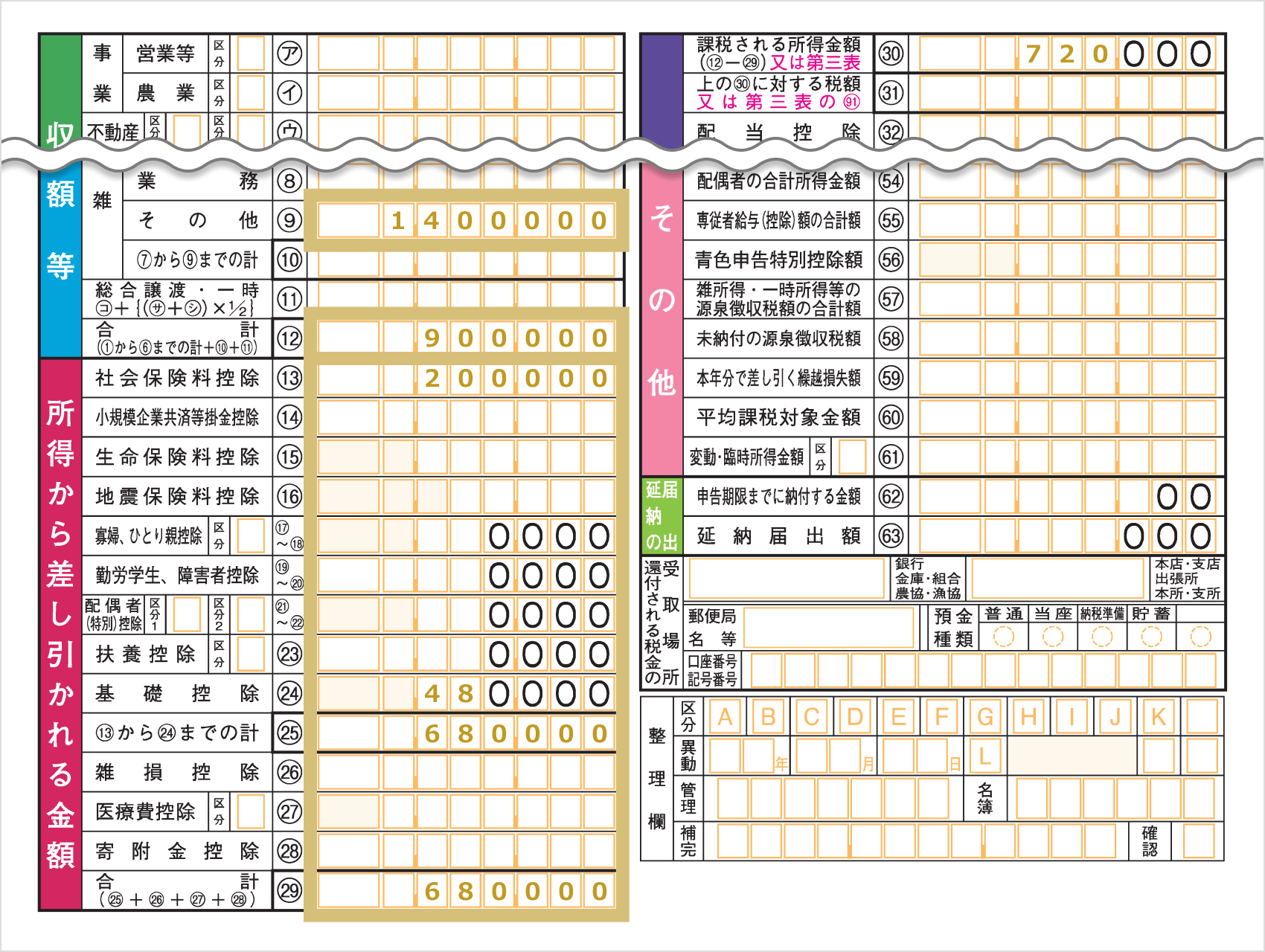
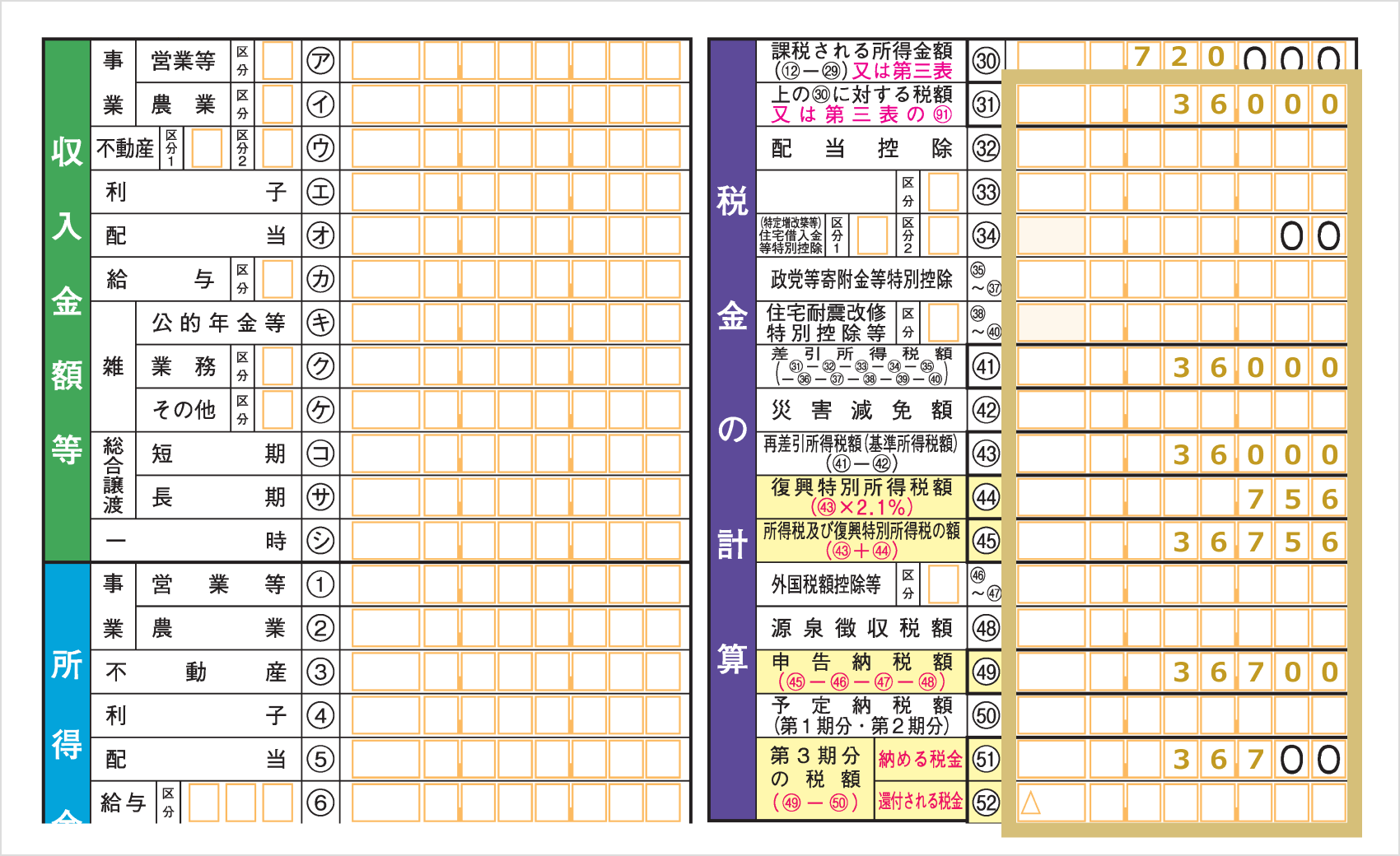
Multiply the taxable income amount in ㉛ by the prescribed tax rate, subtract the deduction amount, and calculate the income tax. Enter the resulting tax amount in ㉜ “Tax Calculation.”
Example: 320,000 yen × 5% = 16,000

Method for Calculating the Tax Amount on Taxable Income
| Taxable Income | Tax Calculation Formula (Tax Rates and Deductions) |
| 0 yen | 0 yen |
| 1,000 yen to 1,949,000 yen |
Taxable income × 5% |
| 1,950,000 yen to 3,299,000 yen |
Taxable income × 10% – 97,500 yen |
| 3,300,000 yen to 6,949,000 yen |
Taxable income × 20% – 427,500 yen |
| 6,950,000 yen to 8,999,000 yen |
Taxable income × 23% – 636,000 yen |
| 9,000,000 yen to 17,999,000 yen |
Taxable income × 33% – 1,536,000 yen |
| 18,000,000 yen to 39,999,000 yen |
Taxable income × 40% – 2,796,000 yen |
| 40,000,000 yen and up |
Taxable income × 45% – 4,796,000 yen |
| Taxable Income | Tax Calculation Formula (Tax Rates and Deductions) |
| 0 yen | 0 yen |
| 1,000 yen to 1,949,000 yen |
Taxable income × 5% |
| 1,950,000 yen to 3,299,000 yen |
Taxable income × 10% – 97,500 yen |
| 3,300,000 yen to 6,949,000 yen |
Taxable income × 20% – 427,500 yen |
| 6,950,000 yen to 8,999,000 yen |
Taxable income × 23% – 636,000 yen |
| 9,000,000 yen to 17,999,000 yen |
Taxable income × 33% – 1,536,000 yen |
| 18,000,000 yen to 39,999,000 yen |
Taxable income × 40% – 2,796,000 yen |
| 40,000,000 yen and up |
Taxable income × 45% – 4,796,000 yen |
Add the 2.1% Special Income Tax for Reconstruction to the tax amount determined in Item ㉜ to calculate the final tax amount, and enter it in Item 52, “Tax Payable.” If you are due a refund, enter the amount in Item 53, “Tax Refund.”
Subtract the amounts listed in items ㉜ through ㊶ in order, and enter the result in item ㊷.Enter the result of ㊷ minus ㊸ in ㊹; enter the amount obtained by multiplying the amount in ㊹ by 2.1% for the Special Income Tax for Reconstruction in ㊺; and enter the total of ㊹ plus ㊺ in ㊻.
Subtract the amounts in items (㊼) through (㊾) from the amount in item (㊻), and enter the result in box 50. If the number in box 50 is a positive amount, round down any amount less than 100 yen. If it is a negative amount, enter the amount as is without rounding.
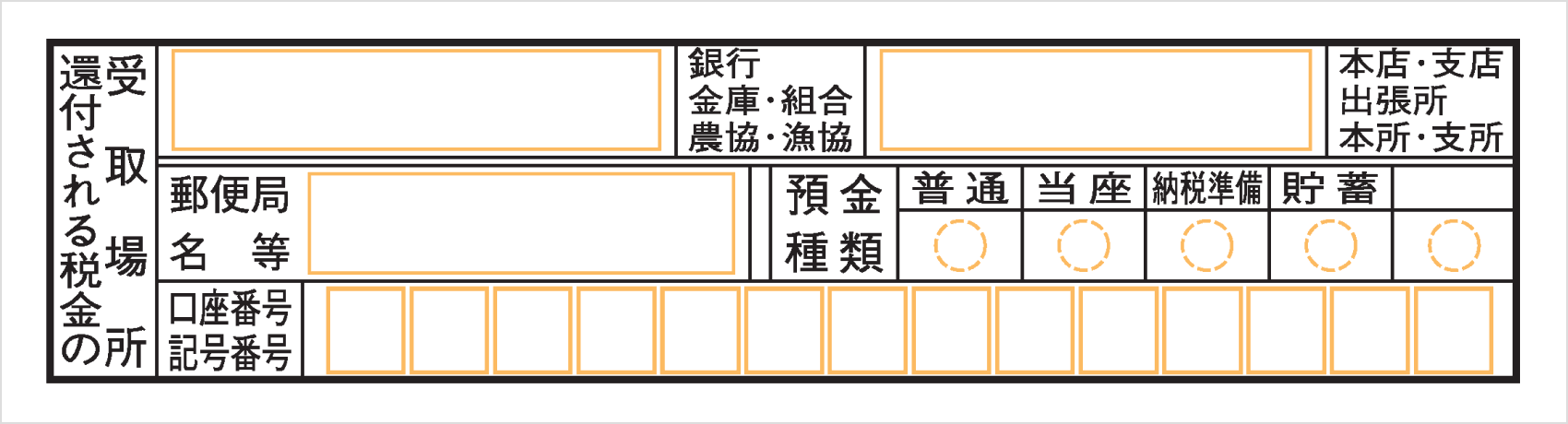
If your calculations show that you are due a tax refund, enter the bank account where you wish to receive the refund in the “Location for Receiving Tax Refund” section at the bottom right of Form 1 of your tax return. After you file your tax return, the refund will be deposited into the designated account in about one to one and a half months.
On Form 2 of your tax return, under “Items Related to Resident Tax and Business Tax,” mark the box corresponding to your preferred method of paying resident tax. If you want your resident tax deducted from your salary, mark “Special Withholding”; if you wish to pay it yourself, mark “Self-Payment.”If you select “Self-Payment,” a payment notice will be sent to your current address; please pay your resident tax yourself by the due date.

When filing your income tax return, you must pay the final income tax amount by the filing deadline. On the other hand, since resident tax rates and other factors vary by municipality, your local municipality will calculate and determine the tax amount, and a “Resident Tax Assessment Notice” will be mailed to you around June.If you selected “Self-Payment” when filing your tax return, this Resident Tax Assessment Notice will be mailed to your home. A payment slip is enclosed, so please pay the tax yourself. If you selected “Special Withholding,” the notice will be mailed to your employer.Arrangements will be made to pay your resident tax in installments via payroll deduction from June through May of the following year, so you will not need to make the payments yourself. Please note that if you do not want your employer to know that you have income other than salary income—including income from FX trading—you should select “Self-Payment” when filing your tax return and pay the tax yourself.
You can file your tax return through the “Tax Return Preparation Corner” on the National Tax Agency website. The most efficient method is to file via “e-Tax” by authenticating your My Number Card using a smartphone or an IC card reader/writer. Alternatively, you can choose to file using “e-Tax with ID and Password” issued by the tax office, or submit a paper return by mail or in person.
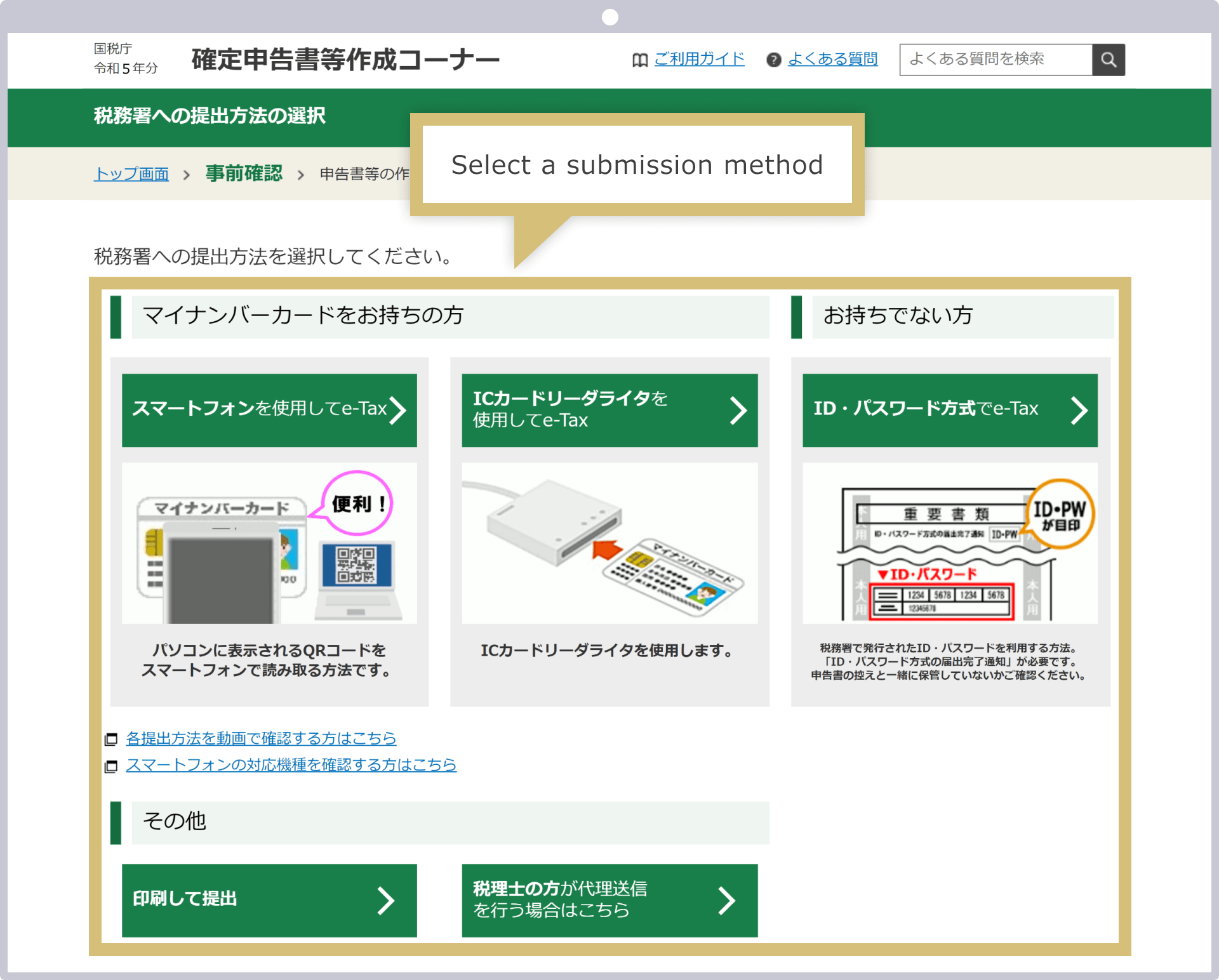
The instructions for the next steps will vary depending on the method you select. Please follow the instructions to proceed to the “Select the Tax Return to File” step.
If you have a My Number Card and either a smartphone capable of reading it or an IC card reader/writer, you can link it to “Myna Portal.” Myna Portal is an online service designed to streamline administrative procedures. Since the social insurance premiums and various deductions recorded by government agencies are automatically reflected in e-Tax, you can file your tax return more smoothly.
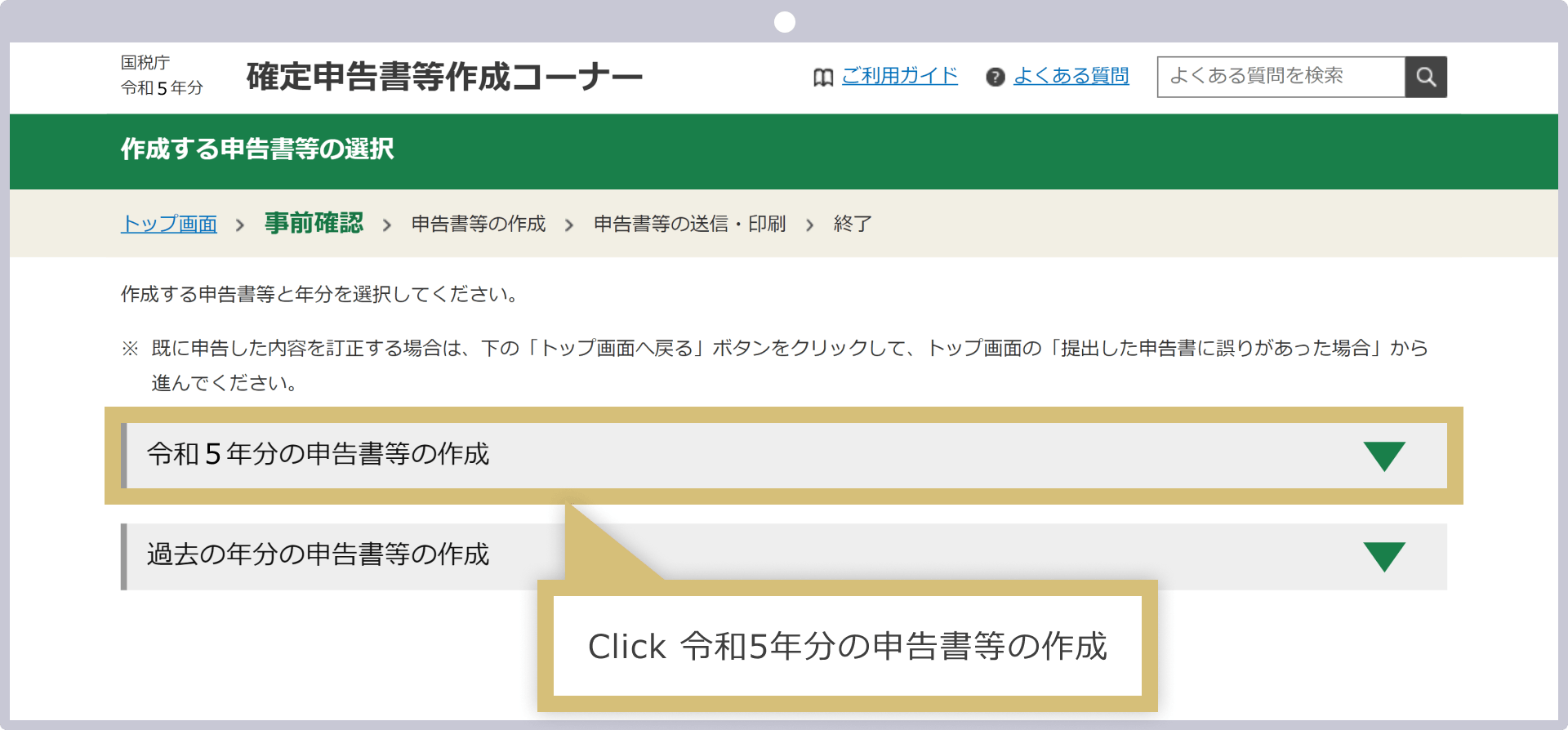
Select and click “Tax Return for the Year You’re Filing.”
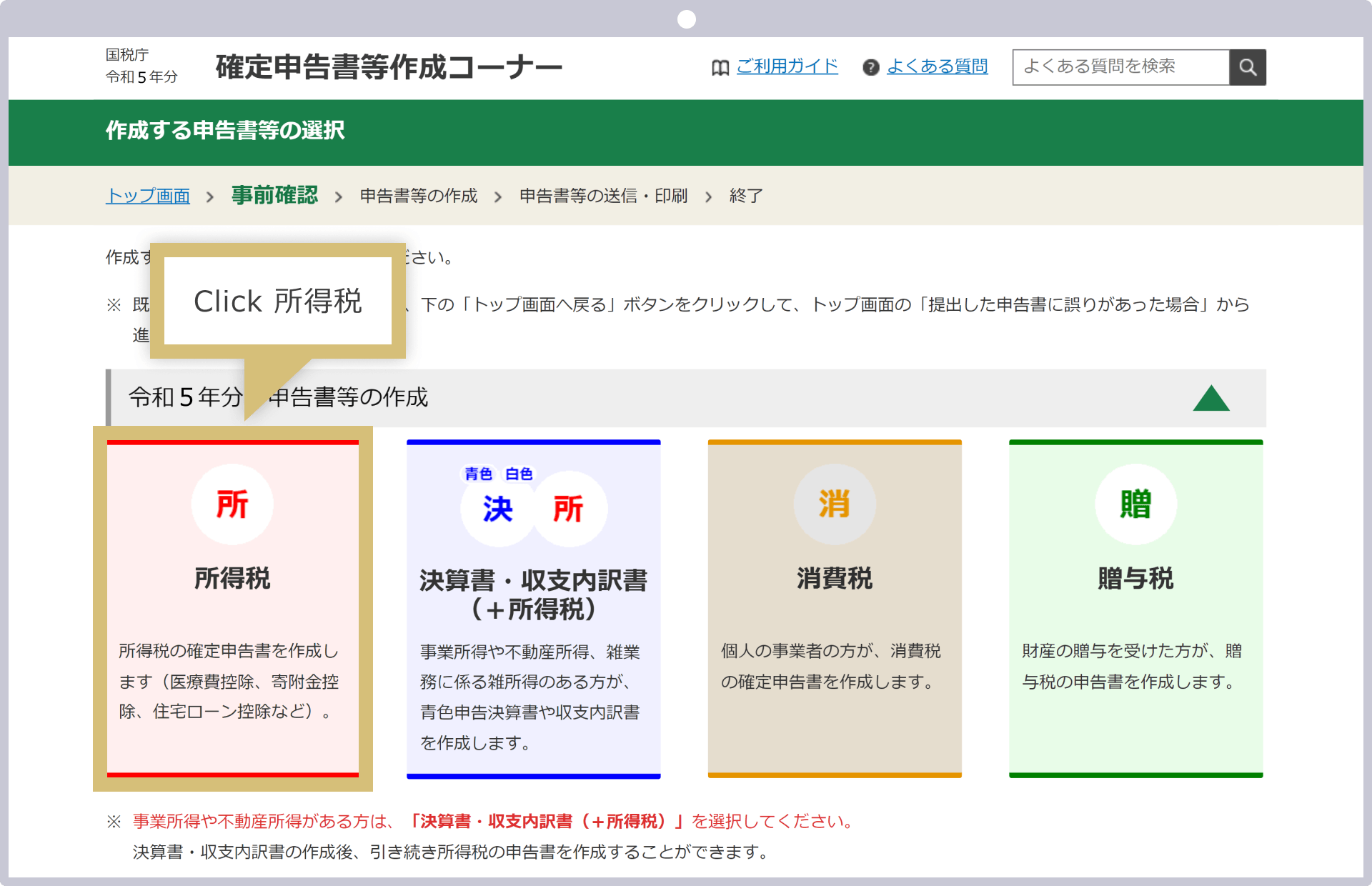
The types of taxes you can file will be displayed; select "Income Tax."
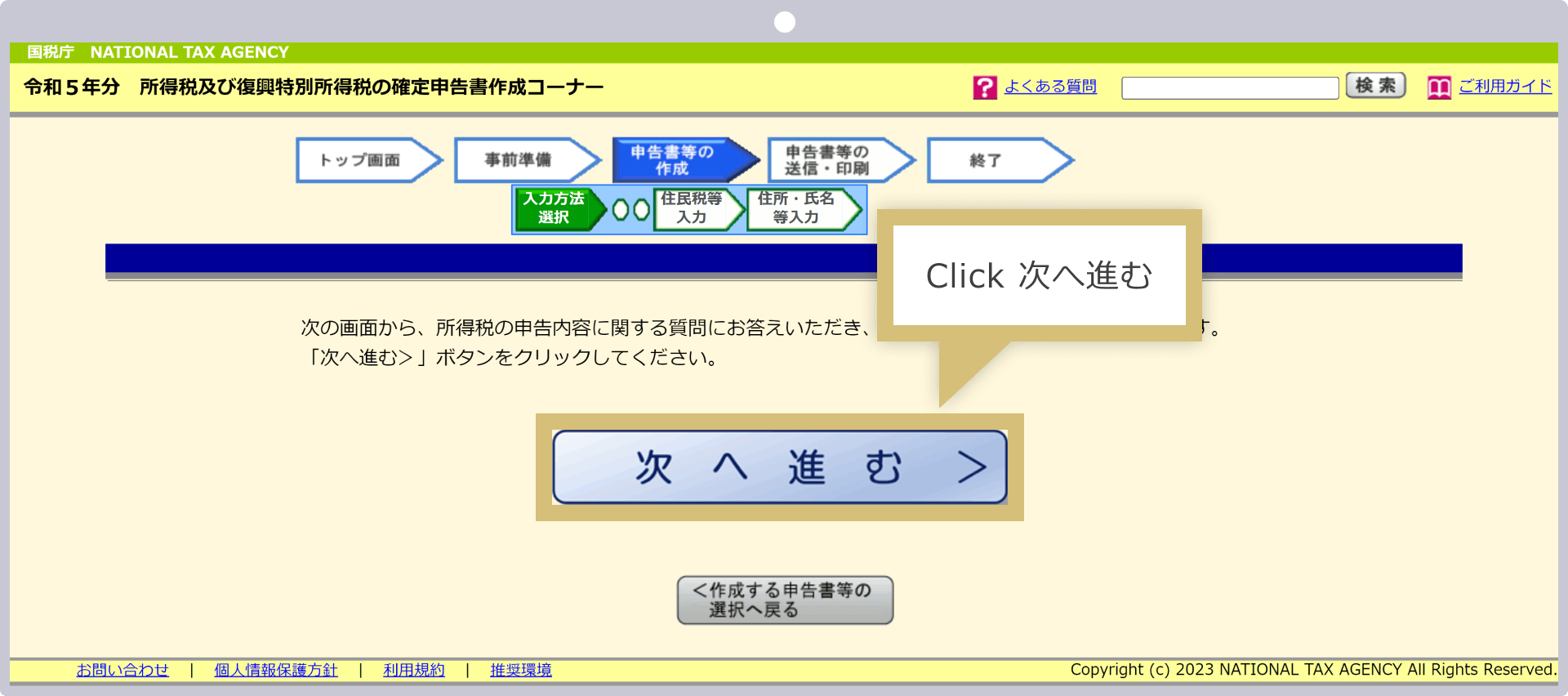
Select whether or not to use the "Myna Portal Integration" feature to prepare for e-Tax.
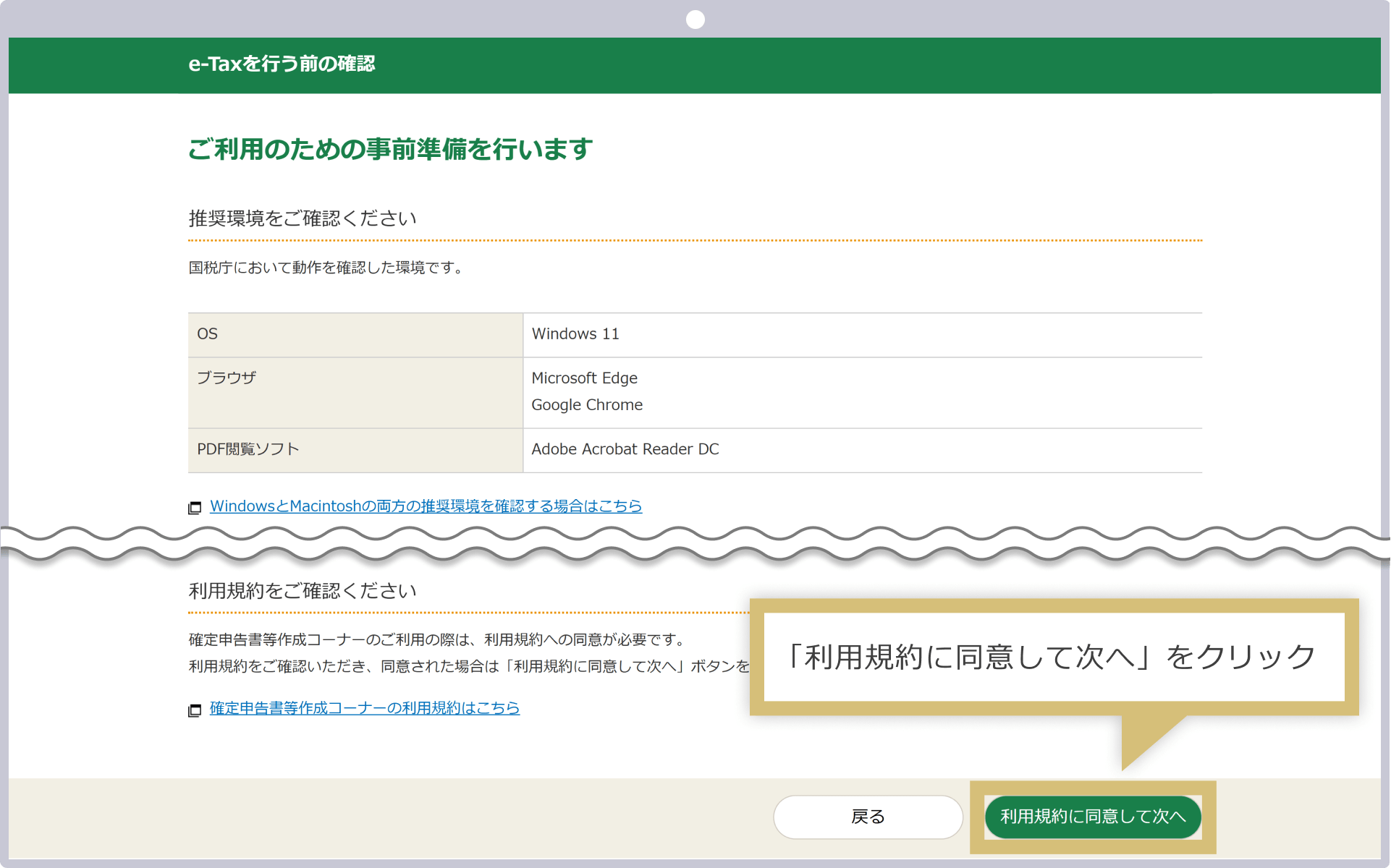
By checking the recommended system requirements for e-Tax and completing the preliminary steps—such as “Installing the Myna Portal App” and “Linking Myna Portal and e-Tax”—you can prepare your tax return smoothly. The specific preparations required will vary depending on the method you choose for filing your tax return. Please follow the instructions to proceed to the “Select Income to Report” step.
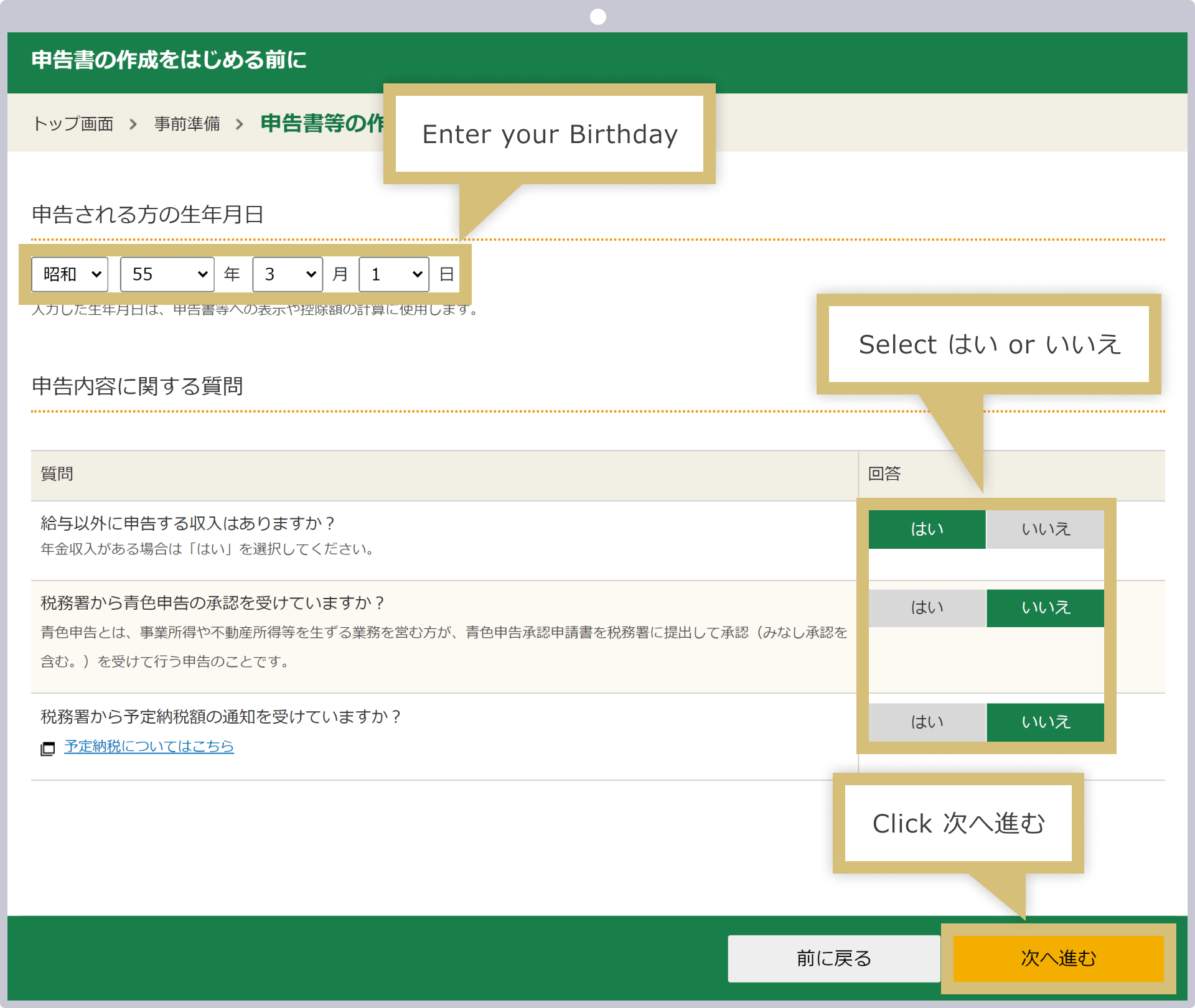
Enter your date of birth in the “Taxpayer’s Date of Birth” field, and select all the types of income you wish to report under “Select Income to Report.”Income from trading with overseas FX brokers, including Exness, falls under “Miscellaneous (Business/Other)” in the “Those with Other Income” section. Once you have selected all applicable income types—such as salary income and income from side jobs—click “Next.”
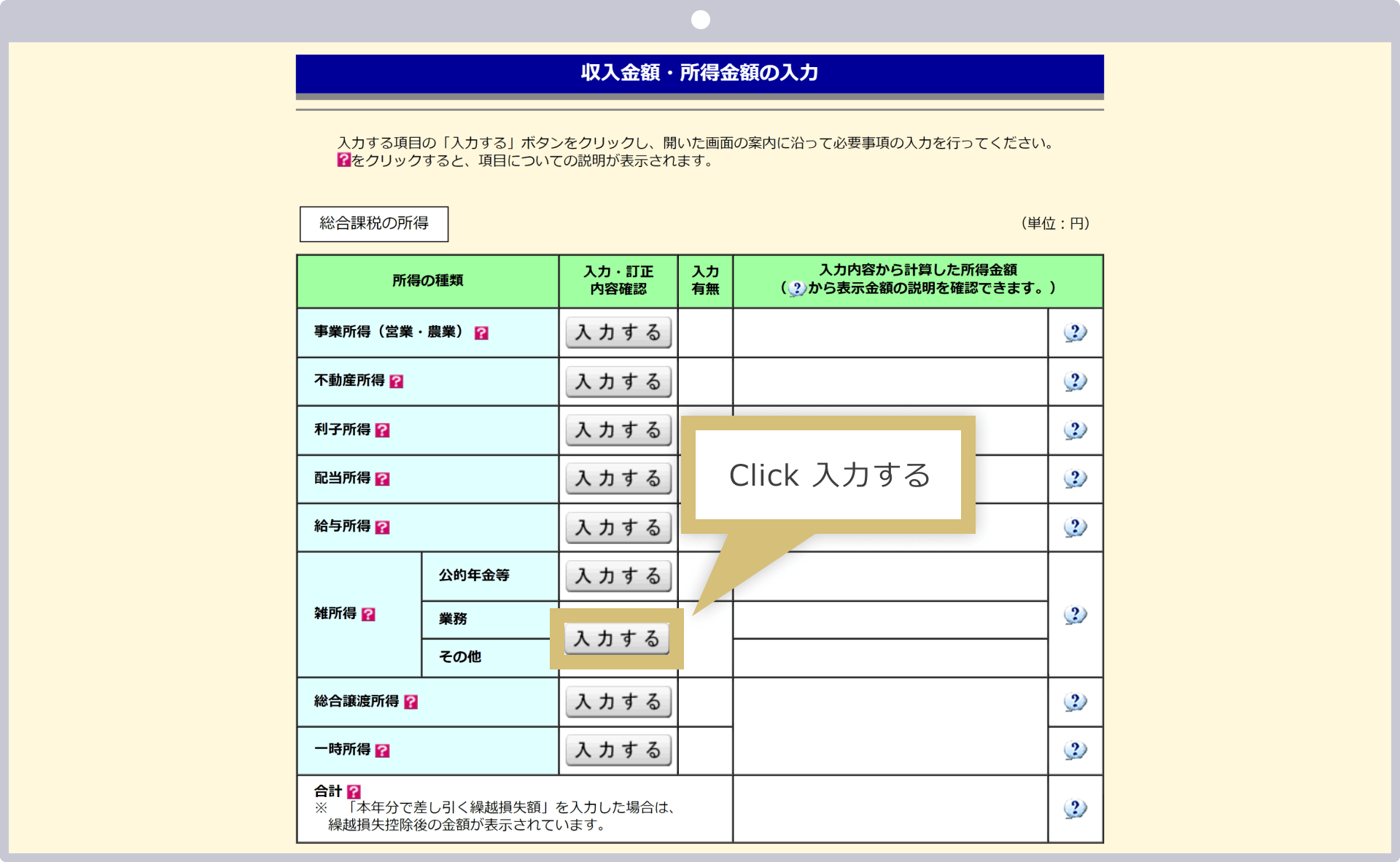
Click the “Miscellaneous Income” box.
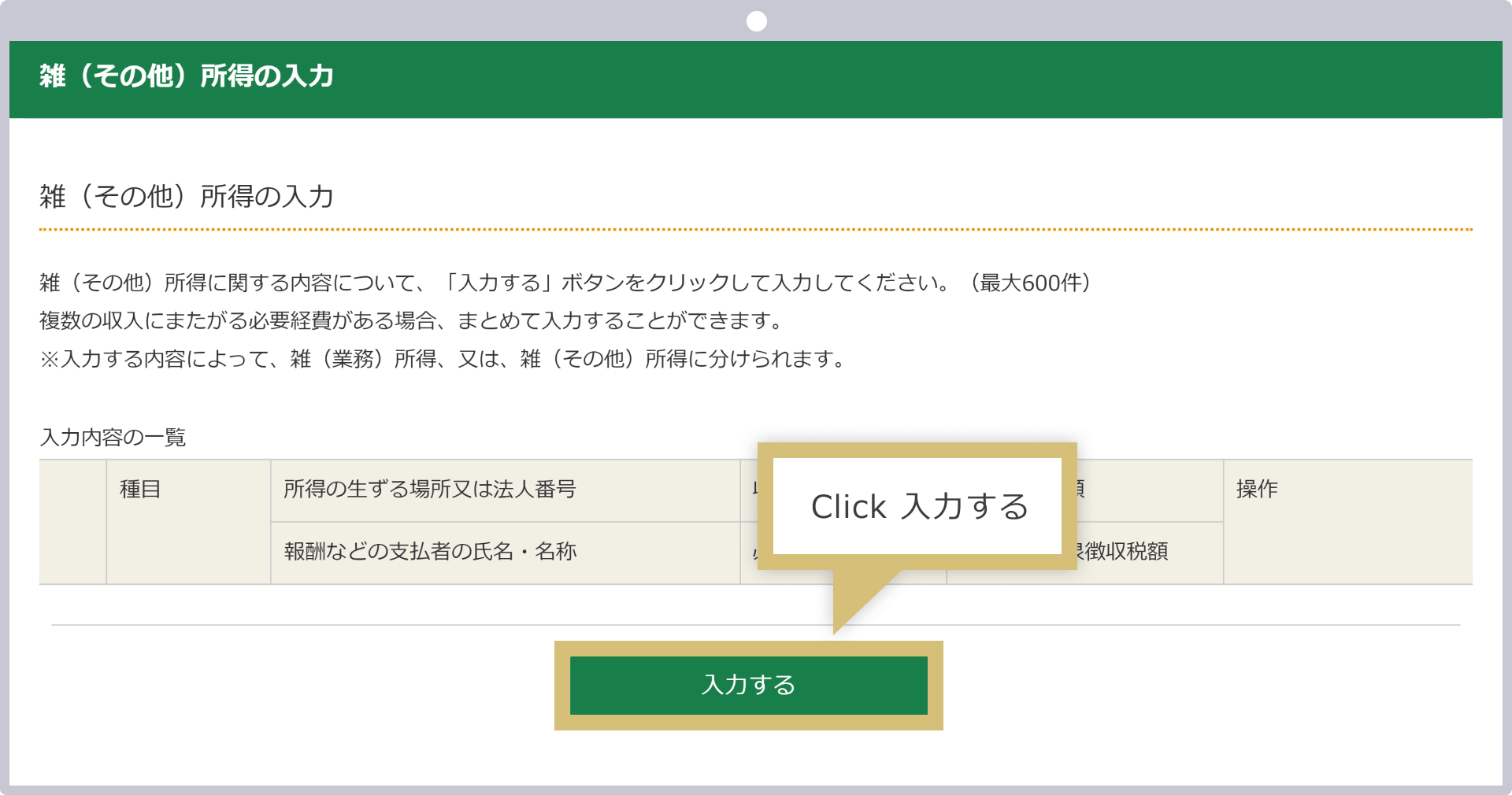
Click “+ Enter Miscellaneous Income.”
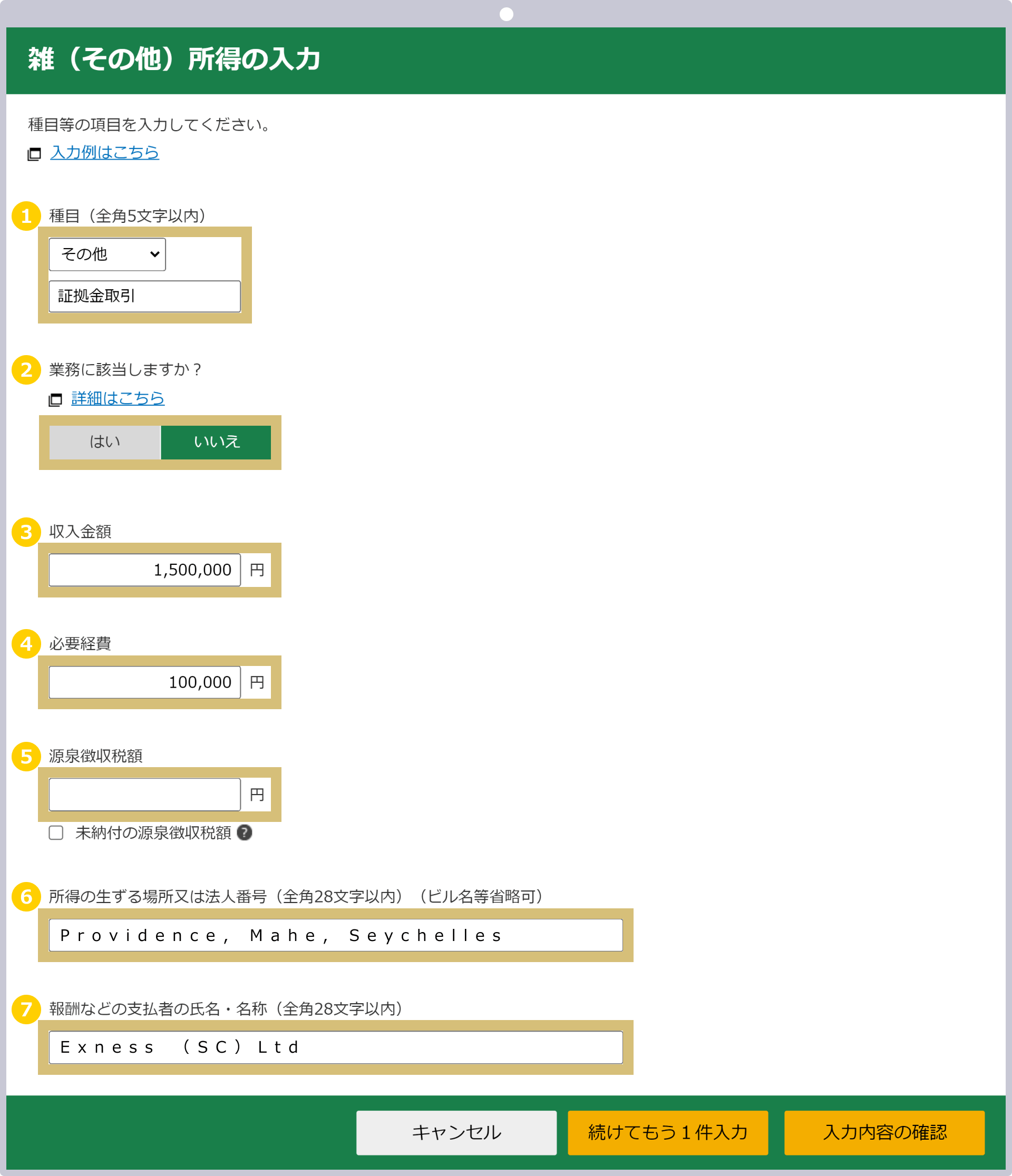
When the "Miscellaneous (Other) Income" entry screen appears, enter the information starting from the top, and once you have finished, click "Confirm Entry."
|
Event |
Example: Select “Other” and enter “Margin Trading” |
|
Does this fall under the scope of your duties? |
Example: "Does not apply" |
|
Amount of Income |
Example: 1,500,000 |
|
Business Expenses |
Example: 100,000 |
|
Withholding Tax Amount (□ Unpaid Withholding Tax Amount) |
Not filled in |
|
The payer's place of business or the place where the income is derived |
Example: Providence, Mahe, Seychelles |
|
Name or Company Name of the Payer |
Example: Exness (SC) Ltd |
|
Event |
|
Example: Select “Other” and enter “Margin Trading” |
|
Does this fall under the scope of your duties? |
|
Example: "Does not apply" |
|
Amount of Income |
|
Example: 1,500,000 |
|
Business Expenses |
|
Example: 100,000 |
|
Withholding Tax Amount (□ Unpaid Withholding Tax Amount) |
|
Not filled in |
|
The payer's place of business or the place where the income is derived |
|
Example: Providence, Mahe, Seychelles |
|
Name or Company Name of the Payer |
|
Example: Exness (SC) Ltd |
① Select “Other” for the “Product” field, and enter “Margin Trading” in the detailed input field that appears.
② For "Does this apply to your job?", select "No."
③ For "Income Amount," enter the total amount of gains and losses incurred on Exness. If you trade using multiple Exness accounts, obtain the annual trading statements for all accounts in which you have conducted trades and enter the total amount of all gains and losses.
④ For "Necessary Expenses," enter the expenses incurred in connection with your FX trading on Exness.
⑤ You do not need to enter withholding tax. Trading with overseas FX brokers, including Exness, is not subject to withholding tax.
⑥ Since there is a limit of 28 full-width characters for the payer’s location or the place where income is generated, enter “Providence, Mahe, Seychelles.” The correct address for Exness is “9A CT House, 2nd floor, Providence, Mahe, Seychelles.”
⑦ Enter the payer's name or company name in full-width characters as "Exness (SC) Ltd."
If you have miscellaneous (other) income in addition to your Exness income, click “+ Enter Miscellaneous Income” again and enter all of your miscellaneous income.
Once you have finished entering your miscellaneous income, click "Finish Entering."
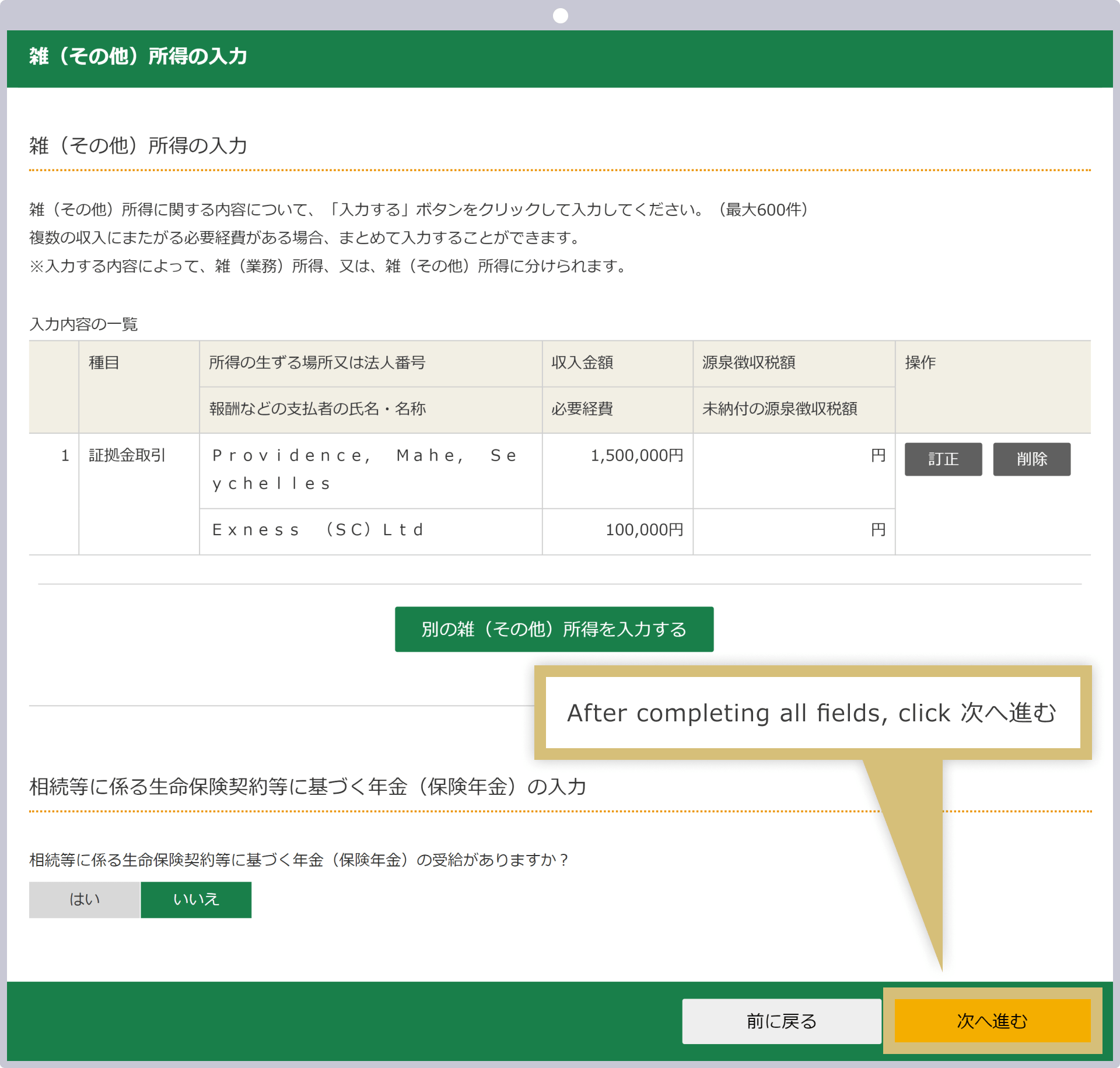
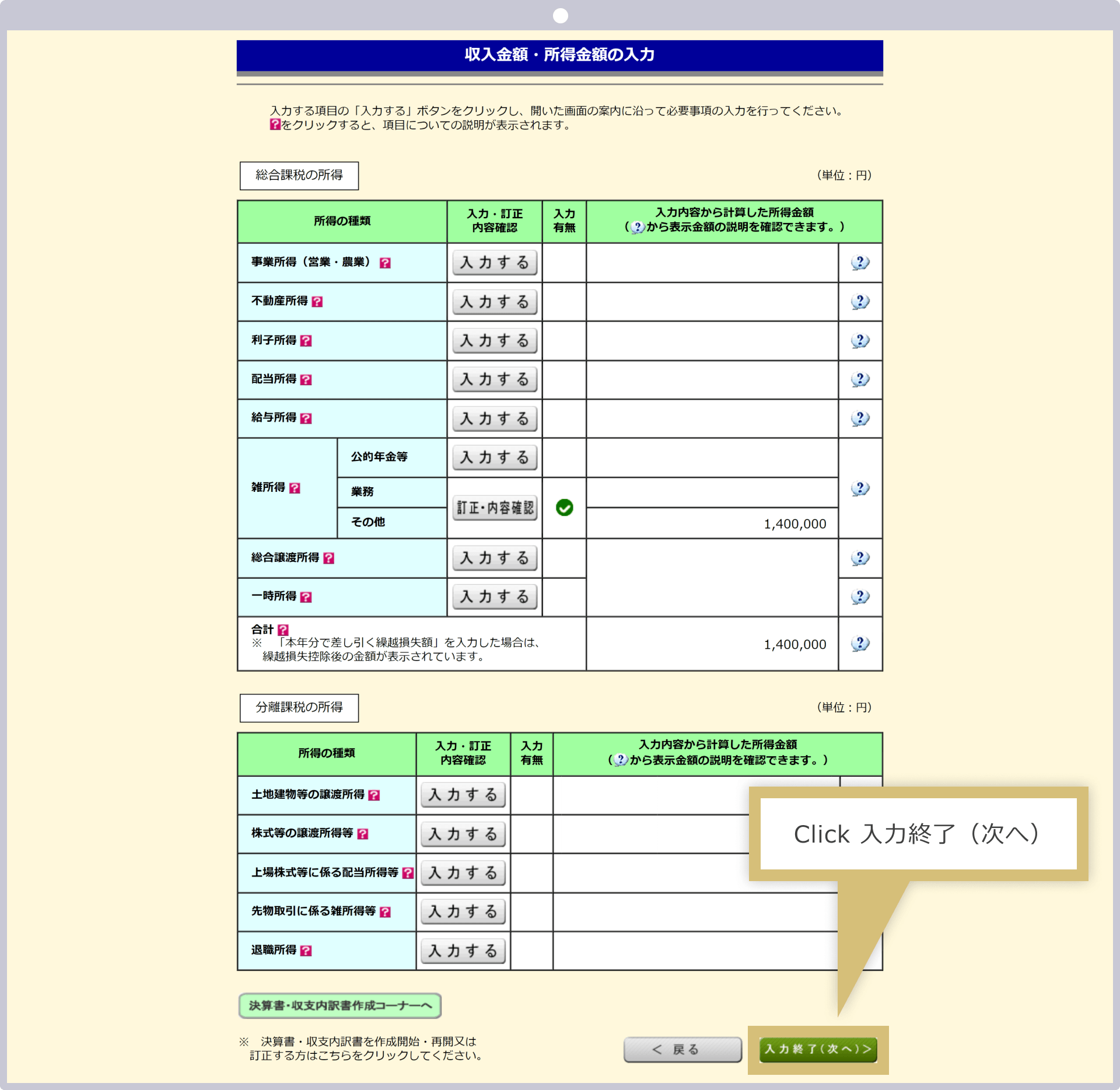
If you have income other than from trading with Exness or other overseas FX brokers, be sure to enter all applicable income so that nothing is omitted. Once you have confirmed all your income, click “Next.”
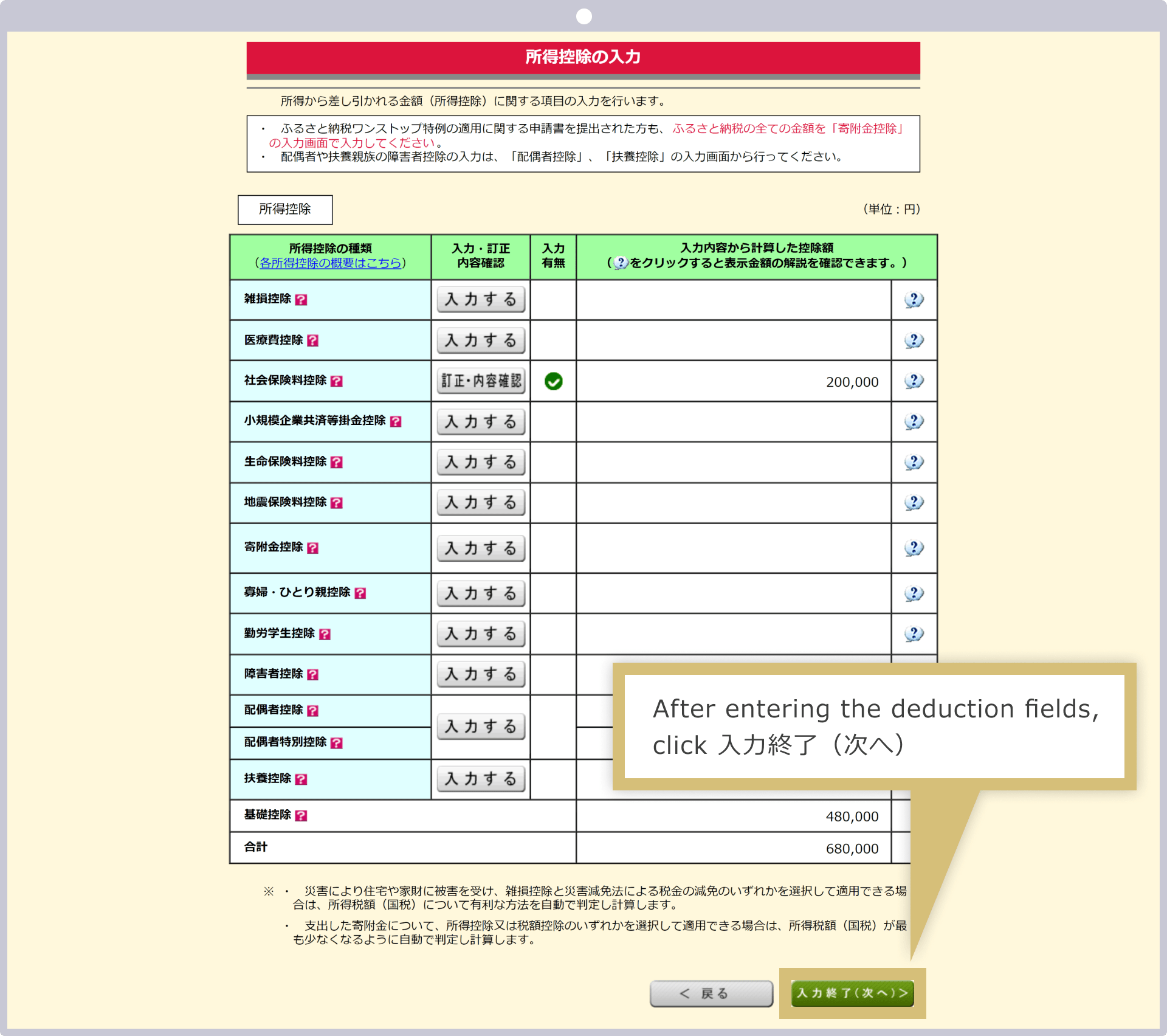
The deduction entry is divided into two pages. First, enter the “Deductions Related to Expenses.” If you have any deductions, such as social insurance premium deductions, click the applicable item and enter the details. Once you have finished entering the information, click “Next.”
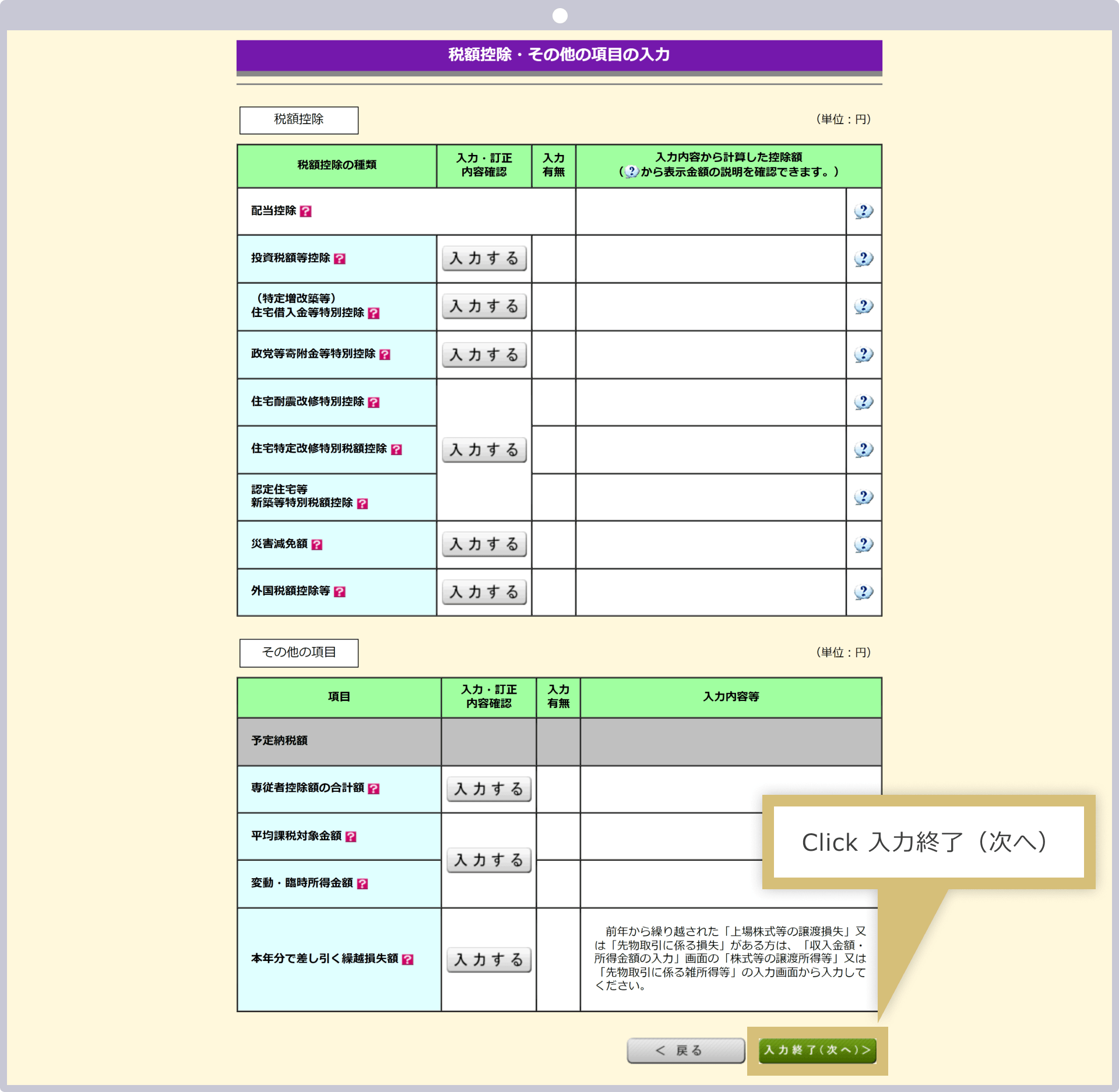
Next, enter “Other Deductions.” The basic deduction amount will be automatically calculated based on the income you entered in Steps 3 and 4. If you are eligible for any deductions other than the basic deduction, click on each item to enter the details. Once you have completed all entries, click “Next.”
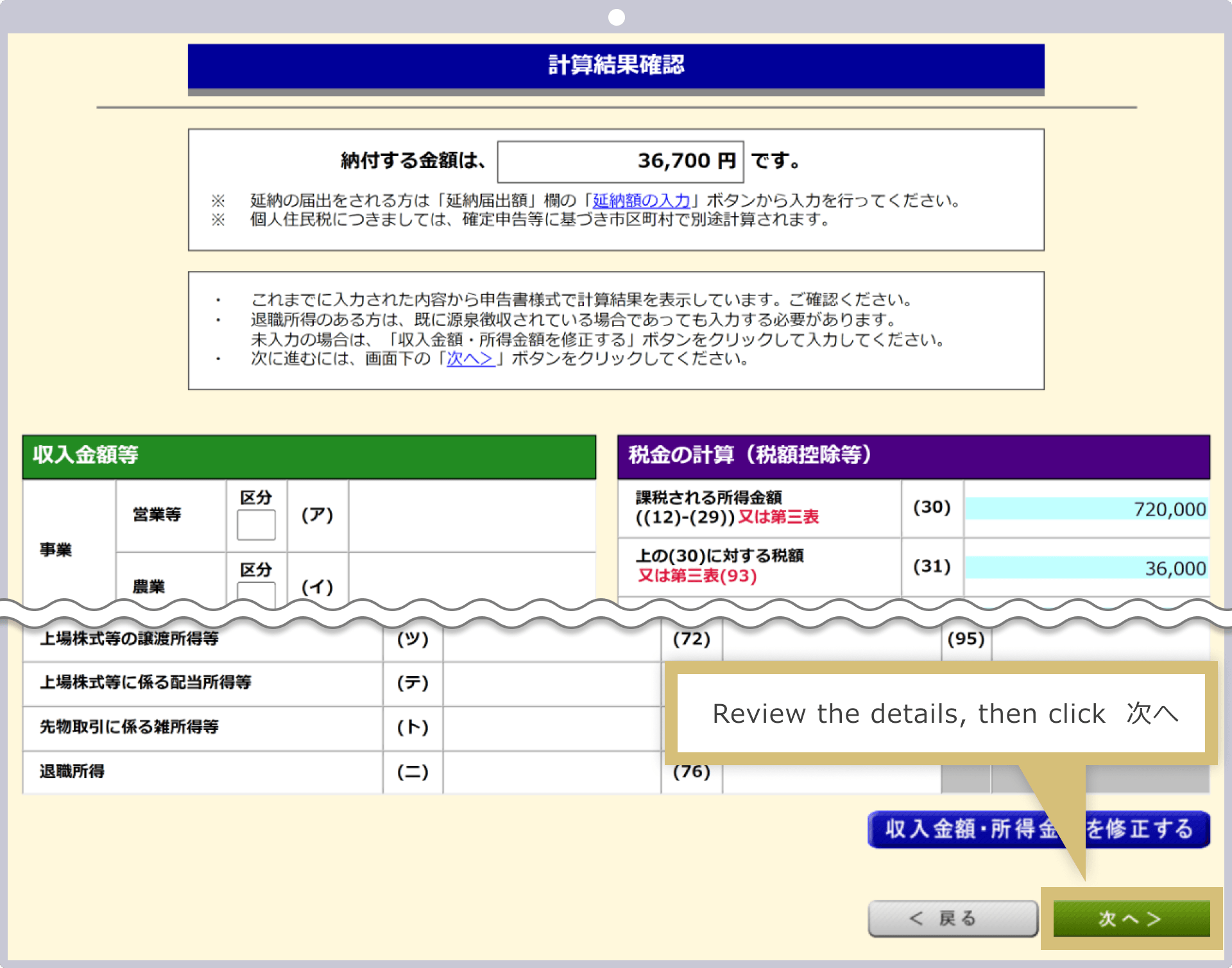
Your tax liability will be calculated automatically based on the information you entered. After verifying that the tax amount (or refund amount, if applicable) and your entries are correct, click “Next” to submit your tax return. If you find any omissions or errors, click “Correct” below each item to make the necessary corrections.
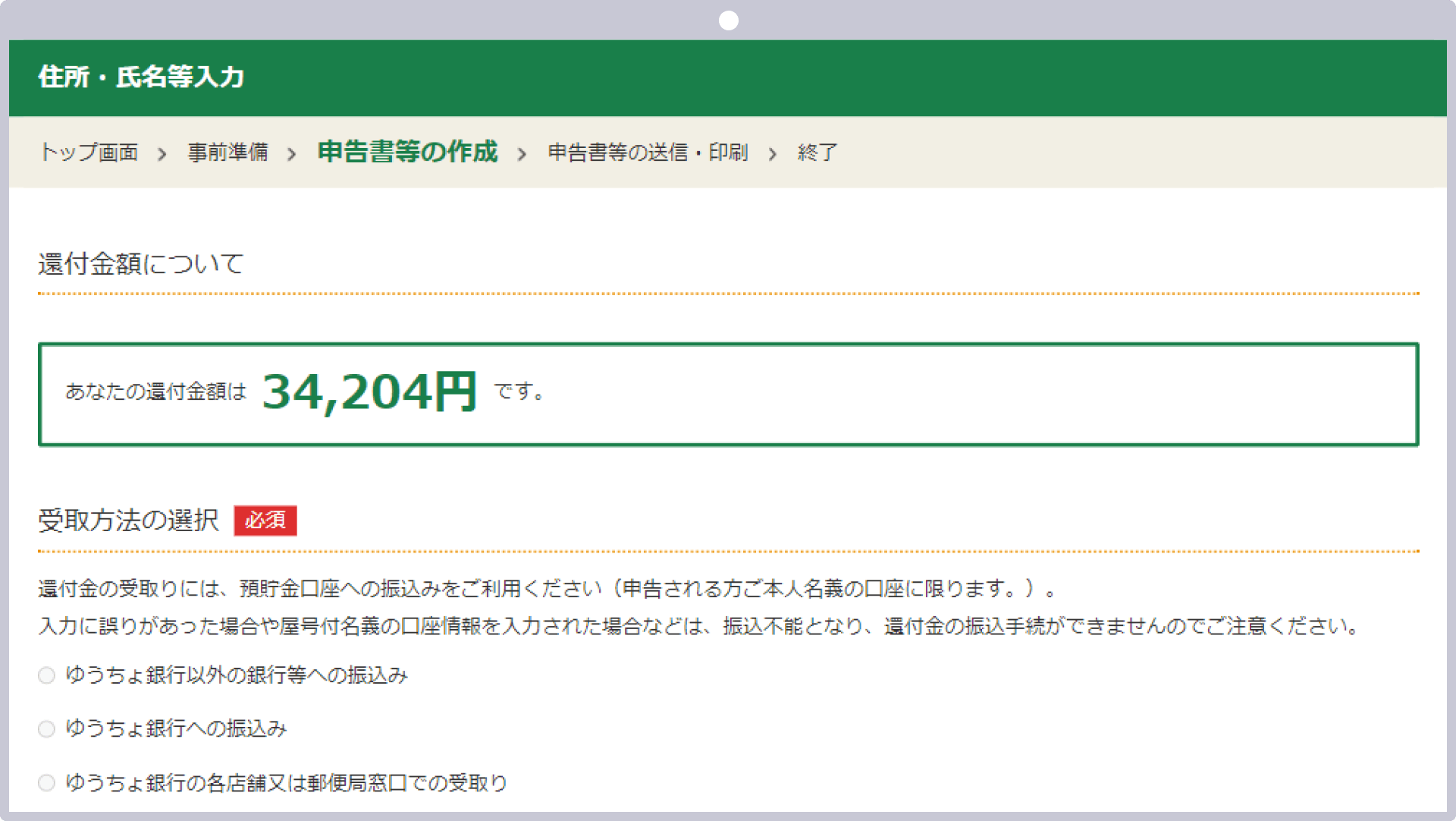
If you are eligible for a refund, the refund amount will be displayed. Below the refund amount, you will see "Select Payment Method"; please select your preferred payment method.
As a general rule, resident tax is paid through special collection (deduction from wages); however, for income other than wages or public pensions—such as miscellaneous income—you may choose your payment method. Please note that the amount of resident tax is calculated separately by the municipality based on your tax return.
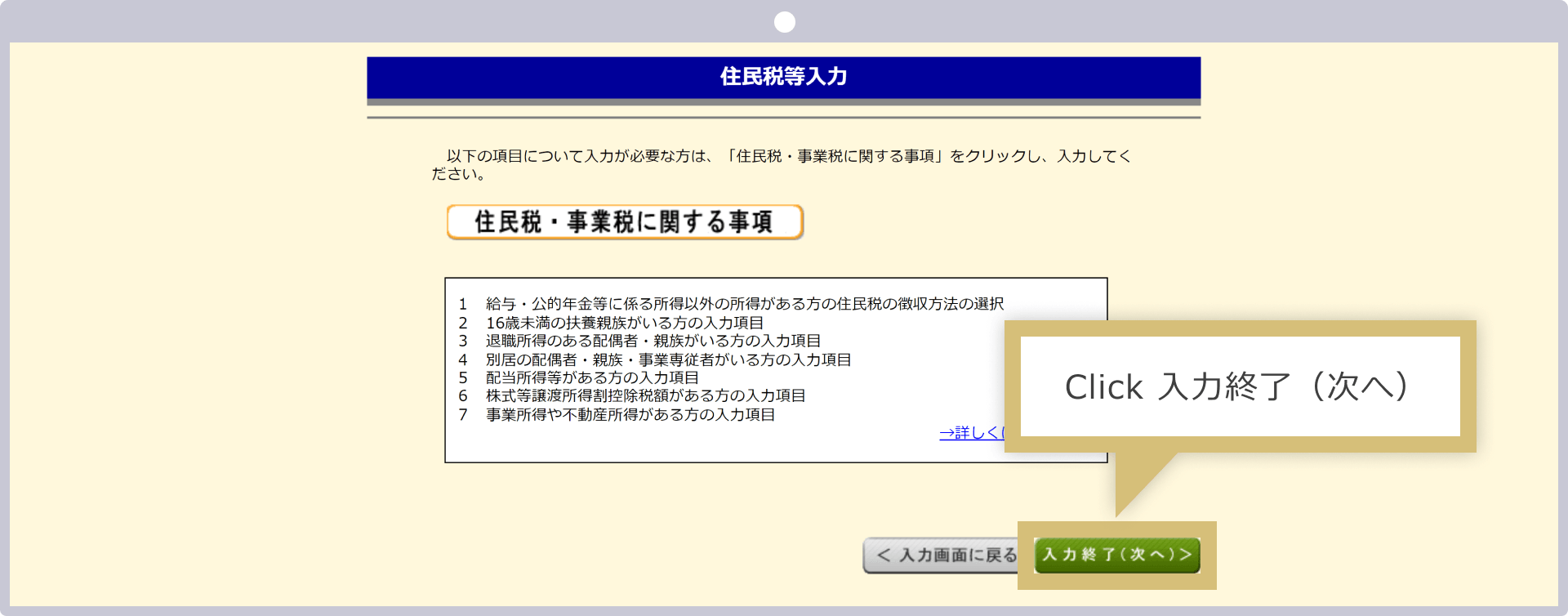
If you want your resident tax on miscellaneous income to be withheld from your salary, select “Special Withholding”; if you wish to pay it yourself, select “Self-Payment.” If you select “Self-Payment,” a payment notice will be mailed to your current address, so please pay your resident tax yourself by the due date.
Enter your personal information, such as your name and address, and click "Next."
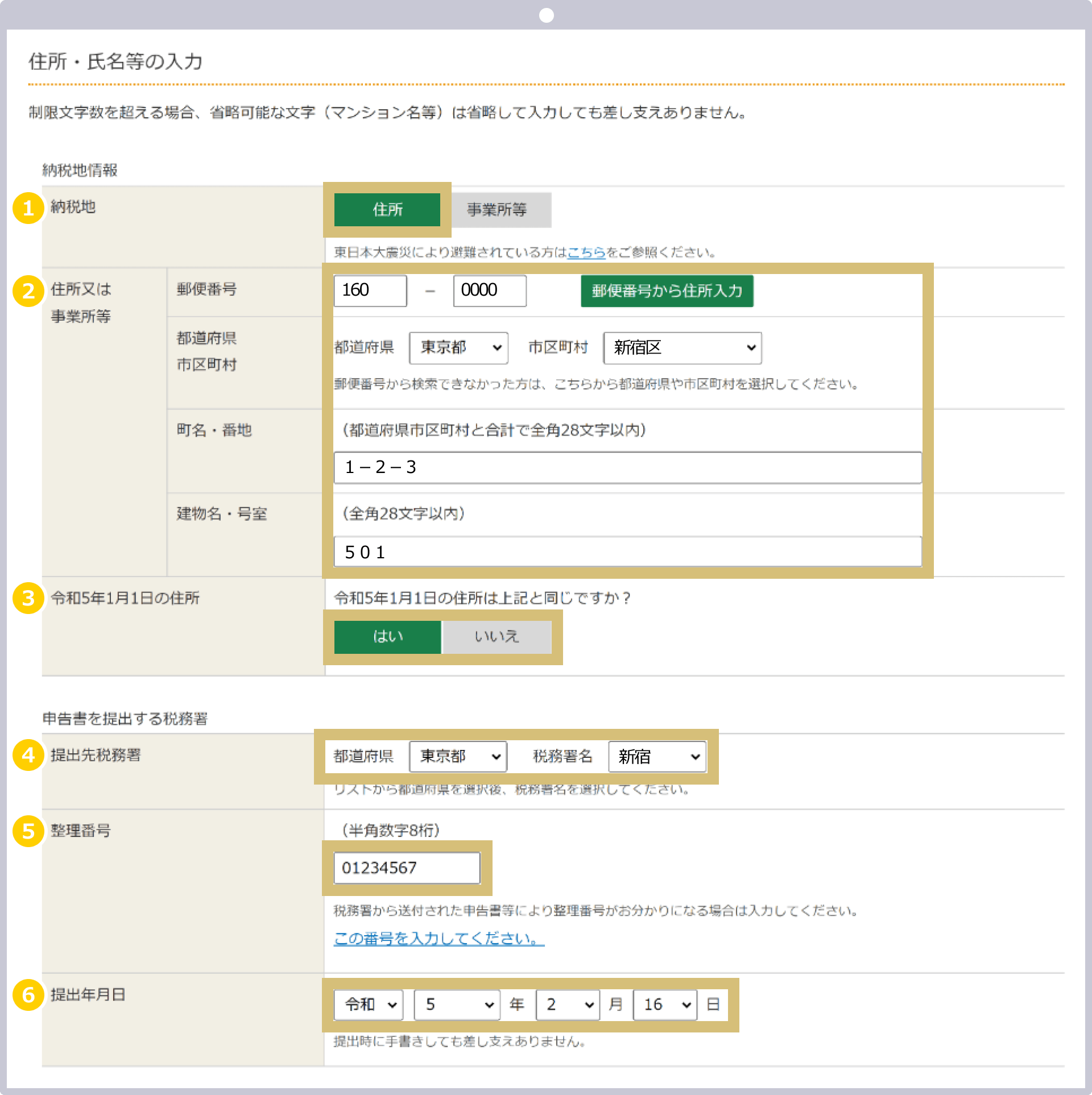
|
Name (Kana) |
Example: Ichiro Suzuki |
|
Full Name (Kanji) |
Example: Ichiro Suzuki |
|
Phone Number |
Example: Select "Cell Phone" and enter "090-1234-5678" |
|
Tax Jurisdiction Classification |
Example: Select “Place of Residence” |
|
Address |
Example: 1-2-3, Shinjuku-ku, Tokyo 160-0000, Room 501 |
|
Tax Office to Which the Return Should Be Filed |
Example: Tokyo/Shinjuku (automatically populated from ⑤) |
|
Address as of January 1, Reiwa 8 |
Example: Leave blank |
|
Name (Kana) |
|
Example: Ichiro Suzuki |
|
Full Name (Kanji) |
|
Example: Ichiro Suzuki |
|
Phone Number |
|
Example: Select "Cell Phone" and enter "090-1234-5678" |
|
Tax Jurisdiction Classification |
|
Example: Select "Place of Residence" |
|
Address |
|
Example: 1-2-3, Shinjuku-ku, Tokyo 160-0000, Room 501 |
|
Tax Office to Which the Return Should Be Filed |
|
Example: Tokyo/Shinjuku (automatically populated from ⑤) |
|
Address as of January 1, Reiwa 8 |
|
Example: Leave blank |
① Name (Kana): Enter your name in Kana.
② Name (Kanji): Please enter your name in kanji.
③ Select one of the following phone numbers—home, work, or cell—and enter the number.
④ For the tax jurisdiction category, select either “Residence” or “Business Premises, etc.”
⑤ Enter the address of the person you selected in step ④.
⑥ Select the tax office to which you are filing from the "Taxpayer's Address" tab.
⑦ If your address as of January 1, Reiwa 8 is different from the address you entered in ④, select “No” and enter your address as of January 1, Reiwa 8.
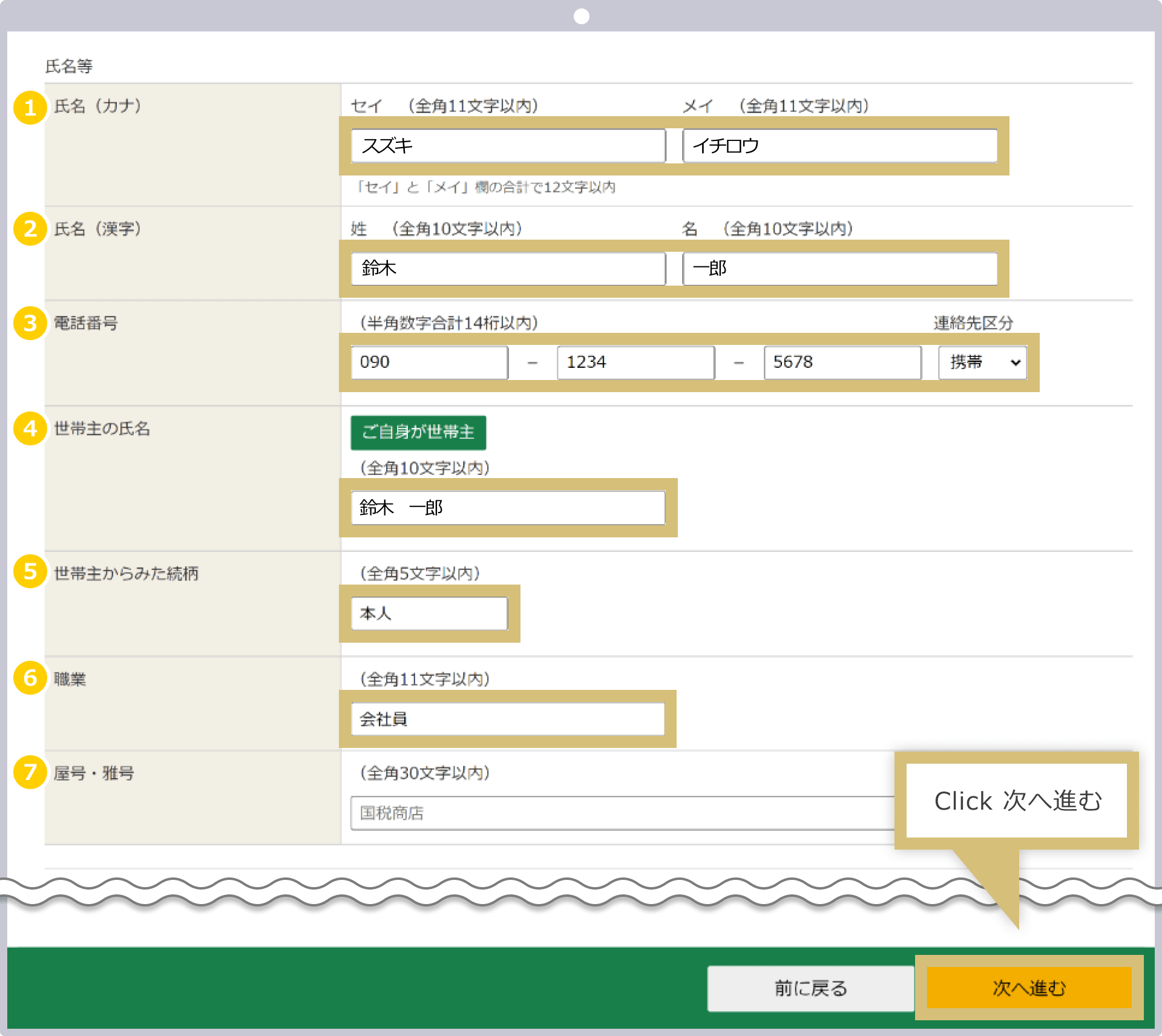
|
Occupation |
Example: Office worker |
|
Trade Name / Pen Name |
Leave blank (displayed as "Kokzei Shoten" as an example) |
|
Name of Head of Household |
Example: Ichiro Suzuki |
|
Relationship to the Head of Household |
Example: The person in question |
|
Reference Number |
Example: 012345567 |
|
Date of Submission |
Example: February 16, Reiwa 8 |
|
Occupation |
|
Example: Office worker |
|
Trade Name / Pen Name |
|
Leave blank (displayed as "Kokzei Shoten" as an example) |
|
Name of Head of Household |
|
Example: Ichiro Suzuki |
|
Relationship to the Head of Household |
|
Example: The person in question |
|
Reference Number |
|
Example: 012345567 |
|
Date of Submission |
|
Example: February 16, Reiwa 8 |
① For occupation, enter your status, such as “office worker” or “pensioner.” If you are self-employed, enter a detailed occupation in the occupation field, such as “XX Retail” or “XX Sales.”
② Enter your trade name or pen name if you are a sole proprietor and have one.
③ The head of household’s name will be displayed automatically when you click “I am the head of household.” If you are not the head of household, enter the head of household’s name.
④ The relationship as seen from the head of household’s perspective will automatically be displayed as “Self” when you click “You are the head of household” in section ④. If the head of household is someone other than yourself, enter the relationship as seen from the head of household’s perspective.
⑤ Enter the reference number if it is provided on the tax return or other documents sent by the tax office.
⑥ For the "Date of Filing," enter the date you submit your tax return. If you are printing and submitting the form, you may leave this field blank and fill it in by hand after printing.
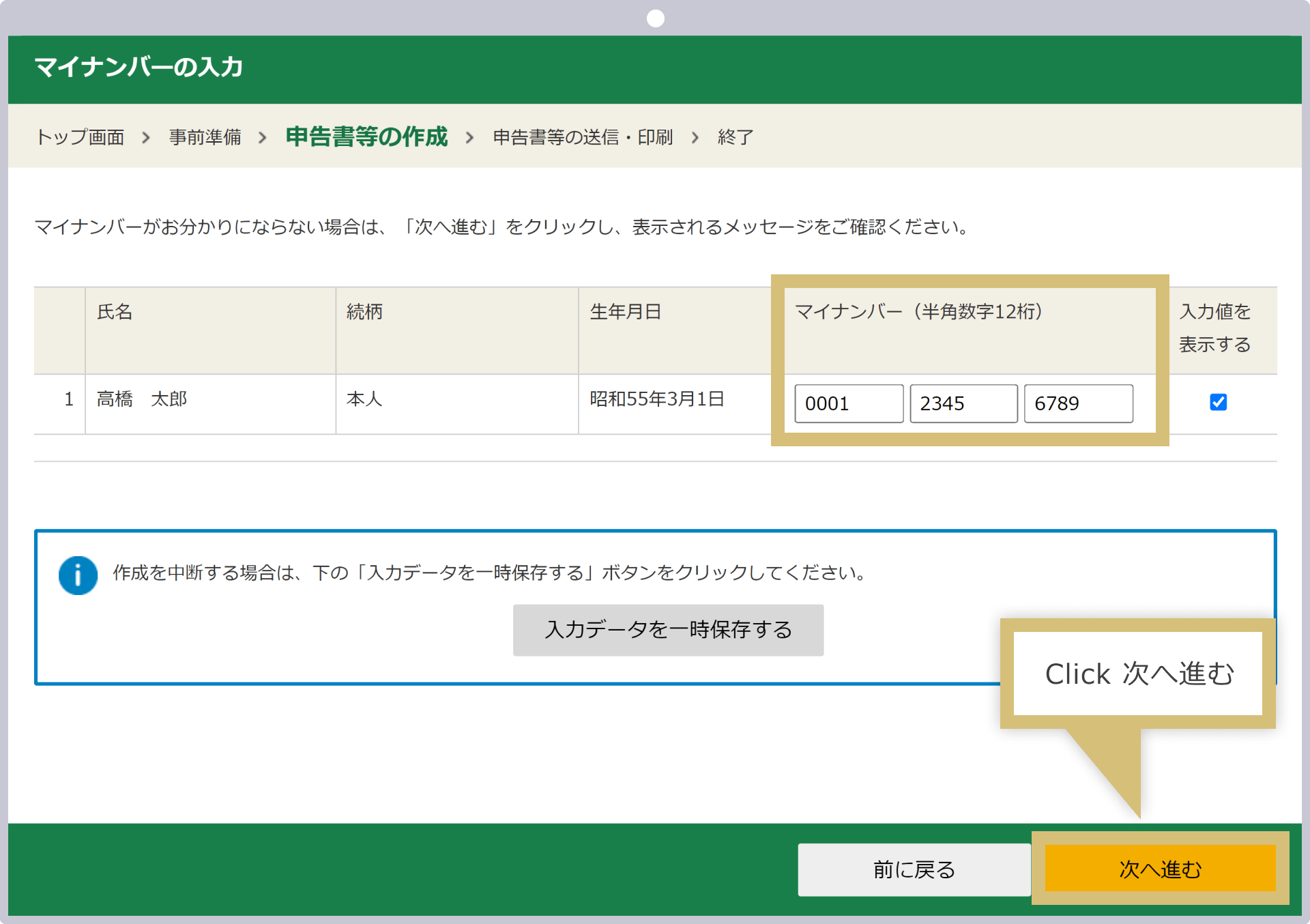
If you selected “Print and Submit Tax Return” in Step 1, you will be prompted to enter your My Number. Enter your My Number (individual number) using half-width digits in the “My Number” field, then click “Next.”
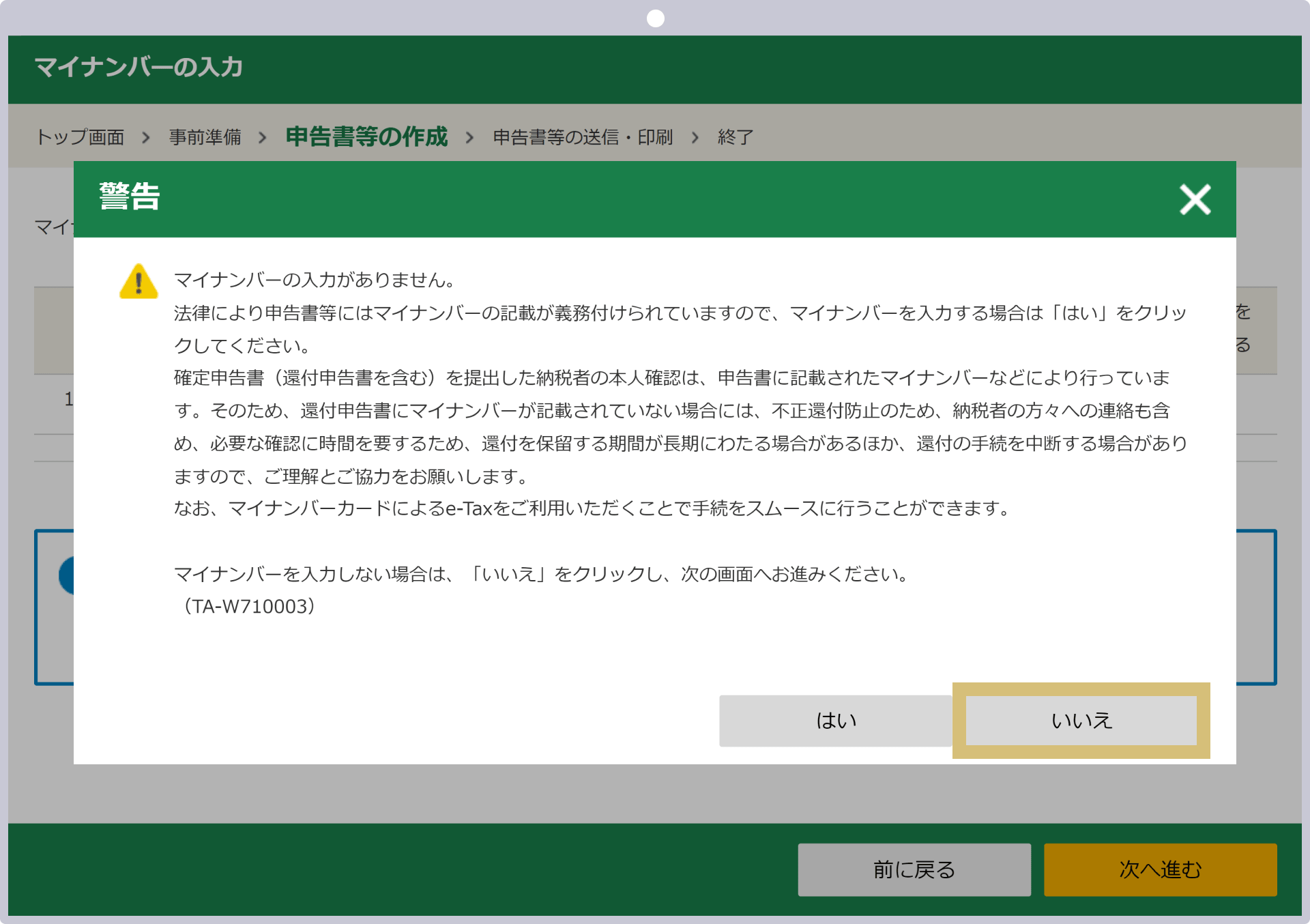
If you do not know your My Number, click “Next” without entering it. A warning message will appear, but if you are unable to enter your My Number at this point, you can click “Proceed without entering” to move on to the next screen.
How to File Your Tax Return
We accept tax returns submitted both online and offline. If you prepare your tax return using e-Tax, you can submit it directly through e-Tax. Please submit paper tax returns (including those printed from e-Tax) by mail or in person at a tax office.
Paper tax return forms should be submitted by mail or in person at the counter of your local tax office. Please note that in either case, you will be required to provide your My Number and proof of identity.If you have already obtained a My Number Card, submit only the My Number Card. If you have not yet obtained a My Number Card, submit your My Number Notification Card or a certificate of residence (showing your individual number) along with identification documents such as a driver’s license or passport.
Submission by Mail
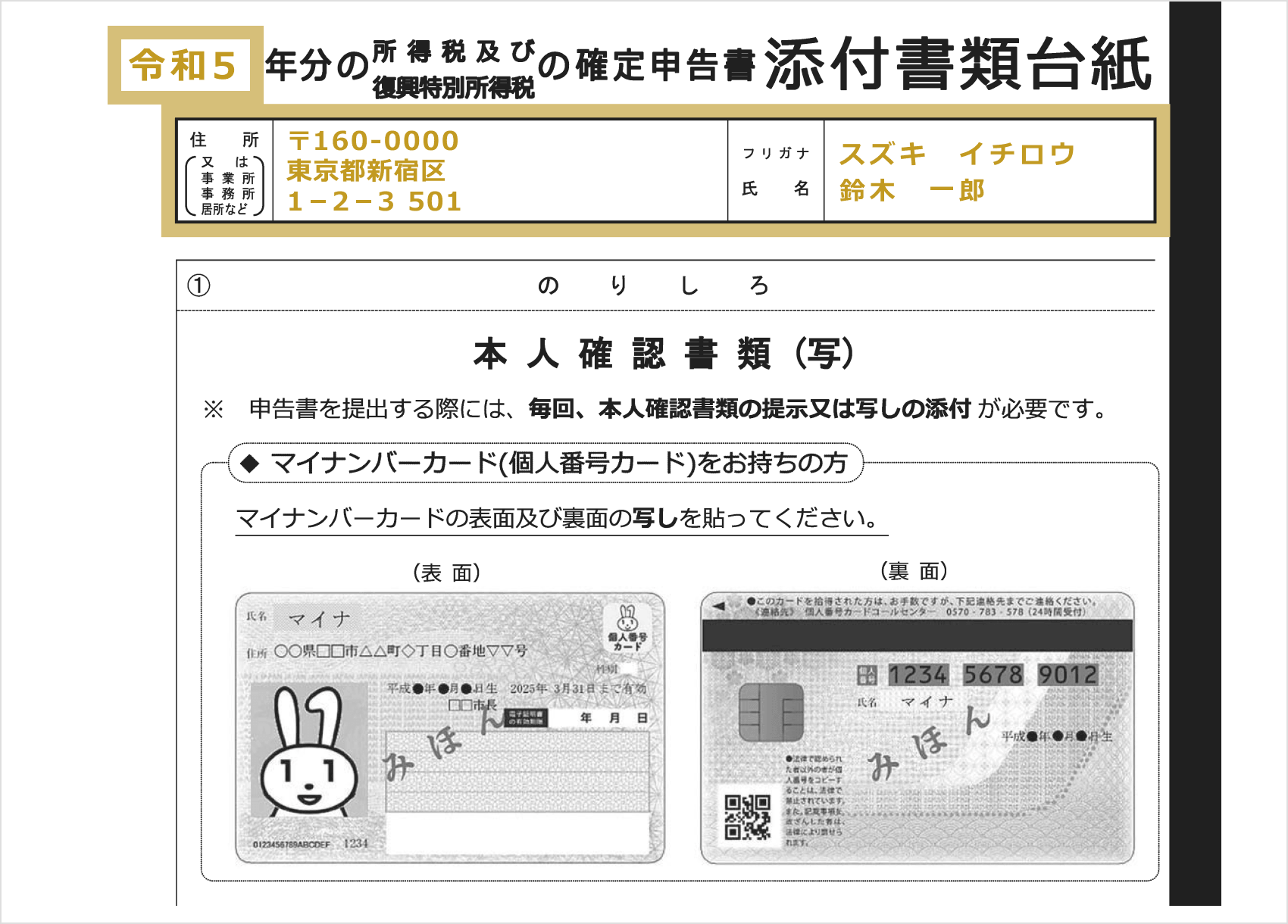
If submitting by mail, fill in the “Tax Return Attachment Sheet” with the “Tax Year,” “Address,” and “Name (with phonetic spelling),” then attach copies of your My Number Card or a document showing your My Number, along with a copy of your identification document, and submit them together with your tax return.You will receive the “Attachment Sheet for Tax Return Documents” along with your tax return form; however, if it becomes damaged or lost, please print a replacement from the National Tax Agency website.
When submitting your tax return by mail, please use “Letter Pack,” “Regular Mail,” “Standard-Size Mail,” or other “mail items” (First-Class Mail) or “letter-type mail.”For mail submissions, the date of mailing (postmark) is considered the date of submission to the tax office. If the filing deadline is approaching, we recommend taking your return to a post office counter and keeping the “post office receipt stamp” as proof of submission.
Submit at the tax office counter
If you plan to submit your tax return in person at the counter of your local tax office, you must present your My Number Card or a document showing your My Number, along with the original copy of your identification document. Tax offices tend to be very crowded during the tax filing season, so we recommend allowing plenty of time for your visit.
If you prepare your tax return using e-Tax, you can “Submit” it directly through e-Tax to file it with the tax office. The steps from this point onward will vary depending on the filing method you selected in Step 1. Follow the on-screen instructions to submit your tax return.
If you selected “Print and Submit” in Step 1, please refer to the submission instructions for filing your tax return using a paper form.
How to Pay Taxes
If you are required to pay income tax, you must do so within the tax filing period (by March 15). There are five payment methods available, including credit card payment and convenience store QR code payment.
Methods for Paying Income Tax When Filing a Tax Return
| Tax Payment by Direct Debit | Payment by direct debit from a designated savings or checking account (You must submit a separate “Request for Savings/Checking Account Direct Debit and Payment Form” separately) |
| Electronic Payment | Pay via e-Tax using direct payment or through online banking, etc. |
| Credit Card Payment | Pay by credit card on the “National Tax Credit Card Payment Site” |
| Convenience Store QR Code Payment | Print the payment QR code along with your tax return and other documents, and make the payment at a convenience store. |
| Payment at a financial institution or tax office counter | Pay in cash at a financial institution or the counter of the relevant tax office, along with the payment slip |
| Tax Payment by Direct Debit |
Payment by direct debit from a designated savings or checking account (requires separate submission of the “Savings/Checking Account Direct Debit Request Form and Payment Submission Request Form”) |
| Electronic Payment |
Pay via e-Tax using direct payment or through online banking, etc. |
| Credit Card Payment |
Pay by credit card on the “National Tax Credit Card Payment Site” |
| Convenience Store QR Code Payment |
Print the payment QR code along with your tax return and other documents, and make the payment at a convenience store. |
| Payment at a financial institution or tax office counter |
Pay in cash at a financial institution or the counter of the relevant tax office, along with the payment slip |
If the deadline for filing your tax return is approaching, we recommend using “electronic payment” or “credit card payment,” which allow you to pay online on the same day. You may be able to pay in installments with a credit card, so please check the terms and conditions of your card issuer.
While the deadline for paying income tax is generally March 15, in the case of “automatic bank withdrawal,” the tax amount will be deducted around mid-April because it takes time to register for the direct debit. You can check the direct debit date for automatic bank withdrawal on the National Tax Agency’s website.Please be aware that if the payment cannot be deducted on the scheduled date due to insufficient funds in your account, it will be treated as a missed payment and subject to late payment penalties. If you wish to pay by direct debit, please submit the “Application for Bank Account Direct Debit and Request for Payment Slip” along with your final tax return.
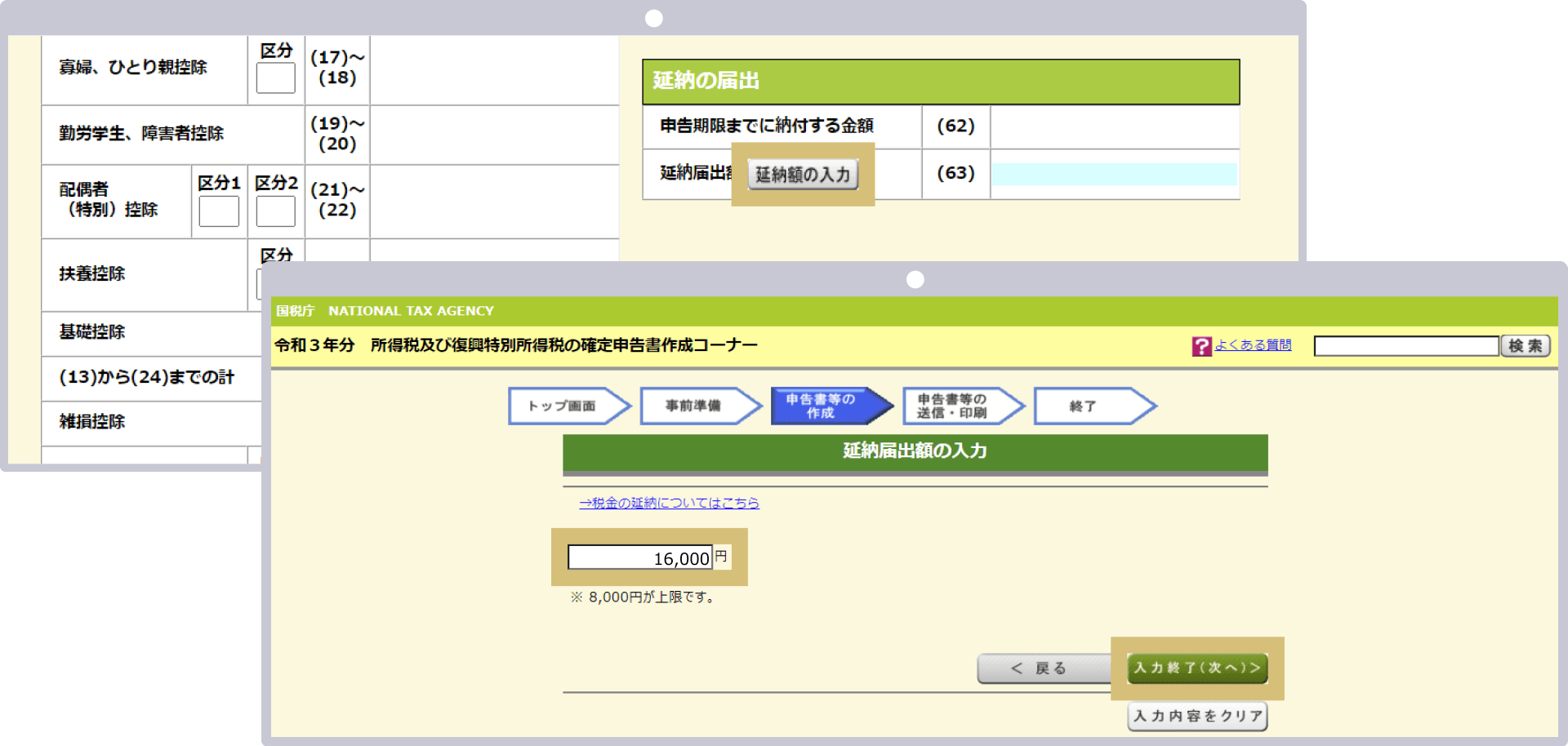
If you are unable to pay your income tax in full by the due date, you may use the “Deferred Payment System.”The deferred payment system allows you to pay at least half of the tax amount by the due date and extend the deadline for paying the remainder. If you wish to use this system, please enter the “Amount to be paid by the filing deadline” and the “Amount for which deferred payment is requested” in the “Deferred Payment Notification” section of your tax return.
Example of Entering a Payment Extension (Paper Form)
Enter "207" in line 65 and "16" in line 66 of the tax return's deferred payment section.

Example of Entering a Payment Extension (for e-Tax)
If you are using e-Tax, you can apply for an extension of the payment deadline from the “Payment Method, etc.” screen under “Other Entries.” Select “Apply for an Extension of the Payment Deadline” and enter the “Amount for Which an Extension Is Requested.”
Important Points Regarding Exness Tax Filing
Please pay your income tax promptly after filing your tax return. However, if your return contains omissions or errors, the process of correcting them will be more time-consuming and labor-intensive, and you may be subject to penalties. Please review Exness’s guidelines on filing tax returns in advance before proceeding with your tax filing.
Swap points are subject to tax filing.
Swap points generated from trading on Exness are subject to taxation and must be reported on your tax return. However, since Exness swap points are offset against the profit or loss on your positions and are included in the “Closed Trade P/L” (MT4) or “Total P/L” (MT5) sections of your annual trading report, you do not need to report them separately as profit or loss.Please note that open positions are not subject to tax reporting; therefore, swap points related to unrealized gains or losses are also not subject to reporting.
Trading commissions are recognized in profit or loss.
With Exness’s Low Spread and Zero accounts, a trading commission is charged for each trade. While trading commissions are expenses that can be recorded as necessary business expenses for FX trading, Exness deducts these commissions from your open position balance and reflects them in your annual profit and loss; therefore, there is no need to record them separately as expenses.Please note that Exness charges a maximum trading fee of $3.50 per lot (one-way) for Low Spread accounts and a minimum of $0.05 per lot (one-way) for Zero accounts.You can view the transaction fee amounts in your account currency under “Closed Trade P/L” or “Total P/L” in your trading history or annual trading report.
Cashback is subject to taxation
Cashback received from Exness is subject to taxation. Exness does not conduct regular cashback campaigns or similar promotions; instead, we focus on providing a high-performance trading environment featuring ultra-low spreads, industry-leading leverage of up to 2,000x (*), and an excellent order execution system.However, we do offer the “Exness Premier Program” for high-volume traders, and we run special promotions that provide Premier members with cashback and luxury prizes. Please be sure to file your tax return when you receive cashback from Exness.
(*) Leveraged trading involves high risk, and you may lose all of your invested capital. Please ensure you fully understand the risks before trading.
The “Exness Premier Program” is a special program designed for active traders at Exness. Traders are categorized into three tiers based on their “total cumulative deposits” and “quarterly trading volume,” and the benefits improve as they move up through the tiers.As an Exness Premier member, you’ll enjoy various benefits—including priority support, market reports from experts, and special promotions—allowing you to access a more rewarding trading environment. Please note that no application is required to become an Exness Premier member. Membership is automatically granted upon meeting the criteria and is reviewed on a quarterly basis.
Social trading is also subject to tax filing
Please note that annual gains and losses, as well as fees, from copy trading via “Social Trading” are subject to tax filing. Annual gains and losses from copy trading on Exness’s Social Trading platform must be reported on your tax return as miscellaneous income subject to comprehensive taxation, just like regular FX trading.Additionally, if you paid fees to a strategy provider in connection with copy trading, these fees qualify as necessary business expenses. However, since these fees are offset against the profits from your Social Trading positions, there is no need to record them separately as expenses.If you stop copying a strategy before the end of the trading period and a profit is realized, the commission will be deducted from your investment account; please check the transaction history of your social trading account.
Exness Social Trading is a service that allows you to copy the trades of experienced traders. Simply deposit funds into a dedicated Social Trading account and select the trading strategy you wish to copy to begin replicating the trades of a trader known as a “Strategy Provider.”You can select the strategy you wish to copy based on factors such as risk, return, the number of investors copying that strategy, and fees, and you can change your strategy at any time. Please note that Exness Social Trading is conducted via a dedicated app. When preparing your tax return, please log in to the app and check the “History” section.Please note that you cannot view your copy trading balance or transaction history in the Exness Personal Area or on MT4/MT5.
(*) We have temporarily suspended new registrations for Exness Social Trading for residents of Japan. If you have already completed registration as an Exness Investor for Exness Social Trading and are able to log in to the app, you may continue to use the service.
If the base currency of the trading account is not the Japanese yen, profits and losses are converted to yen.
If the base currency of your Exness trading account is not the Japanese yen, you must convert your position gains and losses into yen using the mid-market rate (TTM) on the day the trade was executed for tax reporting purposes. The mid-market rate is the benchmark rate used by financial institutions when conducting foreign exchange transactions with customers. Most financial institutions publish the mid-market rate on their websites or other platforms around 9:55 a.m. on weekdays.Since past mid-market rates are also recorded in a list, you can easily find the mid-market rate for a specific date by entering the “date” and “mid-market rate” into a search engine.
Additionally, in cases of high trading frequency—such as scalping—it is possible to use the average value over a specific period, such as the average market price for the month or week preceding the month in which the trade took place. If the base currency of your trading account is not the Japanese yen, you may encounter uncertainty when filing your tax return.If you have any concerns, we recommend that you consult with your local tax office or a certified public tax accountant before proceeding, rather than making a decision on your own.
Exness: Frequently Asked Questions (FAQ) About Tax Filing
-
Is the cashback I receive from Exness subject to taxation?
Yes, cashback received from Exness is subject to taxation. Please note that Exness is currently running a special promotion offering cashback and luxury prizes to Premier members. If you receive cashback, please be sure not to forget to file your tax return.
Read More
15.11.2023
-
How do I obtain my annual trading report from Exness?
You can easily obtain your Exness Annual Trading Report via MT4/MT5. Please note that while you can view your trading history and annual profit and loss in the MT4/MT5 mobile apps, you cannot download the report. Please use the desktop versions of MT4/MT5 to download or print your Annual Trading Report.
Read More
15.11.2023
-
Are swap points from Exness subject to tax reporting?
Yes, swap points generated on Exness are subject to taxation, so you are required to file a tax return. However, since swap points are offset against the profit or loss on your positions and are included in the “Closed Trade P/L” (MT4) or “Total P/L” (MT5) sections of your annual trading report, you do not need to report them separately as profit or loss.
Read More
15.11.2023
-
Please tell me the tax rate applied to annual profits at Exness.
Exness’s annual profits are subject to a progressive tax rate that increases in proportion to taxable income, with income tax ranging from 5% to 45% depending on the amount of taxable income.Annual profits are combined with annual gains and losses from other overseas FX trading and income classified as miscellaneous income under the comprehensive taxation system, and taxable income is calculated after deducting various deductions and necessary expenses.
Read More
15.11.2023
-
Please explain the circumstances under which I need to file a tax return with Exness.
If you make a profit from trading with Exness, you may be required to file a tax return. Salaried employees must file a tax return if their annual profit exceeds 200,000 yen, and individuals with non-salary income must file if their annual profit exceeds 950,000 yen. However, unrealized gains or losses on open positions and swap points are not subject to tax reporting.
Read More
15.11.2023