














How to Deposit Funds Using an Exness Credit/Debit Card
Payment Methods
How to Deposit Funds Using an Exness Credit/Debit Card
To deposit funds into your Exness trading account using a credit or debit card, log in to your Personal Area, select “Deposit” from the menu, and complete the process by registering your credit card information. Exness accepts four types of cards: “VISA,” “VISA Electron,” “Mastercard,” and “Maestro Master.”
However, Exness currently supports deposits and withdrawals in USD via VISA and Mastercard.
Deposits made via credit or debit card on Exness are free of deposit fees, available 24 hours a day, 365 days a year, and funds are credited to your Exness trading account instantly. However, to make a deposit using a credit or debit card, you must first complete the profile verification (identity verification) process.
Exness: Steps for Depositing with a Credit or Debit Card
The procedure for making a deposit via credit or debit card with Exness is as follows.
If you are using a credit card for the first time with Exness, you will need to register your credit card information. For subsequent deposits using the same card, you can select it from your saved card information.
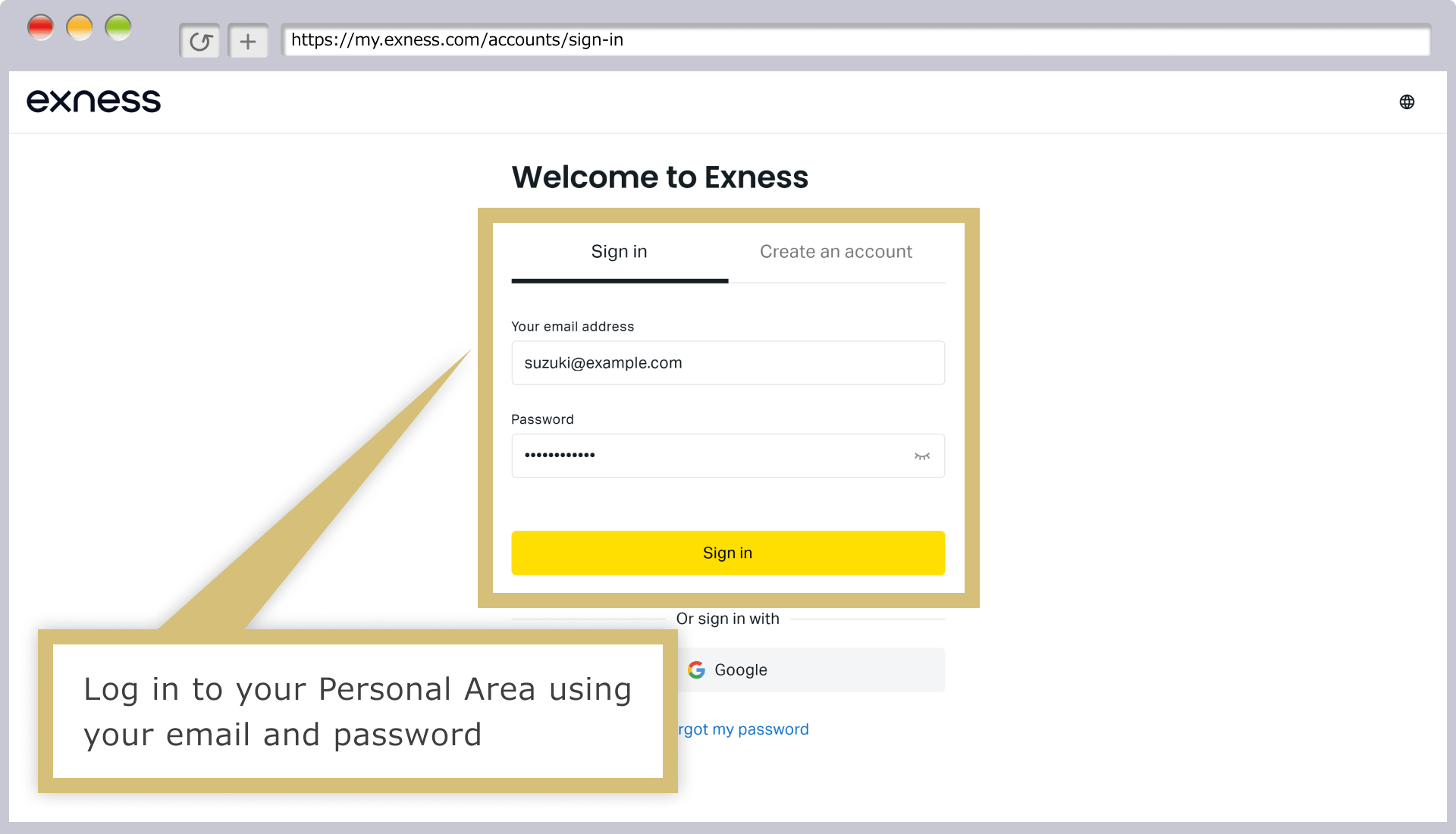
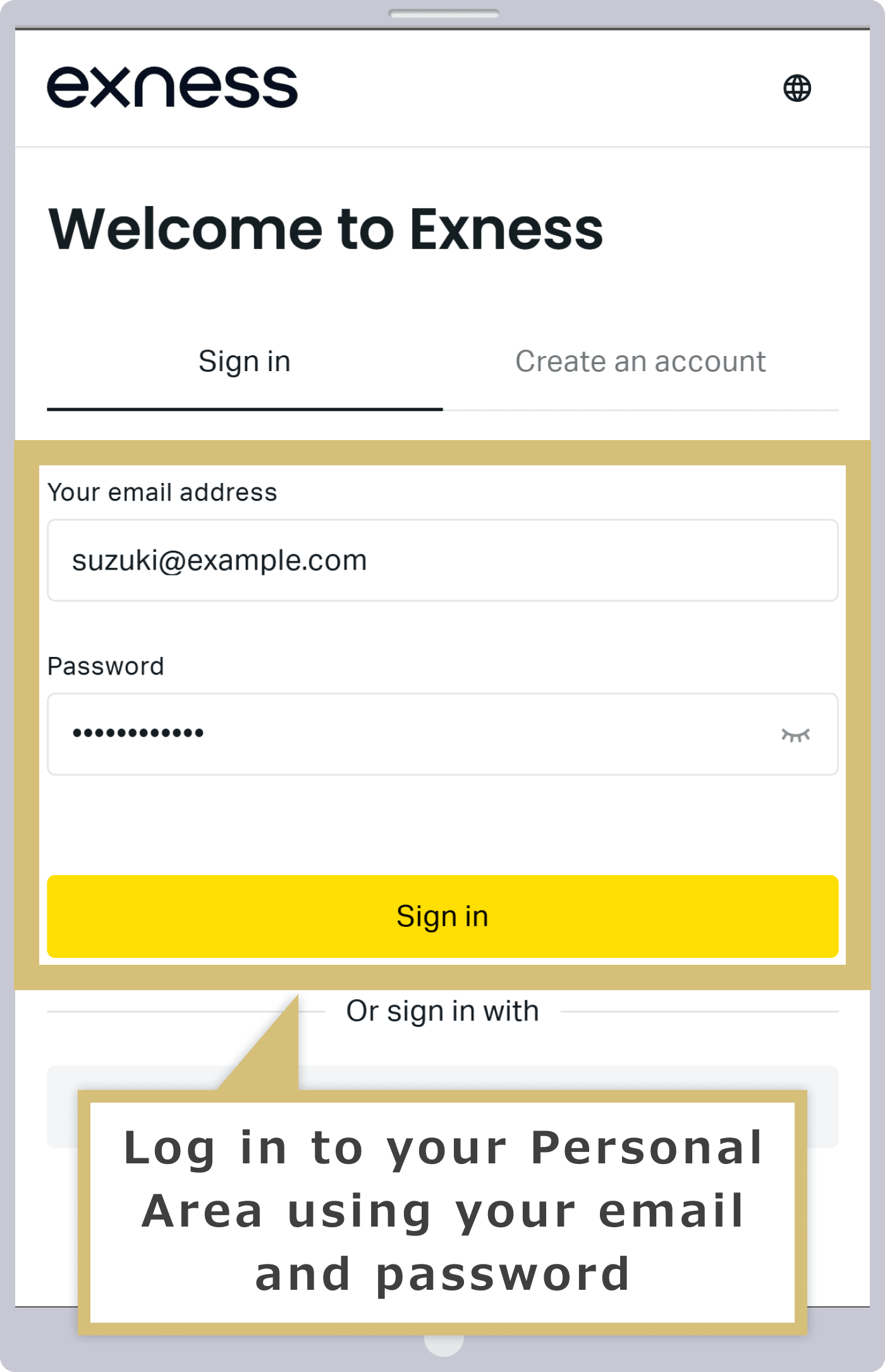
Log in to your Personal Area
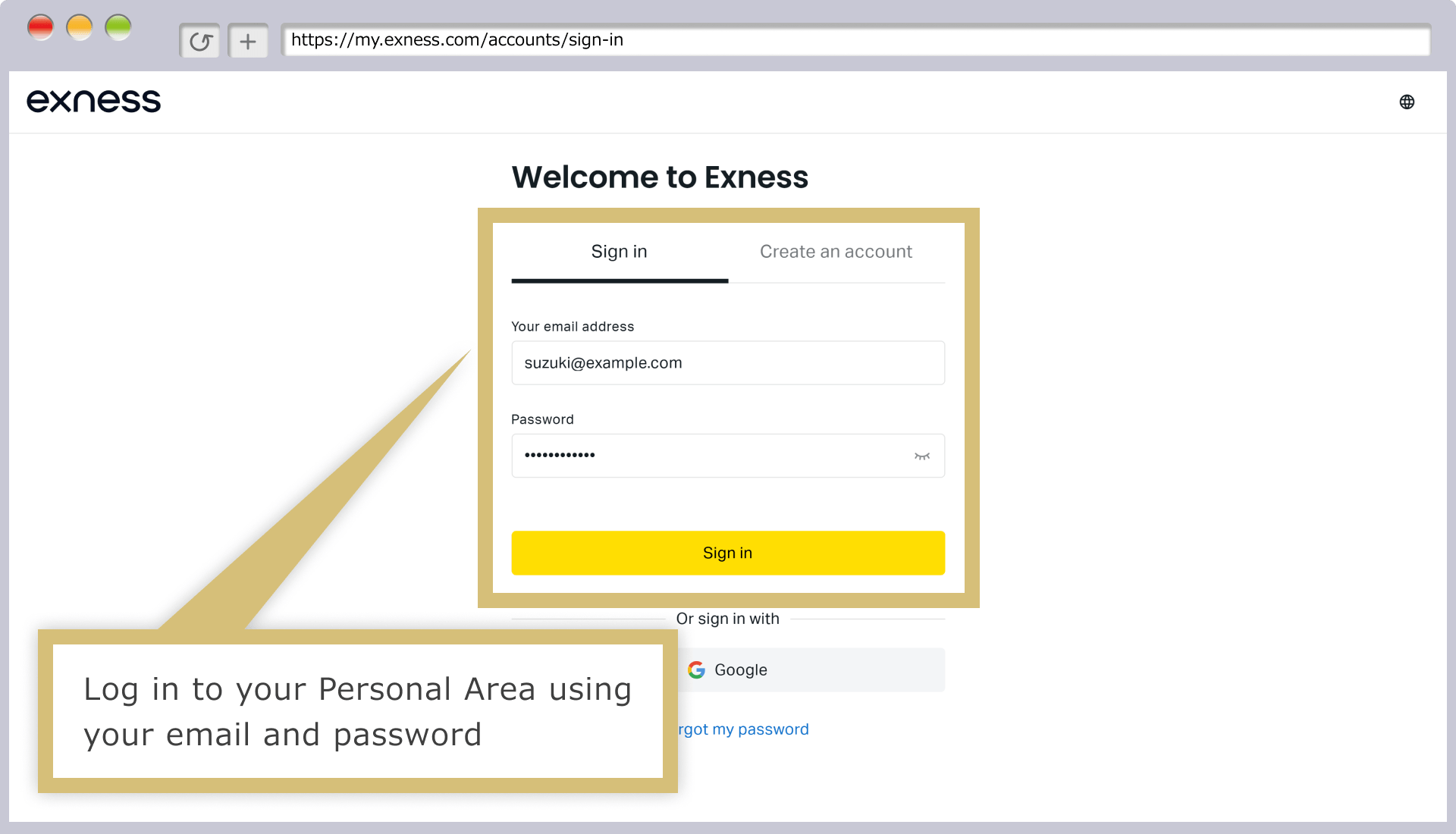
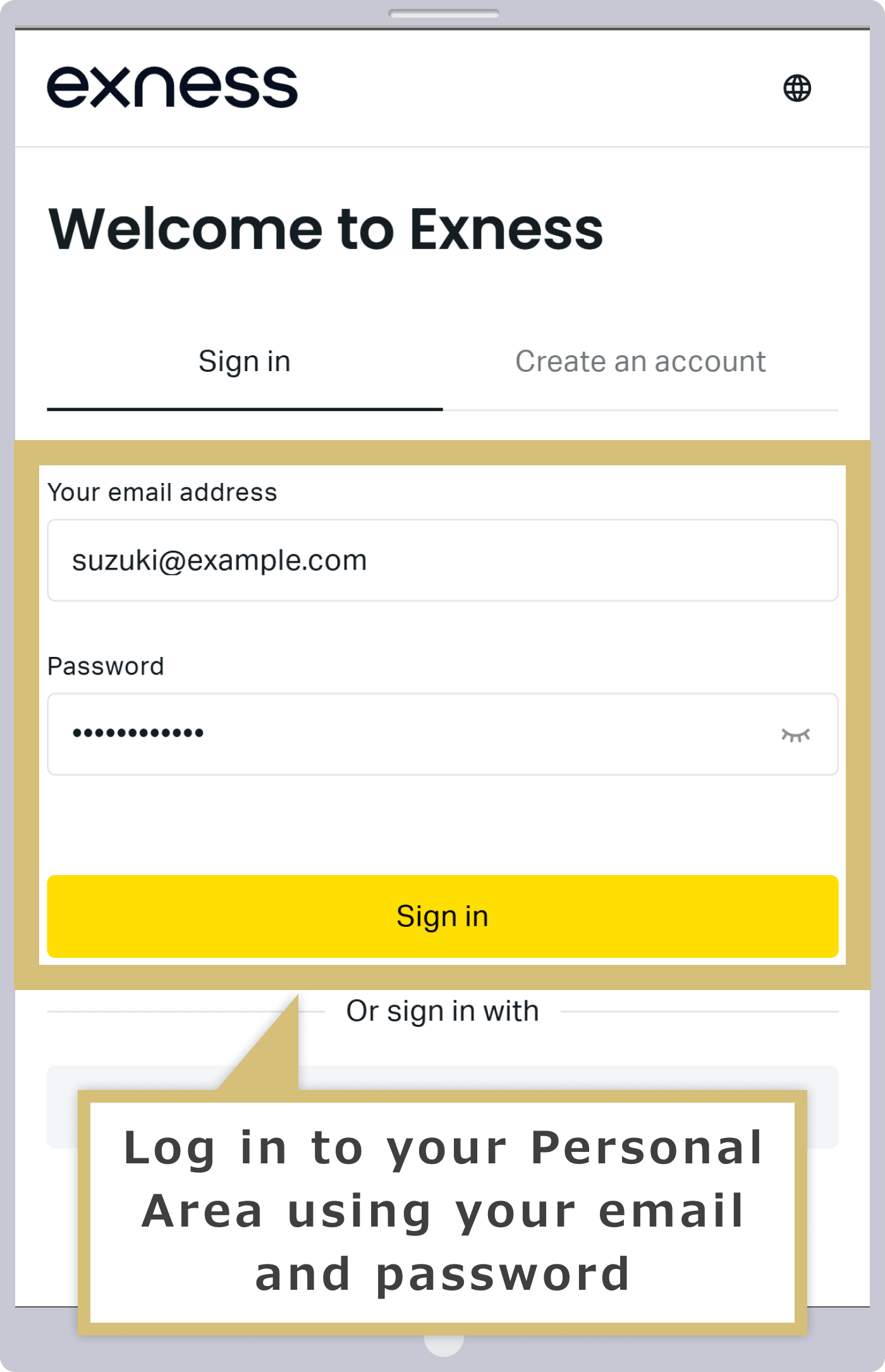
Enter the "email address" you used to register with Exness and the "login password" for your Personal Area to log in to your Exness Personal Area.
Selecting a Deposit Option
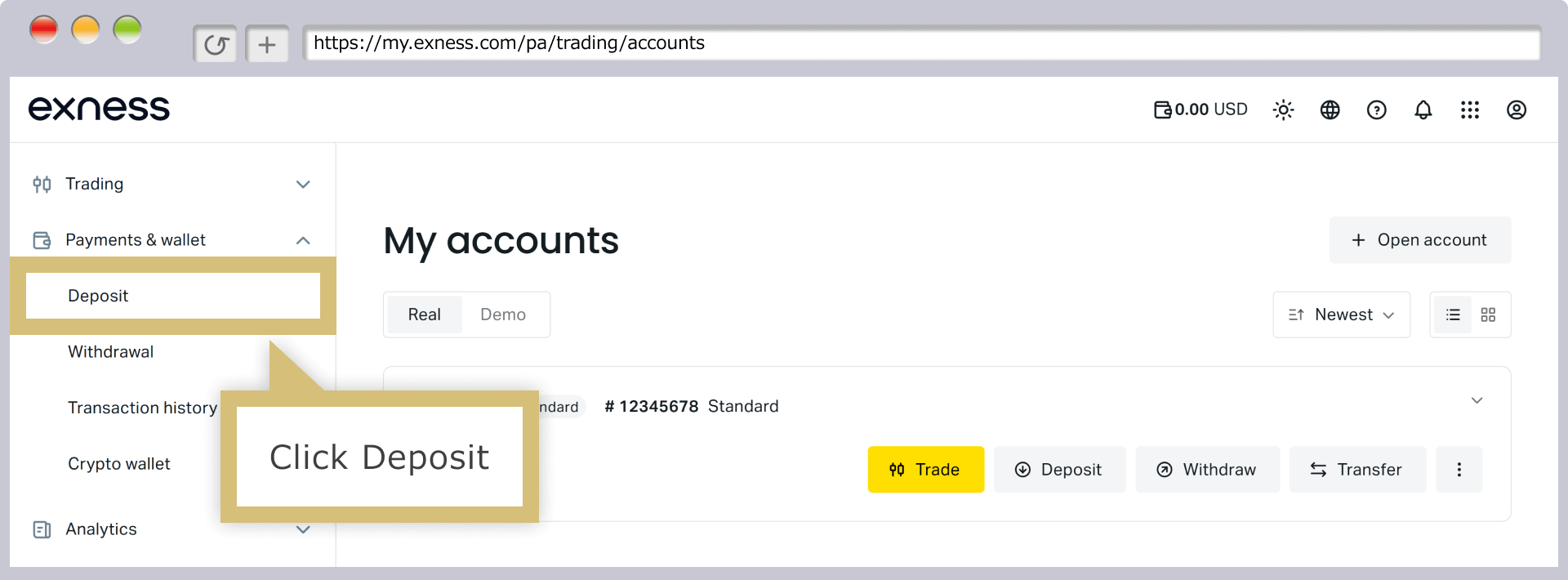
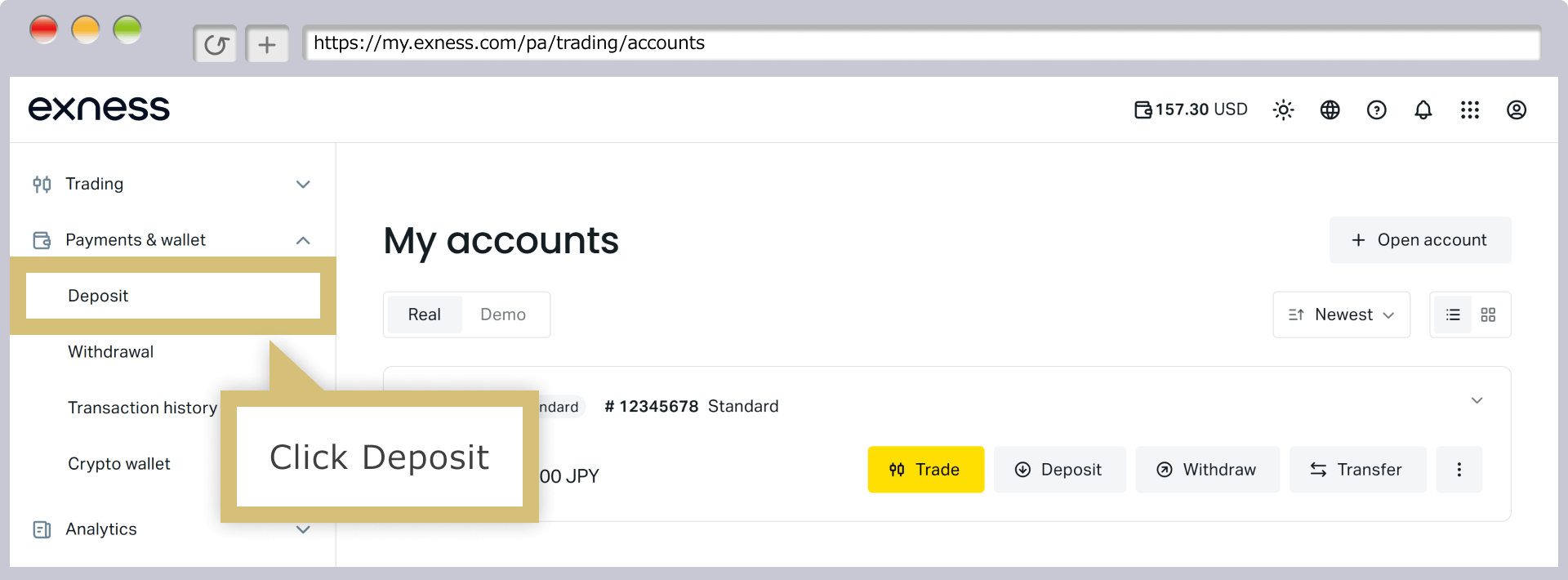
In your Personal Area, click “Deposit” under “Payments & Wallet” in the menu on the left.
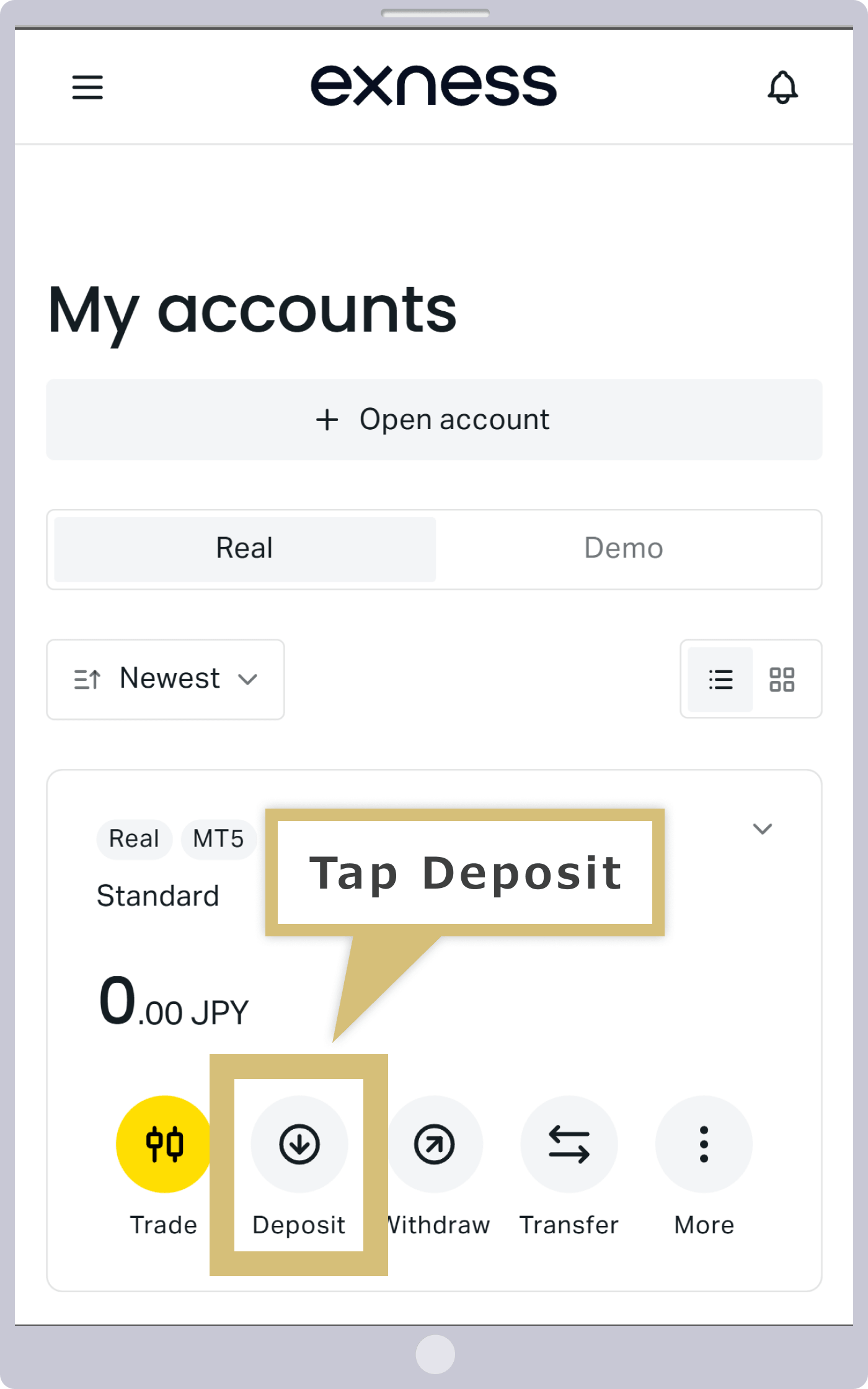
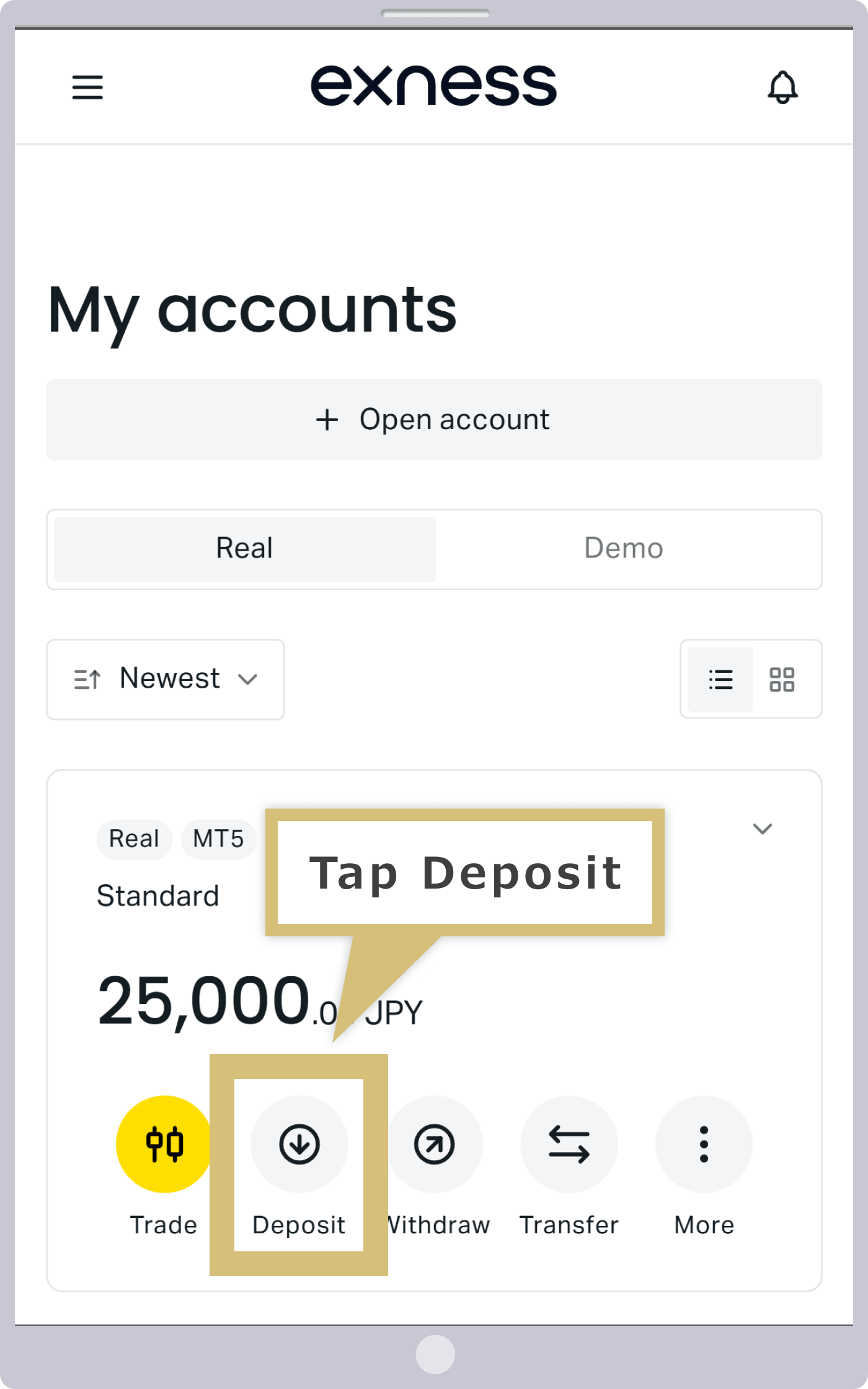
On the "My Account" page, tap "Deposit" under your live trading account.
Selecting a Payment Method
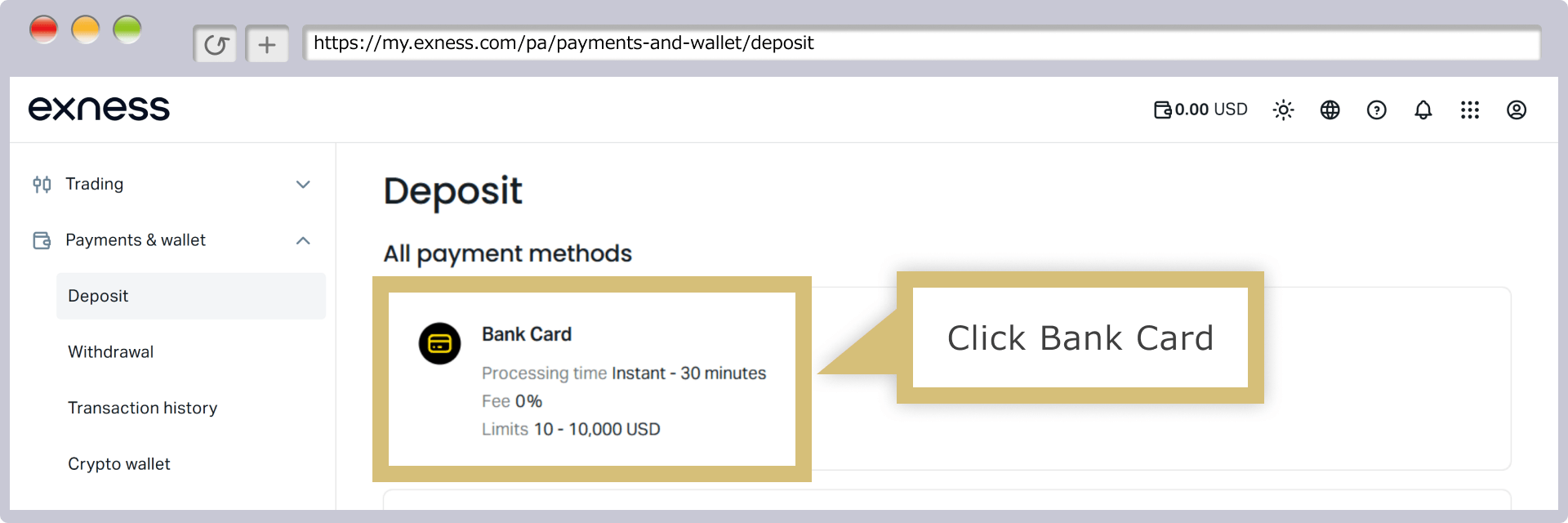
A list of available deposit methods for Exness will appear; click “Bank card” from the list.
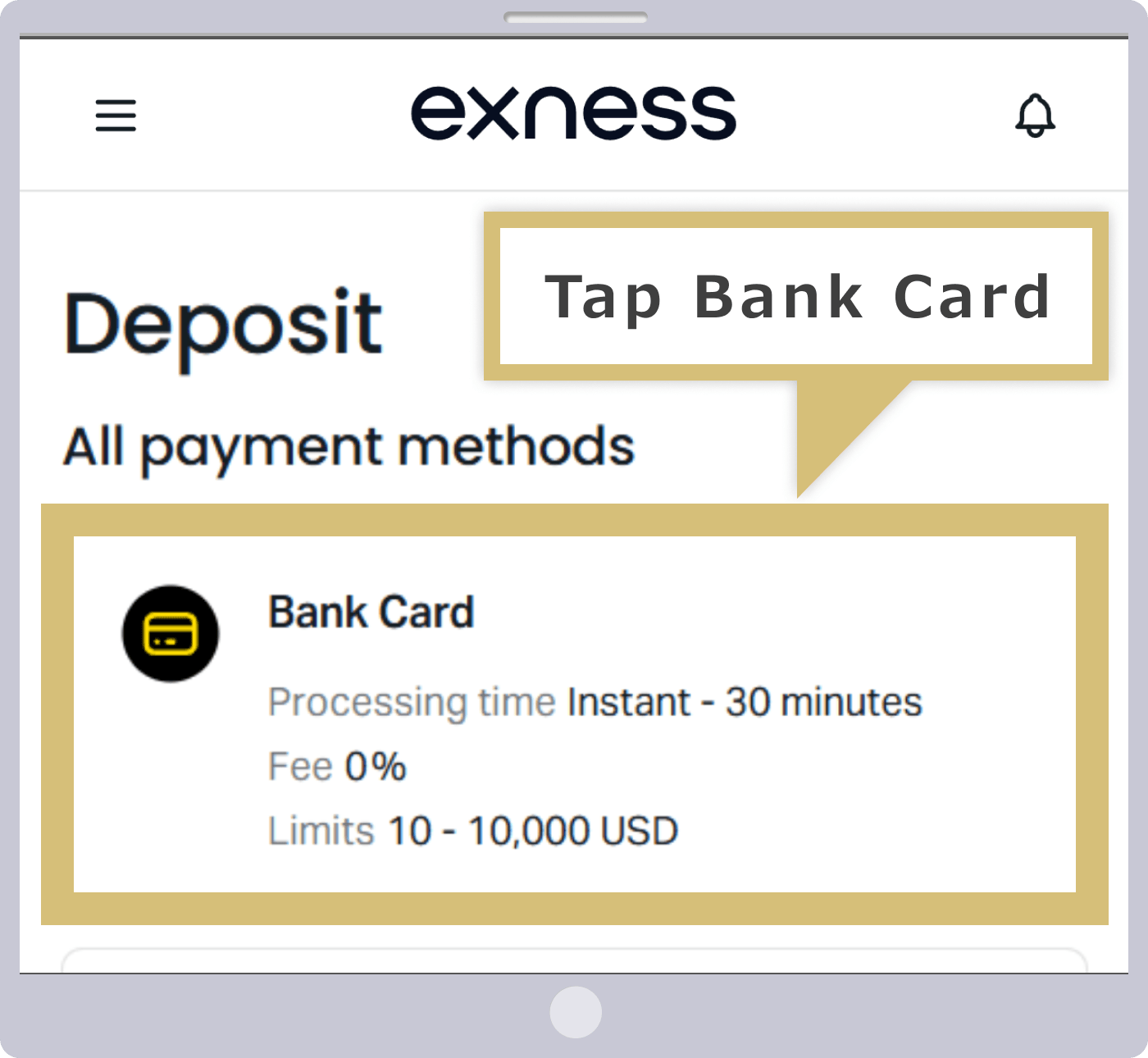
A list of available deposit methods for Exness will appear; tap “Bank card” from the list.

Entering Credit Card Information
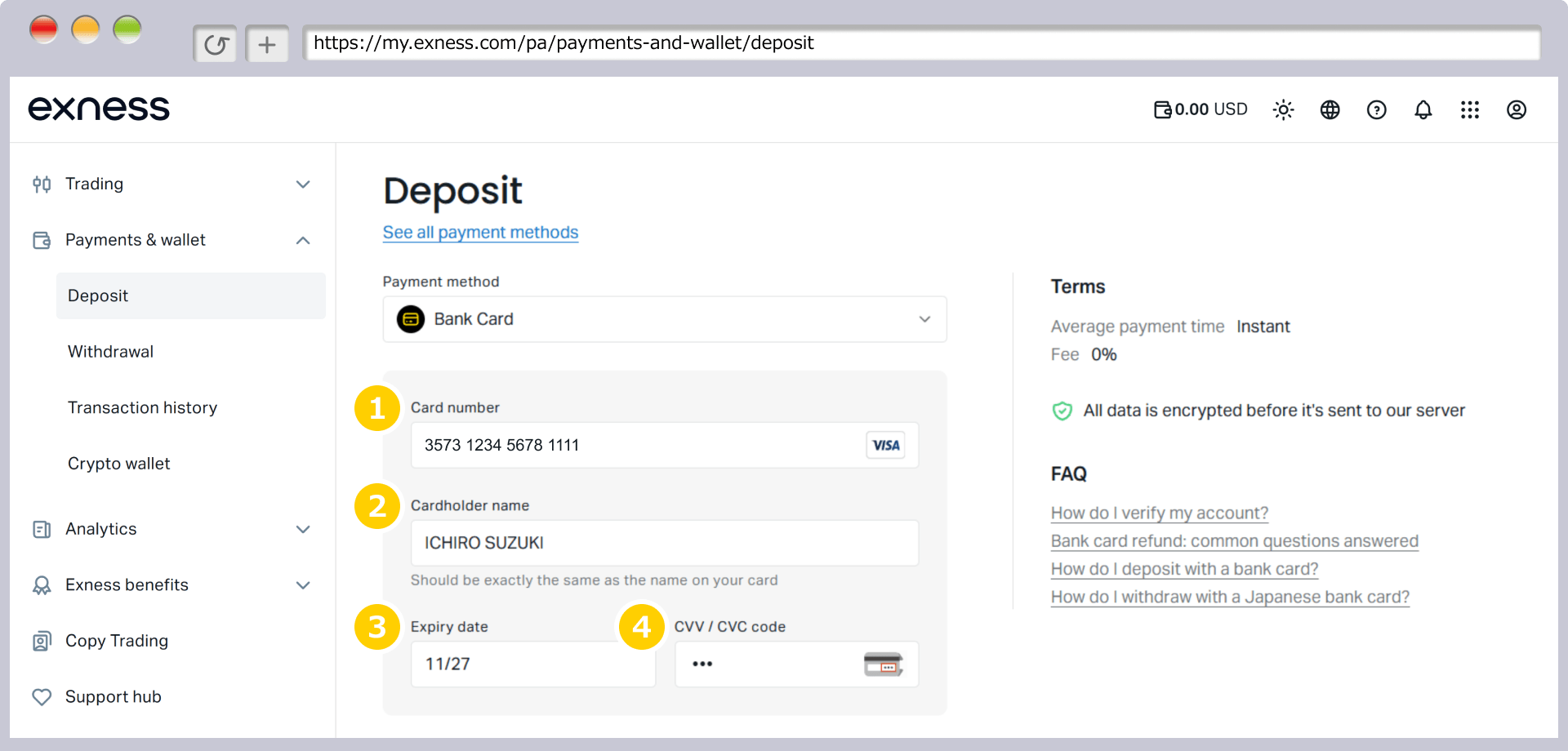
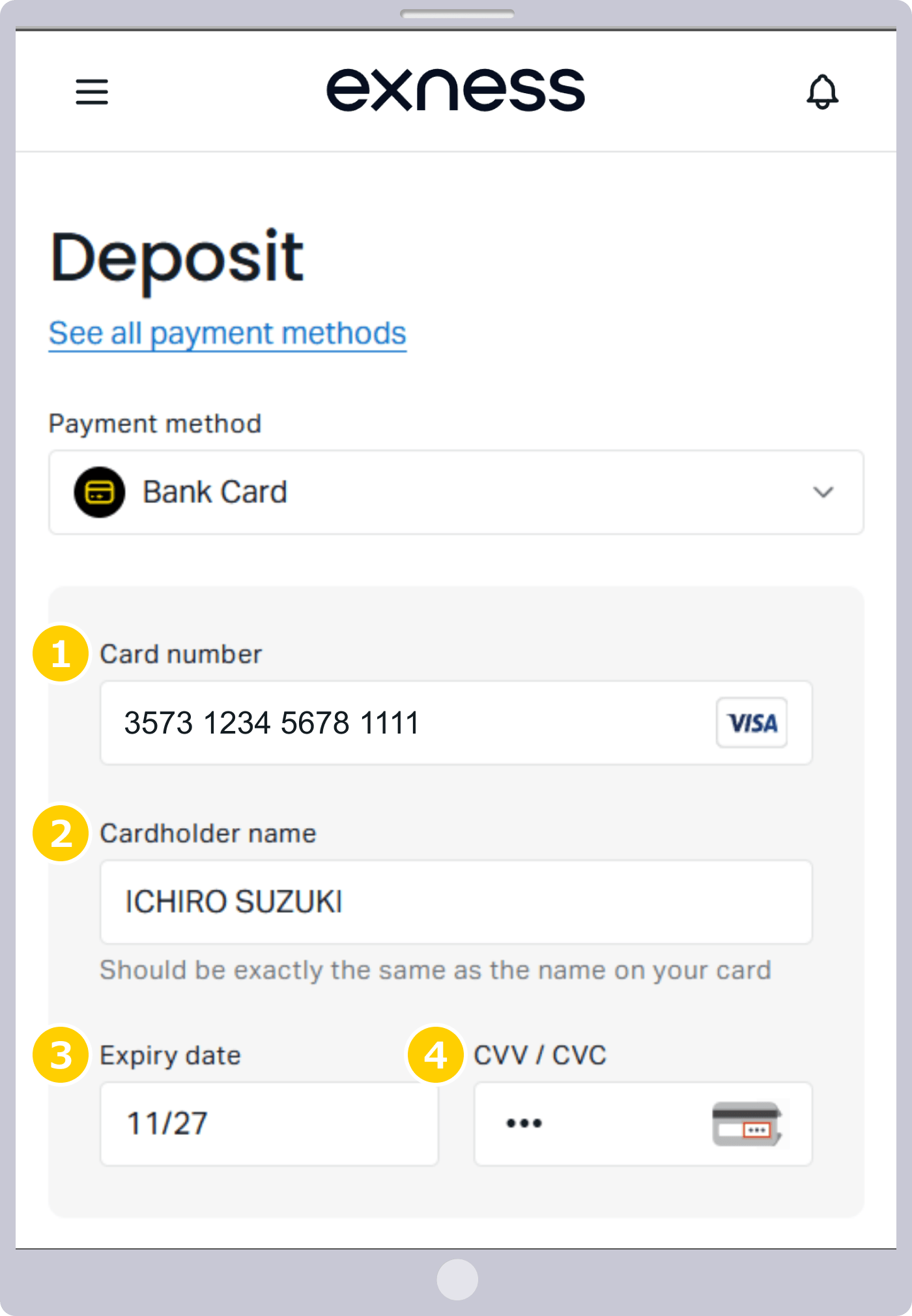
Enter the credit card information you'll use for the deposit.
|
Card Number |
Example: 1234 5678 9012 3456 |
|
Cardholder |
Example: ICHIRO SUZUKI |
|
Expiration Date |
Example: 11/27 (the "/" is displayed automatically) |
|
CVV/CVC Code |
Example: 123 |
|
Card Number |
|
Example: 1234 5678 9012 3456 |
|
Cardholder |
|
Example: ICHIRO SUZUKI |
|
Expiration Date |
|
Example: 11/27 (the "/" is displayed automatically) |
|
CVV/CVC Code |
|
Example: 123 |
① In the “Card Number” field, enter the numbers printed on the front of your credit or debit card using half-width digits. (The card brand will be recognized based on the card number, and the brand logo will be displayed automatically.)
② Enter the name on the credit or debit card in the "Cardholder" field. (The system automatically enters the name in uppercase letters.)
③ Enter the "Expiration Date" in the order of "Month" followed by "Year (last two digits of the Gregorian year)." Since the "/" (slash) appears automatically, enter only the numbers. Please enter the "Month" as a two-digit number.
If the expiration date is November 2027, enter "11" and "27."
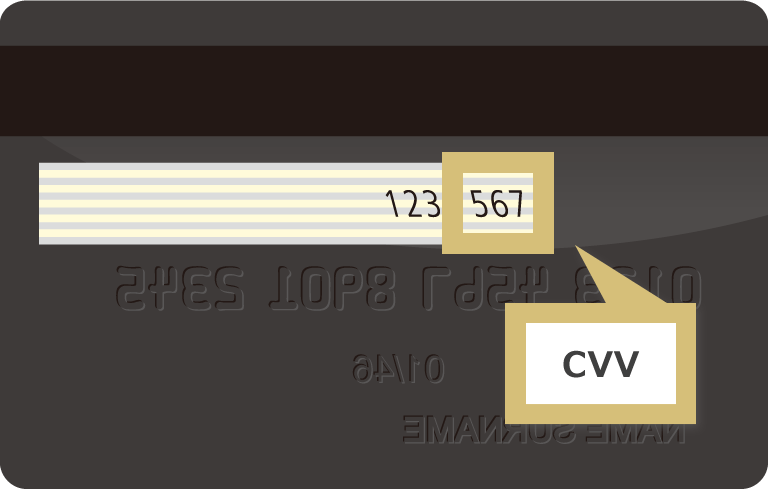
④ For the “CVV/CVC code,” enter the 3- to 4-digit security code printed on either the front or back of your credit or debit card.

The CVV/CVC code is a type of security code designed to prevent unauthorized use by third parties. For Visa and Mastercard, the CVV/CVC code consists of the last three digits of the number located in the upper-right corner of the signature panel on the back of the card.
Selecting a Deposit Account and Entering the Deposit Amount
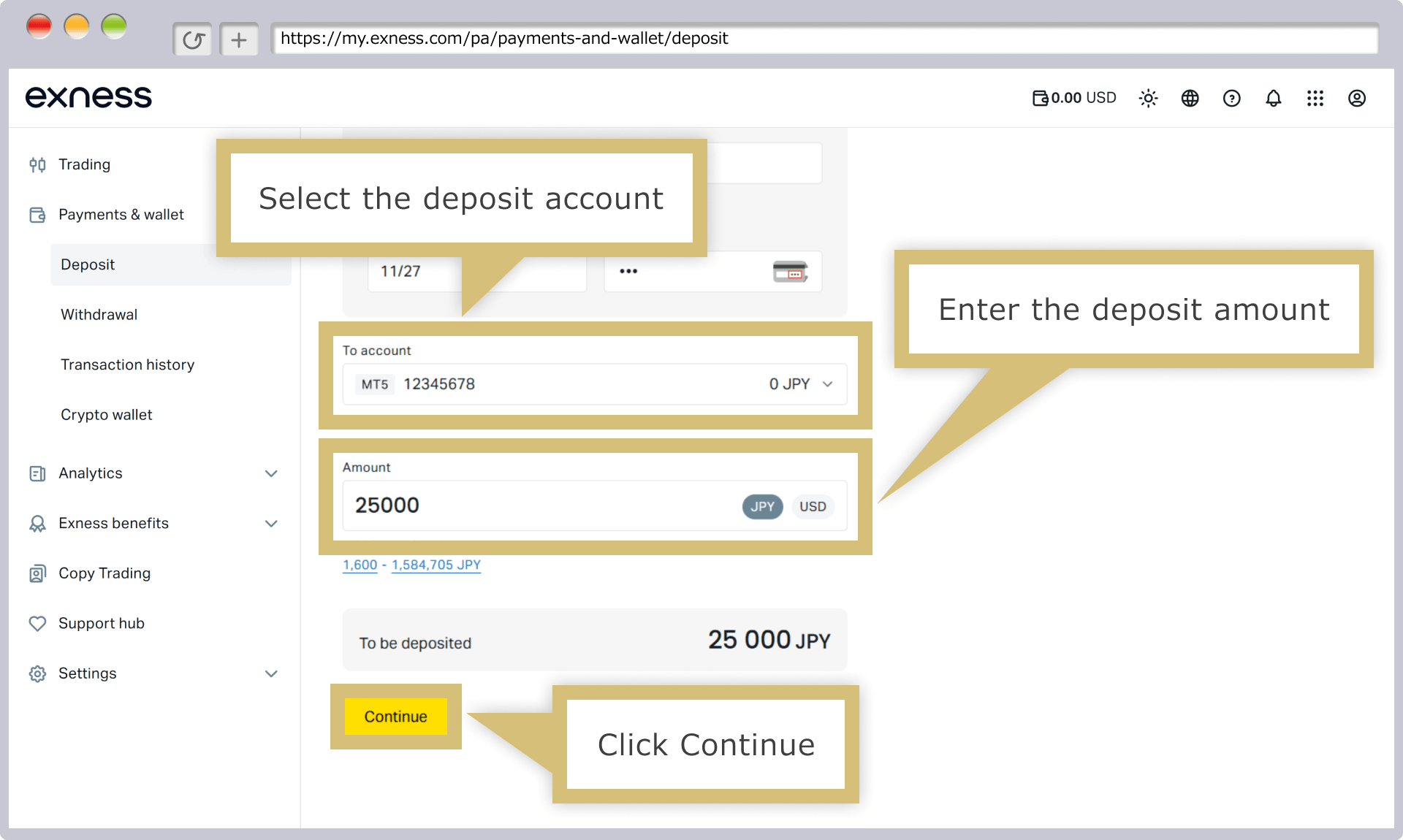
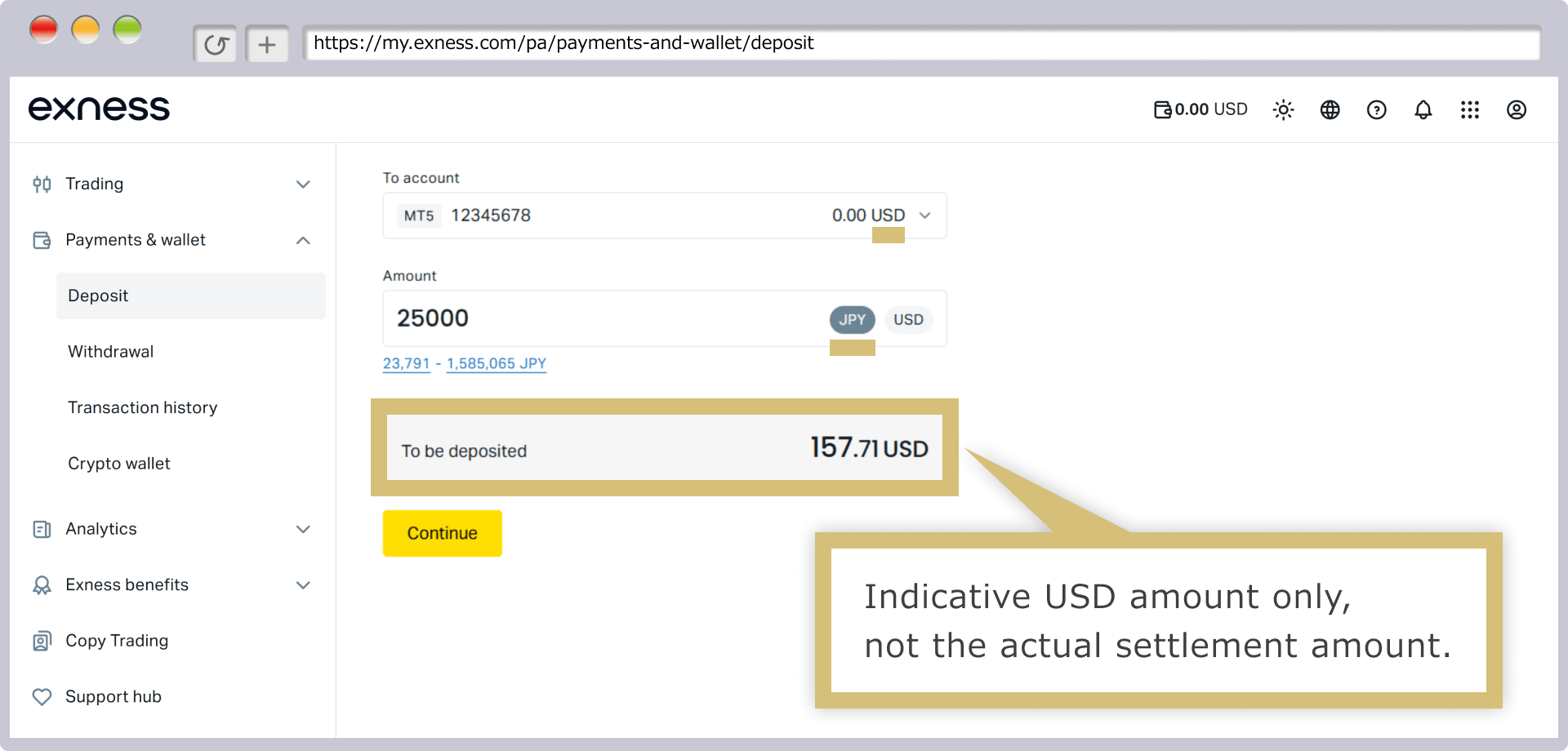
Select the "Deposit Account," enter the "Amount," and click "Continue." The available deposit amount (in yen) will be displayed below the amount field.
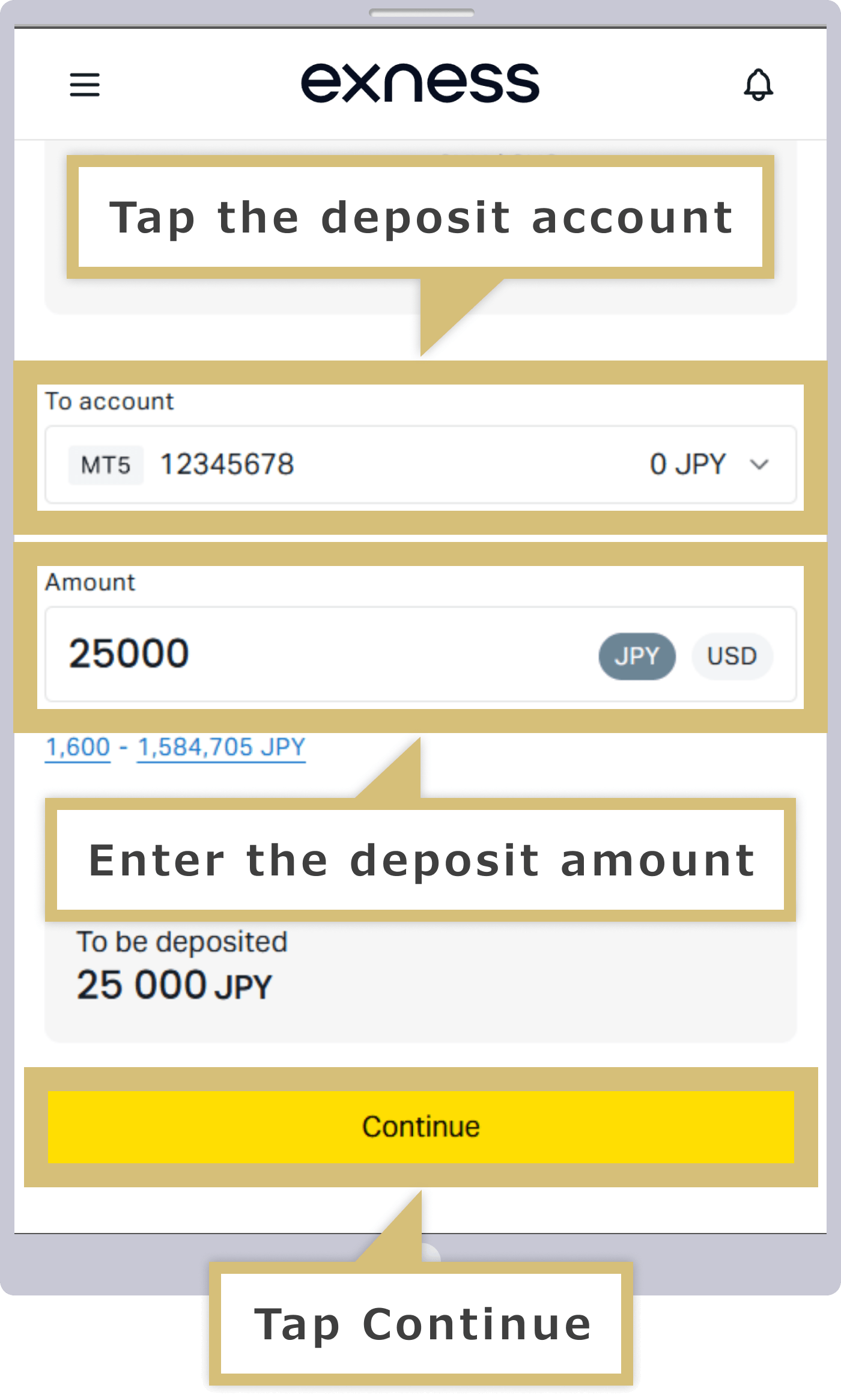
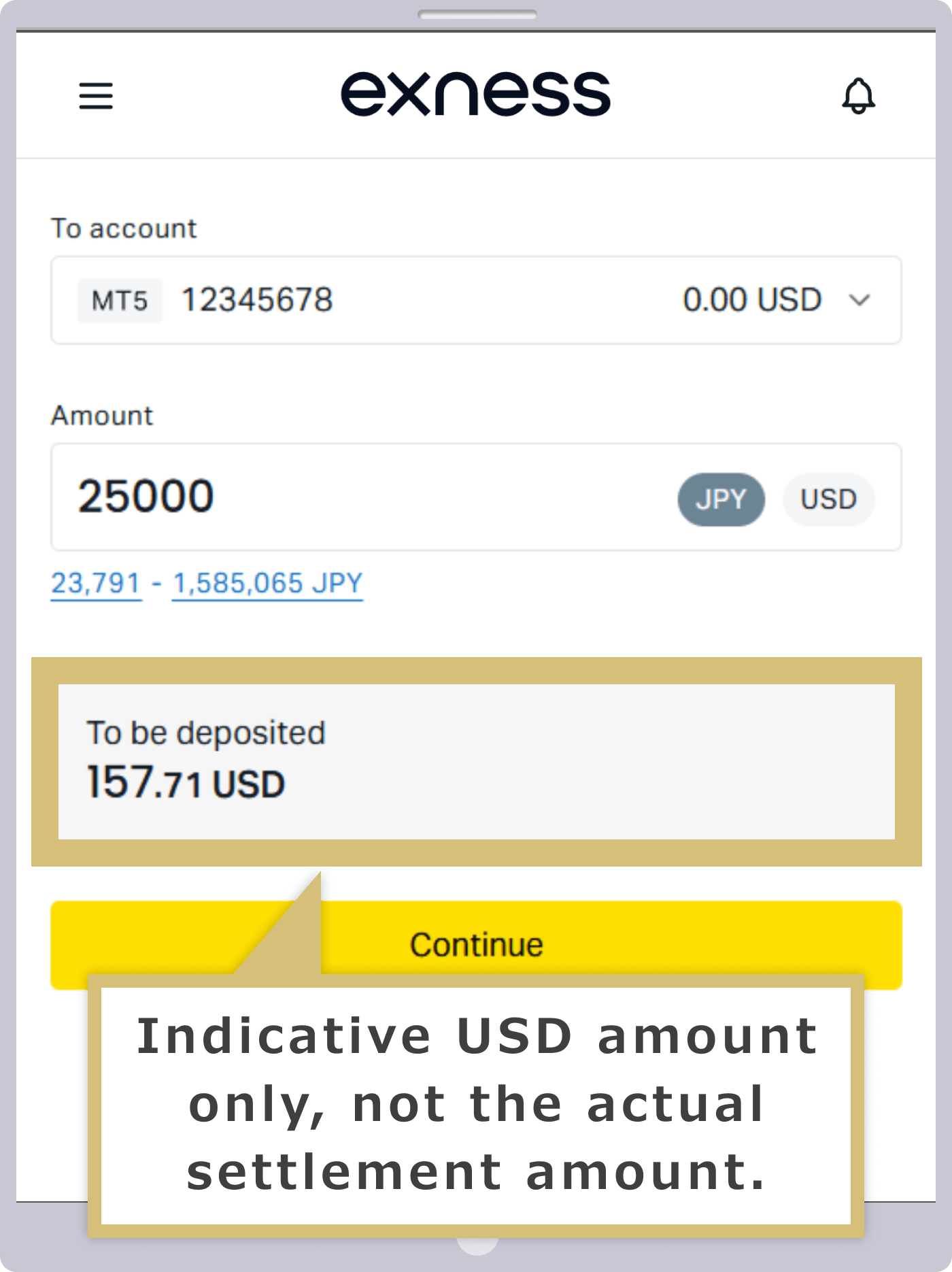
Select "Deposit Account," enter the "Amount," and tap "Continue." The amount you can deposit (in yen) will be displayed below the amount field.
When the account currency and the trading currency do not match
If the currency of the receiving account does not match the transaction currency for credit/debit card payments, the amount will be converted at the exchange rate in effect at the time of payment. Please note that while the converted deposit amount will be displayed during the deposit process, this is for reference only and does not represent the actual payment amount.
Review and Confirm Payment Details
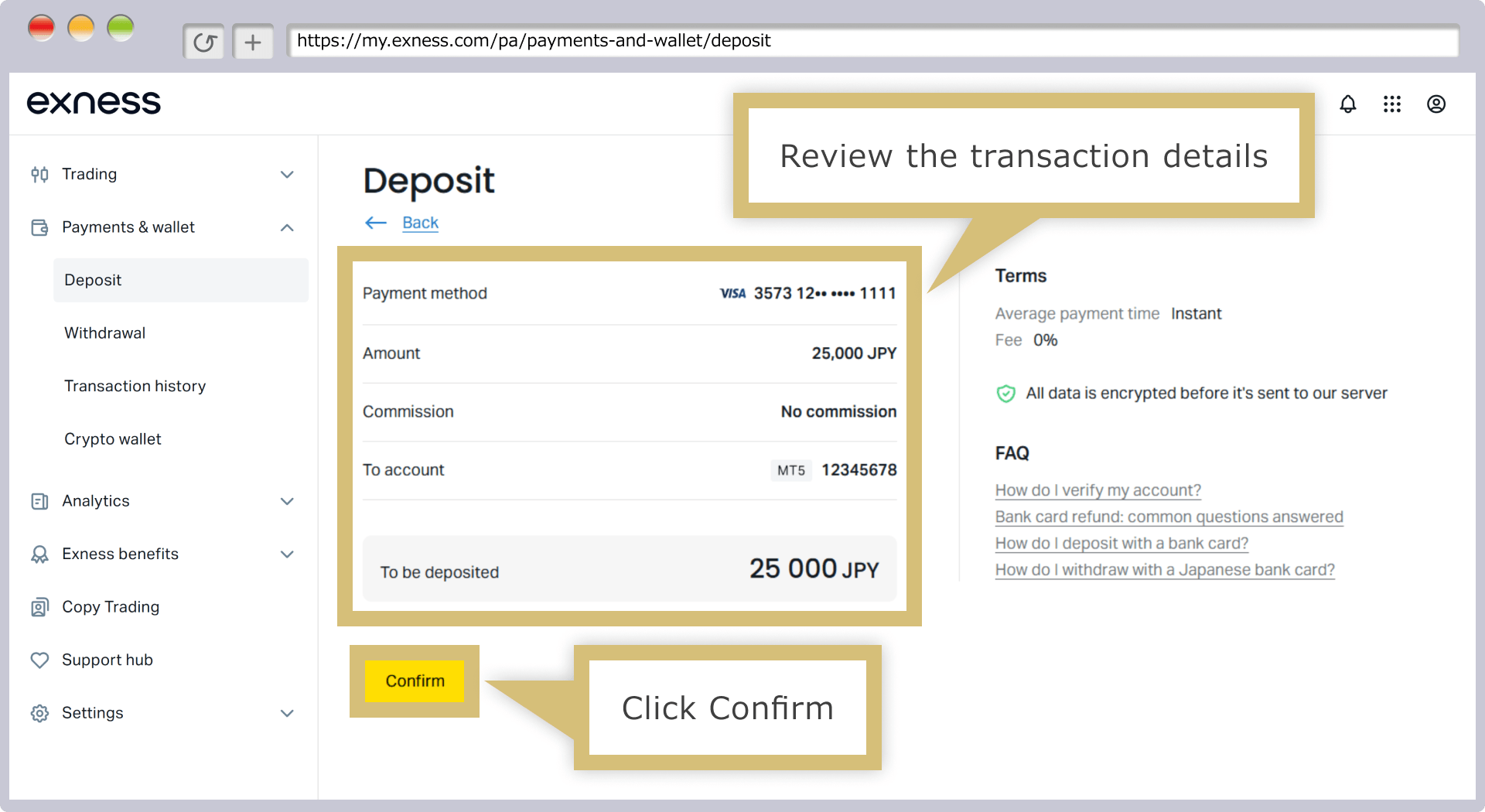
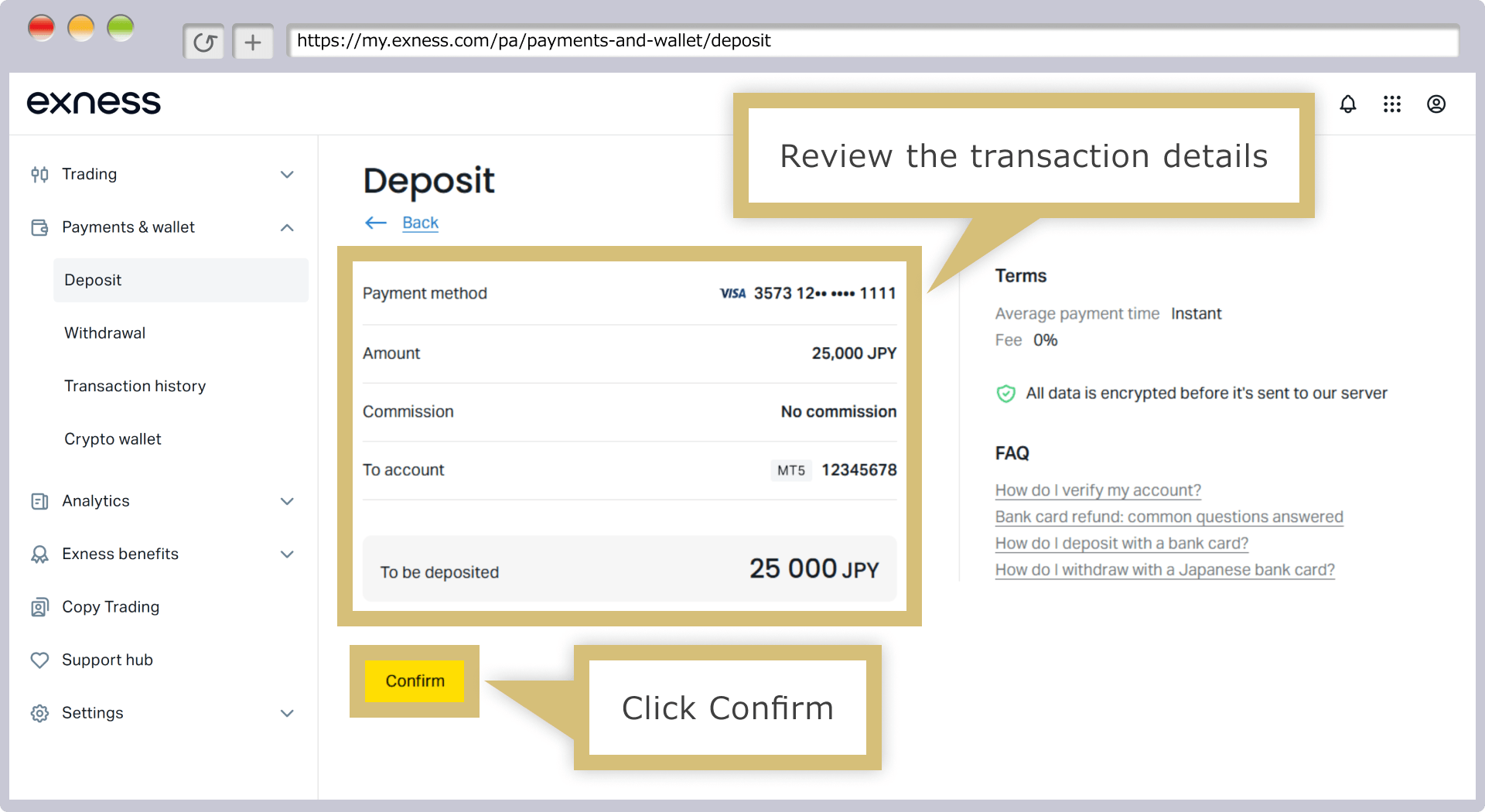
Review the payment details, and if everything is correct, click “Confirm.” Depending on your card, you may be redirected to a payment page where you’ll need to enter an authorization code issued by your card issuer.
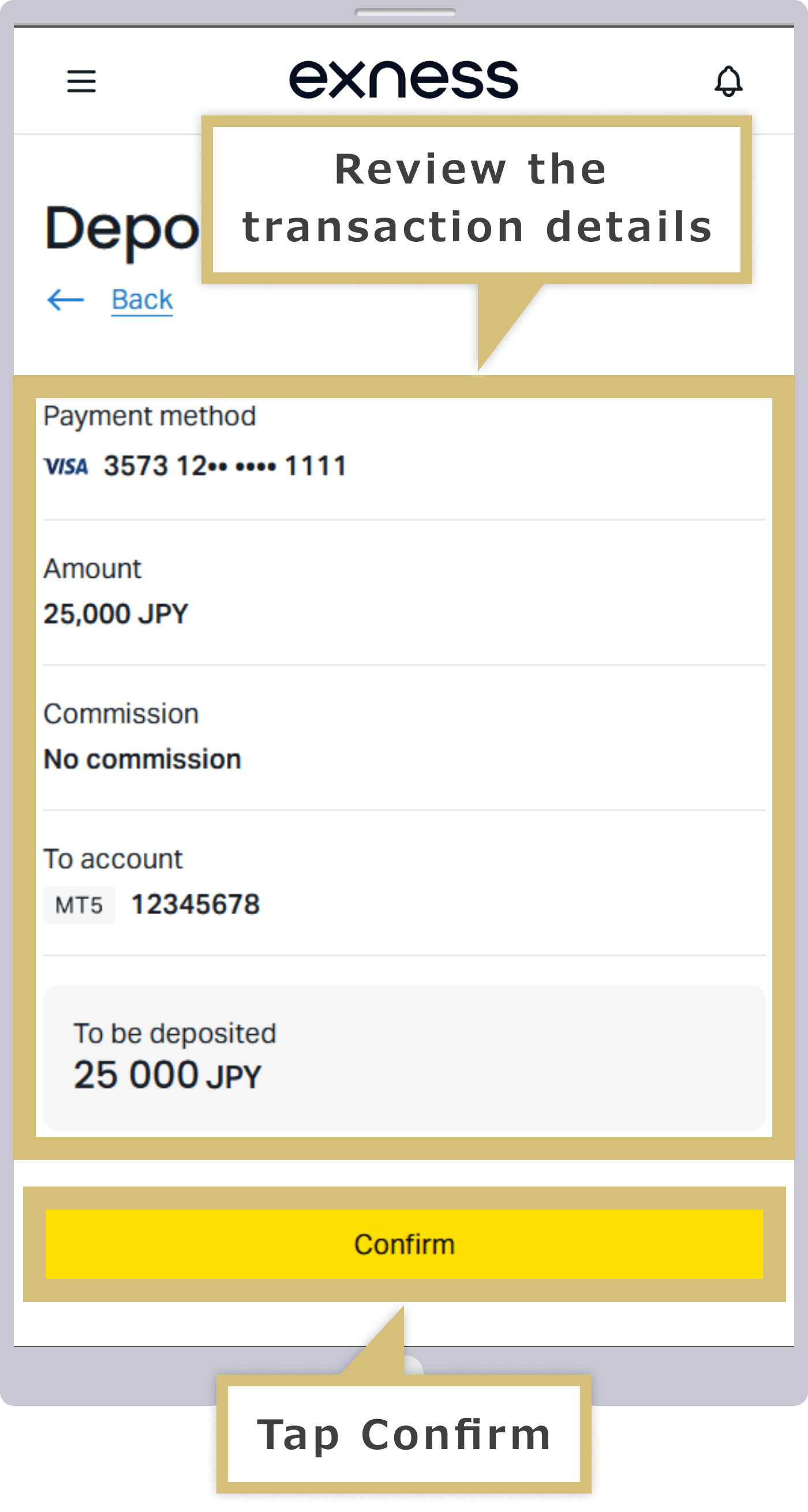
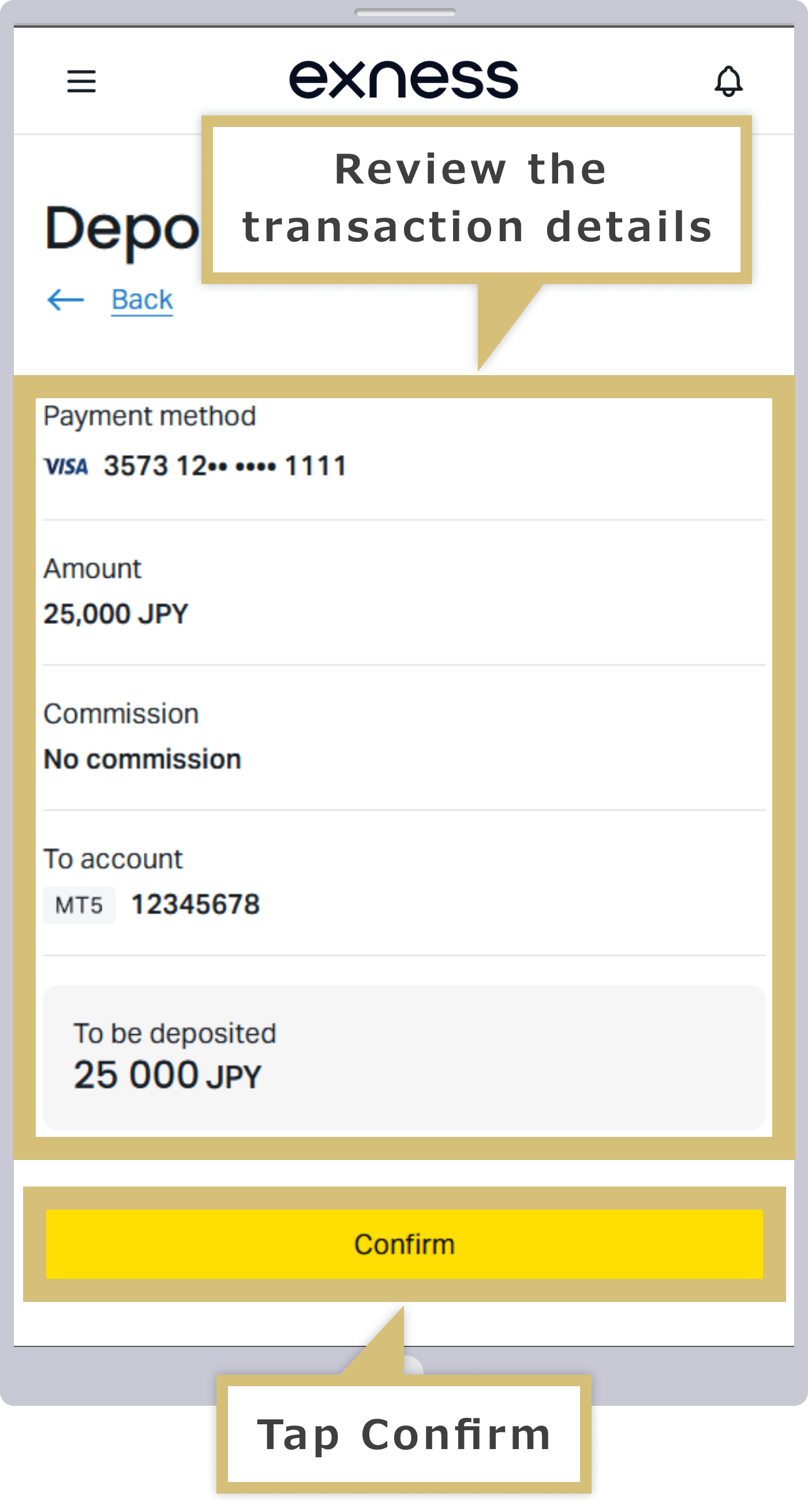
Review the payment details, and if everything is correct, tap “Confirm.” Depending on your card, you may be redirected to a payment page where you’ll need to enter an authentication code issued by your card issuer.
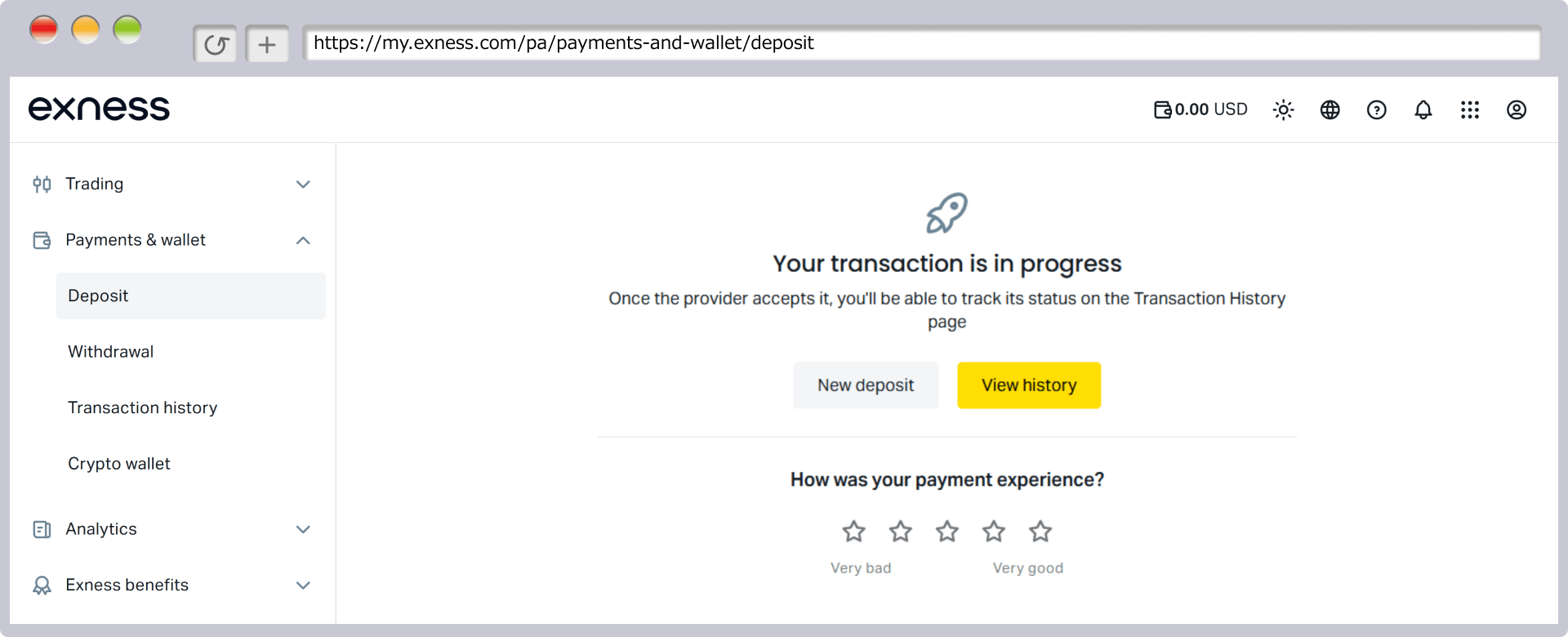
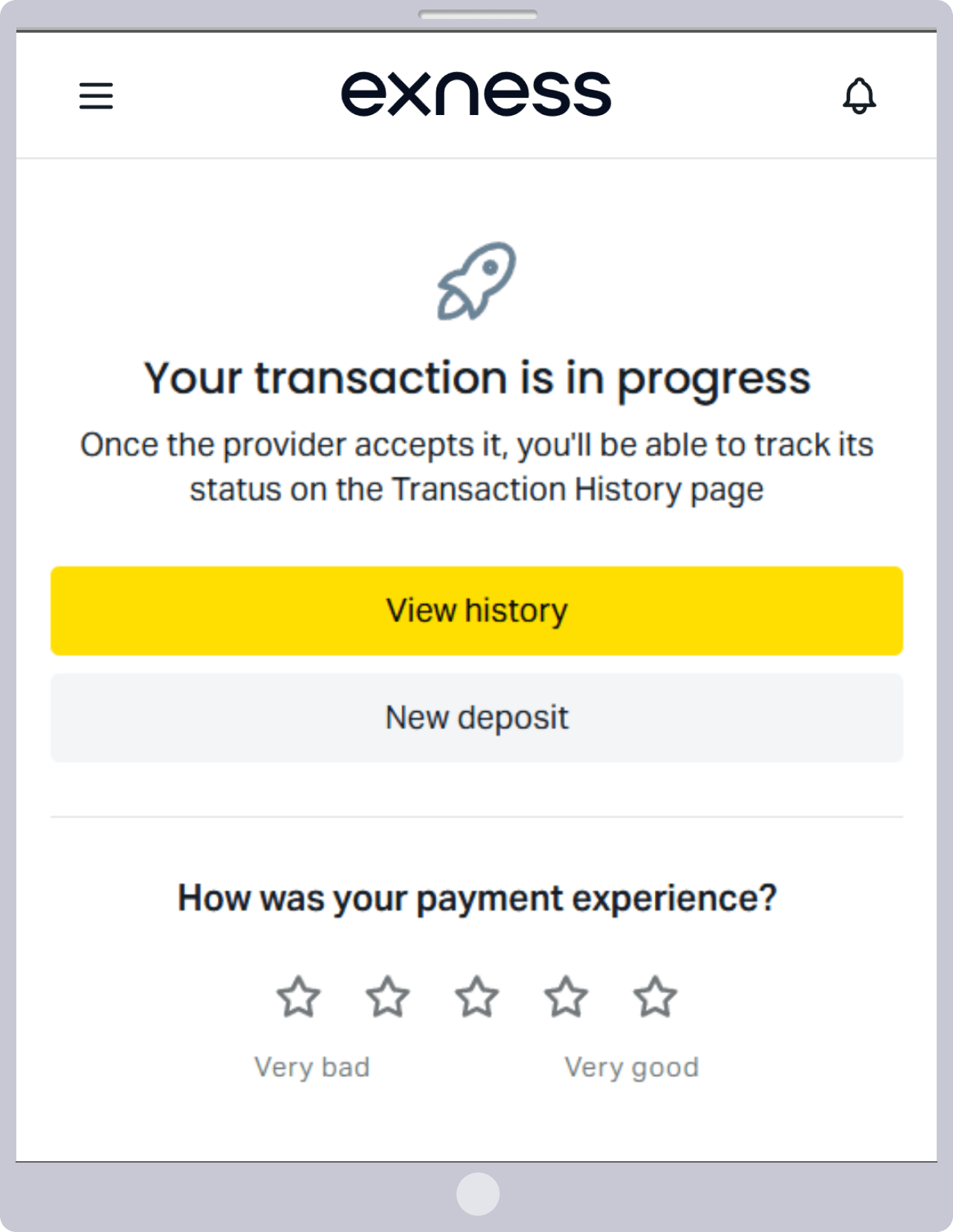
When you close the credit card company's payment screen, a message stating "Your transaction is being processed" will appear, and the withdrawal process is complete.
When you close the credit card company's payment screen, a message stating "Your transaction is being processed" will appear, and the withdrawal process is complete.
Confirmation of Payment Receipt
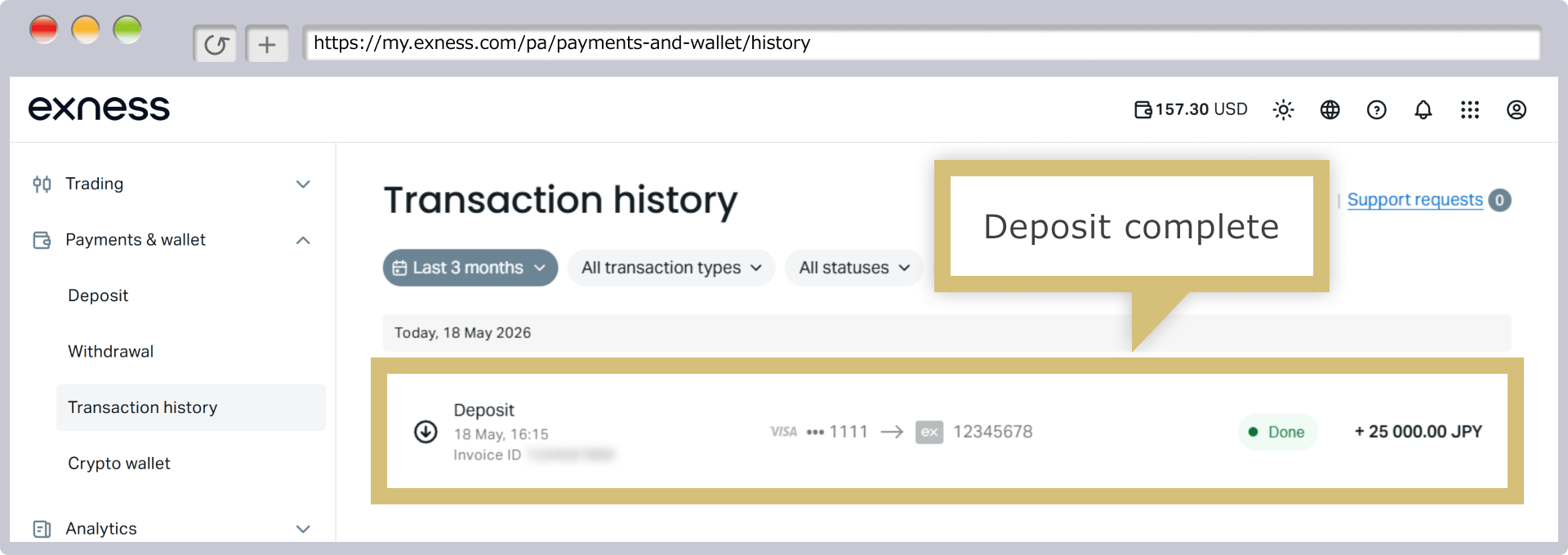
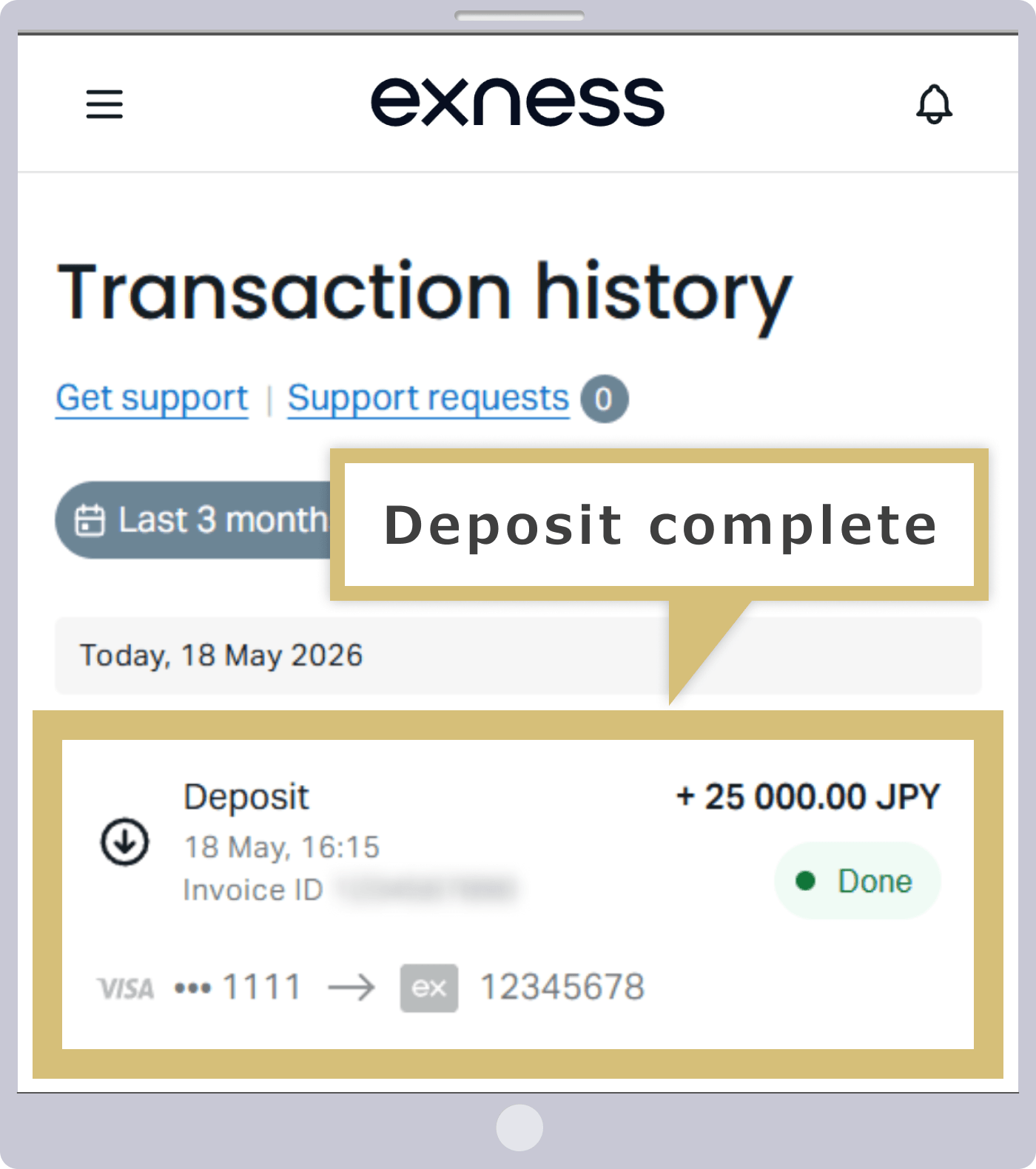
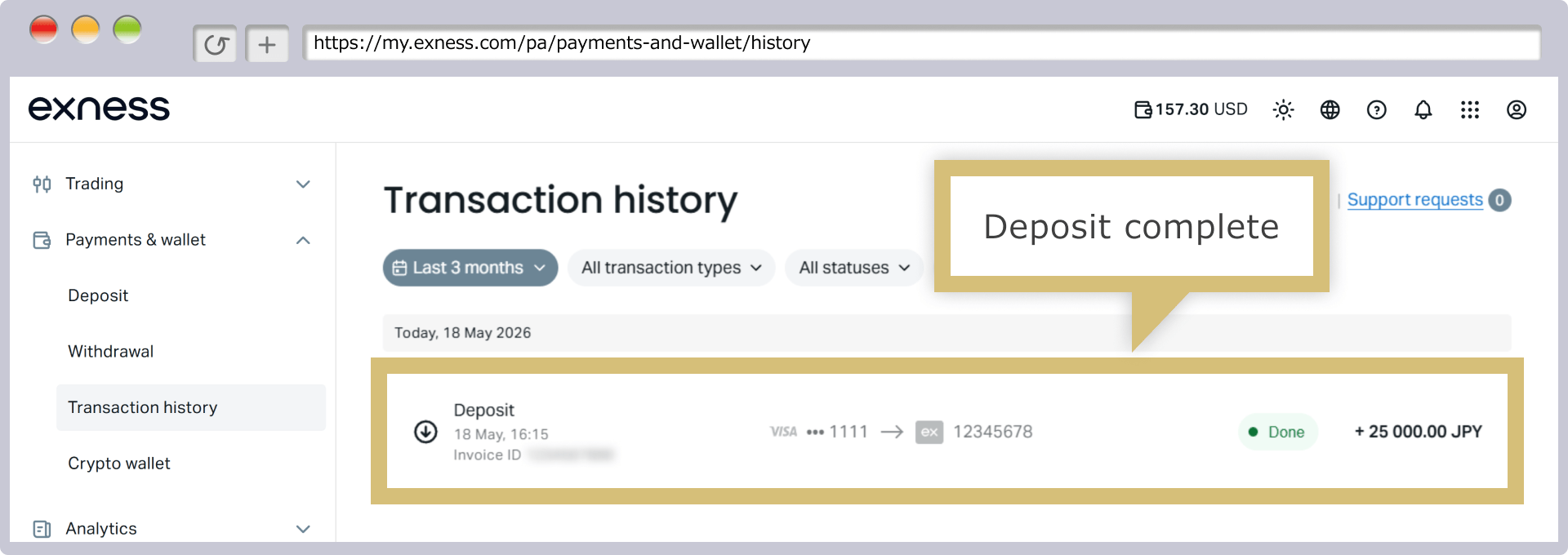
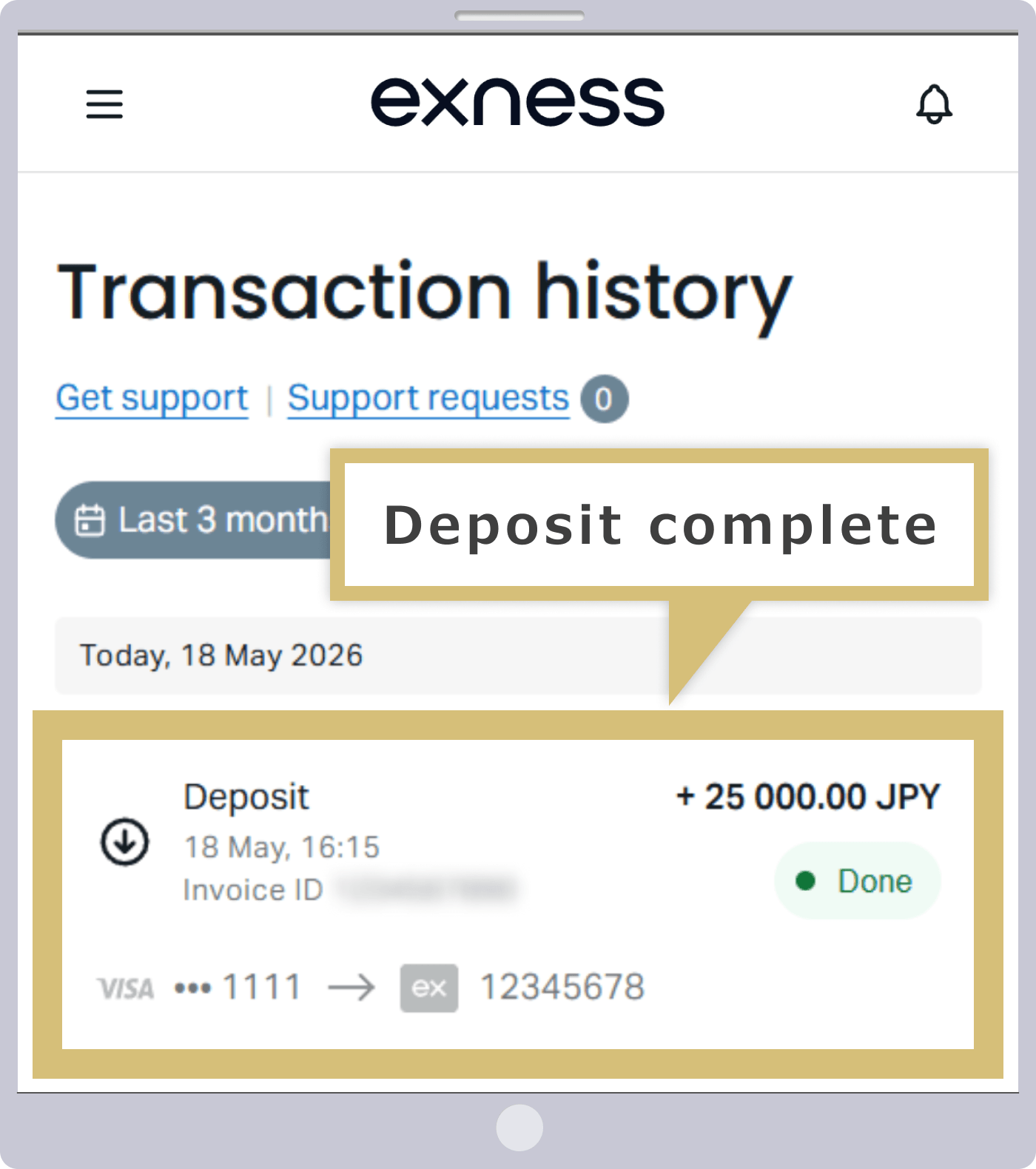
Your Exness trading history will open. Please verify that the deposit from your credit/debit card to your Exness trading account has been completed.
Steps for Making a Deposit Using a Credit or Debit Card Registered with Exness
Log in to your Personal Area
Enter the "email address" you used to register with Exness and the "login password" for your Personal Area to log in to your Exness Personal Area.
Selecting a Deposit Option
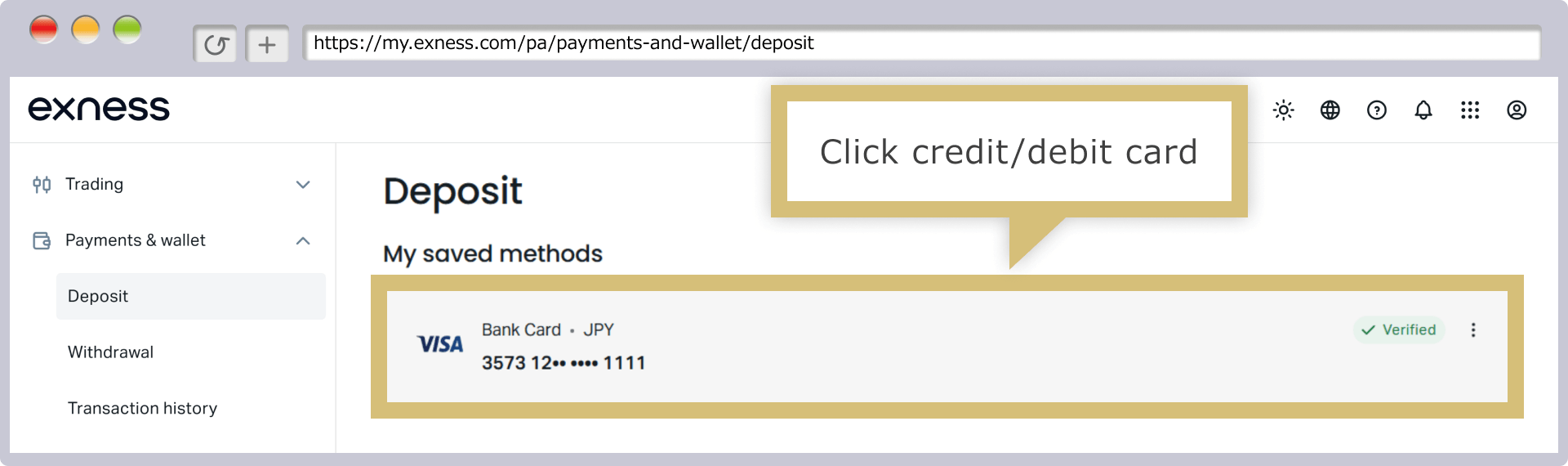
In your Personal Area, click “Deposit” in the menu on the left.
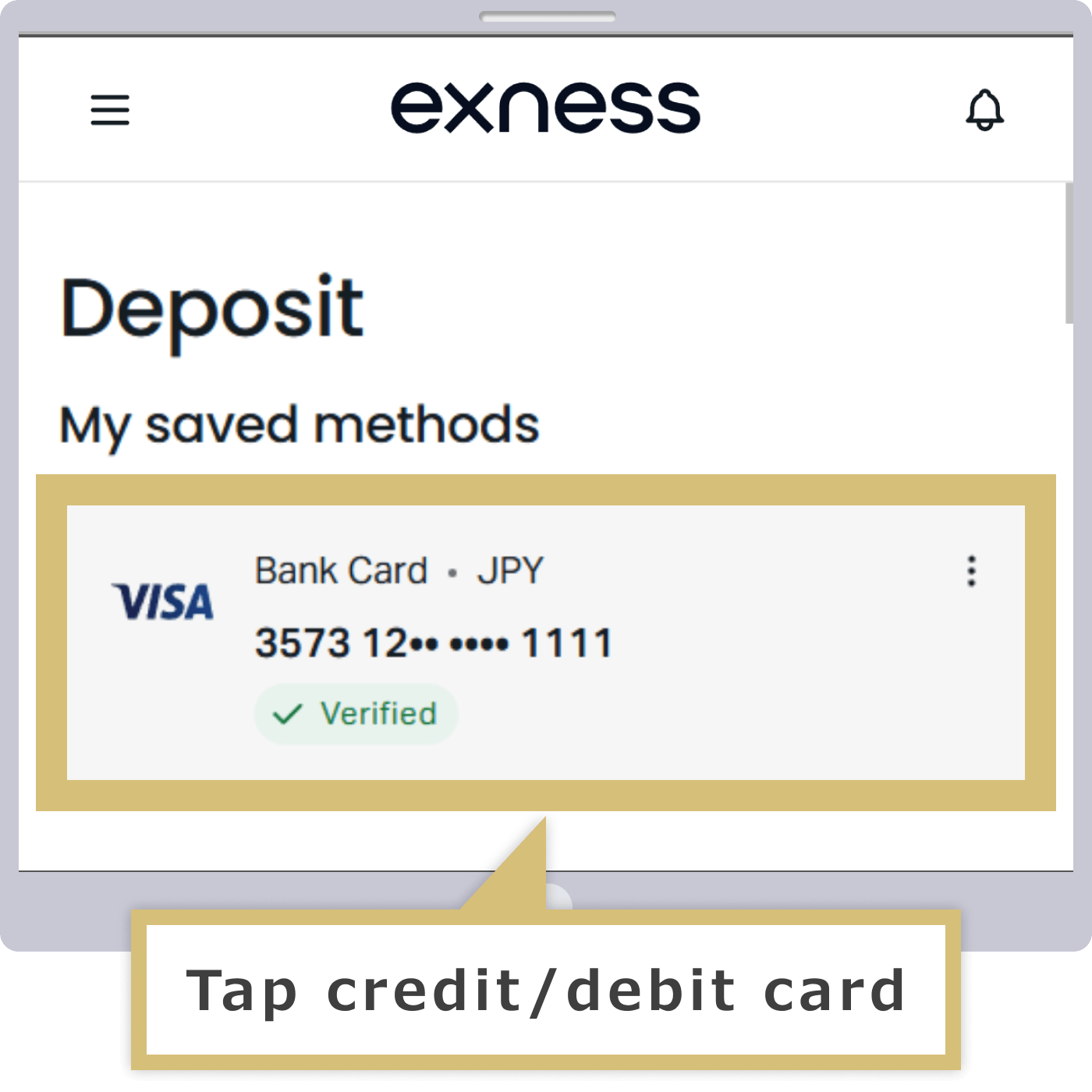
On the "My Account" page, tap "Deposit" under your live trading account.
Selecting a Payment Method
A list of deposit methods available on Exness will appear; click on your registered credit or debit card from the list.
A list of deposit methods available on Exness will appear; tap the credit or debit card you have already registered from the list.
Selecting a Deposit Account and Entering the Deposit Amount
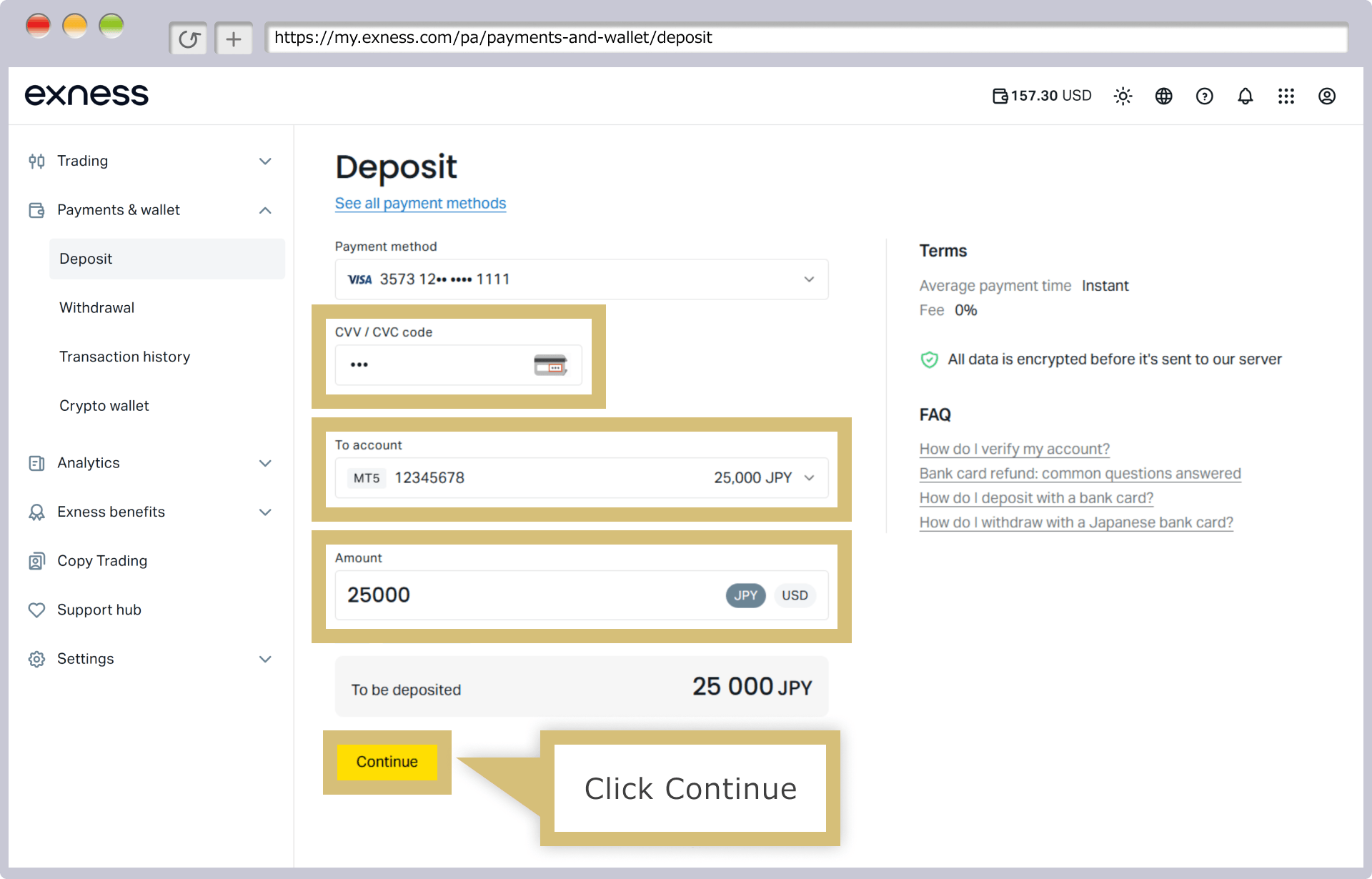
After entering the "CVV/CVC code" for the card you are using, select the "Deposit Account," enter the "Deposit Amount," and click "Continue."
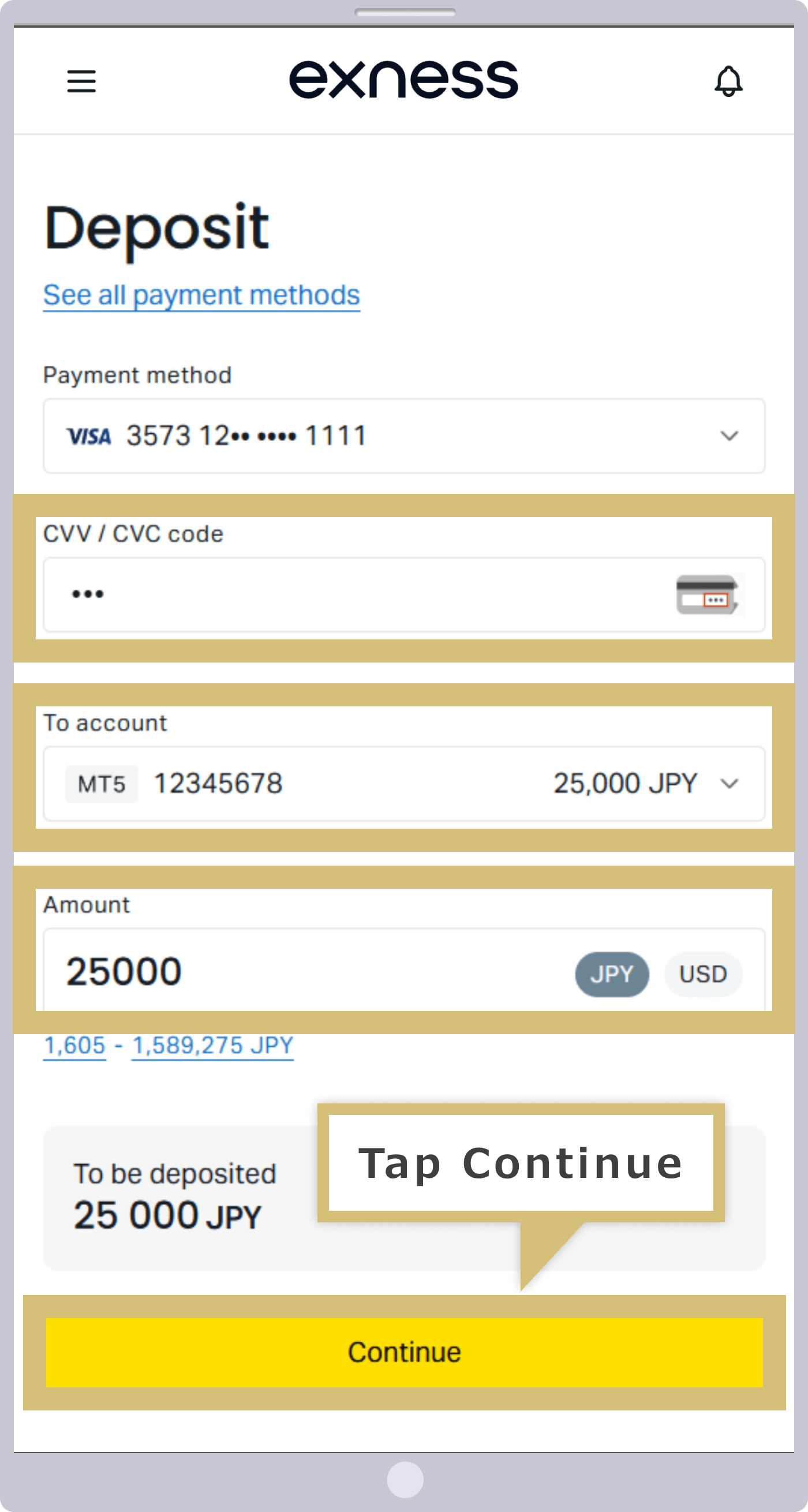
After entering the "CVV/CVC code" for the card you're using, select the "Deposit Account," enter the "Deposit Amount," and tap "Continue."
Review and Confirm Payment Details
Check that the payment details are correct, then click "Confirm." Depending on the card you are using, you may be redirected to a payment page where you will be asked to enter an authentication code issued by your card issuer.
Check that the payment details are correct, then tap “Confirm.” Depending on your card, you may be redirected to a payment page where you’ll need to enter an authorization code issued by your card issuer.
Confirmation of Payment Receipt
Your Exness trading history will open. Please confirm that the deposit from your credit/debit card to your Exness trading account has been completed.

Exness Credit/Debit Card Deposit FAQs
-
I deposited funds into my Exness account using a credit or debit card, but the funds haven't appeared in my account.
If you made a deposit to Exness using a credit or debit card but the funds have not appeared in your account, a deposit error may have occurred. Please log in to your Personal Area and check the deposit status under “Status” on the Transaction History page. It will be listed as either “Completed,” “Pending,” or “Declined.”
Read More
16.09.2021
-
Can I deposit funds into my Exness USD account using a credit or debit card?
Yes, at Exness, when making a deposit with a credit or debit card, you can fund your JPY, USD, EUR, or RUB accounts. Please note that if you are using an account denominated in a currency other than the yen, the amount will be converted from yen to the other base currency at our exchange rate at the time of payment.
Read More
16.09.2021
-
Is there a deposit limit when depositing funds into Exness using a credit or debit card?
Yes, at Exness, when depositing via credit or debit card, the minimum deposit per transaction is the equivalent of 10 USD, and the maximum deposit is the equivalent of 10,000 USD.Currently, we accept four types of credit and debit cards: “VISA,” “VISA Electron,” “Mastercard,” and “Maestro Master.”
Read More
16.09.2021
-
Does Exness require me to pre-register my credit or debit card?
No, at Exness, you do not need to pre-register your credit or debit card to make a deposit. You can start using the service simply by registering your card information when you make your first deposit. For subsequent deposits, you can select your existing card and complete the transaction by entering only the CVV code.
Read More
16.09.2021
-
Please tell me which credit and debit card brands are accepted by Exness.
Exness accepts four types of credit and debit cards: "VISA," "VISA Electron," "Mastercard," and "Maestro Master."Deposits made via credit/debit card are credited to your trading account instantly, 24 hours a day, 365 days a year. Please note that you must have completed identity verification in advance to use a credit/debit card.
Read More
16.09.2021