












search

Compatible with MT4/MT5!
Easy trading on the go

How to Turn On Exness Push Notifications (Mobile Version)

Push notifications

How to Turn On Push Notifications on Exness

With Exness, you can receive push notifications containing important announcements from Exness, as well as the latest information to help you make trading decisions—such as economic indicator release schedules and alerts for sudden market fluctuations. On the push notification settings screen, you can select only the information you need from options like "Important Indicators and Announcements," "Round Number Alerts," and "Sudden Fluctuation Alerts."By using the push notification feature, you can stay informed about valuable trading insights and campaign updates in real time, helping you build a more efficient trading environment with Exness.

To receive push notifications from Exness, you need to add Exness to your smartphone’s home screen and turn on push notifications. For detailed instructions on how to set this up, please follow the steps below.

How to Enable Push Notifications on Exness (iOS Version)

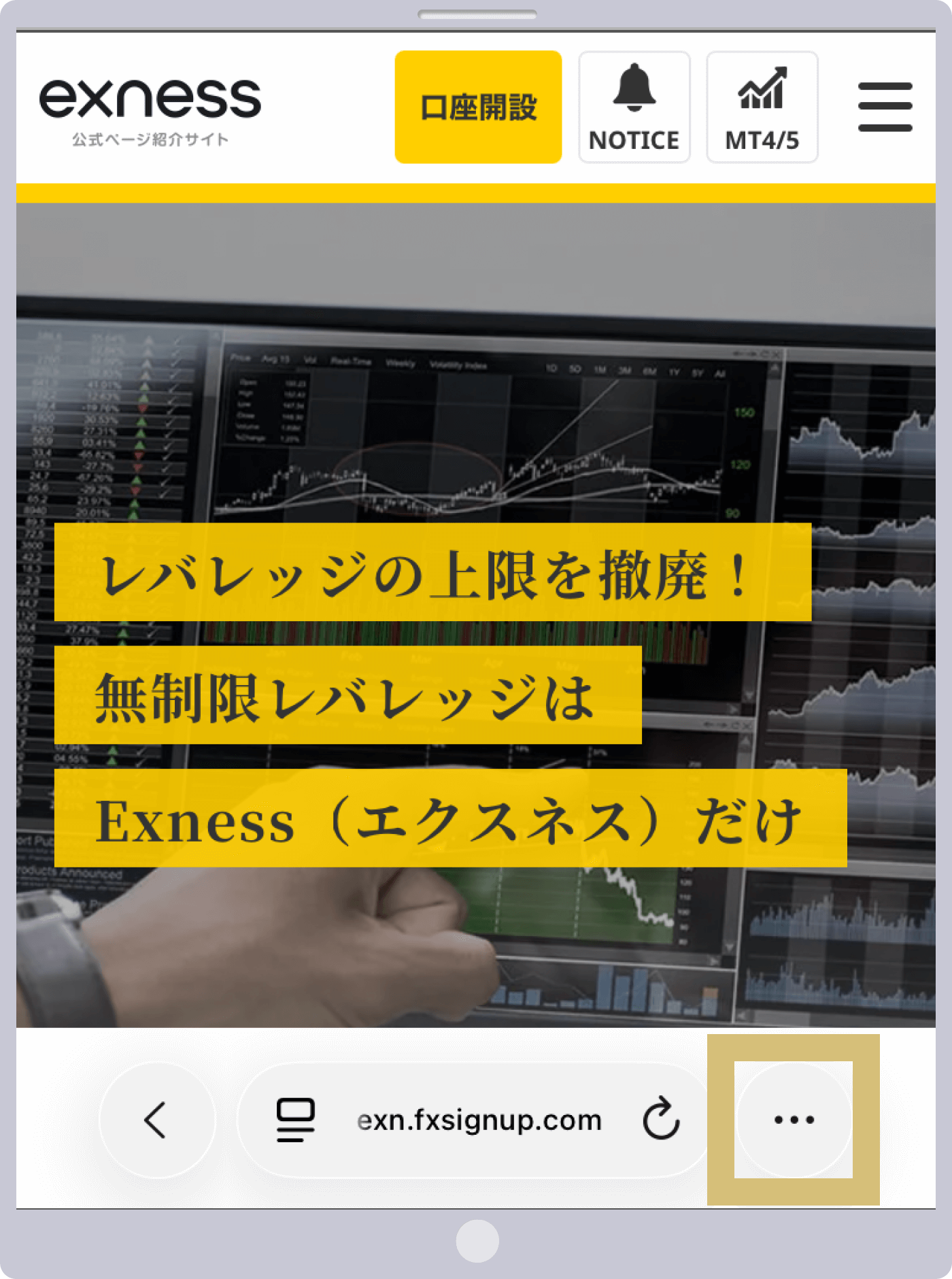
Step 1

Open Safari and go to Exness, then display the browser menu.

Exnessトップページ
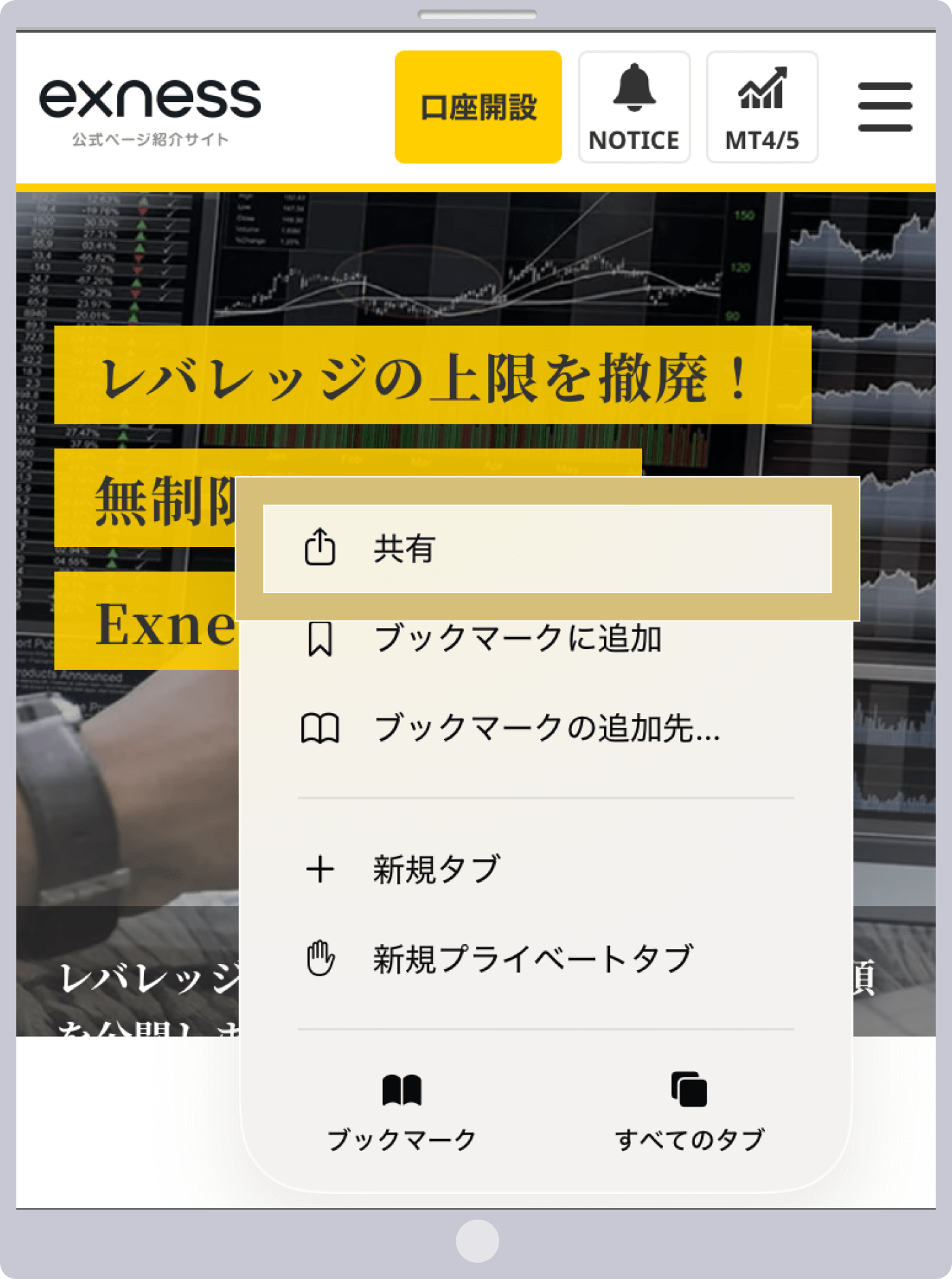
Step 2

Tap "Share" in the menu.

共有をタップ
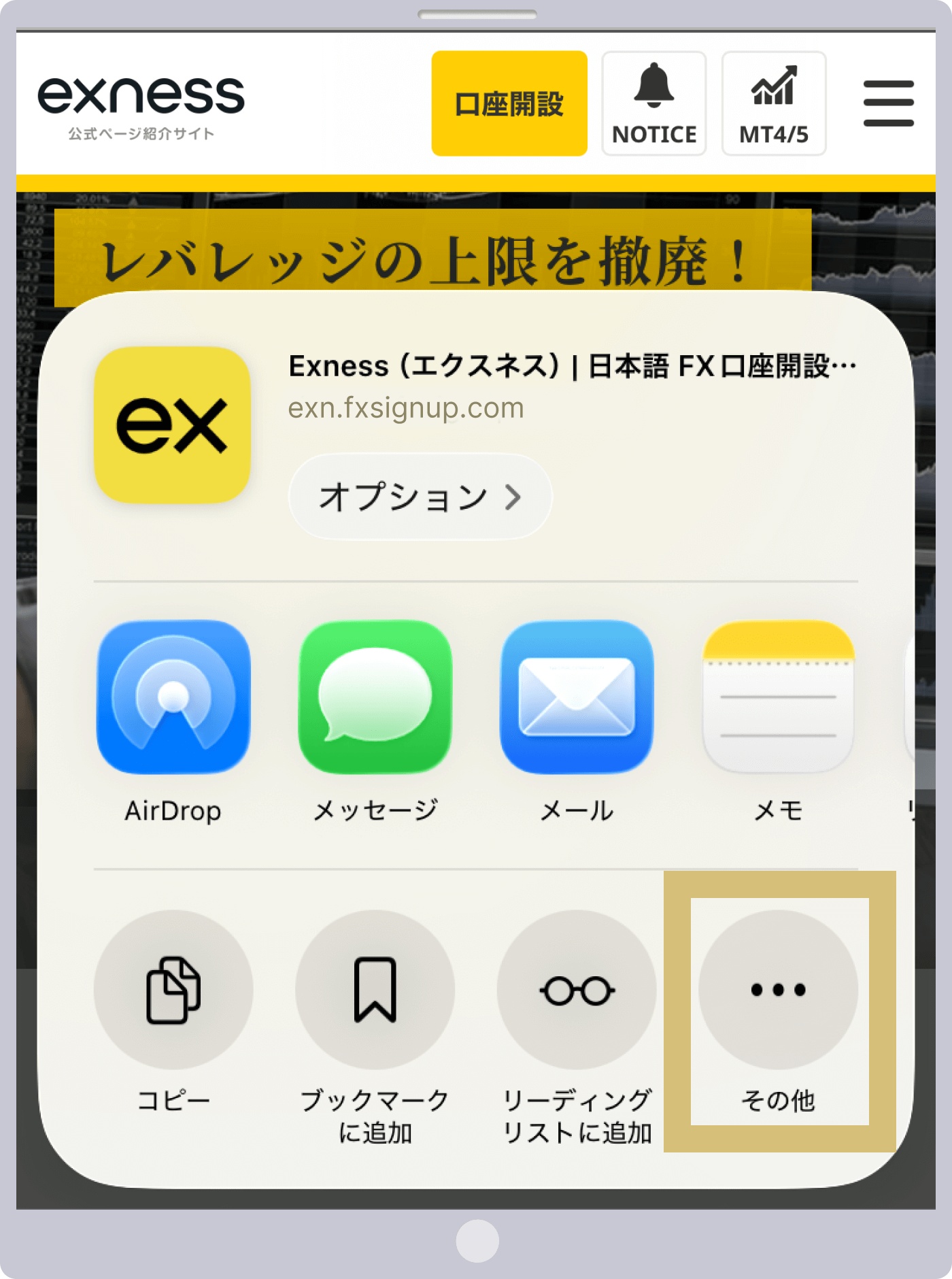
Step 3

Next, tap "Other."

その他をタップ
Step 4

Tap "Add to Home Screen" in the menu.
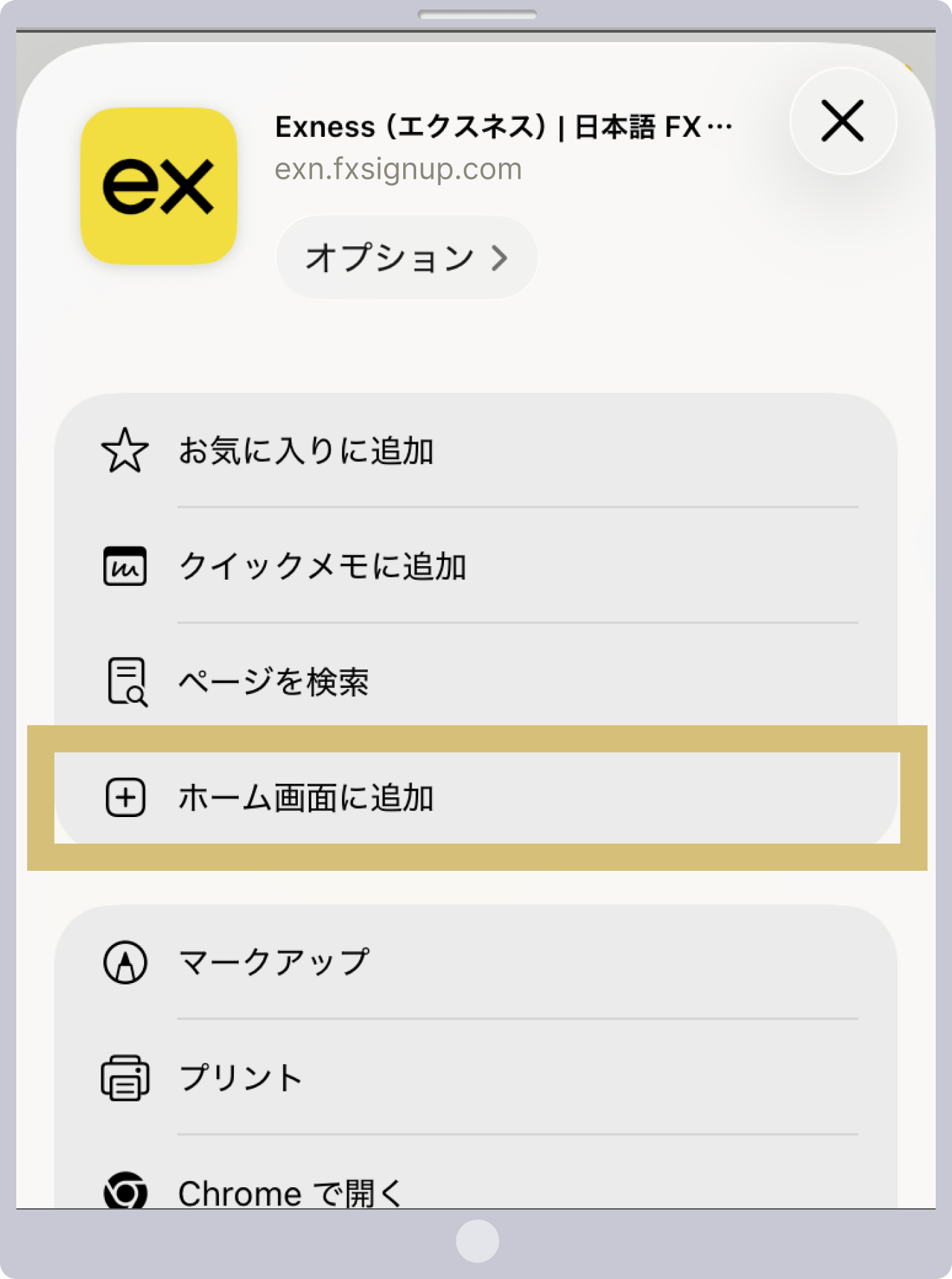
「ホーム画面に追加」をタップ
Step 5

Tap "Add" in the upper-right corner of the screen to add Exness to your home screen.
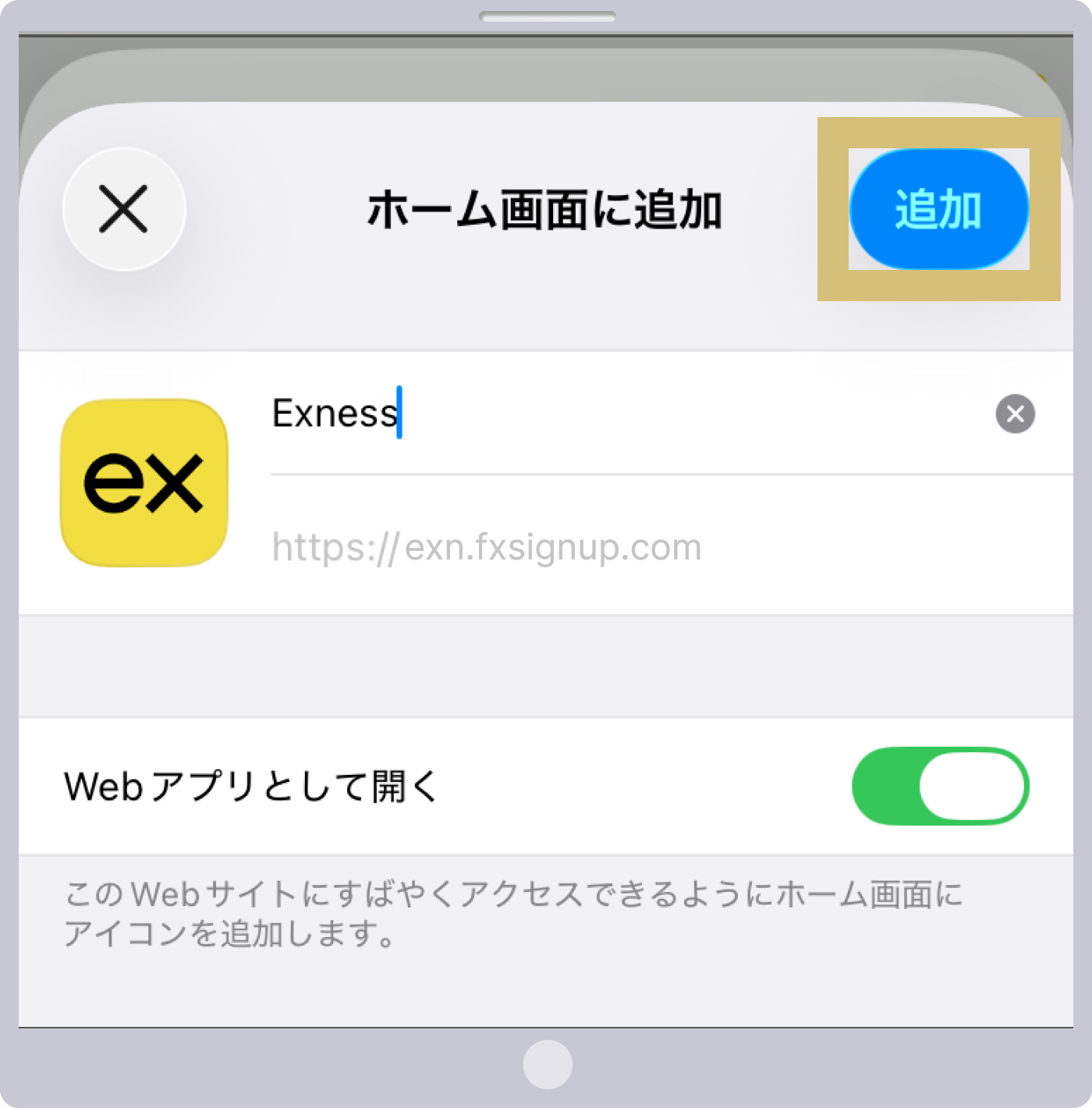
Exnessホーム画面に追加
Step 6

Tap the Exness icon on the home screen to open Exness again.

Exnessホーム画面アイコン
Step 7

Tap "NOTICE" in the upper-right corner of the screen.
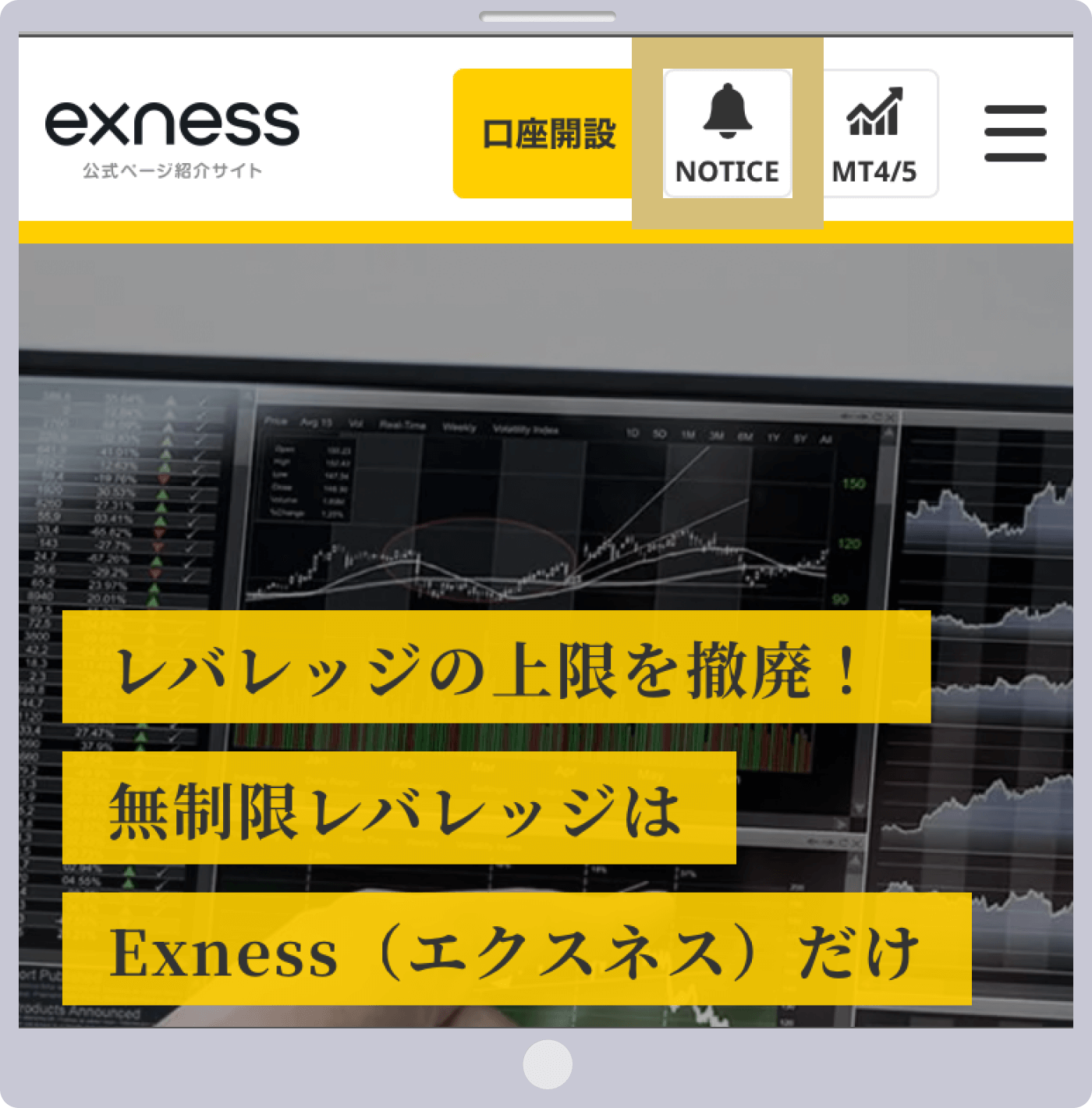
Exnessトップページ(NOTICE)
Step 8

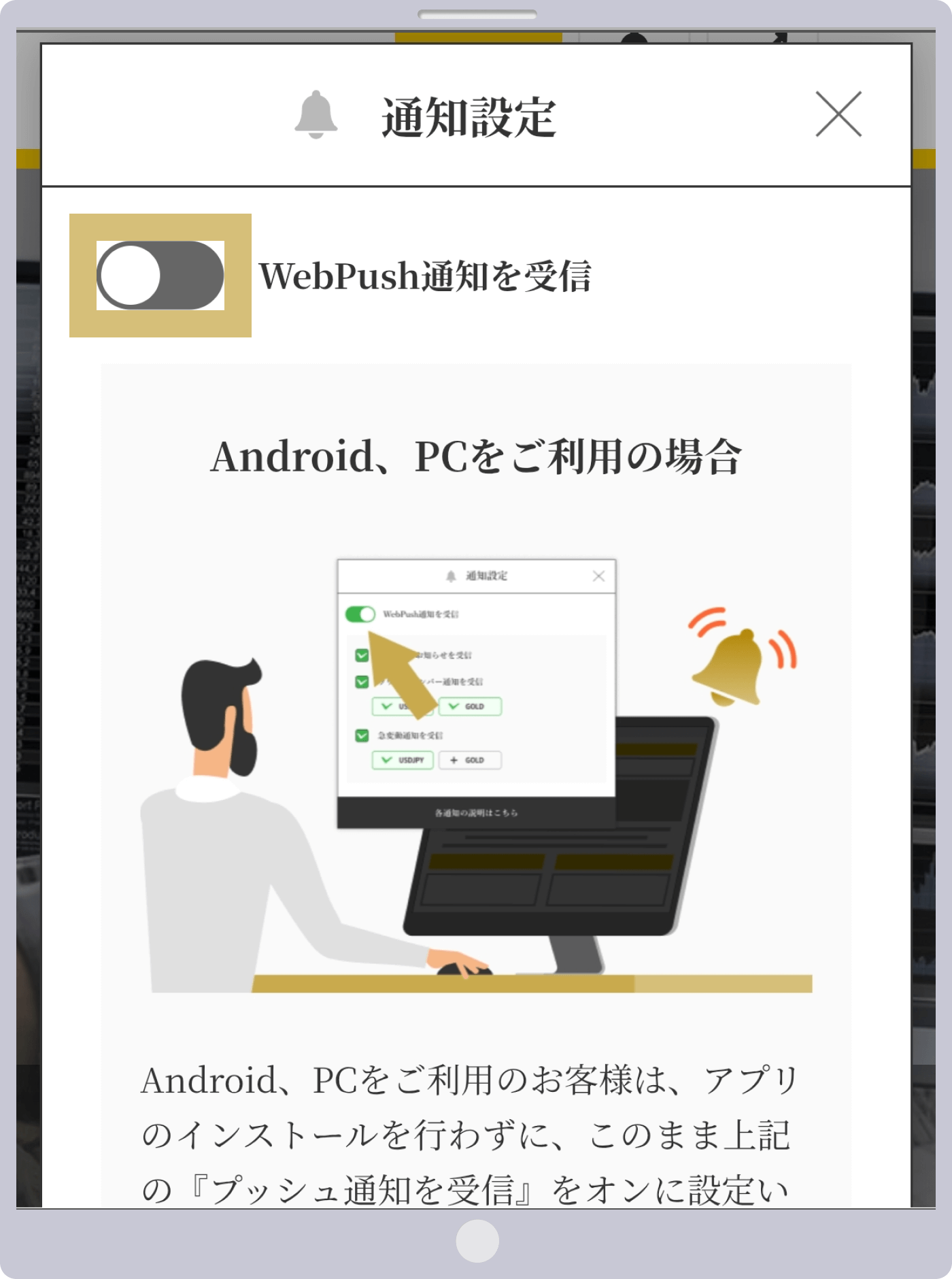
Tap the button displayed to the left of "Receive WebPush notifications."

Exness通知設定(OFF)
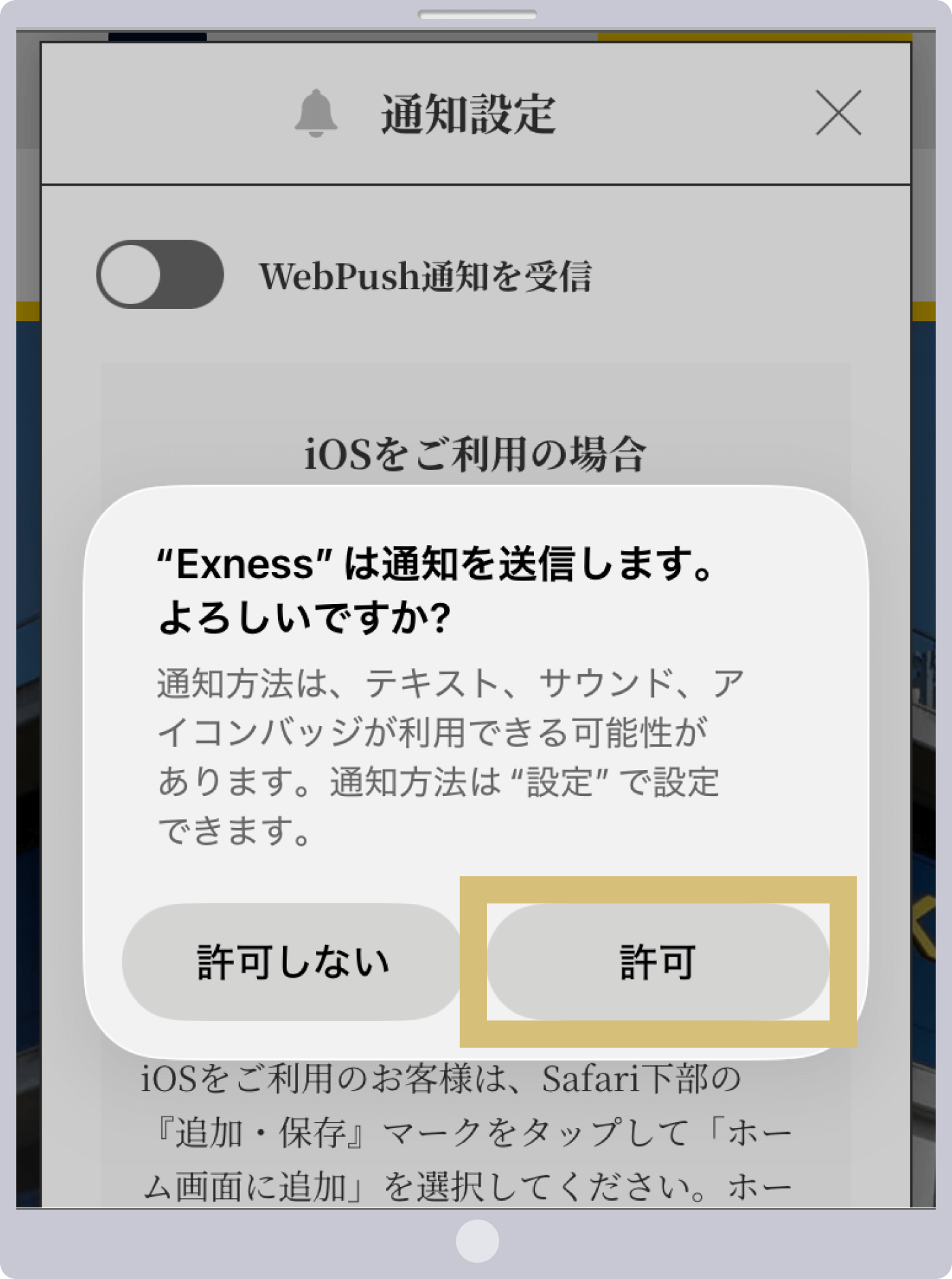
Step 9

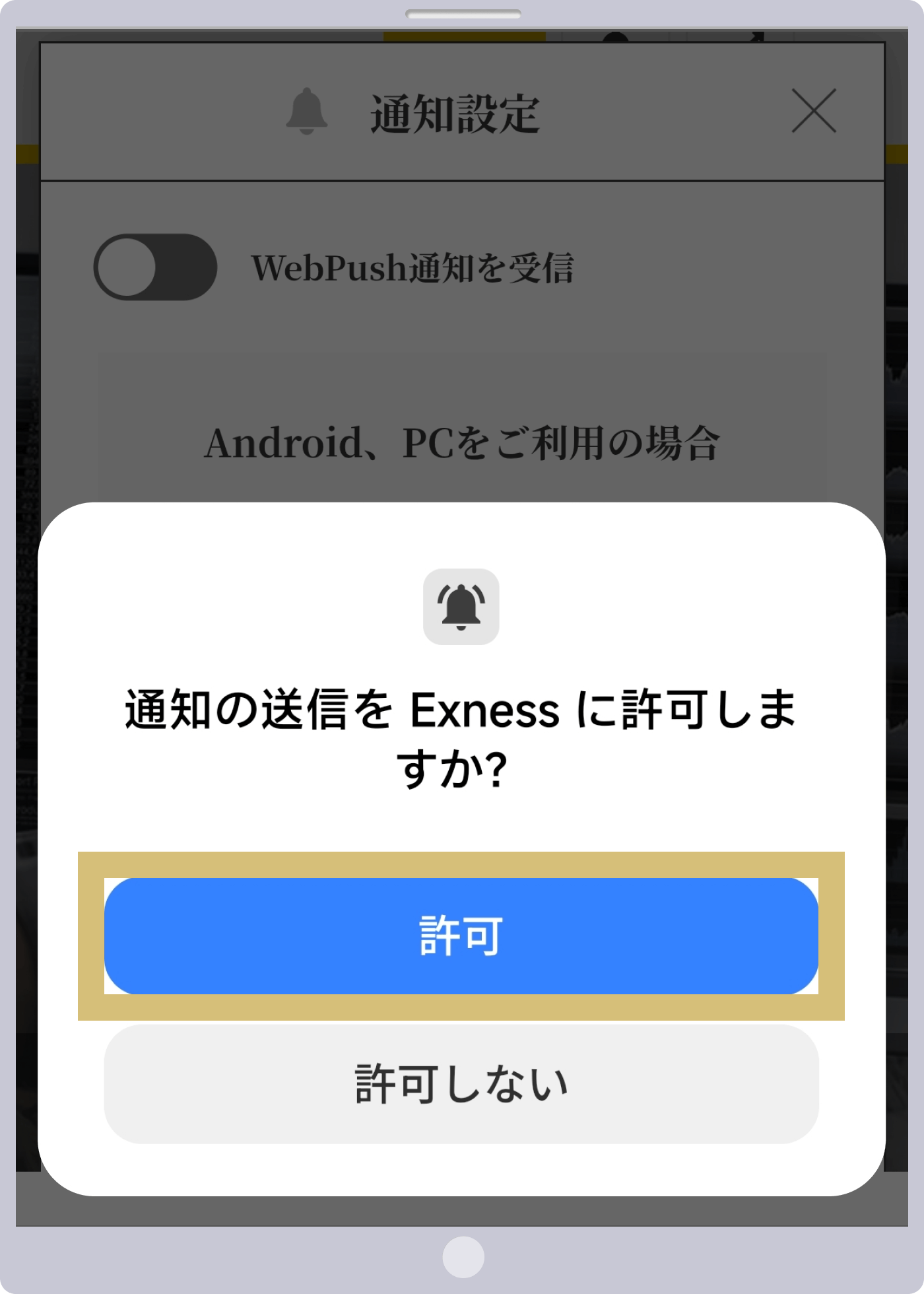
When a pop-up from Exness appears regarding notification settings, tap "Allow."

Exness通知設定(ポップアップ)
Step 10

Once you see that the "Receive WebPush Notifications" button is green and the checkbox next to the items you want to receive is checked, your push notification settings are complete.
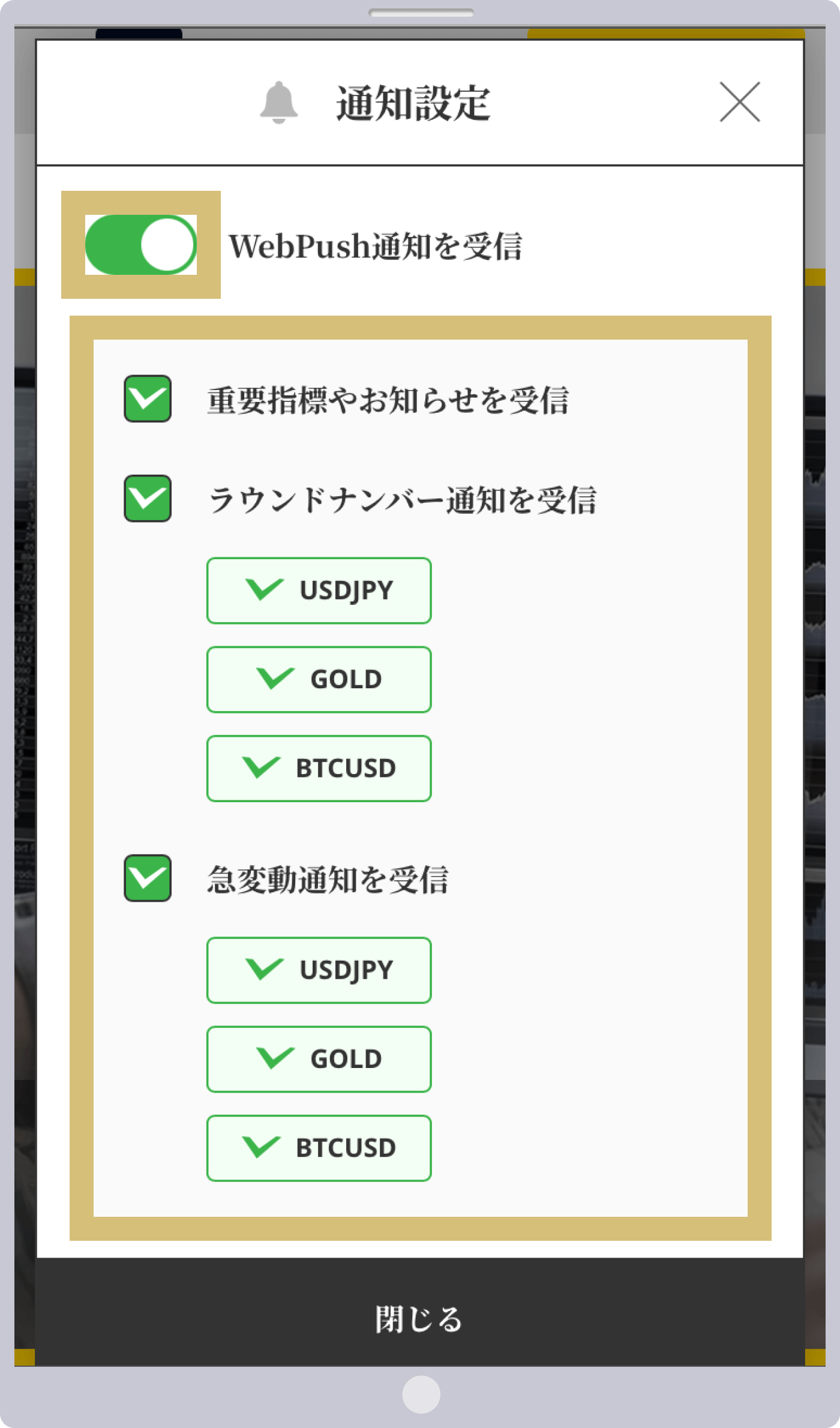
Exness通知設定(ON)

How to Enable Push Notifications on Exness (Android OS Version)
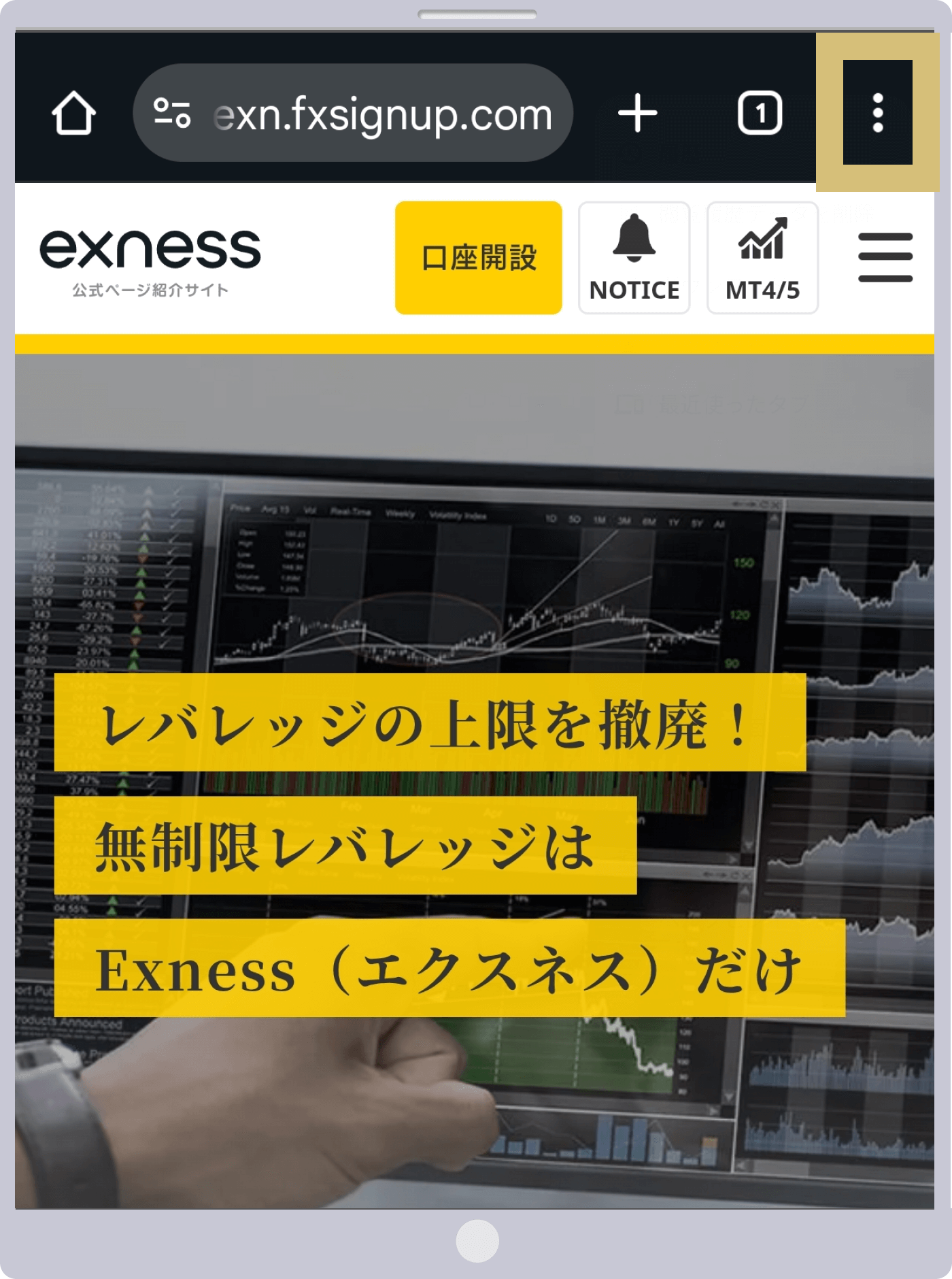
Step 1

Open Exness in Chrome and display the browser menu.

Exnessトップページ
Step 2

Tap "Add to Home Screen" in the menu.
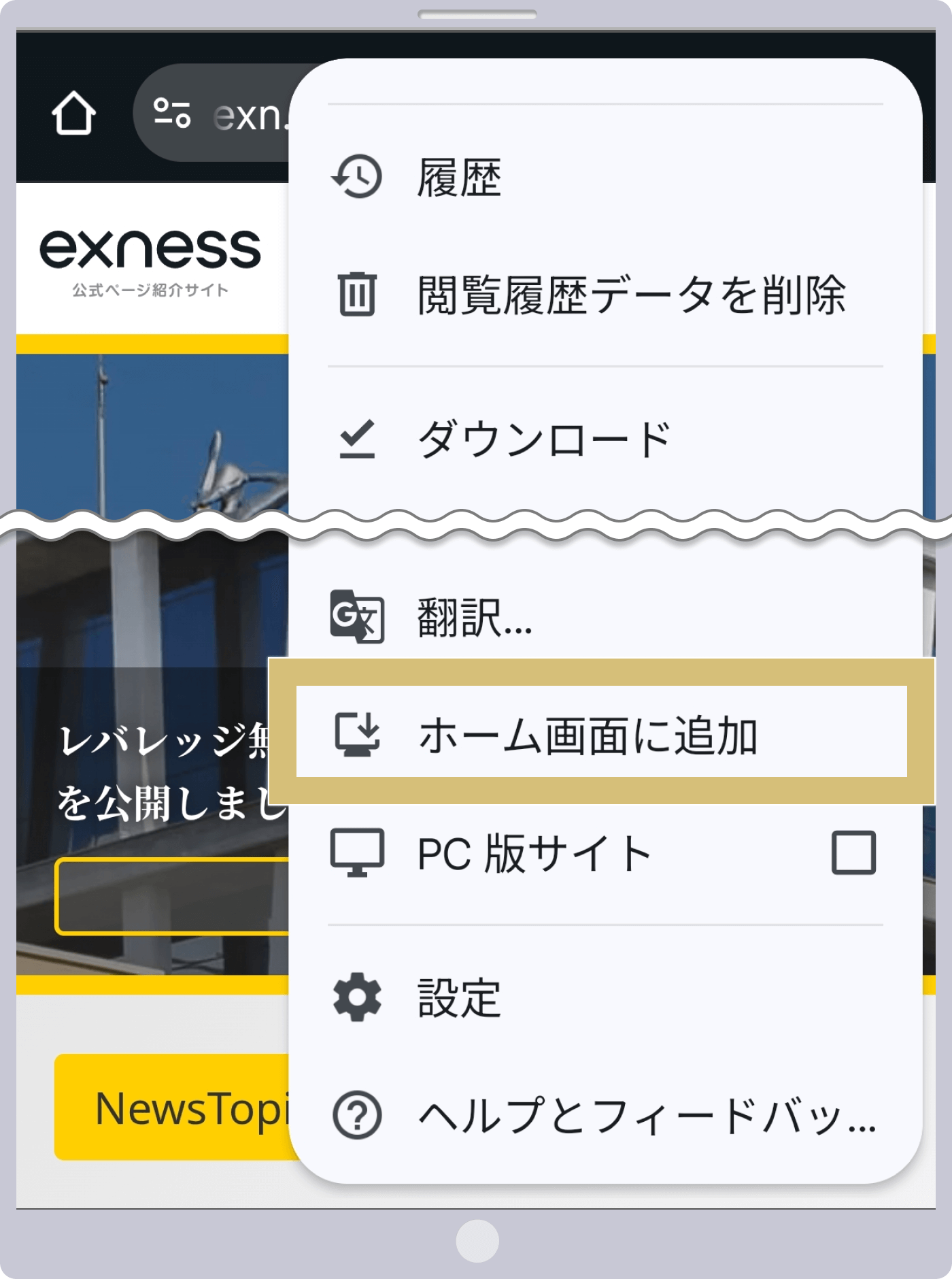
Exnessブラウザメニュー
Step 3

Tap "Install" to add Exness to your home screen.
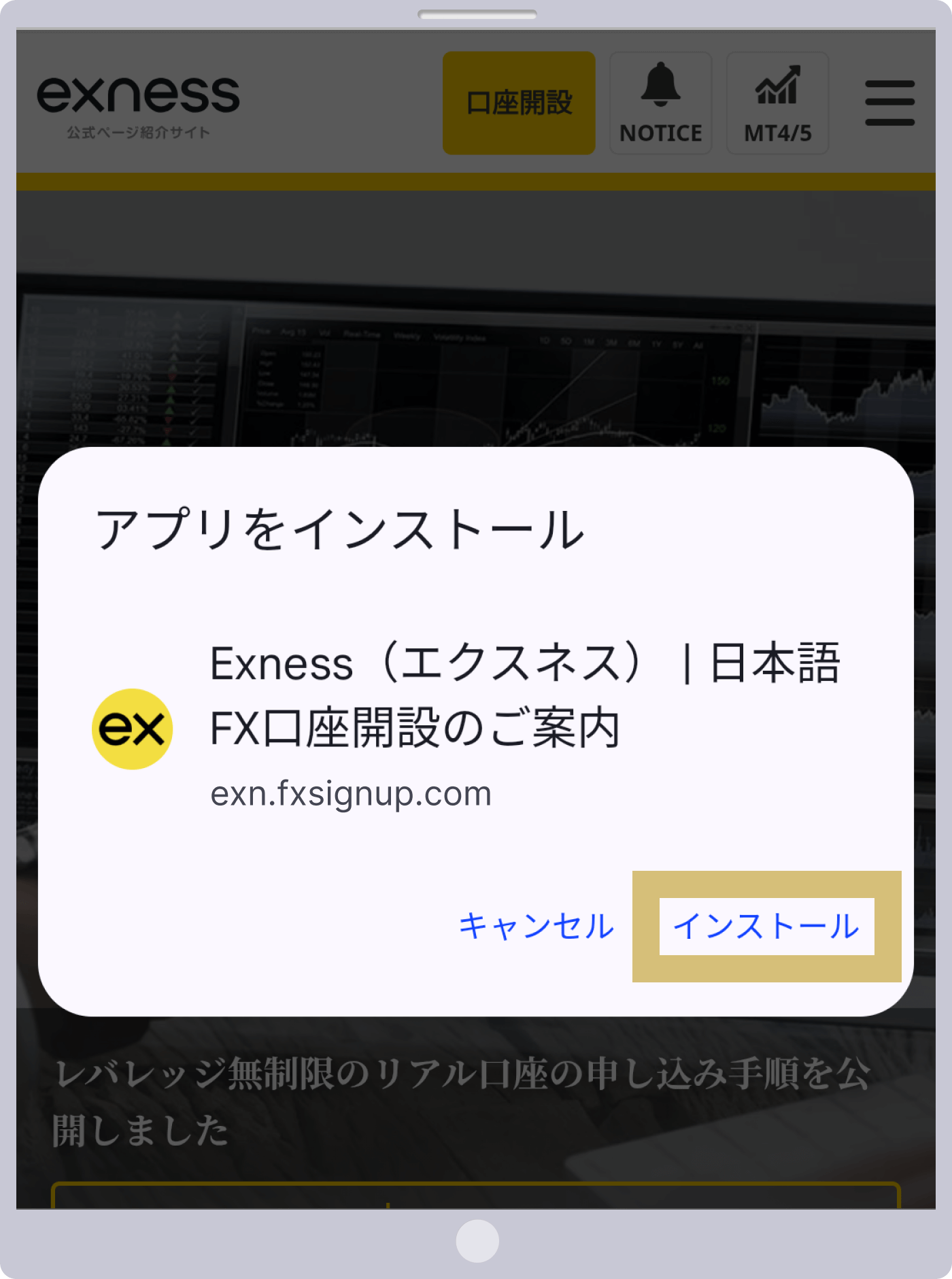
Exnessホーム画面に追加
Step 4

Tap the Exness icon on the home screen to open Exness again.
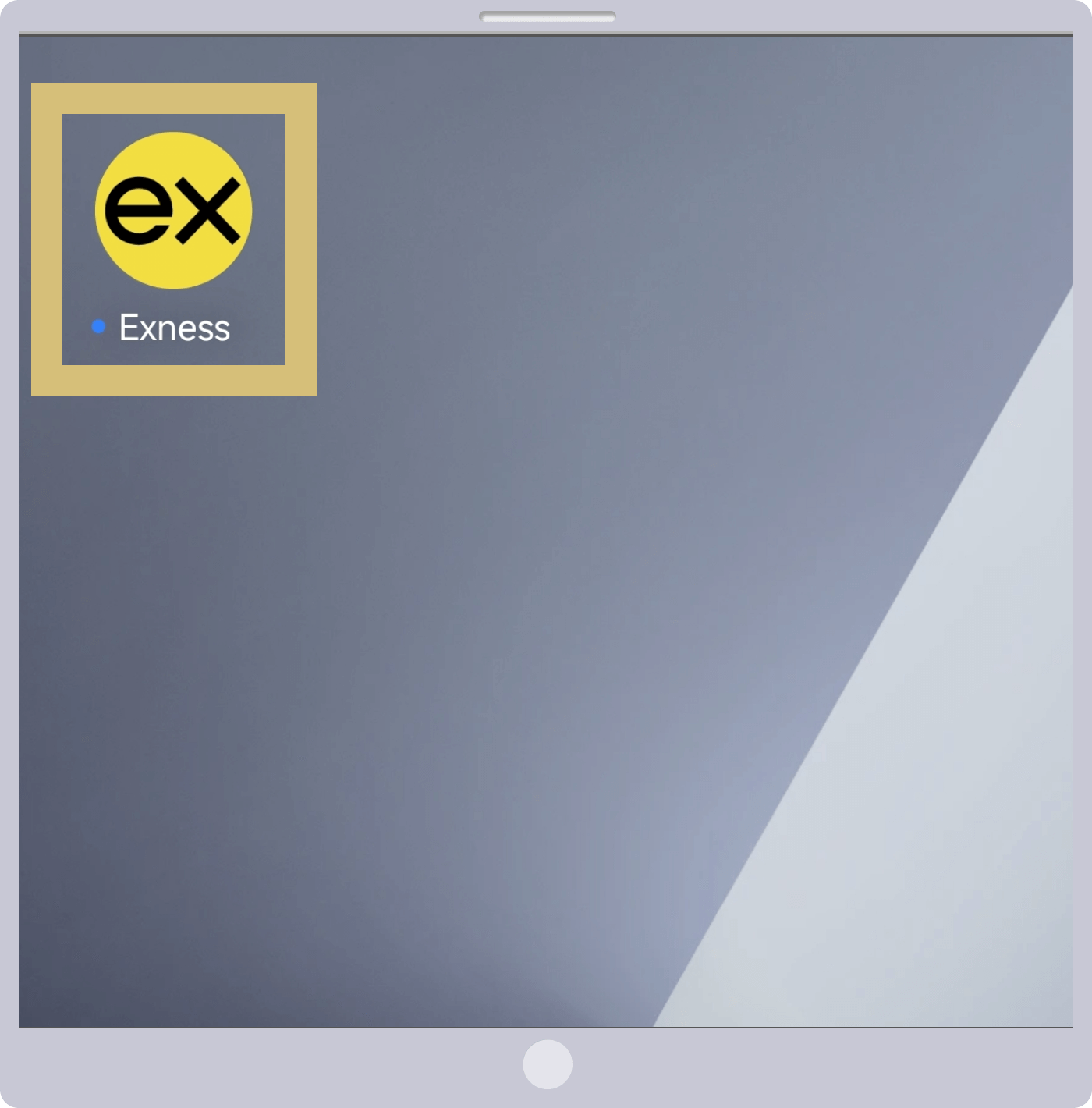
Exnessホーム画面アイコン
Step 5

Tap "NOTICE" in the upper-right corner of the screen.
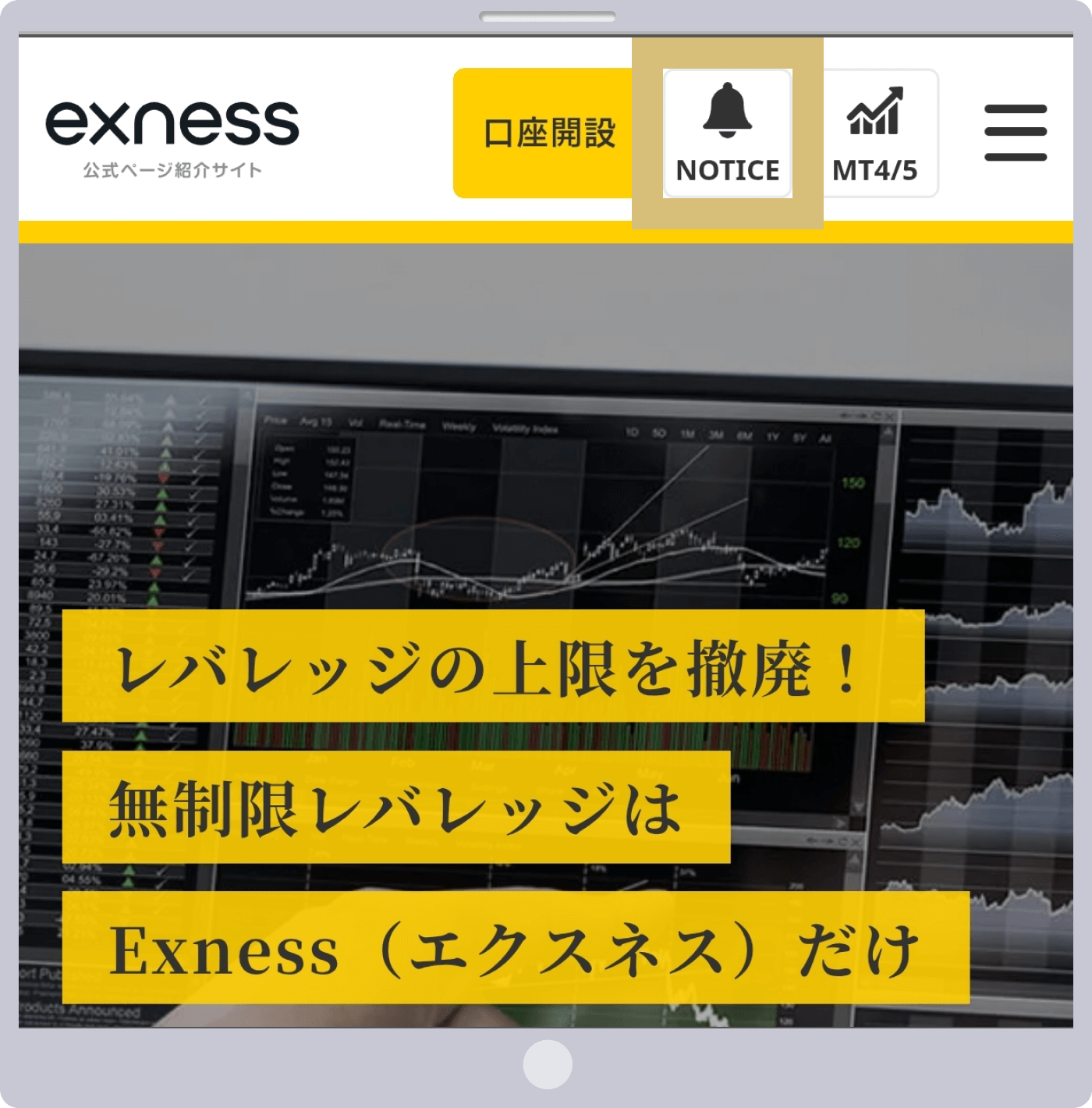
Exnessトップページ(NOTICE)
Step 6

Tap the button displayed to the left of "Receive WebPush notifications."

Exness通知設定(OFF)
Step 7

When a pop-up from Exness appears regarding notification settings, tap "Allow."

Exness通知設定(ポップアップ)
Step 8

Once you see that the "Receive WebPush Notifications" button is green and the checkbox next to the items you want to receive is checked, your push notification settings are complete.
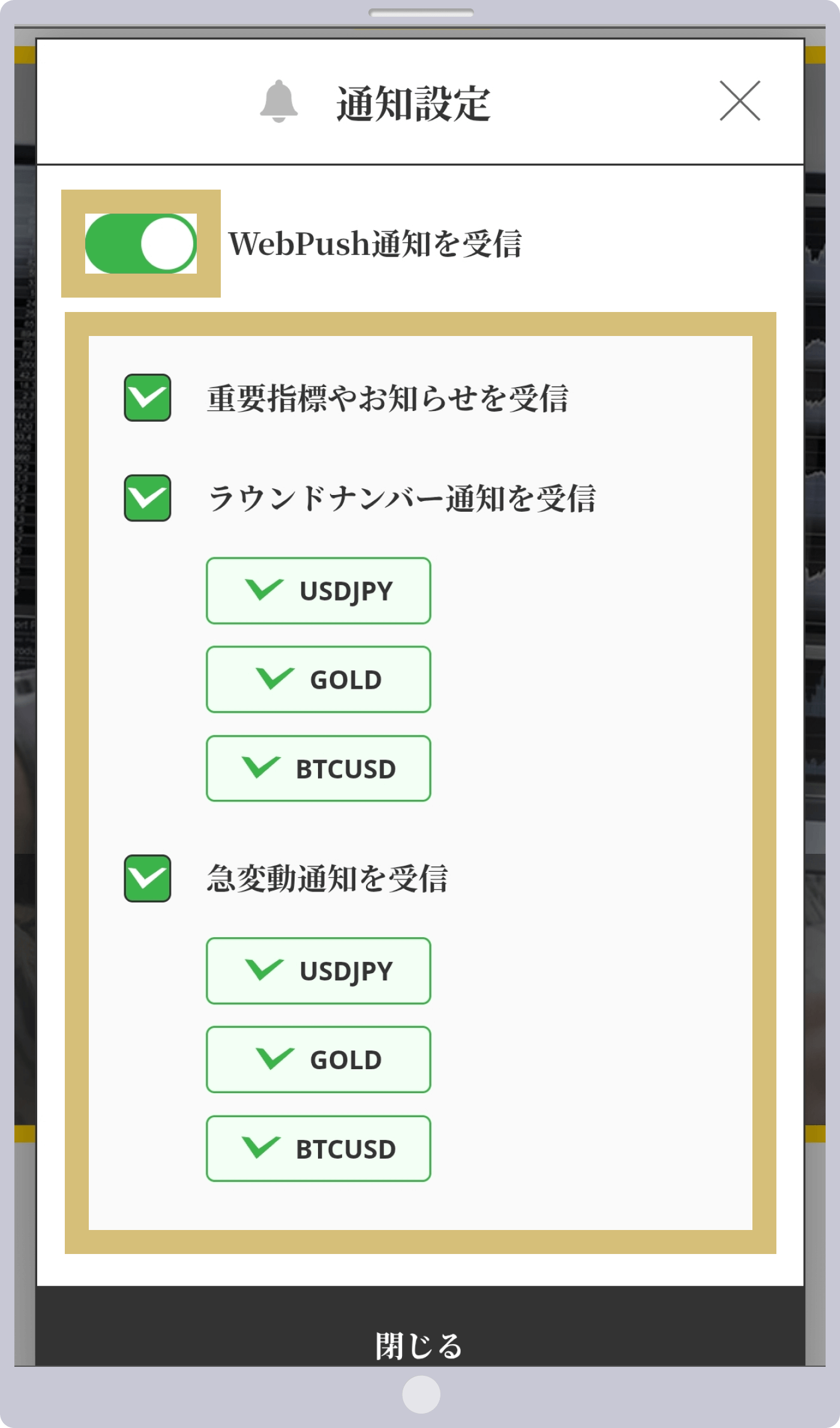
Exness通知設定(ON)
alert
Notification Settings
close

If you're using iOS

iOSをご利用の場合

If you're using iOS, tap the "Add to Home Screen" icon at the bottom of Safari and select "Add to Home Screen." Once you've added it to your Home Screen, you can turn on "Receive Push Notifications" as shown above.

If you are using an Android device or a PC

Android、PCをご利用の場合

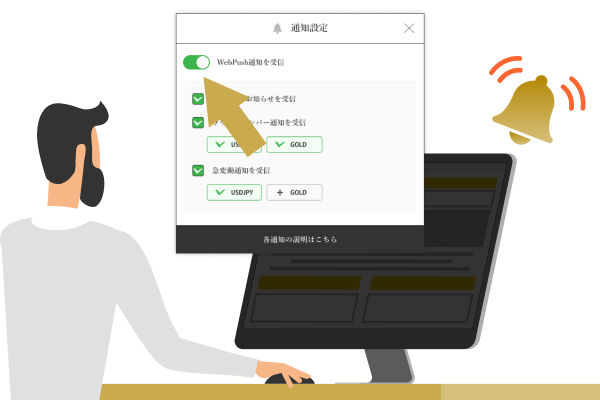
If you're using an Android device or a PC, you can simply turn on "Receive push notifications" above without installing the app. (If your browser asks for permission, please select "Allow.")

You can find instructions on how to add this to your smartphone's home screen below.

US Dollar/Japanese Yen
Gold/US Dollar
Bitcoin/US Dollar
US Dollar/Japanese Yen
Gold/US Dollar
Bitcoin/US Dollar
Close
Click here for a description of each notification
close
Details of each notification
line Receive key metrics and announcements

You will receive notifications about key metrics and limited-time promotions. If you turn this feature off, you may not be able to participate in limited-time promotions.

line Receive a round number notification

A feature that sends notifications when a price reaches a round number. These notifications help traders capitalize on trading opportunities and manage risk, making them a popular tool among many traders.

polygon US Dollar/Japanese Yen

Notifications are sent for every 100 pips (1 JPY) (e.g., $1 = 147 JPY, $1 = 148 JPY, etc.). Notifications for the same exchange rate are reset after 3 days (72 hours).

polygon Gold/US Dollar

Notifications are sent every 500 pips (50 USD) (e.g., $3,000, $3,050, etc.). Notifications for the same rate are reset after 3 days (72 hours) have passed.

polygon Bitcoin/US Dollar

Notifications are sent every $5,000 (e.g., $110,000, $115,000, etc.). Notifications at the same rate are reset after 3 days (72 hours).

line Receive notifications of sudden price fluctuations (sharp rises or falls in exchange rates)

Receive real-time notifications of price fluctuations for USD/JPY, gold, and Bitcoin. Never miss a trading opportunity, even when you’re on the go, and place orders instantly in response to market conditions.

polygon US Dollar/Japanese Yen

You will receive a notification when there is a price fluctuation of 30 pips (0.3 JPY) or more within 10 minutes (sharp rise or fall). After that, notifications for sudden price fluctuations under the same conditions will be paused for one hour.

polygon Gold/US Dollar

Receive a notification when the price fluctuates by more than $20 within an hour (sharp rise or fall). After that, notifications for sudden price fluctuations under the same conditions will be paused for 4 hours.

polygon Bitcoin/US Dollar

Receive a notification when the price fluctuates by more than $2,000 within an hour (sharp rise or fall). After that, notifications for sudden price fluctuations under the same conditions will be paused for 4 hours.

Return to Notification Settings